


Most WordPress site owners don’t realize it, but a poor search experience can quietly drive visitors away. If your search results page has a high bounce rate, there’s a good chance users are getting frustrated with slow, unhelpful results.
That’s where live Ajax search comes in.
Live Ajax search solves this by showing results instantly as users type, without reloading the page. It works just like Google’s autocomplete and makes it easier for visitors to find pages, posts, or products faster.
In this guide, we’ll show you how to add live Ajax search to WordPress the easy way. After testing several tools, we recommend using SearchWP for the best results. 🙌

Why Add Live Ajax Search to WordPress?
Live Ajax search, also called instant search, improves the built-in WordPress search by adding a dropdown and autocomplete feature that’s common in search engines like Google.
Here’s an example of a live Ajax search in action:

Live search guesses what users are searching for as they type, which helps them find relevant content faster. This will often improve user experience, increase pageviews, and reduce the bounce rate.
With Ajax live search, you can show relevant results without even reloading the page. This makes it a great choice for eCommerce stores, as shoppers can instantly see products that match their search query.
In this way, instant search can help you create a smarter product search.
That being said, we’ll show you how to add a live Ajax-powered search functionality to WordPress. Here are all the topics we’ll cover in the next sections:
Let’s get started!
Step 1: Enable Ajax Search With a WordPress Plugin
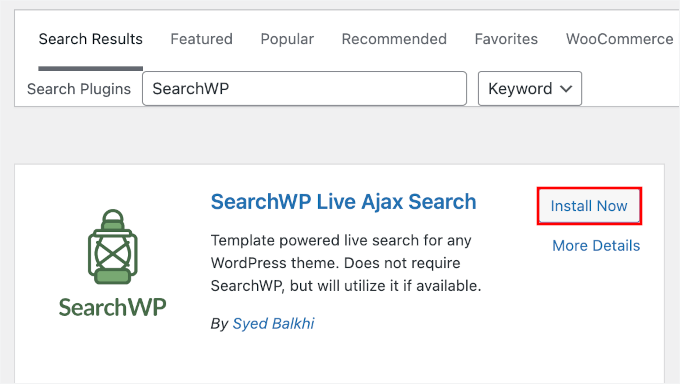
The easiest way to add Ajax live search to WordPress is by using SearchWP Live Ajax Search. This free plugin automatically adds instant real-time search to your website and works perfectly with any WordPress theme.
Plus, we’ve tested it extensively, and you can find out more about it in our full SearchWP review.

The first thing you need to do is install and activate the plugin.
From your WordPress admin dashboard, you can head over to Plugins » Add New Plugin.

On the next screen, you can use the search bar to quickly find the plugin.
Once found, click the ‘Install Now’ button and then ‘Activate’ when it appears.
For more details, see our step-by-step guide on how to install a WordPress plugin.
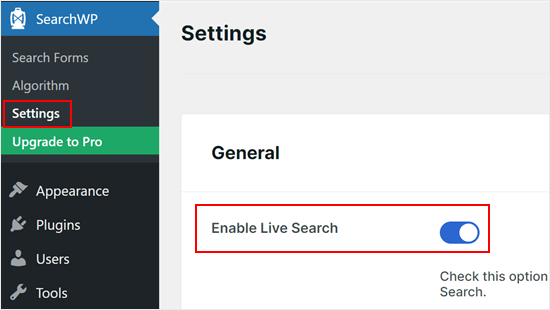
Upon activation, you can go to SearchWP » Settings and click on the ‘Enable Live Search’ toggle.
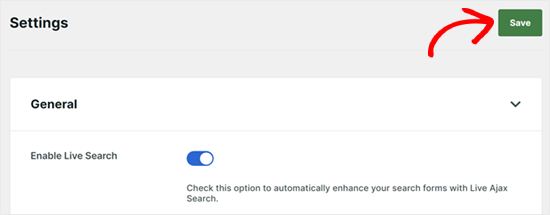
With that done, click on ‘Save’ to store your changes.
Now, your default WordPress search block will have live Ajax search enabled.
Step 2: Add the Ajax Live Search Form to Your WordPress Site
After activating the plugin, every search bar on your site will use live Ajax search automatically, including any custom search form in WordPress you’ve created.
Most WordPress themes have a built-in search bar. However, after activating live Ajax search, you may want to add a search bar to other areas of your WordPress website.
Adding Live Ajax Search to WordPress Pages
You may want to add a live Ajax search box to specific pages of your website. For example, you might add a bar to your custom archive page so visitors can easily search through the archives.
To do this, you’ll need to open the post or page where you want to add the search bar. For this example, we will show you how to add live search to a WordPress page, but the steps will be similar for posts.
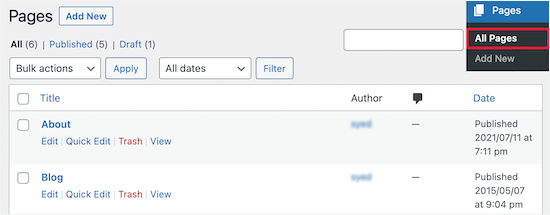
First, go to Pages » All Pages and then select the page you want to edit.
In the WordPress block editor (Gutenberg), click the ‘+’ icon.
This will bring up the blocks menu.

Here, type ‘Search’ into the search field and then click on the ‘Search’ block to add it to your page.
WordPress will automatically place the search bar for you.
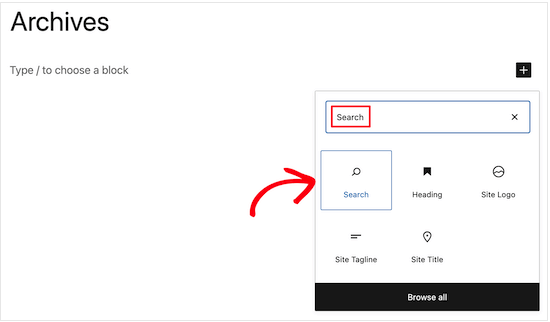
By default, the box has a ‘Search’ heading. You can change this by typing into the label field, or you can delete the heading text completely.
You can also type in an optional placeholder, which is the text that WordPress will show before visitors start typing their search query. For example, if you run an online store, then you may want to use something like ‘Search for products’ or ‘Find great deals.’
When you are happy with how the search bar is set up, click on the ‘Update’ button.
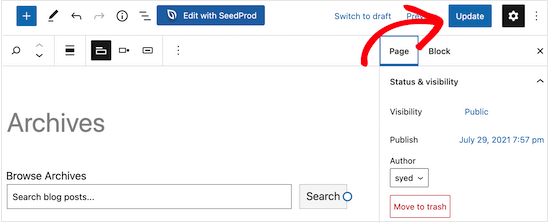
Now, your visitors can use the live search bar to quickly find what they are looking for.
You can use the same process to add a search bar to any post or page.

Adding Live Ajax Search to WordPress Sidebar
Many website owners add a search bar to their website’s sidebar.

This allows visitors to perform a search no matter where they are on your site.
To add the search widget to WordPress, simply go to Appearance » Widgets.
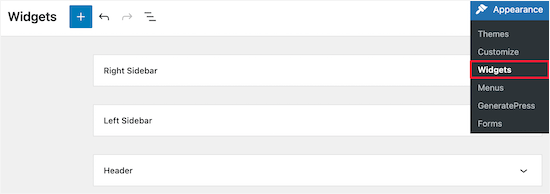
This page shows all the different widget-ready areas of your WordPress theme. The options you see may vary, but most themes will have a Sidebar, Right Sidebar, Left Sidebar, or a similar section.
Simply click to expand the area where you want to add the live Ajax search bar. Then, click on the ‘+’ icon.
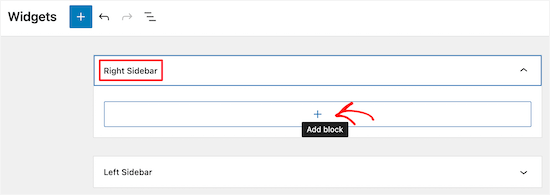
In the popup that appears, find and select the ‘Search’ block when it appears.
This will automatically add the live Ajax search widget to the sidebar or a similar section.
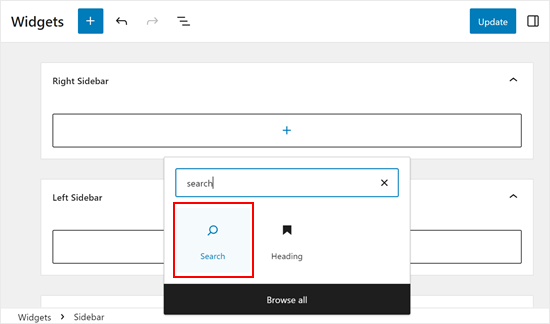
When you are finished, click the ‘Update’ button to save your changes and make the Ajax search bar live on your WordPress blog or website.
Now, if you visit your site, you’ll see a live Ajax search bar in the sidebar or a similar section.
You can follow the same process to add the search bar to any other widget-ready area.
💡 Insider Tip: To add a search bar to your navigation menu instead, see our guide on how to add a search bar to your WordPress menu.
Adding Live Search to the WordPress Sidebar Using the Site Editor
If you are using a block-based theme such as ThemeIsle Hestia Pro, then you can add a live Ajax search to any area of your theme using the full site editor.
You can even add a search bar to areas you can’t edit using the standard WordPress content editor. For example, you can add a search field to your 404 page template.
To get started, head over to Appearance » Editor in the WordPress dashboard.

By default, the full site editor shows your theme’s home template, but you can add a search block to any template.
To see all the available options, select ‘Templates’ in the left-hand menu.
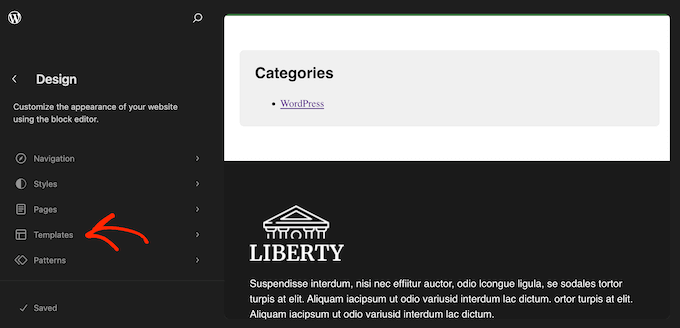
You can now click on the template where you want to add the live Ajax search.
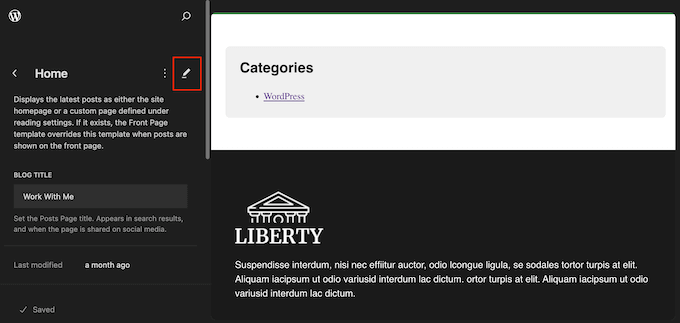
WordPress will show a preview of the design and any page settings that you can edit. To go ahead and edit this template, click on the small pencil icon and open the block editor.
With that done, click on the blue ‘+’ icon.
In the panel that appears, type in ‘Search.’
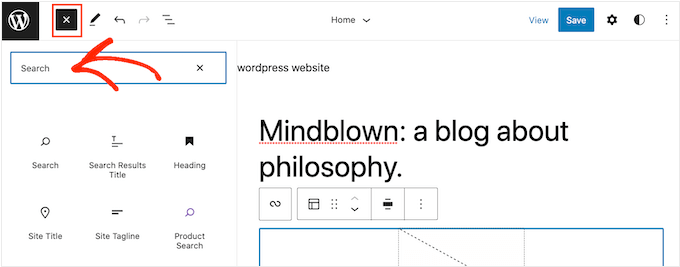
When the ‘Search’ block shows up, drag it to the area where you want to show the field.
To customize the block title or placeholder text, simply type the new messaging into the search block.
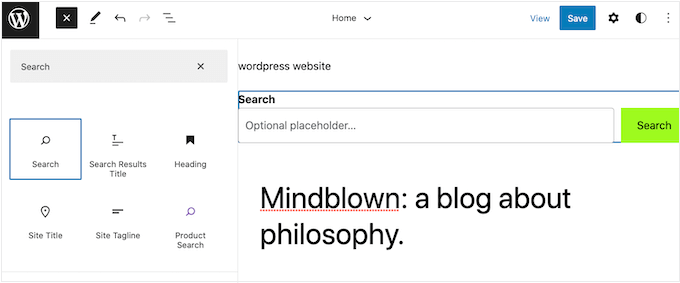
When you are happy with how the block looks, click on ‘Save’ to make the Ajax search bar live.
Bonus Tip: Customize Your Instant WordPress Search Engine
SearchWP Live Ajax Search perfectly integrates with the built-in WordPress search. However, this default search is quite limited and isn’t good at showing accurate search results.
This is where SearchWP comes in. It’s the best WordPress search plugin on the market, used by over 30,000 websites.
This plugin lets visitors search content that WordPress ignores by default, including:
- custom fields
- text files
- PDF documents
- WooCommerce products
- custom post types, and more.
By installing SearchWP, you can completely customize your site’s new instant search feature without writing any code.
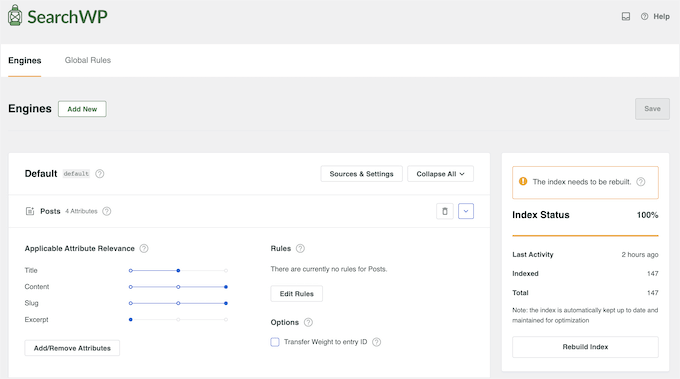
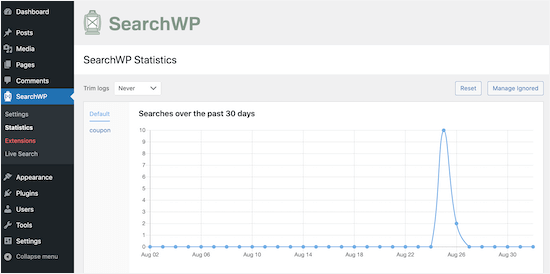
SearchWP also has advanced analytics and statistics that let you see what your visitors are searching for.
You can use this insight to fine-tune how your site’s search is set up and identify the most popular content on your website. This can help you generate new blog post ideas based on what visitors are already searching for.
For more information, you can see these guides:
- How to Improve WordPress Search with SearchWP (Quick & Easy)
- How to Customize the Search Results Page in WordPress
FAQs About Adding Live AJAX Search in WordPress
Still have questions? These FAQs cover key points about adding live AJAX search to your WordPress site.
What is Ajax-powered search, and how does it benefit my WordPress site?
Ajax-powered search provides real-time results as users type their queries into the search bar. This improves user experience by offering quicker access to relevant content without the need for page reloads.
Can live Ajax search be used with eCommerce plugins like WooCommerce?
Yes, live Ajax search can be integrated with eCommerce plugins like WooCommerce to offer instant product search capabilities. This can help shoppers find products quickly and easily.
How can I track what users are searching for?
Most WordPress search plugins offer built-in analytics that let you see what visitors are searching for, which results they click on, and which queries return no results. This data can help you uncover content gaps, improve your site’s structure, and optimize the overall user experience.
For more information, you can see our guide on how to see search analytics in WordPress.
More Guides on Improving WordPress Search
We hope this article helped you learn how to add live Ajax search to your WordPress site.
Remember, this free plugin changes how the search looks (live dropdowns). If you want to improve what results show up (like searching PDF content, WooCommerce attributes, or custom fields), you should check out the premium SearchWP plugin.
Here are some guides to help you get started:
- How to Exclude Pages from WordPress Search Results
- How to Add PDF Indexing and Searching in WordPress
- How to Make Blog Post Comments Searchable in WordPress
- How to Make Custom Fields Searchable in WordPress
- How to Use Multiple Search Forms in WordPress
If you liked this article, then please subscribe to our YouTube Channel for WordPress video tutorials. You can also find us on Twitter and Facebook.



Jiří Vaněk
I first encountered the Search WP plugin when I wanted to implement search functionality within comments, and the more I learn about it, the more I love it. The autocomplete feature, similar to what Google has, is fantastic. Since I’m using this plugin mainly for searching through comments, I’ll definitely give the Live Ajax Search a try as well. It looks great and adds a touch of professionalism to the website.
Mrteesurez
Thanks for this post.
I love Ajax search as it makes users search and find the content in real time. I recommend this to all blogs to have it implemented.
I also support adding an ajax search field to a 404 page, the user landed on the page can just search and find a post related to what he is looking for.
Eric Malta
Hi, after activated this comment function in ajax, my server CPU usages went high, so i have to terminated it. I thing this is for big hosting servers.
WPBeginner Support
Sadly, any ajax solution will increase your CPU usage but thank you for sharing this for anyone who has concerns for their hosting CPU usage
Admin