


Moving your WordPress site to a new domain can feel risky. You don’t want to lose your hard-earned SEO rankings, and you need to make sure visitors who use your old domain are automatically sent to the new one.
In this guide, we will show you how to move WordPress to a new domain without losing your SEO. We have used these exact steps to migrate hundreds of websites, including our own.
Here is a quick overview of everything we will cover in this tutorial. You can click any link below to jump straight to that section:
- What to Know Before You Change Domains
- What You Need to Get Started
- Step 1: Create a Duplicator Backup of Your WordPress Site
- Step 2: Create a Database for Your New Domain Name
- Step 3: Unpack WordPress on Your New Domain Name
- Step 4: Set Up Permanent 301 Redirects
- Step 5: Notify Google About Your New Domain
- Changing Only Your Domain Name (Same Hosting)
- How to Move WordPress to a New Domain Without a Plugin
- Post-Migration SEO Checklist
- Frequently Asked Questions About Moving a WordPress Site
- Video Tutorial
What to Know Before You Change Domains
Not every domain change needs a full migration. Before you start, pick the scenario that matches your situation:
- You are moving your WordPress site to a new domain, including moving the site to a new hosting account or server. Follow the steps in this guide.
- You only want to rename your domain, and the website hosting stays exactly where it is. Skip to changing only your domain name.
- You are keeping your domain but switching hosting companies. This guide is not for you. See our tutorial on moving a WordPress site to a new host instead.
Switching domains will temporarily affect your search rankings and traffic while Google and other search engines adjust to the change. This happens to every website that changes its domain, and it is normal.
However, you can greatly reduce the SEO impact by setting up proper 301 redirects and notifying search engines the right way. That is exactly what the steps below do.
Lastly, if your old website is on WordPress.com, then you need to follow the instructions in our guide on how to move from WordPress.com to WordPress.org instead.
What You Need to Get Started
In this guide, we are assuming that you have your WordPress website set up on oldsite.com, and you are trying to migrate it to newsite.com.
Here is what you need before you start:
- Both domains added to your hosting account, with the new domain’s DNS pointing at the server where the new site will live.
- Access to your web hosting control panel.
- Basic familiarity with using an FTP client like FileZilla, or the File Manager app in your hosting dashboard.
If you still need hosting for your new domain, then Bluehost plans include a free domain name.
Step 1: Create a Duplicator Backup of Your WordPress Site
The first thing you need to do is create a full backup of your WordPress site. You will use this backup to create an exact copy of your website on the new domain.
While there are many WordPress backup plugins available, we will be using the free Duplicator Lite plugin for this tutorial. It does everything this migration needs, and you will not need a paid plan to move your domain.
Over 1,500,000 professionals use Duplicator, and it has worked reliably for us even on very large sites.
Let’s start by installing and activating Duplicator on your old domain. For more details, see our step-by-step guide on how to install a WordPress plugin.
Once activated, the plugin will add a Duplicator menu item in your WordPress admin. You need to go to the Duplicator » Backups page and then click on the ‘Create New’ button.
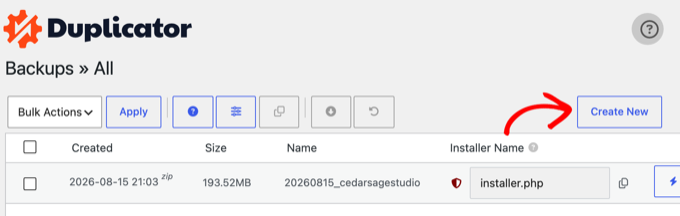
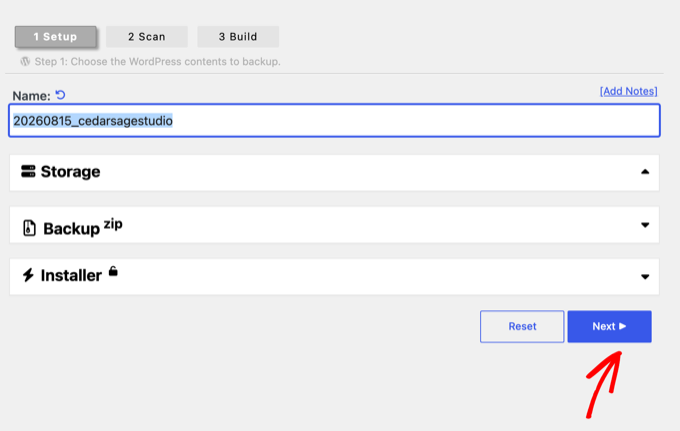
Duplicator will now start the backup wizard and automatically assign a name to this backup.
Click on the ‘Next’ button to continue.
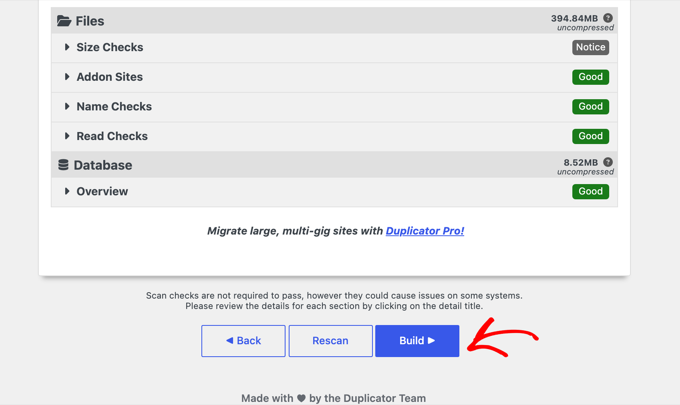
Duplicator will now scan your site to see if everything is in order. Items marked ‘Good’ passed the check, and a ‘Notice’ is just informational.
If the plugin finds a real issue, then you will see a warning with instructions on how to fix it.
If the results look good, then click on the ‘Build’ button.
The plugin will now package your website files into a backup. Depending on the size of your site, this may take a few moments.
Once finished, you will see the download options. Click ‘Download Both Files’ to save the installer and the archive to your computer.
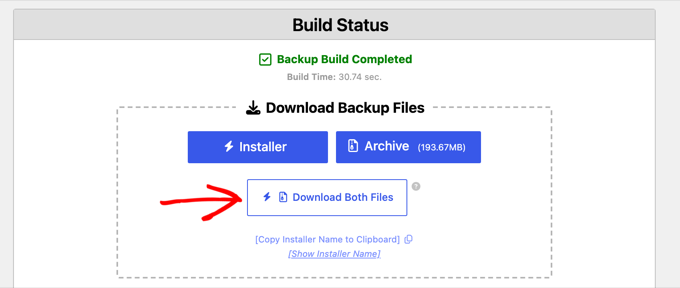
The archive file is a complete copy of your WordPress files. It includes your WordPress themes, permalink settings, plugins, uploads, and any other files created by WordPress plugins.
The installer script is a PHP file that will automate and run the WordPress migration by unpacking the archive file.
If you later want scheduled backups, cloud storage, or 1-click recovery, then the paid Duplicator Pro plan adds those features.
Step 2: Create a Database for Your New Domain Name
The two files you just downloaded contain a copy of your old site’s database. Before you unpack your files, create a fresh, empty MySQL database on your new domain.
If you have already created a database, then you can skip this step.
To create a database, you need to visit your hosting account’s cPanel dashboard and find the ‘Databases’ section.
We will show you how to locate it on Bluehost, but the basic instructions are the same and should apply to all hosting providers.
Log in to your Bluehost account dashboard and click on the ‘Manage Site’ button under your website.
Under your site settings, click on the cPanel button under the ‘Overview’ tab.
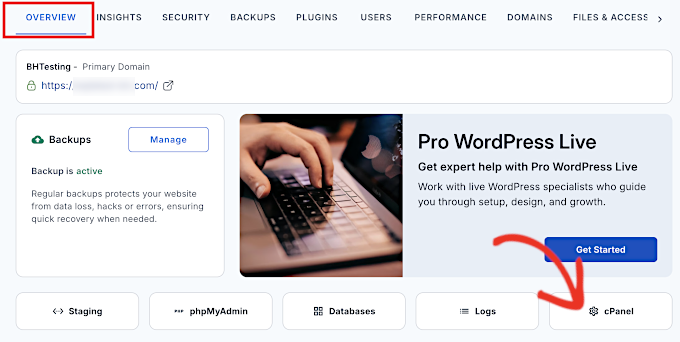
This will open the cPanel dashboard.
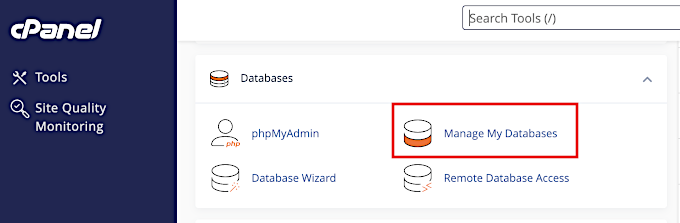
Scroll down to the Databases section and click on the ‘Manage My Databases’ option.
Provide a name for your database and then click on the ‘Create Database’ button.
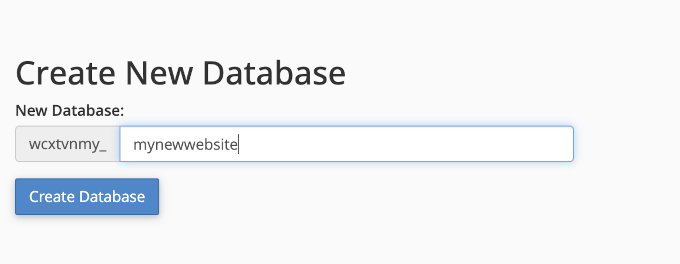
cPanel will now create a new database for you. After that, you need to scroll down to the MySQL Users section.
Next, provide a username and password for your new user and click on the ‘Create User’ button.
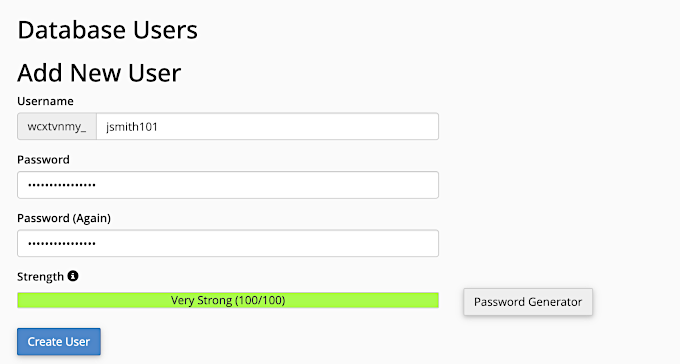
The new user you just created still does not have permission to work on the database. Let’s change that.
Scroll down to the ‘Add User to Database’ section. First, select the database user you created from the dropdown menu next to the ‘User’ field. Then select the new database you just created and click on the ‘Add’ button.
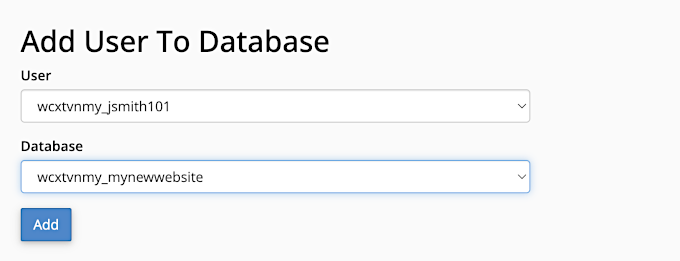
Next, cPanel will ask you to choose privileges for the user, which define what users can do with the database.
Select ‘All Privileges’ and click on the ‘Make Changes’ button to continue.
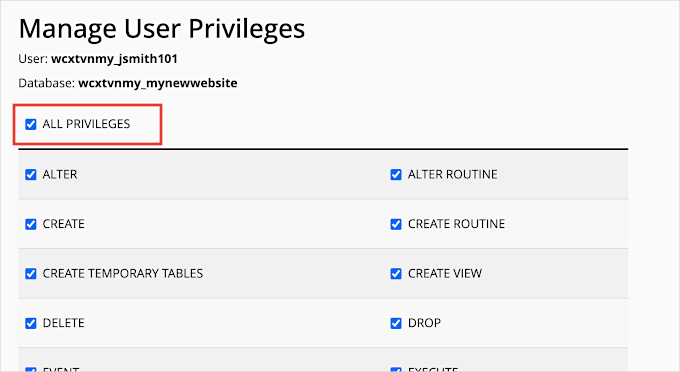
Your database is now ready, and you can use it to move WordPress to the new domain name.
Make sure to note down the database name, username, and password. You’ll need this information in the next step.
Step 3: Unpack WordPress on Your New Domain Name
Now, you need to upload the Duplicator files you downloaded earlier to your new domain name.
The Duplicator backup includes your WordPress installation as well, so you don’t need to install WordPress on your new domain.
First, connect to your domain name using an FTP client or the File Manager app in your hosting account. Once connected, make sure that the root directory of your website is empty.
After that, you can upload the archive and installer files to the root directory. This is usually called public_html.
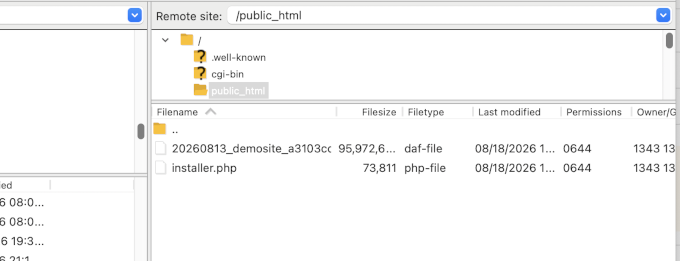
Once both files have finished uploading, you are now ready to unpack WordPress.
Open a new browser tab and go to the following URL:
https://newsite.com/installer.php
Don’t forget to replace newsite.com with your actual domain name. This will launch the Duplicator installer wizard, and you will see the ‘Step 1 of 2: Deployment’ screen.
Note: If your new domain doesn’t open or takes you to a different page, then you may need to wait for the DNS settings to update. This can take up to 24 hours, but it usually happens much faster.
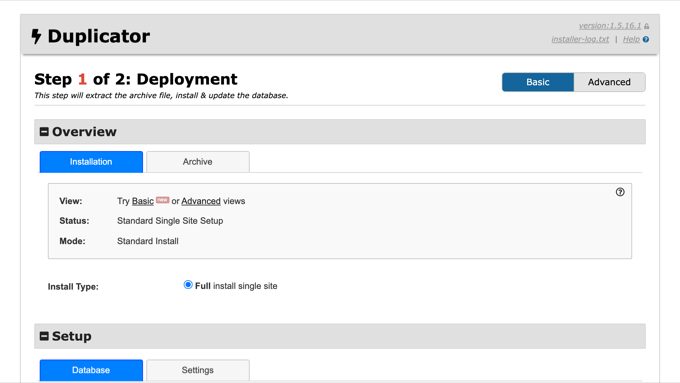
The installer will look for the archive file and then automatically select options for you on the screen.
Scroll down to the ‘Database Connection’ section under Setup. Here, you need to enter the information for the database you created in the previous step, then click on the ‘Validate’ button.
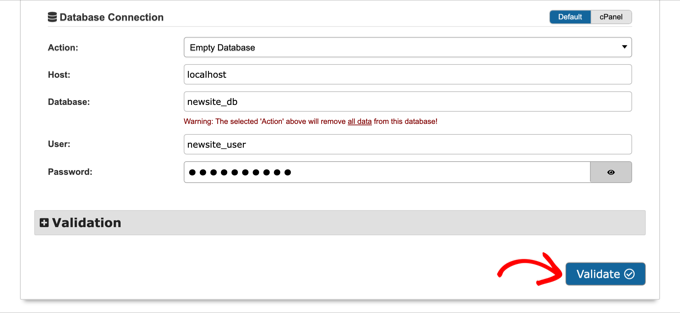
Duplicator will now attempt to connect to the database using the information you provided.
Upon success, it will show you a Validation Pass. Otherwise, it will show you a warning with details on how to fix it.
Click on the ‘Next’ button to continue.
Duplicator will now extract the archive, import your database, and automatically update the URLs to your new domain name. Once finished, you will see a success message with an Admin Login button.
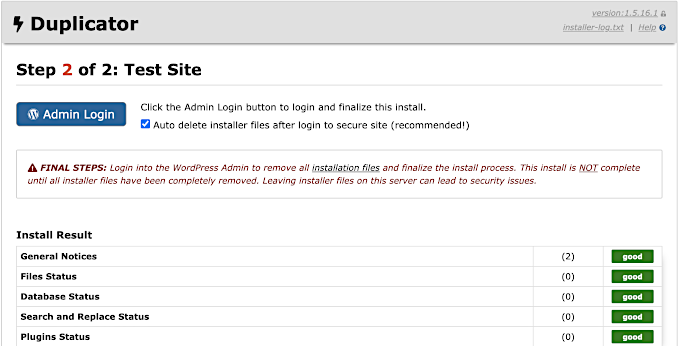
You can now click on the ‘Admin Login’ button to enter the WordPress admin area of your site on the new domain.
The installer turns on its ‘Auto delete installer files after login’ option by default. That means once you log in, Duplicator removes installer.php and the archive file for you.
Look for the notification confirming that Duplicator deleted these files, since leaving them on the server is a security risk. You can also remove them manually at any time from the Duplicator » Tools page.
Step 4: Set Up Permanent 301 Redirects
Your site is now live on the new domain, but anyone who types your old address still lands on the old site. So the next thing to do is to redirect them to the new domain.
You can do this by setting up 301 redirects. This is the most important step to protect your SEO.
Whenever someone lands on your old domain, a 301 redirect automatically sends them to the same post or page on your new domain instead of showing them a 404 error.
The redirect also tells search engines that the page has permanently moved, so the links and authority pointing at your old URL count for the new one.
At this point you have two websites: the original on your old domain and an identical copy on the new one, and you need to keep that old installation in place so it can keep redirecting visitors.
There are two ways to set up the redirects.
Method 1: Set Up 301 Redirects With .htaccess
With this method, you’ll edit the WordPress .htaccess file on your old domain. It works on Apache and LiteSpeed servers, which are widely used by WordPress hosting providers.
First, you need to connect to your old site using FTP or your host’s file manager.
You will find the .htaccess file in the same directory as your wp-includes and wp-admin folders. Open it and paste the following lines of code at the very top:
#Options +FollowSymLinks
RewriteEngine on
RewriteCond %{HTTP_HOST} ^(www.)?oldsite.com$ [NC]
RewriteRule ^(.*)$ https://www.newsite.com/$1 [R=301,L]
Make sure you replace oldsite.com with your old domain and www.newsite.com with your new domain in the above code. If your new site does not use www, then remove the www from the last line.
Once you save the changes, visit a few URLs on your old domain, including a blog post. Each one should automatically redirect you to the matching page on the new domain.
If nothing redirects, then your old site is likely on an NGINX server, which does not use .htaccess files.
In that case, you can use the redirect tool in your hosting control panel, since most hosts have one. Your hosting support can also add the redirect for you, or you can use Method 2 below, which works on any server because it runs through WordPress.
Method 2: Set Up a Full Site Redirect With All in One SEO (Pro)
If you would rather not edit server files, then the All in One SEO (AIOSEO) Pro plan can set up the full site redirect from a settings page. Most popular SEO plugins include a similar redirect feature, and we use AIOSEO on our own sites, so that is what we will show here.
First, you need to switch back to the WordPress dashboard of your old website. Then, install and activate the AIOSEO plugin there.
Upon activation on your old domain, you need to visit the All in One SEO » Redirects page and click on the ‘Activate Redirects’ button.
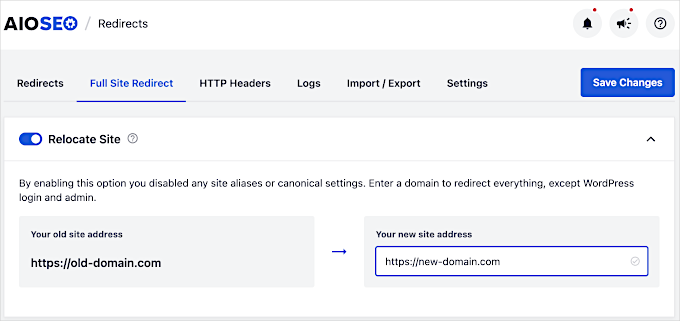
Next, you need to switch to the ‘Full Site Redirect’ tab and turn on the ‘Relocate Site’ toggle.
After that, you need to enter your new domain name and click the ‘Save Changes’ button.
Step 5: Notify Google About Your New Domain
Next, you need to tell Google about your change of address so that it can find your new domain quickly and start showing it in search results.
First, you need to add both your new and old domains to Google Search Console as two different properties. See step 1 in our Google Search Console guide for instructions.
Next, you need to select the old domain name as the active property in your Google Search Console account dashboard.
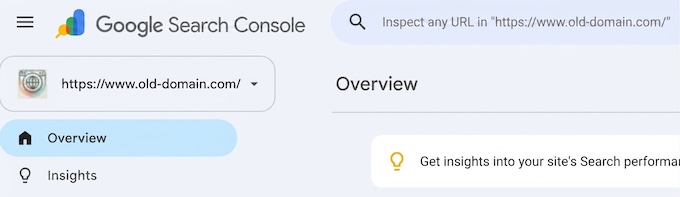
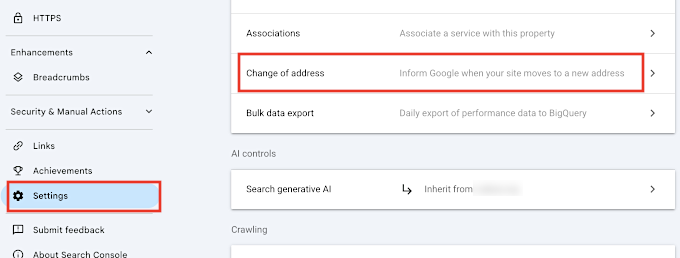
After that, click on the Settings menu from the left column.
Now, you can click on the ‘Change of address’ tool.
Now, you need to select your new domain from the Update Google section.
Then, you should click on the ‘Validate & Update’ button. Google will now validate that your old domain is redirecting to the new domain and save your changes.
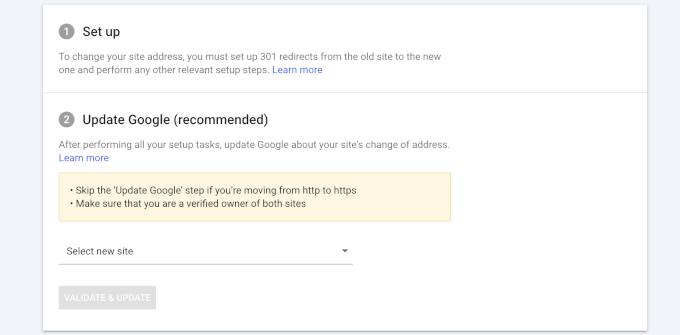
On the next screen, Google Search Console will show you a step-by-step wizard to submit your change of address request.
Before you leave Search Console, open the property for your new domain and submit your XML sitemap under the Sitemaps menu. This helps Google crawl your new URLs faster.
If you get search traffic from Bing, then you should also tell Bing about the move using the Site Move tool in Bing Webmaster Tools.
Changing Only Your Domain Name (Same Hosting)
Sometimes you only want your existing site to use a new domain name, and nothing else changes. If the site stays on the same hosting account, then you do not need a migration plugin at all.
You only need to point the new domain at your site and update the URLs.
First, add the new domain in your hosting dashboard and assign it to your existing website. Most hosts call this setting the ‘primary domain’ or ‘assigned domain’ for the site.
Your hosting documentation will show where to find this setting, and hosting support can also change it for you.
Next, log in to your WordPress admin area and go to the Settings » General page. Here, you need to replace the old domain with the new one in both the ‘WordPress Address (URL)’ and ‘Site Address (URL)’ fields.
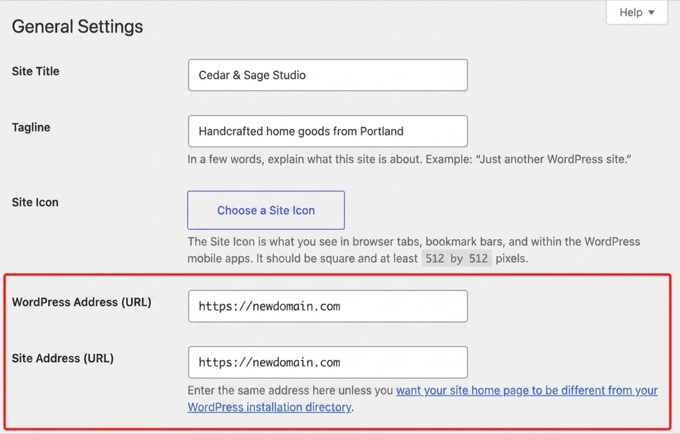
After you click ‘Save Changes’, WordPress will log you out. Log back in at the new domain to continue.
Note: If you cannot access the admin area, you can set the same values in your wp-config.php file instead by adding define( 'WP_HOME', 'https://newdomain.com' ); and define( 'WP_SITEURL', 'https://newdomain.com' );.
Your database still contains the old domain in post content, image URLs, and settings. The easiest way to fix all of them is with the free Search & Replace Everything plugin.
Install and activate it, then go to the Tools » WP Search & Replace page. Enter your old domain in the ‘Search for’ field and your new domain in the ‘Replace with’ field, and select all your tables.
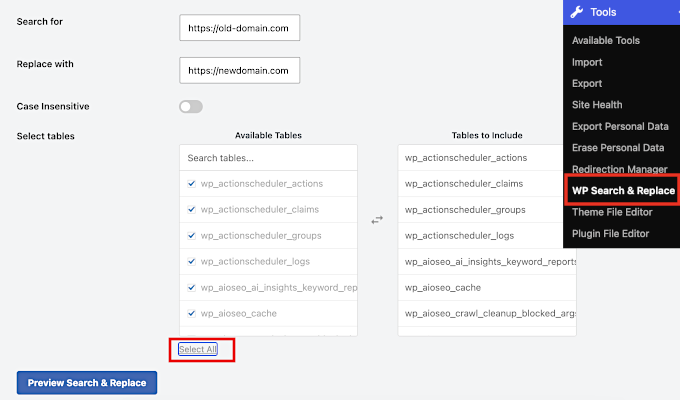
The plugin will find all instances of your old domain name in the database. You can then click on the Replace All button to replace them.
Or, if you are comfortable with the command line, then WP-CLI does the same job in one line:
wp search-replace 'https://oldsite.com' 'https://newsite.com' --all-tables
WordPress stores some settings in a special text format called serialized data, and editing it with plain SQL queries can corrupt it. Both tools above handle serialized data safely, which is why we recommend them over direct database edits.
Finally, your old domain still needs to redirect, and Google still needs to hear about the change.
Follow Steps 4 and 5 above, which work exactly the same for an in-place domain change.
How to Move WordPress to a New Domain Without a Plugin
You can move WordPress to a new domain manually, without any plugin. However, it has more steps, and a small mistake can break your website, causing downtime until you fix it.
So, keep your backup files until you confirm the new site works. Here is the short version of the process:
- Export your database. Open phpMyAdmin from your hosting control panel, select your site’s database, and use the Export tab. The Quick method with SQL format is fine.
- Download all your WordPress files from the old domain over FTP, including the wp-content folder and the hidden .htaccess file.
- Upload the files to the new domain’s root folder, usually public_html.
- Create a new database and user on the new domain’s hosting. Step 2 above shows exactly how.
- Import your .sql file into the new database using phpMyAdmin’s Import tab.
- Edit wp-config.php on the new domain and update the DB_NAME, DB_USER, and DB_PASSWORD values to match the database you just created.
- Update the URLs. The database still points at your old domain, so run a search and replace from the old domain to the new one. You can use the free Search & Replace Everything plugin or the WP-CLI command shown in the section above.
- Test the new site, then set up your 301 redirects and notify Google (Steps 4 and 5 above).
This is the same process Duplicator automates in Steps 1-3. But if you are comfortable with FTP and phpMyAdmin, the manual method works just as well.
Post-Migration SEO Checklist
The move is not finished when the new site loads. Work through this checklist over the first few days to protect your rankings:
- Test your redirects. Open several old URLs, including posts, pages, and a few images. Confirm each one lands on the matching new URL and not the homepage.
- Check your canonical tags. These tags tell Google which URL is the official version of a page. View the source of a few pages and make sure they point to the new domain, which your SEO plugin normally handles automatically.
- Update your Google Analytics property. In GA4, edit your data stream’s URL to the new domain so your traffic reporting continues without a gap.
- Update the links you control. Change the URL on your social media profiles, Google Business Profile, directory listings, and email signatures.
- Announce the move to your readers. Publish a short blog post and share it with your email newsletter and push notification subscribers. Ask readers to report anything broken, since they will often catch things you missed.
- Keep the old domain registered and redirecting for at least 12 months, or longer if you can afford it. If the old domain expires, every redirect breaks, and you lose any remaining SEO value.
Frequently Asked Questions About Moving a WordPress Site
Here are the answers to the questions we hear most often about moving a WordPress site to a new domain.
1. Will changing my domain name permanently hurt my SEO?
No. A temporary dip in rankings is normal while search engines process the change.
However, the 301 redirects and Search Console notification in this guide tell Google exactly where you have moved, so it can transfer your existing authority to the new domain.
You may also want to see our guide on how to verify your SEO is intact after WordPress domain migration.
2. How long does the entire domain migration process take?
You can typically complete the technical steps in this guide, from backing up your site to setting up redirects, in a few hours.
However, it will take longer for search engines like Google to fully crawl and index your new domain. While notifying Google speeds this up, it can take several weeks for your rankings to fully stabilize after the move.
3. Can I move my WordPress site without using a plugin like Duplicator?
Yes, you can transfer your files over FTP, export and import your database with phpMyAdmin, and then update the URLs. We cover the exact steps in the manual migration section of this guide.
A plugin like Duplicator simply automates the most error-prone parts, such as URL updates and database packaging, which is why most beginners find it faster and safer.
4. What is the main difference between moving to a new domain vs. a new host?
Moving to a new domain is like changing your business’s street address. Moving to a new host is like changing the company that owns the building, but your address stays the same.
This guide is for changing your domain, which has its own SEO requirements like 301 redirects.
5. How do I change the primary domain in WordPress?
If your site is staying on the same hosting account, point the new domain at your existing site from your hosting dashboard, and then update the ‘WordPress Address (URL)’ and ‘Site Address (URL)’ fields under Settings » General.
After that, run a search and replace for the old URLs and set up 301 redirects. The changing only your domain name section above walks through each step.
Video Tutorial
We hope this tutorial helped you move your WordPress site to a new domain name. You may also want to see our ultimate WordPress migration guide or our comprehensive guide on WordPress SEO.
If you liked this article, then please subscribe to our YouTube Channel for WordPress video tutorials. You can also find us on Twitter and Facebook.



John
Hello, is a redirection set at the old domain’s registration also giving the same results SEO-wise? In case we want to delete the old site and only keep the domain for a couple of years, thanks.
WPBeginner Support
As there is a domain change there will be a small change to your SEO but there shouldn’t be a major change when redirecting to the new URL.
Admin
Jiří Vaněk
I built a blog on a subdomain, and now I’m considering whether to move the blog to the main domain after two years and use it as my knowledge portfolio. I was quite hesitant to take this step because I’m obviously afraid that the SEO I’ve built over two years will be lost, and I’ll lose my rankings. This article gave me a pretty good insight into how to do it with minimal impact, and I’m grateful for it. Now I have hope that it can be done without being too painful.
Dennis Muthomi
I particularly appreciate the emphasis on setting up 301 redirects (Step 4). In my experience, this was crucial for maintaining SEO rankings. I used the All in One SEO plugin as suggested, and it made the process much smoother.
One additional tip I’d like to share: After completing the migration, I found it helpful to use MonsterInsights to closely monitor my traffic and user behavior on the new domain. This allowed me to quickly identify and address any issues that arose post-migration.
Moinuddin Waheed
When we migrate our blog to the new domain name and all the files and database gets into its new domain , how long does it take for Google to know that it has to rank this new domain?
Also old domain names have domain authority and new domain names will take time to build a domain authority, how does seo remain unaffected if we switch to new domain?
WPBeginner Support
The 301 redirects are what tell Google to take note of the new domain. There is no specific timeline for when Google will update but as Google crawls the 301 redirects it will redirect and update your listing in search results. While your old links rank they will also redirect to the new location.
Admin
Moinuddin Waheed
Thanks for the reply and clarification about the query.
I think after some time of the full setup to the new domain, isn’t it prudent to completely close the old domain and focus on new domain.
or is it better to let 301 redirect continuously redirects to the posts and page and in the meantime when we fully satisfy that all old domain requests are redirects to new one, only then we take decision to stop old domain.
WPBeginner Support
You would want to check the analytics for the old domain, if you are still getting a good amount of traffic to that domain that is being redirected then you would keep the old domain active, if you are not getting visits to your old domain you would then look to close it.
Mrteesurez
Thanks for this reply and support, it also beneficial to me. I didn’t think of checking the analytics report of the old domain to determine if there is much traffics to close it or not. I have learnt my lesson here. Thanks m
WPBeginner Support
If you reach out to your host they can sometimes help and temporarily override their upload limits to get your files into your hosting.
Admin
Jackie
What if my file size to be uploaded is over the max 500MB, and I am using Bluehost to upload the files?
Moinuddin Waheed
for redirecting to new domain, it is better to use the plugin itself that you have suggested i.e all in one seo which is easy to do for all with no coding knowledge people.
And as for accessing the .htaccess file and manually changing it to redirect is somewhat only technical expertise people will look forward to.
Don
Hi, thank you so much for your guide. We our doing a rebranding resulting in a name change and new url. Our WP administrator will be doing the migration and 301 redirect. Aside from notifying our database and social media followers in our newsletter, I am wondering if we can create a landing page on the new site for the redirects that announces the rebranding, and then segues into the new site after a preset interval.
WPBeginner Support
If you wanted to instead of redirect 1 to 1 the articles, you could certainly redirect the entire site to a landing page.
Admin
Unarine Leo Netshifhefhe
My website has been hacked and I haven’t really gotten time to fix it that much, I would like to know if this problem of it been hacked has some kind of effect on SEO? Does it affect it badly? And my website stops appearing?
WPBeginner Support
It would depend on if anything changed on the front-end of your site but it can have a negative effect on your site’s SEO.
Admin
Simon
How do I use FTP client to connect my domain?
WPBeginner Support
You would not use FTP for your domain, you would want to use the tools in either your domain registrar or hosting provider.
Admin
Manu Philip
Thank you ! It helped a lot
WPBeginner Support
Glad our guide was helpful!
Admin
Saifullah Tamim
Many Many thanks brother. This article is very helpful.
WPBeginner Support
Glad our guide was helpful!
Admin
Sajid
for how many days I need to keep the old site running. For 301 redirection
WPBeginner Support
There is no universal answer for every site, it would depend on your site and audience but if you wanted to be safe a year is normally long enough for users who would revisit your site to see the change especially if they check your site for seasonal content.
Admin
James
Hello, I hope you are doing good. How about migrating a subdomain to a completely new domain name ? For example, migrating “example.blog.com” to “example.com”.
WPBeginner Support
You can still use this method for moving from a subdomain to a completely new domain
Admin
ronald
we still are using our existing site for some things, but not for blogs. these were migrated. we set up 301 redirects and all working smoothly but curious… after migration, with 301 redirects all set up on old server, should we unpublish the posts on old server so they no longer are on old sitemap?
WPBeginner Support
If you plan to continue to use your old site for other uses then it would normally be best to remove the content you’ve set up redirects for.
Admin
thierry
Thanks a lot for this piece, following thes instructions was really clear and everything went smooth without any problems thanks thanks and thanks!
WPBeginner Support
Glad our guide was helpful!
Admin
Mark
Thank you. I tried so many other plugins and techniques – none worked very well.
Although crazy complex for a simple thing this is a great technique. After nuking my earlier attempts this one fixed everything. Fonts, images, thumbnails, etc.
Thank you.
WPBeginner Support
Glad our guide could help simplify the process in a way that worked for you
Admin
Manas Patil
Hello, this article was of great help. Thanks a ton!
But I’d to ask – since I’ve one SSL certificate, I thought I’d move the SSL from my old site to my new site. If I do move it, should it cause any errors while I redirect from my old site to new site?
Thanks in advance!
Manas
WPBeginner Support
You would want to check with your hosting provider as some have methods to help prevent any errors when changing domains on the same host if they only have one SSL certificate. In general, it should not cause any issues if set up properly.
Admin
Manas Patil
Thanks a ton! I managed to move my site completely. Towards the end of the Search Console part, is it necessary to submit the sitemap again – because I don’t see my previous sitemap submissions on my new domain property.
WPBeginner Support
If you haven’t submitted a sitemap for the new domain you would want to do so to help Google crawl your URLs
BIKRAMJIT KONWAR
Hi, many thanks for the article. I have a confusion here, can I migrate my WordPress site to a new domain without migrating the existing theme as I want to change the theme?
Amir
Hello
After migration to new domain, how should i send new post on my site ? Send a new post on old domain or new domain?
Md Shuaib Raza
Can i delete and cancle my old domain name by provoider after migration?
Paco
I’m moving to a new domain name, but I’m still going to use the old domain name for other purposes. I don’t want to redirect the entire oldsite to newsite. What’s the recommended way in this case? Thanks.
Hassan
It helped me a lot, my question is in ftp I will enter my new domain name and user name and password, then you said the installer file and archive file the installer file is it the wordpress zipp file or something else?
WPBeginner Support
The installer file would be what you downloaded from the Duplicator plugin.
Admin
F NIc
Hi, thank you for this detailed guide. I intend to switch domain from Bluehost to GoDaddy and I am wondering if my wordpress website will be affected in terms of how it will look after the switch.
WPBeginner Support
Your hosting provider would not affect how your site looks, as long as there are no issues with the duplication process the site should look the same.
Admin
Sachin
I have a question, I have single web hosting, so how can I move from the old domain to the new domain?
WPBeginner Support
If you are staying on the same host, you would first want to check with your hosting provider as some have tools to help with changing your site’s domain.
Admin
Andy
I’m having a little trouble with Step 5. Notifying Google About the Change.
When I filed the change of address (the Search Console seems to have changed since you wrote this post, but I figured out the new procedure OK), the validation failed because Google couldn’t fetch the home page for my old site.
WPBeginner Support
Thank you for letting us know, for this situation, you would want to point Google to your new site for it to test the redirects.
Admin
Sharon
Thank you so much for this tutorial it was so easy for me to redirect my old domain
WPBeginner Support
Glad our guide was helpful
Admin
amir
can I delete the old host and domain after I did all the steps? or I should renew the host and domain after then
Thanks
WPBeginner Support
It is normally a good idea to redirect the old domain to the new one for some time but you can end the old hosting and still redirect the old domain if you wanted.
Admin
Dejan
Hi Wpbeginner!
Very good article as usual, i have a question just to double check, will all paths be changed? For example media links and so on? Thanks again
WPBeginner Support
Using this method, your links to images and other media should be updated as well.
Admin
dariu
Thanks for this. What is the difference for migrating to new host (and domain)? Is there any difference in steps and instructions?
WPBeginner Support
You would use the same steps for a new host as well.
Admin
Penny
I had to put in mine in the public_html folder to work. Very frustrating at first until I tried that!
Jose
Thanks for a great tutorial!
I’ve ran into a quirk after following all the steps.
My site redirects everything EXCEPT the content of the home page.
I updated the name servers about two days ago.
I did the redirection via .htaccess.
I’m not sure where to look to troubleshoot the issue. Any direction is appreciated. Thanks again!
WPBeginner Support
We would recommend checking for any caching plugins as well as reaching out to your hosting provider for the most common reasons for that issue and your hosting provider can normally take a look from their end as well.
Admin
Jose
Following up.
I was/am using W3 Total Cache.
Before I migrated, I forgot to disable caching. And that caused issues.
After the migration, I had to manually remove W3 Total Cache in order to get the new site working again.
There was a section of caching code left over in the new .htaccess file.
All has been good since then!
WPBeginner Support
Glad you were able to get the issue sorted
Haitham
Hi,
Great tutorial. I have to ask about the SSL redirects since it may cause issues for domains that use cloudflare for instant.
So while adding the code on the .htaccess file in the old website how do I add a newwebsite.com/1$ to that command ?
WPBeginner Support
If you mean how to update your site to a new domain using a CDN like Cloudflare, we would recommend reaching out to the CDN you are using for their current methods for that kind of change.
Admin
Joe
In the last step you mentioned “notify google about the change”.
But what if don’t notify Google about the change, just move the website to new domain, and remove all the pages from old domain (as my website is new and doesn’t have any organic traffic)?
Is it valid?
WPBeginner Support
You can do that if you want but you would likely take a negative hit in your search engine rankings.
Admin
Jay Dee
I have a question about subscribers the website who have created profiles. Would I have to do redirects for their individual profile pages ?
WPBeginner Support
If you are using the same systems then you shouldn’t need an additional redirect unless the tool you are using says so.
Admin
Rajesh
I have a question, I already set 301 redirection, and all the request to the old site is redirecting, now my question is, when I can delete old site and its content permanenty?
WPBeginner Support
After you create your redirects you can remove the old content.
Admin
Morgan
Hello, please I’m confused on this sentence “Once connected, make sure that the root directory of your website is completely empty.”
How can make the root directory to be empty cause is showing some files and folders. Please I need an answer on how to do that. Thanks
WPBeginner Support
You can either use FTP or some hosts have file managers you can use to delete the folders or you can reach out to your host for assistance
Admin
Braeden
Thanks for this! How would you handle domain1 is moving to domain2, but, many of the URL slugs on domain1 are different on domain2. For example, domain1/this-is-a-post/ will be going to domain2/this-is-the-new-post/
WPBeginner Support
It would depend on the specific changes but depending on how drastic the change you may need to manually set up the individual redirects.
Admin
Marco
Thank you for this guide. It helped me.
I tried the 301 redirect on htaccess. However it only redirects the homepage. Any chance for help? Thanks
WPBeginner Support
You may want to try clearing your caching and checking with your hosting provider to ensure they don’t see any errors on their end.
Admin
Gosia
This is great if moving a complete old site to a new domain. But what to do to when you are setting up a new site and want to move over only a few posts from the first site? I don’t want to lose organic traffic.
WPBeginner Support
You can check under Tools>Export and select the specific posts you want to transfer to your site.
Admin
Alexandre
Thanks a lot for this tuto.
I don’t understand why we have to set up permanent 301 redirects if I keep the same domain name ?
Thank for your answer,
Alex
WPBeginner Support
This article is for moving a site to a new domain name. If you only want to change hosting providers, you would want to take a look at our article below:
https://www.wpbeginner.com/wp-tutorials/how-to-move-wordpress-to-a-new-host-or-server-with-no-downtime/
Admin
Alexandre
Sorry, thanks a lot.
You blog posts have always helped me a lot
WPBeginner Support
Glad our guides have been helpful
Prasad Rane
Hey thanks a lot for this step by step tutorial.I was able to move clients site in just 30 mins. He was surprised. Thanks a lot.
WPBeginner Support
Glad our guide could help
Admin
Luiz Pedao
Hello, got a bit of a problem here. I transferred my good php and zip files to the public directory, and yet when I browse to mydomain/installer.php it just doesn’t find the page. What could be the problem?
Thanks in advance
WPBeginner Support
You may want to reach out to your hosting provider to ensure the domain is set up to the correct location that you’re adding the files.
Admin
Razi
Thanks, Buddy, After reading your article It’s just like the peace of cake
WPBeginner Support
Glad our article could be helpful
Admin
hassan
GOOD guide.
but if I want to change my URLs in a new domain
my post in the old domain is: oldedoman.com/best-products-2020/
I want to change to newdomain.com/best-products/
How to redirect all my posts
Thanks
WPBeginner Support
For that type of change, you would need to create manual redirects following our guide below:
https://www.wpbeginner.com/beginners-guide/beginners-guide-to-creating-redirects-in-wordpress
Admin
Adrian Filip
Brilliant tutorial. Thank you! Work like a charm!
WPBeginner Support
Glad you found our guide helpful
Admin
Megan
Does this process work with a bluehost basic account? I have purchased my new domain but can’t assign it as an Addon domain since I can only have 1 website. What is the best way to work with this?
WPBeginner Support
If you’re unable to create an addon domain we would recommend reaching out to your host and some offer support or different ways to set it up.
Admin
Megan
Does this method work if I am using the Bluehost Basic plan where I can only have one website? I can’t make my new domain an add on domain.
WPBeginner Support
You can move from a host to BlueHost’s basic plan following this guide
Admin
Utsav
Hi,
I have questions that where to use 301 redirect, in new domain .htaccess or old domain .htaccess.
In my case I have changed my website domain as well as web hosting. Then where to apply 301 redirect and how many time I should active my old domain and hosting active?
WPBeginner Support
You would want to add 301 redirects to the old domain. It depends on your old site and personal preference for how long you should keep the old domain active but you shouldn’t need the old hosting.
Admin
Suchitha
I earlier had my domain in a Wordpress site that I do not own. I developed my website there. Now, I have moved my domain to a new WordPress site that I own and also used the Export/Import option to transfer my content to the new site. However, I am having to re-design my website again. Does the procedure mentioned here ensure that my site is transferred intact?
WPBeginner Support
The method in this guide should let you keep your theme and plugins how they are set up.
Admin