


Ever wished you could update every WordPress site you manage without logging into each one?
When you manage multiple WordPress sites, even a simple update becomes a repetitive task. You have to log into each site, check which plugins and themes need updating, run the updates, and then check that everything is still working properly.
While site manager tools are supposed to make this easier, you still have to visit each site after an update to make sure nothing broke. They also limit the number of sites you can manage and charge you more as your fleet grows.
There has to be a better way to manage WordPress updates across multiple sites.
That’s why today, I’m excited to announce WPVibe Fleet Management.
WPVibe connects your WordPress sites with AI tools like ChatGPT, Claude, and more. With Fleet Management, you can ask your AI to update as many WordPress sites as you want at once and automatically check that the updates were completed successfully.
Why You Need Fleet Management?
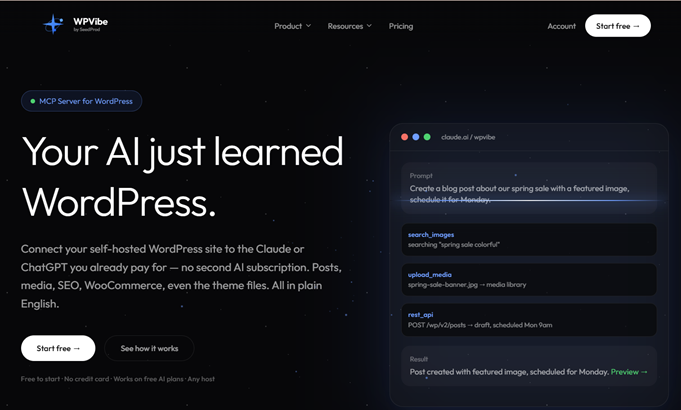
Earlier this year, we launched WPVibe to make it easy for you to connect your WordPress website with your favorite AI Assistant via MCP (Model Context Protocol). That way, you can manage your site by talking to AI.
In just a few months, WPVibe passed 20,000 active installs and earned a 4.9 out of 5 rating on WordPress.org.
Once connected, you can use AI to write posts in the post editor, build product landing pages, generate missing alt text, fix broken links, trim a bloated database, and more. WPVibe was genuinely useful when you were managing a single site. But if you manage multiple sites, there are certain tasks you need to repeat across all of them, like updating WordPress.
That means asking your AI to perform the same task on each site, one at a time. We thought there had to be a better way. Why shouldn’t your AI be able to update all your sites at once?
That’s exactly what WPVibe Fleet Management delivers.
What is WPVibe Fleet Management?
WPVibe Fleet Management is a tool that lets you manage, update, and monitor multiple WordPress websites from a single AI chat interface. Think of it as a free ManageWP alternative, except right inside your favorite AI tool.
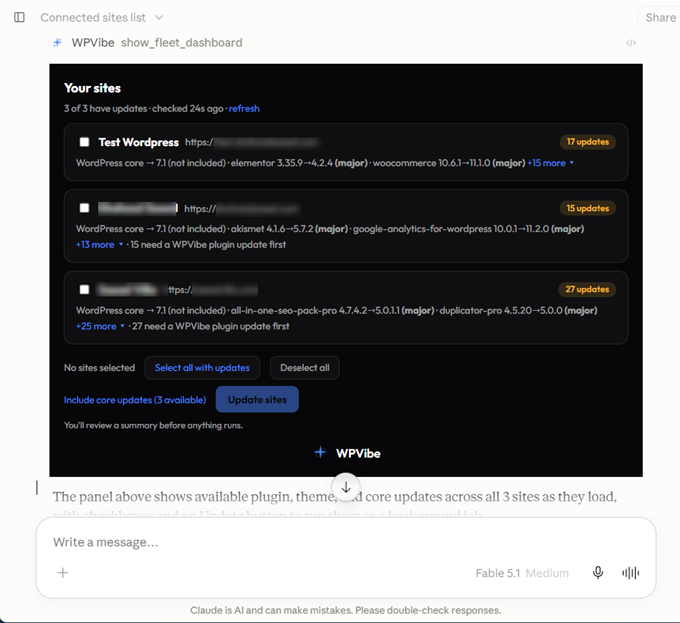
You ask your AI assistant what updates are available. WPVibe shows you a live list right in the chat: every connected site, pending plugins, themes, and core updates, with version numbers. You choose the sites you want, confirm the update, and AI updates each site for you, even if you close the chat.
You can watch the progress of the updates in the same panel. Or you can close the tab and get the summary later.
The real value is making sure the update is safe. WPVibe checks every site before and after, isolates failures so one site doesn’t stop the rest, requires separate approval for WordPress core, and shows you exactly what it plans to update before making any changes.
Here’s what makes it different.
1. See Every Pending Update in One List
The slowest part of maintenance isn’t clicking “update.” It’s finding out what needs updating in the first place.
Fleet Management answers that in one question. Ask what’s available across your sites, and the list shows you every site with a pending plugin, theme, or core update, including the exact version numbers.
2. Check Every Site Before and After an Update
Before updating a site, WPVibe checks it again to make sure nothing has changed since you approved the update. If a newer version becomes available in the meantime, it won’t install it without your approval.
After the update, WPVibe checks again to make sure the new version was actually installed.
So instead of simply telling you an update was successful, WPVibe confirms it for you and gives you a report for each site.
3. One Broken Site Doesn’t Stop the Rest
Updates don’t always go as planned. If one of your sites fails during an update, WPVibe stops there and continues with the next site.
You’ll get a clear report showing which site failed and why.
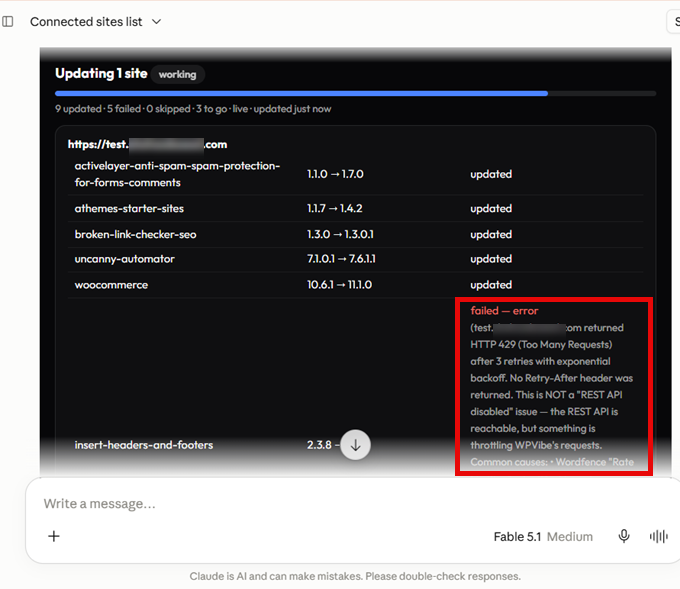
Meanwhile, the rest of your sites keep going, so one bad update doesn’t stop the entire job.
4. WordPress Core Update Waits for Your Approval
Unlike plugins and themes, WordPress core updates always need your explicit approval.
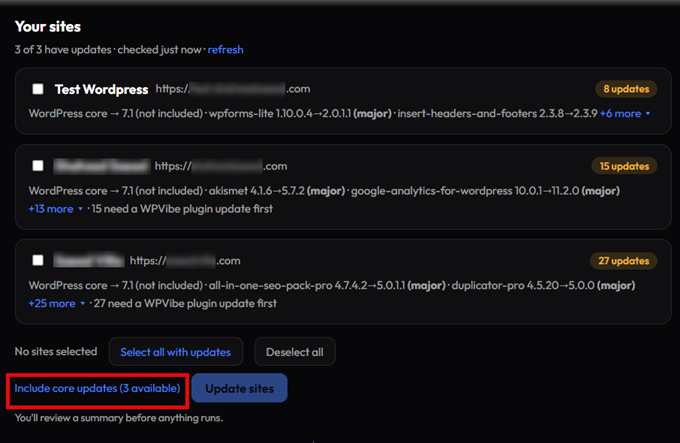
When you include a core update, WPVibe pauses and asks you to confirm it before proceeding. That’s because WPVibe can roll back a plugin update if something goes wrong, but it can’t roll back a WordPress core update.
While you’re deciding, the rest of your fleet keeps moving. So you get an extra layer of protection without holding up the other updates.
5. Keep Updates Running Even if You Close the Tab
Fleet Management doesn’t require you to keep the chat open while it works.
You can close the tab and let the job continue in the background. If you hit your daily execution limit halfway through, WPVibe pauses what you were doing and automatically resumes it when your limit resets.
This also helps with other time-consuming WordPress tasks. Large search-and-replace operations that used to time out can now run in the background and tells you what happened. Bulk cleanup works the same way, so you can delete hundreds of spam comments, trashed posts, or users without relying on one long request to finish.
So you can start a big job, close the tab, and come back to see exactly what happened.
6. Let WPVibe Handle Its Own Updates
You can even ask your AI to update WPVibe itself.
WPVibe schedules its own update to run separately, so the connection handling your request isn’t the same one replacing its own files. Where supported, WordPress’s automatic updater handles the update, including its post-update check and rollback.
You can also ask your AI to enable WordPress auto-updates for WPVibe or any other plugin.
How to Run Your First Fleet Update
Getting started is simple:
- ✅ Connect your sites. Install the free WPVibe plugin on each site and connect it with one click. Already connected? You can skip this step.
- ✅ Ask your AI. In Claude, ChatGPT, or your preferred AI tool, ask: “Show me what updates are available across all my WordPress sites.” WPVibe will show you the available plugin, theme, and core updates across your connected sites.
- ✅ Choose and confirm. Select the sites you want to update. You can leave WordPress core out or include it with one click.
- ✅ Let it run. Watch the updates as they happen, or close the tab and come back later for the results.
If your AI assistant can’t display the fleet panel, WPVibe gives you a read-only link and the exact sentence to paste back into your chat to start the same job.
You can connect unlimited sites on every WPVibe plan, including the free plan. The plans differ by how many actions you can run each day, not by the features you get. If you manage a lot of client sites, the Agency and Scale plans also include client sub-accounts and per-client usage reporting.
As always, thank you for being part of the WPBeginner community. I can’t wait to see how WPVibe Fleet Management helps you save time, keep your sites up to date, and spend less time on repetitive WordPress maintenance.
Yours Truly,
Syed Balkhi
Founder of WPBeginner





Rayhan
WPVibe is really a game changer for WordPress. I have built the whole Hive Plugins site with Claude and WPVibe.