


After installing WordPress, the first thing every beginner needs to learn is how to install a WordPress plugin.
In simple words, WordPress plugins are like apps for your WordPress website. They allow you to add new features to WordPress like a contact form, slideshow, shopping cart, and more.
There are thousands of free and paid plugins available for WordPress. In this step by step guide, we will show you how to install a WordPress plugin.
Before You Start
If you are using WordPress.com, then you cannot install plugins.
We often get complaints from users saying that they can’t see the plugins menu in their WordPress dashboard. It is because you are using WordPress.com, which has its limitations.
You cannot install plugins on WordPress.com unless you upgrade to their business plan. On the other hand, you can install any plugin you want on your self hosted WordPress.org website right out of the box (See the differences between self hosted WordPress.org vs WordPress.com).
If you want to switch from WordPress.com to WordPress.org, then read our tutorial on how to properly move from WordPress.com to WordPress.org.
That being said, now let’s take a look at how to install a WordPress plugin on your website.
How to Install a WordPress Plugin
To make it easy, we have created a video tutorial on how to install a WordPress plugin that you can watch below.
However, if you just want to follow text-instructions, then you can follow our step by step tutorial on how to install a WordPress plugin.
We have covered all three methods: installing a WordPress plugin using search, uploading a WordPress plugin, and manually installing a WordPress plugin using FTP.
Ready? Let’s get started.
Install a Plugin using WordPress Plugin Search
The easiest way of installing a WordPress plugin is to use the plugin search. The only downside of this option is that a plugin must be in the WordPress plugin directory which is limited to only free plugins.
First thing you need to visit the Plugins » Add New page inside your WordPress admin area.
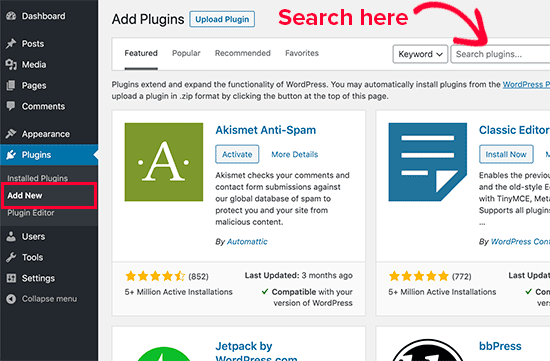
You will see a screen like the one in the screenshot above. Find the plugin by typing the plugin name or the functionality you are looking for. After that, you will see a bunch of listings like the example below:
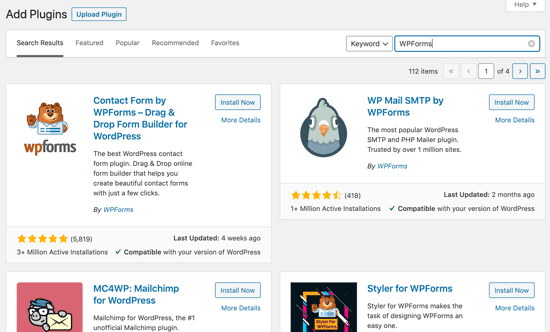
You can pick the plugin that is best for you. Since in our search, we were looking for WPForms which is the best WordPress contact form plugin, we’ll click the ‘Install Now’ button next to it.
WordPress will now download and install the plugin for you. After this, you’ll notice the ‘Install Now’ button will change into the ‘Activate’ button.
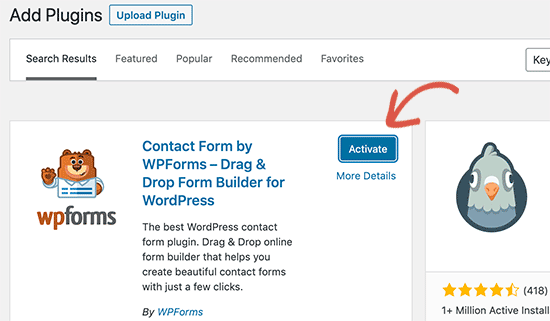
A WordPress plugin can be installed on your site, but it will not work unless you activate it. So go ahead and click on the activate button to start using that plugin on your WordPress site.
That’s all, you have successfully installed your first WordPress plugin.
The next step is to configure the plugin settings. These settings will vary for each plugin therefore we will not be covering that in this post.
Install a Plugin using the WordPress Admin Plugin Upload
Paid WordPress plugins are not listed in the WordPress plugin directory. These plugins cannot be installed using the first method.
That’s why WordPress comes with the upload method to install such plugins. We will show you how to install WordPress plugins using the upload option in the admin area.
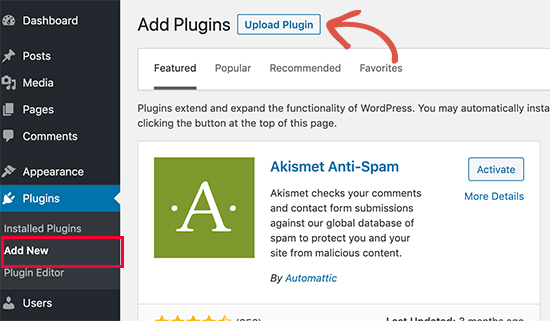
First, you need to download the plugin from the source (which will be a zip file). Next, you need to go to WordPress admin area and visit Plugins » Add New page.
After that, click on the ‘Upload Plugin’ button on top of the page.
This will reveal the plugin upload form. Here you need to click on the ‘Choose File’ button and select the plugin file you downloaded earlier to your computer.
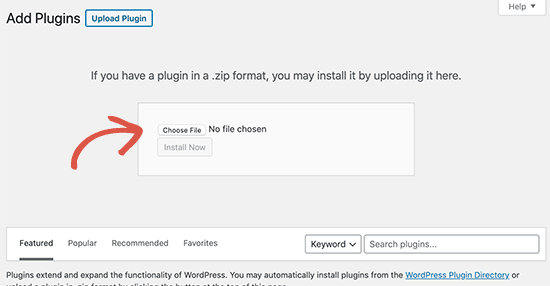
After you have selected the file, you need to click on the ‘Install Now’ button.
WordPress will now upload the plugin file from your computer and install it for you. You will see a success message like this after the installation is finished.
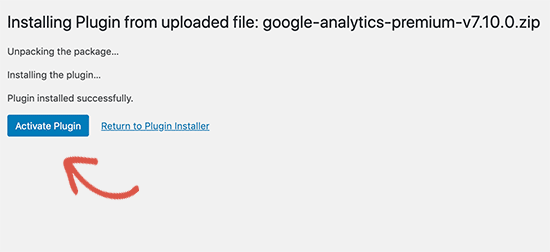
Once installed, you need to click on the Activate Plugin link to start using the plugin.
You would have to configure the settings to fit your needs. These settings will vary for each plugin therefore we will not be covering that in this post.
Manually Install a WordPress Plugin using FTP
In some rare cases, your WordPress hosting provider may have file restrictions that could limit your ability to install a plugin from the admin area.
In this situation, your best bet is to install the plugin manually using FTP.
The FTP manager method is the least friendly for beginners.
First you will need to download the plugin’s source file (it will be a zip file). Next, you need to extract the zip file on your computer.
Extracting the plugin zip file will create a new folder with the same name. This is the folder that you need to manually upload to your website using a FTP client.
You would need to access your host through the FTP manager. If you do not have your FTP username and password, then contact your WordPress hosting provider and ask them.
Open the FTP client on your computer and connect to your website using the login credentials provided by your web host. Once connected, you need to go to the /wp-content/plugins/ folder on your website.
Next, upload the folder you extracted from the zip file to the /wp-content/plugins/ folder on your web server.
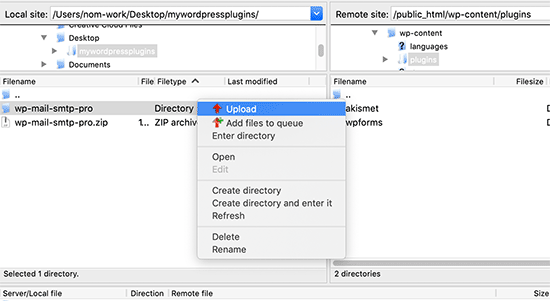
After uploading the files, you need to visit the WordPress admin area and click on the Plugins link in the admin menu. You’ll see your plugin successfully installed on the plugins page.
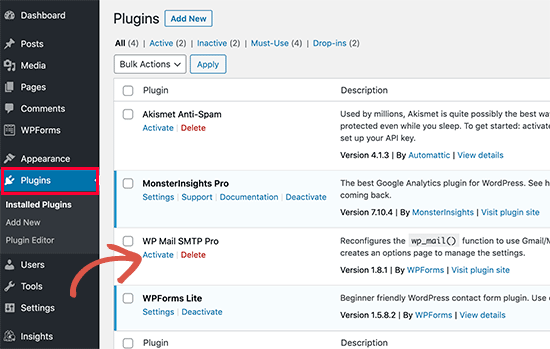
You need to click on the Activate link below the plugin to start using it.
Upon activating, you may need to configure the plugin settings. WordPress plugins come with their own settings which differ from one plugin to another so we will not describe them here.
FAQs About Installing WordPress Plugins
As a beginners you may have few questions about installing WordPress plugins. As the largest WordPress resource site, we have heard all of them.
Here are some of the most frequently asked questions about installing WordPress plugins.
1. How do I find the best WordPress plugins to install on my website?
There are more than 55,000 WordPress plugins on the free WordPress plugin directory alone. Many more are available as premium plugins. This makes it a bit difficult for beginners to find the best plugin for the feature they need.
We have compiled a list of all the essential WordPress plugins that most WordPress websites need.
We also have a detailed tutorial on choosing the best WordPress plugin where we show you what to look for when looking for a plugin.
2. What is the difference between installed and active plugins?
WordPress allows you to install a plugin and not use it at all. In order to use a plugin on your site, you need to ‘Activate’ it.
You can see active plugins by visiting the ‘Plugins’ page in the WordPress admin area. They will be highlighted with a blue background.
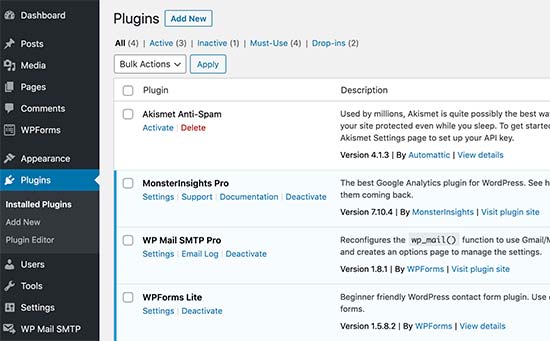
Plugins with the white background are installed on your website but not active.
3. Should I delete inactive plugins?
If you are not using a plugin, then it is recommended to delete it from your website. For more on this topic, see our article on why should you delete inactive plugins in WordPress.
4. How many plugins I can install in WordPress?
You can install as many WordPress plugins as you need. It is not the number of plugins that affect your website speed, but the quality of those plugins. For more information, see our article on how many WordPress plugins you should install.
5. How do I uninstall a WordPress plugin
You can uninstall a WordPress plugin by visiting the Plugins page in the WordPress admin area. If the plugin you want to remove is currently active, then first you’ll need to deactivate it. After that, you can simply click on the delete link to remove it from your website.
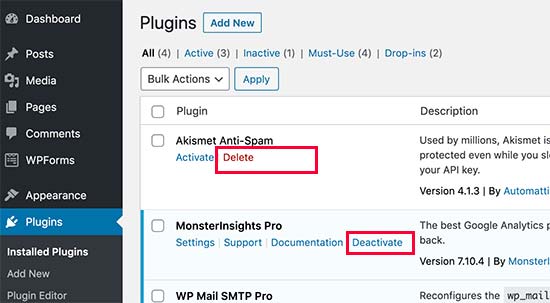
For more detailed instructions, see our guide on how to properly uninstall a WordPress plugin.
We hope this helped you learn how to install WordPress plugins.
You may also want to see our plugins category where we write about the best WordPress plugins that you can use to accomplish whatever you’re looking to do. Each of those articles comes with step-by-step instructions on how to set up individual plugins.
If you liked this article, then please subscribe to our YouTube Channel for WordPress video tutorials. You can also find us on Twitter and Facebook.





Syed Balkhi says
Hey WPBeginner readers,
Did you know you can win exciting prizes by commenting on WPBeginner?
Every month, our top blog commenters will win HUGE rewards, including premium WordPress plugin licenses and cash prizes.
You can get more details about the contest from here.
Start sharing your thoughts below to stand a chance to win!
Jiří Vaněk says
WordPress plugins are a great thing, but I would totally disagree with the statement in the FAQ article that you can install as many plugins as you need. You are minimally limited by the memory limit, which is set on the hosting and which will eventually run out. I think that a reasonable solution is up to 20 plugins. Then the amount will start to show on the speed of the website. A combination of plugin and snippet is good. If not everything can be solved immediately with a plugin, and there is a snippet for many problems.
WPBeginner Support says
It heavily depends on the plugin for how much they would affect a site, we would recommend taking a look at our article below:
https://www.wpbeginner.com/opinion/how-many-wordpress-plugins-should-you-install-on-your-site/
Admin
Moinuddin Waheed says
Most often I use the first method by going through the plugin options and searching in the WordPress repository.
it does make a lot of sense in terms of knowing that the repository is always safe to use.
I have used upload methods as well mostly for premium plugins as they come directly from plugins own websites.
Much appreciated the efforts of wpbeginner to make even the simple things more simple.
Ahmed Omar says
A beginner-friendly, step-by-step guide on installing WordPress plugins.
Also, the video make it more easy and understandable.
Thanks for making the plugin installation journey smooth
WPBeginner Support says
Glad you found our content helpful
Admin
Lara Carter says
Thank you, this explained so well and clearly on how to install and start a plug in. Thank you for this resource.
WPBeginner Support says
You’re welcome, glad our guide was helpful!
Admin
Carlo says
I can’t see the Plugin section in the left column in the dashboard.
I’ve wordpress 4.8.14. Is this the problem?
WPBeginner Support says
You would want to take a look at the recommendations for troubleshooting in our article below:
https://www.wpbeginner.com/plugins/why-cant-i-add-or-install-plugins-in-wordpress/
Admin
Barbara says
Cant install any plugin. I receive the note instead: Installation failed: Download failed. Destination directory for file streaming does not exist or is not writable.
WPBeginner Support says
For that issue, you would want to go through the recommendations in our article below:
https://www.wpbeginner.com/beginners-guide/how-to-fix-file-and-folder-permissions-error-in-wordpress/
Admin
Dadi says
it seems you have to pay for Business subscription, to use your advice?
WPBeginner Support says
Our tutorials are for WordPress.org sites, you would want to take a look at our comparison article here: https://www.wpbeginner.com/beginners-guide/self-hosted-wordpress-org-vs-free-wordpress-com-infograph/
Admin
Hanghua Jin says
i just followed your tutorial step by step but wasn’t able to add a new plugin.
there is a max execution time exceed error.
i tried to increase that value from 30 to 180 but still couldn’t solve the problem.
Please help me out.
Thanks.
WPBeginner Support says
It sounds like you are either installing a massive plugin or there may be an issue with your hosting, we would recommend reaching out to your hosting provider to ensure there is no error from their end.
Admin
Peggy says
This is out of date.
WPBeginner Support says
The methods in this article are still correct. If you are unable to install plugins you are likely on WordPress.com: https://www.wpbeginner.com/beginners-guide/self-hosted-wordpress-org-vs-free-wordpress-com-infograph/
Admin
Shravan says
Hi,
For some reason any plugin I am trying to upload are not uploading fully. They get stuck at 58% or 74%. The same case with themes as well. How do I resolve this?
WPBeginner Support says
You may want to check with your hosting provider to ensure there are no errors on their end, but you would want to start troubleshooting using our guide here: https://www.wpbeginner.com/beginners-guide/beginners-guide-to-troubleshooting-wordpress-errors-step-by-step/
Admin
Karen Diebolt says
This article doesn’t help because I have to have a paid plan to get the plugin. Is there any help for those of us with a free blog site from WordPress?
WPBeginner Support says
Our articles are for WordPress.org sites, you may want to take a look at our article here: https://www.wpbeginner.com/beginners-guide/self-hosted-wordpress-org-vs-free-wordpress-com-infograph/
Admin
Ann says
Thank you for all your tutorials. I have learned a lot, & they’ve been instrumental to me getting my WordPress website up and going. I have a “credits” page on my site & have added you to it.
WPBeginner Support says
Thank you, glad our tutorials have helped you set up your site
Admin
Jeff says
Thank you for sharing this article for beginners, I remember how anxious I was when I first started my WordPress website years ago installing plugins. I also shared this on my Facebook page for others to take advantage of, I thank you again for providing this article for beginners.
Jeff
WPBeginner Support says
Thanks for sharing our article, glad you found it helpful
Admin
Offiong says
Please help me out. I have a new site but after installing and activating plugin i cant edit my header and footer. Please i need your help on how to edit the header and footer.
WPBeginner Support says
You can use the plugin in our article here to add code to your header: https://www.wpbeginner.com/plugins/how-to-add-header-and-footer-code-in-wordpress/
Admin
Sharron Wilkie says
I have the WooCommerce plugin on my online store. I have a plugins menu but it is YITH plugins and there is no other plugins menu. I want to install Partial.ly but cannot access a normal plugins menu
Ravi says
can i add captcha to “visual form builder” plugin
Julie says
I just purchased a personal site to build a portfolio and read your suggestions for the best builders (Elementor, Beaver, etc.) Unless I upgrade to business subscription for $299 I can’t use any of them, is that correct? No plugins for anything less than business plan?
WPBeginner Support says
Hi Julie,
You are probably using WordPress.com. Please see our guide on the difference between self hosted WordPress.org vs free WordPress.com blog.
Admin
Iman says
Is the All in One SEO Plugin free?
Erica says
I am using WordPress.org (as confirmed by the WordPress logo in the upper left of my Dashboard), but the plugin menu is still not there. Could it be that my hosting company has a multi-tenant version that hides certain features from me?
WPBeginner Support says
Hi Erica,
Please contact your WordPress hosting provider. It is likely that the user account you are using doesn’t have administrator privileges.
Admin
tom says
Hello, I bought a woocommerce site for real estate.
I have properties for rental but also for sale, so I want to remove the button -book- not on my pages for sale. How can I do this? Thanks in advance
Tom Gunterman says
No instructions on how to put it on a page or any particular place.
WPBeginner Support says
Hi Tom,
WordPress has more than 50,000+ free plugins. Each one of them does different things. Depending on the plugin you are trying to install you will find instructions on how to use it on the plugins website.
Admin
rose says
Hi. I’m uploading a plugin like in the second example…. but which file do I upload? The maps one I have purchased is a folder with all the files inside i.e. documentation – I don’t know which bit to upload! Please help
WPBeginner Support says
Hi Rose,
When you purchase a WordPress theme you get it in a zip file. You don’t need to unzip that file and upload it.
You try again by downloading the plugin again.
Alternately, you can upload the plugin folder to your WordPress website manually using FTP. You will need to upload the folder to /wp-content/plugins/ folder.
Admin
Digember says
Thanks for the guide, very helpful.
Upload via WordPress directory gives error to me, so I used the FTP method to upload a downloaded plugin and it worked.
Jake Sullivan says
I am trying to upload a plugin onto my site. I have followed it up to the point where you click “Upload Plugin” on the Add New section of the plugin page. However, whenever I click the button nothing happens at all.
Niels Tang Graverholt says
Thanks for a great page
BUT: When I have installed and activated, what do I do then to use the plugin??
WPBeginner Support says
Hi Niels,
It actually depends on the plugin you are using. Some plugins add a new page where you can configure plugin settings. This page is typically located under Settings menu in your WordPress admin bar. Other plugins may place it under other menu items in admin area. Check the plugin’s details page for instructions.
Admin
Rizwan says
You guys are the best! Your style of teaching is simply amazing! Please make more videos on WP.
WPBeginner Support says
Hi Rizwan,
Thank you for kind words. You may also want to subscribe to our YouTube Channel for WordPress video tutorials.
Admin
Ruby Moseley says
I installed and activated Email Subscribers. I filled in the contact/subscribers list. I posted a blog…but no mail was sent out? what am I leaving out?
Sidhant says
I installed a plugin manually and activated it. I can not see plugin page, where it is?
Martyna says
Hello,
I would love some assistance with a plugin please. I have uploadd a new theme to my site with all of the required plugins, all of which have successfuly installed, but one (Revolution Slider).
I am getting the following message:
Unpacking the package…
Installing the plugin…
Destination folder already exists…./public_html/wp-content/plugins/revslider/
Plugin install failed.
I have gone into my file manager and can see that there is already a folder with the required plugin installed, however when I try to access the plugin from the WP dashboard, it still says it’s not been installed (and I can’t find it in inactive either).
If anyone has any advice, I’d be super grateful! Thanks!
WPBeginner Support says
Hi Martyna,
You’ll need to delete the plugin folder from your website using the File Manager. After that you’ll be able to upload and install the plugin again.
Admin
Deborah says
Hi
How do I install a plugin in localhost?
I’ve tried adding it manually in : xampp/htdocs/mywebsite/wp-content/plugins
but when I got back to the site plugins area its still not there. I’ve cleared cache just in case there was a bit of a lag but still nothing.
I used this process to add a new theme and it worked fine.
Is there something else I should be doing?
Thanks
WPBeginner Support says
Hey Deborah,
May be the plugin you are trying to add has incorrect plugin header which could stop WordPress from showing it as a plugin. Try adding some other plugin, to make sure this isn’t the case.
Admin
Lisa says
I just want to say that I am 52 and pretty much computer illiterate and I was just able to install a plug in from this. So so easy!!!
Dicognito says
HI, I am receiving following error when i try to test contact for i add: “site is currently unable to handle this request.
HTTP ERROR 500” . I checked e mail address and it is ok , so could you suggest how to solve
Thank you !
shakeel khan says
hi,i how to use urdu in word press? please help me
WPBeginner Support says
Hey Shakeel,
WordPress is available in many languages and can be used in almost any language. Please see our guide on how to install WordPress in other languages for more details.
Admin
Jake says
Hello,
After successfully installing and configuring the header and footer plug in, I was wondering how I can go back and change what appeara in the header after i saved and exited the plug in? Can’t find a way to do this
Brock says
Hello, thanks for the great info. I’ve purchased Yoast premium, downloaded it, but then when i try to upload to my site, its has broken the download into a bunch of individual folders. I’m certain i probably need all of them, but it will only let me choose one?
So how should i proceed?
WPBeginner Support says
Hi Brock,
Premium plugins come as a zip file. After downloading it to your computer, you don’t need to unzip or open that file. If you do that, then you will see individual folders packed inside the plugin.
If for some reason you cannot locate the plugin’s zip file, then you can try uploading it using FTP.
Admin
Nia says
I DID IT!!! I manually uploaded a plugin for the very first time and I DID IT. The video was excellent! Thank you!
WPBeginner Support says
Hey Nia,
Glad you found it helpful Don’t forget to subscribe to our YouTube Channel for WordPress video tutorials.
Admin
Gelu Nastac says
Hi,
I have installed your plugin “insert-headers-and-footers”, and this broken my website (don’t load).
This get back the error:
Fatal error: Can’t use function return value in write context in /home2/gnastac/public_html/topbusinessgrowth.com/wp-content/plugins/insert-headers-and-footers/ihaf.php on line 102
Could you help me to fix it?
WPBeginner Support says
Hi Gelu Nastac,
First you will need to deactivate the plugin. If you are unable to access the WordPress admin area, then see our guide on how to deactivate plugins when not able to access admin area.
After that you will need to install the updated version of the plugin. Let us know if this worked.
Admin
Gelu Nastac says
It works
Thank you
sarina says
what could be the reason for the add new button for the new plugin istall area showing this message “unexpected error occurred. Something may be wrong with WordPress.org or this server’s configuration.
Keith Williams says
Thanks! Your website has helped this newbie and I just wanted you to know that you are appreciated. This is a long way from how I learned to build a website back in the early 2k’s. You’ve made my life better knowing there is a place to find information that doesn’t talk down to me but shows me in plain, step-by-step, English.
WPBeginner Support says
Hi Keith,
Thanks for the kind words We really appreciate your support and feedback.
Admin
Sneha says
Thanking You Sir,
It’s very helpful for me…
Apata says
Hello,
I want to create my site through my android tab, but please is there any mobile Ftp to use for uploading files. And is it possible to create site through android tab?
Thanks
WPBeginner Support says
Hi Apata,
Yes, you can do it using a tab. However, it will be a little difficult and you may not be able to do certain things. Some plugins and themes may be difficult to setup.
Admin
ABHILASHA SHARMA says
What if the plugin failed to install? I actually tried to install the contact form 7 plugin but it didn’t worked.
Rick rommers says
Did you activate the plugin after you hit the install button
mourine says
hello i have installed a questionnaire plugin in a word press website that was developed by someone else, and i don’t know how to view them from the front end? am not well conversant with word press… need help
Justin Lanouette says
verry helpfull thank you
Keith says
I would like to ask for help on plugins. I’m new to this area and I’m currently taking an online course. However, I haven’t gotten an answer from them yet.
I’m trying to activate/add my first plugin. I understand a plugin can be 1 file. In my case it’s a php file and its contents is just comments at this point.
When I go to plugins in my admin site I dont see the file. so I’ve tried using the ‘add new’ link and I proceed to upload the file both as a singe file and as a zip file and here are the errors I get:
Unpacking the package…
Installing the plugin…
The package could not be installed. No valid plugins were found.
Plugin install failed.
OR i get this error:
Unpacking the package…
The package could not be installed. PCLZIP_ERR_BAD_FORMAT (-10) : Unable to find End of Central Dir Record signature
I’ve installed XAMPP and WordPress on my local host
Why am i getting these errors and how do I correct it?
How do I add my plugins that I develop myself to my site? I’m using my localhost with XAMPP to do testing
Valerie says
Can you still install plugins on a template/theme you have already downloaded?
Tess says
Hiya,
I also cannot see the plug-in menu on my dashboard. I’ve recently moved from wordpress.com to .net (which, I’ve been told, is essentially the same as .org, right?) How do I fix this? My site has not been hacked or anything.
Thank you.
WPBeginner Support says
If you cannot see the plugins menu, then most probably your site is still redirecting you to the WordPress.com dashboard. It is also possible that your site is still hosted with WordPress.com and you just added a domain name to your existing WordPress.com blog.
Admin
Rajat insa says
Hi,
i downloaded few slider plugins and activated.
.where i place the shortcode ?.Thereby i can see the plugin in page div.
Please help
Randall says
Hi – I followed your tutorial on how to dump wordpress.com for wordpress.org.
I hosted my site on bluehost.com and downloaded wordpress on bluest (per another one of your tutorials… Thanks!)
But now i am logging into wordpress as an admin through the bluehost cPanel and still no plugging tab showing on my dashboard… any ideas what I could have done wrong?
John says
I do NOT have a “plugins” menu item between Appearance and Users! Why not?
?
John
PS So how can and WHERE do *I* install any WP plugins?
WPBeginner Support says
You are probably using WordPress.com. Please see our guide on the difference between self hosted WordPress.org vs free WordPress.com blog.
Admin