


Building an online store in 2026 no longer means hiring a developer or spending thousands of dollars. You can set one up yourself in an afternoon, even if you’ve never written a line of code.
In this guide, we will walk you through selling physical products with WordPress and WooCommerce using the same setup we’ve used for our own online stores.
We will take you from a blank site all the way to a store that is ready for its first order.
- What Are You Going to Sell?
- Step 1: Set Up Hosting and a Domain Name
- Step 2: Install WordPress
- Step 3: Set Up Your WooCommerce Store
- Step 4: Design Your Online Store
- Step 5: Add Products to Your Store
- Step 6: Set Up Payments, Taxes, and Shipping
- Step 7: Optimize for SEO and Speed
- How to Get Your Very First Customers
- FAQs About Starting an Online Store
What Are You Going to Sell?
Because different types of products require completely different setups, let’s make sure you’re using the right software before we get started:
- 🛍️ Physical Products: If you’re selling clothing, handmade goods, gadgets, or anything else that requires inventory tracking and physical shipping, then this article is for you. We’re going to show you how to use WooCommerce.
- 🎓 Online Courses: If your goal is to sell student lessons, video lectures, or interactive quizzes, we recommend using a learning management system instead. You can see our comprehensive guide on how to create and sell online courses for full, step-by-step instructions.
- 💻 Digital Downloads: If you’re selling items like ebooks, music, software, or printable PDFs, a dedicated digital delivery plugin is a much better option than a heavy eCommerce platform. Check out our step-by-step tutorial on how to sell digital downloads on WordPress to get started.
Step 1: Set Up Hosting and a Domain Name
Before you can build anything, you need two things. A domain name is the address customers will type to reach you, like yourstore.com. Web hosting is the space on the internet where your store’s files, product photos, and content live.
Domain names usually cost about $15 per year, and hosting adds a small monthly fee on top. Choosing the right host can bundle both services together and cut your startup costs significantly.
We’ve tested dozens of hosting companies, and for new WordPress stores, we recommend Bluehost. Here is why they are our top pick for beginners:
- You get a free domain name for your first year.
- They set up your SSL certificate (the security feature that encrypts customer data) automatically and for free. This is essential for any store that accepts payments.
- They are an official WordPress.org recommended host.
- All their eCommerce plans come with WordPress and WooCommerce pre-installed. This means a major part of your website setup is already complete before you even log in for the first time.
Want to compare a few options? Two other hosts we trust for online stores are Hostinger (known for its low starting prices) and Levamo (a managed host built for speed).
For more options, see our guide to the best WordPress hosting.
Step 2: Install WordPress
If you signed up with Bluehost using our link, then WordPress and WooCommerce come pre-installed, so there’s absolutely nothing to install here.
To reach your dashboard, sign in to Bluehost and click ‘Edit Site’, or type your domain followed by /wp-admin/ into your browser (like mystore.com/wp-admin/).
Using a different web host? Our complete WordPress installation guide has step-by-step instructions for every major provider, and the whole process only takes a few minutes.
Step 3: Set Up Your WooCommerce Store
If WooCommerce is pre-installed, then you’ll usually see its setup wizard the first time you log in to your WordPress dashboard.
If you don’t see it right away, our WooCommerce made simple tutorial walks you through installing and activating the plugin.
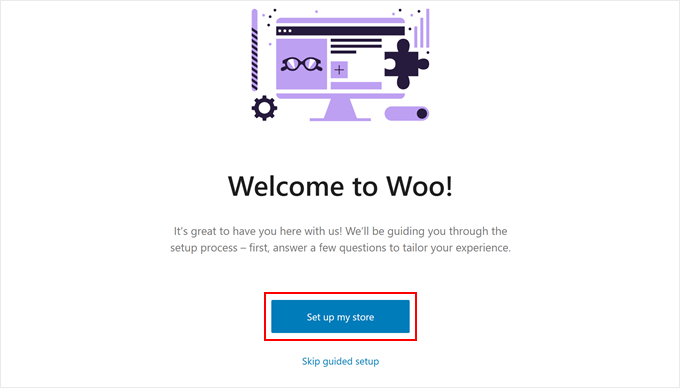
Once WooCommerce is active, you can start the wizard by clicking the ‘Set up my store’ button.
You can technically skip this onboarding process, but we don’t recommend doing that. This is because the wizard automatically creates your essential store pages so you don’t have to build them from scratch.
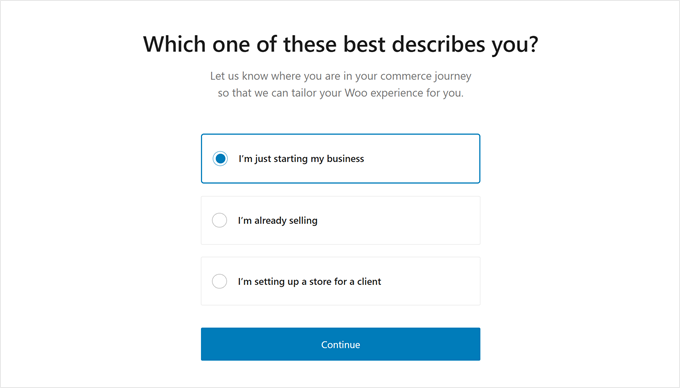
On the next screen, WooCommerce asks about you as a business owner.
If you’re new to this, then you can pick the ‘I’m just starting my business’ option.
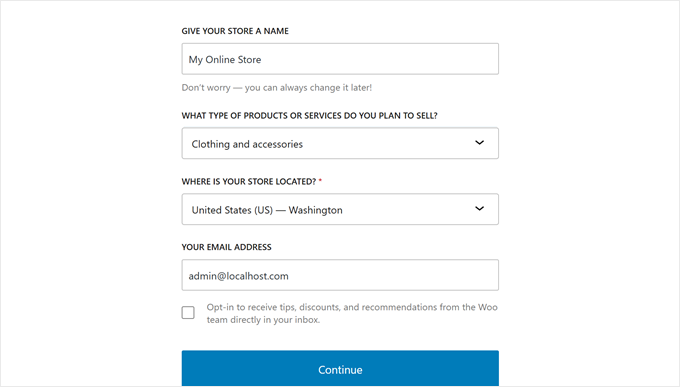
Next, it’s time to provide some business details. This includes your business name, the type of products you sell, your store location, and your business email address.
After filling everything in, click ‘Continue’.
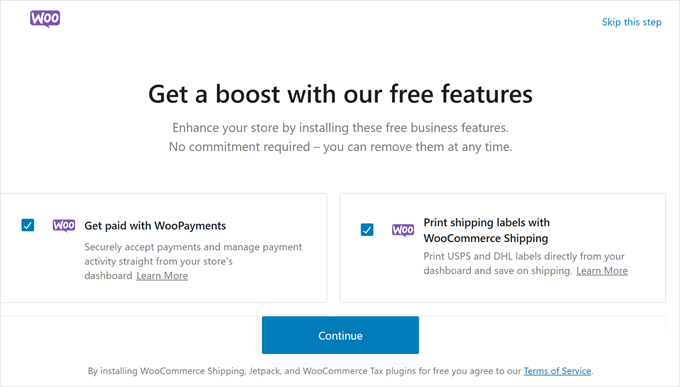
WooCommerce then suggests some free extensions you can install.
You can select the ones you plan to use and click ‘Continue’, or click ‘Skip this step’ for now.
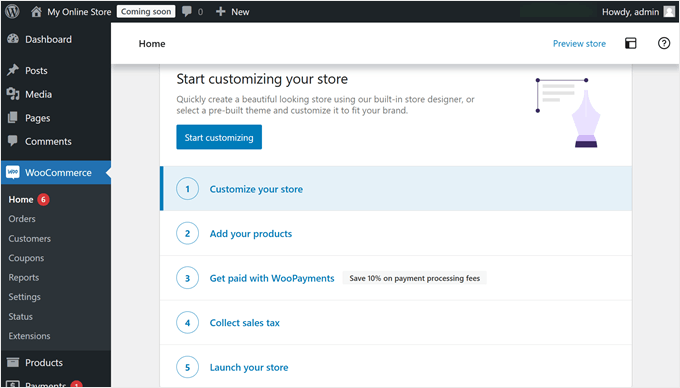
After installing everything, WooCommerce will display a helpful checklist for building your store.
Next, we’ll work through the most important items on that checklist.
Step 4: Design Your Online Store
The first item on that checklist is choosing a WordPress theme. A theme controls how your store looks and functions.
WordPress has thousands of themes, but not all of them suit online stores. Ideally, you want one that’s built specifically for WooCommerce, so we’ve put together a list of the best WooCommerce themes to help you out.
To install a theme, go to Appearance » Themes in your WordPress dashboard and click ‘Add New Theme’.
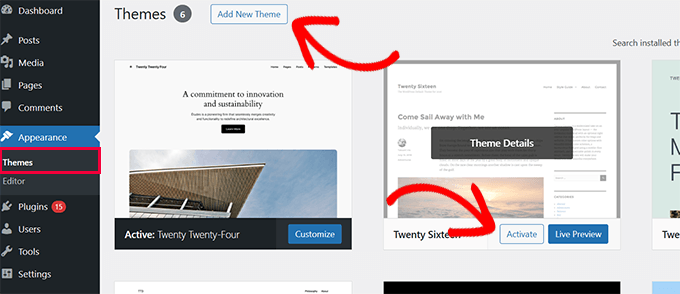
From there, you can browse and install any theme you like.
When it comes to customizing your theme, you’ll either have access to the classic theme customizer or the newer full site editor, depending on what theme you’re using. Our guide on how to edit a WordPress website covers both options.
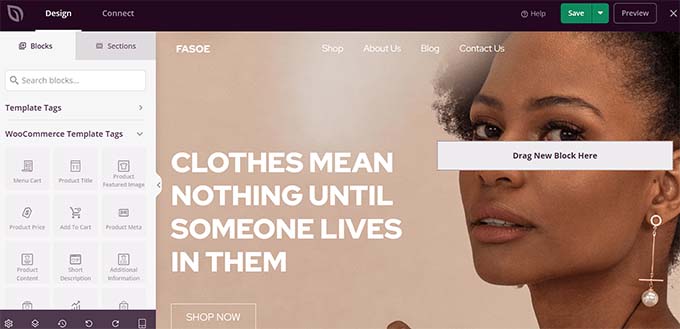
If you’d like more control over your online store’s design, then you can also use a drag-and-drop page builder instead.
SeedProd is the one we use for our own websites, and it comes with dozens of WooCommerce starter sites (templates) and customizable WooCommerce blocks.
For more options, see our roundup of the best page builders for WordPress.
Theme customization is an ongoing process, and you can keep refining it as your store grows. For help with specific pages, see our guide on how to edit WooCommerce pages to make things easier.
Step 5: Add Products to Your Store
To add a product, go to Products » Add new product from your WordPress menu.
This will open up the product editor screen, which looks a lot like the standard WordPress editor, but with some new sections for eCommerce.
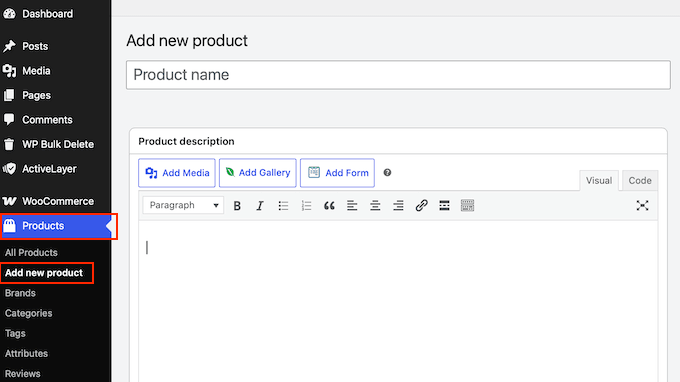
Entering a Product Title and Description
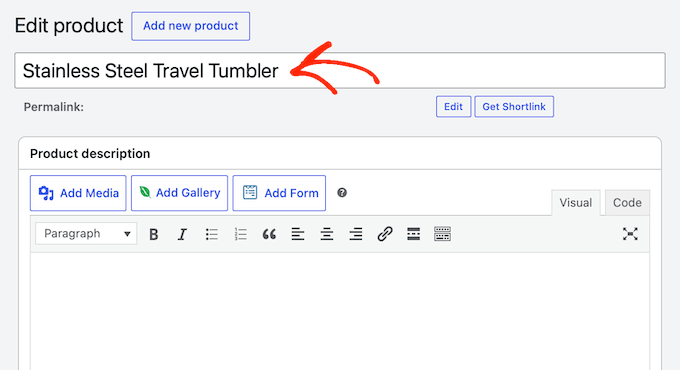
Next, you’ll need to enter a clear and descriptive product title.
Keep in mind that this is usually the very first thing your potential customers will see on your store page, so you’ll want to make it compelling.
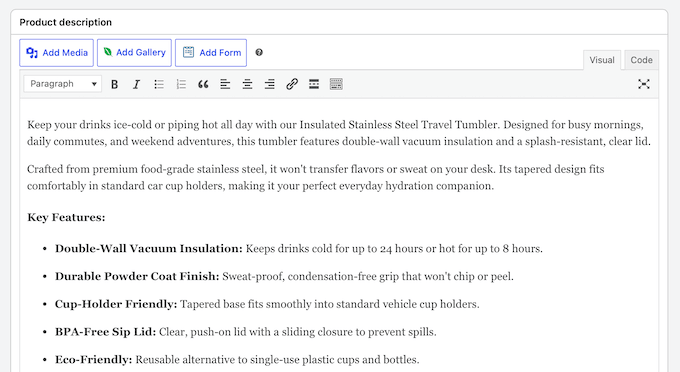
Right below the title is the main description box. This is where you can really sell the product.
We recommend writing a few well-structured paragraphs here that highlight key features, benefits, and important details.
Try to put yourself in the buyer’s shoes: What questions would you ask before purchasing? Be sure to answer those questions right in the text.
Adding Product Categories and Tags
On the right side of your screen, you’ll see options for ‘Product categories’ and ‘Product tags.’ These help keep your store organized and make it easier for visitors to find what they’re looking for.
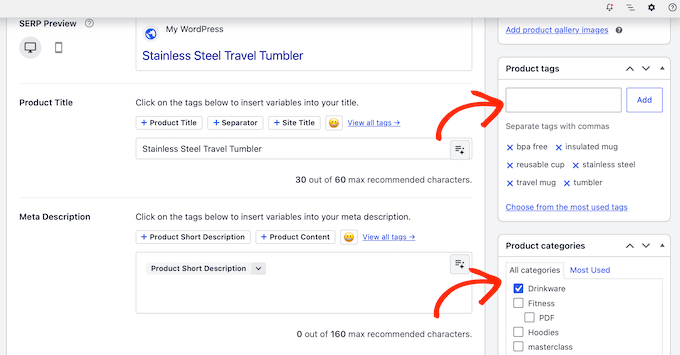
For more information, see our guide on how to add product tags, attributes, and categories in WooCommerce.
Creating Beautiful Product Galleries
Next up is your Product Image, which is your single most important selling tool. Online shoppers can’t physically touch your products, so we can’t stress this enough: always use high-quality, clear photos.
In the bottom-right sidebar of your editor screen, you’ll see two dedicated sections for visual assets:
- Product Image: This is the main, featured photo for your item. It’s the primary image visitors will see on your main shop catalog page and search results.
- Product Gallery: This is where you can upload additional supporting photos.
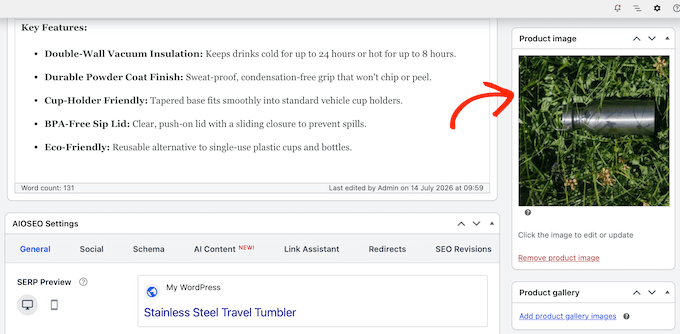
For detailed, step-by-step instructions, please see our guide on how to create a WooCommerce product image gallery.
Configuring Your Product Data
Next, head down to the ‘Product data’ box and click on the dropdown menu at the top.
From here, you’ll need to choose the product type you want to add:
- Simple Product: Select this if you’re selling a single item with a fixed price and no extra options, like a coffee mug or a paperback book.
- Variable Product: Choose this option if your item comes in different variations like sizes, colors, or materials. For example, you might have a t-shirt available in Small, Medium, and Large, with different prices or stock levels.
Most products are Simple, so this is what we’ll be using for this guide.
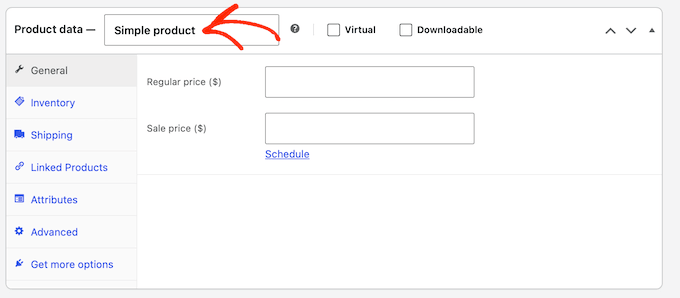
After making your selection, click on the ‘General’ tab. This is where you’ll set the pricing for your product.
Go ahead and enter your standard price in the ‘Regular price ($)’ field. If you’re planning to run a discount or promotion, you can also fill out the ‘Sale price ($)’ field.
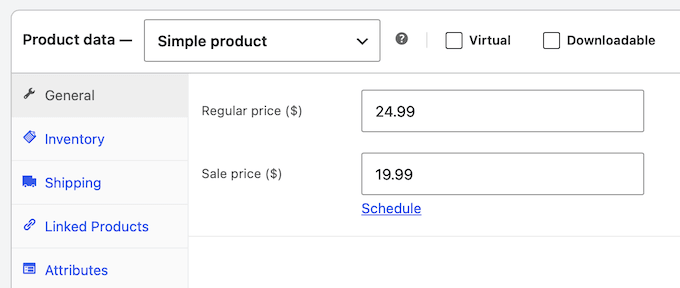
Setting up Your Inventory
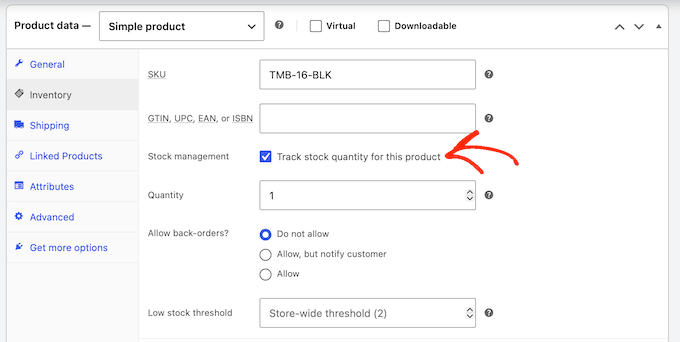
With that done, select the ‘Inventory’ tab.
In this section, enter a SKU (Stock Keeping Unit). This is a unique code used to track and identify your individual inventory items.
While this is optional, we highly recommend adding an SKU. A clear, logical SKU system will make it easier to manage your stock, especially as your business starts to grow.
You can use any naming convention that makes sense for your business (like TSHIRT-RED-LG).
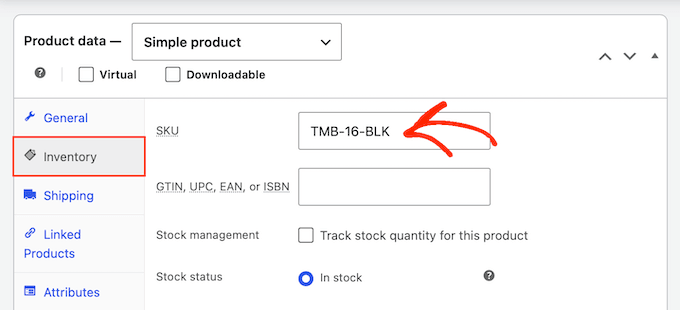
If you want WooCommerce to manage your inventory automatically, go ahead and check the box that says ‘Enable stock management at product level.’
Once checked, WooCommerce will display a few new options where you can enter your exact Stock quantity. WooCommerce will then automatically track purchases and mark the item as ‘Out of stock’ as soon as it sells out.
Adding Shipping Rates
With that done, click on the ‘Shipping’ tab.
In this section, you can enter the product’s Weight and Dimensions (Length, Width, and Height).
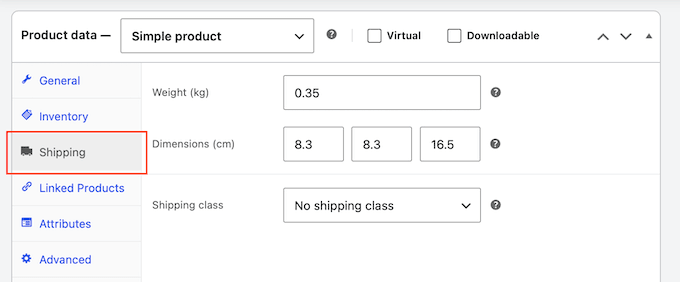
You can skip this if you’re using a simple flat-rate shipping method, but it’s worth filling in anyway. Accurate weights and dimensions matter if you ever switch to dynamic, carrier-calculated shipping rates (like FedEx or USPS).
Publishing Your Product
While there are more settings you can explore, this is all you need to create a simple product.
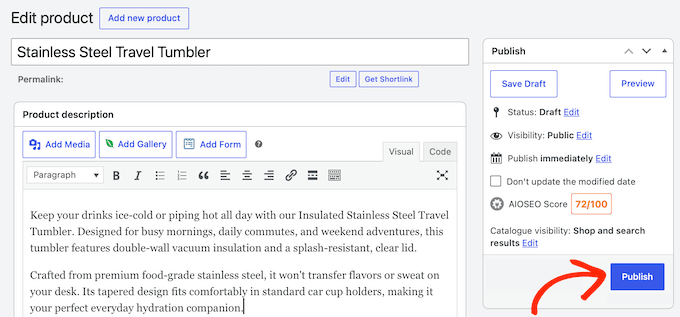
When you’re happy with how your product is set up, click the ‘Publish’ button to make it live.
You can now simply repeat these steps to add more items to your store.
Step 6: Set Up Payments, Taxes, and Shipping
Now let’s get your store ready to take orders, starting with how you’ll collect payments from customers.
In the WordPress sidebar, go to WooCommerce » Settings and click on the ‘Payments’ tab.
Here, you’ll find basic, built-in offline options like Cash on Delivery and Direct Bank Transfer, plus WooCommerce’s own payment gateway (the service that processes card payments) called WooPayments.
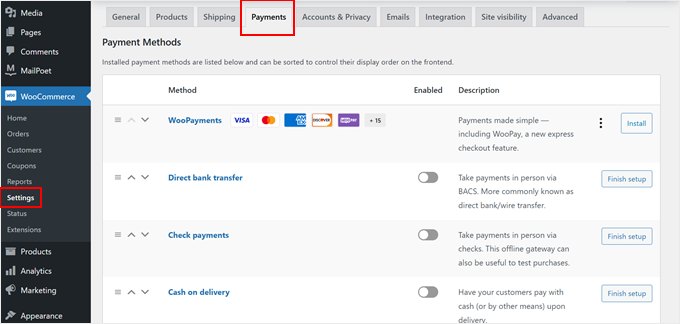
WooPayments is convenient and works out of the box, but it isn’t available in every country and some users report delayed payouts.
If WooPayments isn’t available where you are, FunnelKit’s free Stripe gateway is a solid alternative: customers pay by card without leaving your site, and it adds Apple Pay and Google Pay.
If you don’t want to use FunnelKit or WooPayments, then here are a few other ways to receive money in your online store:
- Let customers choose from several payment options.
- Accept credit card payments directly.
- Offer installment payments or Buy Now, Pay Later plans for bigger purchases.
Next, set up your sales tax by going to WooCommerce » Settings and clicking on the ‘Tax’ tab.
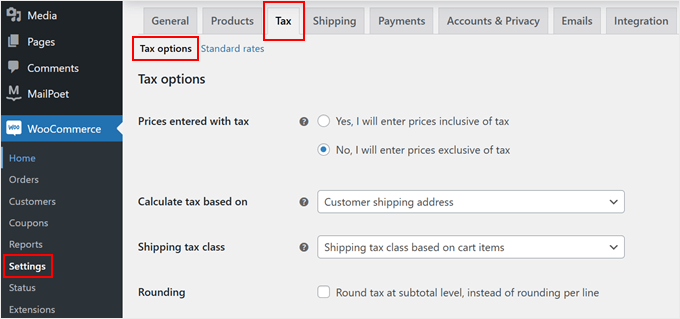
You can then decide whether to include tax in your listed prices, how to display it to shoppers, and what location to base your calculations on.
For most beginners, we recommend using the free WooCommerce Tax extension, which automatically calculates the exact right rate at checkout based entirely on the customer’s location.
While this plugin handles the math, we always recommend double-checking your local tax laws or consulting with an accountant to make sure your store is fully compliant.
Finally, you can easily set up your delivery options under the ‘Shipping’ tab. You can use zones to clearly define where you’re willing to ship and set specific delivery methods for each area, such as free shipping or standard flat rates.
If you sell items that are vastly different in size, you can also set up ‘Shipping Classes’ to charge different delivery rates for heavier items.
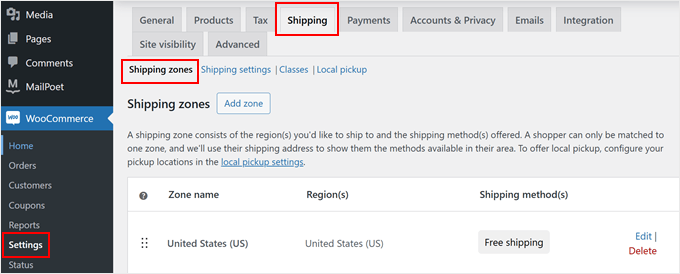
One important tip is to avoid hiding your shipping costs until checkout, since surprise fees are a leading cause of abandoned carts. Being completely upfront about these costs is a great way to build trust with your customers.
To help your buyers keep track of their packages, you can also easily add shipment tracking to your store.
Step 7: Optimize for SEO and Speed
Your store is now online and ready to take orders.
However, there are two crucial factors that will determine whether your online business grows: getting found on Google and loading fast enough to keep buyers happy.
Boost Your Store’s Search Rankings
To help shoppers find your products, you’ll want to optimize your store for search engines. We recommend using AIOSEO because it’s a free plugin that helps your online store appear in the search results.
With AIOSEO, you can easily set a focus keyword for each product and get smart, clear suggestions on how to optimize your title, description, and content to rank higher and drive more sales.

The paid version of the plugin also gives you access to more WooCommerce SEO features like smart product schema, inventory status, and optimization for product categories.
For details, see our ultimate guide to WooCommerce SEO.
Keep Your Pages Loading Fast
Slow stores lose sales. Here are two quick ways to make your online store faster right away:
- Optimize Your Product Images: High-resolution photos are great for showing off your products, but huge image files will drag your site speed down. We recommend using a free image optimization plugin like Smush or EWWW Image Optimizer to automatically compress your images.
- Enable Caching: A reliable caching plugin creates static HTML versions of your pages so your server doesn’t have to load heavy scripts every single time a visitor clicks on a product.
For more information, check out our step-by-step guide on how to speed up WooCommerce performance.
Track What Buyers Are Doing
To make smart decisions for your online business, you need clear data. That’s where Google Analytics comes in.
Setting up eCommerce tracking lets you easily see what’s working, which pages and products are bringing in sales, and where shoppers are dropping off.
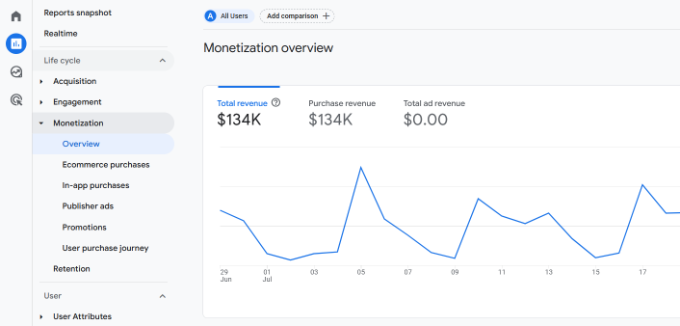
To get started, check out our guides on how to properly set up eCommerce tracking in WordPress, and how to set up WooCommerce conversion tracking.
Protect Your Hard Work with Backups
Losing your product data, customer details, or order history would be devastating, so set up automated backups for your store.
For step-by-step instructions, see our guide on how to back up your WordPress site.
How to Get Your Very First Customers
Opening your store is a huge milestone, but your work isn’t done yet. Now you need to give shoppers a reason to visit and build enough trust to convert them into paying customers.
Follow these steps to start converting your early traffic into loyal customers:
- Display Social Proof: Adding real customer reviews and testimonials to your site is one of the easiest ways to build instant trust with brand-new visitors. For more information, see our step-by-step guide on how to display WooCommerce reviews in WordPress.
- Start Building an Email List Early: Don’t let visitors leave without a way to reach them. Unlike social media followers, an email list is an asset you fully own. It gives you a direct line to your shoppers so you can send special offers, announce new products, and bring abandoned cart shoppers back to complete their purchase. Check out our expert showcase of the best email marketing services to find the right tool for your budget and goals.
- Create a Launch Discount: Give your very first visitors a reason to buy today by offering a launch coupon. Best of all, WooCommerce comes with a powerful coupon feature built right in. For details, see our guide on how to offer WooCommerce coupons.
- Drive Organic Traffic: Build long-term traffic using content marketing, search engine optimization, and social media. Check out our ultimate guide on proven ways to increase your WooCommerce sales for actionable strategies you can start today.
FAQs About Starting an Online Store
Can I start an online store for free?
Some eCommerce platforms offer limited free trials so you can get started without paying, but you’ll eventually need to sign up for a paid subscription once the trial period ends.
WooCommerce itself is completely free open-source software, but you’ll still need a domain name and a web hosting plan to get your store online, which do carry small upfront costs.
How much does it cost to start an online store?
The cost of starting an online store depends on your plan and budget. By using our exclusive link, you can launch your shop with Bluehost for just $2.99 per month while relying on free plugins and themes to keep your initial setup costs extra low.
We always recommend starting small and spending more on premium tools only as your business grows.
Can I create an online store without shipping products?
Yes. For example, you can use specialized dropshipping plugins to handle inventory, build an Amazon affiliate store to earn referral commissions, or run an online marketplace where other sellers handle their own order fulfillment.
Do I need to know how to code to run a WooCommerce store?
No. Everything in this guide, from initial setup to site design and payment processing, is done entirely through easy point-and-click settings and friendly plugins, so you never need to write a single line of code.
Video Tutorial
If you would rather watch than read, our video tutorial walks through how to start an online store from beginning to end:
We hope this guide helped you learn how to start an online store. You may also want to see our actionable tips to drive traffic to your new store or our comparison of the best business phone services.
If you liked this article, then please subscribe to our YouTube Channel for WordPress video tutorials. You can also find us on Twitter and Facebook.


Roman
Is it possible to create an online shop on the free wordpress.com website?
I just need it for a short time to know that it works, and then create my own website.
Editorial Staff
Hi Roman, no it’s not possible to create an online shop on the free wordpress.com site.
Admin
Todd Peterson
I followed your tutorial, and when I changed the http:// to https:// I now can’t log into word press, it says my connection isn’t secure, and I can’t even get back in to change it back to what it was previously……..
Debra Fear
changed my settings to https:// and now locked out of my dashboard which is locally hosted aka on my iMac
Safari error page says that it can not establish a secure connection with the localhost
newbie to wordpress.org and now end of day of learning getting a bit freaked out so any suggestions to get it back to http i.e I can get back in?
Thanks
Zahid
The article is good and detailed. However it would help in creating a website for international customers. How to create a website which is focused on pakistani customers only and in which payment methods are in place that are practical in pakistan. pay pal and others cannot be used for pakistani customers. Moreover kindly tell us whats the benefit of having an affiliate business like being Ali Express Plugin affiliate?
WPBeginner Support
Hi Zahid,
Once you have your store setup, you can go about adding different payment methods available to your customers.
For affiliate business, please take a look at our affiliate marketing guide.
Admin
James
I have approximately 100 products in a category. I would like to provide price breaks at every 5. For example
1 to 5 = $25 each
5 to 10 = $20 each
Etc.
Is it possible to do in Woocommerce
Camy
Hi there!
This article is very helpful. However, I’m wondering: After you set up the plugin and online store, what are options for delivery methods? I’m specifically wondering about paid PDF downloads. Are there companies that will automatically deliver the digital download? Or is this done by yourself?
Thanks!
WPBeginner Support
Hi Camy,
You can upload the digital download and your users will be able to download it after making the payment.
Admin
Efi
Hi ! I would like to ask you! I have already installed the woocommerce and I am seeing that needs update. Should I update it to 4.9.8? also, how we can build the communication with the customer? welcome email, confirmation email etc?
WPBeginner Support
Hi Efi,
Yes, you need to update. There are different ways to communicate with customers. You can ask customers to make an account before they checkout. You can also start an email list and ask your customers to subscribe your newsletter.
Admin
Henni
Hi there,
I already have a website (webhost and domain) running that was built and wrote by our partner. I think he uses joomla, sorry i am a newbie. Somehow we had issues, and he left.
I plan to rebuild the website using wordpress after reading all your helpful articles.
My question: can I install wordpress in my webhosting but still leave the old website running while I am working on the wordpress one?
Your help would be much appreciated.
Thank you in advance.
WPBeginner Support
Hi Henni,
Yes, you can do that.
Admin
Tina
Excellent post. Which themes do you recommend for an online marketplace with blog? Thank you!
Shoaib Akhtar Nadeem
Hello sir,How are you?
I want to open an online shopping store in which other sellers sell their products on my store and some of them are commission mine, how it is possible.
WPBeginner Support
Hi Shoaib,
Please see our article on how to create an online marketplace using WordPress.
Admin
Nick
Hi WP Beginner,
Thank for the clear and concise tutorial.
I was able to complete the set up for my existing WP site but ever since I changed the address of my site (as per your tutorial) I can’t login in.
When I log in to blue host everything is fine. I then click on the “Log in to WordPress” button on the home page I get a “Not Found” page:
Not Found
The requested URL /~flaregea/wp-admin/admin-ajax.php was not found on this server.
Additionally, a 404 Not Found error was encountered while trying to use an ErrorDocument to handle the request.
Apache Server at Port 443
I can still access my site if I just enter the URL into a browser and I can still access the wp-admin “back end” of my site but nothing to do with Blue Host.
Any thoughts on how I should proceed?
WPBeginner Support
Hi Nick,
Try backing up and then deleting your website’s .htaccess file using FTP.
Admin
Rebecca
And then is the website not https? Is there a reason some people have this problem? (I did as well and had to jump through hoops to fix)
WPBeginner Support
It would depend on your SSL certificate for if the site is able to use HTTPS or is limited to HTTP. If you’re not able to use HTTPS then you can normally reach out to your host to help fix your SSL.
t. redwood
Hello,
Thank you for the video it was super helpful and informative. My question is that:
I already have wordpress.org installed, will I be installing wordpress again by using blue host? Also does blue host install wordpress.org or .com ? thanks again!
WPBeginner Support
Hello,
If you already have a WordPress.org website, then you can move it to Bluehost. See our guide on how to move WordPress to new host.
Bluehost installs self-hosted WordPress.org.
Admin
Vanessa
Hi there!!! Thank you so much for such an amazing page! You have boosted my motivation to learn to use WordPress after some people told me to forget the idea because it is “too complicated”, so thank you!
I have just one question before I embarked on this experience. I would like check with you if the propose I am looking to have is possible with WordPress. I would like to create an online store to promote the products I sell on amazon. Can I have an plug in “buy with amazon” instead of the common purchasing/delivery options?
Any information about this I would highly appreciate it!
Cheers,
Vanessa
WPBeginner Support
Hi Vanessa,
Please see our article on how to build an amazon affiliate store using WordPress.
Admin
Min
You guys are awesome! Thanks for the wonderful information and tips <3 <3
Edward
The scope of my business licence is Canada-wide.
1) Can I still sell products, both digital ebooks(my major business items) and physical goods(my minor and potential business items) to non-Canada regions, e.g. USA, UK, China, etc.?
2) My bank account that is to be linked to Woocommerce is in Canada Dollar. If my ebooks and goods are purchased by non-Canada region customers, can Woocommerce convert the C$ product amount to the customer region’s currency, and show it on the client webpage ahead before the customer make the transaction? Also can Woocommerce do the opposite when processing returns and refunds?
Thank you very much.
WPBeginner Support
Hi Edward,
1. Yes.
2. WooCommerce itself does not process payments. It depends on the payment method you choose (Stripe or PayPal), and your bank. For example, Stripe allows Canada based users to receive payouts in Canadian or US dollars. If you have a local currency account, then you can select your local currency as your settlement currency.
Admin
Natasha
I purchased a theme with WP+WooCommerce on Envato Market. They say the theme is only good to use with WP.org and not compatible with WP.com Is it anyway I can still install it on WP.com host or I just wasted my money? What should I do now? Look for another theme which is compatible with commercial host? If I switch to BlueHost from my current host, can they make use of this theme so I don’t loose money? My current host does not help beginners like BlueHost does. In fact, I have no help at all, unless I always pay them for every little thing. If I transfer my existing domain to Bluehost, will it be free of charge? Thanks a lot for your quick reply.
WPBeginner Support
Hi Natasha,
Yes, if you switch to Bluehost then you can use the theme you have purchased. To learn more, see our guide on the difference between self hosted WordPress.org vs free WordPress.com blog.
Admin
Bolaji
Hello. Please, is it compulsory to do the plan for 36 months or we can pay per month?
Kindly respond because I was about to start the process but noticed that it only had the $6.95 for 36 months which defeats the affordability, to be honest.
Kindly respond. Thank you.
WPBeginner Support
Hi Bolaji,
Yes, this gives you the maximum discount on the offer.
Admin
Remi
When I put my payment info, will I get charged per month ( $14.95) or per year ($ 179.40)?
WPBeginner Support
Hi Remi,
You will be charged anually and you will be able to select the duration during the sign up. It will also show you the total amount you will be charged when you are entering your payment info.
Admin
Fanya
Hi!!!
Thank you so much for the information! I took the leap of faith and got the hosting through your affiliate link (to make sure you get the referral fees because you’re worth it!)
Yay to you! LOL
WPBeginner Support
Hey Fanya,
Thank you, we are glad you found this information helpful.
Admin
Ik
How do i create and connect database/database table in wordpress(form)
Jacob
1.Is it a Multi Address extension to collect shipping addresses for each basket purchases?
2. How can i use my own graphics for the site?
George Nikoff
Hello,
Thanks for the useful information though I have a question as a future online seller. I’m an artist currently working on my website and I’ll be selling my artworks on it through Woocommerce using Paypal. When selling do I need to be a registered business in the country I’m residing and pay taxes, or everything is handled by Paypal tax invoice system?
Thank you in advance!
Suraj Barai
Can you please explain. How to ship products?
WPBeginner Support
Hi Suraj,
It depends on your location, size of products, and delivery methods available. Many small businesses process their orders by getting them picked up by a delivery service.
Admin
Suraj Barai
Can you explain… What is shipping? And how to ship.
Liberty
I have two questions
1) I am wanting to set up an online store that includes my blog. Is this possible using wordpress and/or Woocommerce?
2) I already have a domain that is not through Wordpress. Can I use this domain still, or do I have to get one through Wordpress in order to use your services?
Thank you!
WPBeginner Support
Hey Liberty,
1. Yes, you can create a WordPress website and run a WooCommerce store and a blog on it.
2. There are two types of WordPress websites. WordPress.com which is a hosted solution. You will need at least business plan to install WooCommerce on WordPress.com.
Then there is WordPress.org, which is a self-hosted solution. You will need a domain name and hosting for that. In both cases, you can use the domain name you already have.
Please see our guide on the difference between self hosted WordPress.org vs free WordPress.com blog.
Admin
mercy
Hi,
I got a theme with built in WOO Commerce.
I wanna sell my EBook through my BLOG.
Pls tell me a way by which it will be delivered to the user automatically who buys it.
MK
rana
So glad to come across your website, thank you. I have two questions.
1- How do I prevent a person I add to wordpress to see information on my woocommerce with client and sales?
2-I set up the store but cannot seem to sort products in the order I want. How do I do that?
WPBeginner Support
Hi Rana,
Make sure that the person you add has appropriate user role and permissions.
You can sort products by visiting WooCommerce > Settings page. Under the Products tab you will see the default product sorting option.
Admin
Alisha
Someone asked this question in an earlier post and I don’t see a reply for it. I also want to know your reply to this question:
“How do I get manufacturers and suppliers to sell products on my store? Basically I don’t wanna sell my products. I want to open a store like Amazon which sells other’s products”
WPBeginner Support
Hi Alisha,
Please see our article on how to create an online marketplace using WordPress.
Admin
ELMOKHTAR
thank you for the tutorial. I want to ask is it work for Morroco
WPBeginner Support
Hi ElMokhtar,
Yes, it would. All you need is a credit card to purchase your hosting.
Admin
Jennelyn Barja
Is this working here in Philippines?
Editorial Staff
Hey Jennelyn,
Yes, it should be working in Philippines and every other country
Admin
Kennie
Hi, thank you for your article. I’ve actually bought a domain from bluehost, and i want to build a web that both contain my blog/article and the online shop. Is it possible for me to set “Shop” as 1 page of my blog that my viewers can click and link to online shop?
WPBeginner Support
Hi Kennie,
Yes you can have a blog and a shop page on your site.
Admin
Jaime Rodea
Hello,
I am looking at opening my own online shop as well. I have a few questions.
1. Do you have to get a small business license before setting up online?
2. How do you know if you need to charge taxed?
3. When someone makes a purchase, does this automatically give you an invoice to print off for each order?
Thanks for your time.
WPBeginner Support
Hi Jaime,
First, good luck with your online shop Now to answer your questions:
1. It depends on where you are located. You can usually find this out by typing this question with your location (city, county, state, or country) next to it.
2. This too can be found out online. Once you know the figures you can add enable taxes option in WooCommerce to calculate taxes.
3. You can enable invoices and print them.
Admin
Soumi
That’s a great guide. I will buy a domain here and connect with woo commerce.
But I have a question.
How do I get manufacturers and suppliers to sell products on my store? Basically I don’t wanna sell my products. I want to open a store like Amazon which sells other’s products.
Braile
Hi. Your blog was very helpful. Just one question. Does database automatically created when you install wordpress on bluehost?
WPBeginner Support
Hi Braile,
Yes. Their automated setup takes care of it.
Admin
Kabir khan
Hi I just have a question!
If I want to make a website for my client who will be responsible for buying domain name, web hosting service and SSL certificate?
Also will I have to ask for PayPal account of the client?
Saroj Meher
Hello sir
I am an artist from India. Recently buy a wordpress hosting plan. I want to built a website just to welcome other artist also to show their artworks. How can it bw possible. The woocommerce, Dokan, Wp marketplace plugin shows the vendor forms that is not suitable for artists. I need to built artist registration, login, dashboard, uplord artwork forms for this websites. Can you help me plz.
Ana
hi
is this working in france too?
thanks
WPBeginner Support
Hi Ana,
Yes, it works in France too.
Admin
Akshay
Hi sir,
i am facing problem in woo commerce shipping setting
your guidance is amazing.
Dagmar
Hi. I have Personal plan for WP. Do I have to upgrade before setting up the store following this tutorial? Thank you.
WPBeginner Support
Hi Dagmar,
Seems like you are using WordPress.com. Please see our guide on the difference between self hosted WordPress.org vs free WordPress.com blog.
Admin
Gayle
I would love to learn how to have a page dedicated to Amazon. I want to do a bookstore through Amazon. I can’t find any plugins that work and I don’t want a dedicated site, just a page. How can I do this?
Danielle
Hi, may I know how long does it take to set up SSL? I have followed your instruction and changed “http” to “https”. However, the changes are still not reflected. My site is still not secured. Any advice for this?
Sonia
Hi there,
I recently bought a domain name on Shopify and haven’t subscribed to anything yet and still running on the trial phase for the next few days but after reading your article I’m much more interested in following these steps explained above. Am I gonna have to buy another domain name or will I be able to use the one I just purchased?
Thank you
Sonia
WPBeginner Support
Hi Sonia,
You can use the same domain. You will need to change its DNS settings and point them to Bluehost.
Admin
Esther
Hi there,
I have an onlive store with Shopify but want to move to wordpress and woocommerce. How do I change the DNS setting to move my domain to bluehost. Also, can i just buy the $2.95 Hosting and install free woocommerce? Or does it need to be the plan you mentioned, 6.95? What about backup? Would I need to purchase that as well? Thanks.
WPBeginner Support
Hi Esther,
You can change your domain name settings in Shopify by visiting Online Store > Domains and then under Shopify Managed Domains section click on your domain name. Next click on DNS settings to edit them.
WooCommerce is a bit more resource intensive than a typical starter WordPress blog. That’s we recommend their eCommerce plan it is optimized for WooCommerce hosting.
Patrick Thomas
Good tips really nice. I tried following your steps i select $6.95 per month and chose a domain name….on getting to paying with my credit card I received a message ” insufficient fund on my account ” of which I do know I have more than $6.95 on my account. Please is this a familiar error message , are there other hidden charges or am I missing something? Please I really need your advice. Doing this is so important to me. Thanks
WPBeginner Support
Hi Patrick,
This could be a temporary error. If your card wasn’t charged, you can retry again. If the same error occurs again, please contact their support staff.
Admin
Vishal Mittal
Hi, read your article and found the article very informative. But still have one query how can we add a login and register feature(just like a seller in flipkart) who can have these own market place.
Hoping for answers
Thanks and best regards
Beth
Hello, I want to create an online store but I just bought a domain and hosting plan on another platform. Does my domain have to be with WordPress, do I have to transfer it or I can go ahead with the already made domain
WPBeginner Support
Hi Beth,
If your hosting provider supports WordPress then you can start there. Othwerwise, you may want to consider moving your site.
Admin
Mohamed Ramadan
I want to know the difference between using normal wordpress bluehost, then install woocommerce plugins for free and using bluehost wordpress + woocommerce. isn’t the first option more affordable and cheaper?
WPBeginner Support
Hi Mohamed Ramadan,
Yes, and WooCommerce would probably run too. However, resources on shared servers are very low and WooCommerce is a very transactional app. If you start getting more customers your site will slow down, shared host may block your processes to save other sites from slowing down, and transactions may not complete due to slow site or server interruptions. That’s why we recommend using Bluehost‘s eCommerce plan.
Admin
Jenny
Thanks for this great WooCommerce tutorial! I’ve installed the plugin and started setting everything up but I noticed that WooCommerce has automatically pulled products from my existing /products page. This is incorrect and these items should not be populated on my WooCommerce /shop page. But when I delete these items from the WooCommerce products tab, it actually deletes them from my /products page as well. I absolutely don’t want WooCommerce automatically populating their /store page with information from any of my other pages and can’t seem to find a way to prevent this from happening. Do you have any advice for me?
WPBeginner Support
Hi Jenny,
It seems like your product pages have the same post type as WooCommerce products. One thing that you can try is switching your older products to a different post type. See our article on how to switch post types in WordPress. However, this could have adverse consequences like broken links. Make sure you create a complete WordPress backup before you try this.
Admin
sham khan
hi i want to make onlinestore in which there is every thing including gift items also what can i have to do?
bamidele
Hello, why does checkout, basket…… appear on the menu list. I thinks thats abnormal; please how do i make them invisible to my site visitors.
Also on my site (customizr pro theme) submenus do not appear under their parent menus (I mean sub menus are supposed to be invisible until you hover or click the parent) how do i resolve this.
Thanks.
Yomi
Hello, weldone.Pls i am interested in settling up a blog for job/vacancies advertisement and online store like WooCommerce.pls how do i get started?
WPBeginner Support
Hi Yomi,
For an online store please follow the instructions above. For vacancies and jobs you may want to checkout our article on how to add a job board in WordPress.
Admin