


Many small business owners we’ve spoken to have told us that their customers hesitate to buy expensive items all at once. Adding a ‘Buy Now, Pay Later’ option to their WordPress stores helped solve that problem by giving shoppers more flexibility with payments.
With this method, customers can buy what they want today and pay it off over time, while the business still receives the full payment upfront. It’s an easy way to increase sales and make your products more accessible to more people.
In this guide, we’ll show you how to add ‘Buy Now, Pay Later’ payment plans to your WordPress website.
💡 Quick Answer: How to Add “Buy Now Pay Later” Payment Plans to WordPress
You can easily add “Buy Now, Pay Later” (BNPL) options to WordPress using WP Simple Pay. It connects your site to Stripe, allowing you to offer services like Klarna and Afterpay without needing a full shopping cart.
Why Offer Buy Now Pay Later Payment Plans?
With buy now pay later, the customer has the ability to either pay nothing at the time of their online purchase or pay a very small amount upfront and then pay the remaining amount over time.
Here’s why offering BNPL payment plans can be a good option for your WordPress store:
- Increase Conversions and Average Order Value: By making expensive items more accessible, BNPL significantly reduces purchase hesitation, leading to more completed sales.
- Enhanced Customer Flexibility: Shoppers can buy what they need today and spread the cost over time, often with interest-free installments.
- Full Upfront Payment for Your Business: Despite customers paying in installments, your business receives the entire purchase amount upfront from the BNPL provider. This allows for immediate cash flow.
- Protection Against Fraud: BNPL providers handle the credit risk and fraud protection, which safeguards your business from potential losses related to customer non-payment.
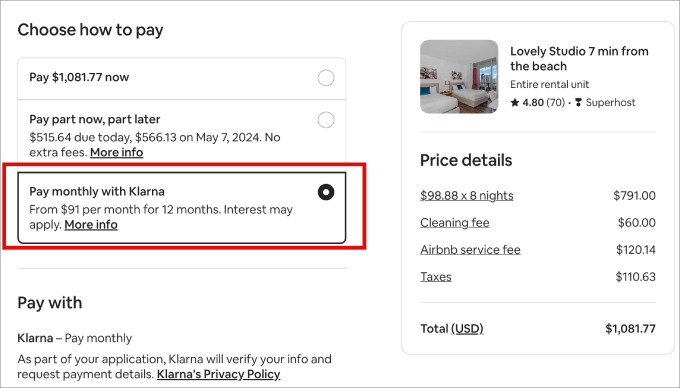
For example, you can see that Airbnb offers several options at checkout: a pay in full, pay in partial, and a buy now pay later option with Klarna.
With that in mind, we’ll share how you can offer a buy now pay later payment plan in WordPress.
Here’s a quick look at the steps we’ll cover in this article:
Let’s get started!
Adding a Buy Now Pay Later Payment Plan in WordPress
The best way to offer a pay later payment option in WordPress is by using WP Simple Pay. It’s the best Stripe payment plugin for WordPress that lets you accept online payments without the need to set up a shopping cart.
It’s helpful to think of WP Simple Pay as the bridge that connects your WordPress site to Stripe.
Stripe is a powerful payment gateway that securely processes payments and integrates with Buy Now, Pay Later services like Klarna and Afterpay.
We have also found WP Simple Pay to be the easiest way to connect Stripe to WordPress. It has a payment form builder, can easily accept one-time or recurring payments, and even integrates with Klarna and AfterPay for BNPL.
For more details about the tool, you can see our complete WP Simple Pay review.
Step 1: Install and Activate WP Simple Pay
First, let’s install and activate the WP Simple Pay plugin. If you need help, then please see our guide on how to install a WordPress plugin.
Note: You’ll need the WP Simple Pay Pro plan because it includes the buy now pay later payment methods. There is also a free version of the plugin that you can try.
Step 2: Connect to Your Stripe Account
Upon activation, the plugin will automatically launch the setup wizard. Go ahead and click the ‘Let’s Get Started’ button.

After that, you’ll need to enter the license key. You can easily find the license key in the WP Simple Pay account area.
Simply copy the license key and paste it into the setup wizard. Once that’s done, you can click the ‘Activate and Continue’ button.

In the next step, you’ll need to connect your Stripe account with WP Simple Pay.
Stripe is one of the most popular payment gateways, and anyone with a legitimate business can create a Stripe account to accept online payments.
Next, let’s click the ‘Connect with Stripe’ button to continue.
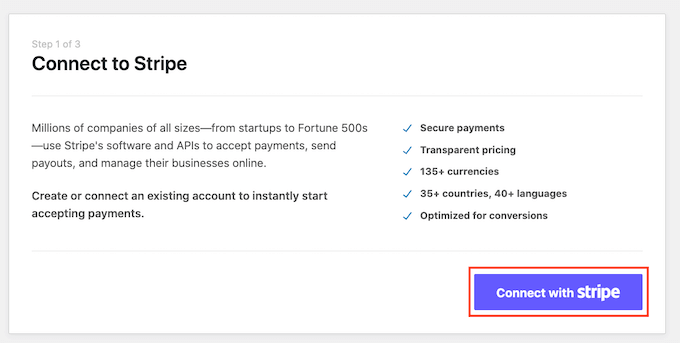
Now, you’ll want to log in to your Stripe account or create a new one and follow the onscreen instructions to connect it with WP Simple Pay.
An important thing to remember is that Stripe requires sites to have SSL encryption.
Most WordPress hosting comes with a free SSL certificate these days. If you don’t have an SSL certificate, then please see our guide on how to move your website from HTTP to HTTPS.
After connecting WP Simple Pay with Stripe, the setup wizard will ask you to configure the emails.
You can enable options to receive email notifications for payment receipts, upcoming invoices, and payment notifications by entering the email address to which to send them.
Note: If you’re not receiving the notifications, then you should check out our guide on how to fix WordPress not sending emails, since this can be a common problem.

Simply click the ‘Save and Continue’ button when you’re done.
Step 3: Create a Payment Form
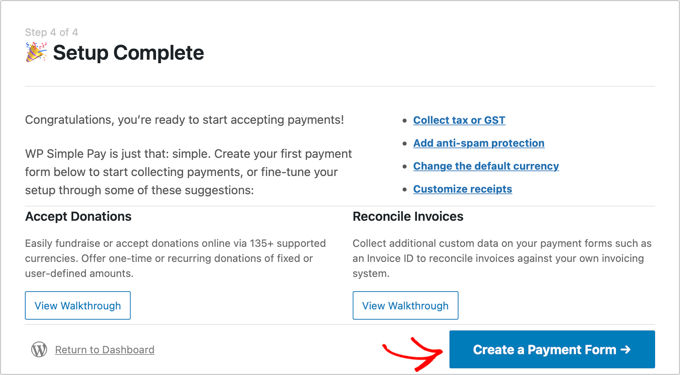
The last step in the setup wizard is to create a payment form. Go ahead and click the ‘Create a Payment Form’ button.
WP Simple Pay offers 2 payment methods through which you can accept buy now pay later payments, including Klarna and Afterpay/Clearpay.
The choice between the 2 methods depends on where you’re located and which method best suits the type of products you’re selling. That’s because Klarna and Afterpay work in selected regions and allow you to sell certain products.
Let’s take a closer look and create payment forms for both the buy now pay later payment methods.
Creating a Klarna Buy Now Pay Later Payment Form
Klarna offers 4 ways customers can buy now and pay later. They can pay in 3 or 4 interest-free installments, pay later after 14, 21, or 30 days, pay the full amount immediately using a credit card, or get financing and spread the total amount over multiple months.
The type of buy now pay later model available to your customers will depend on which country they’re located in.
Klarna is available in many countries, including the United States, United Kingdom, Germany, France, Sweden, and more across Europe.
Note: Supported countries can change. We recommend checking the official Stripe documentation for the most up-to-date list.
Please note that Klarna is not available for use by charities, political organizations, parties, or initiatives.
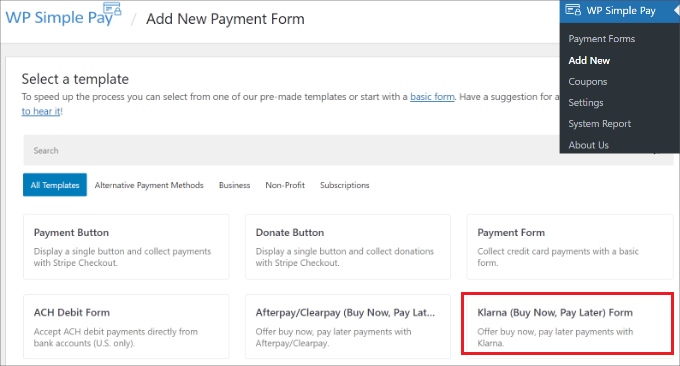
To start creating a payment form, you can click the ‘Create a Payment Form’ button in the setup wizard or go to the WP Simple Pay » Add New page from your WordPress admin panel.
Now, simply select the ‘Klarna (Buy Now, Pay Later) Form’ template.
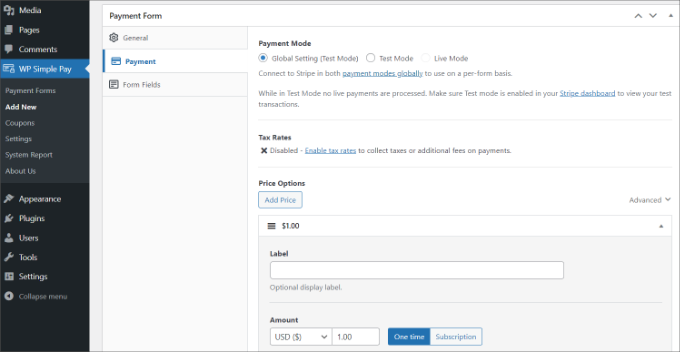
After that, head over to the ‘Payment’ tab to add prices.
Here, you can enter the amount, change the label, and choose whether to accept one-time or subscription-based payments.
Quick Tip: For Buy Now, Pay Later options to work correctly, the currency set for your payment form (or the transaction) must match the currency of the country where your customer is located.
For example, if you want to offer Klarna to customers in the United States, the payment form should be set to accept USD.
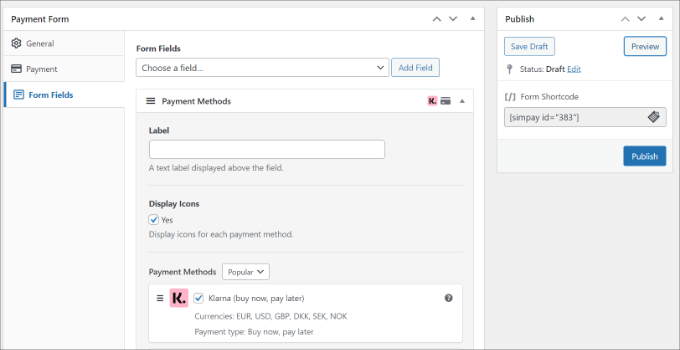
Next, you can go to the ‘Form Fields’ tab and add any additional fields you’d like to add to the form.
Under the ‘Payment Methods’ section, you’ll see that the Klarna option will be enabled. You can also add more payment methods to your form if you want.
Next, you can preview and publish your payment form.
After that, simply add the form to any landing page or blog post on your website.
To do that, simply go to the WordPress content editor and add a ‘WP Simple Pay’ block. Then select your Klarna buy now pay later payment form from the dropdown menu.
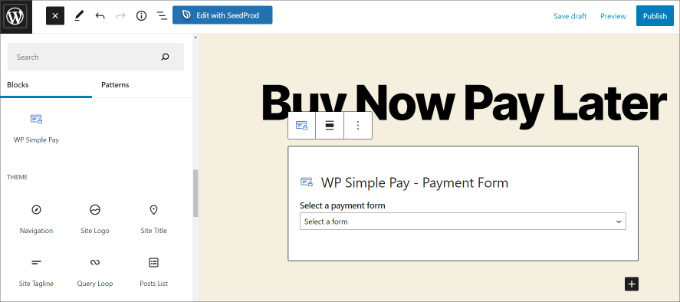
Next, you can preview the form and publish it.
Simply visit your website to see the buy now pay later payment form in action.
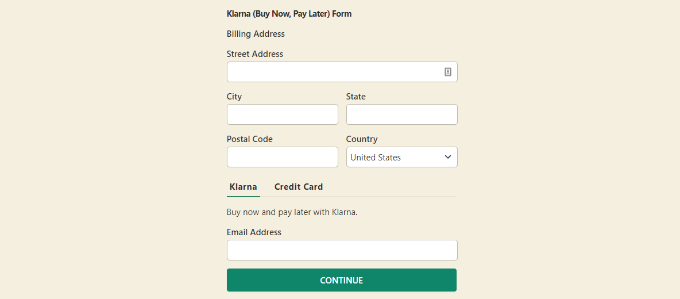
When a customer chooses a ‘Buy Now, Pay Later’ option on your site, they will be securely guided through the Klarna or Afterpay process.
This might happen directly on your site or by temporarily redirecting them to the provider’s page, where they must log in or create an account to approve their payment plan.
Once finished, they’ll be sent right back to your website.
Creating an Afterpay/Clearpay Buy Now Pay Later Payment Form
Afterpay/Clearpay is another payment method through which you can accept buy now pay later payments.
Afterpay is available in several countries, including Australia, Canada, the United Kingdom, and the United States.
Note: Supported countries can change. We recommend checking the official Stripe documentation for the most up-to-date list.
Unlike Klarna, Afterpay typically allows customers to pay in 4 installments. Plus, you cannot use the payment method to sell alcohol, digital games and apps, donations, electronics, flash sales, pre-orders, or travel.
To create an Afterpay payment form, you can head to the WP Simple Pay » Add New page from your WordPress admin panel and select the ‘Afterpay/Clearpay (Buy Now, Pay Later) Form’ template.
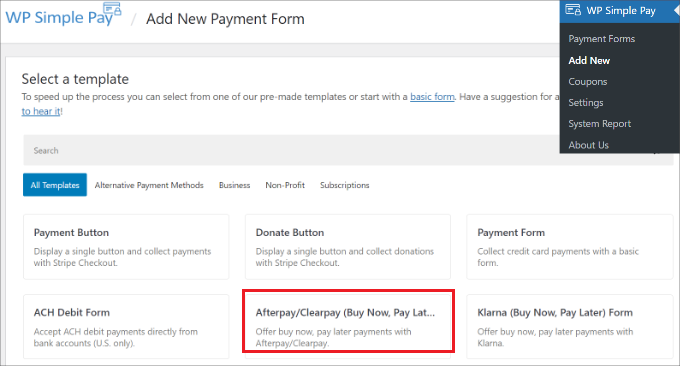
Next, you can navigate to the ‘Payment’ tab and set up your prices.
The plugin allows you to choose a payment mode, enter a label, choose a payment amount, and select one-time or subscription-based payment.
After that, you can head over to the ‘Form Fields’ tab to add more form fields.
You can also check that the Afterpay payment option is enabled under the ‘Payment Methods’ section and add more payment options to your form.
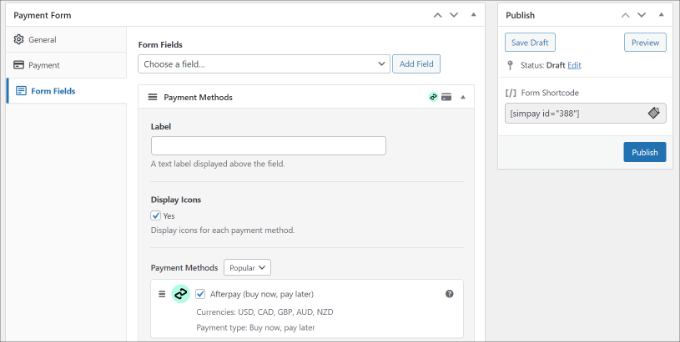
Now, go ahead and preview your payment. If everything looks good, then simply click the ‘Publish’ button.
Finally, you can add this form to any page just like you did with the Klarna form.
Simply add the ‘WP Simple Pay’ block in the editor and select your Afterpay form from the dropdown menu.
After that, you can preview your page and publish it.
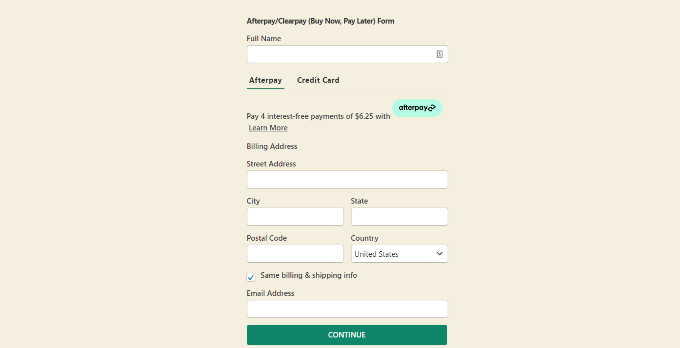
Now visit your website to see the Afterpay buy now pay later payment form in action.
Frequently Asked Questions About Buy Now, Pay Later in WordPress
Here are some questions that our readers frequently ask about buy now, pay later plans in WordPress:
What is the main benefit of offering ‘Buy Now, Pay Later’ (BNPL)?
The biggest advantage of “buy now pay later” is that it makes your products more affordable for customers by splitting the cost into smaller, interest-free installments. This can lead to higher conversion rates and a larger average order value for your business.
Do I get paid the full amount immediately with BNPL?
Yes. When a customer makes a purchase using a buy now pay later service like Klarna or Afterpay, you receive the full payment upfront from the provider. They then take on the responsibility of collecting the installment payments from the customer.
Are there fees for merchants using BNPL services?
Yes, buy now pay later providers charge merchants a per-transaction fee. This fee is typically a bit higher than standard credit card processing fees, as it covers the service cost and the risk of customer non-payment.
What is the easiest way to add BNPL payment plans to WordPress?
For most users, a plugin like WP Simple Pay is the simplest method for accepting “buy now pay later” payments in WordPress. It integrates directly with Stripe and allows you to add Klarna and Afterpay payment forms without needing to set up a full eCommerce shopping cart.
Can I offer BNPL with WooCommerce?
Absolutely. Major providers like Klarna, Afterpay, and Affirm offer official extensions for WooCommerce. These allow you to seamlessly add their payment options to your existing WooCommerce checkout page.
We hope that this article helped you learn how to add ‘Buy Now, Pay Later’ payment plans to WordPress. You can also check out our guides on how to connect WordPress to PayPal Commerce and how to pass payment processing fees to customers.
If you liked this article, then please subscribe to our YouTube Channel for WordPress video tutorials. You can also find us on Twitter and Facebook.




Lu Ross
Can I use Buy Now Pay Later if I already have Stripe set up on my eCommerce/WooCommerce site?
WPBeginner Support
Yes, you can
Admin
Lu Ross
Do I need to uninstall the current Stripe plugin to install Buy Now Pay Later or do I keep both?
Thanks,
Lu
WPBeginner Support
Unless we hear otherwise, you should be able to keep both.
Ihtisham Ulhaq
Is this available in video.
WPBeginner Support
When we have a video version, we will embed it in our article
Admin