


It’s a sinking feeling when you realize a tiny, overlooked text file might be silently sabotaging your website’s SEO. Many site owners don’t realize that a simple mistake in their robots.txt file can prevent Google from finding their most important content.
After auditing thousands of WordPress sites, we’ve seen this happen more times than we can count. The good news is that fixing it is easier than you think.
In this guide, we will walk you through the exact, battle-tested steps we use to optimize a WordPress robots.txt file. You’ll learn how to get it right and ensure search engines crawl your site efficiently.
Feeling overwhelmed? Here’s a quick overview of everything we’ll cover in this guide. Feel free to jump to the section that interests you most.
- What Is a Robots.txt File?
- Do You Need a Robots.txt File for Your WordPress Site?
- What Does an Ideal Robots.txt File Look Like?
- How to Create a Robots.txt File in WordPress
- How to Test Your Robots.txt File
- Final Thoughts
- Frequently Asked Questions About WordPress Robots.txt
- Additional Resources on Using Robots.txt in WordPress
What Is a Robots.txt File?
Robots.txt is a text file that website owners can create to tell search engine bots how to crawl and index pages on their sites.
It is typically stored in the root directory (also known as the main folder) of your website. The basic format for a robots.txt file looks like this:
User-agent: [user-agent name]
Disallow: [URL string not to be crawled]

User-agent: [user-agent name]
Allow: [URL string to be crawled]

Sitemap: [URL of your XML Sitemap]
You can have multiple lines of instructions to allow or disallow specific URLs and add multiple sitemaps. If you do not disallow a URL, then search engine bots assume that they are allowed to crawl it.
Here is what a robots.txt example file can look like:
User-Agent: *
Allow: /wp-content/uploads/
Disallow: /wp-content/plugins/
Disallow: /wp-admin/

Sitemap: https://example.com/sitemap_index.xml
In the above robots.txt example, we have allowed search engines to crawl and index files in our WordPress uploads folder.
After that, we disallowed search bots from crawling and indexing plugins and WordPress admin folders.
Lastly, we have provided the URL of our XML sitemap.
Do You Need a Robots.txt File for Your WordPress Site?
While your site can function without a robots.txt file, we’ve consistently found that sites with optimized robots.txt files perform better in search results.
Through our work with clients across various industries, we’ve seen how proper crawl budget management through robots.txt can lead to faster indexing of important content and better overall SEO performance.
This won’t have much impact when you first start a blog and don’t have a lot of content.
However, as your website grows and you add more content, then you will likely want better control over how your website is crawled and indexed.
Here is why.
Search engines allocate what Google calls a ‘crawl budget’ to each website. This is the number of pages they’ll crawl within a given timeframe.
In our testing across thousands of WordPress sites, we’ve found that larger sites particularly benefit from optimizing this budget through strategic robots.txt configuration.
For example, one of our enterprise clients saw a 40% improvement in crawl efficiency after implementing our recommended robots.txt optimizations.
You can disallow search bots from attempting to crawl unnecessary pages like your WordPress admin pages, plugin files, and themes folder.
By disallowing unnecessary pages, you save your crawl quota. This helps search engines crawl even more pages on your site and index them as quickly as possible.
Another good reason to use a robots.txt file is when you want to stop search engines from indexing a post or page on your website.
However, it’s important to know that robots.txt is not the best way to hide content. A disallowed page can still appear in search results if it’s linked to from other websites.
If you want to reliably stop a page from appearing on Google, you should use a ‘noindex’ meta tag instead. This tells search engines not to add the page to their index at all.
What Does an Ideal Robots.txt File Look Like?
Many popular blogs use a very simple robots.txt file. Their content may vary depending on the needs of the specific site:
User-agent: *
Disallow:

Sitemap: https://www.example.com/post-sitemap.xml
Sitemap: https://www.example.com/page-sitemap.xml
This robots.txt file allows all bots to index all content and provides them with a link to the website’s XML sitemaps.
For WordPress sites, we recommend the following rules in the robots.txt file:
User-Agent: *
Allow: /wp-content/uploads/
Disallow: /wp-admin/
Disallow: /readme.html
Disallow: /refer/

Sitemap: https://www.example.com/post-sitemap.xml
Sitemap: https://www.example.com/page-sitemap.xml
This tells search bots to index all your WordPress images and uploaded files by specifically using the Allow directive, which is a helpful command that search engines like Google understand.
It then disallows search bots from indexing the WordPress admin area, the default readme.html file (which can reveal your WordPress version), and common directories for cloaked affiliate links like /refer/.
By adding sitemaps to the robots.txt file, you make it easy for Google bots to find all the pages on your site.
Now that you know what an ideal robots.txt file looks like, let’s take a look at how you can create a robots.txt file in WordPress.
How to Create a Robots.txt File in WordPress
There are two ways to create a robots.txt file in WordPress. You can choose the method that works best for you.
Method 1: Editing Robots.txt File Using All in One SEO
All in One SEO, also known as AIOSEO, is the best WordPress SEO plugin on the market, used by over 3 million websites. It’s easy to use and comes with a robots.txt file generator.
To learn more, see our detailed AIOSEO review.
If you don’t already have the AIOSEO plugin installed, you can see our step-by-step guide on how to install a WordPress plugin.
Note: A free version of AIOSEO is also available and has this feature.
Once the plugin is installed and activated, you can use it to create and edit your robots.txt file directly from your WordPress admin area.
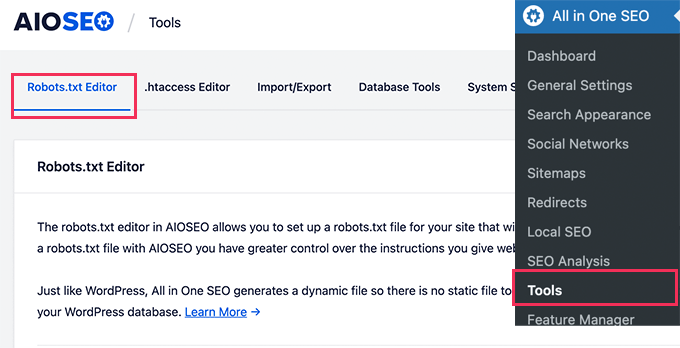
Simply go to All in One SEO » Tools to edit your robots.txt file.
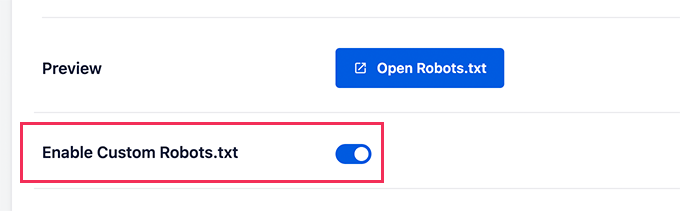
First, you’ll need to turn on the editing option by clicking the ‘Enable Custom Robots.txt’ toggle to blue.
With this toggle on, you can create a custom robots.txt file in WordPress.
All in One SEO will show your existing robots.txt file in the ‘Robots.txt Preview’ section at the bottom of your screen.
This version will show the default rules that were added by WordPress.
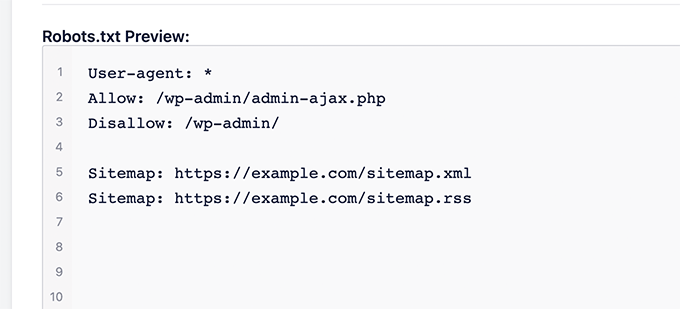
These default rules tell the search engines not to crawl your core WordPress files, allow the bots to index all content, and provide them a link to your site’s XML sitemaps.
Now, you can add your own custom rules to improve your robots.txt for SEO.
To add a rule, enter a user agent in the ‘User Agent’ field. Using a * will apply the rule to all user agents.
Then, select whether you want to ‘Allow’ or ‘Disallow’ the search engines to crawl.
Next, enter the filename or directory path in the ‘Directory Path’ field.
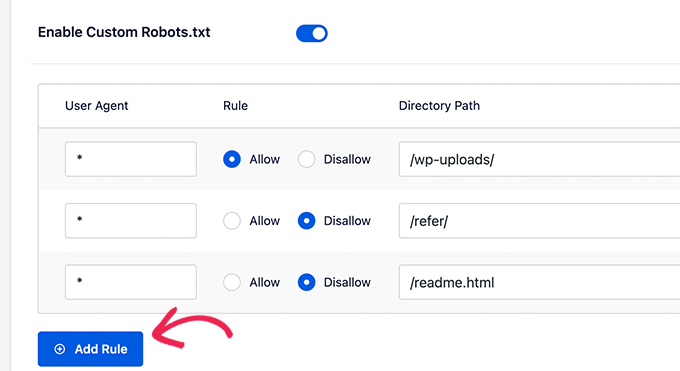
The rule will automatically be applied to your robots.txt. To add another rule, just click the ‘Add Rule’ button.
We recommend adding rules until you create the ideal robots.txt format we shared above.
Your custom rules will look like this.
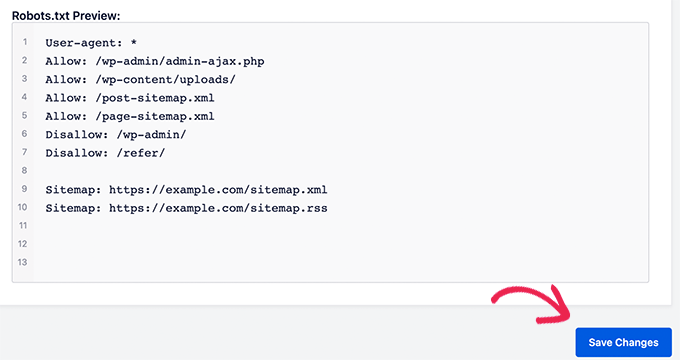
Once you are done, don’t forget to click on the ‘Save Changes’ button to store your changes.
Method 2: Editing Robots.txt File Using WPCode
WPCode is a powerful code snippets plugin that lets you add custom code to your website easily and safely.
It also includes a handy feature that lets you quickly edit the robots.txt file.
Note: There is also a WPCode Free Plugin, but it doesn’t include the file editor feature.
The first thing you need to do is install the WPCode plugin. For step-by-step instructions, see our beginner’s guide on how to install a WordPress plugin.
On activation, you need to navigate to the WPCode » File Editor page. Once there, simply click on the ‘robots.txt’ tab to edit the file.
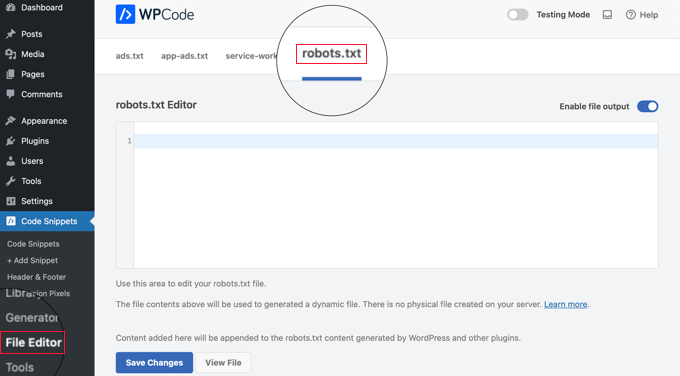
Now, you can paste or type the contents of the robots.txt file.
Once you are finished, make sure you click the ‘Save Changes’ button at the bottom of the page to store the settings.
Method 3: Editing Robots.txt file Manually Using FTP
For this method, you will need to use an FTP client to edit the robots.txt file. Alternatively, you can use the file manager provided by your WordPress hosting.
Pro Tip: Before editing, we recommend downloading a backup copy of your original robots.txt file (if one exists) to your computer. That way, you can easily re-upload it if something goes wrong.
Simply connect to your WordPress website files using an FTP client.
Once inside, you will be able to see the robots.txt file in your website’s root folder.
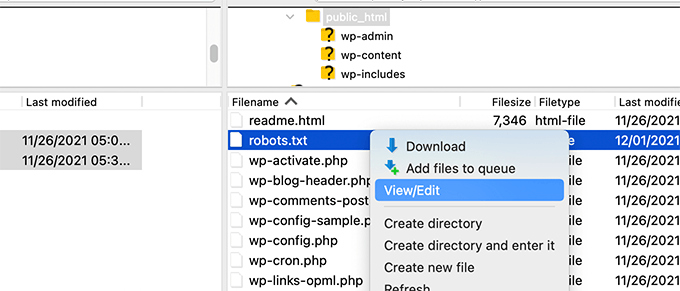
If you don’t see one, then you likely don’t have a robots.txt file.
In that case, you can just go ahead and create one.
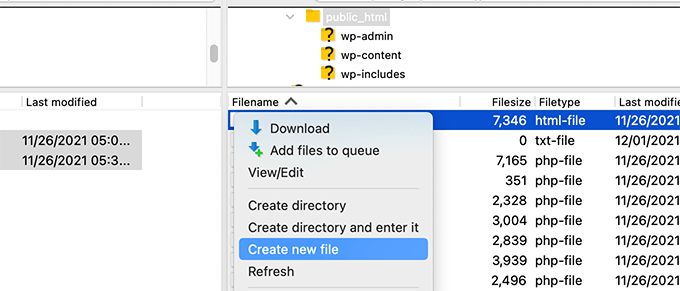
Robots.txt is a plain text file, which means you can download it to your computer and edit it using any plain text editor like Notepad or TextEdit.
After saving your changes, you can upload the robots.txt file back to your website’s root folder.
How to Test Your Robots.txt File
After creating or editing your robots.txt file, it’s a great idea to check it for errors. A small typo could accidentally block important pages from search engines, so this step is super important! 👍
While Google used to have a dedicated testing tool, they have now integrated this feature into the main Google Search Console reports.
First, make sure your site is connected to Google Search Console. If you haven’t done that yet, just follow our simple guide on how to add your WordPress site to Google Search Console.
Once you’re set up, go to your Google Search Console dashboard. Navigate to Settings in the bottom-left menu.
Next, find the ‘Crawling’ section and click ‘Open Report’ next to ‘robots.txt’.

Simply click the current version of the file in the list.
This report will show you the most recent version of your robots.txt file that Google has found. It will highlight any syntax errors or logical problems it has detected.
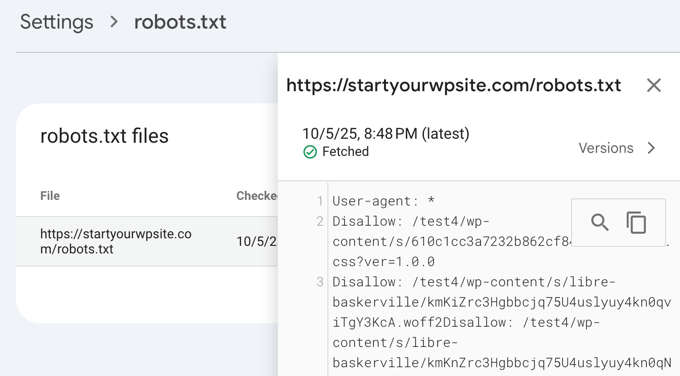
Don’t worry if you just updated your file and don’t see the changes here immediately. Google automatically checks for a new version of your robots.txt file about once a day.
You can check back on this report later to confirm that Google has picked up your latest changes and that everything looks good
Final Thoughts
The goal of optimizing your robots.txt file is to prevent search engines from crawling pages that are not publicly available. For example, pages in your wp-plugins folder or pages in your WordPress admin folder.
A common myth among SEO experts is that blocking WordPress categories, tags, and archive pages will improve the crawl rate and result in faster indexing and higher rankings.
This is not true. In fact, this practice is strongly discouraged by Google and goes against their best practice guidelines for helping them understand your site.
We recommend that you follow the above robots.txt format to create a robots.txt file for your website.
Frequently Asked Questions About WordPress Robots.txt
Here are some of the most common questions we get asked about optimizing the robots.txt file in WordPress.
1. What is the main purpose of a robots.txt file?
The primary purpose of a robots.txt file is to manage your website’s crawl budget. By telling search engines which pages to ignore (like admin pages or plugin files), you help them spend their resources crawling and indexing your most important content more efficiently.
2. Where is the robots.txt file located in WordPress?
Your robots.txt file is located in the root directory of your website. You can typically view it by going to yourdomain.com/robots.txt in your web browser.
3. Can using robots.txt improve my site’s security?
No, robots.txt is not a security measure. The file is publicly visible, so it doesn’t actually block anyone from accessing the URLs you list. It simply provides directives for well-behaved search engine crawlers.
4. Should I block WordPress category and tag pages in robots.txt?
No, you should not block category and tag pages. These archive pages are useful for SEO because they help search engines understand your site’s structure and discover your content. Blocking them can negatively impact your search rankings.
Additional Resources on Using Robots.txt in WordPress
Now that you know how to optimize your robots.txt file, you may like to see some other articles related to using robots.txt in WordPress.
- Glossary: Robots.txt
- How to Hide a WordPress Page From Google
- How to Stop Search Engines from Crawling a WordPress Site
- How to Permanently Delete a WordPress Site From the Internet
- How to Easily Hide (Noindex) PDF Files in WordPress
- How to Fix “Googlebot cannot access CSS and JS files” Error in WordPress
- What Is llms.txt? How to Add llms.txt in WordPress
- How to Setup All in One SEO for WordPress Correctly (Ultimate Guide)
We hope this article helped you learn how to optimize your WordPress robots.txt file for SEO. You may also want to see our ultimate WordPress SEO guide and our expert picks for the best WordPress SEO tools to grow your website.
If you liked this article, then please subscribe to our YouTube Channel for WordPress video tutorials. You can also find us on Twitter and Facebook.




Dennis Muthomi
I have to admit, I use the AIOSEO plugin but have always ignored the “Enable Custom Robots.txt” option because I didn’t want to mess anything up.
But I have read this article and I’m convinced it’s worth taking the time to optimize my site’s robots.txt file.
Amit Banerjee
If the whole template of robots.txt was given, it would have been of help.
WPBeginner Support
We did include the entire robots.txt
Admin
Michael
I think you should modify your response. It should be https instead of http. Is it right to disallow plugin files too?
WPBeginner Support
Thank you for pointing that out, our sample has been updated. For disallowing plugins you would want to check with the specific plugin to be safe.
Moinuddin Waheed
Thanks for this informative post about robots.txt file.
I didn’t know that websites should maintain this file in order to have a control over Google bots that how should they crawl over our pages and posts.
for beginner websites just starting out, is there a need to have robots.txt file or is there a way like plugin which can a make a robots.txt file for our website?
WPBeginner Support
Most SEO plugins help with setting up the robots.txt for a new site to prevent bots from scrolling sections they shouuldn’t.
Admin
Jiří Vaněk
Thanks to this article, I checked the robots.txt file and added URL addresses with sitemaps. At the same time, I had other problematic lines there, which were revealed by the validator. I wasn’t familiar with sitemaps in robots.txt until now. Thanks.
WPBeginner Support
You’re welcome, glad our guide could help!
Admin
Stéphane
Hi,
Thanks for that post, it becomes clearer how to use the robots.txt file. On most websites that you find while looking for some advice regarding the robots.txt file, you can see that the following folders are explicitly excluded from crawling (for WordPress):
Disallow: /wp-content/plugins
Disallow: /wp-content/cache
Disallow: /wp-content/themes
I don’t really understand the reasons to exclude those folders (is there one actually?). What would be your take regarding that matter?
WPBeginner Support
It is mainly to prevent anything in those folders from showing as a result when a user searches for your site. As that is not your content it is not something most people would want to appear for the site’s results.
Admin
zaid haris
Disallow: /wp-admin/
Allow: /wp-admin/admin-ajax.php
GSC show the coverage error for “Disallow: /wp-admin/” Is this wrong?
WPBeginner Support
For most sites, you do not want anything from your wp-admin to appear as a search result so it is fine and expected to receive the coverage area when you deny Google the ability to scan your wp-admin.
Admin
Hansini
I am creating my robots.txt manually as you instructed for my WordPress site.
I have one doubt. when I write User-Agent: * won’t it allow another spamming robot to access my site?
Should I write User-Agent: * or User-Agent: Googlebot.?
WPBeginner Support
The User-Agent line is setting the rules that all robots should follow on your site, if you specify a specific bot on that line it would be setting rules for that specific bot and none of the others.
Admin
Nishant
What should we write to make google index my post?
WPBeginner Support
For having your site listed, you would want to take a look at our article below:
https://www.wpbeginner.com/beginners-guide/how-do-i-get-my-wordpress-site-listed-on-google-beginners-guide/
Admin
Sanjeev Pandey
should we also disallow /wp-content/themes/ ?
It is appearing in the search result when I run the command site:abcdef.com in google search
WPBeginner Support
You would not want to worry about blocking your themes folder and as you write SEO-friendly content you should no longer see the themes as a search result.
Admin
Salem
HI, What’s means ” Disallow: /readme.html & Disallow: /refer/ ” ?
WPBeginner Support
That means you’re telling search engines to not look at any referral links or the readme.html file.
Admin
sean
Hi, what are the pros and cons of blocking wp-content/uploads
Thank you
WPBeginner Support
If you block your uploads folder then search engines would not normally crawl your uploaded content like images.
Admin
Piyush
thanks for solve my problem
WPBeginner Support
You’re welcome
Admin
Ravi kumar
Sir i m very confused about robot.txt many time i submitted site map in blogger but the after 3,4 days coming the same issue what is the exactly robot.txt.. & how submit that please guide me
WPBeginner Support
It would depend on your specific issue, you may want to take a look at our page below:
https://www.wpbeginner.com/glossary/robots-txt/
Admin
Prem
If I no index a url or page using robots.txt file, does google shows any error in search console?
WPBeginner Support
No, Google will not list the page but if the page is listed it will not show an error.
Admin
Bharat
Hi
I have a question
i receive google search console coverage issue warning for blocked by robots.txt
/wp-admin/widgets.php
My question is, can i allow for wp-admin/widgets.php to robots.txt and this is safe?
WPBeginner Support
IF you wanted to you can but that is not a file that Google needs to crawl.
Admin
Anthony
Hi there, I’m wondering if you should allow: /wp-admin/admin-ajax.php?
WPBeginner Support
Normally, yes you should.
Admin
Jaira
May I know why you should allow /wp-admin/admin-ajax.php?
WPBeginner Support
It is used by different themes and plugins to appear correctly for search engines.
Amila
Hello! I really like this article and as I’m a beginner with all this crawling stuff I would like to ask something in this regard. Recently, Google has crawled and indexed one of my websites on a really terrible way, showing the pages in search results which are deleted from the website. The website didn’t have discouraged search engine from indexing in the settings of WordPress at the beginning, but it did later after Google showed even 3 more pages in the search results (those pages also doesn’t exist) and I really don’t understand how it could happen with “discourage search engine from indexing” option on. So, can the Yoast method be helpful and make a solution for my website to Google index my website on the appropriate way this time? Thanks in advance!
WPBeginner Support
The Yoast plugin should be able to assist in ensuring the pages you have are indexed properly, there is a chance before you discouraged search engines from crawling your site your page was cached.
Admin
Amila
Well yes and from all pages, it cached the once who doesn’t exist anymore. Anyway, as the current page is on “discourage” setting on, is it better to keep it like that for now or to uncheck the box and leave the Google to crawl and index it again with Yoast help? Thanks! With your articles, everything became easier!
WPBeginner Support
You would want to have Google recrawl your site once it is set up how you want.
Pradhuman Kumar
Hi I loved the article, very precise and perfect.
Just a small suggestion kindly update the image ROBOTS.txt tester, as Google Console is changed and it would be awesome if you add the link to check the robots.txt from Google.
WPBeginner Support
Thank you for the feedback, we’ll be sure to look into updating the article as soon as we are able.
Admin
Kamaljeet Singh
My blog’s robots.txt file was:
User-Agent: *
crawl-delay: 10
After reading this post, I have changed it into your recommended robots.txt file. Is that okay that I removed crawl-delay
WPBeginner Support
It should be fine, crawl-delay tells search engines to slow down how quickly to crawl your site.
Admin
reena
Very nicely described about robot.text, i am very happy
u r very good writer
WPBeginner Support
Thank you, glad you liked our article
Admin
JJ
What is Disallow: /refer/ page ? I get a 404, is this a hidden wp file?
Editorial Staff
We use /refer/ to redirect to various affiliate links on our website. We don’t want those to be indexed since they’re just redirects and not actual content.
Admin
Sagar Arakh
Thank you for sharing. This was really helpful for me to understand robots.txt
I have updated my robots.txt to the ideal one you suggested. i will wait for the results now
WPBeginner Support
You’re welcome, glad you’re willing to use our recommendations
Admin
Akash Gogoi
Very helpful article. Thank you very much.
WPBeginner Support
Glad our article was helpful
Admin
Zingylancer
Thanks for share this useful information about us.
WPBeginner Support
Glad we could share this information about the robots.txt file
Admin
Jasper
thanks for update information for me. Your article was good for Robot txt. file. It gave me a piece of new information. thanks and keep me updating with new ideas.
WPBeginner Support
Glad our guide was helpful
Admin
Imran
Thanks , I added robots.txt in WordPress .Very good article
WPBeginner Support
Thank you, glad our article was helpful
Admin