


Nobody likes a slow website. If your pages take too long to load, visitors will leave, and Google will drop your rankings.
Core Web Vitals are the yardstick Google uses to measure this experience, but the technical jargon can feel overwhelming for non-developers. You might worry that fixing these issues requires complex coding skills.
The good news is that you don’t need to be a tech wizard to get a passing grade. We have spent years optimizing WPBeginner for speed and have boiled the process down to a few practical steps.
In this guide, we will walk you through how to optimize Core Web Vitals in WordPress to boost your SEO and user experience.
Here is a quick overview of what we will cover in this guide:
What Are Google Core Web Vitals?
Google’s Core Web Vitals are specific performance metrics that the search engine uses to measure a website’s overall user experience. These scores are part of Google’s page experience signals, which can influence your SEO rankings.
The truth is that nobody likes a slow website, and that includes Google. Core Web Vitals help you measure how quickly your site becomes visible, interactive, and stable for your visitors.
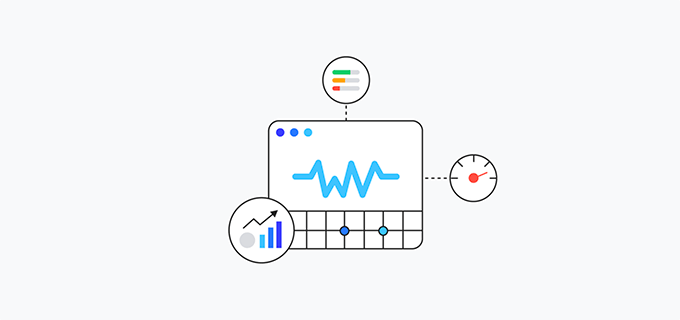
To do that, Google uses three key tests:
- Largest Contentful Paint (LCP)
- Interaction to Next Paint (INP)
- Cumulative Layout Shift (CLS)
Note: In 2024, Google replaced the older First Input Delay (FID) metric with INP. If you see FID listed in an older testing tool, just know it is the outdated version of this metric.
The names of these tests might sound technical, but what they measure is quite simple to understand. Let’s look at how each one works.
Largest Contentful Paint (LCP)
Largest Contentful Paint measures how quickly the main content on your page becomes visible to users. This could be a featured image, a large block of text, or another prominent element.
A page might load quickly overall, but if the most important content appears last, the page will still feel slow to the user. LCP helps you spot and fix this issue.
Interaction to Next Paint (INP)
Interaction to Next Paint measures how long it takes for your site to provide visual feedback after a user interacts with it. This interaction could be a click, a tap, or a key press.
For instance, when someone clicks the ‘Submit’ button on your contact form, INP measures the time until something visually changes on the screen to acknowledge that action.
Cumulative Layout Shift (CLS)
Cumulative Layout Shift measures the visual stability of your page as it loads. A poor CLS score means elements are jumping around the screen while the page renders.
This is frustrating when a user tries to click a button, only to have it move at the last second because an ad or image loaded above it. A good CLS score means your layout is stable and predictable.
How to Test Your Google Core Web Vitals Score
The easiest way to test your Core Web Vitals score is with Google’s PageSpeed Insights tool. Just enter the URL you want to check and click the ‘Analyze’ button.

The results are shown in the ‘Core Web Vitals Assessment’ section. A passing grade will be noted in green next to the heading.
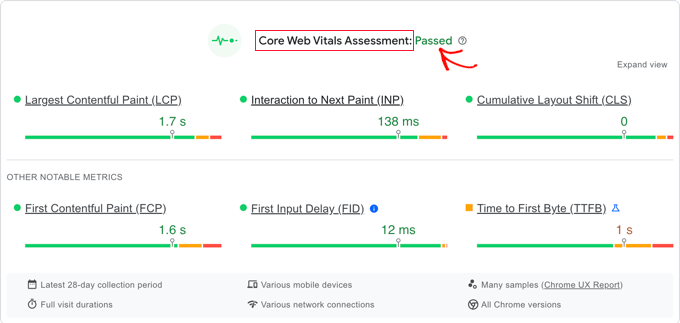
Below that, you can see the specific scores for each of the three vitals. To pass the assessment, you need to meet these targets:
- Largest Contentful Paint (LCP): 2.5 seconds or less
- Interaction to Next Paint (INP): 200 milliseconds or less
- Cumulative Layout Shift (CLS): 0.1 or less
How to View Core Web Vitals for Your Full Website
To see an average score for your entire website, you can use the Core Web Vitals report in your Google Search Console account.
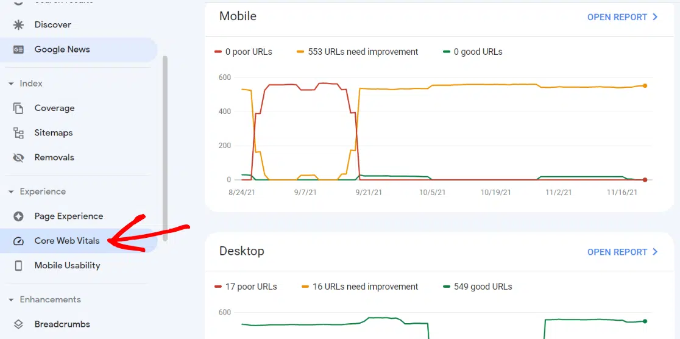
This report shows you which URLs on your site have good, needs improvement, or poor scores, allowing you to prioritize your optimization efforts.
For even more detailed reports, you can use the Lighthouse test built directly into the Chrome browser. Simply open a website, right-click anywhere, and select the ‘Inspect’ option.
Note: You must run Chrome tests in Incognito mode for the most accurate results. Otherwise, your own browser extensions could negatively affect the scores.
Why Are Core Web Vitals Important?
Core Web Vitals are important because they directly reflect how users experience your website. They focus not just on raw speed, but on how quickly visitors can actually see and interact with your content.
Studies consistently show that even a one-second delay in page load time can significantly drop conversions and page views. A faster website with a poor user experience is still hurting your bottom line.
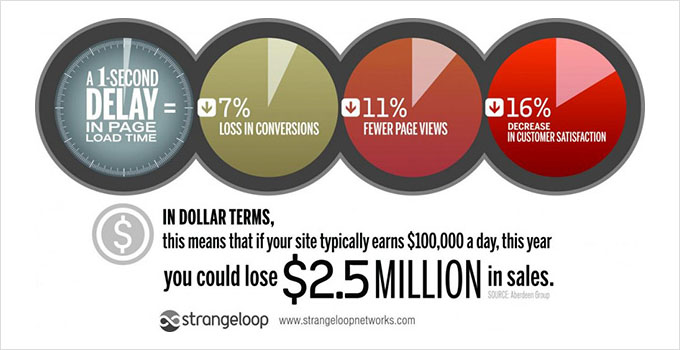
Improving Core Web Vitals helps you address this. Since user experience is a confirmed Google SEO ranking factor, a good score can give you an edge over your competitors.
How to Improve Your Core Web Vitals in WordPress (7 Tips)
Improving your Core Web Vitals score in WordPress is not that difficult. By following some essential performance optimization tips, you can easily pass the assessment.
1. Optimizing Your WordPress Hosting
Your WordPress hosting provider plays the most significant role in your website’s performance. A quality host optimizes its servers specifically for WordPress, which gives your site a rock-solid platform to build upon.
At WPBeginner, we use SiteGround for this very reason. They are one of the few hosts officially recommended by WordPress.org, and their performance is excellent.

Their platform runs on Google Cloud and includes their powerful SG Optimizer plugin. It handles all the advanced caching and performance tweaks automatically, which is a major reason our site is so fast.
If you’re using a different host, then WP Rocket is the best alternative. It’s the caching plugin we recommend for our other projects, and it makes achieving a better Core Web Vitals score much easier.
2. Improving Largest Contentful Paint (LCP) Score
As we mentioned, LCP is the time it takes for the largest content element to appear on the screen. In a typical blog post, this is often the featured image or the article text.
To find out which element is being measured, scroll down the PageSpeed Insights results and expand the ‘Largest Contentful Paint element’ tab.
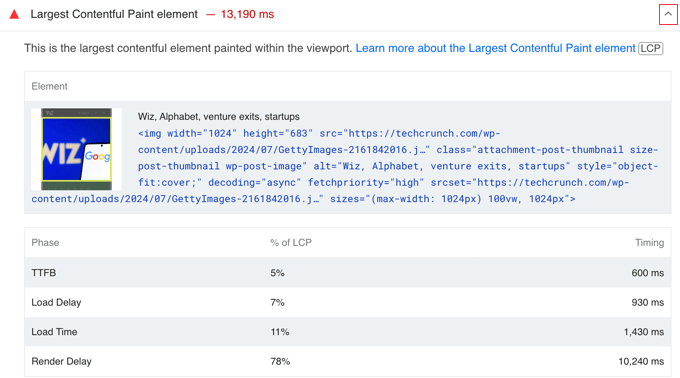
If it is a large image, try replacing it with a smaller file. You can learn more in our guide on how to optimize images for the web.
3. Improving Interaction to Next Paint (INP) Score
The Interaction to Next Paint score measures the time between a user clicking something on your site and seeing a visual response. A long delay here can make your site feel sluggish and unresponsive.
For example, imagine a visitor fills out a contact form and clicks the ‘Submit’ button. On our sites, we use WPForms because it’s built for speed and processes submissions without delay, creating a smooth experience.
A major cause of poor INP is JavaScript that loads before the rest of the page. The easiest way to fix this is with a plugin like WP Rocket, which we’ll show you how to set up.
First, you need to install and activate the plugin. After that, go to Settings » WP Rocket and switch to the ‘File Optimization’ tab.
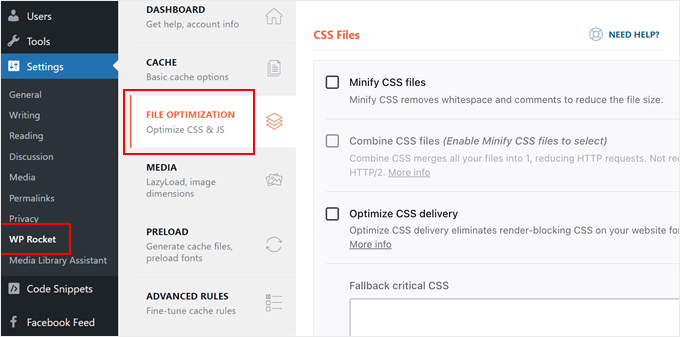
Scroll to the bottom and check the box next to ‘Load JavaScript deferred.’ You should also check the box for ‘Delay JavaScript execution’ if it is available. This delays scripts until the user interacts with the page, which significantly improves INP scores.
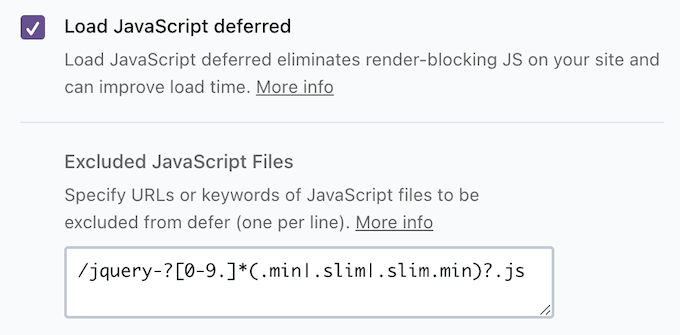
This simple setting tells your website to load visible content first and wait on the JavaScript. This one change can dramatically improve your INP score.
4. Improving Cumulative Layout Shift (CLS) Score
A poor CLS score is caused when elements on a page move around as they load. To see which elements are causing problems, expand the ‘Avoid large layout shifts’ tab in your PageSpeed report.
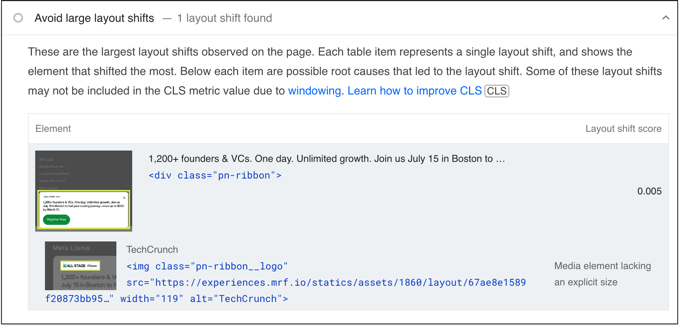
To prevent this, you must tell browsers the dimensions (width and height) of your images, video embeds, and ads. This allows the browser to reserve the correct amount of space for the element before it loads.
You can do this by using the Inspect Tool in your browser to look at the embed code. You want to make sure the code includes specific numbers for width and height attributes.
5. Eliminating Render-Blocking Elements
Render-blocking elements are files, usually JavaScript or CSS, that must load before the rest of your page can be displayed. This slows down your perceived page speed and harms your Core Web Vitals scores.
PageSpeed Insights will list these problematic files for you. They often come from plugins and third-party tools like Google Analytics or Facebook Pixel.
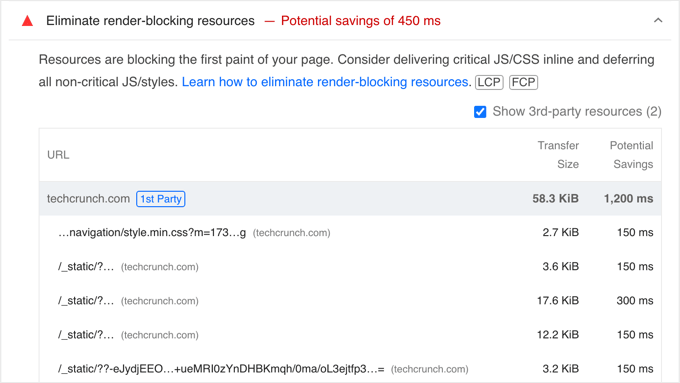
If you are using WP Rocket as mentioned in step 3, you can fix this easily. Go to the ‘File Optimization’ tab and enable the ‘Optimize CSS delivery’ option. This will automatically handle the technical work for you.
You can read more in our step-by-step guide on how to easily eliminate render-blocking resources without touching any code.
6. Properly Sizing Images in WordPress
Uploading unnecessarily large images is a common mistake that slows down websites. High-resolution photos take much longer to load and are often not needed for web viewing.
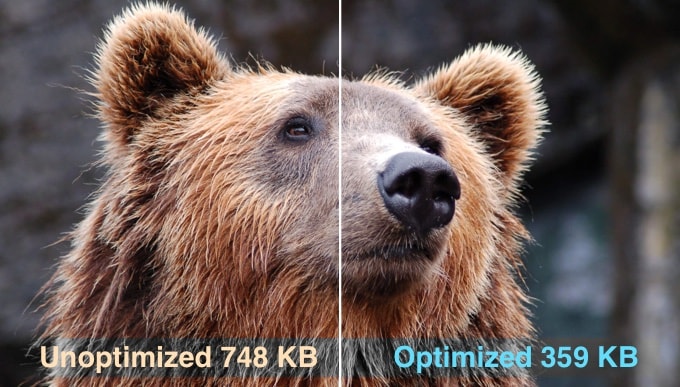
This is especially problematic for mobile users.
While WordPress does its best to handle responsive images, uploading massive original photos (like 5MB files from your phone) will still slow down your site. The browser has to work harder to process these large files, even if they appear small on the screen.
We have a detailed guide on how to properly optimize images for your WordPress site without losing quality.
7. Using a CDN to Improve Your Core Web Vitals Score
A CDN, or Content Delivery Network, is a service that makes your site faster for visitors all over the world. It does this by storing copies of your static files (like images and CSS) on servers in different geographic locations.
This allows users to download those files from the server that’s closest to them, which reduces load times. It also takes a lot of strain off your main hosting server.
For WPBeginner, we rely on Cloudflare’s enterprise CDN. It not only boosts our speed but also provides a powerful firewall that blocks millions of spam requests and malicious attacks every day.
For most businesses, even Cloudflare’s free plan provides excellent CDN service and basic firewall protection. It’s one of the most effective ways to improve your Core Web Vitals scores.
Frequently Asked Questions About Core Web Vitals
Having helped thousands of users speed up their websites, we get a lot of questions about Core Web Vitals. Here are the answers to some of the most common ones.
Q: What are the three Core Web Vitals?
A: The three main metrics are Largest Contentful Paint (LCP) for loading performance, Interaction to Next Paint (INP) for website interactivity, and Cumulative Layout Shift (CLS) for visual stability.
Q: What is a good Core Web Vitals score?
A: You should aim for an LCP of 2.5 seconds or less and an INP of 200 milliseconds or less. For CLS, a score of 0.1 or lower is considered good.
Q: Can a good theme automatically fix my Core Web Vitals?
A: A well-coded theme provides an excellent foundation, but it isn’t a magic bullet. Your scores are also heavily influenced by your hosting provider, image sizes, and the quality of the plugins you use.
Q: How often should I check my Core Web Vitals scores?
A: We recommend checking your scores at least once a month. It is also a good idea to test them after you install a new plugin, change your theme, or add major new features to your site.
Expert Guides on Measuring and Improving WordPress Performance
Now that you know how to optimize Core Web Vitals, you may like to see some other articles related to measuring and improving WordPress performance:
- The Ultimate Guide to Boost WordPress Speed & Performance
- How to Speed up WooCommerce Performance
- How to Properly Run a Website Speed Test (Best Tools)
- How to Stress Test a WordPress Website
- What Is Google’s INP Score and How to Improve It in WordPress
- How to Use GTmetrix Plugin to Improve WordPress Site Performance
- Fastest WordPress Hosting (Performance Tests)
We hope this guide helped you learn how to optimize Core Web Vitals for WordPress. Another key part of user experience is security, so we recommend following our WordPress security checklist to protect your site.
If you liked this article, then please subscribe to our YouTube Channel for WordPress video tutorials. You can also find us on Twitter and Facebook.


Olaf
Overall website optimization might look simple on “paper,” but in practice, it’s usually a different story. Achieving impressive numbers and speeds can sometimes feel like painstaking work. It depends on the state of the website you inherit and how well the previous owner maintained it, or the technologies they used to build it. Sometimes, if a site is built on a page builder and relies on multiple plugins for every minor function, it’s challenging to devise any strategy to improve core web vitals. This list provides a solid starting point, a guide on what to check, what to improve, and how to go about it. A great foundation for beginners.
Samuel
It is easy to get carried away with other aspect of SEO and forget about the core web vital. While I know about existence of the core web vitals for the users I have not really been paying attention to it. Whenever I design any new wordpress site my focus is always how quickly is going to rank on google search or any other search engine. Reading this article is informing my thoughts to include the web vitals in my workflows as a web developer. Thank you for this detailed guide. I just finish a website for a new client and this article is going to be put to use by following all the instruction here. Thanks so much.
Dayo Olobayo
I was struggling with my WordPress site’s slow loading time until I implemented the strategies outlined in this guide. The instructions made it easy to optimize my Core Web Vitals and now my site is lightning fast. Thanks!
WPBeginner Support
You’re welcome!
Admin
Jiří Vaněk
Initially, I struggled a lot with WordPress speed. I have one website on my own server with 4 vCPUs and 8GB of RAM. Even then, I kept seeing red figures. By this, I mean that very often, optimization isn’t just about server performance or hosting but also about how you optimize WordPress itself. In this context, I have to say that the WP Rocket plugin helped me the most. Only after implementing this plugin did I finally get into the green numbers. Perhaps what helped the most was the preloading of URL links and a relatively sophisticated cache. Probably no cache plugin is as genuinely good as WP Rocket. Regarding SEO, I started gaining better positions only after the website was properly optimized.
WPBeginner Support
Thank you for sharing what you use for your site
Admin
Mohammed Haider
I have a website on WordPress. I am not able to pass the core Web vitals. is there a free WordPress plug in which can help me achieve this.
WPBeginner Support
There are many different parts to the web vital score, we would recommend taking a look at the “How to Improve Your Core Web Vitals in WordPress” section for our recommendations.
Admin
Jiří Vaněk
Autooptimize plugin with some kind of cache plugin is for free and can help really a lot.
Ladyson
Don’t forget that many drag-n-drop theme creators make problems with their code.
Updating them regularly you can also solve the problem of low scoring. They are optimizing their code for Web Vitals.
WPBeginner Support
That is certainly something to keep in mind as well
Admin
miamiatz
Google are good at inventing useful things. The issue of Cumulative Layout Shift is a critical one in most digital devices.
You want to click on something just to notice that the link/icon/button you intended to click has moved to a different place and you end up clicking on something else.
This issue is found even in core android apps and non core apps including social media apps, news apps, even financial apps. It is ridiculous.
Thumbs up to google for inventing these Core Web Vitals.
I have one or two points to make to those interested in the web vitals:
Most WordPress themes come with stylesheets that are loaded one after another.
Customs CSS declared using the theme customizer are loaded the last.
Now if you declare size or shape of something (even fonts) in the custom CSS that was declared different in the theme CSS files, the item will be loaded with default theme style first then adjusted to obey CSS declaration found in the custom CSS.
This causes layout shifts.
Editorial Staff
Thank you for sharing these insights. Yes, optimizing CSS delivery can help along with lazy loading items.
Admin
Ackson Mwape
Thanks a lot for the timely article.
Editorial Staff
Always a pleasure Ackson
Admin