


When a routine update suddenly freezes your site and puts WordPress into maintenance mode, it can feel like everything is stuck. Many site owners panic when they can’t access their dashboard – especially during busy hours or important updates.
The good news is that this issue is very easy to fix. In most cases, you just need to remove one small file to bring your site back online.
At WPBeginner, we’ve helped thousands of readers fix this problem on their sites. In this guide, we’ll share how to quickly fix WordPress stuck in maintenance mode and get your website working again. 🛠️
What Causes WordPress to Get Stuck in Maintenance Mode?
WordPress creates a temporary .maintenance file whenever you run updates. If the update doesn’t finish properly, that file doesn’t get removed. When it stays there, WordPress thinks your site is still updating, and you get stuck in maintenance mode.
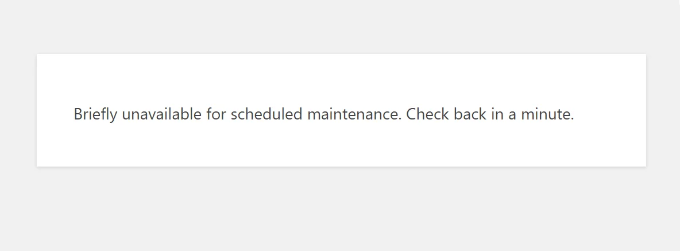
That’s why you might see an error message saying, ‘Briefly unavailable for scheduled maintenance. Check back in a minute.’
There are several factors that can cause this error and leave the .maintenance file on your server. Some of these include:
- Incomplete Updates: An update process interrupted due to server timeouts (the server stopped working) or plugin conflicts can leave the .maintenance file intact, keeping your site offline.
- Faulty Plugins: Incompatible or outdated plugins can interfere with WordPress’ core functionality, leading to maintenance mode issues.
- Theme Conflicts: Similar to plugins, incompatible themes can clash with your WordPress installation, unintentionally starting maintenance mode.
- Server Problems: Issues on your web hosting server can sometimes cause unexpected behaviors, including getting stuck in maintenance mode.
That said, we’ll share different ways to fix the WordPress stuck in maintenance mode error. Here’s what we’ll cover in this guide – you can use the jump links to go directly to any section:
Let’s get started!
Fixing WordPress Stuck in Maintenance Mode
Now that you understand the reasons for this error, the simplest way to resolve it is to delete the .maintenance file.
🧑💻 Pro Tip: Before making any changes, we recommend creating a backup of your site. This way, you’ll have a fresh copy of your site ready in case anything goes wrong.
The .maintenance file location is usually in the root directory of your website. You can access it using an FTP client or File Manager from your hosting provider’s cPanel.
Accessing .maintenance File Using FTP
There are many FTP services you can use for viewing WordPress files. For this tutorial, we will use FileZilla.
If you haven’t used or set up an FTP client before, please see our guide on how to use FTP to upload files to WordPress.
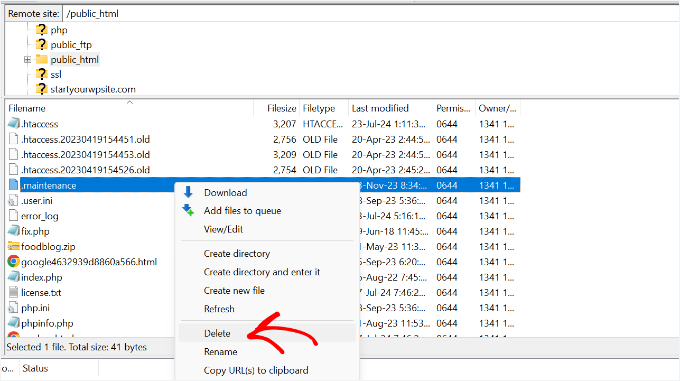
Once you’re connected to your site, head to the root folder of your website (usually called public_html) in the panel on the right.

You should now see different WordPress core files in the folder. If you don’t see the .maintenance file, you may need to force your FTP client to show hidden files. In FileZilla, simply click ‘Server’ in the top menu bar and select ‘Force showing hidden files’.
From here, you can find the .maintenance file. Simply right-click the file and select the ‘Delete’ option.
Removing .maintenance File Using the File Manager
If you’re not comfortable using an FTP client, you can also access your WordPress files using cPanel.
First, you’ll need to log in to your WordPress hosting provider account. For this tutorial, we will be using Bluehost.
In the dashboard, go to the ‘Websites’ tab from the menu on the left, then click the ‘Settings’ option under your website.
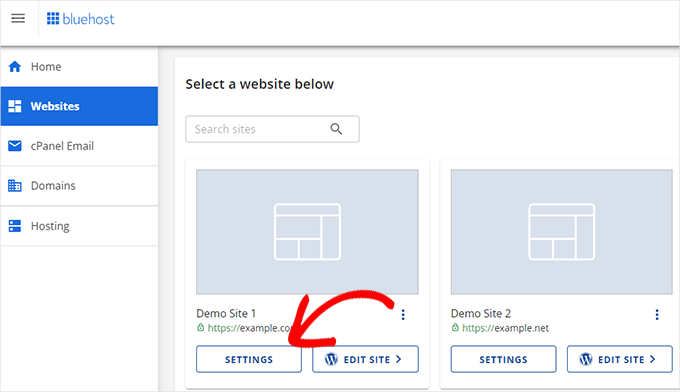
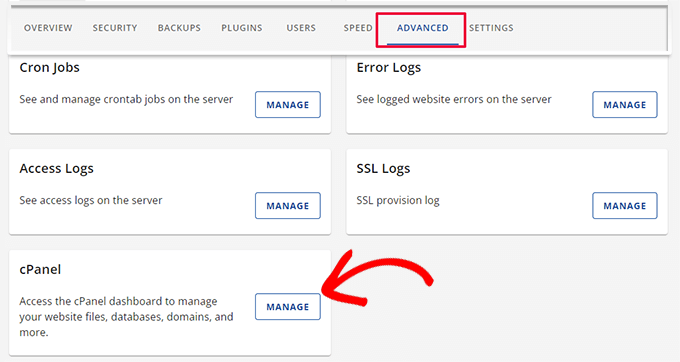
After that, you will need to switch to the ‘Advanced’ tab.
Simply scroll down to the cPanel section and click the ‘Manage’ button.
Once the cPanel opens, head to the Files section.
From here, go ahead and click the ‘File Manager’ option.

Next, you will see your website files and folders. Simply go to the public_html folder from the menu on the left.
After that, you can locate the .maintenance file in the root folder. If you don’t see it, you may need to click the ‘Settings’ button at the top right corner and check the box for ‘Show Hidden Files (dotfiles)’.
Go ahead and select the file, and then click the ‘Delete’ option at the top.

Removing the file should restore your website and take it out of maintenance mode.
If you still see the error after deleting the file, you may need to clear your browser cache first. As a precaution, you should also clear the cache of your WordPress website.
Tips to Stop WordPress From Getting Stuck in Maintenance Mode
Preventing your WordPress website from getting stuck in maintenance mode is crucial for maintaining website uptime and a great user experience.
Let’s explore some proactive steps you can take to stop your site from running into this error.
1. Don’t Update Multiple Plugins and Themes at Once
On shared hosting plans, creating too many update requests at once can cause server timeouts. So, it’s best to update your plugins one by one. This ensures your server isn’t overwhelmed and helps you isolate any issues immediately.
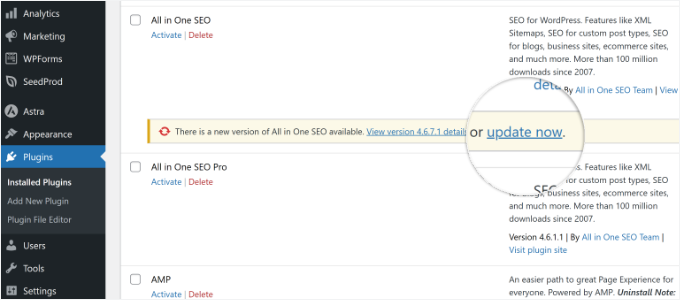
After each plugin update, monitor your website’s performance for any unexpected behavior. This will help you identify if a specific plugin update is causing errors.
2. Check Compatibility for Plugins and Themes
Another way to prevent WordPress maintenance mode issues is to verify that your plugins and themes are compatible with the latest WordPress version.
Outdated plugins and themes can often cause conflicts that send your site into maintenance mode. Updating them to the latest versions also helps with bug fixes and security enhancements.
To learn more, please see our guide on how to properly update WordPress plugins.
3. Upgrade Your Web Hosting Service
A reliable hosting environment is essential for WordPress stability. If you continually encounter errors, it might be time to upgrade to a plan with enough resources to handle your website’s traffic and demands.
You should also ensure your hosting provider performs regular server maintenance and updates to prevent performance issues.
For example, we use SiteGround on our website, and we’ve had a great experience. For more options, you can see our pick of the most reliable and best WordPress hosting providers.
You may also want to see our guide on when you should change your WordPress web hosting to learn more.
4. Hire WordPress Experts to Maintain Your Website
If you lack the time or expertise to prevent and fix errors on your website, you should consider hiring a WordPress professional. They can manage your website’s maintenance and updates so you can focus on growing your business.
WordPress experts can implement measures that reduce the risk of your website getting stuck in maintenance mode. For instance, they will monitor your website’s uptime, make sure that all your software is up-to-date, and fix errors that come up.
For recommendations, check out our picks of the best WordPress support agencies you can hire.
FAQs About WordPress Stuck in Maintenance Mode
Not sure why this happens or how to avoid it in the future? 🧐
Below are some common questions we get from readers about WordPress maintenance mode and what to do when things go wrong.
Why does WordPress sometimes get stuck in maintenance mode during updates?
WordPress creates a .maintenance file during updates. If the update is interrupted due to server timeouts, plugin conflicts, or browser issues, that file may not get removed, causing your site to stay in maintenance mode.
How long should WordPress be in maintenance mode normally?
Just a few minutes. WordPress only uses maintenance mode during active updates. If it lasts longer than that, something likely went wrong.
Can I prevent my site from getting stuck in maintenance mode?
Yes. Update plugins and themes one at a time, make sure everything is compatible with your current WordPress version, and avoid updating during peak traffic times. A good WordPress hosting environment also helps reduce the chances of this happening.
What should I do if I can’t delete the .maintenance file?
If you’re unable to remove the file manually using FTP or your hosting control panel, it’s best to contact your hosting provider for help. You can also hire a WordPress expert if needed.
Do I need technical skills to fix maintenance mode issues?
Not necessarily. If you’re comfortable accessing your site’s files via FTP or your web host’s file manager, you can follow a few simple steps to fix the problem. If not, there are services that can handle it for you.
What happens if I ignore the maintenance mode issue?
Leaving your site stuck in maintenance mode can lead to longer downtime, a poor user experience, and missed traffic or sales, especially for online stores or high-traffic sites.
Bonus Resources 🔗: More WordPress Maintenance Guides
We hope this article helped you learn how to fix WordPress stuck in maintenance mode.
Next, you may also want to see these other guides:
- Crucial WordPress Maintenance Tasks to Perform Regularly
- How Long Does WordPress Maintenance Take?
- WordPress Maintenance Costs – How Much Should You Pay?
- WordPress Maintenance vs Managed Hosting
- How to Contact WordPress Support
- Ultimate WordPress Maintenance Guide
If you liked this article, then please subscribe to our YouTube Channel for WordPress video tutorials. You can also find us on Twitter and Facebook.



Samuel
Though, I am yet to encounter this issue in my Wordpress development so far, I would say I am still young in my wordpress career but not in web development generally. It is good to be armed with this great information, giving me the intricacies of what could lead to this debacle. Thanks you guys are great! Having said that, I like to say that maintaining two versions of your wordpress press site would also help with resolving this issue. Maintaining a staging server where you can do all your updates and testing before finally uploading to the live website. I did this with one of my clients back then and it always work with no issue and I think it will work with wordpress sites also.
Olaf
Usually, it’s enough to follow rule number one: don’t rush, and take the time to update everything gradually. Many people feel like time is slipping away, so they try to do everything at once. But servers have their limits, and that’s when these issues happen. The server may not complete a process correctly or hit a limit, leading to a stuck website. Give your website the time and care it needs, update slowly and step-by-step, and the likelihood you’ll never have to deal with this issue is almost 100%.
kzain
I really appreciate the proactive tips for preventing this problem in the future, such as updating plugins individually and ensuring compatibility. For anyone struggling with their WordPress site being stuck in maintenance mode, this article is a must-read. Thanks again for the valuable resource!
Mrteesurez
I used to encounter this issue, I always had to wait too long for the maintenance mode to settle. I didn’t know updating multiple plugins at the same time could caused it that how I always do, I marked and update at once from WordPress update interface.
Thanks for this guide and for recommending best practice to update plugins.
Jiří Vaněk
I had several issues with this file before, so I knew how to delete it. However, I still didn’t know why it was being created. Now I have an idea. I usually do a bulk update of plugins, and the server or website can’t keep up, which causes this problem. Thanks for pointing me to where the issue might be. I’ll update gradually and slowly. Great guide as always.
Mrteesurez
I’ve faced similar issues when bulk updating plugins, leading to unexpected file creations and server strain, sometimes it even showed me “critical errors”. The insight about updating gradually makes a lot of sense. I’ve learnt that individual updates not only prevents such problems but also reduces the risk of plugin conflicts. When I began Implementing it, the approach has saved me a lot of troubleshooting time. Thanks to WPbeginner for highlighting this solution—it’s a great tip that I’ll continue to apply