


Nothing sends a jolt of panic quite like seeing a “403 Forbidden” error message where your website should be. It’s a frustrating digital roadblock that locks you out of your admin area and hides your content from visitors.
At WPBeginner, we’ve faced this exact error on our own sites and have guided thousands of users through the fix. We know how stressful it can be, but rest assured, the solution is often straightforward.
This guide walks you through the most common causes and provides clear instructions to get your site back online quickly.
Quick Summary: The 403 Forbidden error in WordPress is most often caused by a poorly configured plugin, a corrupt .htaccess file, or incorrect server file permissions. This guide provides simple, step-by-step solutions to identify and fix the problem.
What Is the 403 Forbidden Error in WordPress?
The 403 Forbidden error code is shown when your server permissions don’t allow access to a specific page on your WordPress website.
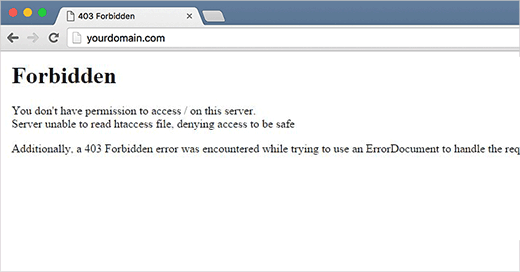
This error is usually accompanied by the text:
403 Forbidden – You don’t have permission to access ‘/’ on this server.
Additionally, a 403 Forbidden error was encountered while trying to use an ErrorDocument to handle the request.
Here’s an example of what it looks like:
There are different scenarios when you might see this error. For example:
- 403 Forbidden – Access denied on the wp-admin or WordPress login page.
- 403 Forbidden – During WordPress install.
- 403 Forbidden Error – When visiting any page on your WordPress site.
You may also see ‘Access Denied’ instead of the full 403 Forbidden status. Alternatively, the message might say, ‘Access to yourdomain.com was denied. You don’t have authorization to view this page.’
For more explanation about WordPress error codes, you can see our list of the most common WordPress errors and how to fix them.
What Causes the 403 Forbidden Error in WordPress?
The 403 Forbidden error appears when your web server does not believe you have permission to view a specific page.
The most common causes for this are:
- Poorly Configured Security Plugins: Many WordPress security plugins block IP addresses if they believe them to be malicious, which can sometimes lead to accidental lockouts.
- Corrupt .htaccess File: This critical WordPress file can become damaged, leading to incorrect access rules.
- Incorrect File Permissions: Every file and folder on your server has permissions. If these are set incorrectly, the server will block access.
- Server Configuration Issues: Your WordPress hosting company can sometimes make accidental changes to its server settings that result in a 403 error.
Now, let’s take a look at how to fix the 403 forbidden error in WordPress.
Note: Before you make any changes, we recommend creating a complete backup of your website. Our team uses Duplicator for this, but you can follow our guide on how to back up your WordPress site for other options.
You can use these quick links if you want to skip to a specific method:
- Method 1: Deactivate Your Plugins Temporarily
- Method 2: Regenerate Your .htaccess File
- Method 3: Correct Your File and Directory Permissions
- Method 4: Clear Your Cache and Cookies
- Method 5: Temporarily Disable CDN (Content Delivery Network)
- Method 6: Check for Malware
- Method 7: Contact Your Hosting Provider or a WordPress Expert
- Video Tutorial
- Frequently Asked Questions About WordPress Errors
Method 1: Deactivate Your Plugins Temporarily
The first step is to check if one of your plugins is causing the error.
To do this, you need to temporarily disable all your WordPress plugins, including any security plugins.
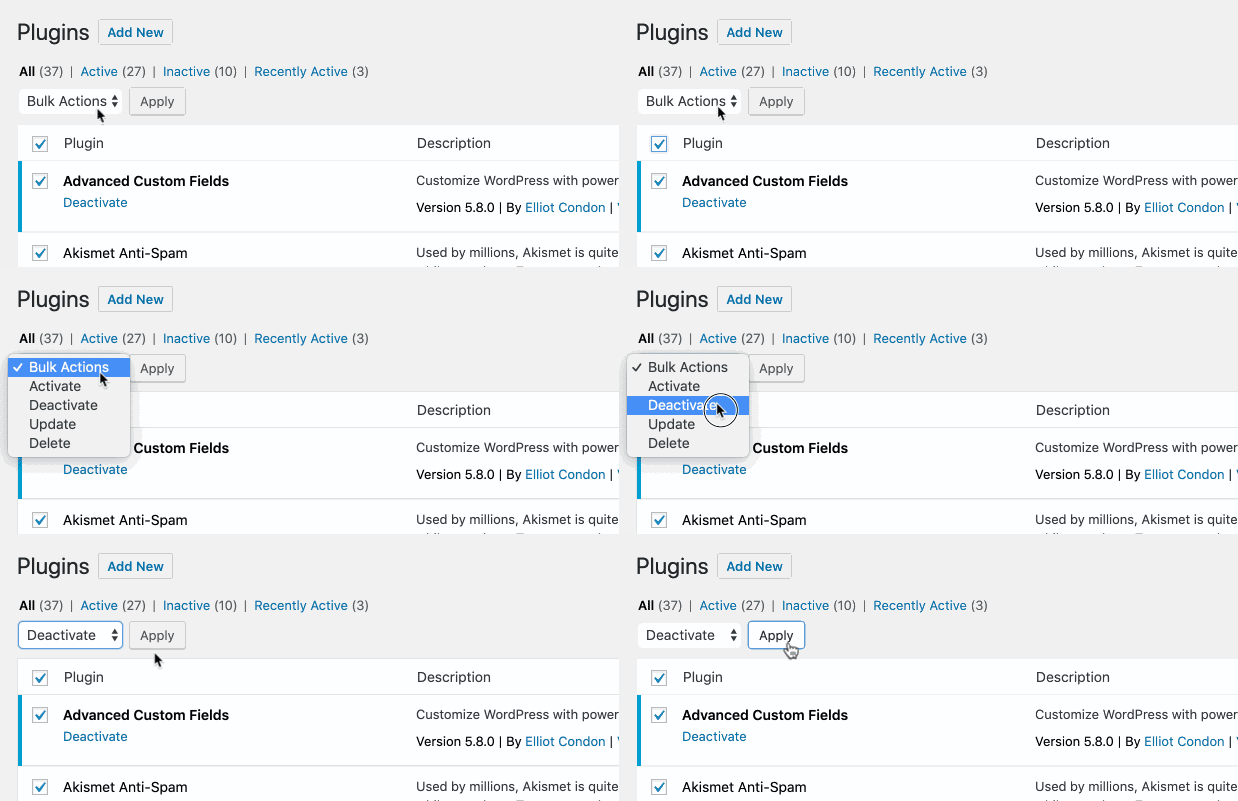
If this resolves the problem, then one of the plugins on your website was causing the error.
You can find out which plugin was the culprit by activating them one by one until the 403 error reappears. Once you find the problem plugin, you should delete it and look for an alternative or contact its developers for support.
Method 2: Regenerate Your .htaccess File
Often, the 403 forbidden error is caused by a corrupt .htaccess file on your WordPress site. The good news is that fixing this file is quite easy.
First, you need to connect to your website using an FTP client like FileZilla or the File Manager app in your hosting control panel.
Next, find the .htaccess file in the root folder of your WordPress site. If you can’t see it, you may need to enable hidden files in your FTP client.
See this guide if you can’t find the .htaccess file in your WordPress folder.
Download the .htaccess file to your computer so you have a fresh backup. After that, delete the file from your server.
Don’t worry, your WordPress site will still function temporarily without it.
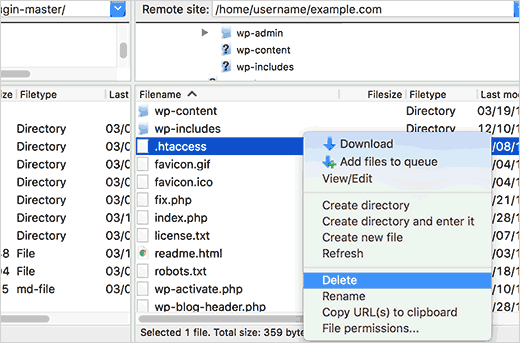
Now, try accessing your website. If the 403 forbidden error is resolved, then your .htaccess file was corrupt.
You can generate a fresh .htaccess file by logging in to your WordPress admin area and going to the Settings » Permalinks page.
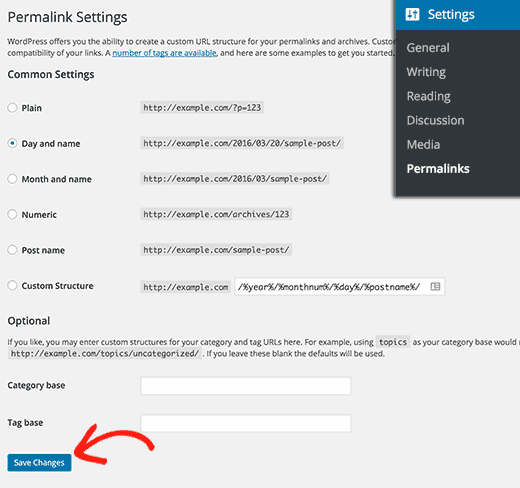
Simply click the ‘Save Changes’ button at the bottom of the page. WordPress will then generate a new, correct .htaccess file for you.
Method 3: Correct Your File and Directory Permissions
If the other solutions haven’t fixed the error, then incorrect file permissions are the most likely cause. All files on your website have permissions that control who can read, write, and execute them.
Incorrect permissions can cause the 403 forbidden error. They make your web server think you do not have permission to access those files.
You can ask your WordPress hosting provider to check your website for correct file permissions. Many hosts are very supportive and will fix this for you.
Changing file permissions incorrectly can have serious consequences. If you do not feel confident, then it’s best to ask your host or hire a professional.
However, if you want to do it yourself, here is how you can check your file permissions. Connect to your WordPress site using an FTP client and navigate to the root folder containing all your WordPress files.
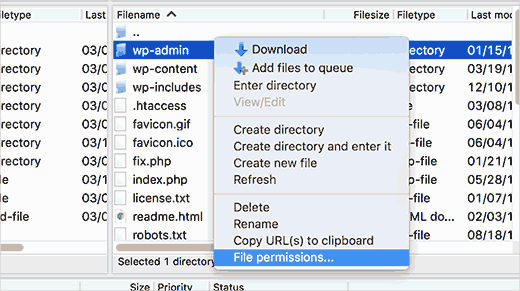
Right-click on a folder and select ‘File permissions’ from the menu.
Your FTP client will show you a permissions dialog box.
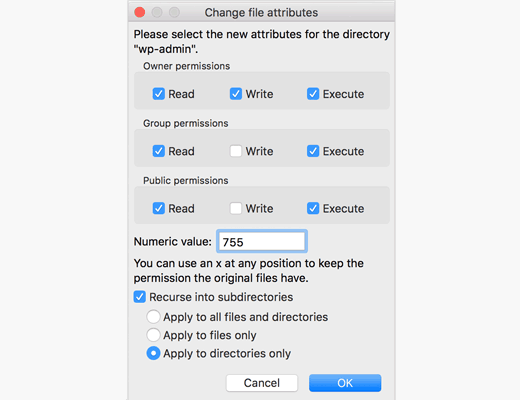
All folders on your WordPress site should have a file permission of 744 or 755. All files should have a file permission of 644 or 640.
You can set the permission for the root folder to 755. Check the box to ‘Recurse into subdirectories’ and select the ‘apply to directories only’ option. Click ‘OK’ to apply.
Next, repeat the process for all files. This time, use a file permission of 644. Check the ‘Recurse into subdirectories’ box and select the ‘Apply to files only’ option.
Now, you need to click ‘OK’. Once it is finished, try accessing your website to see if the 403 forbidden error is gone.
Method 4: Clear Your Cache and Cookies
Sometimes, the simplest fix is the most effective. Clearing your browser cache and cookies can resolve the 403 forbidden error. Corrupted data stored by your browser can cause compatibility issues.
Similarly, a corrupted cache generated by a WordPress plugin can also cause problems. We use WP Rocket on our sites, and clearing its cache is a standard troubleshooting step. If your caching plugin has settings to restrict access, misconfigurations could also be the cause.
To clear your browser cache, follow the instructions in our guide on how to clear cache in major browsers.
If you use a plugin, just see our guide on how to clear your WordPress cache.
Method 5: Temporarily Disable CDN (Content Delivery Network)
If you’re using a Content Delivery Network (CDN) to improve site speed, then it might be interfering and causing the error. A CDN acts as a middleman between your server and visitors.
To see if your CDN is the culprit, temporarily disable it through its settings. Then, test your website to see if the error disappears.
If disabling the CDN resolves the error, you’ll need to contact your CDN provider’s support team for further assistance.
Method 6: Check for Malware
Malicious software can cause a variety of issues, including the 403 forbidden error. It can interfere with file permissions or disrupt communication between your website and server.
To check for malware, we recommend scanning your website.
For our own sites, we rely on the powerful scanner included with Sucuri. Many other security plugins also offer malware-scanning features and can often remove malicious files in one click.
Method 7: Contact Your Hosting Provider or a WordPress Expert
If you’ve tried all the previous steps and the error persists, the issue may be on the server level. Reaching out to your hosting provider’s support team is a great next step, as they can check server logs and file permissions for you.
For details, see our guide on how to contact WordPress support.
Video Tutorial
If you prefer more visual instructions, then watch the video below.
Frequently Asked Questions About WordPress Errors
Here are answers to some common questions related to WordPress errors.
What is the difference between a 403 error and a 404 error?
A 403 Forbidden error means the server understands the request but refuses to grant access due to a permissions issue. In contrast, a 404 Not Found error means the server can’t find the requested page at all.
How can I find WordPress error logs for more clues?
Error logs can provide detailed technical information. You can often find them in your hosting control panel or by enabling WordPress debug mode. Our guide explains how to find and access WordPress error logs.
Is a 403 error similar to a 500 internal server error?
No, they are different. A 403 error is a permissions problem. A 500 Internal Server Error is a more general message indicating that something has gone wrong on the server, but it doesn’t specify what.
We hope this article helped you fix the 403 forbidden error in WordPress. You may also want to see our list of the most common block editor problems and our expert pick of must-have WordPress plugins to grow your website.
If you liked this article, then please subscribe to our YouTube Channel for WordPress video tutorials. You can also find us on Twitter and Facebook.



Shane McDonald
I am only getting 403 error when I try add a link to facebook – very weird.
WPBeginner Support
Very strange indeed, if you have not already we would recommend trying to disable your plugins to see if that prevents the error.
Admin
HM
Hello to everyone.
I solved this issue for myself in this way, hope it helps others:
On Plesk I had assigned an IPv4 to the domain but no IPv6. I realized mistakenly I had set IPv6 for this domain on Cloudflare as well (aside from IPv4). So it returned error 403 all the time. You should delete the entry for IPv6 on your DNS provider or assign that IPv6 on Plesk to the domain as well.
WPBeginner Support
That is a bit more advanced than many users will run into but thank you for sharing should anyone else have a similar setup where our article’s recommendations do not assist!
Admin
Samuel
Tip – For those of you, who want to utilize Method 1, “How to deactivate your plugin Temporarily” and you don’t have access to the WordPress dashboard as a result of the 403 Forbidden error and you need to deactivate plugins, please check this resource below for how to go about it. https://www.wpbeginner.com/beginners-guide/how-to-easily-deactivate-wordpress-plugins
Cody Wheeler
Thanks for the help. Bad htaccess for the lose!
WPBeginner Support
You’re welcome, glad our guide was helpful!
Admin
Jiří Vaněk
I encountered the same error, and none of the suggested solutions helped. Eventually, I discovered that the problem was with the web hosting provider, who had applied protection using GEO-IP blocking on certain folders and functions. Specifically, it was the administration and XML-RPC. I had to request permission for certain countries since I was using a VPN to access the website. Sometimes, this error can also occur due to the protection implemented by the web service provider. Their reasoning was that this protection helps prevent brute force attacks.