


Nothing sends a jolt of panic quite like seeing a “403 Forbidden” error message where your website should be. It’s a frustrating digital roadblock that locks you out of your admin area and hides your content from visitors.
At WPBeginner, we’ve faced this exact error on our own sites and have guided thousands of users through the fix. We know how stressful it can be, but rest assured, the solution is often straightforward.
This guide walks you through the most common causes and provides clear instructions to get your site back online quickly.
Quick Summary: The 403 Forbidden error in WordPress is most often caused by a poorly configured plugin, a corrupt .htaccess file, or incorrect server file permissions. This guide provides simple, step-by-step solutions to identify and fix the problem.
What Is the 403 Forbidden Error in WordPress?
The 403 Forbidden error code is shown when your server permissions don’t allow access to a specific page on your WordPress website.
This error is usually accompanied by the text:
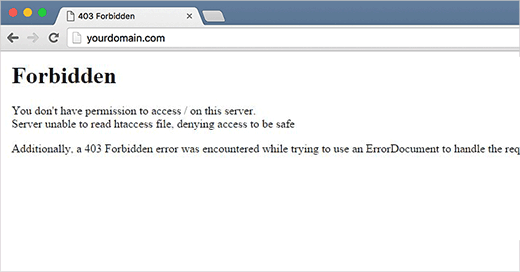
403 Forbidden – You don’t have permission to access ‘/’ on this server.
Additionally, a 403 Forbidden error was encountered while trying to use an ErrorDocument to handle the request.
Here’s an example of what it looks like:
There are different scenarios when you might see this error. For example:
- 403 Forbidden – Access denied on the wp-admin or WordPress login page.
- 403 Forbidden – During WordPress install.
- 403 Forbidden Error – When visiting any page on your WordPress site.
You may also see ‘Access Denied’ instead of the full 403 Forbidden status. Alternatively, the message might say, ‘Access to yourdomain.com was denied. You don’t have authorization to view this page.’
For more explanation about WordPress error codes, you can see our list of the most common WordPress errors and how to fix them.
What Causes the 403 Forbidden Error in WordPress?
The 403 Forbidden error appears when your web server does not believe you have permission to view a specific page.
The most common causes for this are:
- Poorly Configured Security Plugins: Many WordPress security plugins block IP addresses if they believe them to be malicious, which can sometimes lead to accidental lockouts.
- Corrupt .htaccess File: This critical WordPress file can become damaged, leading to incorrect access rules.
- Incorrect File Permissions: Every file and folder on your server has permissions. If these are set incorrectly, the server will block access.
- Server Configuration Issues: Your WordPress hosting company can sometimes make accidental changes to its server settings that result in a 403 error.
Now, let’s take a look at how to fix the 403 forbidden error in WordPress.
Note: Before you make any changes, we recommend creating a complete backup of your website. Our team uses Duplicator for this, but you can follow our guide on how to back up your WordPress site for other options.
You can use these quick links if you want to skip to a specific method:
- Method 1: Deactivate Your Plugins Temporarily
- Method 2: Regenerate Your .htaccess File
- Method 3: Correct Your File and Directory Permissions
- Method 4: Clear Your Cache and Cookies
- Method 5: Temporarily Disable CDN (Content Delivery Network)
- Method 6: Check for Malware
- Method 7: Contact Your Hosting Provider or a WordPress Expert
- Video Tutorial
- Frequently Asked Questions About WordPress Errors
Method 1: Deactivate Your Plugins Temporarily
The first step is to check if one of your plugins is causing the error.
To do this, you need to temporarily disable all your WordPress plugins, including any security plugins.
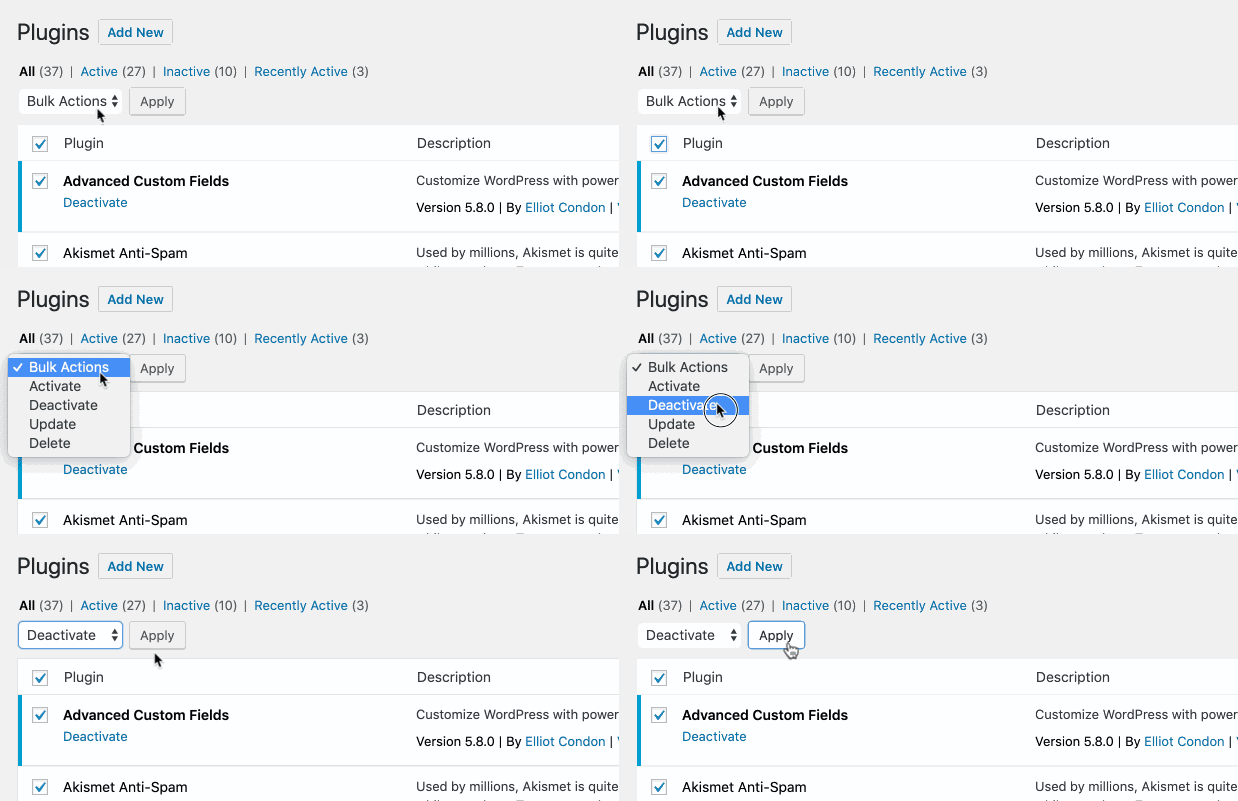
If this resolves the problem, then one of the plugins on your website was causing the error.
You can find out which plugin was the culprit by activating them one by one until the 403 error reappears. Once you find the problem plugin, you should delete it and look for an alternative or contact its developers for support.
Method 2: Regenerate Your .htaccess File
Often, the 403 forbidden error is caused by a corrupt .htaccess file on your WordPress site. The good news is that fixing this file is quite easy.
First, you need to connect to your website using an FTP client like FileZilla or the File Manager app in your hosting control panel.
Next, find the .htaccess file in the root folder of your WordPress site. If you can’t see it, you may need to enable hidden files in your FTP client.
See this guide if you can’t find the .htaccess file in your WordPress folder.
Download the .htaccess file to your computer so you have a fresh backup. After that, delete the file from your server.
Don’t worry, your WordPress site will still function temporarily without it.
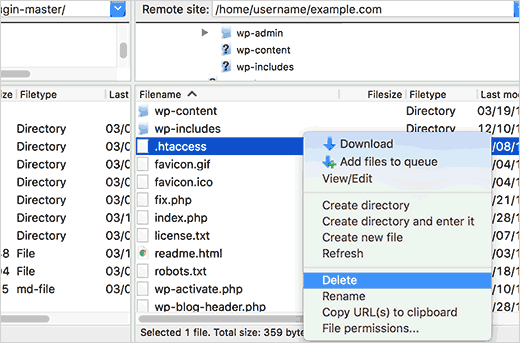
Now, try accessing your website. If the 403 forbidden error is resolved, then your .htaccess file was corrupt.
You can generate a fresh .htaccess file by logging in to your WordPress admin area and going to the Settings » Permalinks page.
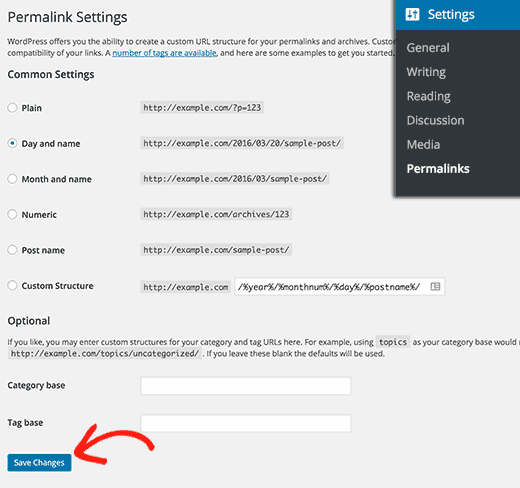
Simply click the ‘Save Changes’ button at the bottom of the page. WordPress will then generate a new, correct .htaccess file for you.
Method 3: Correct Your File and Directory Permissions
If the other solutions haven’t fixed the error, then incorrect file permissions are the most likely cause. All files on your website have permissions that control who can read, write, and execute them.
Incorrect permissions can cause the 403 forbidden error. They make your web server think you do not have permission to access those files.
You can ask your WordPress hosting provider to check your website for correct file permissions. Many hosts are very supportive and will fix this for you.
Changing file permissions incorrectly can have serious consequences. If you do not feel confident, then it’s best to ask your host or hire a professional.
However, if you want to do it yourself, here is how you can check your file permissions. Connect to your WordPress site using an FTP client and navigate to the root folder containing all your WordPress files.
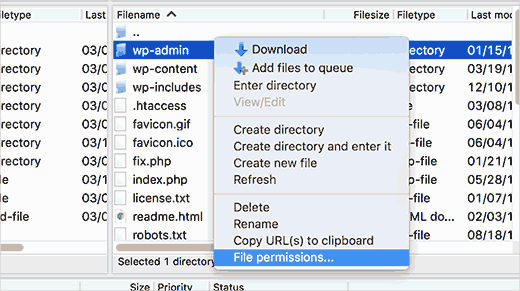
Right-click on a folder and select ‘File permissions’ from the menu.
Your FTP client will show you a permissions dialog box.
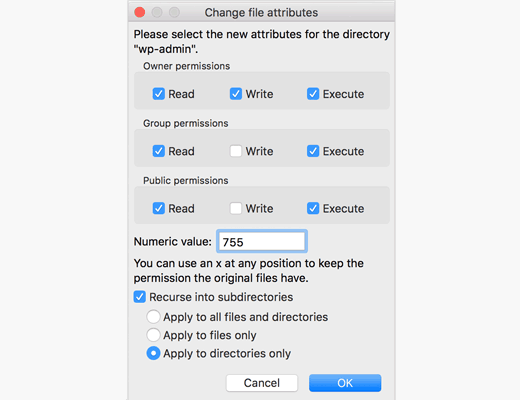
All folders on your WordPress site should have a file permission of 744 or 755. All files should have a file permission of 644 or 640.
You can set the permission for the root folder to 755. Check the box to ‘Recurse into subdirectories’ and select the ‘apply to directories only’ option. Click ‘OK’ to apply.
Next, repeat the process for all files. This time, use a file permission of 644. Check the ‘Recurse into subdirectories’ box and select the ‘Apply to files only’ option.
Now, you need to click ‘OK’. Once it is finished, try accessing your website to see if the 403 forbidden error is gone.
Method 4: Clear Your Cache and Cookies
Sometimes, the simplest fix is the most effective. Clearing your browser cache and cookies can resolve the 403 forbidden error. Corrupted data stored by your browser can cause compatibility issues.
Similarly, a corrupted cache generated by a WordPress plugin can also cause problems. We use WP Rocket on our sites, and clearing its cache is a standard troubleshooting step. If your caching plugin has settings to restrict access, misconfigurations could also be the cause.
To clear your browser cache, follow the instructions in our guide on how to clear cache in major browsers.
If you use a plugin, just see our guide on how to clear your WordPress cache.
Method 5: Temporarily Disable CDN (Content Delivery Network)
If you’re using a Content Delivery Network (CDN) to improve site speed, then it might be interfering and causing the error. A CDN acts as a middleman between your server and visitors.
To see if your CDN is the culprit, temporarily disable it through its settings. Then, test your website to see if the error disappears.
If disabling the CDN resolves the error, you’ll need to contact your CDN provider’s support team for further assistance.
Method 6: Check for Malware
Malicious software can cause a variety of issues, including the 403 forbidden error. It can interfere with file permissions or disrupt communication between your website and server.
To check for malware, we recommend scanning your website.
For our own sites, we rely on the powerful scanner included with Sucuri. Many other security plugins also offer malware-scanning features and can often remove malicious files in one click.
Method 7: Contact Your Hosting Provider or a WordPress Expert
If you’ve tried all the previous steps and the error persists, the issue may be on the server level. Reaching out to your hosting provider’s support team is a great next step, as they can check server logs and file permissions for you.
For details, see our guide on how to contact WordPress support.
Video Tutorial
If you prefer more visual instructions, then watch the video below.
Frequently Asked Questions About WordPress Errors
Here are answers to some common questions related to WordPress errors.
What is the difference between a 403 error and a 404 error?
A 403 Forbidden error means the server understands the request but refuses to grant access due to a permissions issue. In contrast, a 404 Not Found error means the server can’t find the requested page at all.
How can I find WordPress error logs for more clues?
Error logs can provide detailed technical information. You can often find them in your hosting control panel or by enabling WordPress debug mode. Our guide explains how to find and access WordPress error logs.
Is a 403 error similar to a 500 internal server error?
No, they are different. A 403 error is a permissions problem. A 500 Internal Server Error is a more general message indicating that something has gone wrong on the server, but it doesn’t specify what.
We hope this article helped you fix the 403 forbidden error in WordPress. You may also want to see our list of the most common block editor problems and our expert pick of must-have WordPress plugins to grow your website.
If you liked this article, then please subscribe to our YouTube Channel for WordPress video tutorials. You can also find us on Twitter and Facebook.




Gary Parker
None of these fix my problem as it is one page and the only way i could fix it was to rename the permalink, The page in trouble is https://example.com/blog/ and the only way i could fix it was to change it to /blog2/, any ideas?
Michael
Please somebody help me. I have two websites on the same host. I just added a third addon domain recently and installed wordpress to it through the softaculous installer.
The problem is not from wordpress, and other websites on the same host is accessible.
Please help.
Andreas Johansson
I hade one page Forbiden 403 and tryied all the steps. And now i dont have permission to login wp-admin on my site?
WPBeginner Support
Hey Andreas,
Please see our WordPress troubleshooting guide. It will help you find out the issue and then you can fix it.
Admin
Marcus
It worked like magic
Juliet Julius
Thank you so much for this article. My problem was a corrupted htaccess file. My website is now working fine.
Aleli Sanchez Mendez
I still having this problem. I tried all the steps. The problem began when I installed the WooCommerce plugin in my Wordpress Site. Now in my wordpress y receive a 403 Forbidden and in my other site, without wordpress i recieived a 502 Bad Gateway error.
Please someone can help me?
Scott Munson
I discovered – after all else failed and many hours spent, that at one time (but no longer) I used Bullet Proof security. It left a stray .htaccess file in my wp-admin folder – THAT, was causing the 403 error for me. ARGH!
WPBeginner Support
Hey Scott,
Thanks for sharing, glad you found the solution
Admin
joshua jenish zibhu
how i solve this probkem…. in windows 10……
john
Thank you, it worked for me.
Oluwaseun
Thanks!
changing file permission works for me.
Yogesh
Thanks a ton. Deleting .htaccess worked for me.
JU
There has to be a fourth step. None of these steps applied. The plugins weren’t the cause. The .htaccess file wasn’t the cause. All the permissions in all files and folders are set to the correct numerical values.
Sendhil Kumar S K
Hi Friends, One Easy step will make You free from the existing problem.
1. Go to CPanel of Your Domain
2. Click to Expand public_html folder present at the extreme left of the screen.
3. Double click on wp folder present on the write side of the screen
4. Copy All files & Folders inside the wp folder
5. Move all the files & folders inside the wp folder to UP ONE LEVEL
6. Now All files & Folders are out of WP folder, hence WP folder is empty, come one level up & delete the empty WP folder
7. Now go to browser & type your domain_name.com, PERFEFETLY it will be WORKING
All the Best…if you have doubts regarding this mail me to
Also if time permits visit my site
Thank You All
Sergio Casabona
Hi, there! Thanks for this article!
I got this error, so I access with my ftp and deleted .htaccess file. I’m now able to access my dashboard. But when I go to settings and save again as you say, the error 403 comes back. What can I do?
Thank you, guys!
Josh Allen
What if I had a dedicated server, and its happening to all 43 of my sites…I just did some kind of WHM update on Bluehost, then it happened….Ive been waiting for an hour to talk to bluehost.
Ronald
Josh –
I had a similar thing happening to me here. “All of a sudden” none of my sites worked anymore.
I am hosting the sites on my own MacMini, running OS-X Server. After a night of trouble-shooting, I eventually found out that the root cause was me enabling the FTP server in OS-X Server. In there, I set folder permissions for the website root folder for “Everyone Else” to “None” (seemed a bit tricky to give everyone Read access to my sites!). Apparently one is also blocking the _www user access to the websites then…
After I changed this back to “Read Only”, my sites started working again… Pffff.
I’m now looking for a permanent solution, which is not: “Close my firewall for FTP traffic.
Hope this helps,
Ronald
Krishna Patel
This post saved my life! I can’t thank you enough for this helpful information but.. thanks a million
shah faisal
You don’t have permission to access /loading.php on this server.
Additionally, a 403 Forbidden error was encountered while trying to use an ErrorDocument to handle the request
James
The file permission option fixed it, thanks a lot.
gab
I am getting the 403 error for my page and cannot even login into WordPress because of it… I don’t know how to fix it and don’t see anyone with the same issue.
Reshan
Hi. My Wordpress is handled by the hosting company itself. So I dont have root access. How can I solve this problem?
WPBeginner Support
Hi Reshan,
Please contact your hosting company. They will be able to fix it for you.
Admin
Prince
Thank you. You helped me solved my problem.
Rafael Hernandez-Padilla
Thank you, the article resolved the issue I was having on my site.
Yves
Same problem here, and ftp same result… checked in Cpanel and noticed my maindir permissions was 0000 , changed to 0755 and was fixed
Mimi
In my case, I had my website for 4 years and all of a sudden today I got this error although I did not touch the files or change any permissions. I logged into the control panel and noticed that for some reason the index.php file was missing from the Wordpress root folder. I downloaded a new copy of Wordpress and copied the index.php file on to the root folder of my Wordpress website and the website came back!
So perhaps if anyone is getting the same error, please double check that you have an index.php or index.html file. I hope that helps.
Cian
Lifesaver – thank you! This worked for me also.
justin
Ditto…no idea why/how but the index.php disappeared while I was working on a project…I was saved a load of hassle by an automatic backup where the index still existed.
Nick
Thanks Mimi! This worked for me while the solutions in the article didn’t. In my case, the index.php file wasn’t actually missing but when I replaced the one that was there with a fresh one the site started working again so I guess it was corrupted or had some kind of other problem.
My specific error message did also mention the index.php file so that also makes sense:
Forbidden
You don’t have permission to access /index.php on this server.
Additionally, a 403 Forbidden error was encountered while trying to use an ErrorDocument to handle the request.
AMar pal
Help me my website is down.I tried all the given solutions but nothing worked…
Edgar
Nothing worked for me until I added “Options +FollowSymLinks” (without the quotes) above “RewriteEngine On”.
Doni
I did all three possible causing 403 error fixing that you informed but it still produced the error. By the way i wanted to edit footer template but when i saved / updated file it produced “403 Forbidden Access to this resource on the server is denied!”
Mimi
This is a reply to your comment on wpbegginer.com (comment quoted below)
I am not sure if you were able to resolve your problem but I would like to let you know that I got the same error today and I found that the problem was a missing index.php file from the root folder of my website.
———————————————————————–
“I did all three possible causing 403 error fixing that you informed but it still produced the error. By the way i wanted to edit footer template but when i saved / updated file it produced “403 Forbidden Access to this resource on the server is denied!””
Alexandra
Hello,
I need help, while trying install wordpress with mamp, after i did everything what i supposed to do, it showed me this error :
‘Forbidden
You don’t have permission to access /mysite on this server.
Additionally, a 403 Forbidden error was encountered while trying to use an ErrorDocument to handle the request.’
Please help me!
Vasil
Hello guys.
Forbidden
You don’t have permission to access /shop/ on this server.
I’ve tried everything and doesn’t work.
if someone can help would be great thank you.
KimD
Thanks. Great article. To fix my problem I had to do a slight variant on what was written. When I looked I found that I had two htaccess files, one in the root directory and another in the wp-admin directory. I regained access to my site by renaming the htaccess file in the wp-admin directory.
Alex
So glad you posted this, this was my exact issue! Thanks!
Kingsley Felix
Hello;
Mine happens when i want to save changes of an article by a deleted admin user
Steve
I have a user who is getting the following 403 when he tries to leave a comment:
403 Forbidden Error Page
If you arrived here due to a search or clicking on a link click your Browser’s back button to return to the previous page. Thank you.
IP Address: xxx.xx.xx.xx” (his actual IP address shows up here)
What could be wrong?
David
my problem is in .htaccess File. the passage saves my site. Thanks so much
WPBeginner Support
You are welcome
Admin
Omotayo Adeoye
Hi,
I get a ‘Forbidden’ on the wp-admin page of my website. It doesn’t say error 403 – forbidden; it just says forbidden”.
I have re-installed wordpress, checked file permissions, checked htpaccess, deactivated all plugins etc. yet it doesn’t work.
Pls what can i do!
Thanks a lot.
Ricardo
Hi! When I share my website link to facebook, the title is 403 Forbidden. Directly on my website I didn’t saw any kind of 403 forbidden message. I tried a lot of advises I found, as removing .htaccess file, desactivating all the plugins and also checked permissions. I tried to debug at facebook debugger, but the informations doesn’t change. Anyone can help me to fix this problem?
Mukesh Sharma
Hello Ricardo,
send me your website link. I can help.
Harney Cercado
Awesome! You’re a life saver!
Thanks!
Shane
This was very helpful, thank you guys very much , as we say in Jamaica “Respect”
Javier Gomez
I have many errors 403 with my images, I will take your advice thanks for the information
An apology for my bad english
Christopher Sowerby
Hi. my problem is that i can logout from the backend dashboard but i cant logout from the front end (using the bar at the top).
It seems that the nonce in the logout url is different when on the backend. Do you know why this could be? i have cleared everything out of my functions.php but it still happens.
Rameez Ramzan
Hi,
I am newbie in WordPress and Currently I am facing some problem while login WordPress Dashboard.
It’s showing 403 forbidden errors while login but on the other side my friend open similar site on their internet then its working correctly. Kindly let me know
Thanks,
Pascal
Thank you for this great post! I resolved my 403 error!!!
WPBeginner Support
Hey Pascal, glad you found it helpful Don’t forget to join us on Twitter for more WordPress tips and tutorials.
Admin
Erik Kubica
I have similar issue, as a company on our dev server we are running much wordpress sites where to only 1 WP site i started to get 403 and only on wp-admin. 2 Days before i have lived elsewhere when it worked.
foo.bar/somewebsite/* -> 200 OK
foo.bar/somewebsite/wp-admin -> rediret to wp-login.php -> 403 err
foo.bar/somewebsite2/* -> 200 OK
foo.bar/somewebsite2/wp-admin -> rediret -> 200 OK
Ftp to foo.bar is ok, ssh to foo.bar is ok.
On “somewebsite” the WP admin is blocked only for me (all browsers, all existing incognito modes, all cache cleared incl. cookies….). For all people i have asked to try it worked without any problems.
There is nothing wrong with htaccess, wordfence was disabled from ftp (also checked the DB if there is any ban to my IP). checked the main apache2 access log over ssh where i see the 403 record.
Any idea what can be wrong?
Vinish Chaudhary
Forbidden
You don’t have permission to access / on this server.
Additionally, a 403 Forbidden error was encountered while trying to use an ErrorDocument to handle the request.
and none of above method work on this error my cpanel not showing. I read the whole article
plz, help me solve this.
thanks
WPBeginner Support
Please try these troubleshooting tips if nothing works then contact your WordPress hosting provider.
Admin
Dewlance
Uhh! Wordpress wp-admin 403 error is really time killing.
I try your all tricks but still getting a error. Going to change wp-admin folder with fresh files of wp-admin files.
Maybe it will help me or other option is apache configuration or poorly mod_security configuration.
Greg
We work with WordPress everyday and recently encountered the 403 error. It was the file permissions and htaccess file that was reconfigured due to one of the security plugins. Your post on the matter was very helpful. Thanks for taking the time to post it.
WPBeginner Support
Glad you found it helpful
Admin
zulfiqar ali
dear sir my site name is my site give me error like
Forbidden
You don’t have permission to access / on this server.
Additionally, a 403 Forbidden error was encountered while trying to use an ErrorDocument to handle the request.
and non of above method work on this error my cpane not showing any files in file explorer and also not connecting via FTP client.. i read whole article
plz help me solve this..
thanks
Lindani
I cant my thinks now because of this forbidden error help please
hardik
Hi i really impress with your suggestion thanks u so much i have solve my error
Oliver
Hi, we have also been experiencing a 403 error. It first started happening when I tried to update the wp-core to 4.5. Ever since we get a 403 about once a day. I have done everything that I can think of to rectify the issue; reverted to a back-up of the site previous to the update; deactivated all plugins; checked file permissions; contacted hosts to see if our IP addresses were blacklisted; deleted .htaccess; changed theme to default 2016 the only thing that works when getting a 403 is to turn off the router wait for the IP to change and then we can access again. So it would seem to be an IP issue but I cannot find where this is IP blockage is.
Does anybody know of any other place where an IP blacklist maybe?
Thanks.
Barbara Puchala
We just had this error. A outside web designer was creating a Wordpress site for us and kept getting the 403 error.
Turns out our hosting company, as part of its security measures, has its servers block any attempt to sign in with the user name ‘Admin’. I know, you would think he would know better. A change to the user name was all that was needed.
george
your typo
[due to a poorly configured security plugins]
due to a poorly configured security plugin
WPBeginner Support
Thanks, we have fixed it.
Admin