


First impressions matter – even on your password reset page. ✨
While testing WordPress customization options, we’ve found that a well-designed password reset page can improve your site’s professional appearance and boost the user experience.
We’ve spent time testing various methods for customizing the WordPress reset page in our demo environments, comparing different approaches to find the most practical solutions.
This research has revealed several effective ways to brand and improve this often-overlooked part of your site.
In this guide, we’ll share the most reliable methods we’ve discovered for customizing your WordPress password reset page.
💡Quick Answer: Customize the WordPress Reset Password Page
You can customize the WordPress reset password page using a plugin. Here are the best methods we found in our testing:
- Use Formidable Forms: The easiest method. It lets you add a lost password form to any page with a simple shortcode.
- Use Theme My Login: A free plugin that applies your theme’s styling to all membership pages for a consistent look.
- Use WPForms: The most flexible option. It lets you build a completely custom form using a drag-and-drop editor.
Why Customize the Reset Password Page in WordPress?
The main reason to customize your lost password page is to provide a better and more professional user experience.
This is especially important if you run an eCommerce store or a membership site where customers interact directly with these pages.
By default, WordPress displays its own logo and branding. While this is fine for a site where only you and your team log in, it can seem unprofessional to customers and break the consistency of your site’s design.
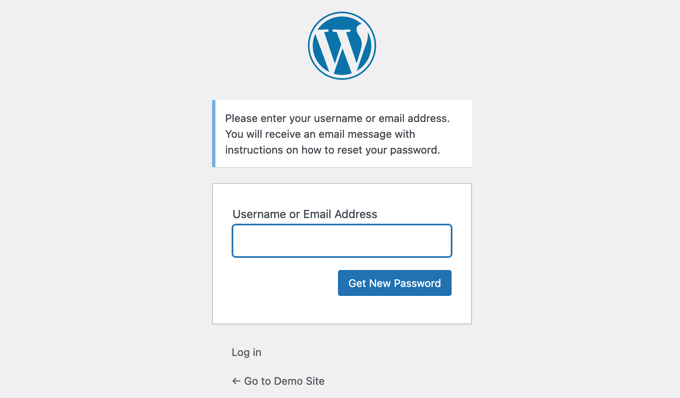
Creating a custom page allows you to replace the default branding with your own. You can match your website’s design, add your logo, and even include extra helpful content to build more trust with your users.
You may have already followed our other guides on how to add a custom user registration form and login page.
Now, let’s take a look at how to customize the reset password page. Simply use the quick links below to jump straight to the method you want to use:
Method 1: Customizing the Reset Password Page Using Formidable Forms (Easy)
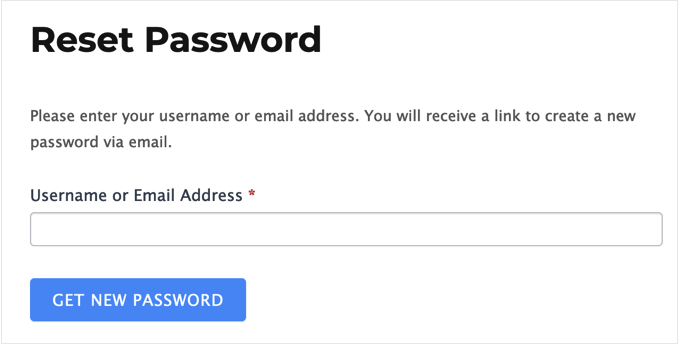
The easiest way to replace the WordPress password reset page is by using Formidable Forms. During testing, we found that it lets you replace the default password reset page using a shortcode.
Keep in mind that this method doesn’t allow you to edit the password reset form, but you can add your own content around it. For example, you can add text, images, and other content using the standard WordPress post editor.
To learn more, see our Formidable Forms review.
Step 1: Install Formidable Forms and Addon
First, you need to install the free version of the plugin. In your WordPress dashboard, navigate to Plugins » Add New and search for ‘Formidable Forms’. Install and activate the plugin.
To unlock the user registration features, you will need the premium version. After purchasing it, you can install the premium Formidable Forms plugin.
To learn more, see our step-by-step guide on how to install a WordPress plugin.
Once you have done that, go to the Formidable Forms » Global Settings page in your dashboard and select ‘Click to enter a license key manually.’
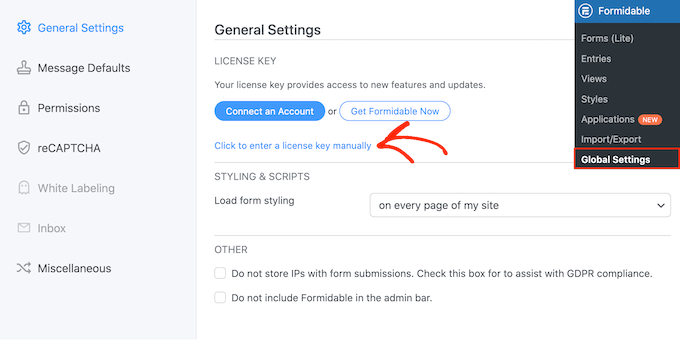
You can find the license key in your account on the Formidable Forms website. After entering this information, go ahead and click the ‘Save License’ button.
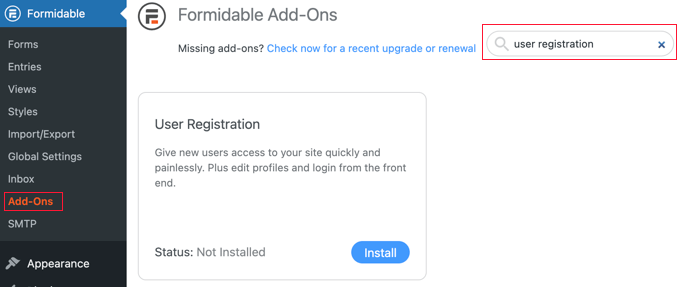
Next, you must install the User Registration addon by going to Formidable » Add-Ons. On this screen, find the User Registration addon and click on its ‘Install’ button.
Step 2: Create the Custom Page
Now you are ready to create a custom reset password page by going to Pages » Add New.
To start, give the page a title and then click on the + button. In the popup that appears, start typing ‘Shortcode.’
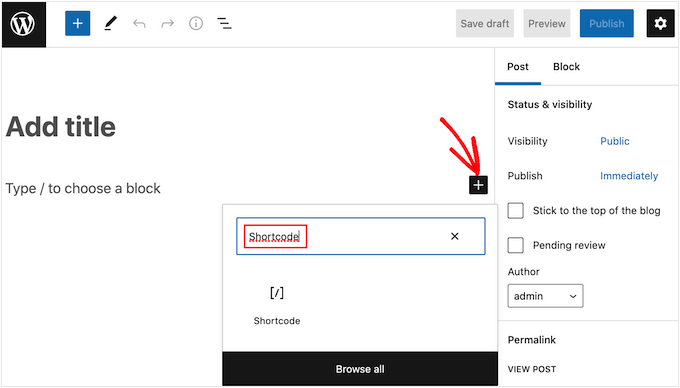
Simply click on the right block to add it to the page.
You can now add the following shortcode: [frm-reset-password].
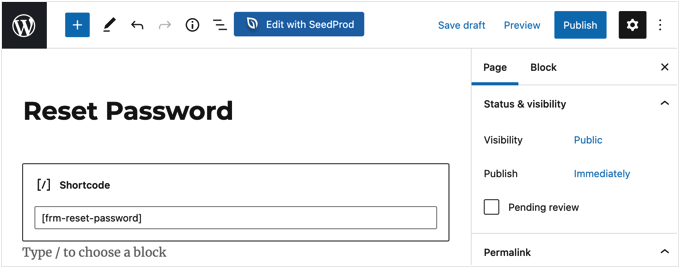
At this point, you can add any other content you want to show on the password reset page.
Step 3: Publish and Configure the Page
When you are happy with the page’s layout, click the ‘Publish’ button to make it live.
Finally, you need to tell WordPress to use this page rather than the default password reset page. To do that, head over to Formidable » Global Settings and click the ‘Registration’ tab in the menu.
From here, open the ‘Reset Password Page’ dropdown and choose the page you just created.
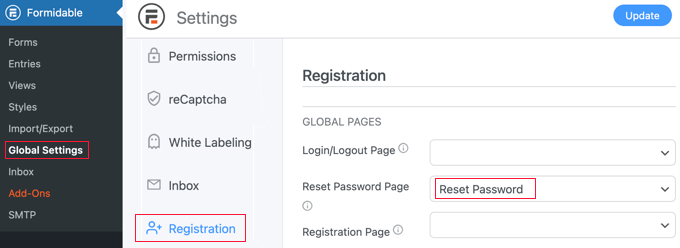
Don’t forget to click the ‘Update’ button at the top of the screen to store your settings.
You can now visit your WordPress website to see the custom reset password page in action.
Method 2: Customize All Membership Pages Using ‘Theme My Login’ (Free)
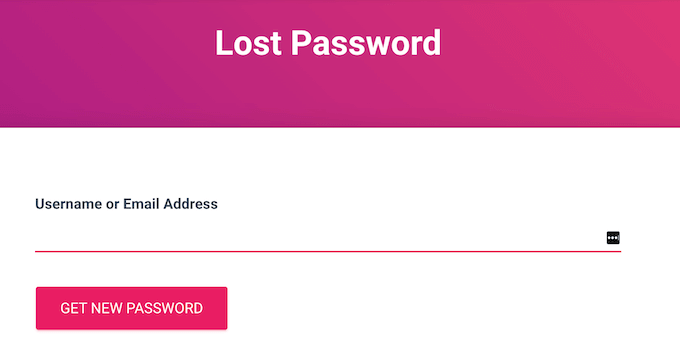
To provide a consistent user experience, it’s a good idea to use the same styling on all your membership pages. Theme My Login is a free plugin that allows you to replace the built-in WordPress dashboard, login, logout, registration, forgot password, and reset password pages.
It’s not the most customizable solution, but all its pages will use your WordPress theme.
Step 1: Install the Plugin
The first thing you need to do is install and activate the Theme My Login plugin. For more details, see our step-by-step guide on how to install a WordPress plugin.
Upon activation, Theme My Login automatically creates URLs for your custom login, logout, registration, lost password, and reset password screens. You can see these URLs by going to the Theme My Login » General page.
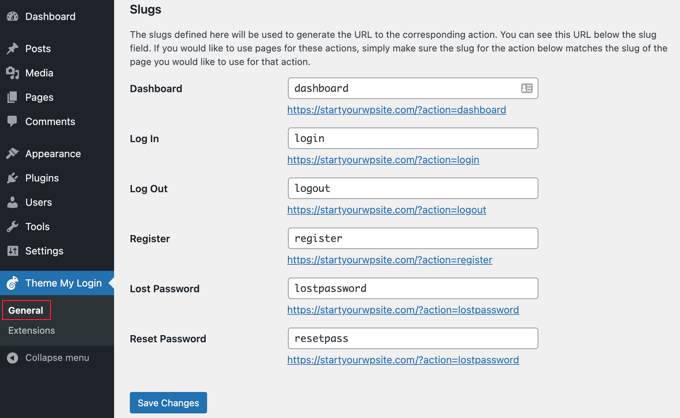
To replace any of these pages, you simply need to create a new page with this exact URL.
Step 2: Create a New Page and Add Shortcode
To create a WordPress custom password reset page, go to Page » Add New. Here, click on the ‘+’ icon and start typing ‘Shortcode.’
When the right block appears, give it a click to add it to the page.
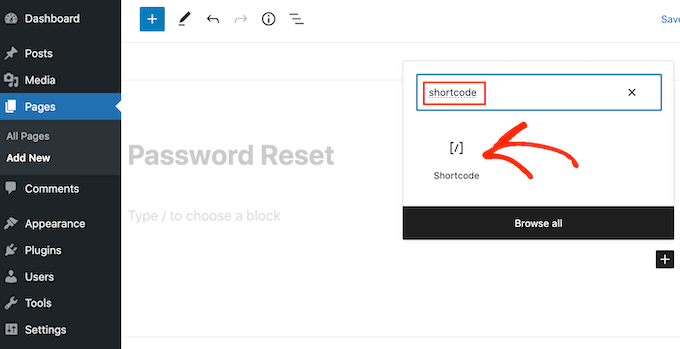
Inside the block, add the following shortcode:
[theme-my-login action="lostpassword"]
You can now add any extra content you want to show on the password reset page, such as your logo.
Step 3: Save and Quick Edit the Page
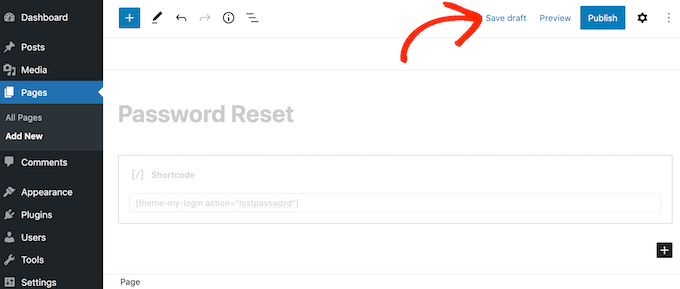
When you are happy with how the page is set up, click on ‘Save draft.’
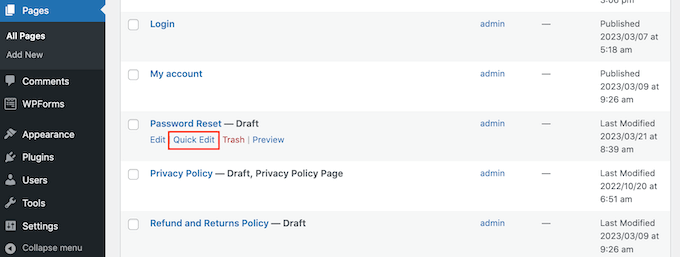
After that, go to Pages » All Pages and find the password reset page you just created.
Simply hover your mouse over the page and click on the ‘Quick Edit’ button when it appears.
Step 4: Set the Slug and Publish
In the ‘Slug’ field, type in ‘lostpassword.’
After that, open the ‘Status’ dropdown and select ‘Published.’
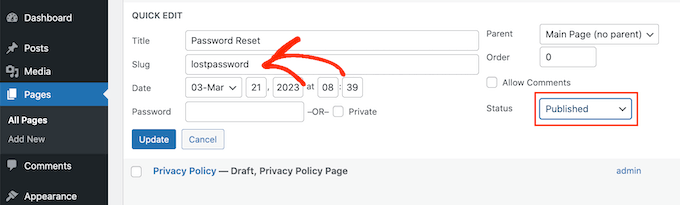
With that done, go ahead and click on ‘Update.’ Now, if you visit your WordPress blog, you will see the lost password page live.
To replace the other built-in WordPress membership pages, you can follow the same process. Just be sure to use the correct URL slug and shortcode for each page:
- Login Page: Use the slug
loginand the shortcode[theme-my-login]. - Logout Page: Use the slug
logoutand the shortcode[theme-my-login action="logout"]. - Register Page: Use the slug
registerand the shortcode[theme-my-login action="register"]. - Reset Password Page: Use the slug
resetpassand the shortcode[theme-my-login action="resetpass"].
Method 3: Create a Password Reset Page Using WPForms (Completely Customizable)
If you want to replace the default password reset page with a completely custom form, then we recommend using WPForms.
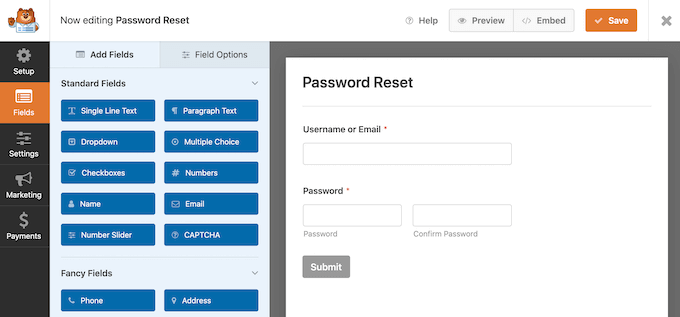
This plugin has a ‘User Password Reset Form’ template that you can customize with your own text, images, and branding. You can even add and remove fields to collect exactly the information you want from members.
At WPBeginner, we have used it to create our annual surveys and contact form and have found it to be super beginner-friendly. For details, see our WPForms review.
Step 1: Install WPForms and Addon
The first thing you need to do is install and activate the WPForms plugin. For more details, see our step-by-step guide on how to install a WordPress plugin.
Upon activation, head over to WPForms » Settings and enter your license key. You can find this information in your account on the WPForms website.
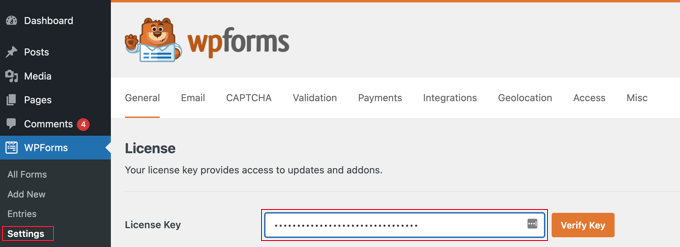
After entering the license key, you’ll need to install the User Registration addon, which allows you to create custom user registration, password reset, and login forms for your site.
In the dashboard, go to WPForms » Addons and find the User Registration Addon.
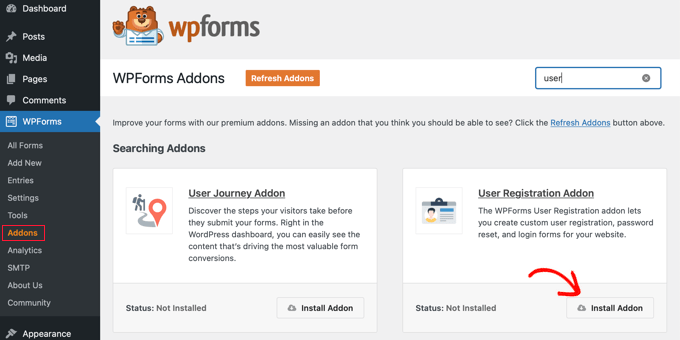
Simply click on ‘Install Addon’ to download it, and then click on ‘Activate’ to make it live.
Step 2: Create the Form From a Template
You are now ready to create your own custom password reset form by going to the WPForms » Add New page. Here, type in a title for the new form.
With that done, scroll to the ‘User Password Reset Form’ template and click on its ‘Use Template’ button.
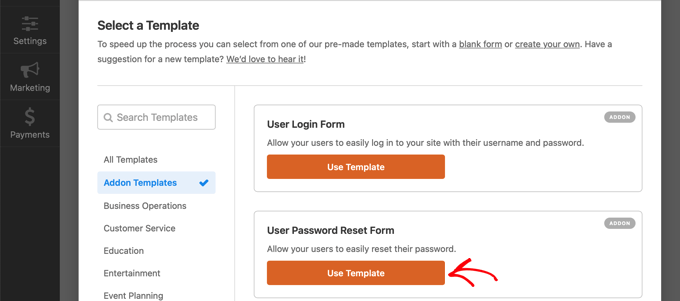
WPForms will now load the User Password Reset Form template.
To customize any field with your own text, label, or description, simply click to select it and then use the settings in the left-hand menu.
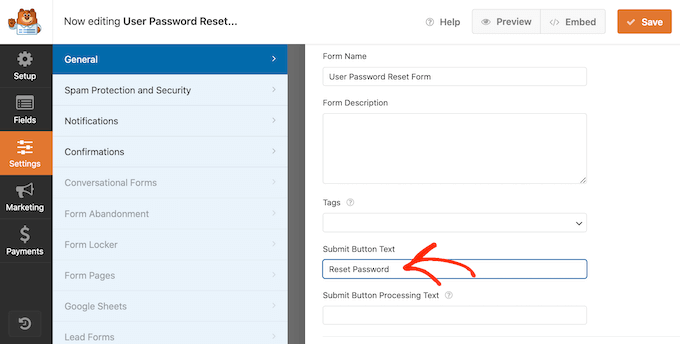
For example, the template has a ‘Submit’ button. To show a different button label, simply click to select the field and then type a new message into ‘Submit Button Text.’
You can also change what happens when a user submits their password reset request by going to Settings » Confirmations.
Here, open the ‘Confirmation Type’ dropdown and choose whether to redirect the user to a different page or URL or simply show a message asking them to check their inbox for a password reset email.
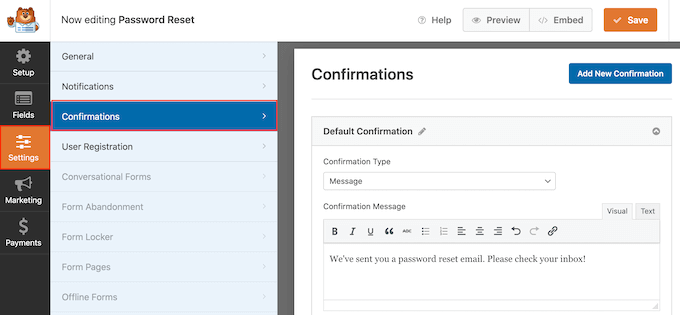
You can also customize the message by typing it into the small text editor. For example, you might remind users to check their spam folders.
Pro Tip: If your emails are regularly getting sent to spam, then we recommend using an SMTP service provider to improve your email deliverability rates.
When you are happy with how the form is set up, click on the ‘Save’ button at the top right corner of the screen.
Step 3: Embed the Form on a New Page
To replace the default WordPress password reset page, create a page with the slug ‘one password. ‘ Then, add the form to that page.
The easiest way to do this is to click on the ‘Embed’ button in the WPForms editor and select ‘Create New Page.’
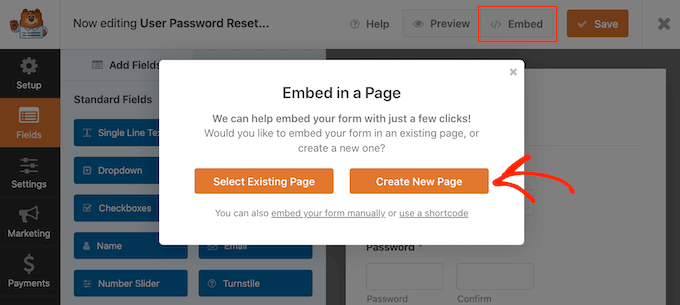
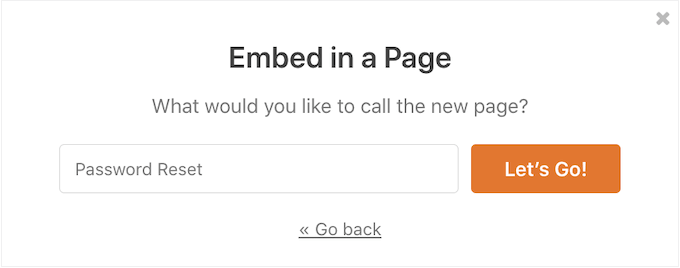
Now, type in a title for the new page. You’ll change the slug in a later step, so you can use anything you want.
With that done, click on ‘Let’s Go.’
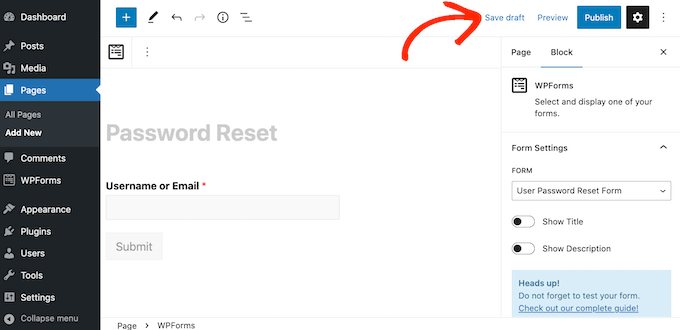
This takes you to the WordPress page editor, where the form has already been added to the new page. You can now make any changes to this page, such as adding more text, a custom logo, or categories and tags.
When you are happy with how the page looks, click on the ‘Save draft’ button.
Step 4: Set the Slug and Publish
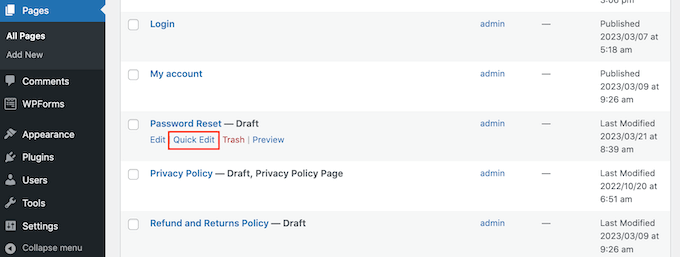
After that, go to Pages » All Pages and find the password reset page you just created.
Here, click on the ‘Quick Edit’ button.
In the ‘Slug’ field, type in ‘lostpassword.’
After that, open the ‘Status’ dropdown and select ‘Published.’
Step 5: Install and Activate WPCode
Now, you need to make sure the default ‘Lost your password?’ link on the WordPress login form points to your new custom page. The easiest way to do this is by using the free WPCode plugin.
WPCode is the best code snippets plugin used by over 2 million WordPress websites. It makes it easy to add custom code in WordPress without having to edit the functions.php file.
With WPCode, even beginners can edit their website’s code without risking mistakes and typos that can cause many common WordPress errors.
The first thing you need to do is install and activate the free WPCode plugin. For more details, see our step-by-step guide on how to install a WordPress plugin.
Step 6: Create a New Snippet
Upon activation, head over to Code Snippets » Add Snippet.
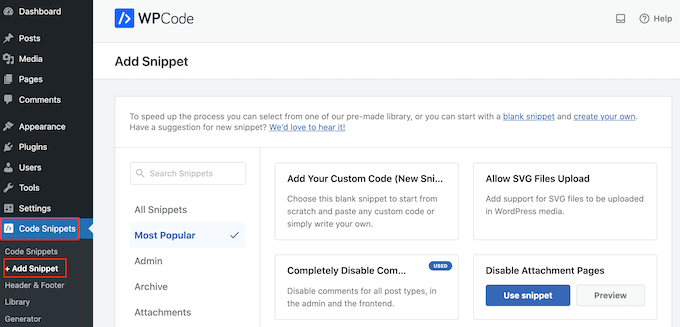
Here, you’ll find ready-made snippets that allow you to upload additional file types to WordPress, disable attachment pages, completely disable comments, and more.
Simply hover your mouse over ‘Add Your Custom Code’ and then click on ‘Use snippet’ when it appears.
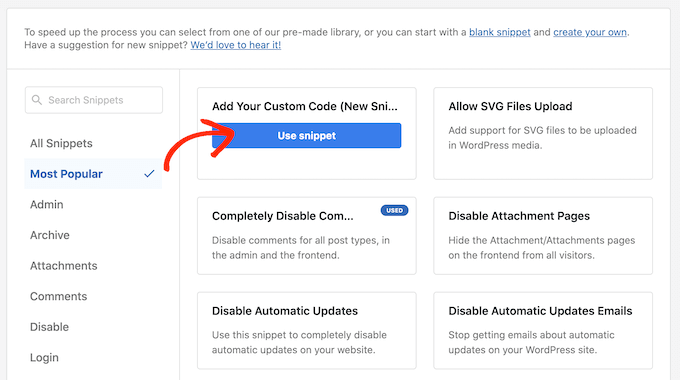
To start, type in a title for the custom code snippet. This can be anything that helps you identify the snippet in the WordPress dashboard.
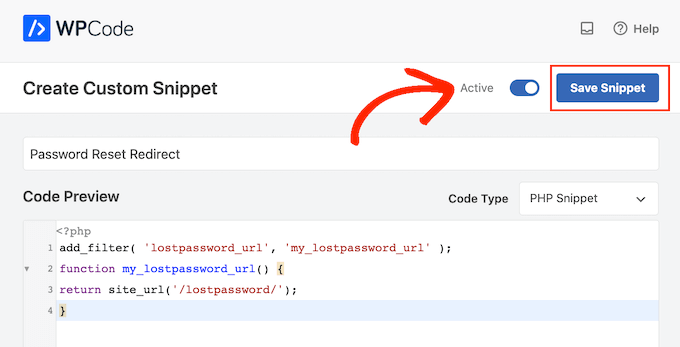
After that, open the ‘Code Type’ dropdown and select ‘PHP Snippet.’
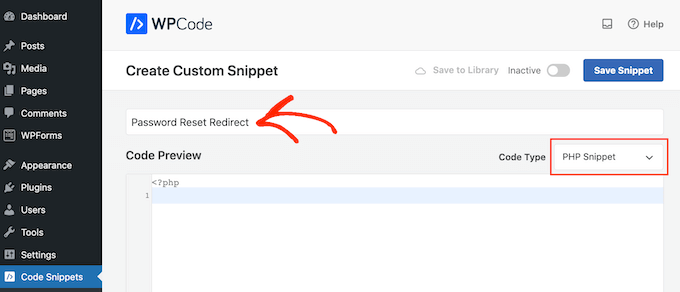
In the code editor, add the following code snippet:
add_filter( 'lostpassword_url', 'my_lostpassword_url' );
function my_lostpassword_url() {
return site_url('/lostpassword/');
}
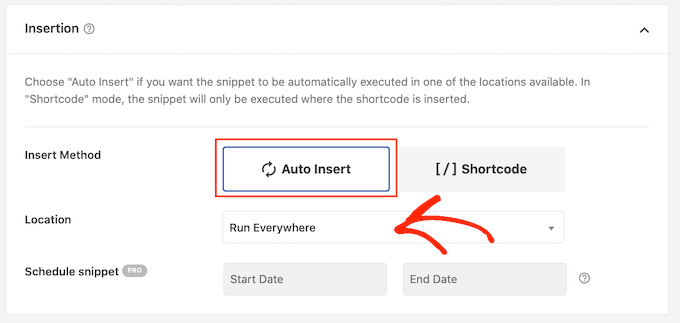
Next, scroll to the ‘Insertion’ section. WPCode can add code to different locations, such as after every post, frontend only, or admin only.
To use the custom PHP code across your entire website, blog, or WooCommerce store, click on ‘Auto Insert’ if it isn’t already selected. Then, open the ‘Location’ dropdown and choose ‘Run Everywhere.’
After that, you are ready to scroll to the top of the screen and click on the ‘Inactive’ toggle to change it to ‘Active.’
Step 7: Activate the Snippet
Finally, click on ‘Save Snippet’ to make the PHP snippet live.
Now, try visiting the built-in WordPress login screen.
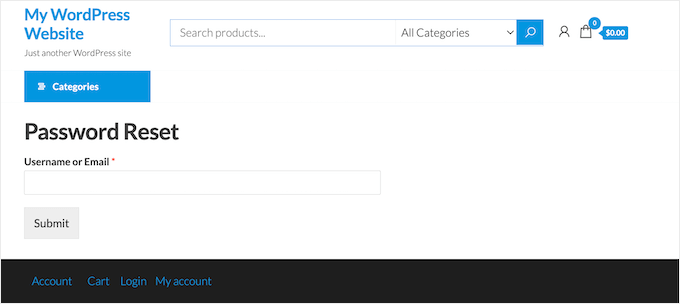
If you click on the ‘Lost your password?’ link, then you’ll be redirected to the custom password reset page you just created.
Depending on how your site is set up, you may need to update the password reset links on other pages.
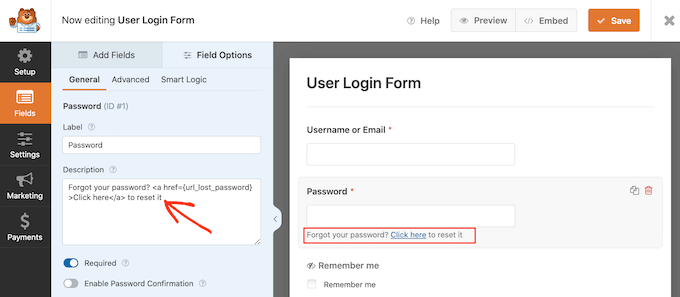
If you’ve created a custom login page for WordPress using a plugin such as WPForms, then we also recommend adding the new password reset link to this form.
Pro Tip: This code only changes the default WordPress login link. If you have links to your lost password page elsewhere on your site (like in the footer or sidebar), you’ll need to update those URLs manually to point to your new page.
Expert Guides on Customizing WordPress Pages
We hope this tutorial helped you learn how to customize the WordPress reset password page. You may also want to see some tutorials on improving WordPress login security:
- How to Create a Custom WordPress Login Page (Ultimate Guide)
- How and Why You Should Limit Login Attempts in WordPress
- Vital Tips to Protect Your WordPress Admin Area
- How to Add Security Questions to the WordPress Login Screen
- How to Add a Custom Login URL in WordPress (Step by Step)
If you liked this article, then please subscribe to our YouTube Channel for WordPress video tutorials. You can also find us on Twitter and Facebook.




Jiří Vaněk
I’m currently using a website for multiple users and came across this article. Since I want to customize every part possible to match my website’s colors, you’ve given me another idea of what’s left to ensure everything is aligned with the brand colors of the site. I enjoy playing with the details, which is why I love reading this blog. You don’t overlook anything, not even such small details.
Dennis Muthomi
This is why I love your articles WPBeginner.
You always provide multiple methods that caters to different skill levels and needs. I’m going to try the WPForms method, as it seems to offer the most customization options.
Thanks for this.
Rowdy
Hello, do I need to have a paid license for the first method with Formidable Forms ?
WPBeginner Support
Yes, at the moment user registration is part of the paid plan.
Admin
Lennon
your article is nice and helpful
WPBeginner Support
Glad you found our guide helpful!
Admin