


Just like many of you, we’ve faced our share of plugin conflicts in WordPress. From broken layouts to mysterious error messages, we’ve seen it all.
Recently, one of our friends shared a story that hit close to home. Her new newsletter popup plugin worked perfectly at first, but after a routine update, her entire site went haywire.
The frustrating part? It could’ve been avoided with the right know-how.
After helping many different WordPress users through WPBeginner, we’ve learned that plugin conflicts don’t have to be scary – if you have a reliable way to spot them.
In this guide, we’ll walk you through two proven methods to check for WordPress plugin conflicts. These are the same steps that have helped thousands of our readers keep their sites running smoothly. 🙌
What Is a WordPress Plugin Conflict?
A plugin conflict occurs when one or more plugins interfere with each other, your website theme, or the WordPress core files.
This can happen for various reasons, such as outdated plugins, incompatible software, bad coding practices, or when two plugins try to perform the exact same job, causing them to clash.
When a plugin conflict occurs, your WordPress site will usually show clear symptoms. Common ones include a blank white screen, broken or disorganized layouts, unexpected error messages, and overall site instability.
Now, let’s look at different ways to check for WordPress plugin conflicts on your website. You can manually check for conflicts by deactivating plugins or use a troubleshooting plugin to isolate the problem.
We’ll cover both methods and share tips to avoid conflicts in the future. You can use the links below to jump to any section:
🧑💻 Pro Tip: Before you try to resolve plugin conflicts, it’s best to create a backup of your website. This way, you can easily restore your content and settings if anything goes wrong.
Let’s get started.
Method 1: Disable All Plugins & Activate Them Manually
The easiest way to see whether there is a plugin conflict is to deactivate all the plugins on your site and then activate them one by one.
Disabling plugins will help you check whether the WordPress error you’re facing is plugin-related. If it is, reactivating each plugin one at a time will help you pinpoint which plugin is causing the problem.
If you can still access your admin dashboard, you’ll need to head to Plugins » Installed Plugins page. After that, simply click the ‘Deactivate’ option under the plugin name.
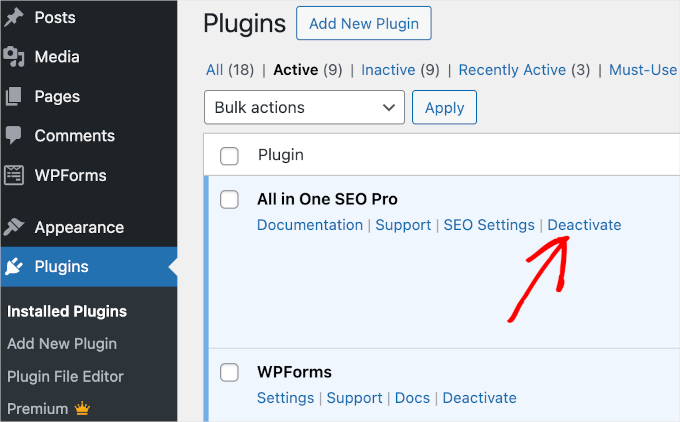
Alternatively, you can also bulk deactivate plugins on your site.
Simply click the checkbox at the top to select all the plugins.
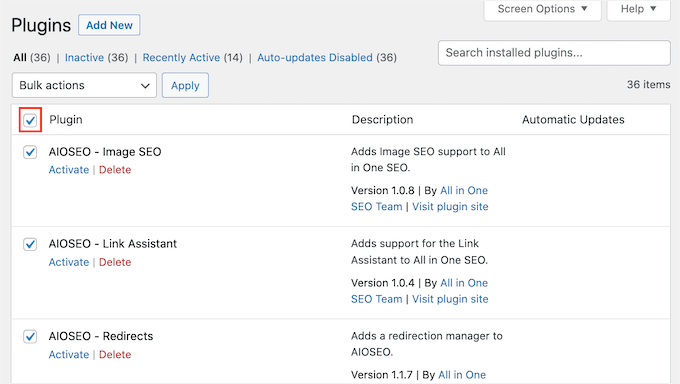
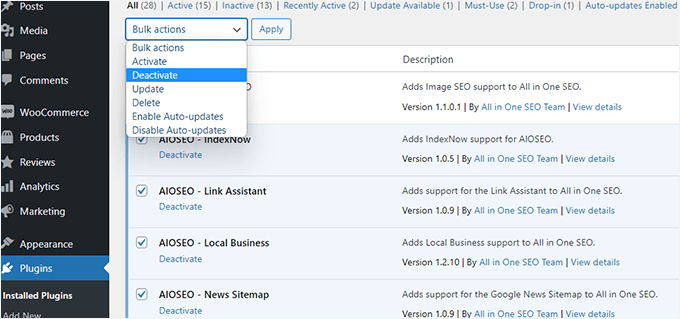
Next, you can click the ‘Bulk actions’ dropdown menu at the top.
From here, select the ‘Deactivate’ option. Then, go ahead and click on the ‘Apply’ button to deactivate all plugins.
You may also want to see our guide on how to deactivate plugins when not able to access wp-admin.
Now that you’ve disabled all the plugins, check whether the website error is still occurring.
If the error has cleared, start manually reactivating each plugin on your site. This will help you see which plugin is causing the conflict.
Otherwise, if the error hasn’t gone away, it’s a good idea to check if your theme is causing the issue. You’ll need to deactivate your current theme and activate one of WordPress’ default themes, like Twenty Twenty-Four, to see if that fixes the problem.
For details on how to do this, you can see our tutorial on how to change WordPress themes.
Method 2: Use a Plugin to Check for Conflicts
Another way to check for plugin conflicts in WordPress is by using a plugin like Health Check & Troubleshooting.
It’s a free WordPress plugin that helps you troubleshoot errors using a default theme and with all your plugins disabled.
The best part is that it allows you to troubleshoot in a private user session. This means you can check for plugin conflicts without affecting the experience of visitors on your live website.
First, you will need to install and activate the Health Check & Troubleshooting plugin.
In your WordPress admin area, go to Plugins » Add New Plugin.

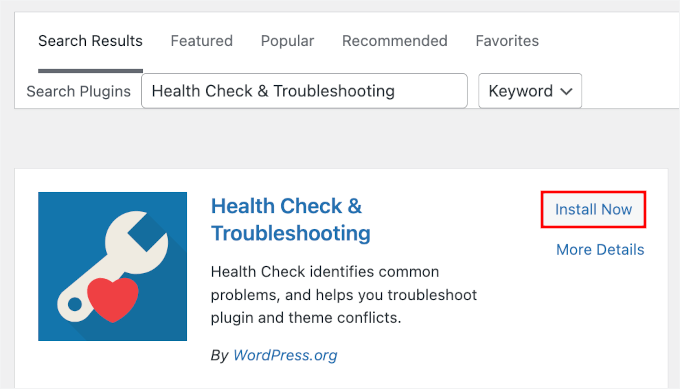
Then, you can use the search bar to quickly find the plugin.
Once found, go ahead and click the ‘Install Now’ button. Don’t forget to click ‘Activate’ when you see it to enable it on your WordPress site.
If you need help, please see our guide on how to install a WordPress plugin.
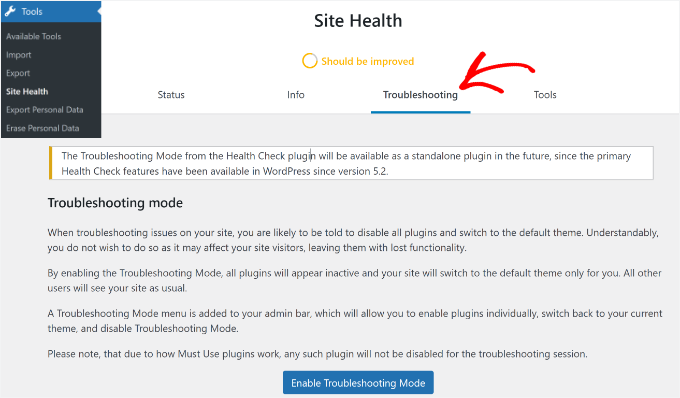
Upon activation, you can head to Tools » Site Health from the WordPress dashboard. From here, you can switch to the ‘Troubleshooting’ tab.
⚠️ Disclaimer: This plugin hasn’t been tested with the latest WordPress versions. However, we’ve tested it ourselves, and it still works well in our experience. If you’re unsure about it, see our piece on whether it’s safe to use an outdated plugin.
Next, you can click the ‘Enable Troubleshooting Mode’ button.
This will deactivate all the plugins for your user session and switch to a default theme. You can now check for plugin conflicts that might be causing errors and other issues, while your visitors continue to see the normal site.
How to Fix WordPress Plugin Conflicts
Once you’ve identified the problematic plugin, you’ll need to fix the issue. Here are some tips to get the job done.
1. Update Plugins on Your Site
Plugin updates often provide bug fixes and other improvements that can resolve plugin conflicts. So, simply updating the right plugin may fix your problem.
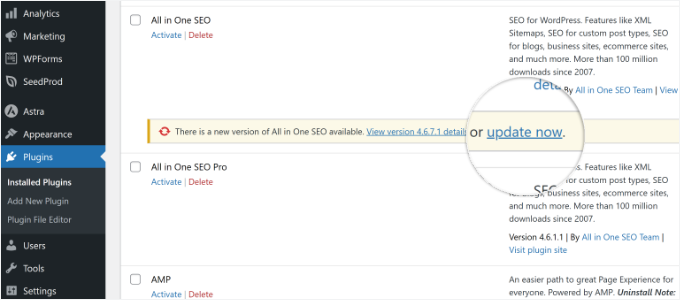
To check if a plugin has an available update, you can go to Plugins » Installed Plugins and see if there is an ‘update now’ link below it:
Or, you can go to Dashboard » Updates to see your available updates.
For more detailed instructions, you can check out our guide on how to properly update WordPress plugins.
2. Check the Plugin and WordPress Versions
Sometimes, your WordPress and plugin versions might not match, which can cause conflicts.
Whenever you install a new plugin, make sure it is compatible with your current WordPress version. You can check this at the bottom of the plugin description:
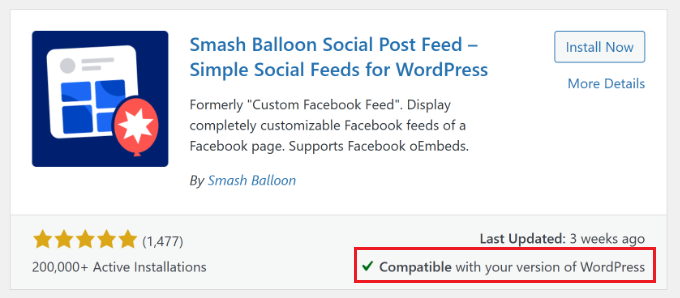
If both the plugin and your site are up-to-date, you should see a message saying, ‘Compatible with your version of WordPress.’
Otherwise, you will see ‘Untested with your version of WordPress’ here. In that case, you may need to run an update or consider using a different plugin.
3. Update or Switch Your WordPress Theme
As we mentioned earlier, sometimes, the issue might be between a plugin and your WordPress theme.
If changing the theme fixed the issue, it likely means your theme is conflicting with one of your plugins. To find the culprit, reactivate your original theme (which will likely bring the error back). Then, deactivate plugins on your site one by one until the issue is resolved.
To fix the issue, you can first update the WordPress theme to the latest version. This should help fix bugs or compatibility issues that might be interfering with a plugin.
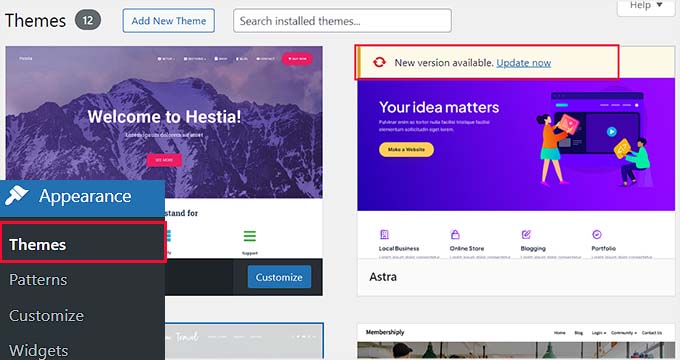
If the issue still doesn’t go away, it might be a good idea to switch your website theme.
For more details, please see our guide on how to properly change a WordPress theme.
4. Contact Plugin Developers
If updating does not resolve a plugin issue, it’s a good idea to reach out to the plugin’s developers.
You can look for support options or contact information by going to the plugin’s WordPress.org page or the developer’s website.
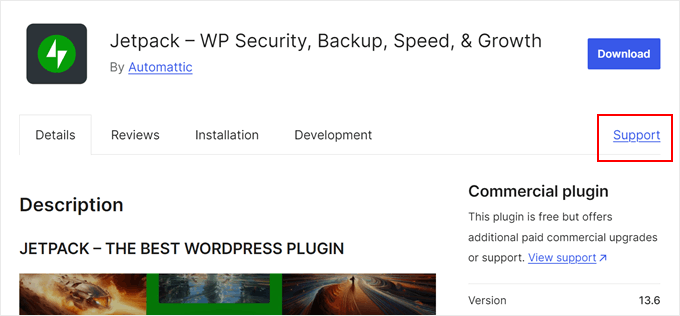
When describing the issue in a forum or to the plugin’s support team, it’s best to give detailed information. This might include the error messages you saw, your WordPress version, and any steps to reproduce the problem.
This way, plugin developers can better understand the issue and hopefully help you find a solution quickly.
For more information, see our guide on how to ask for WordPress support and get it.
5. Find Alternative Plugins
If you still can’t fix the plugin conflict after trying all the above methods, then you might need to replace the problematic plugin with a compatible one.
You can use the WordPress plugin repository to find plugins with similar functionalities. When you find a good alternative, make sure to check the plugin reviews, ratings, number of installs, tested with the latest WordPress versions, and support responsiveness before switching.
For example, let’s say you’re looking for a WordPress form plugin alternative. Simply visit the WordPress.org website and head to the plugins section.
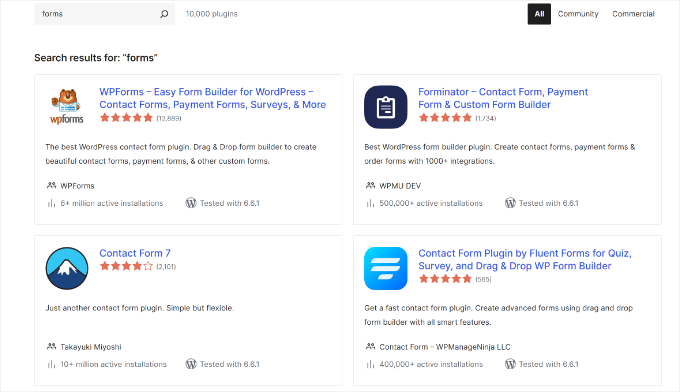
From here, search for ‘forms’ in the search bar, and you’ll have many options.
You can also check out our WPBeginner Solution Center. There, you will find expert plugin recommendations from our team, along with reviews from real-world customers.
Preventing Future WordPress Plugin Conflicts
Plugin conflicts can cause a lot of trouble on your website and can be difficult to catch, so it’s important to look for ways to avoid them.
Here are some best practices to minimize the risk of plugin conflicts:
- Run Regular Updates – Keep your plugins, themes, and WordPress core up-to-date so you don’t run into compatibility issues or bugs that can cause conflicts.
- Use Only Necessary Plugins – Use only essential WordPress plugins that you really need on your website to reduce conflict possibilities. The more plugins you have, the higher the chance of plugin conflicts.
- Select Well-Coded Plugins – Choose plugins from trusted developers with good reviews. Whenever possible, test new plugins on a staging site to see if they fit your needs before activating them on a live website.
FAQ: How to Check for WordPress Plugin Conflicts
Before we wrap up, here are some common questions readers have about plugin safety and troubleshooting:
How do I check if a WordPress plugin is safe?
A plugin is generally safe if it’s well-maintained and trusted. Before installing it, look at its update history, user reviews, active installations, and compatibility with your WordPress version. It’s also a good idea to install plugins from reputable developers or the official WordPress.org directory.
How do I check if a plugin is active in WordPress?
Go to Plugins » Installed Plugins in your dashboard. If you see a blue ‘Deactivate’ link under the plugin name, that means it’s currently active. If it shows an ‘Activate’ link instead, the plugin is inactive.
How do I fix the error “The plugin could not be activated because it triggered a fatal error”?
This usually means the plugin has a coding issue or is conflicting with something on your site. To fix it, connect to your site via FTP or your hosting file manager, open the /wp-content/plugins/ folder, and rename the plugin’s folder (for example, to plugin-name-old).
This will instantly deactivate it so you can access your dashboard again. Then, you can install a more stable version or choose an alternative plugin.
Is an outdated plugin safe to use?
Not always. Outdated plugins can cause compatibility problems, break features, or introduce security risks. If a plugin hasn’t been updated in a long time or doesn’t work with the latest version of WordPress, it’s better to look for a replacement.
Bonus Links 🔗: WordPress Management and Maintenance Guides
We hope this article helped you learn how to check for WordPress plugin conflicts.
You may also want to see our guides on:
- How to Fix Plugins Disappearing from the WordPress Dashboard
- How to Preview Your WordPress Website Before Going Live
- How to Put Your WordPress Site in Maintenance Mode
- How to Redirect Visitors to a Maintenance Page in WordPress
- Coming Soon vs Maintenance Mode: What’s the Difference
- Ultimate Guide to WordPress Maintenance
If you liked this article, then please subscribe to our YouTube Channel for WordPress video tutorials. You can also find us on Twitter and Facebook.




Olaf
Sometimes, when a plugin isn’t working and I see the developer recently made an update, I’ll go to the plugin repository and try the version before the current one. I wouldn’t recommend this as a final solution, since it’s best to keep plugins up to date, but I’ve often solved issues this way by simply trying an earlier version before the latest update, and the plugin worked. Afterward, it’s a good idea to contact the developer and look for a better solution, such as waiting for a new update or identifying the problem (like a PHP version issue, conflict with another plugin, etc.).
Jiří Vaněk
Since I’ve always dealt with plugin conflicts manually, usually by disabling them one by one and then searching for a solution and a working state, the **Health Check & Troubleshooting** plugin is quite an interesting new tool for me. I’ll definitely take a closer look at it because occasional plugin conflicts with each other, the theme, or the WordPress core are so common that you almost don’t want to admit it. Thanks for the great article and for introducing new methods to resolve conflicts without just disabling plugins and doing literal detective work.
Moinuddin Waheed
These are the exact steps that I have been following for the last several years.
Firstly deactivating all the plugins and then manually activating one by one to check if the conflict is still there.
This solves the issue most of the times.
I have not used check health and troubleshooting plugin but it seems a very good option to try.
it will help check if any plugin is in bad health and can cause the problems.
Achraf Hebboul
This is a typical problem that WordPress users encounter, particularly those who struggle to properly manage their plugins and or themes. To avoid conflicts and perhaps protect themselves from hacking or other threats, I may suggest that individuals who work with WordPress plugins and themes stick to the most popular and reliable plugins and themes by researching them online and reading user reviews before installing any plugins mostly the uncommon ones.
WPBeginner Support
It would depend on the user’s needs as not all plugins for every need have a large audience but for most use cases this is a good idea
Admin
Jiří Vaněk
Personally, I also think it’s a great solution to use a staging plugin to create a copy of your website where you can test changes over a set period. If everything works as expected, you can then apply the changes from the staging site to the live site. This method is also suitable for beginners because they can test everything on a copy of the website that isn’t public. This way, they can safely experiment with plugins that aren’t as popular or well-established, especially when they need a specific feature that only a less-known plugin offers.