


Many WooCommerce customers don’t buy on their first visit. They browse, compare options, and leave with the intention of coming back later.
The problem is that without a wishlist, those products often get forgotten.
Adding a wishlist gives shoppers an easy way to save items they like and return when they’re ready to purchase. We’ve seen this simple feature increase return visits and help customers complete purchases they might otherwise abandon.
Plus, adding a wishlist to WooCommerce is much easier than most online store owners expect. You don’t need to touch any code or change your theme.
In this guide, I’ll show you two beginner-friendly ways to add a wishlist to your WooCommerce store and have it up and running in just a few minutes.
💡Quick Answer: How to Add a Wishlist in WooCommerce
Here’s a quick comparison to help you choose the right plugin for your store:
| Feature | SaveTo Wishlist | YITH WooCommerce Wishlist |
|---|---|---|
| Cost | Free | Free basic, Premium for advanced features |
| Best for | Beginners, small stores | Advanced stores, marketing-focused |
| Multiple Wishlists | ✅ Yes | ✅ Yes (premium) |
| Sharing Options | ❌ No | ✅ Yes (premium) |
| Guest Support | ✅ Yes | ✅ Yes |
| Email Notifications | ❌ No | ✅ Yes (premium) |
| Ease of Setup | Very easy | Moderate (more settings to configure) |
| Customization | Basic | Advanced (buttons, tooltips, modals, emails) |
- Choose SaveTo Wishlist if you want a lightweight, hassle-free solution for your store.
- Choose YITH WooCommerce Wishlist if you want more control, marketing features, and engagement tools for your customers.
What Is a Wishlist in WooCommerce?
A wishlist in WooCommerce lets customers save products they like so they can come back and buy them later. It works as a simple ‘save for later’ list without adding items to the cart.
Customers often use wishlists to compare products, wait for discounts, or plan future purchases. Instead of searching again, they can quickly find everything in one place.
For store owners, this means better engagement and more return visits, which can naturally lead to more sales over time.
Why You Should Add a Wishlist to Your WooCommerce Store?
A wishlist does more than just save products. It keeps your customers coming back and makes shopping easier.
I recommend adding one because it’s a small feature that can have a big impact on engagement and sales. Here’s why I suggest adding a wishlist:
- Keeps Customers Engaged: Shoppers can save products they love and return later, increasing the chances they’ll come back to your store.
- Encourages Repeat Visits: A wishlist gives customers a reason to return, even if they’re not ready to buy right away.
- Boosts Sales Naturally: When customers review their saved items, they often move them to the cart and complete the purchase.
- Helps With Product Planning: Customers can compare items or wait for discounts without forgetting what they wanted.
- Easy to Share: Some wishlist plugins let shoppers share their lists with friends or family, which can bring in new customers.
A small feature like this can improve overall engagement and conversion rates. It makes shopping easier and more enjoyable for your customers.
Now, let’s look at how to add a wishlist to your WooCommerce store.
I’ll be showing 2 methods. You can use the links below to jump to the method of your choice:
📍Important: This guide is specifically for WooCommerce stores. If you haven’t set up your store yet, you need to do that first so you can add products, manage inventory, and start selling.
Check out our guide on creating an online store to get your store ready before adding a wishlist.
Method 1: Create a Wishlist with SaveTo Wishlist (Recommended)
🥇Best for: Beginners or small WooCommerce stores who want a simple, reliable wishlist.
If you’re just starting out, I recommend this method. SaveTo Wishlist is a free plugin that makes it easy for your customers to save the products they love and come back to them later.
I’ve tested it myself, and it works smoothly without any complicated setup.
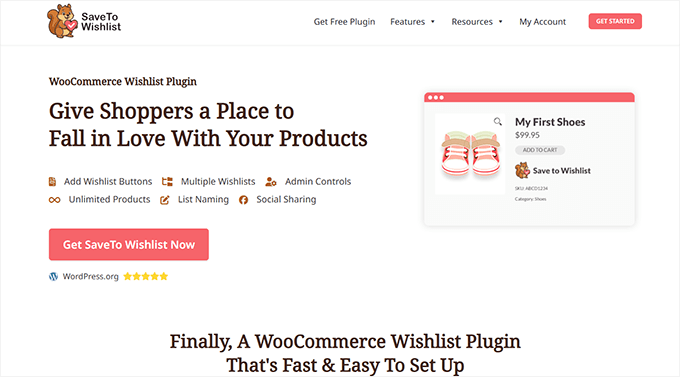
One of the things I like about this plugin is that it even works for guests, so visitors who aren’t logged in can still create wishlists. Once they register or log in, their wishlist automatically merges into their account.
The plugin also comes with customizable ‘Save to Wishlist’ buttons, letting you choose where to place them, so it fits nicely with your store’s design.
Step 1: Install and Activate SaveTo Wishlists
The first step is to install and activate the SaveTo Wishlist plugin on your WooCommerce store.
If this is your first time installing a WordPress plugin, don’t worry—you can follow our beginner’s guide on how to install WordPress plugins to get started.
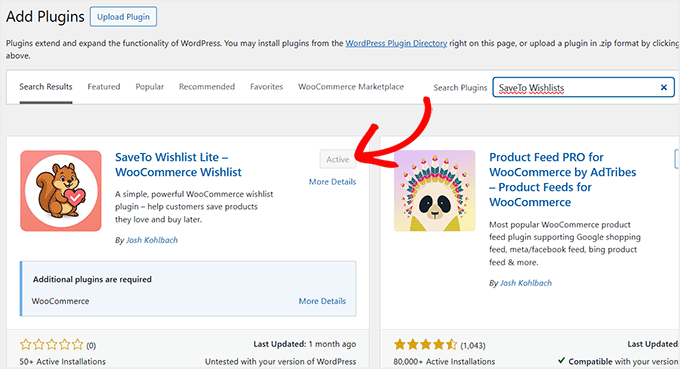
Once the plugin is installed, simply activate it from your WordPress dashboard. Activation is quick, and the plugin automatically adds basic wishlist functionality to your store.
From here, you’re ready to start customizing the wishlist buttons and settings to match your store’s design and style.
Step 2: Customize the Wishlist Settings
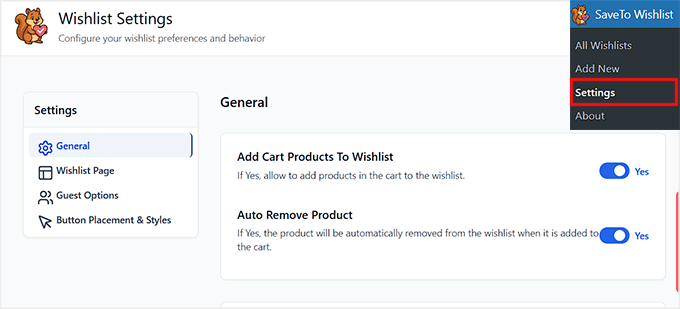
Next, head over to the SaveTo Wishlist » Settings page in your WordPress dashboard. This is where you can adjust how the wishlist works to fit your store perfectly.
Under the ‘General’ tab, you’ll see an option to add cart products to the wishlist. I recommend keeping this set to ‘Yes,’ so customers can save items they already have in their cart.
The ‘Auto Remove Product’ option is also useful—when enabled, any product added to the cart will automatically be removed from the wishlist. This keeps the wishlist clean and up to date.
You can also choose the wishlist action redirect page. This controls where customers go after adding a product to their wishlist.
For most stores, it’s best to set it to the wishlist page so shoppers can see their saved items immediately.
Finally, you need to choose what happens when a customer clicks the ‘Add to Wishlist’ button. The plugin lets you either redirect them to the wishlist page or show a popup with a success message and a link to the wishlist.
I suggest setting this to popup so that customers don’t have to leave the shopping page every time they add a product to their wishlist.
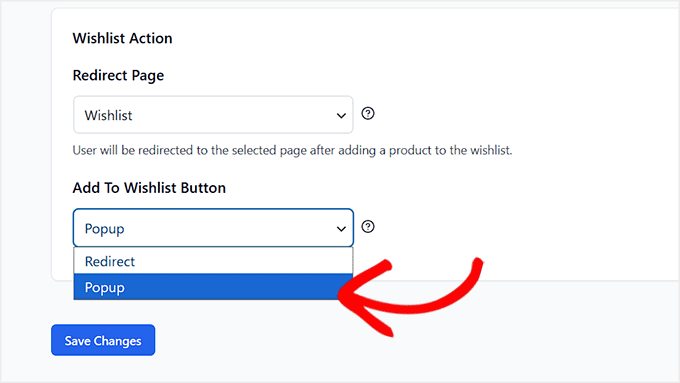
This keeps the experience smooth and encourages them to keep browsing. Once you are done, don’t forget to click the ‘Save Changes’ button.
Step 3: Add a Title and Description for Your Wishlist Page
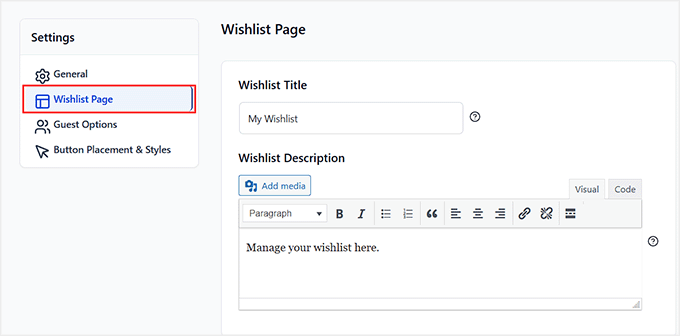
After that, switch to the ‘Wishlist Page’ tab from the sidebar on the left. Here, you have to write a title and description for the Wishlist page.
You can leave the title as ‘My Wishlist’ and add a short description to let customers know this is where they can save and manage their favorite products.
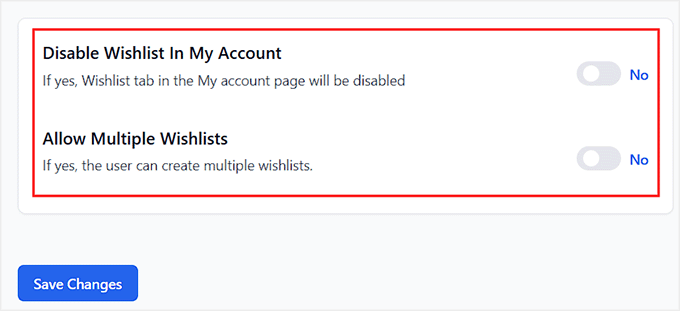
You’ll also see an option to ‘Disable Wishlist in My Account’. I recommend leaving this disabled so customers can always access their wishlist from their account.
Enabling this hides the wishlist tab from the My Account area. This could confuse shoppers and make it harder for them to find their saved products.
Another setting is ‘Allow Multiple Wishlists.’ If you enable this, shoppers can create several wishlists, which is helpful for organizing products by category or gift ideas.
For most stores, keeping a single wishlist is easier to manage. Finally, click the ‘Save Changes’ button to store your settings.
Step 4: Configure Guest Wishlist Options
Next, switch to the ‘Guest Options’ tab from the left. This section controls how visitors who aren’t logged in can use the wishlist.
You’ll see an option called ‘Disable Guest Wishlist.’ I recommend keeping this set to ‘No’ so that even visitors who haven’t created an account can save products.
This is a great way to let potential customers try out the wishlist feature without forcing them to register first.
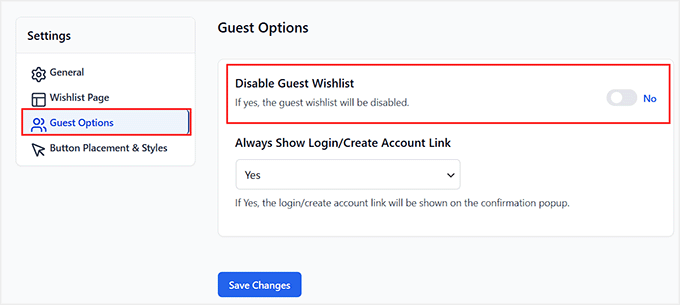
Another setting is ‘Always Show Login/Create Account Link.’ Leave this set to ‘Yes.’
With this enabled, the login or create account link will appear on the confirmation popup after a guest adds a product to their wishlist.
This gently encourages visitors to create an account. While guests can temporarily save items in their browser, creating an account ensures their wishlist is saved permanently across devices.
Step 5: Customize Wishlist Button Placement and Style
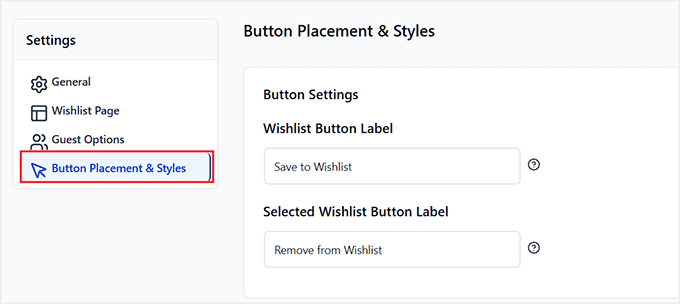
Now it’s time to switch to the ‘Button Placement & Styles’ tab. This is where you can make your wishlist buttons look exactly how you want and place them in the most convenient spots for your customers.
Start by setting the ‘Wishlist Button Label.’ I usually leave it as ‘Save to Wishlist,’ but you can change it to something that fits your store’s tone.
There’s also a ‘Selected Wishlist Button Label’ option, which is what appears after a product has been added to a wishlist.
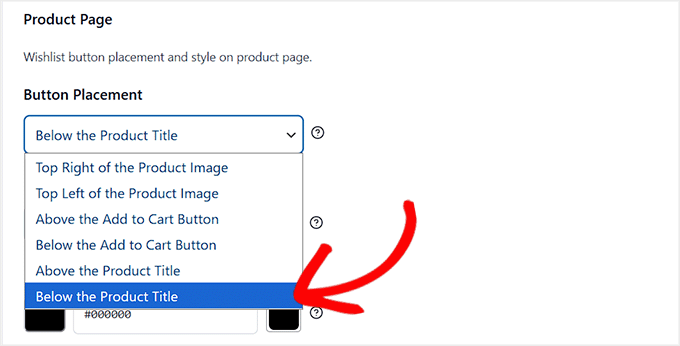
Next, choose where the button appears on the product page.
You have several options: top right or top left of the product image, above or below the ‘Add to Cart’ button, or above or below the product title.
I recommend picking a spot that’s noticeable but doesn’t distract from the product itself.
After placement, you can configure the button style. This includes text color, hover text color, background color, text size, text style, and button type.
The plugin gives you full control so the button matches your store’s design.
You’ll also want to configure buttons for the shop and cart pages. The shop page is the main page where all your products are listed, while the cart page is where customers review items before checking out.
Keeping consistent styling across these pages ensures your wishlist buttons are easy to spot, no matter where a customer is on your store.
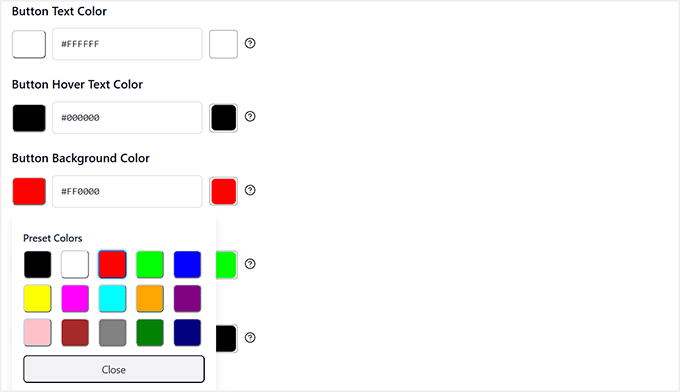
Once you’ve set the placement and style to your liking, click ‘Save Changes.’ Your wishlist buttons are now ready, attractive, and fully functional across your store.
Step 6: View Your Wishlist Button Live
Now that your Save to Wishlist button has been fully customized, it’s time to see it in action on your site.
To check it, simply visit your product pages, the shop page, or the cart page—anywhere you’ve placed the button.
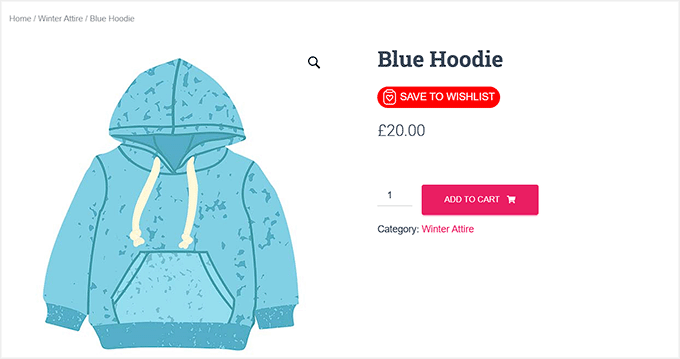
Clicking the button should either show the popup (if you set it that way) or redirect to the wishlist page, depending on your settings.
Test it as a guest and as a logged-in user to make sure everything works smoothly.
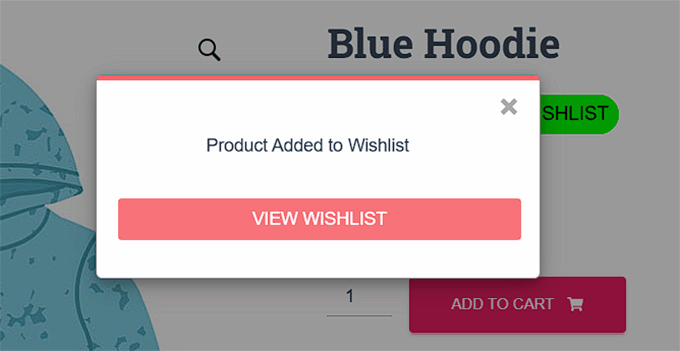
Once you see it live, your customers can start saving their favorite products right away.
Method 2: Create a Wishlist with YITH WooCommerce Wishlist
🥈Best for: Stores that want advanced wishlist features, multiple wishlists, sharing options, and marketing tools.
In contrast to the SaveTo Wishlist plugin, YITH WooCommerce Wishlist is perfect when you want more control and flexibility.
I recommend this method if you want to let your customers create multiple wishlists, share them with friends or family, track prices, or send targeted email campaigns based on wishlist activity.
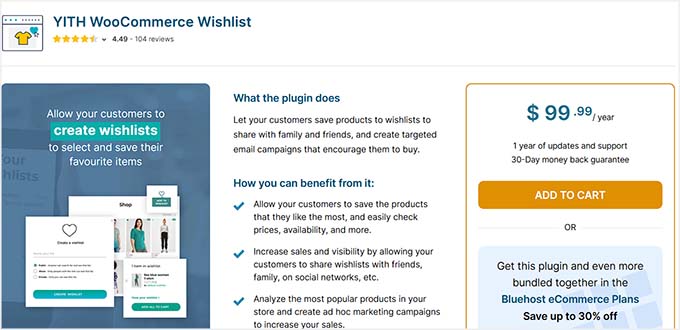
Unlike Save to Wishlist, YITH gives you full customization for the ‘Add to Wishlist’ button, multiple layouts for your wishlist page, privacy options for each list, and advanced features like adding products to the cart directly from the wishlist.
It’s also ideal if you want to analyze popular products and create marketing campaigns to increase conversions.
In short, if you’re looking to go beyond a simple wishlist and give your store a professional look, YITH WooCommerce Wishlist is the plugin to choose.
Step 1: Install and Activate YITH WooCommerce Wishlist
The first step is to install and activate the YITH WooCommerce Wishlist plugin.
If you’re not sure how to do that, you can follow our step-by-step guide on installing WordPress plugins to get started.
📍Note: YITH WooCommerce Wishlist comes in both free and premium plans.
The free version is enough to get a wishlist running on your store, but the premium version unlocks features like multiple wishlists, social sharing, and email notifications.
If you want more customization options, I recommend going premium. If you’re looking for a simple, lightweight wishlist, Save to Wishlist might still be your best bet.
Once installed and activated, the plugin will automatically add basic wishlist functionality to your store, and you’ll be ready to start configuring it for your customers.
Step 2: Configure General Settings
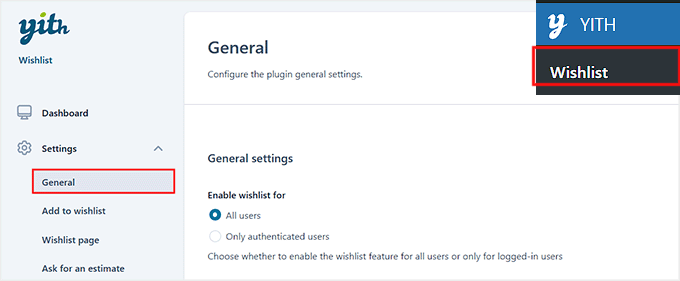
Next, head over to the YITH » Wishlist » Settings » General page from your WordPress dashboard. This is where you can set up the plugin’s main functionality and determine how wishlists will work for your customers.
First, look at the ‘Enable wishlist for’ option. You can choose to allow all users or only authenticated (logged-in) users to create wishlists.
I suggest enabling it for all users, including guests, because it lets new visitors try out the wishlist feature without creating an account—then they can register later to save their lists permanently.
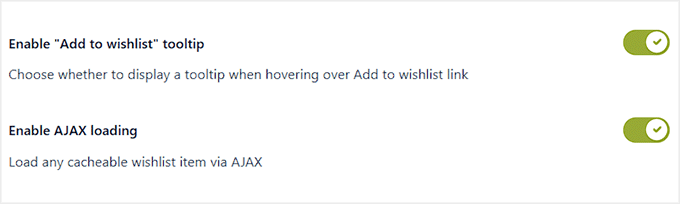
Then toggle the switch for ‘Enable “Add to Wishlist” tooltip’ setting. It adds a helpful little message when customers hover over the wishlist button, making it clear what the button does.
Next, enable AJAX loading by toggling the switch to ‘Active.’
This makes wishlist actions load instantly without refreshing the page, giving your customers a smooth, seamless experience as they browse your store.
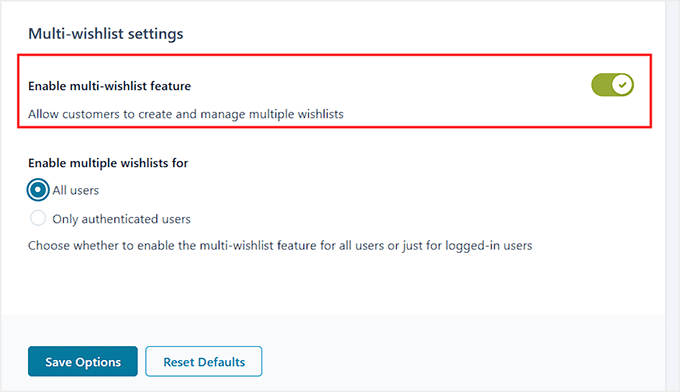
Finally, the ‘Multi-wishlist settings’ let you enable the multi-wishlist feature, which allows customers to create and manage multiple lists—perfect for organizing gifts, birthdays, holidays, or separate shopping lists.
For most stores, enabling this adds flexibility, but if you want to keep things simple, a single wishlist works fine.
Once these general settings are configured, just click the ‘Save Changes’ button.
Step 3: Customize the ‘Add to Wishlist’ Button and Placement
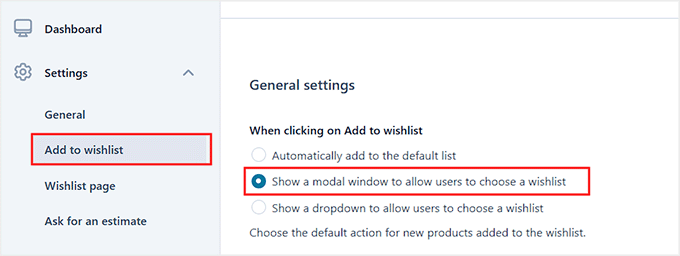
After configuring the general settings, switch to the ‘Add to wishlist’ tab from the left column. This is where you can control how the button behaves, how feedback is shown to customers, and where it appears on your store.
Start with the ‘General settings.’ Here, you can decide what happens when a customer clicks the ‘Add to Wishlist’ button.
You can set it to automatically add the product to the default wishlist, show a modal window for users to choose a wishlist, or display a dropdown menu.
I recommend choosing the modal (popup) option because it lets customers pick a list while keeping the experience smooth.
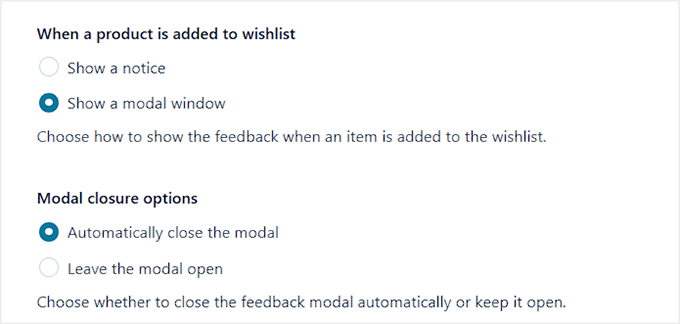
Next, configure how feedback is displayed after a product is added. You can show a simple notice, a modal window, or even leave the modal open or close it automatically.
I suggest leaving it open just long enough for customers to see the confirmation without interrupting their shopping.
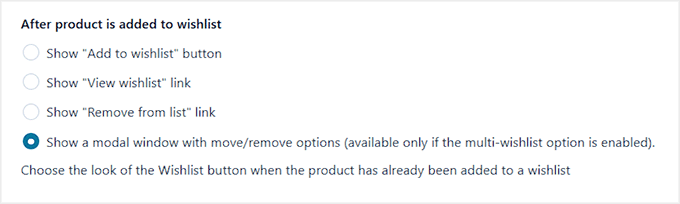
You can also choose what buttons or links appear after a product is added.
Options include showing the ‘Add to Wishlist’ button again, a ‘View Wishlist’ link, a ‘Remove from List’ link, or a modal with move/remove options if multiple wishlists are enabled.
This lets you give customers the flexibility to manage their lists.
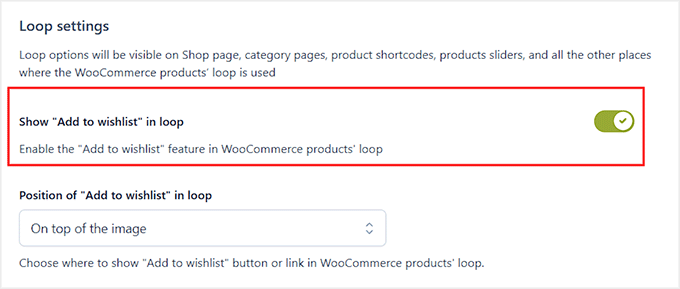
Then, move on to the ‘Loop settings’, which control wishlist buttons on the shop page, category pages, product sliders, and other product listings.
Enable the ‘Add to Wishlist’ button in these loops by toggling the switch. Choose its position (e.g., on top of the product image) and decide whether the icon is always visible or only on hover.
You can even display a counter showing how many users have added that product to their wishlist, which can encourage engagement.
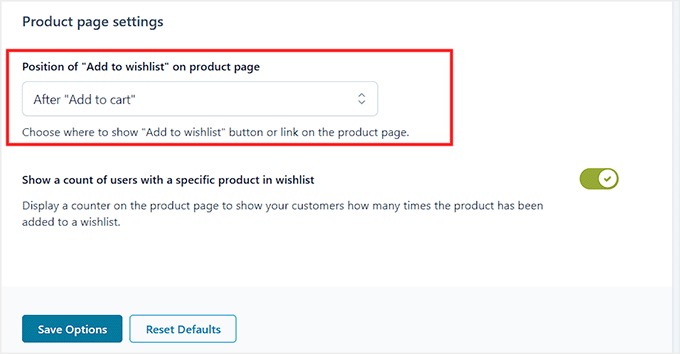
Finally, adjust the product page settings. Decide where the button appears on the product page—usually I place it after the ‘Add to Cart’ button—and whether to show a counter there as well.
Once everything looks good, don’t forget to click ‘Save Options’ to apply your changes.
Step 4: Set Up Your Wishlist Page
Now it’s time to configure your wishlist page, where your customers will manage their saved products.
Upon activation, the plugin typically creates a page for you automatically. You can check this by going to Pages » All Pages and looking for a page titled ‘Wishlist’.
If you need to create it manually, simply create a new page and add the following shortcode:
[yith_wcwl_wishlist]
Don’t know how to do that? Take a look at our guide on adding a shortcode in WordPress.
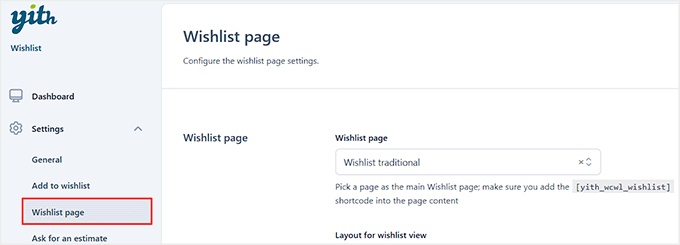
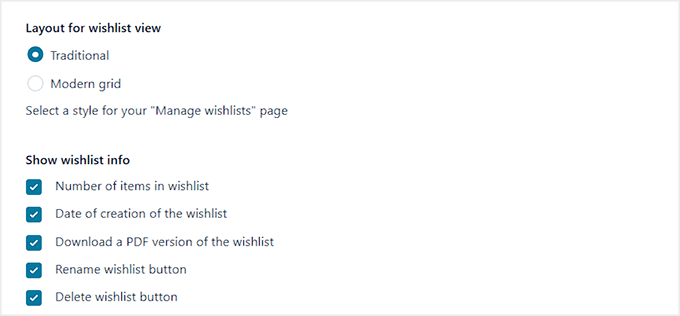
Next, choose a layout for the wishlist view. You can pick between a traditional list or a modern grid style. I usually go with the modern grid because it looks clean and makes it easy for customers to browse their saved products.
You’ll also want to include basic information, such as the number of items in the wishlist and the date it was created.
On the wishlist detail page, you can decide what information to show for each product. I recommend including product variations (like size or color), price, stock availability, and an Add to Cart button for easy shopping.
If you want, you can also let customers move products to another wishlist, remove items, or add all items to the cart at once. These options make managing wishlists simple and convenient.
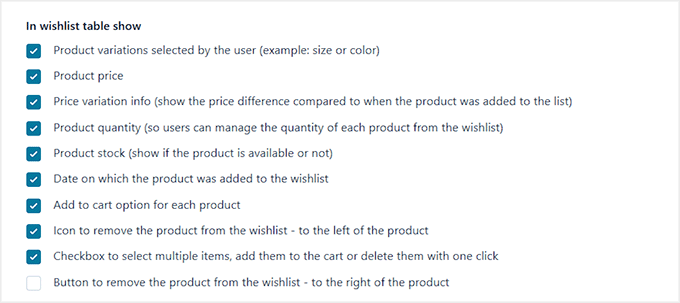
There are plenty of other settings to explore as well. For example, you can allow users to rename or delete wishlists, download a PDF version, enable drag-and-drop sorting, and even share their wishlist on social media.
I recommend going through these options to decide which features fit your store and your customers’ needs.
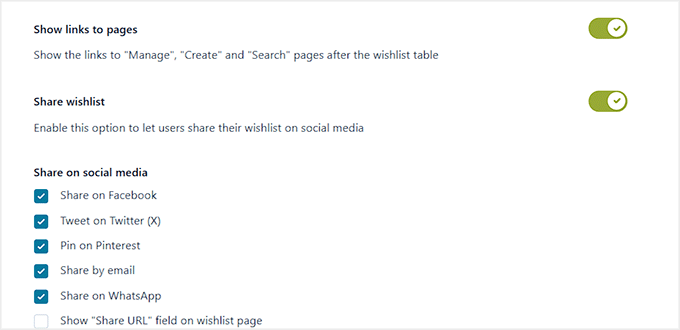
Once you’ve configured the main settings and saved your changes, your wishlist page is ready to give shoppers a smooth experience while keeping your products easy to manage and share.
Step 5: Set Up Wishlist Emails
Next, switch to the ‘Emails’ tab from the left column. This is where you can manage and customize all the emails sent to your customers about their wishlists.
YITH WooCommerce Wishlist lets you send different types of emails, like:
- Back in Stock notifications
- On Sale item alerts
- Ask for an Estimate emails
- Promotional emails
To enable or edit any email, simply click the pencil icon next to it.
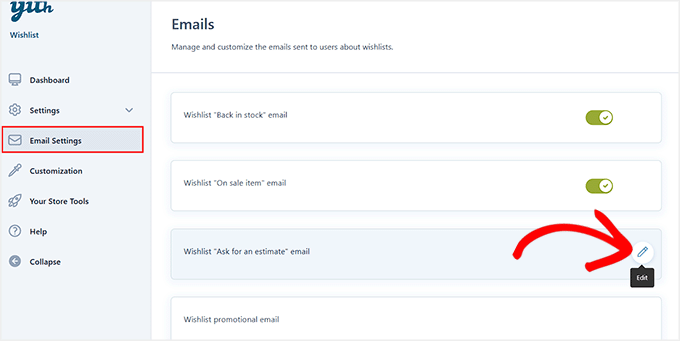
You can then customize the subject line, email heading, and the content itself.
YITH also lets you use placeholders like {user_name}, {products_table}, and {unsubscribe_link} to make the emails personal and relevant.
You can also set product or category exclusions to exclude items from the emails.
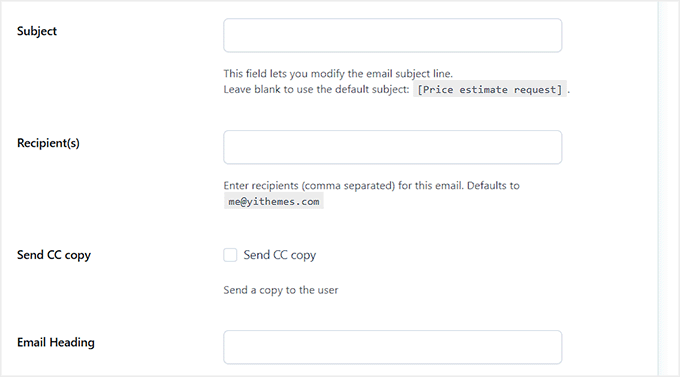
Once you’ve made your changes, click ‘Save,’ then use the toggle next to the email to activate it.
You can repeat this process for each type of wishlist email to ensure your customers are always notified about the items they care about.
This feature is great for boosting engagement and sales because it reminds customers about products they’re interested in, without you having to manually follow up.
Step 6: Customize Buttons, Tooltips, and Styles
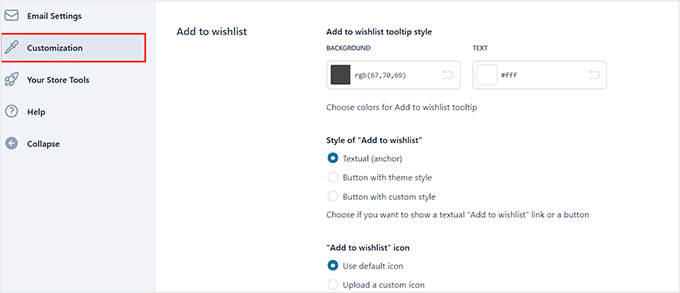
Now that your wishlist is working, you can make it look and feel exactly how you want by switching to the ‘Customization’ tab from the left column.
Here, you can adjust the ‘Add to Wishlist’ button, tooltips, icons, and modal styles.’Here, you can adjust the Add to Wishlist button, tooltips, icons, and modal styles.
You can choose whether the wishlist button is textual or a styled button, pick an icon for ‘Add to Wishlist’ and ‘Added to Wishlist’ buttons. Plus, you can customize colors for the tooltip, button text, hover states, and modals.
Next, switch to the ‘Labels’ tab to customize the text labels your customers will see.
You can set messages like ‘Add to Wishlist,’ ‘Product added in wishlist,’ ‘Remove from list,’ and even the default wishlist name for new users.
There are also settings for page titles like Create Wishlist, Manage Wishlist, and Search Wishlist—all of which you can personalize to fit your store’s tone.
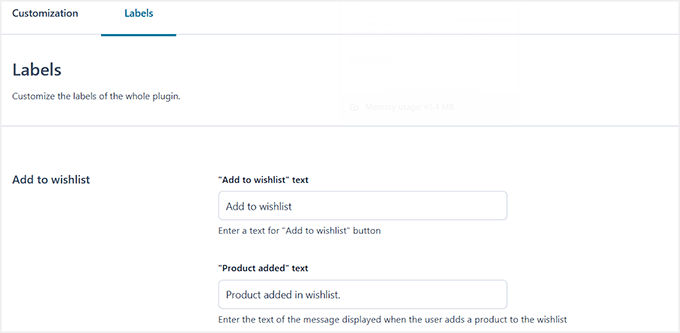
These customization options let you make your wishlist look polished and match your store’s branding. Once you’re happy with the look, click ‘Save Options’ to apply your changes.
Step 7: View Your Wishlist Live
Once you’ve finished setting up and customizing YITH WooCommerce Wishlist, it’s time to see it in action. Head over to your shop, product, or cart pages and look for the ‘Add to Wishlist’ button.
Depending on your settings, you might see it as a button, a text link, or an icon. Hover over it to check your tooltip and click it to test the modal or popup.

Next, create a wishlist by adding a few products. Then go to your Wishlist page to make sure everything looks right—check that product details, Add to Cart buttons, move/remove options, and share buttons are all working as expected.
If you enabled emails, you can also trigger a test notification to see how it will appear to your customers.
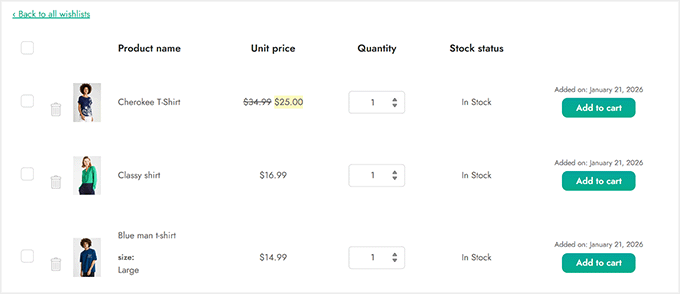
This step helps you confirm that the wishlist is fully functional and provides a smooth, engaging shopping experience.
⚡ Pro Tip: Exclude Wishlist from Caching
Since wishlists are unique to every customer, caching plugins can sometimes cause issues (like showing one customer’s list to another).
Make sure to go into your caching plugin settings (like WP Rocket or W3 Total Cache) and exclude your Wishlist page URL from being cached.
Beyond Wishlists: WooCommerce Tweaks to Boost Conversions
Adding a wishlist is just the beginning. Here are some other simple changes you can make in your WooCommerce store to encourage more sales and keep customers coming back:
- Add a ‘Recently Viewed Products’ Section – Show shoppers the products they’ve looked at recently. This reminds them of items they were interested in and increases the chance they’ll come back and buy.
- Enable Product Quick View – Let customers preview product details without leaving the shop or category page. This keeps shoppers engaged and makes browsing faster and easier.
- Use ‘Back in Stock’ or ‘On Sale’ Notifications – Send alerts when products on a customer’s wishlist or cart become available or go on sale. These timely notifications create urgency and encourage purchases.
- Add Product Reviews & Ratings – Positive reviews build trust and help shoppers feel confident in their purchase decisions. Even a few honest reviews can increase conversions dramatically.
- Simplify Checkout – Reduce friction with guest checkout and clear, minimal steps. The easier it is to buy, the fewer carts get abandoned.
- Highlight Bestsellers or Trending Products – Display your most popular items prominently to guide undecided shoppers and increase average order value.
These tweaks, combined with a wishlist, can create a smoother shopping experience, increase conversions, and make your store more profitable.
Frequently Asked Questions About WooCommerce
I’ve covered the main ways to add a wishlist to your WooCommerce store, but I know you might still have a few questions.
Here are some of the most common ones I hear from beginners—quick, simple answers to help you get unstuck and make the most of your wishlist.
Can I create a wishlist without a plugin?
Technically yes, but it requires custom coding. For most users, the easiest way is to use a plugin like SaveTo Wishlist. It automatically adds the functionality without you needing to write any code.
How do I add Products to favorites in WooCommerce?
You need to install a wishlist plugin like SaveTo Wishlist or YITH WooCommerce Wishlist first.
This will add an ‘Add to Wishlist’ button or a heart icon to your product pages, which customers can click to save items to their favorites list.
Does WooCommerce have order management?
Yes, WooCommerce has a built-in order management system. You can view, process, and update the status of customer orders directly from the WooCommerce » Orders page in your dashboard.
How to set inventory in WooCommerce?
You can manage inventory by editing a product and scrolling down to the ‘Product Data’ box. Click on the ‘Inventory’ tab, check the “Manage stock” box, and enter your stock quantity.
Is WooCommerce a CRM tool?
No, WooCommerce is primarily an eCommerce platform, not a CRM. However, you can integrate it with CRM plugins like HubSpot or FunnelKit to manage customer relationships effectively.
How to add order tracking in WooCommerce?
You will need a plugin like Advanced Shipment Tracking. This allows you to add tracking numbers to orders so customers can see where their package is.
To get started, take a look at our tutorial on offering shipment tracking in WooCommerce.
Where are orders stored in WooCommerce?
Orders are stored in your WordPress database. You can access them easily by going to WooCommerce » Orders in your WordPress admin area.
How to set minimum order quantity in WooCommerce?
Standard WooCommerce does not have this feature, so you will need a plugin. I recommend Wholesale Suite because it allows you to easily set minimum order quantities for all customers or specific wholesale roles.
I hope this article helped you learn how to add a wishlist to your WooCommerce store. You may also want to see our expert pick of the best WooCommerce plugins to grow your store, and the best WooCommerce hosting companies that scale with your WordPress website growth.
If you liked this article, then please subscribe to our YouTube Channel for WordPress video tutorials. You can also find us on Twitter and Facebook.




Have a question or suggestion? Please leave a comment to start the discussion.