


One of the first things we noticed when we started working with WordPress was the familiar footer message in the admin area: “Thank you for creating with WordPress.”
While it’s a nice message, we quickly realized that for professional sites and client projects, this generic branding doesn’t always fit the image they want to present.
Over time, we’ve customized many WordPress admin areas for clients and our own projects. We’ve found that these small branding details matter more than you might think.
When clients log into their admin panel and see custom footer text instead of the default WordPress message, it shows they’re working with someone who pays attention to the details.
In this guide, we’ll show you simple ways to customize the WordPress admin footer, step by step.
💡Quick Answer: How to Change the WordPress Admin Footer?
Changing the WordPress admin footer is a simple way to brand your admin area and make it more useful for your team or clients.
Here are the 2 easiest ways to change it:
- Method 1: Using WPCode (Recommended) – Quick, safe, and doesn’t require editing theme files. Ideal for most users.
- Method 2: Manually Editing Code (Complex) – Gives full control but requires coding knowledge and is best done in a child theme to avoid issues.
Why Change the Admin Panel Footer?
You can change the WordPress admin panel footer to make it more useful or better branded for your site.
By default, the footer is very basic, showing a link to WordPress.org and your current WordPress version. While it updates automatically when a new version is available, it doesn’t provide any additional value for most users.
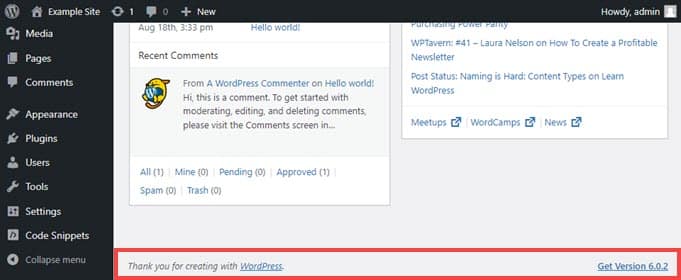
Changing the footer lets you:
- Add links back to your own site for quick access.
- Provide helpful resources or documentation for your team or users.
- Remove the default footer entirely if you prefer a cleaner admin interface.
With these options, you can make the admin area feel more tailored to your needs instead of just showing the default WordPress links.
With that in mind, we’ll show you how to change the WordPress admin footer in 2 different ways. Simply click the link below for the method you prefer:
Ready? Let’s jump right in!
Method 1. Changing the Footer in the WordPress Admin with WPCode (Recommended)
To change the footer in the admin dashboard, we’re going to insert a code snippet into our theme’s functions.php file.
Normally, we only recommend pasting code snippets into your WordPress core files for advanced users because even a slight mistake can break your site. Plus, if you update your theme, any changes to the functions.php file will be erased.
That’s why we will be using the free WPCode plugin, which makes it safe for anyone to add code snippets to WordPress files.
Note: If you like the plugin, then we recommend upgrading to the WPCode premium version. This upgrade gives you access to over 100 expert-approved code snippets, lets you view revision histories for all snippets, allows you to schedule code execution, and more! For more information, you can check out our complete WPCode review.
First, let’s install and activate WPCode. For detailed instructions, feel free to see our step-by-step guide on how to install a WordPress plugin.
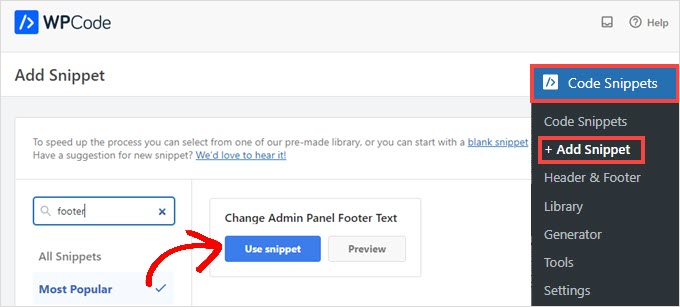
Once that’s done, you’ll need to go to Code Snippets » + Add Snippet in the admin dashboard’s left-hand menu.
Then, simply search for ‘footer’ and hover your mouse over the entry titled ‘Change Admin Panel Footer Text.’
From here, all you need to do is click the ‘Use snippet’ button.
This will take you to the ‘Edit Snippet’ screen. WPCode automatically configures settings for snippets that you add from the library.
Next, you need to change the text inside the quotes on the line that begins with $footer_text.
Be careful to keep the single quotes ' ' and the semicolon ; at the end, or the code will not work. You can use HTML here if you want to add links.
For example: Powered by <a href="https://yourwebsite.com">Your Business Name</a>.
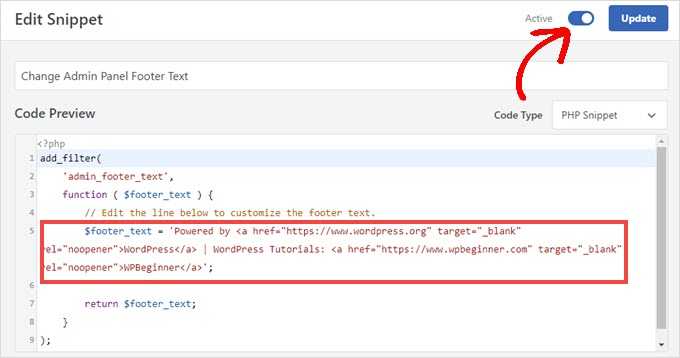
Once you’re done customizing the footer text to your liking, go ahead and toggle the switch to ‘Active’ and then click the ‘Update’ button.
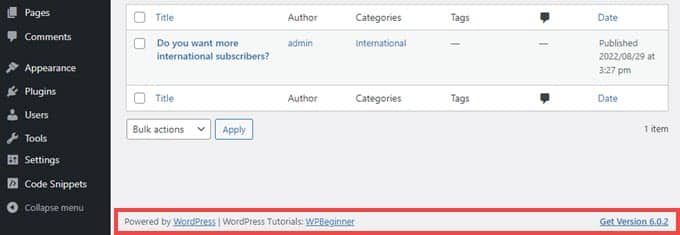
The new admin panel footer will now be live on your site. It will vary based on your specific changes, but if you enable the default snippet from WPCode, you will see this:
If you like how this code snippet works, you can take a look at the WPCode snippet library found at Code Snippets » Library.
This will show you everything that comes with the plugin for free.
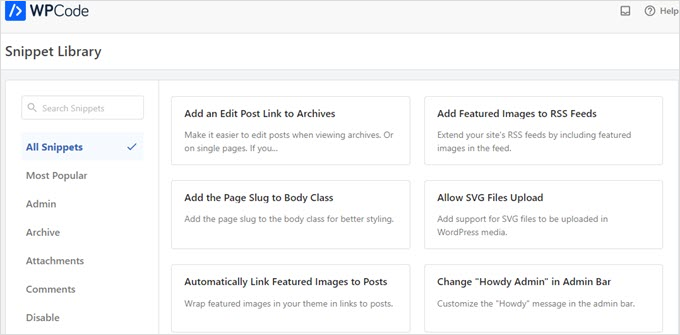
WPCode’s built-in library has dozens of pre-configured snippets. For example, WPCode can disable the WordPress REST API, WP admin bar, or media attachment pages.
Method 2. Changing the Footer in WordPress Admin Manually (Complex)
Another way to change the WordPress admin’s footer is by adding code to your theme’s functions.php file.
We recommend this method for advanced users only. If you make a tiny mistake in the code or accidentally delete a character, it can cause the “White Screen of Death” and make your website inaccessible.
For more information, you can see our detailed guide on how to paste code snippets from the web into WordPress.
First, you’ll need to connect to your site via FTP or through your WordPress hosting provider’s file manager. Then, you can head to your site’s /wp-content/themes/your_theme/ directory.
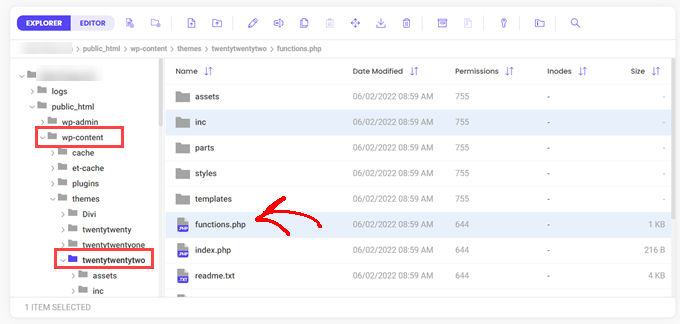
From here, you just need to edit the file.
You can open it in a plain-text editor like Notepad, or you can use the built-in editor if your host provides one.
Simply copy and paste this code into the functions.php file.
add_filter(
	'admin_footer_text',
	function ( $footer_text ) {
		// Edit the line below to customize the footer text.
		$footer_text = 'Powered by <a href="https://www.wordpress.org" target="_blank" rel="noopener">WordPress</a> | WordPress Tutorials: <a href="https://www.wpbeginner.com" target="_blank" rel="noopener">WPBeginner</a>';

		return $footer_text;
	}
);
Be sure to change the HTML in the line that starts with $footer_text in the sample code to whatever you want as your new admin footer.
Here’s what the line looks like on the editor:
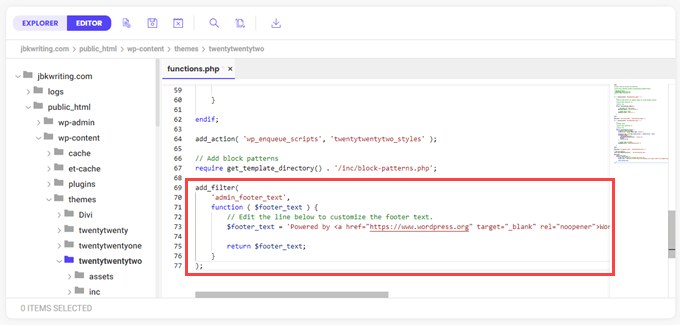
Finally, you can go ahead and save your file.
You should see the new footer in your admin dashboard right away.
Frequently Asked Questions About Changing the Footer in WordPress Admin Panel
Here are some questions that our readers have frequently asked about changing the footer in their WordPress admin panel:
How do I change the footer in WordPress admin?
You can change the WordPress admin footer using a plugin like WPCode or by adding custom code to your theme’s functions.php file (ideally in a child theme).
How do I modify the footer section?
The footer section can be modified via the WordPress Customizer, a page builder like SeedProd, or by editing your theme’s footer template file.
How do I edit the footer CTA in WordPress?
Footer CTAs can be edited by accessing your theme’s footer template, using a page builder, or adding a widget in the Footer Widget area, depending on your theme.
How do I edit the header and footer in WordPress?
You can edit headers and footers using the WordPress Customizer, a theme builder like Elementor or SeedProd, or by editing the theme template files directly.
Why can’t I edit the footer?
Some themes restrict footer editing in the Customizer, or the footer may be hardcoded in template files. Using a child theme, a plugin, or a page builder usually resolves this limitation.
Bonus Tip: More WordPress Admin Panel Customization Tricks
Want to jump in and personalize your WordPress experience even further? We’ve put together some easy guides to help you get started with different customizations:
- How to Change or Remove ‘Howdy Admin’ in WordPress (Easy Way)
- How to Add Dark Mode to Your WordPress Admin Dashboard
- How to Automatically Empty Your WordPress Trash
- How to Add Additional File Types to Be Uploaded in WordPress
- How to Hide Unnecessary Menu Items From WordPress Admin
We hope this article helped you change the footer in your WordPress admin area. Next, you may also want to see our guide on how to make a WordPress website with AI to overcome creative blocks or how to add a favicon to your WordPress site.
If you liked this article, then please subscribe to our YouTube Channel for WordPress video tutorials. You can also find us on Twitter and Facebook.


Jiří Vaněk
I tried the plugin, and it works perfectly. I sometimes create websites for other people, and occasionally, they want to manage them on their own, meaning they have access to the admin area. By customizing the footer in the admin interface, I’m able to not only add a self-promotion ad but also, for example, a quick contact link they can use in case of issues. It’s truly a brilliant way to insert your own business card into the website, visible only to the owner, without disrupting the site itself.
Dayo Olobayo
I used the code snippet and it worked. Looks like everything is achievable with WordPress once one has the knowledge and WPBeginner is an archive of knowledge.
Selam Mesfin
In my visual Editor’s toolbar, there is no ‘Insert new tag’ button, how can this be fixed? I wanted to include ‘read more’ to my long paragraphs.
Thank You.
parul gupta
i want to change footer credentials in quest theme.please help me out.
Schofield Bryant
I just tried what was explained above and my website has crashed.
Showing the following error
Fatal error: Cannot redeclare remove_footer_admin() (previously declared in /home/cannabotanica/public_html/wp-content/themes/green-eye/functions.php:4) in /home/cannabotanica/public_html/wp-content/themes/green-eye/functions.php on line 208
Please I need assistance now in reviving the website and correcting the error. Even the admin panel wouldn’t load.
WPBeginner Support
Hi Schofield,
You can remove the code using FTP or File Manager in cPanel.
Admin
Wayne
How do I find the functions.php file in the Colormag theme?
Arun
Hello How I can adjust the bottom of my wordpress made website ???
mohammad
i want custom footer without plugin and admin change footer !
balbeer
i am not able to edit the footer that is copyright @ in travelify theme please help to edit that
Tommy
Try use plugin “Cliro – Custom Admin Role for Client” you will easy to edit footer in backend with more option. I used it and very happy
ansuman
how to edit copyright footer
Samuel Dellicour
The closing P tag should be removed, it is not necessary. The text will automatically be wrapped with a paragraph (with class and id).
Durrell Thomas
What is the name of the plug-in “what next | Related Posts that is on your blog?
Editorial Staff
It’s not custom coded (combination of YARRP and html/css codes)
Admin
Ash Blue
This rocks my socks, I love being able to edit the WP admin screen. Will there be tutorials here soon for WP 3.0?
Konstantin
Unfortunately you neglected to mention to hook it to the “admin_footer_text” filter. This is what’s missing:
add_filter('admin_footer_text', 'remove_footer_admin');Editorial Staff
Thanks for notifying us. We are really sorry, this mistake was on our end.
Admin
Nina
Great tutorial, will use