


Your website’s homepage is like the front window of a store – it needs to showcase what you offer without overwhelming visitors.
That’s where the WordPress More block becomes incredibly useful. It creates clean, scannable previews that let people quickly find the content they’re most interested in.
Think about it: would you rather scroll through several full-length articles to find something relevant, or browse through short previews and click on what catches your eye? Most visitors prefer the second option.
At WPBeginner, we use the ‘Read More’ link to guide visitors to full posts, and this simple approach has made our site much more enjoyable to navigate.
We’ll show you how to properly add it so your visitors have a smooth, engaging experience every time they visit your site.
💡Quick Answer: How to Use the More Block
To create a post preview using the More block:
- Open your post or page in the WordPress block editor.
- Click the + (Plus) button at the exact spot where you want the preview text to end.
- Search for More and select the block to insert it.
- You will see a dashed line labeled ‘Read More’. Everything above this line is your teaser content.
When to Use the More Block in WordPress
Many websites use post previews to encourage visitors to check out the full version.
As a WordPress user, you can create these post previews in two main ways: by using the built-in More block or by writing a custom excerpt.
By default, most modern WordPress themes automatically show a preview of your posts on the homepage and blog archives instead of the full post.
For instance, our blog page shows a few words from the post and a ‘Read More’ link to the full post.
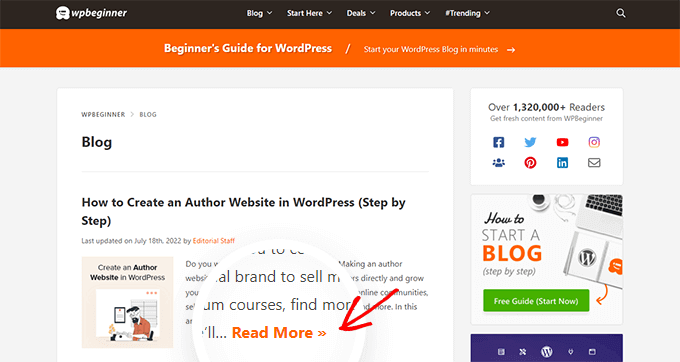
This preview text helps visitors see more of your blog’s topics without having to scroll through every post. It also helps increase pageviews since visitors will need to click through to finish reading a post.
You can control exactly what WordPress shows in these previews by using either the More block or an excerpt.
The best choice for your site will vary depending on your WordPress theme. Some themes will ignore any More blocks you create, so you’ll need to use an excerpt instead.
More Block vs. Excerpt: What’s the Difference?
Before we start, let’s quickly look at the difference between the More block and an excerpt. This will help you choose the best option for your website.
| Feature | More Block | Excerpt |
|---|---|---|
| How it Works | Splits your content at a specific point inside the editor. | A separate summary written in the document settings. |
| Full Post Visibility | The text above the block appears in the full post (unless hidden). | Usually does not appear in the full post. |
| Customization | Limited to the content you wrote in the editor. | Complete control to write a custom summary. |
| Theme Support | Ignored by themes that force auto-excerpts. | Widely supported by most themes. |
To help you show an engaging preview no matter what theme you are using, we will cover both More blocks and excerpts.
If you prefer to jump straight to a particular method, then you can use the links below:
Ready? Let’s get started.
Step 1: How to Properly Use the More Block in WordPress
The WordPress block editor has a built-in More block that allows you to specify the exact cutoff point for the preview text of any WordPress post.
📝 In the classic editor, this block was previously known as the More tag.
You can add the More block anywhere in the post, including mid-sentence or in the middle of a paragraph.
All of the content above the More block will appear on your blog archive pages and wherever else your posts are listed on your WordPress site. WordPress will also add a ‘Read More’ link to the preview, so visitors can click to read the full version of the post.
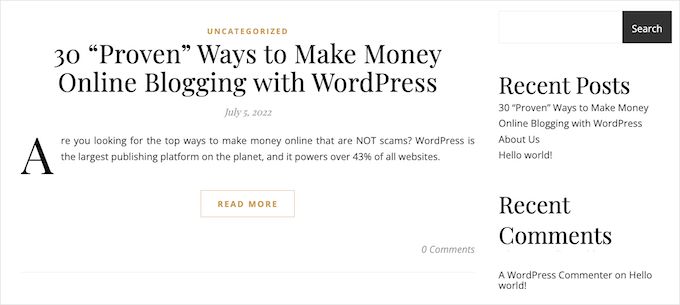
Note: Every WordPress theme is different, and some may override the default ‘Read More’ label. With that in mind, you may see different text on your ‘Read More’ button.
Before you add a More block to your post, it’s important to check that your site is set up to show the latest posts on the homepage.
If you are using a static page as your custom homepage, then your theme may ignore the More blocks and use its own settings instead.
Not sure if you’re using a static front page as your homepage? You can check it by simply going to Settings » Reading in the WordPress dashboard.
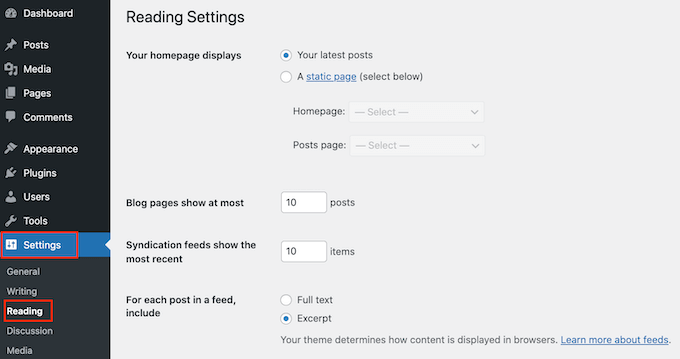
At the top of this screen, you’ll see a ‘Your homepage displays’ section. If ‘Your latest posts’ is selected, then you should have no problems using the More block.
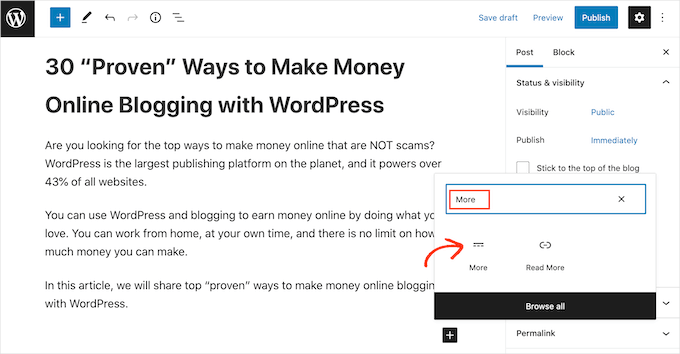
To get started, simply open the post where you want to add a More block. Then, find the spot where you want to create the cutoff point for your preview, and click on the ‘+’ icon to add a new block.
You can then type in ‘More’ and select the right block to add it to your page.
Some themes have a limit on how many words they will show on their homepage and archive pages.
If you include a large number of words in your preview, your theme may override the More block. So, it’s a good idea to create the cutoff point early in the post.
You can now carry on writing your post as normal.
You’ll be able to see the More block when editing your post in the block editor, but your visitors won’t see it when they’re reading the post on your WordPress blog.
Just like any other block, WordPress has some settings that you can use to configure the More block. To see these settings, simply click to select your More block.
In the right-hand menu, you’ll see a setting labeled ‘Hide the excerpt on the full content page.’
By default, the text you placed above the More block (your preview) will also show up at the top of your full post. This toggle lets you control that.
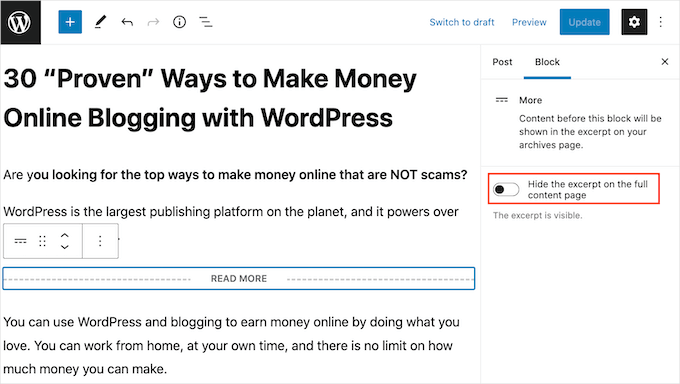
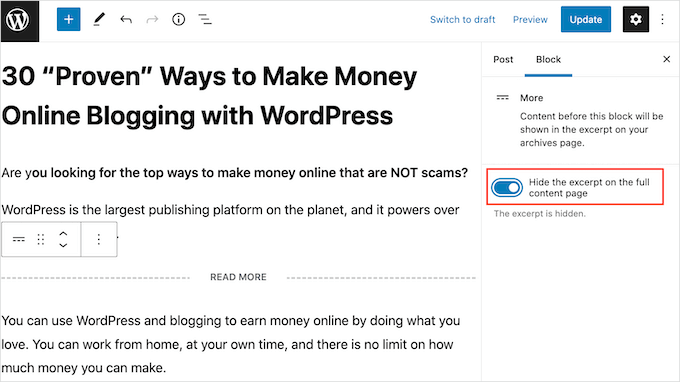
If you want to hide this preview text from the full post page, then just click the slider to turn it blue.
Now, the content above the More block will only appear on your homepage and archive pages, and visitors will see the full post content right away when they click through.
Once you’re finished, you can go ahead and save your changes by clicking on the ‘Update’ or ‘Publish’ button.
Now if you visit your homepage or blog archive page, you’ll see the preview you just created for this post.
🤔 Are you seeing something different? Then your WordPress theme may be ignoring your More blocks.
Some themes are designed to show excerpts and will override all of your More blocks. If your homepage and blog archives aren’t showing the preview you created using the More block, then you may need to use excerpts instead.
Step 2: How to Change the More Block’s ‘Read More’ Text
By default, the More block will show a Read More link on your archive and homepage.
There are several ways to change this text, but depending on your WordPress theme, you may get slightly different results. Some themes will override your changes with their own default settings.
To start, it’s worth checking whether you can change the Read More text using the WordPress post editor.
To do this, simply open any post that has a More block. You can then click on the default ‘READ MORE’ text and type in the text that you want to use instead.
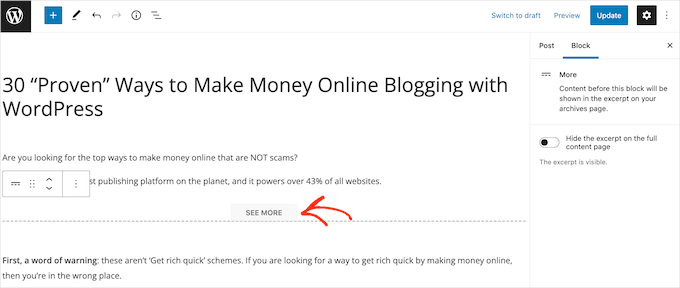
After that, either update or publish the page as normal. You can then visit your homepage or blog archive to see whether the Read More text has changed.
If you are still seeing the original Read More link, then you may need to override your theme settings using code.
Note: This code snippet specifically changes the link generated by the More block. It will not affect themes that use automatic excerpts.
You can either create a site-specific plugin or use a code snippets plugin like WPCode (recommended) to add the following code to your site:
function modify_read_more_link() {
    return '<a class="more-link" href="' . get_permalink() . '">Check out the full post</a>';
}
add_filter( 'the_content_more_link', 'modify_read_more_link', 999 );
Note: We use WPCode on some of our partner brand sites to manage custom code snippets. Check out our in-depth WPCode review to see why we love this plugin!
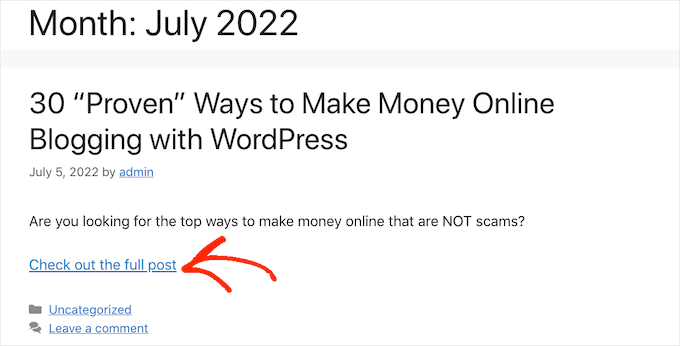
This replaces the default ‘Read More’ text with ‘Check out the full post,’ as you can see in the following image.
You can use any text you want by replacing ‘Check out the full post’ in the code snippet. The get_permalink() part of the code automatically adds the correct link to your full post, so you don’t need to worry about changing it.
Alternative: How to Set Up Post Excerpts in WordPress
WordPress has two different ways to show a post preview. We’ve already covered the More block, but you can also create a preview using excerpts.
For visitors to your WordPress blog or website, previews are created using excerpts, and the More block looks exactly the same. However, some themes are coded to use excerpts, which means they will ignore your More blocks and show an excerpt instead.
If you don’t add an excerpt to a post manually, then WordPress will create one automatically based on the excerpt length defined by your theme. This can lead to previews that cut off mid-sentence.
With that in mind, you can choose to create an excerpt manually instead. To do this, simply open a post and then click to expand the ‘Excerpt’ section in the right-hand menu.
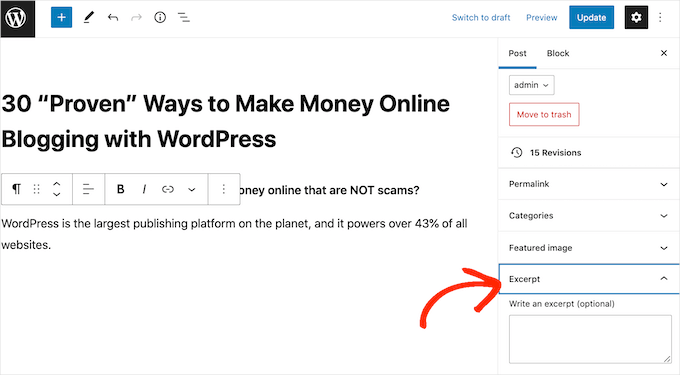
In the ‘Write an excerpt’ box, you can then either type in or paste the excerpt that you want to use for the post.
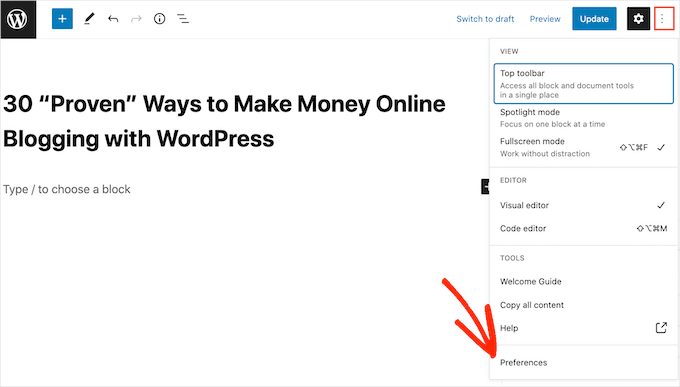
Don’t see an ‘Excerpt’ box in the right-hand menu? Then you can enable this setting by clicking on the three-dotted icon in the upper-right corner.
Once you have done that, click on ‘Preferences’.
In the popup that appears, ensure you are in the ‘General’ tab, then look for the ‘Panels’ section.
You’ll now see all the settings that you can add to the right-hand menu. Simply find ‘Excerpt’ and give it a click to turn it from white (disabled) to blue (enabled).
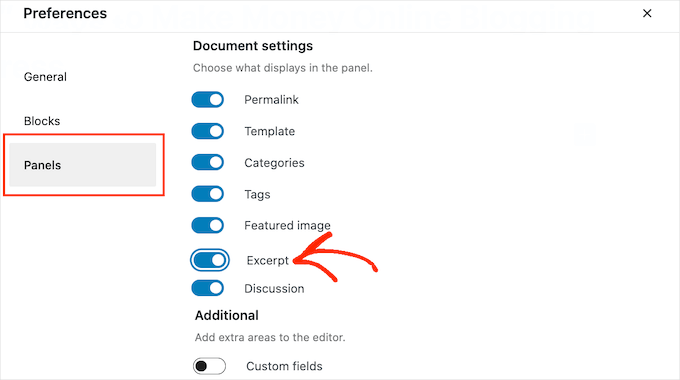
Then, simply close this popup. You should now have access to the ‘Excerpt’ settings in your right-hand menu.
Now, you can create an excerpt following the same process described above.
Once you’ve done that, simply save your changes and visit your site. You will now see your custom excerpt on the homepage and blog archive.
Frequently Asked Questions About the More Block
Here are some questions that our readers frequently ask about the More block in WordPress:
What is the difference between the More block and an excerpt?
The More block lets you place a “read more” break anywhere inside your content. Everything above the block is used as the preview on your blog page.
An excerpt is a separate, hand-crafted summary that you write in the post settings. Some themes are designed to use excerpts only and will ignore the More block.
Why isn’t my More block working?
The most common reason is that your WordPress theme is overriding it. Many themes are coded to use excerpts by default and will ignore the More block completely.
This can also happen if you are using a static front page instead of showing your latest posts on the homepage.
Can I change the default ‘Read More’ text?
Yes, you can often edit the text directly inside the More block in the editor. If that doesn’t work, it means your theme has its own default text.
You can override your theme’s settings by adding a small code snippet. We recommend using a plugin like WPCode to do this safely without editing theme files directly.
We hope this article helped you learn how to use the More block in WordPress properly. You may also want to check out our guide on how to add multi-column content in WordPress posts or how to add tables in WordPress posts and pages with no HTML required.
If you liked this article, then please subscribe to our YouTube Channel for WordPress video tutorials. You can also find us on Twitter and Facebook.



Moinuddin Waheed
I have seen many blogs and websites which have static home page and then many blog posts on some sections of the home page itself with more blog in the second line.
That is very good to have a static page as well as the blog posts on the same home page and when clicked it directs to the particular blog posts.
Is there a way to add blog posts on home page itself like in a section?
WPBeginner Support
It would depend on how your theme has the homepage set up but if you have a static home page you could add the posts via a block to the page.
Admin
Andy Manshel
This tutorial says nothing about how to do this in the “Block” editing system.
WPBeginner Support
The article was last updated in 2015, we will look into updating it when able. For the block editor, you would use the more block
Admin
Karis Seans
How do I do this on my blog now? I can’t even find the more tag you are talking about.
WPBeginner Support
This article was created before the block editor was added, to do this now you would add the more block to your post
Admin
Famous
Please how will l know if my theme supports More Tag or excerpt?
WPBeginner Support
If the plugin does not mention it in the documentation then the simplest method would be to test it to see if the read more works properly
Admin
Tracy
I am wondering if I am able to change the wording in the read more tag. Like if I wanted it to say. Click to carry on reading?
Thomas Conrad
What is the equivalent way to do this on pages instead of posts?
Thank you
Susie
You never explain what to do after you insert the “read more” tag. Nothing happens on my wp page when I insert the tag in the middle of a content box. I mean, is it supposed to automatically hide the rest of the text? You just tell us to insert the tag and that is that.
Pat
Hi,
I got the same problem, it’s not working when using More Tag in my post which appeared in my static page .
I tried to read those given blogs and explaination but it is really hard to understand it.
Could anyone help to give a tutorial or a detail example?
Thanks in advance!
Cyprus
Is there a way to use ‘More Tag’ not just for excerpt purposes, but to actually toggle hide/unhide specific paragraphs of your post unless tag/button is clicked or hovered by reader? If not, then, are there any other alternatives to apply a similar effect without using shortcodes/plug-ins or css (as I am using a simple Wordpress.com account)? If there REALLY is none, then I might be willing to explore other options but hopefully without having to pay anything…?
I would be grateful for some guidance. Thanks!
Peter Samuel
If I want to change the location of the ‘more tag’ how do I cancel a more tag break? I’ve tried a couple of times to simply delete it and it deletes not only the more tag but all the text above it. If I add a more tag in a new position the old more tag remains.
Is there any clean way of undoing a more tag?
Charlie Parker
Question: When the user clicks on the “continue reading” link, it goes to a spot in the blog where the link was. That is, it goes to a page using something like this:
http://example.com/how-to-have-a-great-day/#more-227
The “#more” parameter has “-227” after it indicating that the visual top of page should start at “position 227”.
But I want the visual top of the page to be the actual top of the page. If I manually change the URL to take off the “#more” parameter, then the actual top of the page is shown – which is what I want.
How do I make this happen automatically when I add the more tag in my post?
Thanks.
Maria
Hi! Can I change the “read more” text? How can I do that? I want to put it in Spanish. Thank you.
abhay
CAN ANY ONE TELL ME HOW TO ADD MORE READ IN POST , NOT PAGE OR HOME PAGE , LIKE SAME CONENT IN ANOHTER POST
Sam
I have seen the same information everywhere, yet nothing happens when I insert the more tag option. I receive the dotted line, but it does not hide the larger portions of my post thereby leaving me with a post too large on my homepage. I am looking for perhaps an HTML version so I can do it manually.
Alan Kelly
If you are using the text editor, then you can use the ‘more’ button in the toolbar or manually enter the more tag like this:
Rob
Sam,
I write blog posts on domain.com/blog/ subfolders. When I use the “more” tag, it doesn’t show up on the actual post itself. When I’m on the blog landing page and it shows all the blogs with a truncated entry with a clickable “more” button. Clicking this opens the full post.
Hope this helps.
Rusi
I’m not satisfied. It did not help me at all..
MAURINE
me neither…
Baz
All that has happened is that part of the Blog post has disappeared using More tag. Is it supposed to reappear somewhere?
Malcolm
Are either of these a good tactic for using SEO excerpts for a membership sites? ie if someone wants to read more, they would hit a firewall requiring them to join? (But the More or Excerpt content would be open for anyone to read?)
Chris
Hi,
your screenshot shows a “word count” in the excerpt area.
This seems to be not a standard, I don’t have this in my WP.
How have you made this please?
Thx.
fadhili
Thanks
And how do I edit that default ‘read more’ tag to my language?
cjt
You can use excerpts in yout theme as an intro to the post by adding the_excerpt (); tag anywhere in the html sheet.
You can use images in the excerpt by usin the img src tag. The only issue here is that they will not become responsive.
On the other hand, you can always use custom fields… and use excerpt, subtitle, etc. – all before the text for a more tag.