


Have you ever had big news to share with your WordPress users, like a new feature, an important update, or an upcoming event, only to realize there’s no simple way to reach everyone at once? It’s a challenge that many site owners face.
Unfortunately, WordPress doesn’t make it easier, as it doesn’t include built-in tools for sending mass emails.
That said, after testing different approaches, from basic plugins to full email marketing services, we’ve found that it’s actually pretty easy to set up the right system. 🙌
In this guide, we’ll show you the most effective ways to email all your registered WordPress users. By the end, you’ll have everything you need to keep your audience updated and engaged – without the usual headaches.

Why and When You Need to Send an Email to All Registered Users in WordPress?
Communicating with all your registered users is essential for keeping them engaged and informed about important site activities. If you allow user registration on your WordPress site, there are several key reasons you might need to send a mass email:
- Site Updates: You may want to let specific user roles, like Authors and Editors, know about a new plugin you’ve added to help them write great posts.
- Exclusive Promotions: If you run an online store, you might launch a giveaway or contest exclusively for users with the ‘Customer’ role.
- Important Announcements: You might need to contact users who have an account but aren’t subscribed to your main email list.
Thankfully, there are simple ways to bulk message everyone who has an account on your WordPress website. In the following sections, we’ll show you exactly how to do it.
📌 Expert tip: It’s important to understand the difference between transactional and marketing emails. Transactional emails (like password resets) can be sent to any user. However, marketing emails (like promotions) require explicit consent from the user.
Just because someone has an account doesn’t mean you can legally send them marketing messages. For more details, we recommend reading our ultimate guide to WordPress and GDPR compliance.
Here’s a quick overview of all the steps we will talk about in this guide:
Ready? Let’s see how you can easily email all registered users on your website.
How to Make Sure Your Emails Are Delivered Safely
Before you can send emails to your users, it’s important to make sure those emails will actually arrive in their inboxes.
Unfortunately, WordPress sends email using a method that often gets blocked by spam filters.
To fix this, we first need to set up an SMTP plugin for reliability. An SMTP service provider ensures your website’s emails reach users’ inboxes by sending them through specialized, trusted servers, which prevents them from being marked as spam.
Then, we’ll use a separate plugin to compose and send the actual message.
Let’s start with deliverability.
WP Mail SMTP is the best WordPress SMTP plugin on the market. It allows you to connect your WordPress site with a mailer service, so your emails always end up in the user’s inbox.
At WPBeginner, we’ve used WP Mail SMTP for years. In our experience, it does a really great job of making sure our emails land in users’ inboxes and not the Spam or Junk folders.
See our extensive WP Mail SMTP review to learn more about the plugin.
We recommend buying the paid version called WP Mail SMTP Pro.
It allows you to send emails in WordPress using Gmail SMTP, SendLayer, Brevo, and more. You can also see the open and click-through rates for your emails to monitor the success of your different email campaigns.
If you’re on a tight budget, you can start with the free version of WP Mail SMTP.
Upon activation, you’ll need to visit the Settings » WP Mail SMTP page. Here, simply enter your license into the ‘License Key.’ You can find this information by logging into your WP Mail SMTP account.
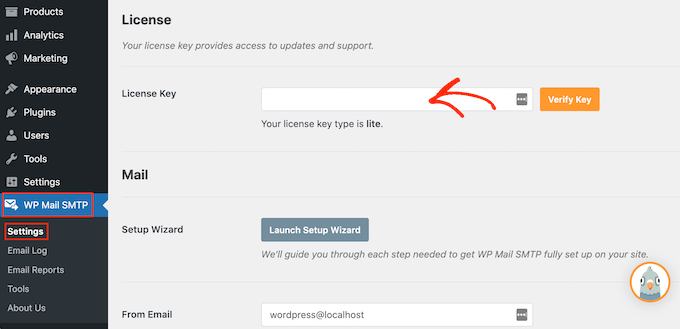
After entering the license key, go ahead and click the ‘Verify Key’ button, and the verification process will start.
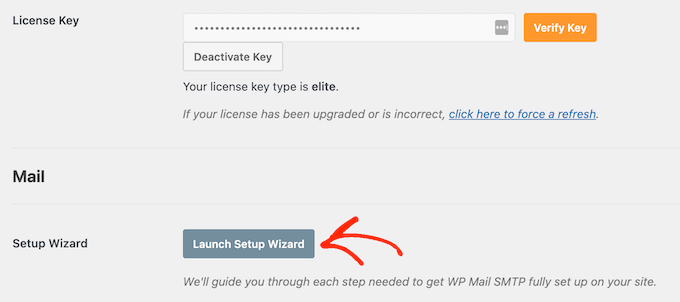
Once done, you can click ‘Launch Setup Wizard.’
On the next screen, you’ll want to select ‘Let’s Get Started.’
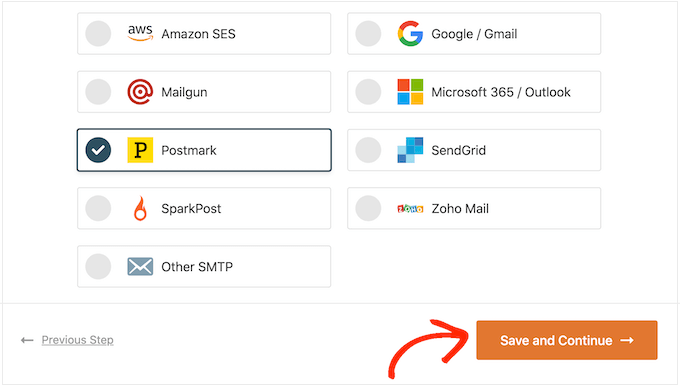
WP Mail SMTP will now ask you to choose the mailer to use with your WordPress website.
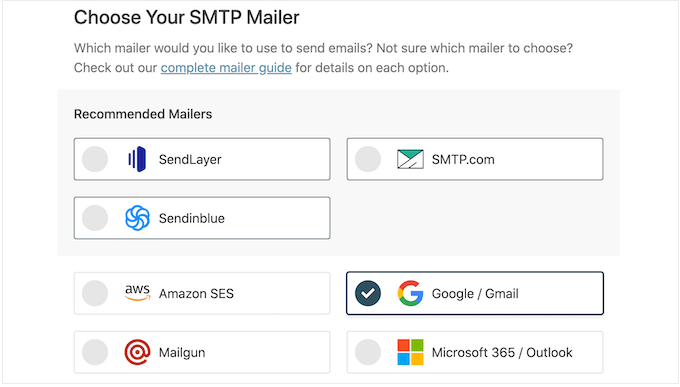
We recommend using SendLayer, Brevo, or SMTP.com, as they’re reasonably priced and can scale to support your growing business.
After choosing your SMTP mailer, go ahead and click on the ‘Save and Continue’ button.
WP Mail SMTP will now show you how to configure this mailer.
If you need help, then see our ultimate guide on how to set up WP Mail SMTP with any host.
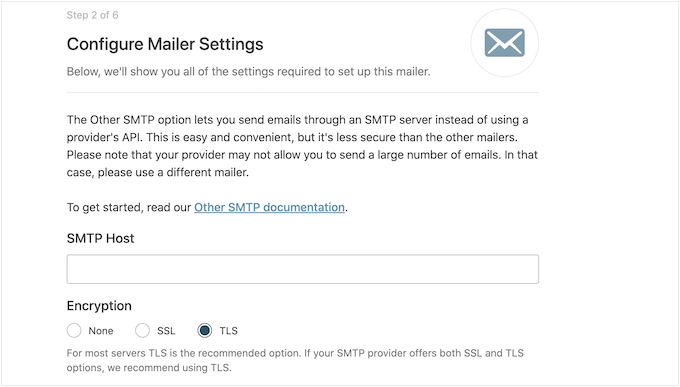
WP Mail SMTP supports many different mailer services. For detailed instructions, you can follow our specific guides on how to configure SendLayer, SMTP.com, Brevo, or send WordPress emails using the Gmail SMTP server.
We also have a guide you might want to check on how to fix the WordPress not sending email issue.
Sending Emails to All Registered Users in WordPress
Now that you have WP Mail SMTP working to ensure your emails are delivered reliably, the next step is to compose and send your message. The easiest way to do this from your dashboard is with a dedicated plugin.
We recommend Send Users Email, as it’s a simple, free tool that lets you send bulk messages to users based on their role.
Before using this plugin, you may want to check your user roles. You can then make any changes to properly organize your users by role. For more details, see our beginner’s guide to WordPress user roles and permissions.
When you’re happy with how your roles are set up, the next step is installing and activating the Send Users Email plugin. If you need help, please see our step-by-step guide on how to install a WordPress plugin.
Upon activation, you’ll want to go to Email to users » Email Roles in your WordPress dashboard.
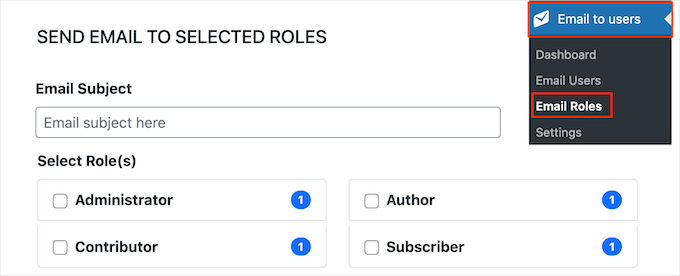
Here, you can choose which users will receive the email based on their role on your WordPress blog.
For example, in the following image, we’re messaging everyone with the ‘Subscriber’ role.
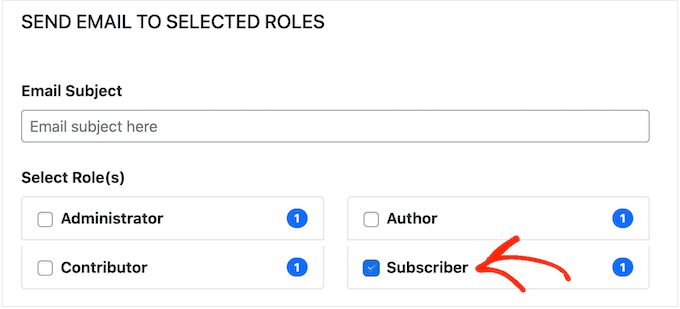
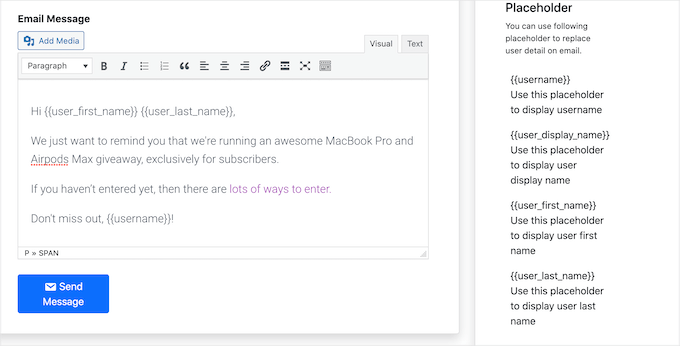
You can now type the email you want to send to all registered users. The Send Users Email plugin also has a few placeholder tags that you can use to add user information to the message.
For example, you can address the user by name using the {{user_first_name}} placeholder. When Send Users Email creates each email, it will replace the placeholder with the recipient’s first name.
By using a combination of plain text and placeholders, you can send a personalized email to all registered users.
📝 Quick Reminder: Before you write your message, remember to only send marketing announcements (like sales or newsletters) to users who have given you permission. This helps you stay compliant with email regulations like GDPR.
When you’re happy with the information you’ve entered, click on the ‘Send Message’ button.
WordPress will now email everyone who has the selected user role.
Bonus Tip: How to Email Specific Registered Users in WordPress
The Send Users Email plugin also lets you email a small group of registered users or even a specific user. For example, you may want to send a follow-up email to a particular ‘Subscriber’ account after sending a bulk email.
To message individual users, simply go to Email to users » Email Users. This will show you a list of all your registered users.
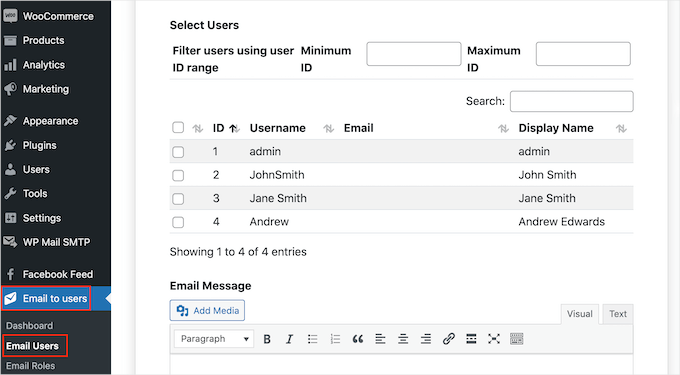
To message a user, simply check the box next to their username.
After selecting all the people you want to email, you can go ahead and create your message.
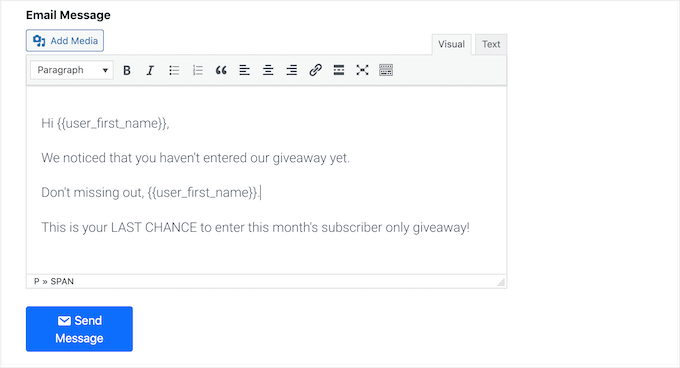
When you’re happy with the message, simply scroll to the bottom of the screen and then click ‘Send Message.’
Frequently Asked Questions about Emailing WordPress Users
Is it legal to email all registered users?
It depends. You can always send transactional emails (e.g., password resets, order confirmations). For marketing emails (newsletters, promotions), you must have explicit consent (an opt-in) from each user to comply with laws like GDPR and CAN-SPAM.
Can I send mass emails in WordPress without a plugin?
WordPress does not have a built-in feature for sending mass emails. One of the reasons is that sending bulk email is a resource-intensive task that can be easily flagged as spam by WordPress hosting providers.
For this reason, using a dedicated SMTP service and a plugin is the recommended and most reliable method to ensure your emails are delivered.
What is the best SMTP service for WordPress?
We recommend SendLayer, Brevo, and SMTP.com for their reliability and scalability. For ensuring these services work perfectly with WordPress, the WP Mail SMTP plugin is the best solution on the market.
Additional Resources for Using Email in WordPress
We hope this article helped you learn how to send an email to all registered users in WordPress.
If you found this helpful, then you may also want to see our guides on:
- How to Create an Email Newsletter (the Right Way)
- Email Verification Tools to Clean Email Lists
- How to Fix the WordPress Not Sending Email Issue
- Best Email Marketing Services for Small Businesses
- Beginner’s Guide to WordPress Email Marketing Automation
If you liked this article, then please subscribe to our YouTube Channel for WordPress video tutorials. You can also find us on Twitter and Facebook.


Jiří Vaněk
I use Mailchimp for communication with users, but this plugin looks very good and I will definitely try it too. I really like the personalization of sending, specifically the ability to create groups to whom I send the message and to whom I do not. This is something I can’t do, or can do only very poorly, in Mailchimp. Thanks for an interesting tip for better marketing.
kzain
It’s an incredible reminder of the power of email marketing, and the Send Users Email plugin seems like a super user-friendly tool. it makes the process clear and straightforward. The option to target specific user roles is a handy feature as well. Thanks for sharing this helpful resource
WPBeginner Support
You’re welcome!
Admin
Jacob Howie
This plugin doesn’t exist anymore
WPBeginner Support
Thank you for letting us know, we’ll be sure to look into alternatives!
Admin
Nitin Chavhan
Hi,
I want to know, how we can send emails to newsletter subscribers in which each email should contain the name of the related person in subject or body?
WPBeginner Support
You would want to use a newsletter service for setting that up, you can see our guide on setting up a newsletter below:
https://www.wpbeginner.com/beginners-guide/how-to-create-an-email-newsletter/
Admin
Jane
Do you guys know any alternatives for this plugin? This plugin hasn’t been updated in a long time.
WPBeginner Support
Not at the moment but should that change we will look to update the article
Admin
BigBankClub
I have tried per a multi-site — there is no way… can’t email anyone
WPBeginner Support
Are you sending emails using SMTP? We have an article for how to set that up here: https://www.wpbeginner.com/plugins/how-to-send-email-in-wordpress-using-the-gmail-smtp-server/
Admin
mel
great advice that was easy
its nice you guys make the videos short too
Charlie
I tried the plugin you recommended in the video. It doesn’t work at all.
John
Hi, did you make it work? I’m also struggling to find a solution to email all my users.
Jimmy
Hi I need to make sure I protect the privacy of my users. If I send an email out to all users will they see each others email address? If so is there a way to blind copy them? Thanks
Fastamir
Who can send emails?
Is it admin only or can a user such as shop manager also send emails?
Please let me know
Thanks
nino
The Limit is 1000 users.Help
Jamie Edwards
Does this plugin work with Multisite users?
Nikolay
@JAMIE EDWARDS
You can use the plugin “Beyond Multisite” to mass send emails to any amount of users in a multisite. You can target them by role or ID, choose sending speed, choose to allow unsubscribing and other features. The plugin has other features too, not related to emails.
Regards.