


It’s frustrating when your content is strong, but your WordPress search results feel cluttered and unfocused.
We’ve seen this problem on many WordPress sites. A visitor searches for something specific, like “email marketing,” and the results pull in posts from every category. Tutorials, design tips, and unrelated articles all show up at once.
Instead of finding what they’re looking for, visitors get overwhelmed and leave.
Allowing users to search by category fixes this problem. It lets visitors narrow their search to the content that actually matters to them, helping them find answers faster and stay on your site longer. On content-heavy sites like blogs or online stores, this can also improve conversions by guiding users straight to the right articles or products.
In this guide, we’ll show you the easiest way to add category search to your WordPress site. No complicated setup required. 🙌

Why Add Search By Category to WordPress?
Adding search by category makes it easier for visitors to find relevant content without getting overwhelmed. Instead of searching your whole site, users can limit their search to a specific category, such as “Tutorials,” “Reviews,” or “News.”
Categories already help you organize your posts behind the scenes. For example, many sites show their categories in a dropdown menu or sidebar:
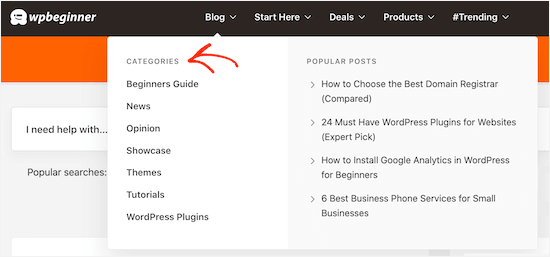
If you have many blog posts, you can go one step further and add a search-by-category feature. This helps visitors find exactly what they are looking for without having to dig through irrelevant pages.
If you are using WooCommerce, then you can even create a product category search for your online store and get more sales.

Similarly, if you run a WordPress membership site, then you might use search by category to help visitors find specific members, groups, forums, online courses, and more.
With that being said, let’s see how you can add a search by category feature to WordPress. You can use the quick links below to navigate through this tutorial:
- Step 1: Install and Set Up SearchWP
- Step 2: Customize Your WordPress Search Algorithm
- Step 3: Create a Search by Category Form
- Step 4: Embed the Search by Category Form in WordPress
- Bonus Tip: Add Instant Category Filters to Search Results
- FAQs About Search by Category in WordPress
- Additional Resources to Improve WordPress Search
Step 1: Install and Set Up SearchWP
The easiest way to add a category-specific search to WordPress is by using SearchWP. It is the best search plugin and improves the built-in WordPress search.
With SearchWP, you can search content that WordPress ignores by default, including custom post types, PDF files, WooCommerce products, and categories.
To learn more about the plugin, you can see our detailed SearchWP review.
First, you’ll need to get a SearchWP account by clicking on the ‘Get SearchWP Now’ button on their website. Then, simply complete the signup process to create your account.

📝 Note: SearchWP is a premium plugin, but it also has a free addon called SearchWP Live Ajax Search that adds instant, live results as users type.
Once you finish signing up for a SearchWP license, go ahead and download the SearchWP zip file. You can also copy your license key or keep the tab open for easy access.
Next, let’s install and activate the SearchWP plugin. In your WordPress dashboard, go to Plugins » Add New Plugin.

At the top of the page, click ‘Upload Plugin’ to open the uploader.
Then, simply click ‘Choose File,’ upload your SearchWP ZIP file, and click ‘Install Now.’
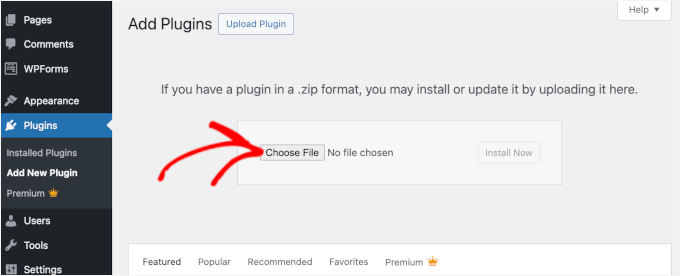
After the installation finishes, click ‘Activate’ to enable the plugin. For more details, see our step-by-step guide on how to install a WordPress plugin.
Upon activation, go to SearchWP » Settings and then click on the ‘General’ tab.
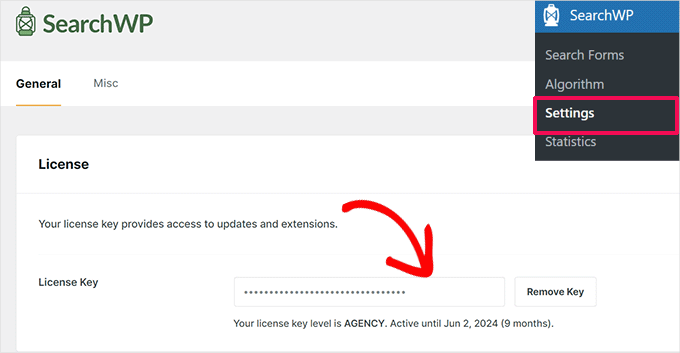
Here, you need to enter your license in the ‘License Key’ box. You can find this information under your account on the SearchWP site.
Once you are done, make sure to click the ‘Verify Key’ button.
Step 2: Customize Your WordPress Search Algorithm
After activating the plugin, you can fine-tune how SearchWP indexes, searches, and displays your content. You can think of this as creating a custom Google search algorithm that’s just for your WordPress blog or website.
To get started, head over to SearchWP » Algorithm.
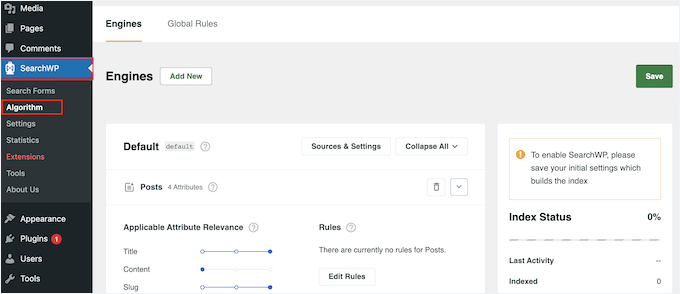
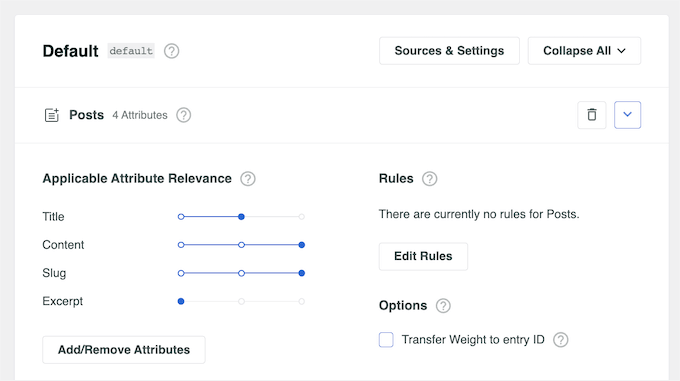
Here, you’ll see a section for the different content types that SearchWP searches by default, such as pages, posts, and media files.
Each section has its own Application Attribute Relevance sliders, which allow you to control how SearchWP ranks the content on your WordPress website.
For example, if you move the ‘Title’ slider to the middle and the ‘Content’ slider to the right, then the content will carry more weight than the title. This helps users find specific articles faster.
You can even exclude specific pages, authors, and more from WordPress search.
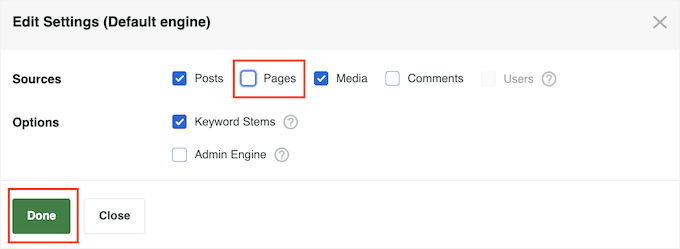
Another option is to include more content in the search results by clicking on the ‘Sources & Settings’ button.
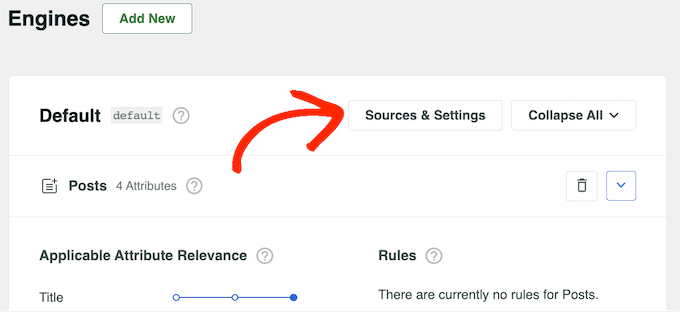
You can now check the box next to the different content types. For example, you may want to make blog comments searchable or add PDF indexing and searching in WordPress.
When you are happy with your changes, click on the ‘Done’ button.
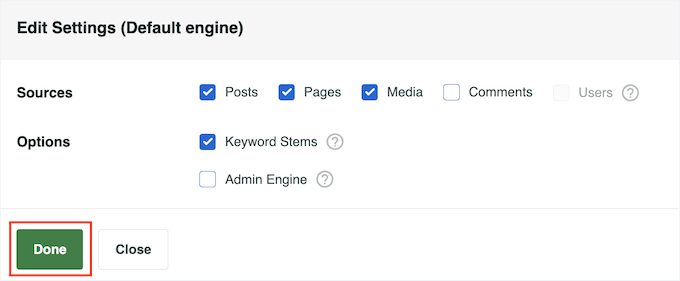
This adds a new section for each new content type. You can now change the attribute relevance using the different sliders.
Once you are happy with how the search is set up, scroll to the top of the screen and click the ‘Save’ button.
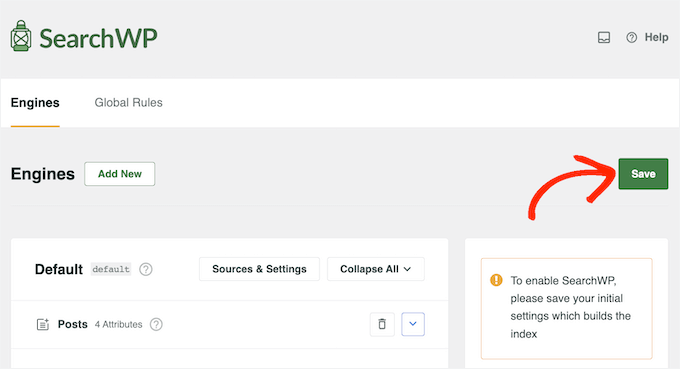
SearchWP will now rebuild the index automatically. Depending on the speed of your Internet connection and your WordPress hosting provider, this may take a few minutes.
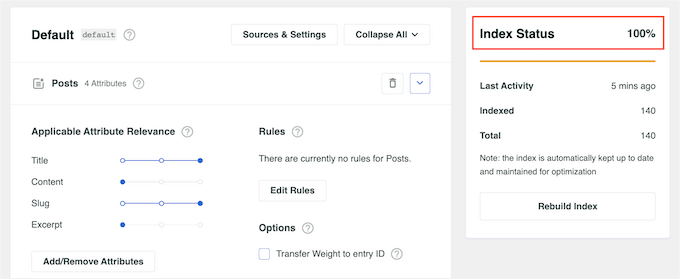
As soon as you see ‘Index Status 100%,’ you’ll know that SearchWP has indexed all your content and settings.
Step 3: Create a Search by Category Form
At this stage, you’re ready to create a search by category form. This will allow visitors to choose the category they want to search. If you want detailed instructions, you can read our article on how to create a custom search form in WordPress.
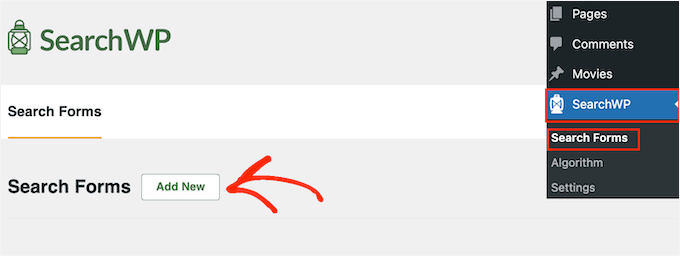
First, go to SearchWP » Search Forms. Then, click ‘Add New.’
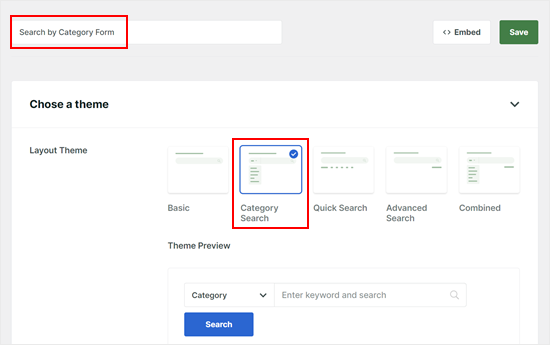
Next, give your new search form a name so that you can identify it later. This will come in handy if you decide to create multiple search forms for one website.
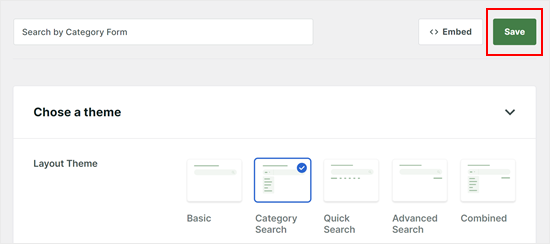
Then, choose a layout theme for the search form. Since we’re creating a category-based search form, you should choose ‘Category Search.’
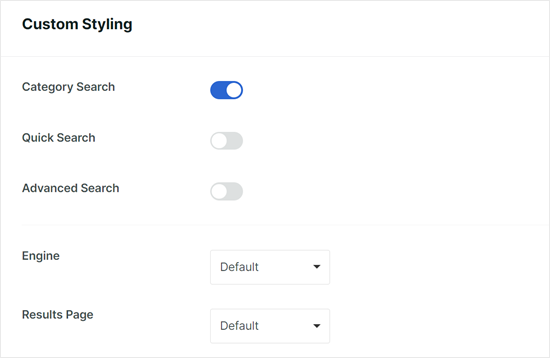
Scrolling down, you will see that the ‘Category Search’ option has been enabled. You can also activate:
- Quick Search – which will give search term recommendations
- Advanced Search – which lets users search using advanced filters
As for the Engine, you can just select ‘Default’ as that’s what we edited earlier in Step 2.
For the Results Page, you can choose the default WordPress search results page or create a new one using SearchWP. If you’re interested in the second option, then read our guide on how to customize the search results page in WordPress.
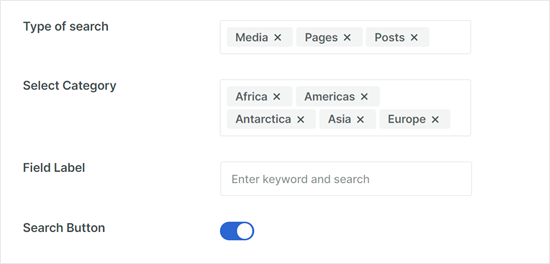
Next, let’s look at the ‘Type of Search’ field. This controls what kind of content the form will look for. If you want to limit the search results to only show blog posts (and ignore pages or products), make sure only ‘Posts’ is selected here.
But if you want to include pages and media files, then go ahead and enter ‘Pages’ and ‘Media.’
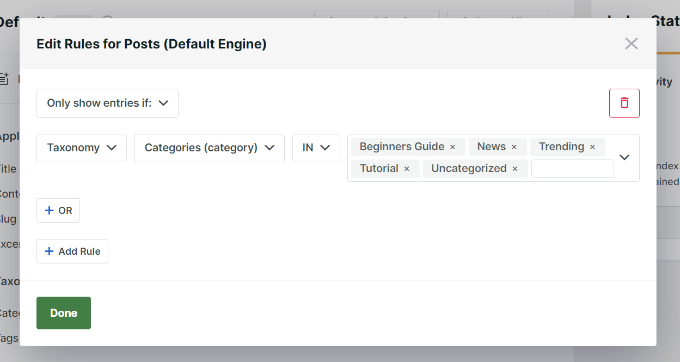
In the ‘Select Category’ field, you can choose which categories appear in the dropdown menu for your visitors. For example, you might want to hide internal categories like ‘Uncategorized’ or ‘Archived‘ so users don’t see them.
Below that, you can change the placeholder text in the field label and enable or disable the Search Button if needed.
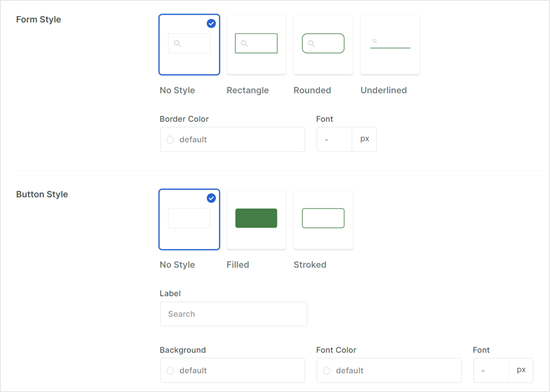
Toward the bottom, you can modify the search form’s border, border color, and font, as well as the button’s shape, label, background color, and font.
Feel free to make the design more suitable for your WordPress theme.
Once you’re happy with the search form settings, go ahead and scroll up the page.
Then, click ‘Save.’
Step 4: Embed the Search by Category Form in WordPress
Now that you have created a search by category form, let’s embed it on your WordPress website. SearchWP offers an easy-to-use search form block that you can add using the Gutenberg editor, Full Site Editor, and the block-based widget editor.
Let’s try adding the form to a WordPress page. Open the block editor for a new or existing page, and click the ‘+ Add Block’ button.
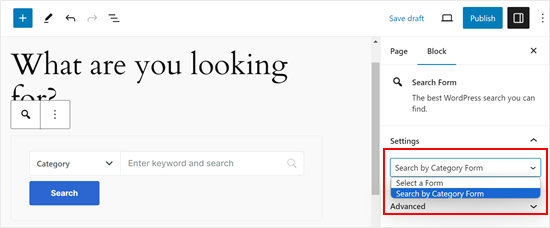
Then, select the ‘Search Form’ block. Look for the orange SearchWP icon to make sure you are picking the correct block, and not the default WordPress ‘Search’ block.
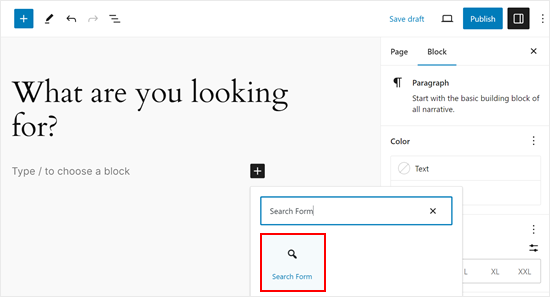
Now, in the ‘Block’ tab in the sidebar, select the form you created in the dropdown menu. You will then see your new search by category form displayed.
Feel free to add more elements to the page, like short instructions or images. Then, click the ‘Publish’ or ‘Update’ button.
📝 Note: To add the search form to your website’s sidebar or footer, simply go to Appearance » Widgets. From there, find your sidebar area and add the SearchWP ‘Search Form’ block there.
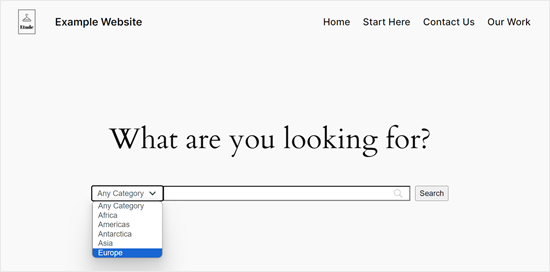
Now, just preview your WordPress page and see what the form looks like on the front end.
Here is what our search by category form looks like:
Bonus Tip: Add Instant Category Filters to Search Results
When your WordPress site has a lot of content, it can feel overwhelming for visitors to find exactly what they need. A general search might return too many results, which can lead them to give up and leave.
A helpful way to fix this is by adding instant taxonomy filters for categories, tags, or post types right next to your search results. This uses Ajax, which lets users narrow their results in real time without reloading the page.
For example, someone might search for “email templates” and then quickly filter by topics like “Marketing” or “Tutorials” to zero in on what they’re really looking for.
This small change can lead to a much smoother experience, faster results, and happier visitors who are more likely to stay and explore your site. And it’s especially useful for:
- WordPress blogs with multiple topics or authors
- Online course libraries, where learners can filter by subject, difficulty level, instructor, or format (e.g., video or text)
- Directory or membership sites, where members can be filtered by role, expertise, industry, or location
- Car dealership websites, where users need to search by make, model, year, fuel type, or features
- Real estate sites, where visitors want to filter by location, property type, or price range
To get started, see our guide on how to add an Ajax taxonomies filter in WordPress search.
Alternatively, you can check out our ultimate guide on how to improve WordPress search with SearchWP.
FAQs About Search by Category in WordPress
Got questions about using category-based search on your WordPress site? Here are some common ones to help you get the most out of SearchWP.
Can I use SearchWP with any WordPress theme?
Yes! SearchWP works with all WordPress themes. It upgrades your site’s search functionality without needing any theme-specific tweaks.
Can I customize the appearance of the search by category form?
Absolutely. SearchWP gives you the flexibility to style the category search form, so it blends in perfectly with your site’s design. For example, you can tweak your search bar’s label and placeholder as well as change the font and border style.
Is it possible to exclude specific content from being searchable in SearchWP?
Yes, you can. SearchWP makes it easy to exclude certain pages, authors, or content types right from its settings – no extra coding needed.
Additional Resources to Improve WordPress Search
We hope this article helped you add search by category in WordPress.
To learn more about creating a custom WordPress search engine, check out these guides:
- How to Add a Search Bar to WordPress Menu
- How to Add Live Ajax Search to Your WordPress Site
- How to Add Multilingual Search in WordPress
- How to Make Custom Fields Searchable in WordPress
- How to Include Custom Post Types in WordPress Search Results
If you liked this article, then please subscribe to our YouTube Channel for WordPress video tutorials. You can also find us on Twitter and Facebook.


Diiamo
Thank you, does it support woocommerce product catalog?
WPBeginner Support
The SearchWP plugin does integrate with WooCommerce and would allow you to search for products
Admin
Mrteesurez
Can this guide be followed to create a search for a support site where each category will includes all support posts for a particular services or branch and other for theirs ??
Thanks for this post.
WPBeginner Support
If we understand correctly then yes, you should be able to do that
Admin
Hansan
Hey help , I want to create a search box for web page and it should search in only one page category. How can i do that in wordpress.
Eric Thomas
This is exactly what I was looking for! Needed a sidebar for a separate review section, with a search bar that only searched that separate section. So this was perfect
philips
Thanks for the support for this awesome plugin. i have tried the plugin, the search by name works fine but the category search is not showing any result. i guess it is not compatible with 3.5 — >3.8.
i have tried changing “cat” to “category” but all to no avail . Any quick help will be hugely appreciated. Thanks in advance.
Eric
After I installed this plugin, the original categories widget doesn’t work any more!
Once I removed the plugin, it’s work again!
I still can’t find the reason.
Could someone tell me how to fix the problem?
Thanks a lot!
sergio
i run both regular search with google custom search, and the search category plugin, . i modified the searchform.php in order to have google search results ( with this shortcode ).
When i use the search by category plugin the results are the same of the standard so they are not filtered obviously because i use in both case google custom search .
so i would reset thestandard only for () for this plugin
how can i Do?
thanks
WPBeginner Support
you can not use search by category and Google custom search. You can create two different forms and search templates.
Admin
Srinivas
Team,
I tried the steps above, but when i added [sbc] in the text area, it just displayed that as a text instead of calling the search box. Am i missing something here.
Else, also not sure where i can add the mentioned code in the theme template. Could someone help me with the specific theme file i need to edit.
Thanks
Editorial Staff
Please post all plugin related support in the supports forum:
http://wordpress.org/support/plugin/search-by-category
Admin
Gretchen Louise
Oh I’m so glad to find this plugin! I think I need to keep looking though because I need to have it search specific pages on my site as well as some categories of posts.
mike
Really saved my time a lot ………..
This plugin still works with wordpress 3.5.1 !!!!
Rosca Bogdan
@Alian there is a plugin for that, Query multiple taxonomies.
You can find it @ http://scribu.net/wordpress/query-multiple-taxonomies/ . I use it and it`s working like a charm.
Alan
Can this be used for search results?
Gitte Hansen
Search by category is only tested for Wordpress version up to 3.4.2 – is it ok to install anyway? I use 3.5.0
I really look forward to a functionality which will make it easier for my readers to browse and seach in my categories.
Greetings Gitte
Editorial Staff
Yes it is fine. It will work.
Admin
Corrinda
I just did a review of different options for a client site and eventually installed the Search Everything plugin. It gives you the option to also configure what gets searched. And in this case I wanted to exclude a couple of categories.
Azim
If no serious customization is needed, you could just use the following snippet in your searchform.php
<form method="get" id="searchform" action="<?php echo home_url(); ?>">

	<input type="search" id="s" name="s" />

	<?php wp_dropdown_categories( 'show_option_all=All Categories' ); ?>

</form>
Pam
What would this do for you? tried it but nothing.
Alan
I use Relevanssi on one of my sites and it is great but I would love to add something like this to narrow search fields but rather than narrow by category. I’d like to narrow by custom taxonomy.