


Allowing user registration on your WordPress website is a great way to build a loyal reader base and thriving communities. But here’s the thing: leaving your site open to anyone is like keeping your front door unlocked.
Before long, spammers, bots, and random users with no real interest can flood in. So, if you’re running a WordPress membership site or community forum, you’ll definitely need more control over who can join.
That’s where user registration moderation comes in.
Across many projects, we’ve seen this simple step dramatically improve engagement, content quality, and overall satisfaction. Although it may seem like extra work at first, it often saves you hours of cleanup later.
In this guide, we’ll show you easy ways to moderate new user registrations in WordPress—whether you prefer manual approval or automated screening. 🛡️
Why Moderate New User Registrations in WordPress
The main reason to moderate new user registrations is to prevent spam. Opening your WordPress site to signups without any checks can lead to a flood of bots and fake accounts, which hurts your site’s quality and security.
By reviewing each new user, you can keep your community clean and ensure that only legitimate members gain access. This gives you more control and helps protect your website from unwanted spam signups.
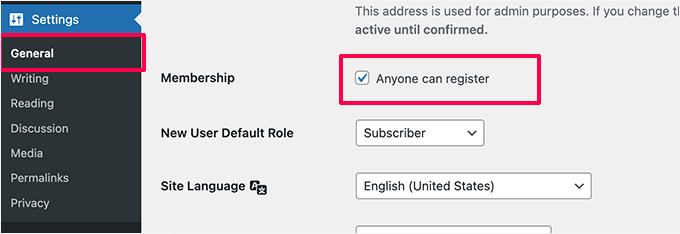
Of course, enabling user registration is incredibly useful for many types of websites.
For example, if you run a membership site, you can offer premium content, special offers, or even sell online courses and paid newsletters.
A plugin like MemberPress is perfect for this, as it gives members exclusive access to features like forums and limited coupon codes.
📽️ Note: Our video portal runs on MemberPress, making it easy to manage our free membership plan and give users access to exclusive videos.
Want to see what makes it so effective? Check out our complete MemberPress review.
If you’re selling digital downloads like eBooks or software, tools like WooCommerce or Easy Digital Downloads are essential. Requiring registration helps you store customer shipping and order details.
💻 Note: Easy Digital Downloads is our go-to solution for selling plugins and software. You can refer to our full Easy Digital Downloads review to see what it can do.
Building an online private community is another great reason to allow user registrations.
For creating private forums or social network-style sites where member moderation is key, a plugin like BuddyBoss is an excellent solution.
In this guide, we’ll cover two popular approaches. The best one for you depends on your current setup:
- Method 1 (WPForms): Best for creating a custom user registration form with powerful features like admin approval and email marketing integration.
- Method 2 (New User Approve): Best for adding a simple moderation layer to your existing WordPress registration form or forms created by other plugins like MemberPress or WooCommerce.
With this in mind, here’s a quick look at how to easily moderate new user registrations in WordPress and simply approve or deny sign-ups on your website:
- Method 1. Moderate User Registrations in WordPress with a Custom Registration Form
- Method 2. Moderating User Registrations in WordPress with New User Approve
- Bonus Tip: Display Recently Registered Users in WordPress
- FAQ About Moderating User Registration in WordPress
- More Guides to Personalize the User Experience in WordPress
Ready? Let’s get started.
Method 1. Moderate User Registrations in WordPress with a Custom Registration Form
Using a custom user registration form gives you more control over your site’s branding. Plus, it allows you to add new members to your email newsletter automatically.
For this, we recommend WPForms. It’s the best drag-and-drop WordPress contact form builder, used by over 6 million websites, and comes with a powerful User Registration add-on.
📝 Note: We use WPForms on our sites to display our contact form and manage migration requests. With WPForms AI, form creation is easier than ever, which is why we highly recommend it to all users. To learn more, see our in-depth WPForms review.
The user registration add-on allows you to create completely custom WordPress user registration forms and login forms.
It also lets you turn on ‘Admin’ approval for new user registration.
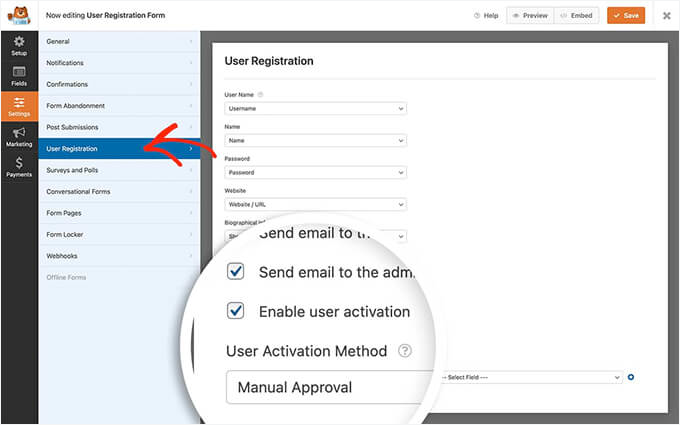
Since WPForms integrates with all the popular email marketing services, you can use it to add all users to your email list automatically.
You can also connect WPForms to Uncanny Automator for free. This lets you create automated workflows that connect your other apps and save you a ton of time.
Additionally, you might want to show a confirmation informing users that their account is pending review and that they will receive an email when it is approved.
To do this, you can switch to the ‘Confirmations’ section inside the ‘Settings’ tab.
Next, select ‘Message’ as the confirmation type, then write the confirmation message you want users to see.
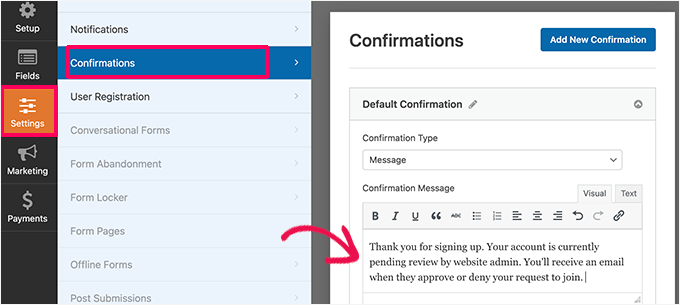
Alternatively, you can also redirect users to a thank-you page or send them to a custom landing page or your social media profiles.
Method 2. Moderating User Registrations in WordPress with New User Approve
For sites using the default WordPress registration or other plugins, the free New User Approve plugin is an excellent solution. It allows you to moderate all signups, regardless of which tool they come from.
First, you’ll need to install and activate the free New User Approve plugin. If you need help, you can see our step-by-step guide on how to install a WordPress plugin.
Upon activation, this plugin enables moderation for all WordPress user registrations. It’s compatible with WooCommerce, MemberPress, LearnDash, BuddyPress, Easy Digital Downloads, and other user registration plugins.
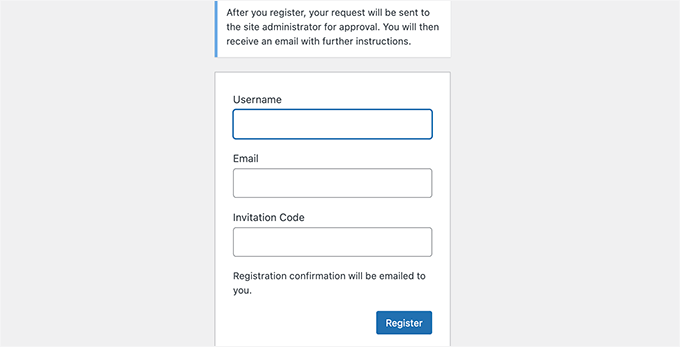
If you use the default WordPress user registration, then users will see the following message on the registration form.
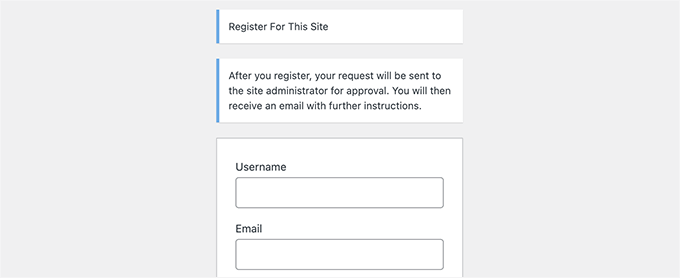
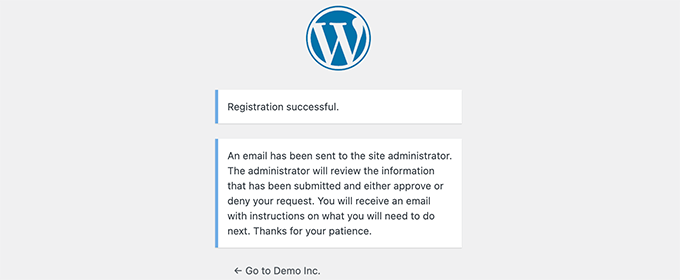
After they complete and submit the user registration form, they will be informed that their account is pending review.
Here’s what the notification might look like:
You will also receive an email notification at your admin email address to approve or deny this user registration.
Apart from that, users will get an email on their account informing them that their registration awaits approval.
📌 Expert Tip: If you or the users on your site don’t receive email notifications, then you need to set up WP Mail SMTP. For more details, please follow the instructions in our guide on how to fix the WordPress not sending email issue.
Approve or Deny User Registration in WordPress
The New User Approve plugin makes it super easy to manage the moderation queue for user registrations.
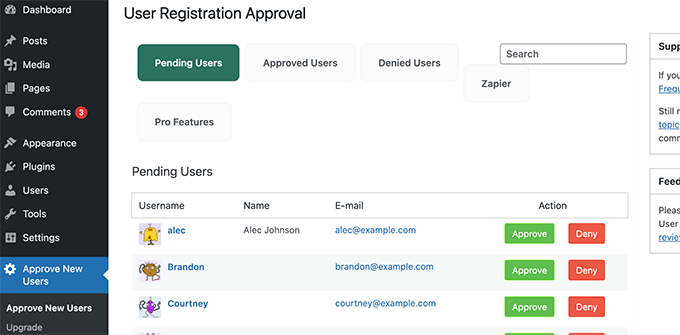
Simply log in to your WordPress admin area and click the ‘Approve New Users’ menu item.
You’ll see the list of user registrations awaiting moderation – go ahead and approve or deny the user registration.
Users will then receive an email informing them whether their registration was approved or denied.
If approved, they can log in to their account on your WordPress website.
Allow Specific Users to Bypass User Registration Moderation
The New User Approve plugin also lets you create special invitation codes. Users with these codes can register on your website and skip the moderation queue entirely.
To do this, you’ll want to go to Approve New Users » Invitation Code and enter a unique code in the ‘Add codes’ box.
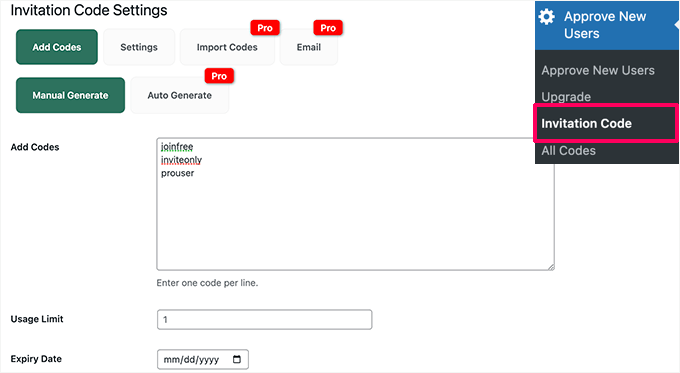
You can also set a usage limit for the invitation code and choose an expiry date. Once done, don’t forget to save your changes.
Next, you’ll need to switch to the ‘Settings’ tab and turn on the toggle to allow user registration using the invitation link without moderation.
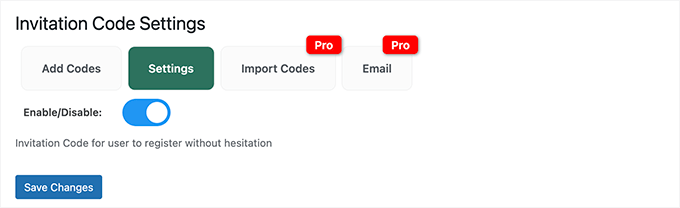
Go ahead and click the ‘Save Changes’ button to store your settings.
You can now give these invitation codes to users that you trust. They will be able to bypass the moderation queue and instantly register on your website.
Add a Pending Approval Notice in Other Plugins (Important)
The New User Approve plugin handles moderation in the background, but it won’t update the confirmation messages on forms from other plugins.
To avoid confusing your users, you’ll need to manually add a note in your plugin’s settings to explain that new accounts require approval.
For example, if you are using MemberPress, then you can go to the ‘Memberships’ page and edit one of your memberships.
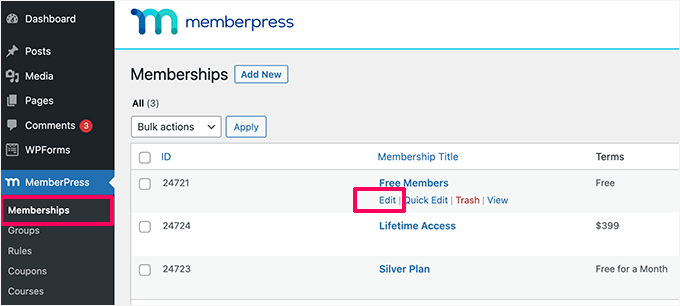
Next, you’ll want to scroll down to the ‘Membership Options’ section.
From here, you can check the box next to the ‘Enable custom thank you page message.’
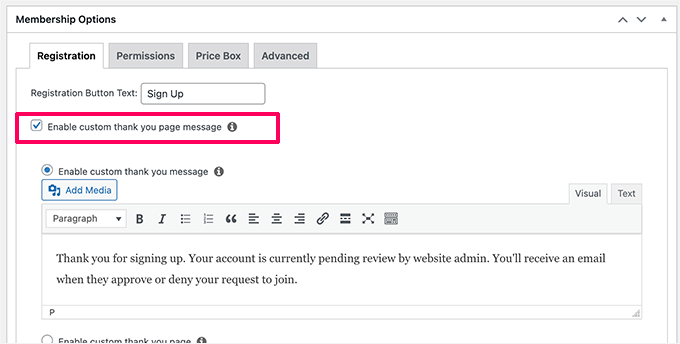
Then, feel free to add your own custom message informing users that their account is pending approval.
Now, you may need to repeat the process for other membership plans.
Bonus Tip: Display Recently Registered Users in WordPress
Showcasing your newest members is a great way to build a buzzing online community. It helps introduce them to the group and makes them feel like they truly belong.
Plus, when people see a site with new faces joining all the time, they’re more likely to jump in themselves.
The simplest way to do this is by adding a custom code snippet. If this sounds technical to you, don’t worry. You can use the WPCode plugin, the best custom code snippet plugin for WordPress.
This plugin eliminates the need to edit your theme’s functions.php file. So, you can safely add and manage custom code snippets on your site.
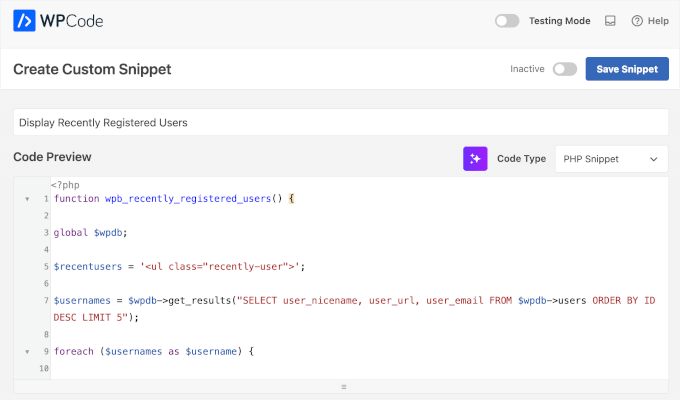
For more on this topic, see our guide on how to display recently registered users in WordPress.
FAQ About Moderating User Registration in WordPress
What happens when I deny a user registration in WordPress?
When you deny a registration using the New User Approve plugin, the user receives an email informing them that their request was not approved. Their pending user account is then automatically deleted from your WordPress site.
Does moderating users affect my site’s SEO?
Moderating users does not directly harm your WordPress SEO. In fact, it can be beneficial by preventing spam, which improves your site’s overall quality and trustworthiness in the eyes of both users and search engines.
How can I tell if a new user registration is spam?
You’ll want to look for common red flags like gibberish usernames (e.g., jg8f9ds4), email addresses from suspicious domains, or generic names that don’t seem real. If a registration looks suspicious, it’s usually safe to deny it.
More Guides to Personalize the User Experience in WordPress
We hope this article helped you learn how to moderate new user registrations in WordPress.
Now, you can take your site to the next level by personalizing the experience for your members. Check out these guides for more tips:
- How to Show Different Menus to Logged-In Users in WordPress
- How to Run a Members-Only Event in WordPress
- How to Require a Login to View a Page in WordPress
- How to Password Protect a Page or Post in WordPress
- How to Show Personalized Content to Users in WordPress
- How to Restrict Content on WordPress to Patreon Members
If you liked this article, then please subscribe to our YouTube Channel for WordPress video tutorials. You can also find us on Twitter and Facebook.


Claude
Hi. This looks like a potentially useful plugin, but from your description, it’s not clear that it allows an admin to receive the apoplicant info on which to base an acceptance decision. For example, it would be useful to be able to ask a potential new user to reply to one or more qualifying questions; the admin could then base an acceptance decision on how the registrant replied. Is this possible with your plugin?
WPBeginner Support
If you create a custom registration form then you can add custom questions and the information from the form would be sent to you for consideration.
Admin
Douglas Karr
That plugin hasn’t been updated in quite a while and has several ratings that it no longer works.
WPBeginner Support
Thank you for letting us know, we’ll be sure to look for an alternative
Admin
Stephanie Denleuy
Hello,
I am after a little bit of advice…
We currently have set that all customers must be approved to be able to shop on my site and see prices on the site
.
We are now not wanting this and are wanting customers to be able to see the prices of all products and be able to shop without being approved.
As we have deactivated this plugin, it is still showing that they need to be approved to be able to shop on the site…
How do I rectify this??
Thanks
Adriaan
Once a user has registered, they are automatically signed in and can view content. Meanwhile in the users dashboard, the account has not been approved yet. How do I change this so that the user won’t have access to content before approved?
Abdallah
Hi , the plugin new user approve don’t update the user statut in the database when approving user nor send email when approving user
Abdallah
Hi , it’s me again , i was wrong about the plugin it works , when we update a user statut the plugin update the column user_activation_key of the users table , so if you have the same issue as me , you need to just check the emptiness of this column :
!empty($user->user_activation_key) { do stuff }
Now the new problem is how to read the value of this column .
Unamed
Hello, I am using the New User Approve but the registration confirmation does not arrive in the mail users who use hotmail outlook and you know why?
WPBeginner Support
Please take a look at our guide on how to fix WordPress not sending email issue.
Admin
Chris Dumper
Once a user is approved can I grant him permission to see portions of a menu (and the pages referenced thre) dnied to an unregistered user. Thanks … Chris
WPBeginner Support
Yes you can. Please see our guide on user roles and permissions in WordPress
Admin
James Durkan
I HAVE used this in the past and it did work very well. However, now that I’m running Wordpress 4.4.2, the plugin page does warn it hasn’t been tested with that version and, I’m sorry to report, it does crash. Specifically, it spews out the source code when it comes to granting approval.
WPBeginner Support
We have re-tested the plugin on our demo sites. It works fine at our end on WordPress 4.4.2. Try deactivating all your WordPress plugins except New User Approve. If it works fine then probably one of the plugins on your site is causing the conflict. Try activating each plugin and then retest new user approval. Repeat for all plugins until you find one that’s causing the conflict. Report the conflict to both plugin authors.
Admin