


I have noticed that readers are much more likely to stick around when they know exactly how long an article takes to read. Without this detail, visitors often leave immediately because they worry the content is too long or overwhelming.
Displaying an estimated reading time solves this problem instantly and shows that you respect your visitor’s schedule.
In this guide, I will share how to easily add estimated reading time to your WordPress posts.
Why Add Estimated Post Reading Time in WordPress Posts?
First, displaying estimated post-reading time sets clear expectations. When readers see ‘5-minute read’, they can decide if they have time right now or should bookmark it for later. This reduces bounce rates because people aren’t caught off guard by longer content than expected.
Second, it builds trust and transparency. Just like how Netflix shows episode lengths, displaying reading time shows you respect your readers’ time. This small gesture can significantly improve user experience and encourage return visits.
Third, it can actually increase completion rates. When people see a manageable reading time like ‘3 minutes’, they’re more likely to commit and finish the entire article. This increases dwell time, sending positive signals to search engines that can help boost your SEO rankings.
We’ve also found that reading time estimates work particularly well alongside other engagement features like reading progress bars. Together, they create a reader-friendly experience that keeps people on your site longer.
Here are two proven methods to help you add this feature to your WordPress site. You can choose the one that matches your technical comfort level:
Method 1: Displaying Estimated Reading Time in Your WordPress Posts With a Code Snippet (Recommended)
You can quickly display estimated reading time in your WordPress posts using WPCode, a free code snippets plugin.
WPCode allows you to add custom code in WordPress without touching your theme’s functions.php file, which makes it safer and easier to do website customizations.
It comes with a built-in library of useful code snippets for popular feature requests like display reading time, add ‘new’ badge for recent posts, disable Gravatar avatars, display progress bar, and more. This eliminates the need to install a bunch of single-use plugins.
To get started, you need to install and activate the WPCode plugin. If you need help, then see our guide on how to install a WordPress plugin for instructions.
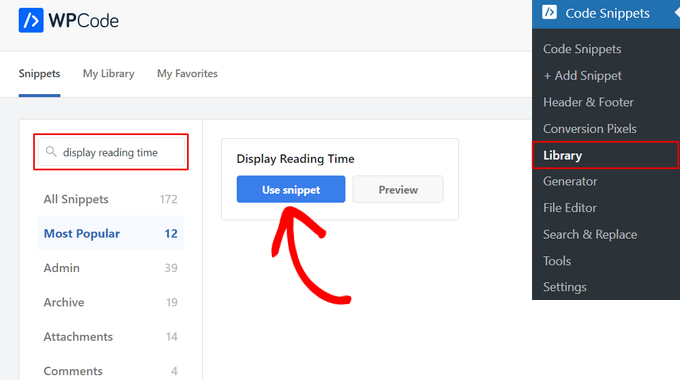
Once the plugin is activated, go to Code Snippets » Library from the WordPress dashboard.
From the Snippets Library page, search for the ‘Display Reading Time’ snippet. Once you find it, hover over it and click the ‘Use snippet’ button.
On the next page, you’ll see that WPCode has automatically added the code.
WPCode usually configures the settings automatically. However, you should scroll down to the ‘Insertion’ section to verify that the Location is set to ‘Insert Before Content’.
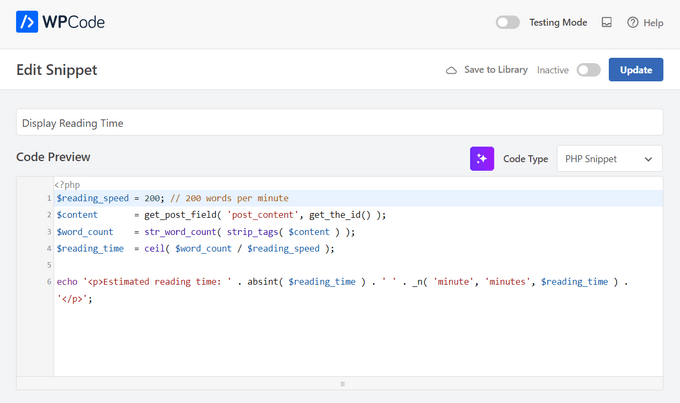
Now, all you need to do is toggle the switch from ‘Inactive’ to ‘Active’ and then hit the ‘Update’ button.
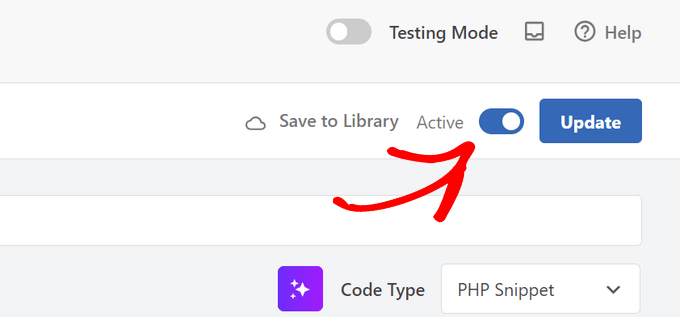
That’s it. You can now visit your website to see the estimated reading time on your posts. Note that this snippet uses a standard average reading speed, which works well for most websites.
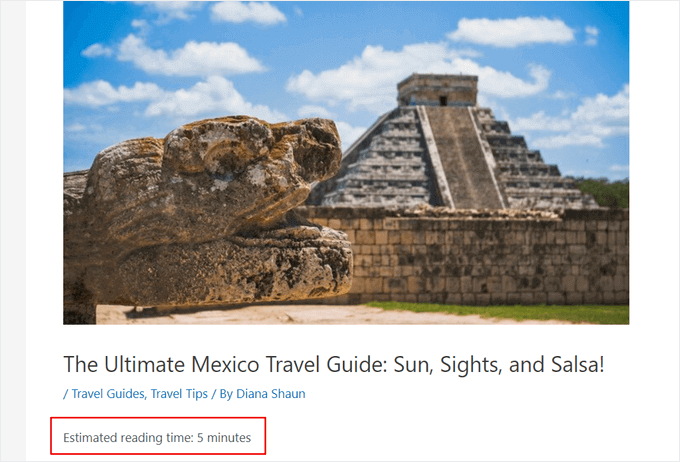
Method 2: Displaying Estimated Reading Time in Your WordPress Posts With a Plugin
If you prefer a method that offers more visual customization options without editing code, then you can use the Read Meter plugin.
Read Meter is a free WordPress plugin that helps you show the reading time and progress bar on your website. It also comes with built-in settings that you can use to edit the appearance of the reading time notification without touching any code.
First, you will need to install and activate the Read Meter plugin. For more details, see our step-by-step guide on how to install a WordPress plugin.
Upon activation, you need to visit the Settings » Read Meter page from your WordPress dashboard to configure the plugin settings.
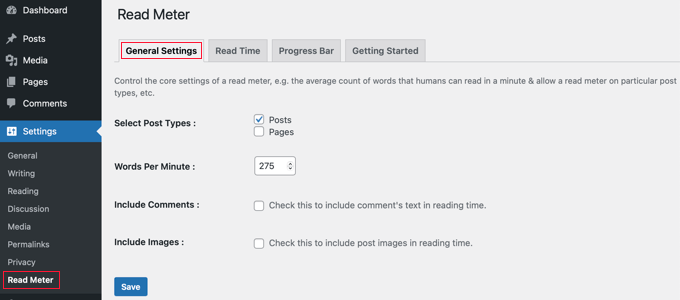
In the ‘General Settings’ tab, you can select the post types to show the reading time on.
For instance, the plugin lets you display the reading time on your blog posts and pages. If you have an online store, then there will also be an option to do this on your product pages.
You can also adjust the average reading speed. By default, the plugin estimates 275 words per minute. Since the average reading speed is usually around 200-250 words per minute, you may want to lower this number to suit a wider audience.
There is also an option to include comments and images when estimating the time it will take to read the blog post.
Next, you can head over to the ‘Read Time’ tab to customize the exact text that will appear.
At the top, you can choose exactly where the reading time appears. For example, you can choose to show it on the single post itself, or also on the home page and archive pages.
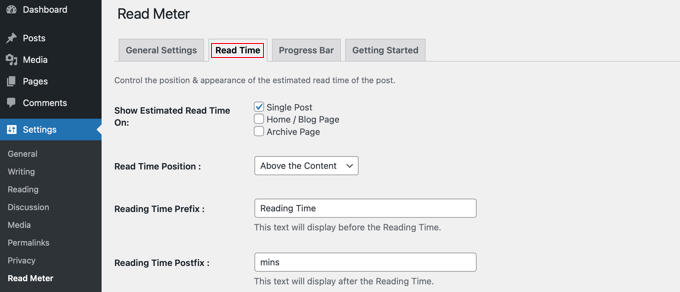
Besides that, you can change the appearance of the reading time notification.
There are settings for the font size, position of the read time, background color, text color, and a lot more.
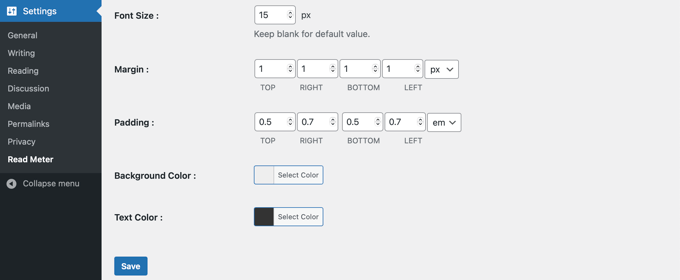
When you have made the changes, don’t forget to click the ‘Save’ button.
After that, you can go to the ‘Progress Bar’ tab and edit the settings. You will see options to select the position of the bar (top or bottom of the page) or completely disable it from your WordPress site.
You can also change its style, background color, primary color, and bar thickness.
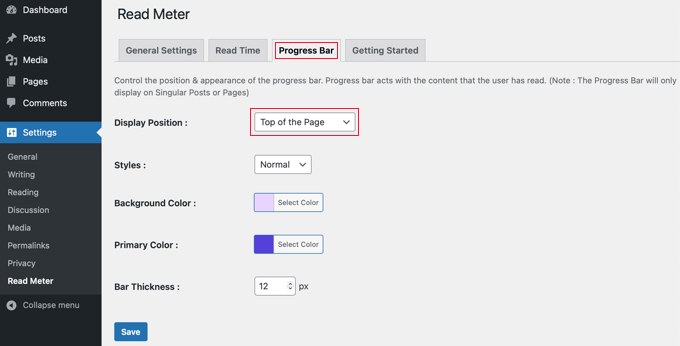
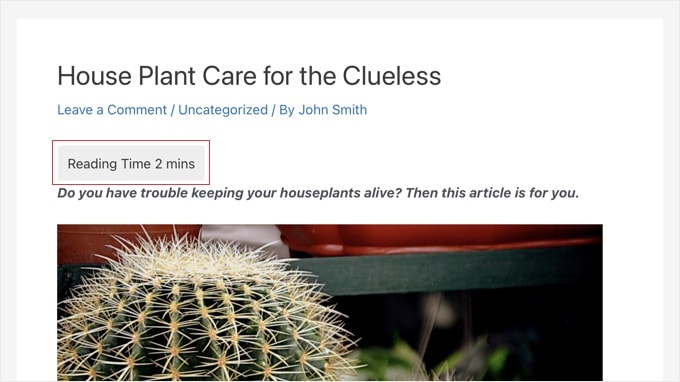
After editing your progress bar settings, go ahead and click the ‘Save’ button. Now, your readers will see the estimated reading time on each post.
You can now visit your WordPress website to see the reading time and a progress bar in action.
FAQs About Estimated Reading Time in WordPress
Here are the answers to some of the most frequently asked questions about displaying estimated reading time on your website.
1. How is the estimated reading time calculated?
Most tools calculate this by dividing your total word count by an average reading speed. This is typically set to around 200 to 250 words per minute.
2. Can I adjust the reading speed?
Yes. If you use the Read Meter plugin, there is a specific setting to change the words per minute. This allows you to match the speed to your specific audience.
3. Does the estimated time include images?
Simple code snippets typically only count text. However, plugins like Read Meter often have options to add extra time for viewing images and other media.
4. Can I show reading time on pages?
Yes. You can easily enable reading time for WordPress pages and custom post types inside the plugin settings.
Additional Resources on Improving the WordPress Reading Experience
We hope this article helped you learn how to display estimated post reading time in your WordPress posts. You may also want to see some other guides related to improving the reading experience in WordPress:
- How to Add a Reading Progress Bar in WordPress Posts
- How to Add and Improve Readability Score in WordPress Posts
- How to Add Text to Speech in WordPress (Step by Step)
- How to Track User Engagement in WordPress with Google Analytics
- How to Add WordPress Reaction Buttons to Boost Engagement
- How to Write a Great Blog Post (Structure + Examples)
- How to Show Personalized Content to Different Users in WordPress
- How to Understand WordPress Website Visitors Intent
- Is Blogging Dead? (Our Expert Opinion)
If you liked this article, then please subscribe to our YouTube Channel for WordPress video tutorials. You can also find us on Twitter and Facebook.


Dennis Muthomi
Reading time displays are fantastic
For tech and SaaS blogs, I actually use 200 words per minute instead of the usual 275. Technical content takes longer to digest, and this adjustment gives readers a more realistic estimate.
Jiří Vaněk
This is an interesting idea, keeping readers on the website by showing them that the text doesn’t have to be as time-consuming as it might seem. Great! I’m also toying with the idea of text-to-speech, adding a playback feature to the website. Users wouldn’t have to read the article themselves but could listen to it. This way, they wouldn’t leave the website, potentially reducing the bounce rate. I just need to find out if there’s already a solution available for free within a word limit.
Ralph
I think post reading time + reading progress bar are really good things from the visitor perspective. One is great initial info and the other one shows your current progress. Good to know you can modify estimated words per minute.
Curtis Townsend
Do you know if this solution has the ability to also post the reading time next to the number of comments in the blog list. Want it to look similar to WSJ posts.
WPBeginner Support
You would need to edit your theme’s template but the plugin does offer a shortcode that you could include to place the reading time where you like.
Admin
Tom Lemanski
Thanks for the recommendation. I was using another read time plugin with no formatting settings so the read time was crowded into the post content. The issue was resolved immediately upon installation.
WPBeginner Support
Glad to hear our recommendation could help!
Admin
Leinad Harpep
Thanks for this great piece of information. Really helped me.
WPBeginner Support
Glad it was helpful
Admin
jeje
is there a way to show also the reading time when shared on facebook
WPBeginner Support
We do not have a recommended method to guarantee that is included at the moment.
Admin
Leonardo Martins
Is there any way to avoid showing reading time in homepage? I want to show it just when i click on each post
WPBeginner Support
You would want to reach out to the plugin’s support for customizing the display like that
Admin
suvita
can we add estimate reading time without plugin?
WPBeginner Support
You would still need to have something to give an estimation of the reading time which would be done by either a plugin built into the theme or similar.
Admin
Vlad
Can some pages be ignored?
Thanks!
Wagoner
It would be great if you could update this and with a similar plugin that works without the content editor, say for CPT custom fields, using ACF or Toolset.
Thanks!
Nis
Does this plugin supports Visual Composer. The problem I am having at the moment is it doesnt show up in widget.
Sander Feinberg
I like your blog and frequently find useful tips. However I am surprised you would republish a post with links to two plugins which have not been updated in 2 or 3 years. Since you likely have readers who are beginners, they might not even notice that.
WPBeginner Support
Hi Sander,
We apologize for inconvenience. It seems like when you arrived at this URL, you were served a cached version of the article which was quite old as you mentioned. Hopefully, if you revisit now, then you’ll be able to see the new version.
Admin
Sander Feinberg
Thanks for the update!