


Building anticipation for a new product or service is a powerful marketing strategy.
A well-designed waitlist page generates buzz and captures the interest of potential customers. It also collects their contact information, so you can stay in touch with them.
We’ve launched plenty of plugins and pro services, so we know what makes a successful landing page. A combination of a user-friendly design, informative content, and smooth functionality can drive sign-ups and engagement.
In this article, we will show you how to easily create a viral waitlist landing page in WordPress, step by step.
💡Key Takeaways: How to Create a Viral Waitlist Landing Page
In a hurry? Follow these steps to create a viral waitlist landing page:
- Install SeedProd: It is the best drag-and-drop landing page builder for WordPress.
- Select a Template: Choose a pre-made ‘Coming Soon’ or ‘Waitlist’ template to start quickly.
- Add Viral Elements: For example, blocks for the Optin Form (to collect emails), Countdown Timer (urgency), and Social Sharing (virality).
- Connect Email Service: Link the form to your provider (like Drip or Constant Contact) to store leads.
- Publish: Make the page live and start driving traffic.
Why Create a Viral Waitlist Landing Page in WordPress?
Making a waitlist landing page on your WordPress website allows visitors to enter their email addresses and join your queue.
For example, if you have a WooCommerce store and are about to launch a summer collection, you can create a pre-launch waitlist.
Here are the main benefits of creating a viral waitlist page:
- Instant Notifications: Interested users get an email notification as soon as your new product goes live.
- Lead Generation: It helps you build your email list and social media following even before launch.
- Build Hype: It creates a sense of urgency and excitement (FOMO) among potential customers, making them more likely to sign up.
That being said, let’s see how to easily create a viral waitlist landing page in WordPress.
- How to Create a Viral Waitlist Landing Page in WordPress
- Step 1: Create a Waitlist Landing Page
- Step 2: Customize Your Waitlist Landing Page
- Step 3: Add WooCommerce Blocks to Your Waitlist Landing Page
- Step 4: Connect Your Waitlist With Your Email Marketing Provider
- Step 5: Save and Publish Your Waitlist Landing Page
- Bonus Tips to Build Excitement and FOMO in Your eCommerce Store
- Frequently Asked Questions About Creating a Waitlist Landing Page
How to Create a Viral Waitlist Landing Page in WordPress
You can easily create a waitlist landing page in WordPress using SeedProd. It is the best WordPress landing page plugin with a drag-and-drop builder to create themes and landing pages.
We’ve used it to create landing pages and even entire eCommerce sites with custom themes, and it worked great. To learn more, see our full SeedProd review.
First, you need to install and activate the SeedProd plugin. For detailed instructions, you may want to see our step-by-step guide on how to install a WordPress plugin.
Note: You can use the free version of SeedProd for basic pages. However, this tutorial covers advanced features like WooCommerce blocks that are available in the paid plan.
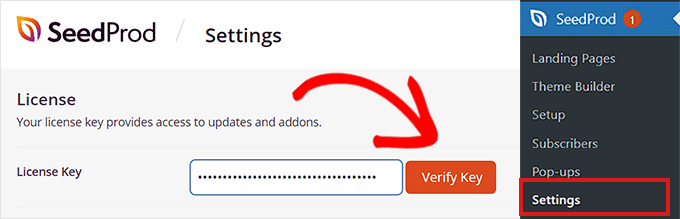
Upon activation, head over to the SeedProd » Settings page to enter your license key. You can find this information in your account on the SeedProd website.
Once you have done that, it’s time for you to start creating a waitlist landing page.
Step 1: Create a Waitlist Landing Page
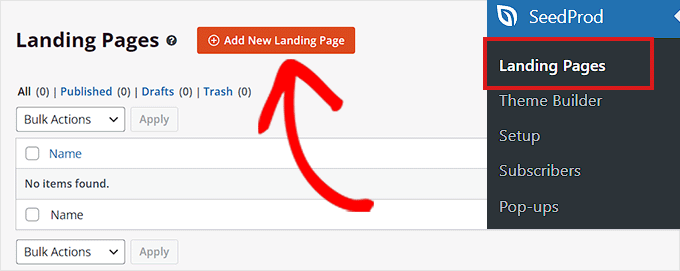
To create a waitlist landing page, head over to the SeedProd » Landing Pages screen from the WordPress admin sidebar.
Once you are there, just click on the ‘Add New Landing Page’ button.
This will take you to the ‘Choose a New Page Template’ screen, where you can select a pre-made SeedProd template.
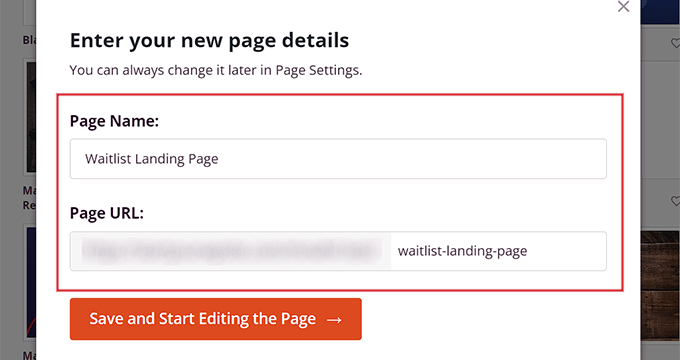
Upon doing that, a prompt will open up on your screen, asking you to enter a page name and URL. Go ahead and enter the details and then click the ‘Save and Start Editing the Page’ button to continue.
This will launch the template in SeedProd’s drag-and-drop builder. From here, you can now start customizing your waitlist landing page as you want.
Step 2: Customize Your Waitlist Landing Page
Once the drag-and-drop builder launches, you will see all available blocks on the left. Your landing page preview is on the right.
You can drag any block onto your page. This includes images, videos, buttons, and text.
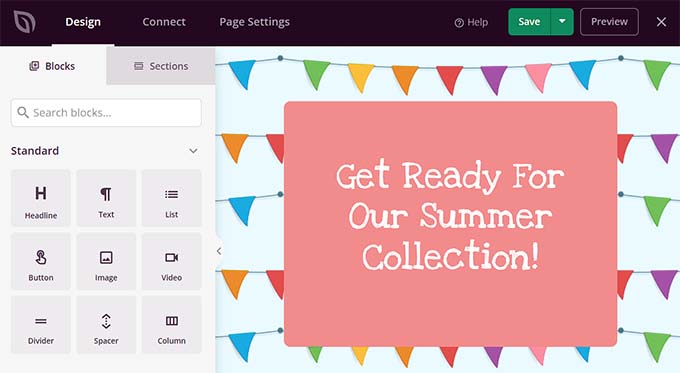
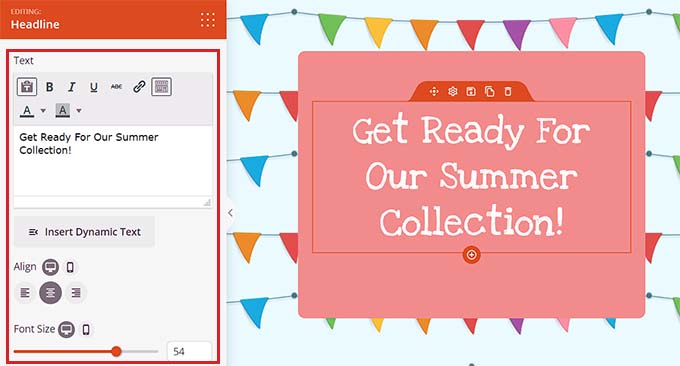
For example, you might want to add a headline for your new product launch. Just drag the Headline block onto the page.
Once you’ve done that, click on the block again to open its settings in the left column. From here, you can insert dynamic text and change the font size, alignment, color, and more.
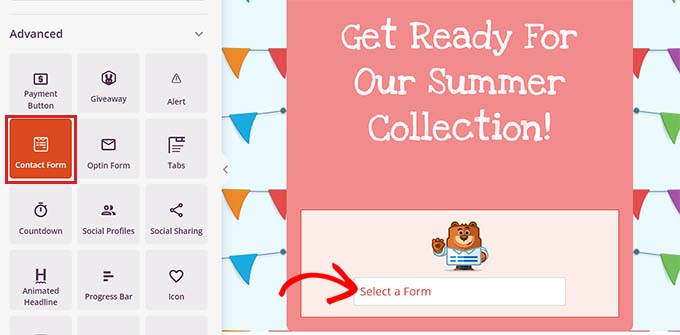
Next, scroll down to the ‘Advanced’ section in the left column. You can add a giveaway, optin form, contact form, social profiles, countdown timer, and more.
Since you are creating a waitlist, you should add a contact form to your landing page. That way, your visitors can sign up for notifications when new products are available, and they can also be added to your general email list.
To do this, just drag and drop the Contact Form block from the left column onto the page.
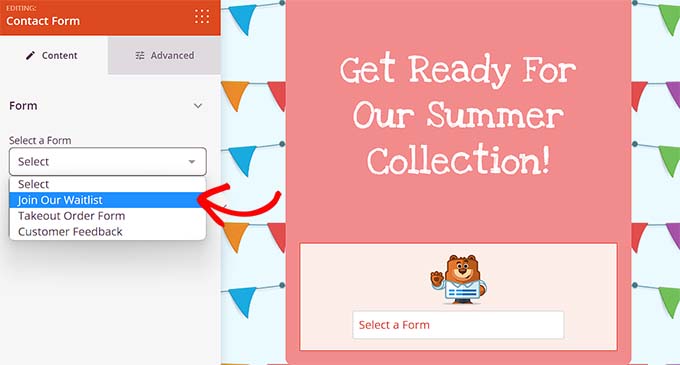
Next, click on the block to open its settings in the sidebar on the left. From here, you can select a contact form that you created with WPForms from the dropdown menu.
For more detailed instructions, you may want to see our tutorial on how to create a contact form in WordPress.
After that, you can also add the Social Sharing block to the waitlist landing page. This will allow users to share it with their friends and followers, making your waitlist viral.
Upon adding the block, click on it to configure its settings in the left column. You can now add a social media button from the dropdown menu and configure its size and alignment.
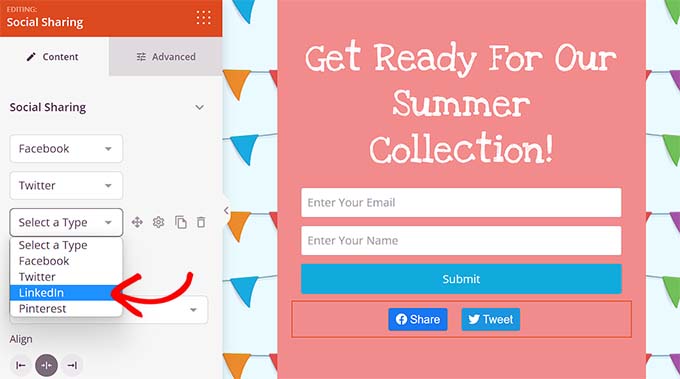
Once you’ve done that, it’s time for you to add the Countdown block from the left column to create a sense of urgency among your customers.
Next, click on the block to open its settings in the sidebar. From here, you can choose an end date, timezone, size, template, and more.
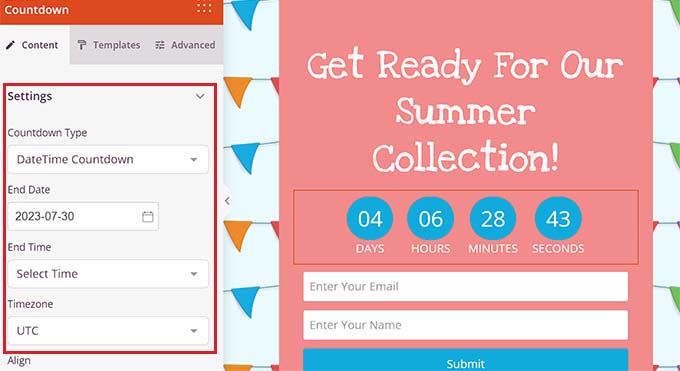
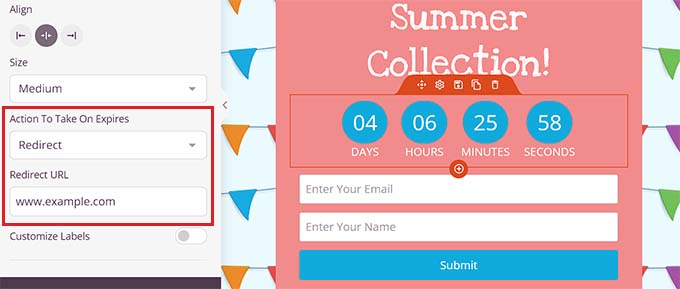
You can also choose an action to take once the countdown on your waitlist expires.
For example, you can choose the ‘Show Message’ option from the ‘Action To Take On Expires’ dropdown menu. Now a message will be displayed to your customers upon waitlist expiration.
Alternatively, select ‘Redirect’ to send users to a specific URL, like your new product page. Just make sure that the page is published and live before the timer runs out so users don’t see an error page.
Step 3: Add WooCommerce Blocks to Your Waitlist Landing Page
If you are not using WooCommerce, you can skip this step. If you have a store, you can use SeedProd’s WooCommerce blocks. Make sure the WooCommerce plugin is active.
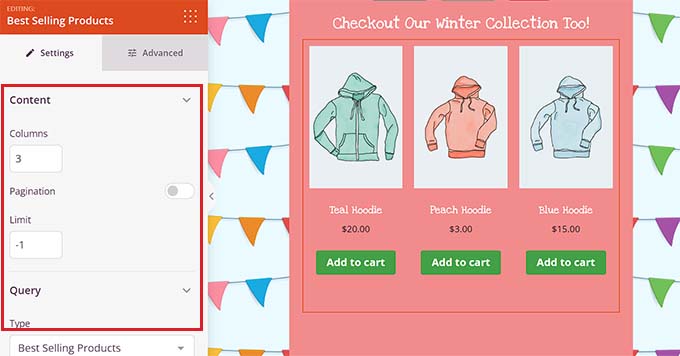
Scroll down to the ‘WooCommerce’ section in the left column. You can add blocks for featured products, add-to-cart buttons, or best-selling items.
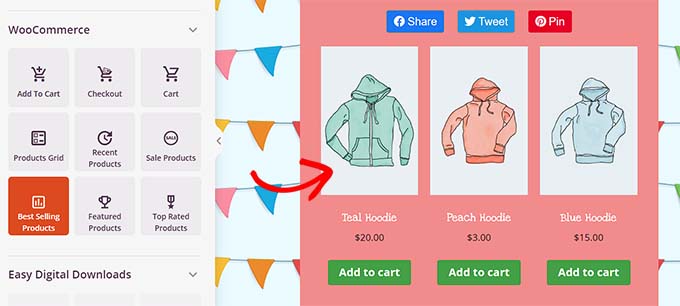
This lets visitors see other available products while they join your waitlist. They might even make a purchase right away.
You can control how many products show up. You can also change the layout, typography, and button colors.
Step 4: Connect Your Waitlist With Your Email Marketing Provider
Next, you need to connect your form to an email marketing service. This ensures you capture the leads properly.
Switch to the ‘Connect’ tab at the top of the builder. Then, choose your email marketing provider from the list.
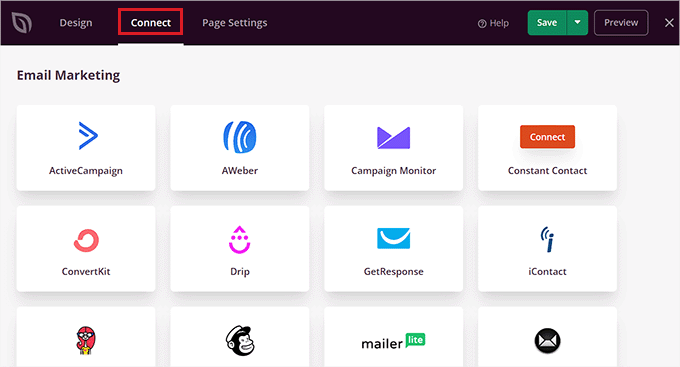
By default, SeedProd offers seamless integration with popular email marketing services like Drip, Brevo (Formerly Sendinblue), Constant Contact, AWeber, and more.
Once you have chosen your provider, you must provide an API key or account details, depending on the service you choose. You can get this information from your email marketing service provider’s account dashboard.
After that, just click the ‘Connect’ button to move forward.
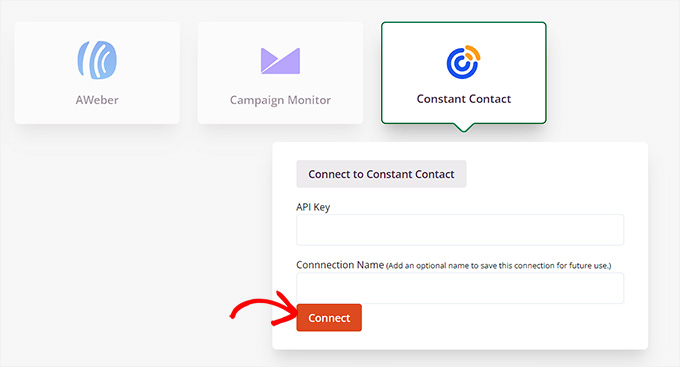
Upon connecting your SeedProd with an email marketing provider, you will also have to choose the email list that you want to use with your waitlist landing page.
Next, click on the ‘Save Integration Details’ button. You have now successfully connected your landing page with the marketing service.
Step 5: Save and Publish Your Waitlist Landing Page
Now, you need to switch back to the ‘Design’ tab from the top of the SeedProd page builder.
Once you’ve done that, click the ‘Save’ button at the top to store your settings.
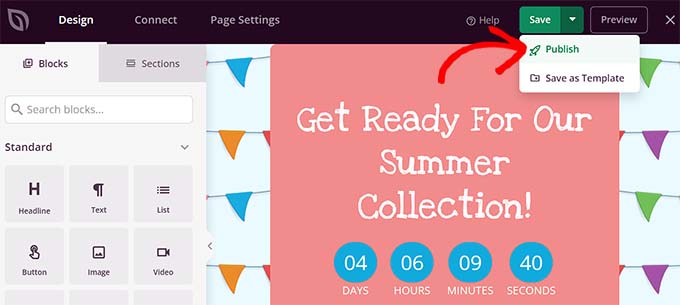
Next, open the ‘Save’ dropdown menu and click the ‘Publish’ button to make your waitlist landing page live.
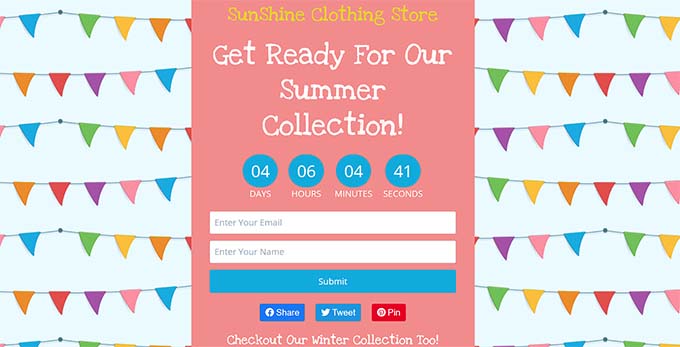
Now, you can visit the landing page on your WordPress site to see how it looks.
Bonus Tips to Build Excitement and FOMO in Your eCommerce Store
Other than designing a great landing page, you can use a few other methods to easily build excitement and FOMO among your customers. This can encourage them to sign up for your product launch waitlist.
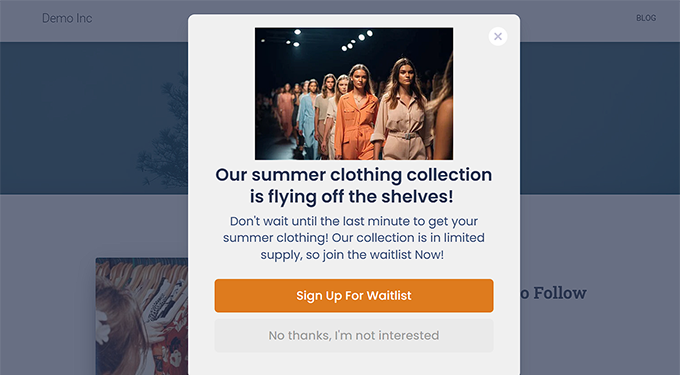
For example, you can create a personalized popup using OptinMonster that shows that a product that hasn’t been launched yet is in limited supply.
Since scarcity is a key element of FOMO, shoppers will now be more likely to sign up for your waitlist.
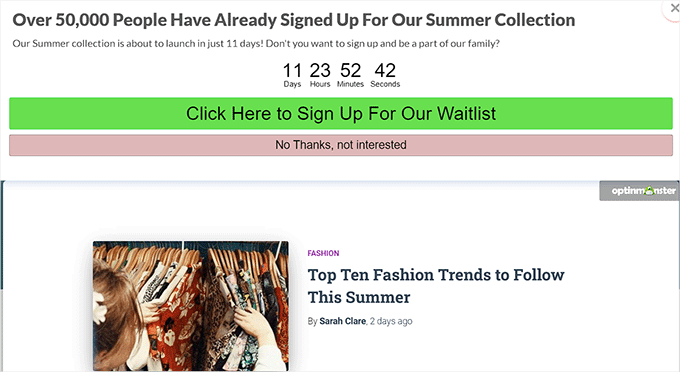
Other than that, you can also create website banners using Thrive Leads to show users that other visitors are already interested in your product and signing up for it.
For more detailed instructions, you may want to see our tutorial on how to use FOMO on your WordPress site to increase conversions.
Additionally, you can build excitement and hype around the product or service that you are launching by hosting a giveaway. A viral giveaway can help you can reach a wider audience, increase your conversions, and urge more visitors to sign up for your waitlist.
For example, you can use RafflePress, to give away a few items from your new clothing collection in exchange for a referral or follow on social media.
We’ve used the plugin at WPBeginner to boost engagement through giveaways, and we loved it.
If you are interested, then you can see our tutorial on how to run a giveaway/contest in WordPress with RafflePress.
Another tip is to run a live blogging session with your customers to further hype up the product/service that will soon be launched. This way, you will be able to interact with your audience and convince them to sign up on your waitlist landing page.
Frequently Asked Questions About Creating a Waitlist Landing Page
Here are some questions that our readers have frequently asked about creating a viral waitlist landing page in WordPress:
What is a viral landing page?
A viral landing page is a specialized web page designed to encourage visitors to share it with others in exchange for rewards or early access. It typically uses referral loops and social sharing buttons to exponentially increase traffic and sign-ups.
Is WordPress good for landing pages?
Yes, WordPress is an excellent platform for building landing pages because it gives you full ownership of your data and design. With plugins like SeedProd, you can create high-converting pages without any coding knowledge, avoiding the monthly fees of standalone SaaS platforms.
Which platform is best for landing pages?
We recommend using WordPress combined with the SeedProd plugin as the best platform for landing pages. This setup offers the perfect balance of a powerful visual drag-and-drop builder and the cost-effectiveness of the open-source WordPress ecosystem.
To get started, take a look at our tutorial on creating a landing page in WordPress.
Can AI create a landing page?
Yes, AI can help you write copy and generate images for your landing page. Tools like SeedProd now have built-in AI features that allow you to generate headlines, descriptions, and even illustrations directly inside the page builder.
How to promote a waitlist?
To promote a waitlist effectively, share the link across your social media bios and send a teaser email to your existing subscribers. You can also run a viral giveaway contest using a tool like RafflePress to incentivize users to share the waitlist with their friends.
How to make a coming soon landing page?
The easiest way to make a coming soon page is by using a WordPress plugin like SeedProd. It has a specific ‘Coming Soon Mode’ that lets you hide your site behind a beautiful landing page while you work on the design in the background.
For more information, see our guide on how to create a coming soon page in WordPress.
We hope this article helped you learn how to easily create a viral waitlist landing page in WordPress. You may also want to see our beginner’s guide on how to create coming soon pages in WordPress and our comparison of the best WordPress drag and drop page builders.
If you liked this article, then please subscribe to our YouTube Channel for WordPress video tutorials. You can also find us on Twitter and Facebook.





Dennis Muthomi
Ok, I’d like to add a suggestion based on my experience: consider adding social proof elements into your landing page.
For example, you could use TrustPulse to display real-time signup notifications, which can create a sense of urgency and encourage more people to join the waitlist.
This is a comprehensive guide that I’ll definitely be referring back to for any product launch for my clients. Thank you for the valuable insights!
Jiří Vaněk
That’s a very interesting idea. Whenever I made a new feature on the website, I had it ready for myself and then just applied it. This is a much better way. Creating an event and enticing people for its launch. It’s a great technique that never occurred to me, actually. It’s clear I still have a lot to learn in this type of marketing.
WPBeginner Support
Glad we could share this with you
Admin
Ralph
Waitlist is a great tool for smaller creators that plan product launch. I was always afraid I will have to code such things and it is way out of my skills range. Good to know we have ready to use solutions for than + of course great guide as always from wpbeginner team!