


Live sale notifications let your visitors know about all the real-time sales happening on your online store. This is a powerful form of social proof that can increase your overall sales.
Over the years, we have used live sale notifications when selling software. This has helped us show our brand’s authenticity and motivate visitors to become loyal customers.
Our experience has given us a deeper understanding of how this feature can be used to maximize results.
In this article, we’ll show you how to create a live sale notification for WooCommerce.
Why Display Live Sale Notifications on WooCommerce?
Displaying live sale notifications in WooCommerce helps build trust and urgency by showing people that other customers are actively buying from your online store. This shows social proof, makes your shop feel busy and reliable, and can encourage hesitant shoppers to complete their purchase before missing out.
People feel more comfortable making a purchase when they know others have also bought the same product or service and had a good experience with it.
This is why smart WooCommerce store owners use social proof in their marketing. You might add reviews and testimonials or display the number of Facebook followers your store has.
Another good strategy is to display live sale notifications. This creates a sense of FOMO, or fear of missing out, among your online store visitors and makes them more likely to take action.
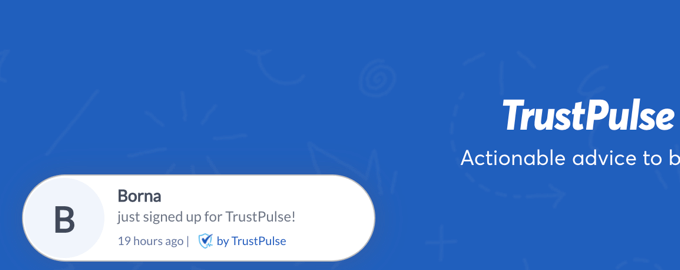
Now, let’s look at how to create a live sale notification on your WooCommerce store.
Here are the topics we’ll cover:
Let’s get started.
Step 1: Install the TrustPulse Plugin
The first thing you need to do is install the FOMO & Social Proof Notifications by TrustPulse plugin. To learn more, see our step-by-step guide on how to install a WordPress plugin.
TrustPulse is a powerful social proof plugin that displays recent customer interactions on your website to grow trust, boost conversions, and increase sales.
Here’s why we like to use TrustPulse to create live sales notifications:
- It works great with WooCommerce and other eCommerce platforms like Shopify
- The plugin comes with a user-friendly visual builder that allows you to create FOMO popups proven to convert visitors
- You can show more than just recent sales, such as email signups and user registrations
- ‘On-fire’ campaigns display how many people purchased a specific product during a set time period.
- Popups are clickable to boost sales, upsells, and cross-sells
- Smart-targeting features to show popups at the right time and place
We have thoroughly tested the tool in our demo environment and have found it to be super beginner-friendly. If you need more information about our experience, then take a look at our complete TrustPulse review.
Note: There is a premium version of TrustPulse with more advanced features like analytics notifications, priority support, and sub-accounts.
However, we will use the free plugin for this tutorial since it offers everything needed to set up basic live sale notifications.
Upon activation, you’ll be taken to the TrustPulse page of your WordPress admin area. Here, you can click on a button to create a free account or connect your existing TrustPulse account if you already have one.
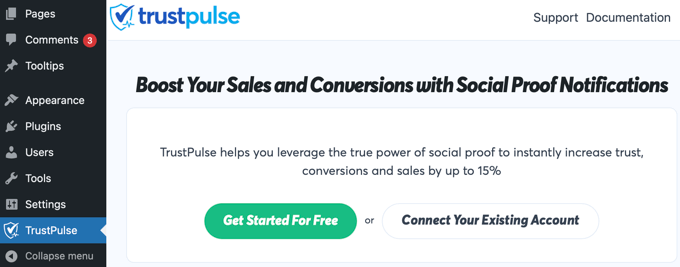
Note: TrustPulse does ask for a credit or debit card for the free account. This is just for verification and to make future upgrades easier if you choose to. You will not be charged for using the free plan.
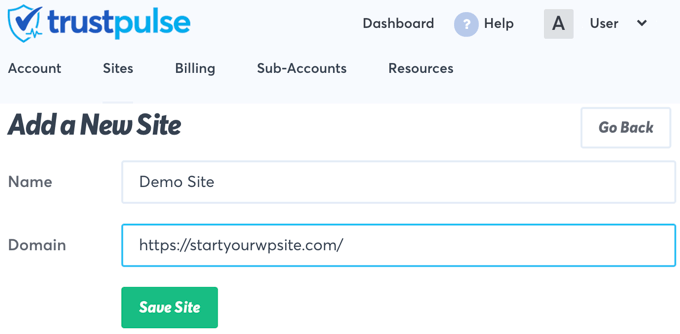
Once you’ve signed up for TrustPulse, you’ll be asked to add your website details. You’ll need to enter the name of your WordPress site and also its URL. When you’re done, you should click the green ‘Save Site’ button.
Step 2: Create a WooCommerce Live Sale Campaign
Now that you’ve added your WooCommerce site to TrustPulse, the next step is to create a campaign.
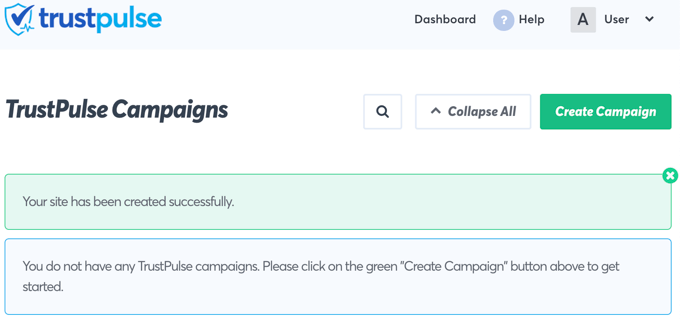
Simply click the ‘Create Campaign’ button at the top right of the screen.
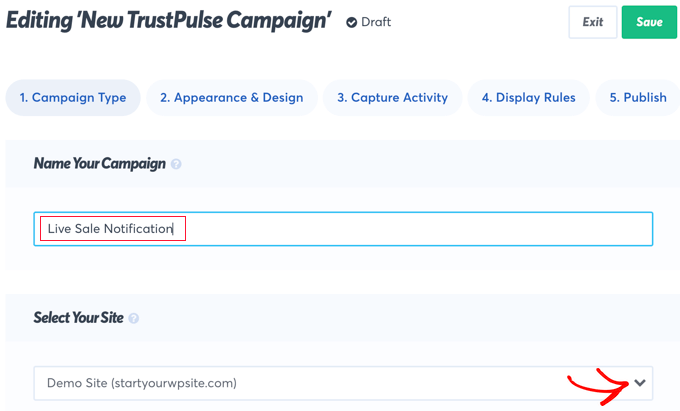
The first thing you need to do is give the campaign a name. We’ll call it ‘Live Sale Notification.’
After that, if you have more than one website connected to TrustPulse, then you’ll need to select the correct online store from the drop-down list.
Next, you should scroll down to the section labeled ‘Select Your Campaign Type’ and then select the ‘Recent Activity’ option.
This will create notifications of purchases, registrations, and signups on your online store.
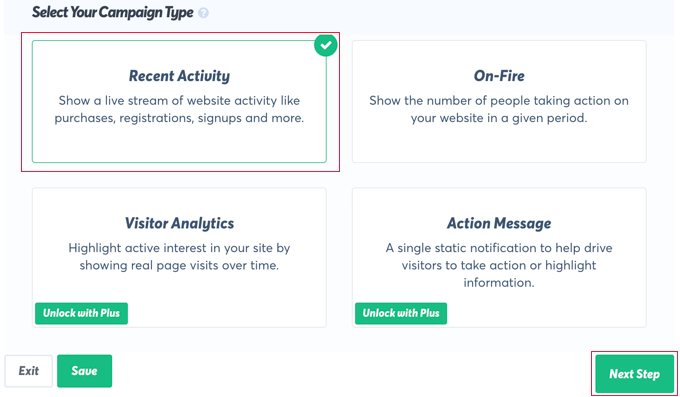
After that, simply click on the ‘Next Step’ button at the bottom right of the screen.
On the next screen, you can customize the design and appearance of your live sale notification.
For this tutorial, we’ll stay with the default settings, but feel free to make adjustments to suit your own online store.
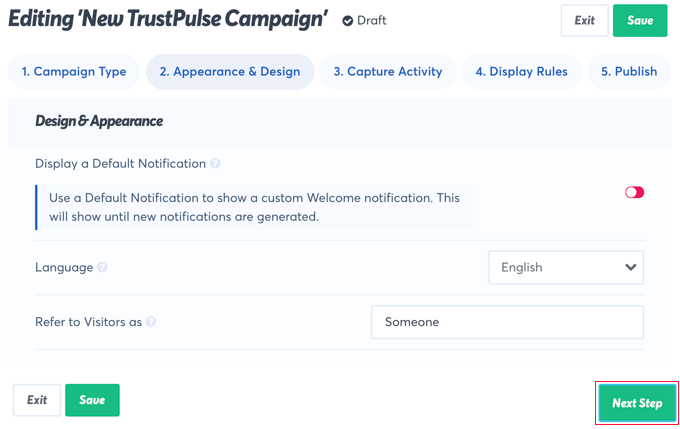
These settings include the language to use, the way you refer to your visitors, the link that will be used when visitors click on the notification, the size and position of the notification, and much more.
Also, you can expand to the advanced settings area if you want to customize the background color, border, and drop shadow. That way, you can match your website’s branding to your live sales notifications.
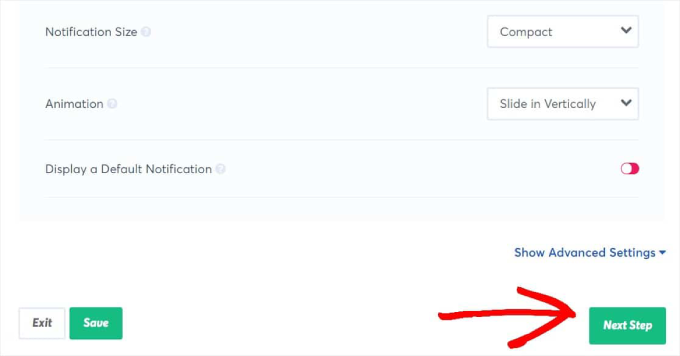
When you’ve finished customizing the notification, you should click on the ‘Next Step’ button.
You’ll now be asked to decide where TrustPulse will find the information to include in the live sale notifications. For this tutorial, we’ll select ‘WooCommerce Orders.’
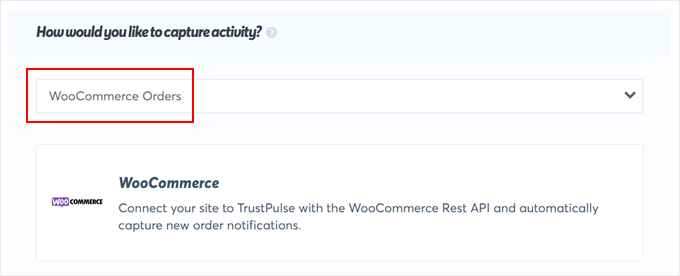
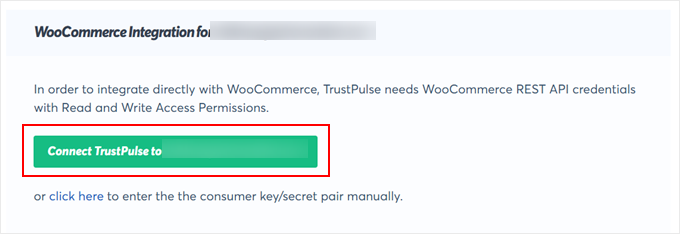
Next, you should scroll down to the section labeled ‘WooCommerce Integration for [website name].’
Go ahead and click ‘Connect TrustPulse to [website name]’ to begin.
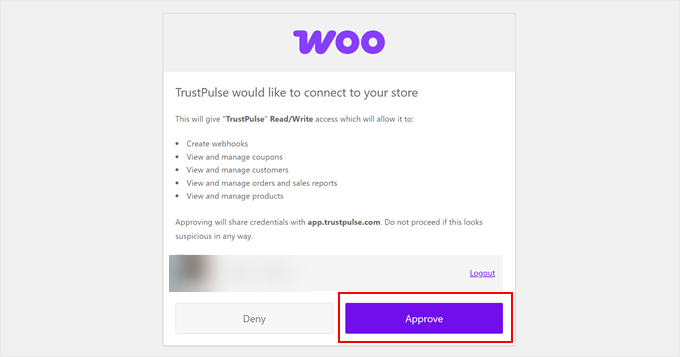
A new tab will now open, asking you to allow TrustPulse to be connected with WooCommerce.
Click on the ‘Approve’ button to continue.
After that, you will be redirected back to the TrustPulse website to continue with the notification setup.
The next step is to click on the ‘Create new webhooks’ button.
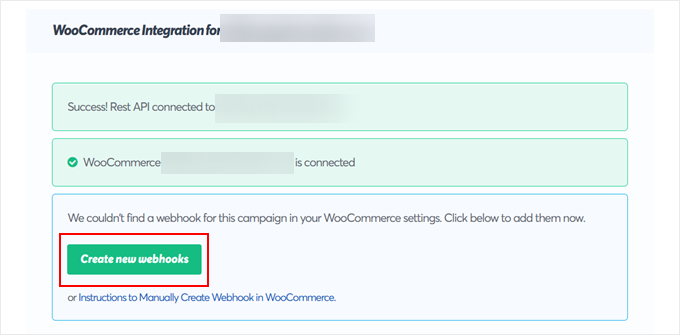
TrustPulse will then create new webhooks in your WooCommerce plugin. Think of these as automatic messengers that tell TrustPulse right away when a new sale happens in your store.
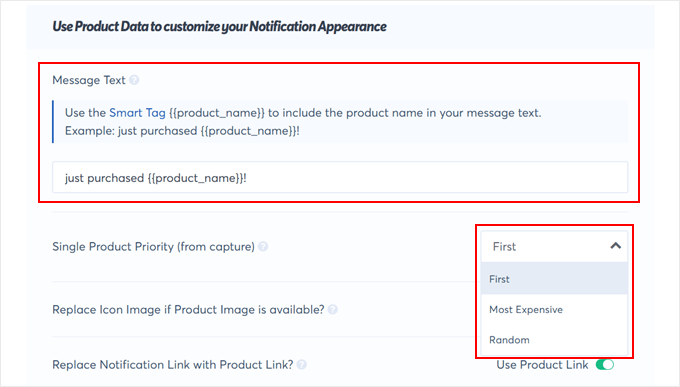
With that out of the way, we can customize the notification message of your WooCommerce orders. In the Message Text field, you can change the default text to something like ‘just purchased {{product_name}}!’
The {{product_name}} merge tag will automatically be replaced with the product name that the customer just bought. This makes the copy a lot more personalized and dynamic.
You can also choose whether to capture the first product order, the most expensive one, or just a random order.
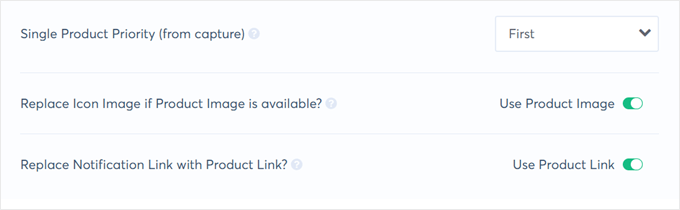
Another setting you can enable is whether to replace the image of the notification if the product image is available, and replace the notification link with the product link.
We recommend activating them both. Having the product image displayed can show users exactly what item was purchased, and using the product link can make users visit the product page as soon as they see the notification.
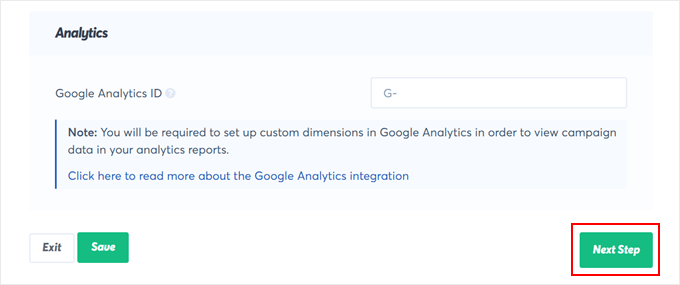
Finally, you can optionally add your Google Analytics ID if you want to integrate the notification with Google Analytics. You can do this if you’ve set up WooCommerce conversion tracking beforehand.
Otherwise, click ‘Next Step.’
Step 3: Choose Where to Display the Live Sales Notification
The next page allows you to decide how the notifications will be displayed. The first question is, ‘Where should we display your notifications?’
If you want live sale notifications displayed everywhere on your site, go with the default setting ‘Display on any page.’
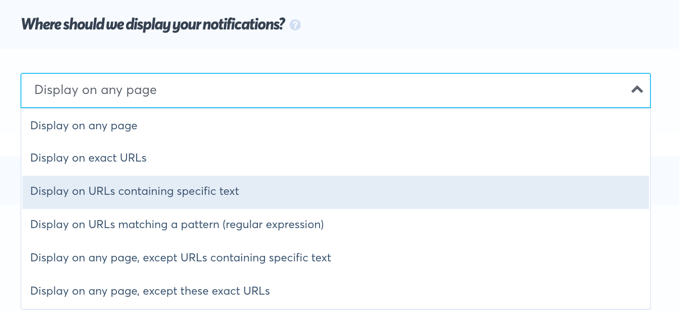
However, if you only want to show live sale notifications on specific pages or products, then you can choose to display them on certain URLs. You can even set it up so that your FOMO notifications will only appear on URLs containing particular text or matching a specific pattern.
After that, you should scroll down to the ‘Notification Settings’ section. Here, you can decide how long to delay your notifications and how long to display them.
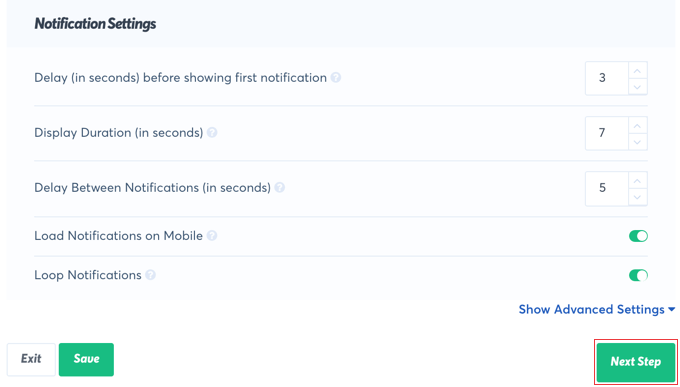
You can also determine whether to show them on mobile and whether to loop them.
In this tutorial, we’ll stay with the default settings, but you can make any changes you like. After that, you’ll need to click the ‘Next Step’ button. You’re almost finished!
Step 4: Publish the WooCommerce Live Sales Notification
The last step is to publish your live sale notification. On this final page, you will need to connect TrustPulse to your website using an embed code.
First, copy the code provided on the page.
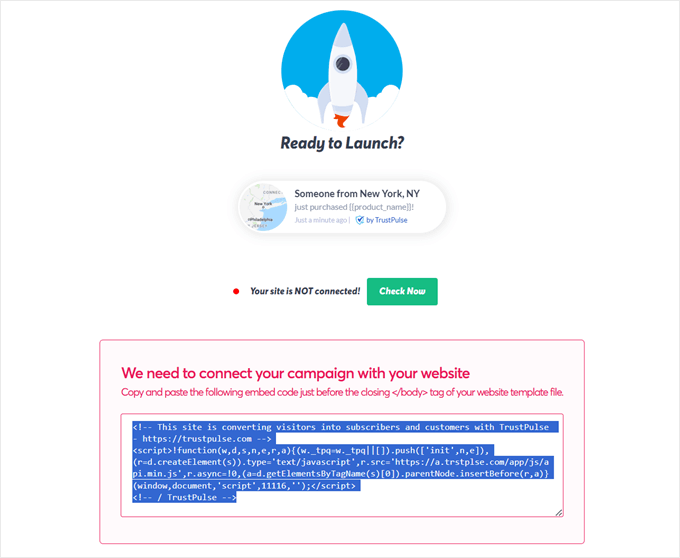
The easiest and safest way to add this code to WordPress is by using the free WPCode plugin.
It allows you to add custom code snippets without editing your theme files, which can prevent errors.
You’ll need to install and activate the WPCode plugin. For more details, see our guide on how to install a WordPress plugin.
Note: While you can use WPCode’s free plan for this tutorial, upgrading to its paid version will give you access to advanced features like a cloud library of code snippets, smart conditional logic, block snippets, and more.
Once activated, go to Code Snippets » + Add Snippet from your WordPress dashboard. Here, find the ‘Add Your Custom Code (New Snippet)’ option and click the ‘Use snippet’ button.
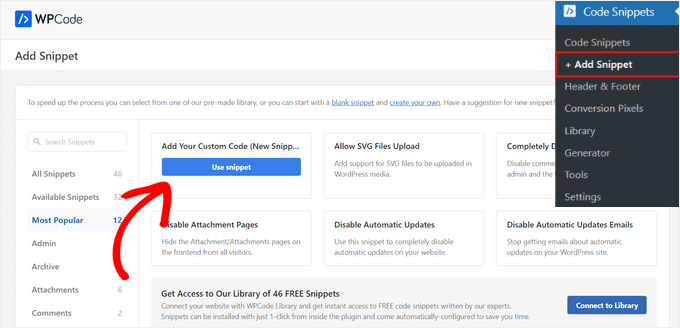
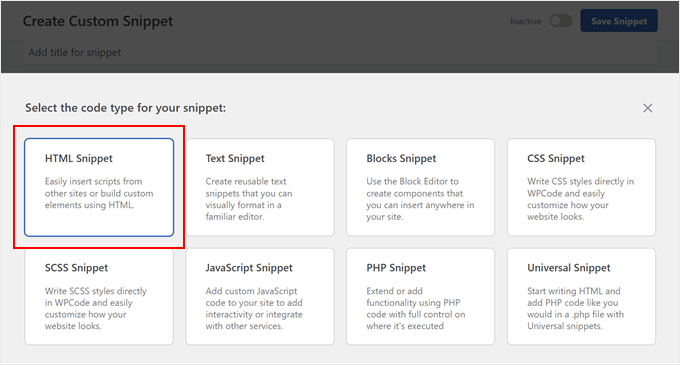
Next, you will need to choose ‘HTML Snippet’ as the code type.
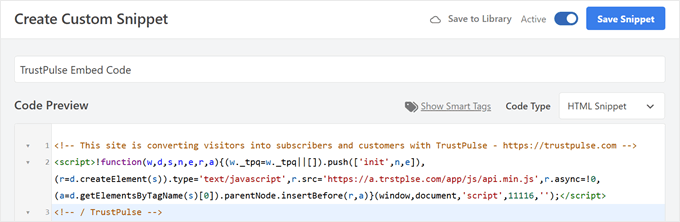
After that, give your snippet a title, like ‘TrustPulse Embed Code.’
This will only be for your identification so you can easily locate the snippet if you ever want to edit, disable, or delete it.
Then, paste the code you copied earlier into the ‘Code Preview’ box.
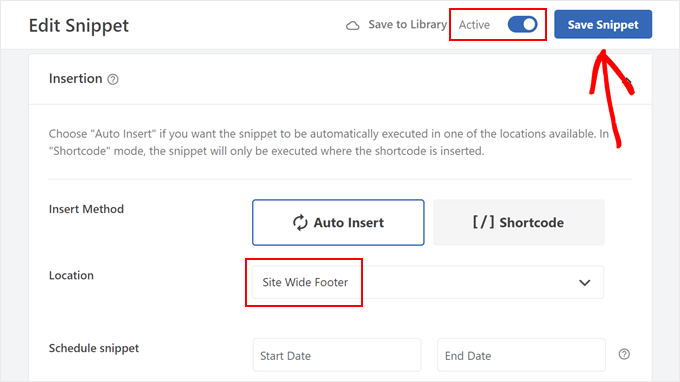
Now, scroll down to the ‘Insertion’ section. Make sure the ‘Insert Method’ is set to ‘Auto Insert’ and the ‘Location’ is set to ‘Site Wide Footer.’
This will add the code to all pages of your website.
Finally, toggle the switch at the top from ‘Inactive’ to ‘Active’ and click the ‘Save Snippet’ button.
With the code added, you can now return to the TrustPulse website. Simply click the green ‘Check Now’ button to verify the connection.
Once TrustPulse confirms the connection is successful, just click the ‘Launch your TrustPulse campaign’ button to push it live.
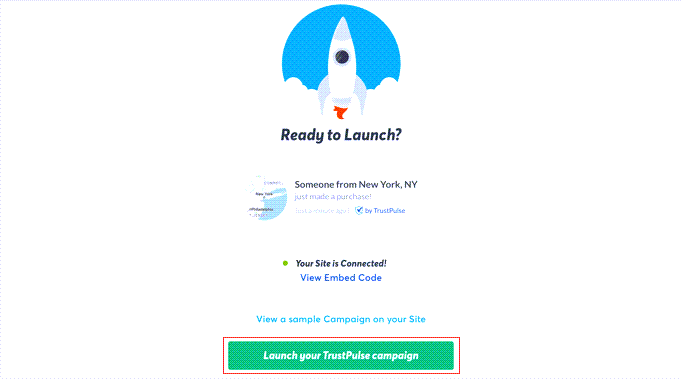
Note: Sometimes, it takes a few minutes to complete the connection to your site. You can test whether your site is connected by clicking the green ‘Check Now’ button.
Congratulations! Your customers can now see live notifications when other customers purchase items from your store. If you’d like to make any changes to the campaign, then you can go back and change the settings at any time.
Bonus: Create Coupons for Your WooCommerce Store
Other than live sale notifications, another way to increase sales in your store is to offer discount coupons. This will allow you to clear your inventory, encourage repeat purchases, and attract new customers.
You can create BOGO (Buy One Get One) coupons, URL coupons, scheduled coupons, gift coupons, and more.
To do this, you need to use the Advanced Coupons plugin. It is the best WordPress coupon plugin that lets you create all kinds of coupons, rewards, and discounts in just a few minutes.
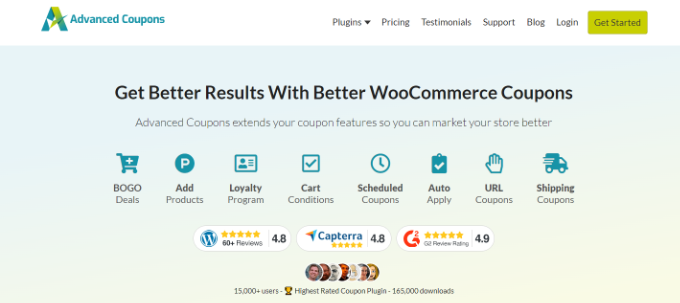
Plus, you can offer free shipping, set a coupon expiry date, add usage restrictions, generate coupon codes, and view coupon history with the tool.
For more information, see our tutorial on how to create smart coupons in WooCommerce.
Video Tutorial
Frequently Asked Questions (FAQ)
Here are some questions frequently asked by our readers about creating live sale notifications in WooCommerce:
What is the best plugin for live sale notifications in WooCommerce?
TrustPulse is the best plugin for live sale notifications. It is easy to use, connects directly with WooCommerce, and lets you customize the appearance of your notifications without any code.
Do live sale notifications actually work?
Yes, they are very effective. Live sale notifications use social proof and FOMO (fear of missing out) to show visitors that other people are actively buying from your store. This builds trust and encourages new customers to make a purchase.
Can I customize the design of my sales popups?
Absolutely. With a tool like TrustPulse, you can easily change the colors, text, position, and timing of your notifications. This helps you match the popups to your store’s branding for a consistent look.
We hope this tutorial helped you learn how to create a live sale notification for WooCommerce. You may also want to learn how to add a free shipping bar in WooCommerce or check out our expert pick of the best WooCommerce plugins for your store.
If you liked this article, then please subscribe to our YouTube Channel for WordPress video tutorials. You can also find us on Twitter and Facebook.


Dennis Muthomi
Love this guide! The TrustPulse setup instructions are super clear and easy to follow. I’m really impressed with how well it explains the notification design customization – it’s great for matching your brand’s look.
Here’s a helpful tip I’ve found: Try showing these notifications just on product pages or checkout. It’s more targeted and really helps create that FOMO effect!
Thanks for putting this together!