


Venmo has become a popular way to pay in the U.S., with millions of people using it for everything from casual transfers to online purchases.
If your WordPress or WooCommerce store serves U.S.-based customers, adding Venmo at checkout can make the payment process quicker and more convenient.
We’ve seen U.S.-based stores benefit from adding Venmo. And the best part? Setting it up is easier than you might expect.
In this guide, we’ll show you the easiest way to add Venmo to your site, so you can create a more user-friendly experience without any complicated setup.

Why Use Venmo as a Payment Gateway?
Venmo is a popular mobile payment service owned by PayPal, which is the most popular and trusted online payment gateway in the world. Currently, Venmo is only available in the U.S.
If you have a WooCommerce store in the United States, then adding Venmo as a payment gateway can be a great option because it allows your customers to make a purchase from their mobile phones without any hassle.
Not only does Venmo easily connect with users’ bank accounts, but the service also does not charge any fees for sending money from your Venmo balance or linked balance. These are big reasons why many U.S. residents opt for this mobile payment app.
Popular brands like Amazon, Macy’s, Walmart, and Samsung also offer Venmo as a payment gateway to their customers. With that being said, let’s see how you can easily add Venmo to WordPress.
It can also be especially beneficial for service-based businesses. For example, restaurants, barbershops, photographers, and other small businesses may prefer to accept Venmo to save on transaction fees.
Now, let’s take a look at how to set up Venmo payments in WordPress and WooCommerce:
Method 1. Add Venmo in WordPress Using Payment Plugins Braintree
You can seamlessly integrate Venmo with your WooCommerce store using the Payment Plugins Braintree For WooCommerce plugin.
This WooCommerce plugin allows you to easily add Venmo as a payment gateway to your online store.
First, you need to install and activate the Payment Plugins Braintree plugin. For further instructions, check out our guide on how to install a WordPress plugin.
Head over to Braintree Gateway » Settings from your WordPress admin dashboard upon activation.
This will actually direct you to the WooCommerce ‘Payments’ page. You can also reach this page by heading to WooCommerce » Settings. The only difference will be that if you go through the WooCommerce menu item, the page will not have the Braintree logo.
Here, you will see all the Braintree gateways that you can integrate into your site.
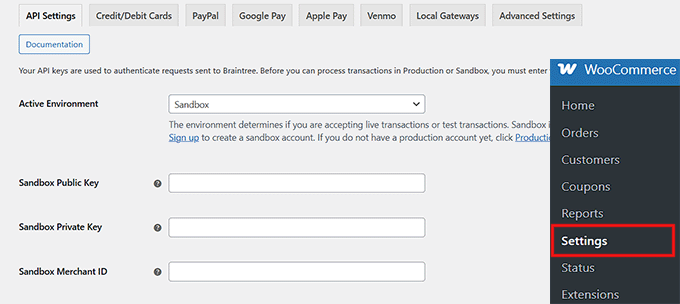
Before you can enable Venmo, you must connect the plugin to Braintree. Click on the ‘API Settings’ tab.
You need to enter your Merchant ID, Public Key, and Private Key. You can find these keys inside your Braintree account dashboard.
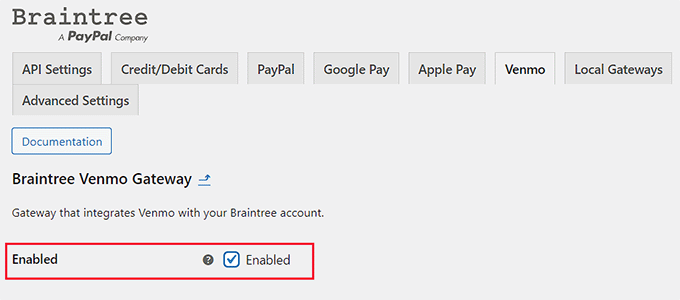
Once you have pasted the keys and saved your settings, simply click the ‘Venmo’ tab.
Now that you’re on the ‘Braintree Venmo Gateway’ tab, you will see an ‘Enabled’ checkbox at the top.
You need to make sure that it is checked. This plugin will allow your site to accept Venmo payments.
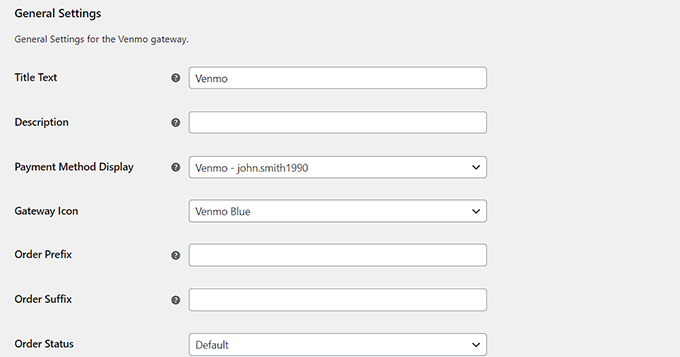
Next, go to ‘General Settings’ and fill in the details to set up your Venmo Gateway. For example, you can change the title or icon that appears to users or add a short description of the payment method.
After that, you can save your changes by clicking the ‘Save Changes’ button at the bottom of the page.
Now, Venmo has been added to your WordPress site, and you’re ready to accept payments in WooCommerce.
Method 2. Add Venmo in WordPress Using the Get Cash Plugin
Do you want a simple way to accept Venmo payments without a complex setup? The Get Cash plugin is a good choice for manual payments.
This lightweight plugin displays your Venmo QR code using a shortcode. It does not process payments automatically like the Braintree method above.
Instead, the customer scans the code and pays you. You must manually check your Venmo app to verify you received the funds before you process the order.
The first thing you need to do is install and activate the Get Cash plugin. For help, check out our guide on how to install a WordPress plugin.
Upon activation, visit the ‘Get Cash’ page from the WordPress dashboard and add your Venmo username in the ‘Add your Venmo username’ field.
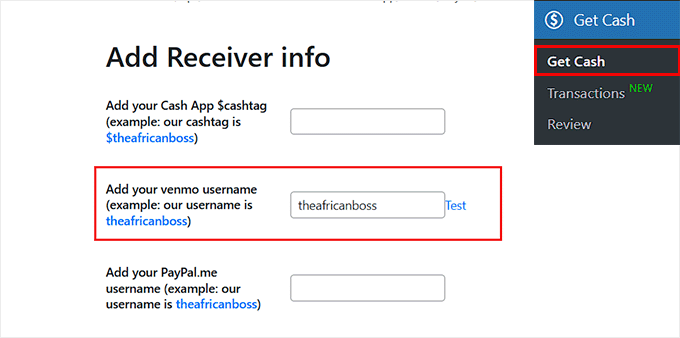
Once you do that, just scroll down and click the ‘Save Changes’ button.
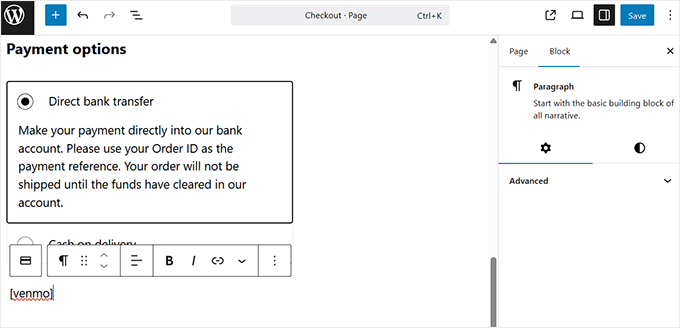
Next, open your WooCommerce checkout page in the block editor and head to the ‘Payment Options’ section.
Here, simply type the following shortcode in a paragraph block.
[venmo]
Pro Tip: We recommend asking customers to include their Order Number in the Venmo payment note. This helps you match the incoming money to the correct WooCommerce order.
After that, click the ‘Update’ or ‘Publish’ button to store your settings.
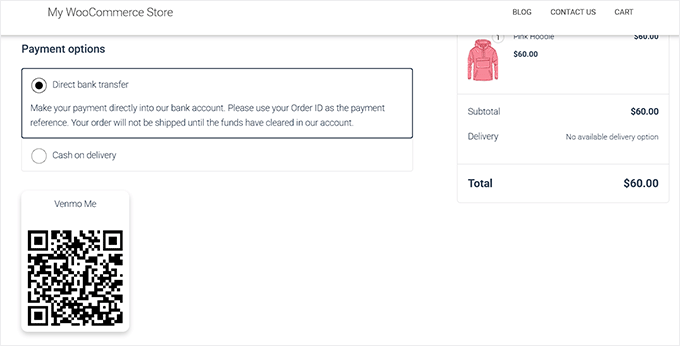
Now, when you visit your WooCommerce store, you’ll see the Venmo QR code added as a payment option.
Bonus: How to Set Up Installment Payments in WooCommerce
Now that you’ve added Venmo to WooCommerce, you may want to also add a ‘buy now, pay later’ option for customers.
Installment payments allow customers to split their purchases into smaller, more manageable payments over time rather than paying the full amount upfront.
This will boost sales and conversions, making high-priced products more accessible and differentiating your online store from competitors.
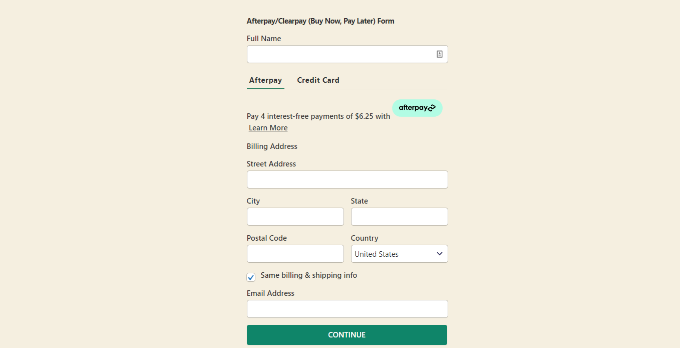
All you have to do is install a Stripe payment plugin that supports installment plans.
We recommend WP Simple Pay. It supports buy now, pay later plans and 13 different payment methods in 135+ currencies.
It is the best option for creating standalone payment forms with installment options. This works differently than the native WooCommerce checkout but is very effective for landing pages.
If you are interested in learning more, just follow our guide on how to set up installment plans for WooCommerce.
Frequently Asked Questions About Venmo in WordPress
Here are some questions that our readers have frequently asked about adding Venmo on their websites:
Can I put a Venmo link on my website?
Yes, you can easily add a Venmo link. You can simply link to your profile URL (e.g., venmo.com/u/yourusername) or use a plugin like Get Cash to display a scannable QR code on your sidebar or checkout page.
Are PayPal and Venmo the same?
No, they are not the same, though PayPal owns Venmo. PayPal is a global payment platform, while Venmo is a mobile-first app designed specifically for users in the United States to share payments socially.
Can I use Venmo on a web browser?
Yes, but functionality is limited compared to the app. You can sign in via a web browser to view transactions, but the payment experience is optimized for mobile devices.
What websites allow Venmo?
Many major U.S. retailers accept Venmo, including Amazon, Walmart, and Target. Additionally, most small business websites that use PayPal Checkout or Braintree can accept Venmo payments.
Is there a Venmo API?
There is no direct public API for general users. Instead, developers and store owners verify and process Venmo transactions through the Braintree API or PayPal’s developer tools.
How much does Venmo take from $100?
If you are using a Venmo Business Profile, the fee is typically 1.9% + $0.10. So, for a $100 transaction, Venmo would take approximately $2.00, and you would receive $98.00.
Can I automate a Venmo payment?
No, you cannot automate sending payments to others for security reasons. However, you can automate accepting payments on your WordPress site using WooCommerce integrations like Braintree, which automatically records the order.
That’s it! We hope you learned how to add Venmo to WordPress and WooCommerce. You may also want to check out our ultimate WooCommerce SEO guide and our expert picks for the best WooCommerce plugins to help grow your store.
If you liked this article, then please subscribe to our YouTube Channel for WordPress video tutorials. You can also find us on Twitter and Facebook.




kzain
This is informative for understanding how to potentially accept Venmo payments on WooCommerce!
The Braintree gateway with Venmo integration seems like a complete solution.