


Our readers often complain about endless password reset requests and getting locked out of their accounts. That is why many of them turn to a secure and user-friendly login alternative: passwordless authentication using magic links.
We’ve seen several websites use this feature and improve the user experience.
Your users simply enter their email address, click a button, and a unique login link is delivered straight to their inbox.📬
They never need to memorize passwords or struggle with two-factor authentication. They’ll have a simple and secure way to access your WordPress site.
In this article, we will show you how to add a magic login link for passwordless login. That way you can give your users a smoother, more enjoyable login experience.
💡Quick Answer: How to Add Passwordless Login in WordPress
The easiest way to add passwordless login to WordPress is by installing the Magic Login plugin. Upon activation, it automatically adds a “Send me the login link” button to your standard WordPress login form.
Users can then simply click a secure link sent to their email to access their account without typing a password.
Why Use Passwordless Login in WordPress?
Passwordless login improves both security and user experience by removing the need for users to remember complex credentials.
Instead of typing a password, users verify their identity through a secure link sent to their email. Here are the main benefits of using magic links on your WordPress site:
- Better Security: Magic links are one-time use and expire quickly. This makes it much harder for hackers to use brute force attacks to guess a login.
- Eliminates Weak Passwords: Users cannot set weak passwords like “123456” or reuse compromised credentials from other sites.
- Reduces Support Requests: You will receive fewer “forgot password” emails, saving your support team time.
- Faster Access: Users simply click a link in their inbox to log in immediately. This reduces friction and can lower cart abandonment rates in eCommerce stores where customers need to log into their accounts.
With that being said, let’s take a look at how to add a passwordless login in WordPress with Magic links.
How to Add Passwordless Login in WordPress With Magic Links
The first thing you need to do is install the Magic Login – Passwordless Authentication for WordPress plugin.
For more details, see our step-by-step guide on how to install a WordPress plugin.
Upon activation, the plugin will automatically add a ‘Send me the login link’ button to your standard login screen.
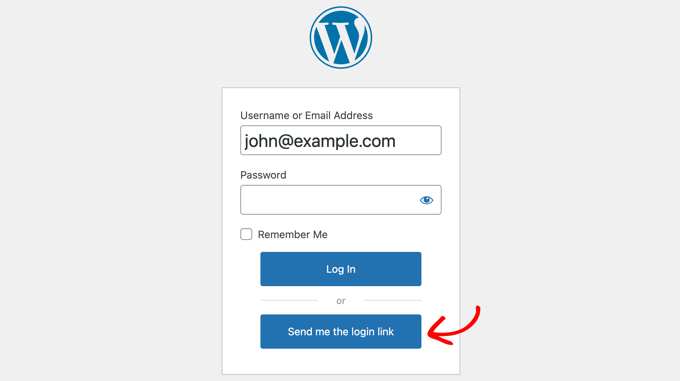
This will let your users sign in using their username (or email) and password if they remember it or request a magic link if they don’t.
If there is a valid account on your website for the username or email address entered, then the user will receive an email with a link to log in.
The link will work for 5 minutes and then expire. If you need, you can change the link’s lifespan in the plugin’s settings, as we show below.
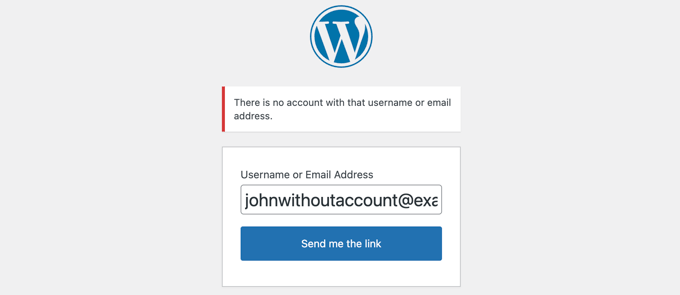
If there is no account on your website with the username or email address that was entered, then an error message will be displayed instead.
Configuring the Magic Link Plugin
You can configure the Magic Link plugin by visiting Settings » Magic Login in your admin sidebar.
This page contains all of the options for the plugin, including premium options that can be used by Pro users.
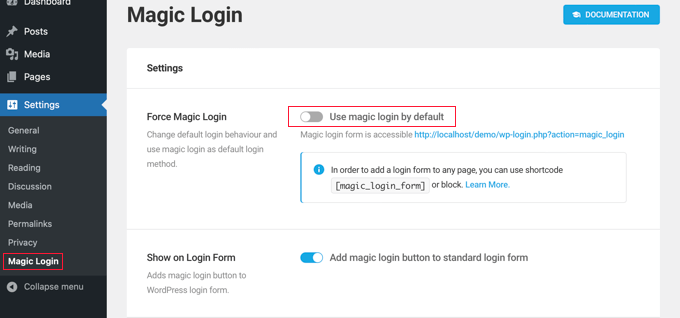
The first option is called ‘Force Magic Login.’ When enabled, your users will not be given the option of signing in with a password.
They simply enter their username or email address and then click the ‘Send me the link’ button. A magic link will be emailed to their inbox.
Important: Do not enable this option unless you have verified that your site sends emails correctly. If email delivery fails, you will be locked out of your admin dashboard. We recommend using WP Mail SMTP to ensure high deliverability.
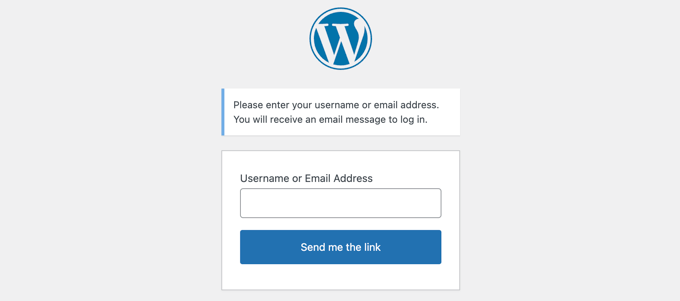
Alternatively, you can use the shortcode [magic_login_form] to add a magic link login form to any page or widget. See our guide on how to add a shortcode in WordPress for details.
The second option is enabled by default and adds a magic login button to the standard login form. When this switch is toggled off, the magic link button is removed from that login form.
The next two options are related to security. By default, the Token Lifespan setting makes magic links expire after 5 minutes.
We recommend keeping this setting short. However, you can increase it to 10 or 20 minutes if your site emails are taking a long time to arrive in user inboxes.
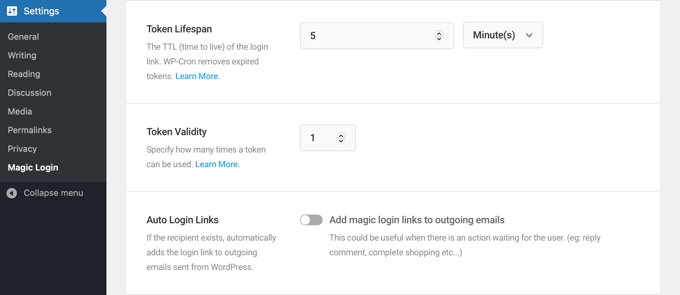
The Token Validity setting is set to 1 by default. This means that each magic link will work for a single login. We recommend you keep this setting.
Next comes a feature called ‘Auto Login Links.’ When enabled, a magic link will be added to all emails sent out by WordPress, such as WooCommerce order confirmations, automated coupons, and comment notifications.
The user will be logged in automatically after clicking the magic link inside the email.
After that comes a number of premium features for Pro users. These include:
- Brute Force Protection
- Login Request Throttling
- IP Check
- Domain Restriction
- Email Subject
- Email Content
- Login Redirection
There is also a button for all users that will reset the tokens.
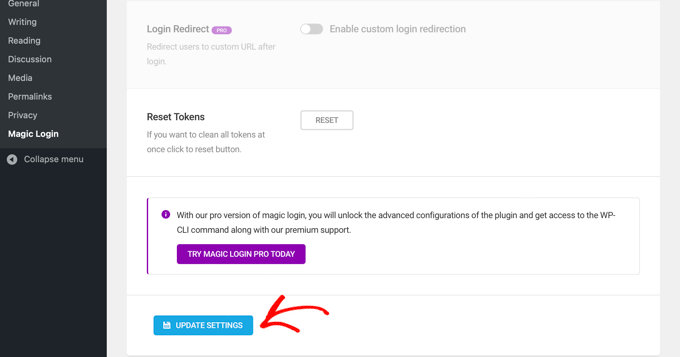
Once you have finished configuring the plugin, make sure you click the ‘Update Settings’ button at the bottom of the page to store the settings.
Video Tutorial
If you don’t like written instructions, then just watch our video:
Frequently Asked Questions About Passwordless Login
Having helped thousands of users with their WordPress sites, we’ve answered many questions about login security.
Here are some of the most common ones we receive about using magic links.
Are magic links more secure than passwords?
Yes, in many ways magic links are more secure. They are unique, single-use tokens that expire quickly, which protects against common password-related threats like brute force attacks or users reusing weak passwords.
Since the link is sent to a user’s verified email account, it confirms they have access to that inbox, acting as a secure method of authentication.
Can users still log in with a password after setting up magic links?
By default, the plugin adds the magic link option alongside the standard username and password fields. This gives your users the choice of which method to use.
However, if you want to go fully passwordless, you can enable the ‘Force Magic Login’ option in the plugin’s settings to remove the password field completely.
What if a user doesn’t receive the magic link email?
If a user doesn’t receive the email, the first step is to have them check their spam or junk folder. If the problem persists, it likely means your WordPress site is having trouble sending emails reliably.
We strongly recommend using an SMTP service to fix this. You can easily set one up with the WP Mail SMTP plugin to ensure your emails are delivered correctly.
To get started, see our tutorial on how to set up WP Mail SMTP with any host correctly.
Expert Guides for WordPress Login
We hope this tutorial helped you learn how to add a magic login link for WordPress.
You may want to see some other guides on improving the WordPress login experience:
- How to Create a Custom WordPress Login Page (Ultimate Guide)
- How to Add One-Click Login With Google in WordPress
- How to Add CAPTCHA in WordPress Login and Registration Form
- How to Add Two-Factor Authentication in WordPress (Free Method)
- How to Add Security Questions to the WordPress Login Screen
- How and Why You Should Limit Login Attempts in WordPress
- How to Redirect Users After Successful Login in WordPress
- Best WordPress Login Page Plugins (Secure & Customizable)
- How to Remove the Login Shake Effect in WordPress (Updated)
- How to Add a Custom Login URL in WordPress (Step by Step)
- How to Require Login to View a Page in WordPress
- How to Bypass WordPress Login (7 Expert Tips)
If you liked this article, then please subscribe to our YouTube Channel for WordPress video tutorials. You can also find us on Twitter and Facebook.





Rob Phillips-Legge
Emailing a link is a bit old fashioned. My preference is for biometrics. I’ve got fingerprint ID on my Windows and Mac desktop machines, facial recognition on my Surface Pro and iPad Pro and fingerprint recognition on my phone. These are the devices I log in from and I had to use the built-in security to be able to use them. Most Apps happily use Biometrics as do Microsoft and Google.
Mrteesurez
You said it is different from “temporarily login”, I have understood temporarily login, but I want to figure out this passwordless login, as I am seeing this one now, users will already be a registered users but forget his password then go for “send login link” and the link expired at one click ? Am I correct.
WPBeginner Support
That is correct
Admin
Dennis Muthomi
I run an online store, and the statistic that 75% of users quit when they forget and need to reset their password might explain why my conversion rate for new prospects has been low.
the hassle of creating a new password is likely causing shopping cart abandonment. I’ll definitely give the Magic Login plugin a try to see if implementing passwordless login improves things.
thanks for sharing this valuable tip! seriously!!
Mrteesurez
Thanks for the insight! I can totally relate to this issue. I have never thought a password reset frustrations could be a significant factor in cart abandonment. Implementing the Magic Login plugin for a passwordless login experience sounds like a game-changer. I’m eager to try it out too. Thanks for sharing this valuable tip, it’s seriously something that could make a big difference for many of us!
Jiří Vaněk
So my understanding is that this is basically a lot like the password reset link for a forgotten password? Just with the difference that the user does not have to change the password and just logs in using the link?
WPBeginner Support
Correct!
Admin
Jiří Vaněk
Thank you for confirming my assumption. This system is very useful to me, and it’s great that I came across this excellent guide. I will save it because I have needed this function more than once and have dealt with it in a completely different way.
Kim Nisbet
Hi I have setup the trail version and was wondering if I need to setup SMTP Mail as well? The link is coming into my email box, but I have used other plugins where they go to the Junk/Spam folder, which is what I am trying to avoid.
WPBeginner Support
There is no guarantee that an email will reach an inbox but adding SMTP would help as it lets the email provider know it is a more trustworthy source than a general email.
Admin