


Adding animated GIFs is a fun way to show personality in your blog posts. At WPBeginner, we often use them to make our tutorials more relatable.
However, uploading large GIF files can slow down your website significantly. A slow site hurts your user experience and SEO rankings.
Luckily, you can embed GIFs directly from Giphy to solve this problem. This saves bandwidth and keeps your pages loading fast.
In this guide, we will share two easy ways to add GIFs from Giphy in WordPress.

Pros and Cons of Using Animated GIF Images in WordPress
Using animated GIFs (Graphics Interchange Format) can be a fun and engaging way to enhance your content.
They are perfect for adding animated reactions, memes, and pop culture references to your WordPress site. This can help increase pageviews and reduce your blog’s bounce rate.
However, there are some downsides. GIF files are large. They can take up a lot of space in the WordPress media library, slow down your website, and use up your bandwidth. This is bad news for the user experience and can also affect your search engine rankings and traffic.
That’s where Giphy comes in. Serving your animated GIF images via Giphy will save you your web hosting plan’s bandwidth. It will also have less impact on your WordPress loading time and performance.
What’s more, Giphy has a large collection of funny and relatable GIFs, making it great for adding a touch of humor and personality to your content.
Having said that, let’s take a look at 2 beginner-friendly ways to use GIFs from Giphy in WordPress. Simply click the links below to jump to the method you prefer:
Note: This tutorial is for adding GIF images from Giphy. If you want to add your own GIF images to the media library, then check out our step-by-step guide on how to add animated GIFs in WordPress.
Method 1: How to Add GIFs From Giphy Using an Embed Code (No Plugin)
One option is to add the GIF to a page or post using its Giphy embed code.
Since you are using an embed code, you don’t need any special WordPress plugins. However, getting the embed code takes a few extra steps.
If you only want to add a small number of GIFs to your website, then these extra steps might not be a problem. However, if you are planning to use lots of GIFs, it may be worth installing a plugin that will make this process easier.
To add a GIF using its embed code, head over to the Giphy.com website. Then, find the GIF that you want to use.
You can now click on the ‘Embed’ button.

Giphy will now show the embed code for this GIF.
At this point, you can choose between ‘Responsive Off’ and ‘Responsive On’.
We recommend choosing ‘Responsive On’. This ensures that your animated GIF scales correctly and looks great on mobile devices as well as computer screens.
For example, responsive WordPress themes automatically adjust themselves to the user’s screen size.
With that in mind, it’s a good idea to choose ‘Responsive On’.
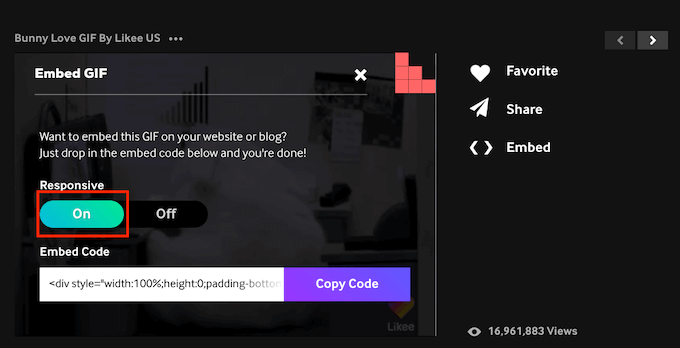
After making your decision, copy the embed code by clicking the ‘Copy Code’ button.
Now it’s time to switch over to your WordPress admin area. Here, simply open the Gutenberg editor for the page or post where you want to embed your GIF.
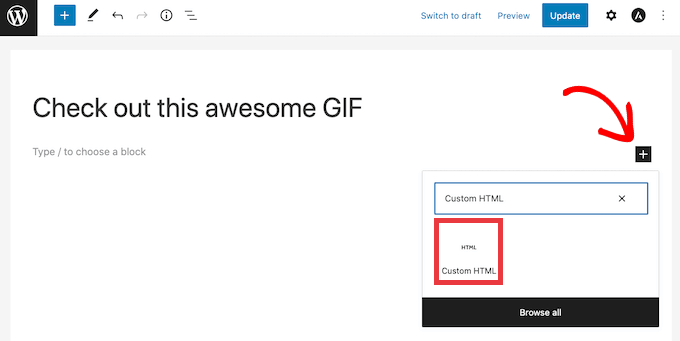
Your next task is creating a new Custom HTML block. To get started, click on the ‘+’ icon.
Then, in the popup that appears, type in ‘Custom HTML’ to find the right block. Once you click on the Custom HTML block, WordPress will add this block to your page.
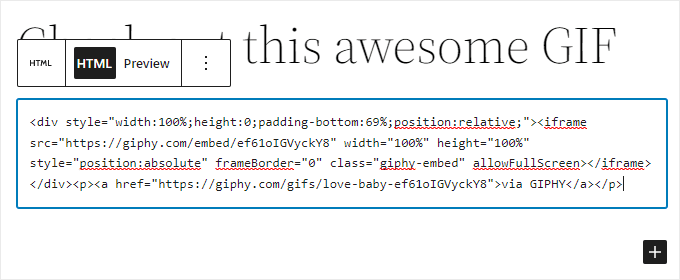
Now, you can simply paste your GIF’s embed code into the Custom HTML block.
It should look like this.
Before publishing this GIF, you may want to check how it will look to your visitors. To do this, simply click on the ‘Preview’ button at the top of the screen. WordPress will now show your page in a new tab.
If you are happy with your GIF, then you can publish this WordPress post or page. Just give the ‘Update’ or ‘Publish’ button in the block editor a click.
The GIF will now appear on your WordPress blog.
Method 2: How to Add GIFs From Giphy Using EmbedPress
If you are planning to add lots of GIFs to your website, then embed codes can become too time-consuming.
Another option is to use the EmbedPress plugin. This freemium plugin lets you embed GIFs using just their Giphy URLs.
EmbedPress also lets you embed content from over 100 other websites. These include embedding YouTube videos, PDFs, audio files, and more.
First, you’ll need to install and activate the EmbedPress plugin. We will use the free version as it has what we need for this tutorial.
If you need help, then please see our guide on how to install a WordPress plugin.
Upon activation, go to the page or post where you want to add your GIF. You can then click on the ‘+’ icon.
In the popup that appears, type ‘EmbedPress’ to find the right block.
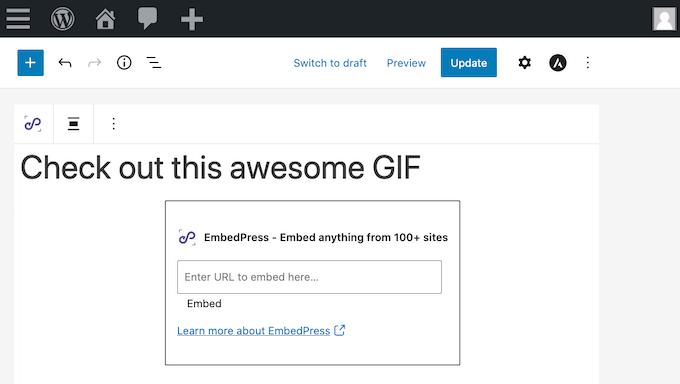
Simply give this block a click, and WordPress will add an EmbedPress block to your page.
In a new tab, head over to the Giphy website. You can then find the GIF that you want to use.
Then, simply copy this GIF’s URL.
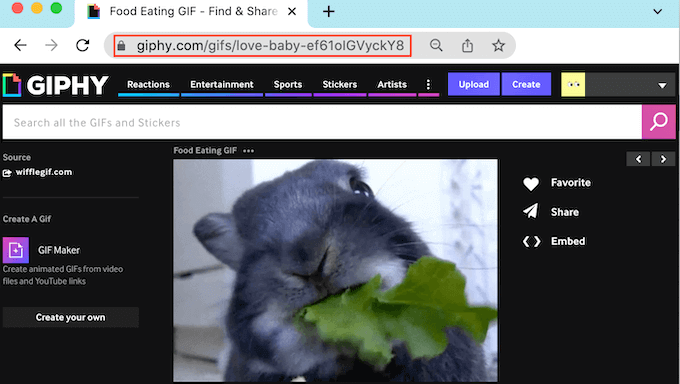
Now it’s time to switch back to your WordPress dashboard.
Here simply paste the GIF’s URL into the EmbedPress box. Finally, click on ‘Embed’.
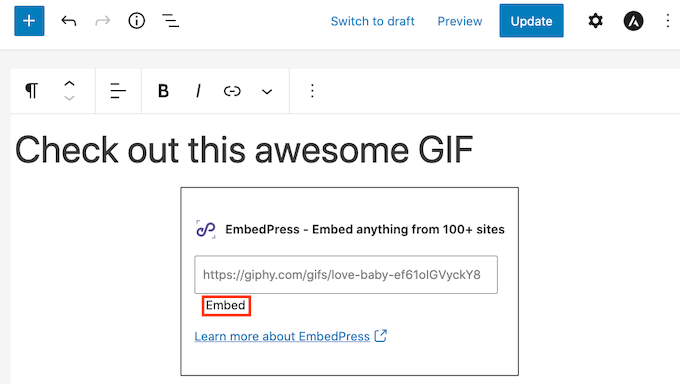
Now, if you take a look at your website, you will see your new GIF.
If you are not happy with your GIF, EmbedPress has a few settings that you may want to explore. These include changing the height and width of all the GIFs you add via EmbedPress.
To take a look at these settings, click on ‘EmbedPress’ in the WordPress sidebar.
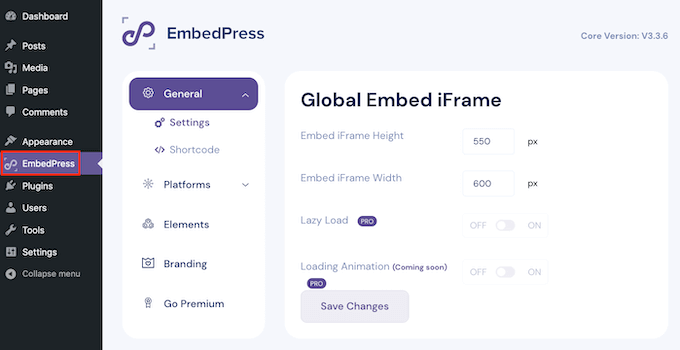
If it isn’t already selected, click on the ‘General’ tab. You can now use these settings to customize your EmbedPress embeds.
Just remember that any changes you make in this menu will affect all of your EmbedPress content.
Frequently Asked Questions About Using GIFs in WordPress
Here are the answers to some of the most common questions we get asked about adding GIFs to a WordPress website.
Will embedding GIFs from Giphy slow down my website?
Using Giphy is generally much better for performance than uploading large GIF files directly to WordPress. Because the file is served from Giphy’s servers, it saves your bandwidth and storage space. However, it still loads an external script, so we recommend only using a few GIFs per page to keep your site loading fast.
Can I create my own GIFs and upload them to WordPress?
Yes, you can absolutely upload your own GIFs to the WordPress media library. Just be mindful that GIF files are often large and can consume storage space and slow down your site if not optimized. We cover the best way to do this in our guide on how to add animated GIFs in WordPress.
Is it better to use a plugin to embed GIFs or do it manually?
This depends on your workflow. The manual embed code method is perfect if you only plan to add a GIF occasionally, as it requires no extra plugins. However, if you use GIFs frequently in your content, a dedicated plugin like EmbedPress saves time by letting you embed them with a simple URL.
What are the best practices for using GIFs on a website?
For the best results, use GIFs that are relevant to your content and add value, whether through humor or illustration. Try not to overuse them, as one or two well-placed GIFs are more effective than a cluttered page. Finally, always choose the responsive embed option to ensure your GIFs look great on all devices.
Further Reading
We hope this article helped you learn how to add GIFs from Giphy in WordPress. You may also want to see our other guides related to WordPress media and performance:
- How to Optimize Images for Web Performance Without Losing Quality
- Best File Upload Plugins for WordPress (Free & Paid)
- How to Easily Add Interactive 360 Degree Images in WordPress
- How to Fix Common Image Issues in WordPress
If you liked this article, then please subscribe to our YouTube Channel for WordPress video tutorials. You can also find us on Twitter and Facebook.


Dennis Muthomi
Love this feature! I’ve found that using Giphy URLs directly is such a time-saver. No need to mess with embed codes anymore.
Faith Oge
Hello, thanks for this great piece. I checked the giphypress plugin and discovered it was updated since 3years ago, do you think it is safe to download it?
WPBeginner Support
We have not tested it recently, in terms of how safe it is to install you would want to take a look at our article here: https://www.wpbeginner.com/opinion/should-you-install-plugins-not-tested-with-your-wordpress-version/
Admin
christine
What about copyright? I work for a company and want to add GIFs to our company blog. Can you do this?
tom
how to find in giphy window my own gif’s ? what should i type in searching?
Modesty
1. I don’t have a “dashboard”
2. but i do have “plug ins”, nowhere does it say “add” just a list of active ones and a few i would have to upgrade for.
so what am i missing?
Kyle
I’m having the same problem. Did you figure this out?
Awontis
Generally, with implementing GIFS to articles won’t made a mistake. Therefore, for the beginners, this is great advice.
anisanis611
Hi,
I installed Giphy on my wordpres site, but when I click on the icon, I have the giphy
window loading indefinitely.
Does someone has this problem ??