


Our readers often ask us if it’s possible to show attachment file icons in WordPress. Adding file icons helps users identify the type of file they’re downloading at a glance, which is great for helping them understanding your content better.
I’ve tested different methods for adding file icons, and they make a noticeable difference in user experience. Visitors can instantly spot whether they’re downloading a PDF, Word document, or ZIP file.
In this guide, we’ll show you how to easily add attachment file icons in WordPress. With our steps, you can display file icons that match the type of files on your site.
Quick Answer: How to Add Attachment File Icons in WordPress
You can add attachment file icons in WordPress using a plugin like MimeTypes Link Icons (easiest method) or by manually adding icon fonts with Font Awesome. Both methods display visual indicators next to file download links, helping visitors recognize file types instantly.
The plugin method works automatically for all supported file types. The Font Awesome method gives you more control over icon styling and customization.
What Are Attachment File Icons?
Attachment file icons are small visual indicators (like PDF, DOC, or ZIP symbols) that appear next to download links. They help visitors instantly recognize what type of file they’re about to download without having to read the file extension.
By default, WordPress allows you to upload images, audio, video, and other documents. You can also enable additional file types to be uploaded in WordPress.
When you upload a file through the media uploader and add it to a post or page, WordPress will embed supported formats like images, audio, and video. This means it automatically shows a preview or a media player instead of just a link.
For all other files, it will just add a file name as plain text and link it to the download or attachment page.
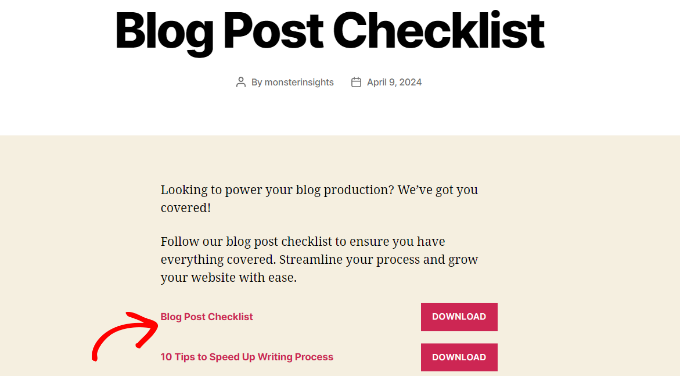
In the screenshot above, we added a PDF and a Docx file. However, it’s difficult for a user to guess which type of file they would be downloading.
If you regularly upload different file types, then displaying an icon next to the link makes it easier for your users to find the file type they’re looking for.
That’s what we’ll show you how to do next.
Which Method Should You Use?
Before we get into the tutorials, here is a quick comparison of both methods so you can choose the right one for your site:
| Feature | Method 1: Plugin | Method 2: Font Awesome |
|---|---|---|
| Ease of Use | Very Easy | Intermediate |
| Setup Time | Seconds | Manual per post |
| Customization | Limited | High |
| Best For | Beginners | Advanced Users |
I recommend Method 1 for most users because it’s faster and works site-wide. Let’s start with that one.
Method 1: Add Attachment File Icons in WordPress Using Plugin
The easiest way of adding file type icons is by using a WordPress plugin like MimeTypes Link Icons. It is a free plugin that is very easy to use and lets you add icons for different file types.
The first thing you need to do is install and activate the MimeTypes Link Icons plugin. For more details, see our step-by-step guide on how to install a WordPress plugin.
Upon activation, you need to visit the Settings » MimeType Icons page to configure the plugin settings.
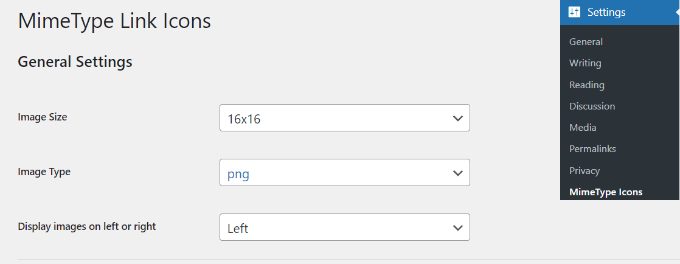
The plugin allows you to choose the icon size, as well as between PNG and GIF image formats. We recommend using PNG icons as they provide better quality for file type indicators.
Next, you need to choose the icon alignment and which file types will display the icon.
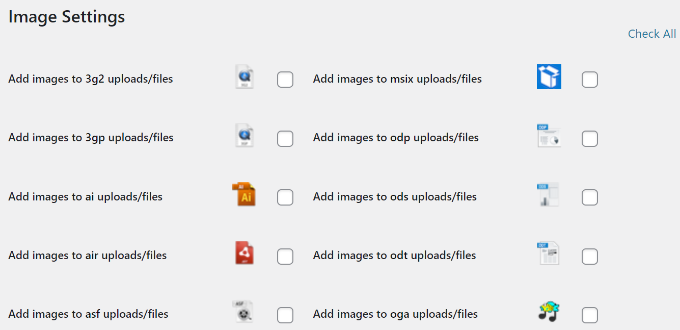
After that, you can scroll down and select icons to display on your website. For instance, there are icons for file types like PDF, PPT, CSV, AVI, RPM, TXT, and more.
I tested this plugin on our demo site with PDF, DOCX, and ZIP files. The icons appeared automatically within seconds of activation, with no additional configuration needed.
Next, you can scroll down to the Advanced Settings section.
Here, you’ll find the option to show file size next to the download link. It’s turned off by default, as it could be resource-intensive.
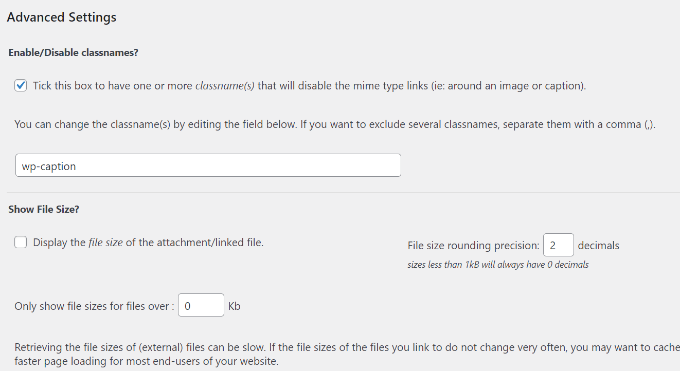
Once you’re done, remember to click the ‘Save Changes’ button to save your settings.
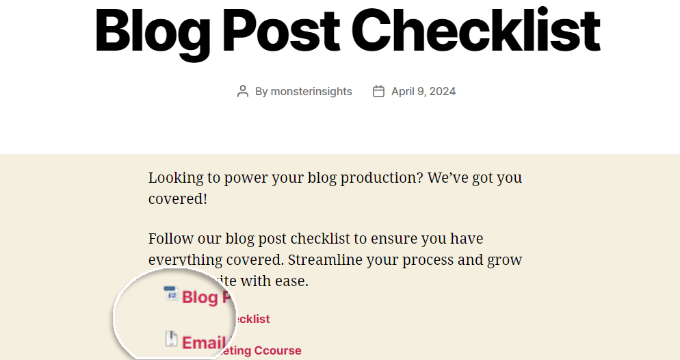
You can now edit a post or page and add a file download link using the media uploader. Simply preview your post, and you’ll see the file icon next to the download link.
Method 2: Using Icon Fonts for Attachment Files in WordPress
In this method, we’ll be using an icon font to display an icon next to the attachment file link. This method gives you more control over icon styling and works well if you’re already using Font Awesome on your site.
Font Awesome is a popular icon library that provides thousands of scalable vector icons. These are graphics that stay sharp and clear no matter how much you resize them.
This method involves installing the Font Awesome plugin, then manually adding icon code to your posts.
The first thing you need to do is install and activate the Font Awesome plugin. If you need help, then please see our guide on how to install a WordPress plugin.
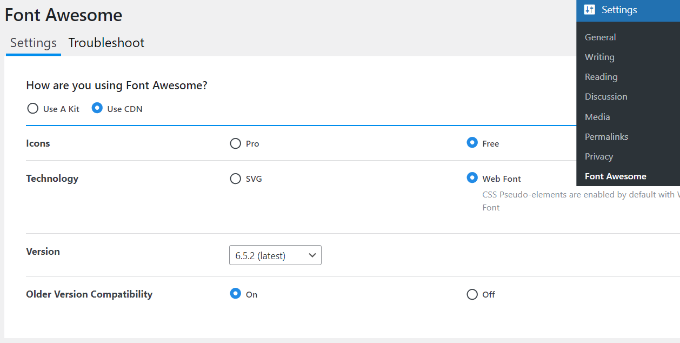
Upon activation, you can head to the Settings » Font Awesome page from your WordPress dashboard. Here, you can edit the general settings for the plugin, like choosing whether it should use pro or free icons.
Next, you can edit a post or page where you want to add an attachment link.
In the content editor, you’ll add the icon HTML code before your download link. This displays the icon next to the file name.
Note: Whenever you add custom code or HTML snippets to your site, it’s a good idea to create a backup first. For more complex snippets, we recommend using the WPCode plugin for safe implementation.
To find that HTML code, you can visit the Font Awesome icon library website. Simply search for an icon in the search bar and then click on the image.
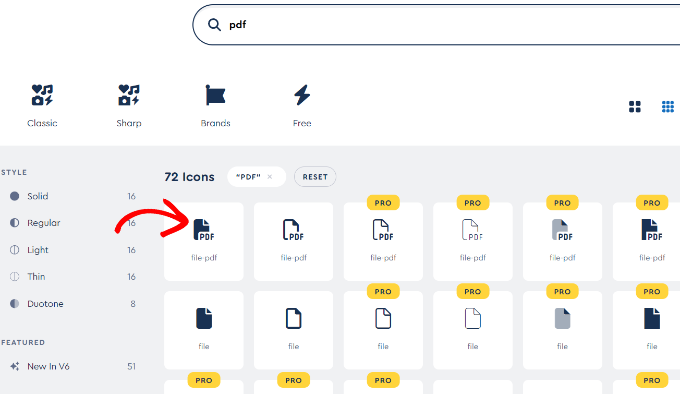
Next, you’ll see different variations of the icon and its HTML code.
Go ahead and click on the code to copy it.
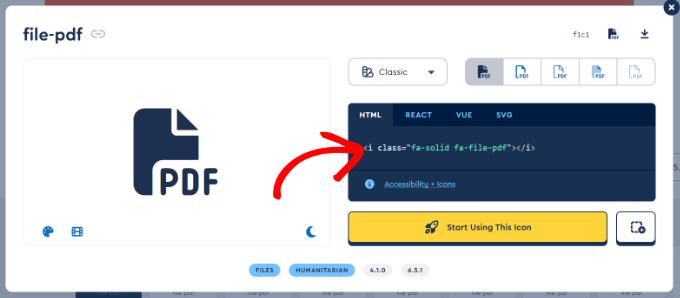
After that, you can return to your website’s WordPress content editor and click the ‘+’ sign to add a Custom HTML block.
From here, simply paste the code for your icon into the block.
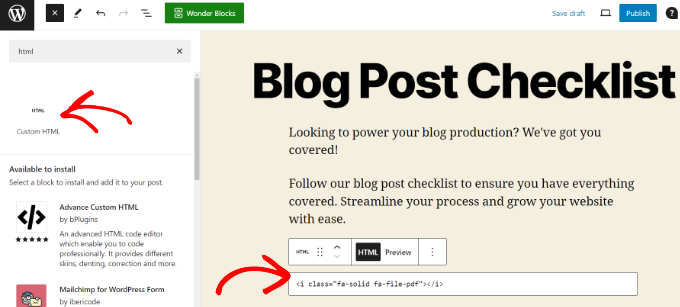
Once you’re done, go ahead and publish or update your page.
You can now visit your website to see the newly added icon for the attachment file type.

Bonus: Sell Digital Files to Make Money Online
Now that you know how to add attachment file type icons, you can take it a step further and sell different files as digital downloads. This allows you to make money online or encourage users to sign up for your newsletter in exchange for a free resource.
The best way to sell digital products is by using Easy Digital Downloads. It’s one of the best eCommerce platforms for WordPress, and it’s very easy to use and set up.
Easy Digital Downloads easily integrates with different payment services like PayPal, Stripe, Apple Pay, and Google Pay.
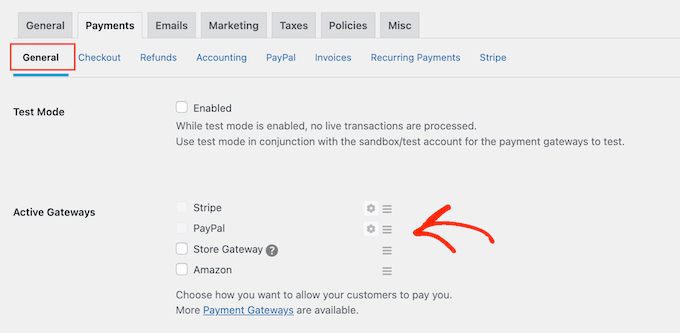
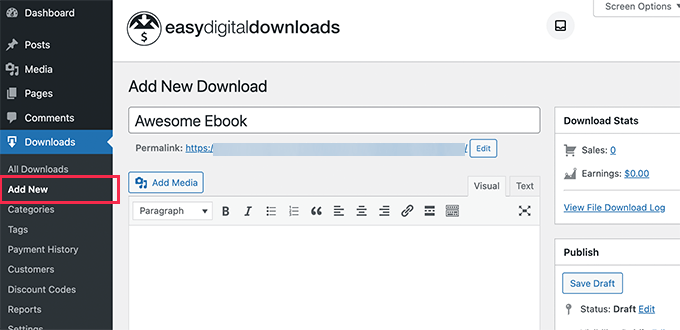
Besides that, you can simply upload digital files that you’d like to sell and start making money online.
The plugin lets you add details like a title and description, set the price of the download, pick a download image, and more.
For more details, please see our guide on how to sell digital downloads in WordPress.
Frequently Asked Questions About File Icons in WordPress
Do file icons slow down my site?
No, file icons are very small image files that have minimal impact on site speed. The MimeTypes Link Icons plugin uses lightweight PNG or GIF files, and Font Awesome icons are vector-based, which means they’re optimized for performance.
Can I customize the icon colors and styles?
Yes, if you use Font Awesome, you can customize icon colors, sizes, and styles using CSS (Cascading Style Sheets). This is the code used to style your website. The plugin method (Method 1) uses preset icon designs that match common file types.
Do file icons work on mobile devices?
Yes, file icons display properly on mobile devices. The icons are responsive, meaning they will automatically adjust to look good for different screen sizes.
What file types can display icons?
The MimeTypes Link Icons plugin supports many common file types, including:
- PDF, DOC, and DOCX
- XLS and XLSX
- PPT and PPTX
- ZIP, MP3, and AVI
You can select exactly which file types to enable on the plugin settings page.
Bonus Resources
The following are some additional useful resources that you may find helpful in managing your WordPress website and media:
- How to Use WordPress for Document Management or File Management
- How to Find Your Saved Drafts in WordPress (Beginner’s Guide)
- How to Upload PDF Files to Your WordPress Site
- How to Connect Multiple WordPress Sites Together (3 Ways)
We hope this article helped you learn how to add attachment file icons in WordPress. You may also want to see our guide on how to embed PDFs, spreadsheets, and other files in WordPress blog posts and our expert pick of the best WordPress activity log and tracking plugins.
If you liked this article, then please subscribe to our YouTube Channel for WordPress video tutorials. You can also find us on Twitter and Facebook.



Mrteesurez
This tutorial is helpful! Adding file type icons really improves user experience, making it easier for visitors to identify attachments at a they are about to download.
I have done this on my site, and it instantly made my content look more professional. Your step-by-step guide makes the process so simple. I want to ask how does adding icons affect my site page load time ?
WPBeginner Support
It should not have a major effect on your site’s speed.
Admin
Mrteesurez
Thanks for the reply. I asked because using icons often requires downloading or loading font libraries like Font Awesome or Google Fonts, which can impact a website’s speed. I appreciate you letting me know that it doesn’t have a major effect on my site’s seed.
Isha Singh
I am not familiar with the WordPress. But while I am going through your post, It seems like I know everything about the WordPress.
Enc
You are seriously recommending a plugin that hasn´t been updated for a year?
WPBeginner Support
Yes, we are. Please see our article should you install plugins not tested with your WordPress version for more on this topic.
Admin