


Adding more links to your WordPress menu won’t help if visitors still can’t find what they’re looking for. And on mobile, long menus are especially frustrating to use. Tapping through multiple links is slow, and visitors often give up before reaching the right page.
This is a common problem on content-heavy and growing websites. So, many users expect a search bar directly in the navigation menu. It’s faster, cleaner, and makes it much easier for visitors to find content.
We’ve tested this on dozens of websites, and the results are always the same: when users can search directly from the main menu, they interact more and stay longer. It’s a small tweak that leads to big improvements.
In this step-by-step guide, we’ll show you how to add a search bar to your WordPress menu using beginner-friendly methods that work with most themes. 🔎
Why Add a Search Bar to the WordPress Navigation Menu?
A search bar helps users find what they’re looking for without leaving your WordPress website. This can improve the user experience, keep visitors on your site for longer, and boost engagement.
That’s why most website designers and experts recommend adding a search bar to the navigation menu, where users can easily find it.
Depending on the theme you use, the way you add a search bar to your menu will be different.
If you use a classic theme, then you will need a WordPress search plugin. As for block theme users, you can simply use the Full Site Editor (FSE).
With that in mind, we’ll go through the two methods one by one. You can use the quick links below to skip to your desired section:
Let’s get started.
Method 1: Adding a Search Bar in a Classic WordPress Theme’s Menu
This first method is for those who use a classic WordPress theme. This means that you see the Appearance » Customize menu in your WordPress dashboard and can access the Theme Customizer.
If you use a classic theme, you can only add the WordPress search widget to widget-ready areas such as the sidebar, not the WordPress menu.
To work around this issue, you will need a plugin that lets you add a search bar to other areas of your site, including navigation menus.
SearchWP Modal Search Form is our best recommendation. This free plugin is easy to use, looks great with any theme, and won’t negatively impact your site’s performance. Also, it doesn’t require the premium SearchWP plugin.
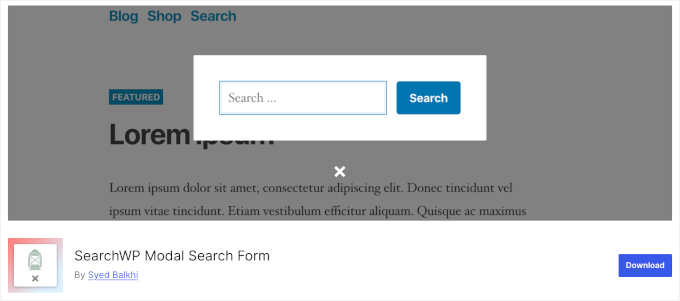
The first thing you need to do is install and activate the SearchWP Modal Search Form plugin.
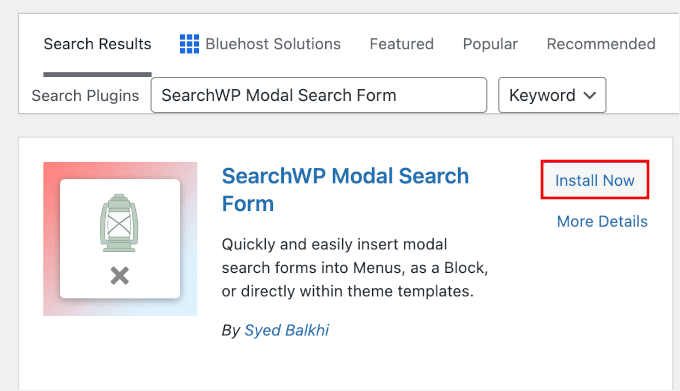
In your WordPress admin area, go to Plugins » Add New Plugin.

Next, you can use the search bar to quickly find the plugin.
When you find it, simply click ‘Install Now’ and then ‘Activate’ when it appears.
For more details, see our step-by-step guide on how to install a WordPress plugin.
Once the plugin is activated, you can add the search bar to your WordPress menu. Simply go to Appearance » Menus and then make sure you select the Primary menu in the ‘Select menu to edit’ dropdown.
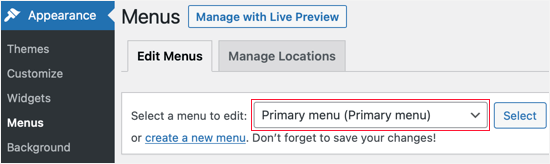
After that, click on the ‘Select’ button.
Next, click the SearchWP Modal Search Forms box on the left side of the screen.
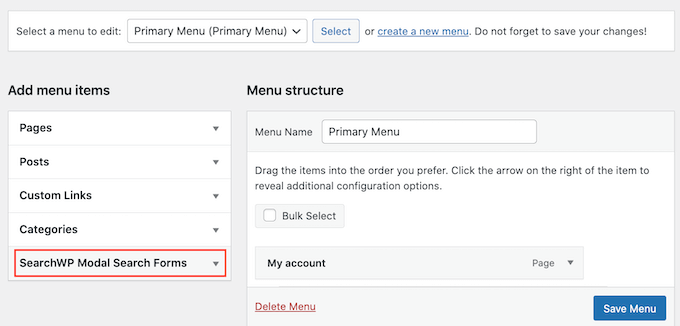
You’ll see that the plugin has automatically added a ‘Native WordPress’ search template.
Click on the ‘Add to menu’ button.

WordPress will now add a new ‘Native WordPress’ item to your menu.
To configure this item, click it to expand its settings. To start, it’s a good idea to change the navigation label to ‘Search’ so visitors know this is a search field.
To make this change, simply type ‘Search’ into the ‘Navigation Label’ field.
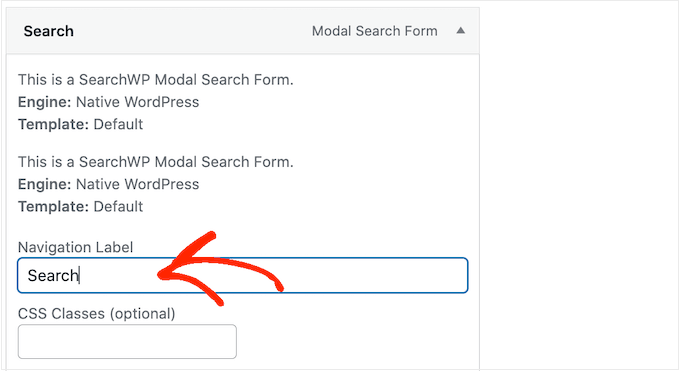
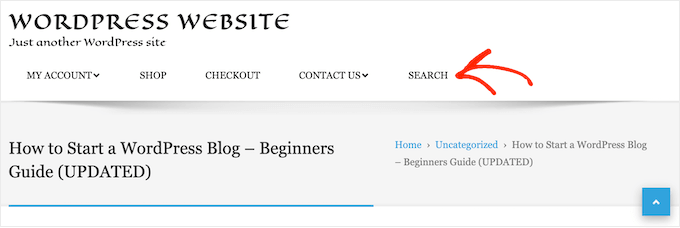
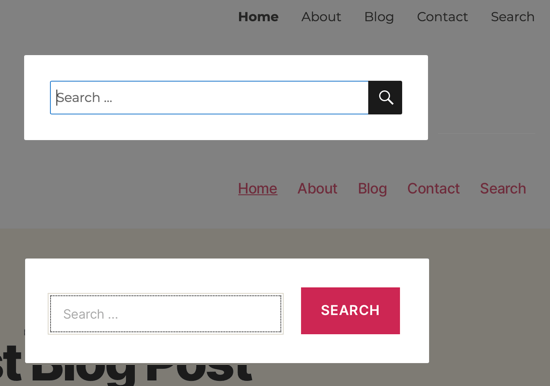
After that, click on the ‘Save Menu’ button to save your changes. Now, if you visit your WordPress blog, you’ll see a new Search bar in the navigation menu.
SearchWP will automatically style the search to suit your WordPress theme, as you can see in the following images.
Method 2: Adding a Search Bar in a Block WordPress Theme’s Menu
If you use a block WordPress theme, then you can use the Full Site Editor to add a search bar to your navigation menu.
To do this, simply go to Appearance » Editor in the WordPress admin area.
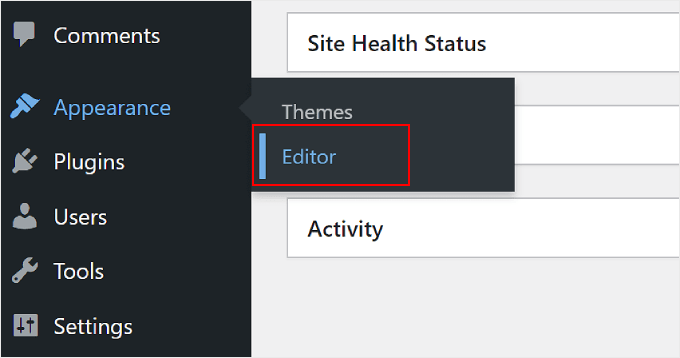
You’ll now see a list of options to customize your theme.
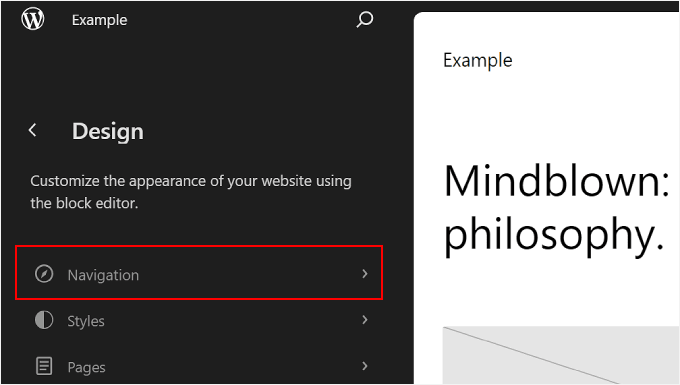
Here, just click on ‘Navigation.’
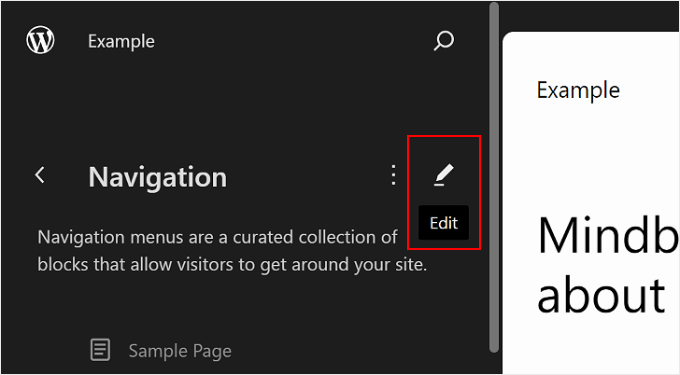
Next, click the pencil ‘Edit’ button for your navigation menu.
This will direct you to the block editor.
At this stage, click the ‘+ Add Block’ button within your navigation menu.
After that, choose the Search block.
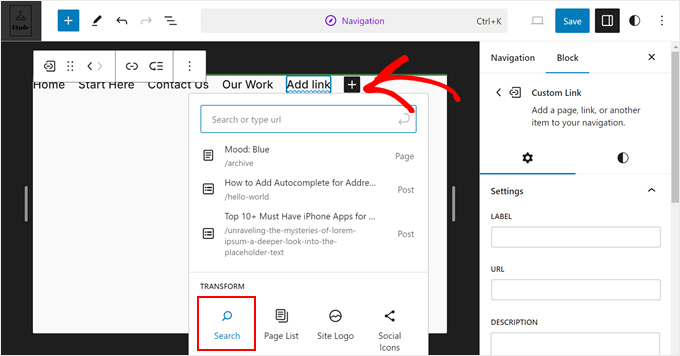
Your navigation menu should now have a search bar.
Additionally, you can edit the placeholder text and change it into something like ‘What are you searching for?’
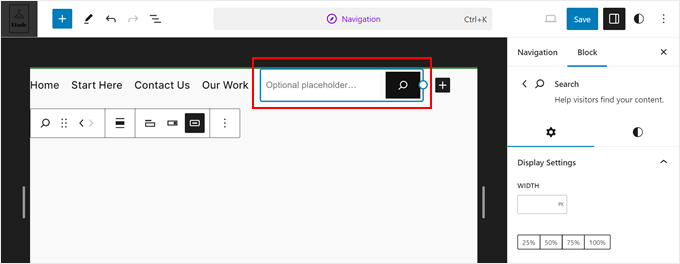
On the block settings sidebar, feel free to customize how the search bar looks. And once you are happy with the search block, just click ‘Save.’
Bonus Tip: Use SearchWP to Improve Your WordPress Search
Besides adding a search bar to your navigation menu, there are many more ways to improve your WordPress search experience.
One option is to use SearchWP. It’s the best WordPress search plugin to customize your search algorithm without touching any code.
Learn more about the plugin in our detailed SearchWP review.
For example, you can make your search form even more user‑friendly by adding live search results using Ajax. This will automatically show the visitor relevant search results as they type the query, just like Google.
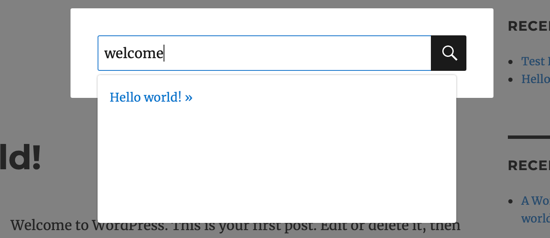
For more information, you can read our article on how to add live Ajax search to your WordPress site.
Adding a SearchWP search bar is also easy. If you use the SearchWP Search Modal Form in Method 1, then you can use the SearchWP plugin with it, too.
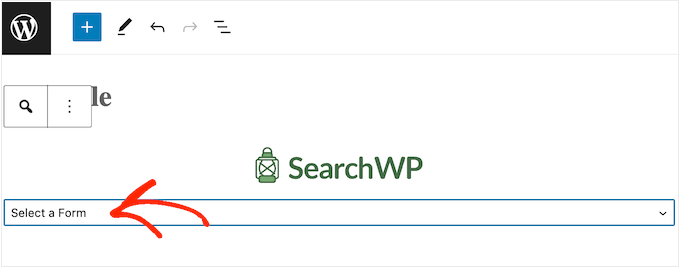
If you use a block theme, then SearchWP comes with a built-in search form block that you can add anywhere to your site, including the navigation menu.
FAQ: How to Add a Search Bar in WordPress
Adding a search bar to your WordPress site is usually straightforward, but a few common questions come up along the way. Below, we’ll cover quick answers to the most common issues and related features readers often ask about.
Why is my search bar not showing?
This usually happens because of your theme or where the search widget is placed. Some themes only display search bars in specific areas, like the header or sidebar. It can also be hidden by custom CSS or not added to the correct menu or widget area.
Switching to a default WordPress theme temporarily can help confirm whether the issue is theme-related. If you’re using a plugin, make sure it’s activated and properly connected to your menu or header settings.
How do I add a search icon to my WordPress site?
Many WordPress themes include a built-in option to show a search icon in the header or navigation menu. You can usually find this under Appearance » Customize or in your theme’s header settings.
If your theme doesn’t support this, some plugins can add a clickable search icon that opens a search bar. This is a popular option for keeping menus clean, especially on mobile.
How do I create a searchable table in WordPress?
To make a table searchable, you’ll need a table plugin that includes a built-in search feature. These plugins allow visitors to type into a search field and instantly filter table rows based on keywords.
This is useful for pricing tables, product lists, directories, or comparison charts where users need to quickly find specific information.
How do I bring up the search bar on a page?
The easiest way is to add a search block to the page using the WordPress block editor. Just search for the Search block and place it where you want it to appear.
Some plugins and themes also let you show a search bar using a button or icon that expands when clicked, which works well for landing pages or mobile layouts.
How do I add a search bar in WordPress without plugins?
You can add a basic search bar without plugins by using WordPress’s built-in Search block or widget. Simply place it in a page, post, sidebar, or footer using the block editor or widget settings.
For advanced placement, like adding search to a menu or header without plugins, you’ll usually need to edit theme files or add custom code. That’s why many beginners prefer using plugins – it’s faster and safer.
Next Steps: Improve WordPress Search
We hope this article helped you learn how to add a search bar to a WordPress menu.
If you want to further improve your WordPress site’s search function, here are other tips and tricks to get you started:
- How to Use Multiple Search Forms In WordPress
- How to Customize the Search Results Page in WordPress
- How to Search By Category in WordPress
- How to Exclude Pages from WordPress Search Results
- How to Add Multilingual Search in WordPress
If you liked this article, then please subscribe to our YouTube Channel for WordPress video tutorials. You can also find us on Twitter and Facebook.


Angel Rodriguez
Thanks for this, this plugin worked great and saved me from having to replace or edit my theme again.
WPBeginner Support
Glad our recommendation was helpful!
Admin
Maricel
Thank you! Very helpful and very easy.
WPBeginner Support
Glad to hear our article was helpful!
Admin
Rawan
These plugins are untested for WP version 5.8.1
Is it still ok to install them or is there other plugins that are tested for that version?
jafrin
hi
This video is very helpful for me.But I want bar menu is like amazon page .Please help me .How do create big search bar like in amazon page
WPBeginner Support
It would depend on the specifics you’re looking for but for a starting point we would recommend taking a look at our article below:
https://www.wpbeginner.com/plugins/how-to-let-users-filter-posts-and-pages-in-wordpress/
Admin
Erin
Is there a way to display the results that are generated by the plugin differently? I get a list of images and descriptions but they display images in all different sizes. I would like them to display in the same way as my product pages do with 24 results per page, and 4 columns.
thank you
WPBeginner Support
For customizing the results page you would want to check with the plugin’s support and they should be able to assist.
Admin
Okereke Divine
As usual, wpbeginner has always been helpful. Thanks alot
WPBeginner Support
You’re welcome, glad our guide could be helpful
Admin
Parwez
Sir, how did u create logo, search bar and menu in header side by side
WPBeginner Support
Our theme is custom created so we manually set that up with the creation of the theme
Admin
Angelica
Really helpful! I find the default style is not visually pleasing, but the sliding option works a treat. Thanks for this.
WPBeginner Support
You’re welcome, glad our article could be helpful
Admin
Rochelle
I would like the search item to appear as the first item in the menu, not the last. Is this possible?
WPBeginner Support
It would depend on your specific theme but if you reach out to the plugin’s support they will be able to help you change the placement
Admin
Anupam Kumar
Hi,
How to style the social icons like you did in your site for, with those gaps and lines , i dont know css,
Thanks
WPBeginner Support
For understanding CSS and how we set up our icons, you would want to take a look at our article here: https://www.wpbeginner.com/wp-tutorials/basics-of-inspect-element-with-your-wordpress-site/
Admin
Rubb
The explain it not right, the screens images is wrong and I think it is the wrong plugin
WPBeginner Support
It appears the plugin has updated since this article was last updated, we will take a look into updating this post.
Admin
James King
This doesn’t work guys. There’s no such plugin for a start.
WPBeginner Support
Thank you for letting us know, it appears the plugin has been renamed since we created this article. We’ll look into updating this
Admin
Raymond
Why is every solution on this website a plugin? Plugins bloat websites and slow them down; one would expect you to know that. There are better solutions than installing a plugin for everything!
WPBeginner Support
We strive to make the solutions as simple as possible for our users which is why our articles tend toward plugins. This way if a user is not comfortable editing their site’s files they have a plugin option that can be easily removed from their site should it not work for them.
Also, it’s not as simple as all plugins slow down your site. Poorly coded plugins slow down your site. https://www.wpbeginner.com/opinion/how-many-wordpress-plugins-should-you-install-on-your-site/
Admin
Ann
why does my setting doesnt have an ADD TO SEARCH MENU
Dan Conway
Not sure if it is due to an update but I noticed the same thing. But it seems the option can be found under ‘Ivory Search > Settings’ then you should be presented with the first settings which are ‘Menu search’ and the first expandable option to select a menu to add it to.
Aditi Bisen
Hi,
Can we choose whether the search appears only for mobile/tablet version and not for desktop?
Ihsan
unfortunately, it doesn’t display correctly as it mess up with the nav menu. I’ve tried different plugins and all of those are the same. For newbie, seems like no other way but asking to the theme developer or professional help to code it manually.
Damith
No, You don’t need to become developer or professional to make small custom CSS.