


Adding a private messaging system to your WordPress site can completely transform the way your users interact. 💬
Imagine your members, customers, or students being able to send messages directly to each other—or to you—without ever leaving your site. It makes your community more engaging, builds trust, and gives your site a professional, interactive feel.
In this guide, I’ll show you exactly how to add a private messaging system to your WordPress site, step by step. 📬
You’ll get easy-to-follow instructions, helpful tips, and best practices I’ve learned from testing real solutions on live sites. By the end, you’ll have a working messaging system ready to go—no coding needed.
💡Quick Answer: How to Add Private Messaging in WordPress
If you just want the fastest way to enable private messaging on your site, here are the two methods I personally recommend:
- Method 1: Front End PM – Best for Simple Messaging Between Users: A lightweight inbox system that lets members privately message each other without extra social features.
- Method 2: BuddyBoss – Best for Full Social Networks or Large Communities: Pick this if you’re building an advanced community with profiles, activity feeds, groups, and rich messaging features.
Why Add a Private Messaging System to Your WordPress Site?
Private messaging lets your users communicate directly on your site, making your community more engaging, trustworthy, and interactive.
I’ve seen many websites get a real boost in activity after adding this feature. Members start connecting more, customers get faster support, and students can reach instructors directly.
Here are some of the main benefits:
- Boosts Engagement: Members on a community or membership site can connect, network, and chat privately, keeping them active and involved.
- Increases Retention: When users can communicate easily, they’re more likely to return and stay longer on your site.
- Improves Customer Support: Customers can message support teams or vendors directly, making it easier to solve problems and build trust.
- Improves Learning: Students on eLearning platforms can reach out to instructors privately, making the learning experience more personal and effective.
- Builds Trust: Direct, private communication makes your site feel more professional and reliable.
Here are the two easiest ways to add private messaging to your WordPress site. You can use the links below to skip directly to the method you want to try:
- Method 1: Create a Simple Private Messaging System With Front End PM
- Method 2: Create a Full-Fledged Private Messaging System with BuddyBoss
- Bonus: Allow Users to Privately Message You (the Website Owner)
- Best Practices for Private Messaging on Your WordPress Site
- Frequently Asked Questions About Private Messaging in WordPress
Method 1: Create a Simple Private Messaging System With Front End PM
🥇Best For: Small communities or anyone who wants a clean, lightweight, and free messaging system.
If you’re looking for an easy way to let users send private messages on your WordPress site, Front End PM is a great solution.
It’s a free WordPress plugin that’s designed to be simple, lightweight, and beginner-friendly.
Once installed, it gives your users a clean, email-style inbox right on the front end of your site—no confusing settings, no cluttered interface, just straightforward messaging.
I’ve tested this plugin on my demo site, and I found it ideal for low-activity communities or membership sites. Users can send messages to each other or to the site admin, and everything stays organized in one easy-to-use inbox.
Even though it’s minimalist, it handles basic messaging needs perfectly, making it a solid choice if you want something simple, reliable, and fast to set up.
Step 1: Install the Front End PM Plugin
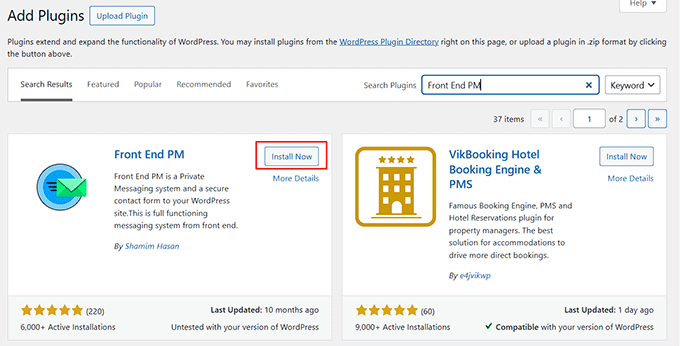
First, you need to install and activate the Front End PM plugin on your WordPress site. Start by going to your WordPress dashboard and navigating to Plugins » Add New.
In the search bar, type ‘Front End PM.’ When you see it, click ‘Install Now’ and then ‘Activate.’
If you’re new to installing plugins or want a more detailed walkthrough, you can check out our guide on how to install a WordPress plugin. This will make sure everything is set up correctly before moving on to the next steps.
Step 2: Configure the Front End PM Settings
After activating the plugin, head over to the Front End PM » Settings page from your WordPress dashboard.
Start by selecting a page where you want to add the private messaging system to your website. This setting tells the plugin where to redirect users when they click a link in an email notification.
However, to actually display the inbox on that page, you will still need to add the shortcode manually. I’ll show you exactly how to do that later in the tutorial, so no need to worry.
Next, you can adjust the ‘Message View.’ I recommend keeping it as ‘Threaded,’ which organizes messages in a conversation-style layout. This makes it much easier for users to follow discussions and replies.
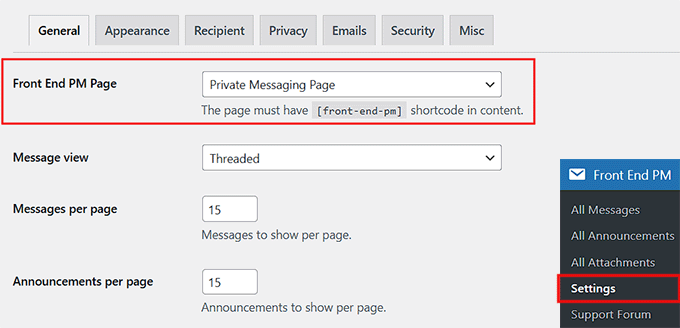
After that, configure the ‘Messages per Page’ and ‘Announcements per Page’ settings. I usually set both to 15, which keeps the inbox and announcements list manageable without overwhelming users.
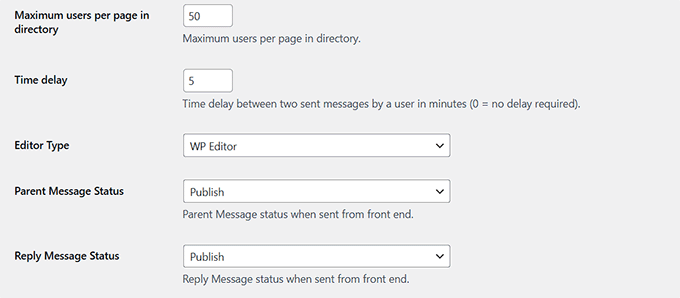
Then, you can set the ‘Maximum Users per Page in Directory.’ I suggest setting it to 50, which is a good balance for most membership sites or communities.
Next, choose a ‘Time Delay’ between messages. For instance, you can set this to 5 minutes to prevent spamming, though you can set it to 0 if you don’t want any delay.
For the ‘Editor Type,’ I recommend leaving it as ‘WP Editor,’ which gives a familiar interface for composing messages.
Make sure both ‘Parent Message Status’ and ‘Reply Message Status’ are set to ‘Publish’ so messages and replies appear immediately.
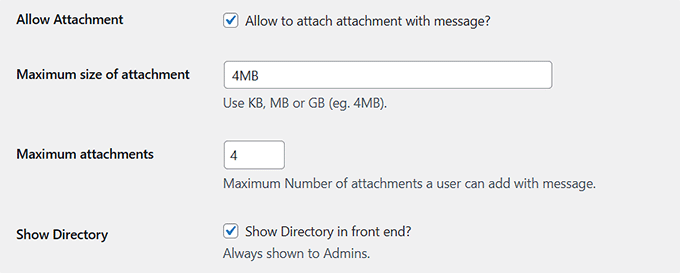
If you want users to be able to attach files, you can also enable the ‘Allow Attachment’ box.
Then, set a ‘Maximum Size’ at 4MB and ‘Maximum Attachments’ at 4. This is usually enough for typical use without straining your server.
Once you’ve configured these main settings, take a look at the rest of the options to see if anything else fits your needs. When everything looks good, click the ‘Save Changes’ button to store your settings.
Step 3: Customize the Appearance of Your Private Messaging System
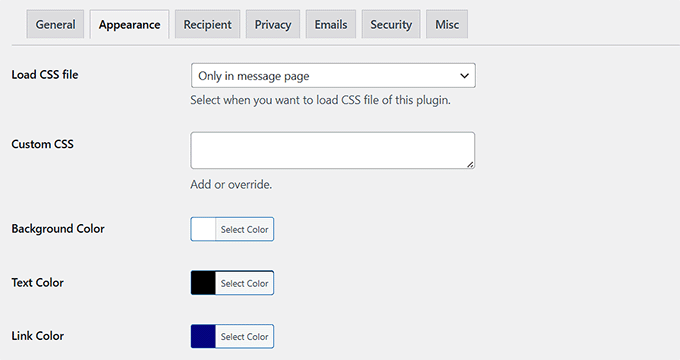
After setting up the main options, switch to the ‘Appearance’ tab at the top of the settings page.
Here, you can customize how your entire private messaging system looks. You can choose colors for the background, text, links, buttons, active buttons, message headings, and even alternate colors for odd and even messages.
I recommend taking a moment to think about color schemes that match your site.
For example, if your website theme has a white background, you might choose a light gray or soft pastel for the message background to make it easy on the eyes.
For text, stick with dark colors like black or dark gray for readability. Buttons and links should complement your main site colors—if your theme uses blue for buttons, consider using a similar shade here to keep everything cohesive.
Choosing complementary colors is key because it makes your messaging system feel like a natural part of your site rather than something tacked on.
If you want more detailed guidance on picking colors and customizing your WordPress theme, check out our guide on how to customize colors in WordPress.
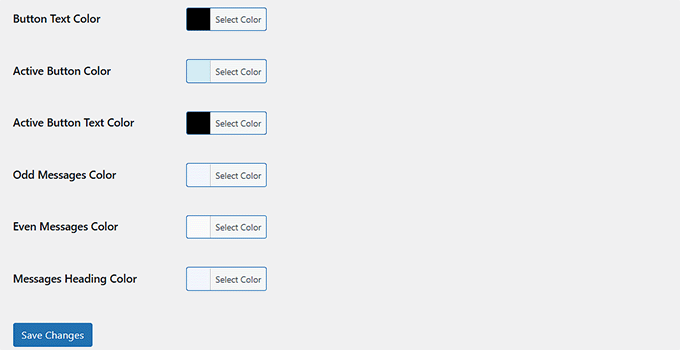
Once you’ve selected your colors, scroll down and click ‘Save Changes’ to apply your design.
Step 4: Configure Privacy and Data Options
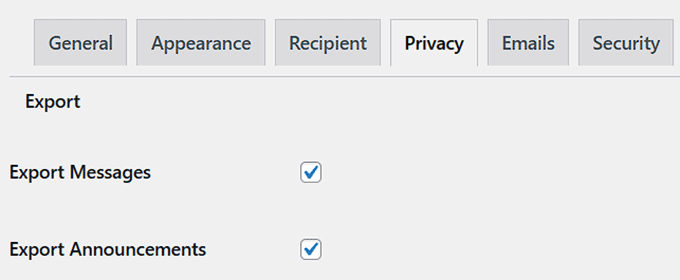
Next, switch to the ‘Privacy’ tab. This is where you can manage how messages and announcements are handled, including options to export or erase data.
In the ‘Export’ section, you can choose to export messages and announcements by checking the boxes for them. This is useful if you want to keep a backup of your users’ conversations or announcements for record-keeping.
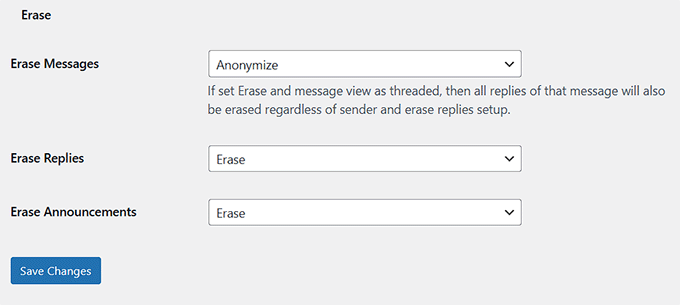
The ‘Erase’ section lets you remove messages or announcements from your site. If you set a message view as ‘Threaded,’ I recommend using the ‘Anonymize’ option carefully.
When enabled, erasing a parent message will also delete all replies, regardless of who sent them. It is helpful if you want to clean up old conversations without leaving partial threads behind.
You can also erase individual replies or announcements using the ‘Erase Replies’ or ‘Erase Announcements’ options. I suggest reviewing what you want to delete carefully before taking action, since these changes can’t be undone.
Once you’ve configured these privacy settings to your liking, click ‘Save Changes’ to ensure everything is applied.
Step 5: Configure Email Notifications
Now it’s time to switch to the ‘Emails’ tab. Here you can control how notifications are sent when users receive new messages or announcements.
Start with the ‘Email Content Type.’ This setting lets you choose the format of the emails sent by the plugin. You can select ‘Plain Text,’ which is a simple format that works in all email clients and keeps your emails clean and readable.
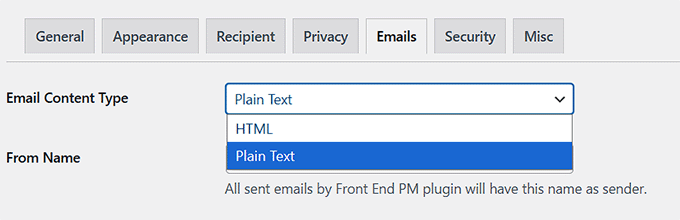
Then set the ‘From Name’—this is the name that will appear as the sender in all emails sent by the plugin. I suggest using something recognizable, like your site or company name, so users immediately know where the message is coming from.
Next, set the ‘From Email’. This is the email address that will appear as the sender. Here, you should use an email address associated with your website or domain to help prevent emails from going to spam.
💡Expert Tip: If you are having trouble with WordPress emails not being delivered, then I recommend using the WP Mail SMTP plugin. It fixes the issue by sending emails through a proper SMTP provider so they don’t end up in the spam folder.
There’s also an option to send an email when a new announcement is published. If you enable this, emails will be sent to all users of the selected role(s).
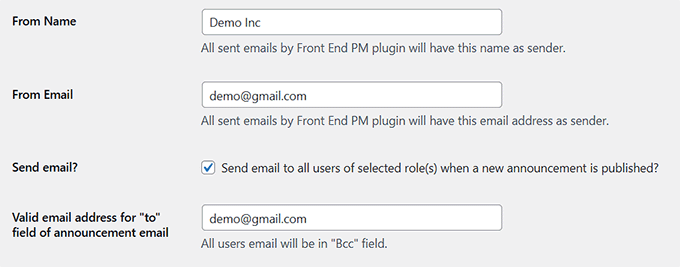
You’ll need to provide a valid email address for the ‘To’ field of the announcement email. Keep in mind that all recipients will be included in the Bcc field, so their email addresses remain private.
Once you’ve set these options, simply click ‘Save Changes.’
Step 6: Configure Security Settings
After finishing the email setup, switch to the ‘Security’ tab to configure the user roles that will have access to the private messaging system. Simply check the boxes for the roles you want to allow.
I recommend only enabling roles that actually need messaging access. For example, on a membership site, you might allow Subscribers or Members to use the system, while keeping it disabled for visitors or other roles who don’t need it.
This helps keep your messaging area secure and prevents unnecessary access.
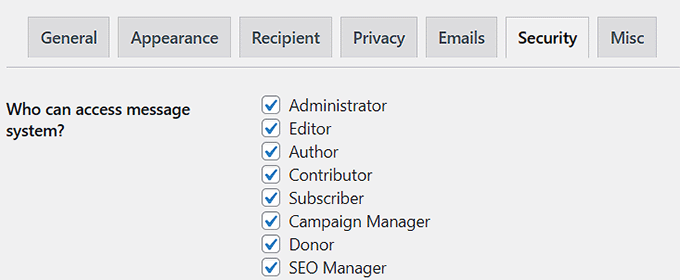
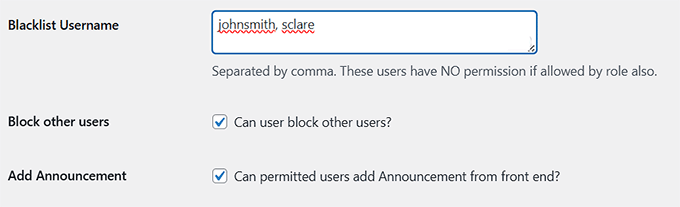
Front End PM also lets you blacklist specific usernames.
Scroll down to the ‘Blacklist Username’ field and enter usernames separated by commas. These users will have no permission to access the messaging system, even if their role would normally allow it.
I suggest using this feature if you want to block spam accounts or users who have caused trouble in the past. For instance, if a user keeps sending inappropriate messages, you can add their username to the blacklist to prevent further access without affecting other users.
Once you’ve selected the roles and added any blacklisted usernames, click ‘Save Changes.’
Step 7: Add the Private Messaging System to Your Page and Test It
Now that your private messaging system is set up, it’s time to add it to your WordPress site so your users can start using it.
Open the page you selected earlier for your messaging system in the Block Editor. This should be the page you assigned in the ‘Front End PM Page’ setting.
Once you’re on the page, click the block menu button at the top left corner and add a ‘Shortcode’ block. Then, paste the following shortcode into it:
[front-end-pm]
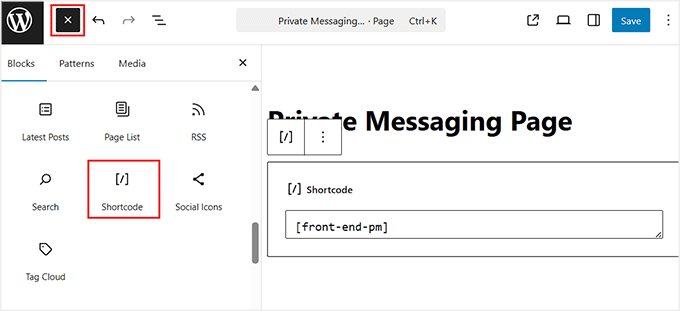
After adding the shortcode, click the ‘Update’ button to save your changes.
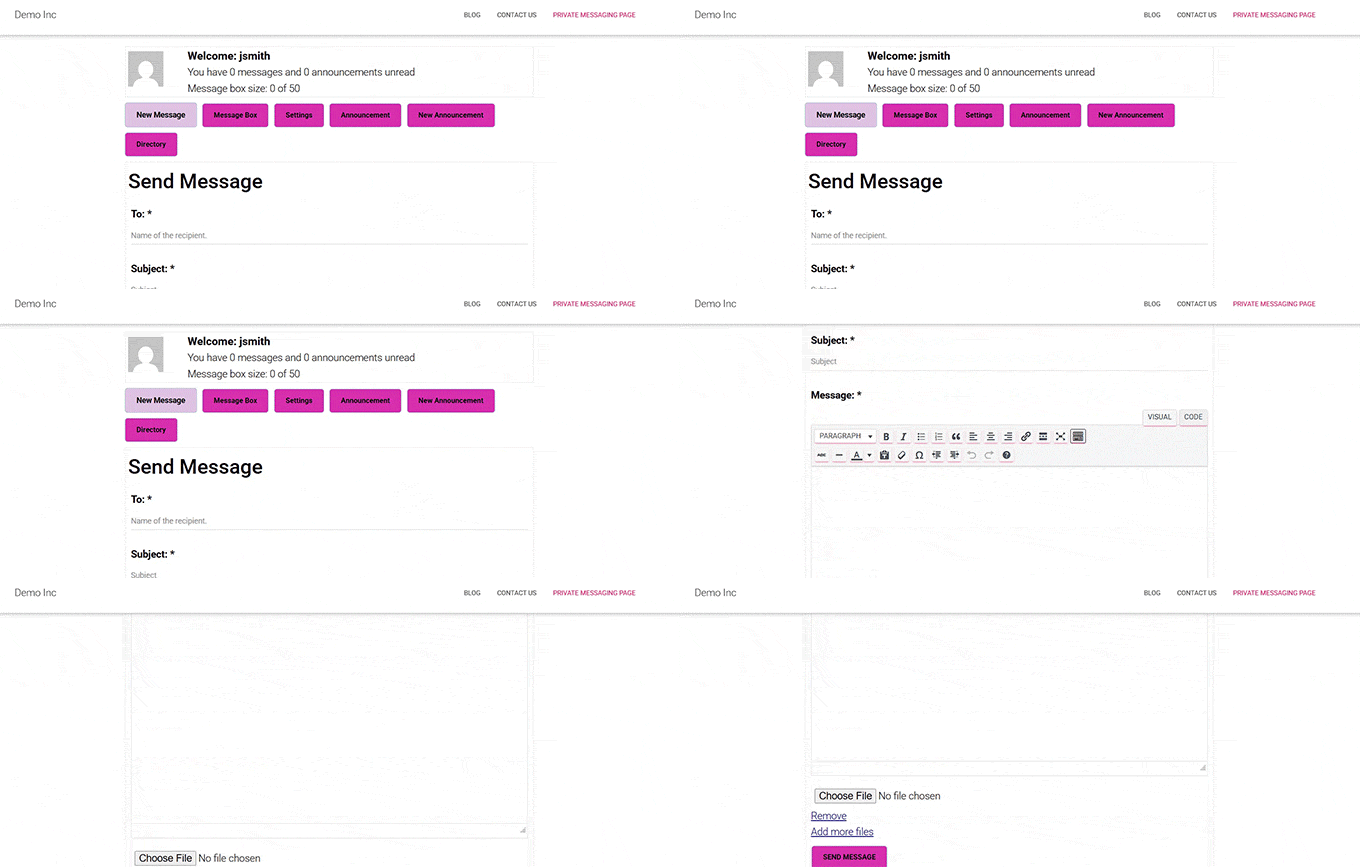
Then, visit your WordPress site to see the private messaging system in action. This is a great way to visualize how it will appear to your users and make sure everything looks right.
I also recommend testing the system before sharing it with your community. Log in as a test user and try sending a message to yourself or another user.
Check the inbox, notifications, and the front-end display to ensure messages appear correctly and that all buttons work.
Method 2: Create a Full-Fledged Private Messaging System with BuddyBoss
🥈Best For: Large membership sites, online communities, or anyone building a fully interactive social network.
If you’re looking to add a more powerful private messaging system to your site, BuddyBoss is an excellent choice.
It lets you offer direct messaging between members while also providing a full social community platform with member profiles, activity feeds, groups, and even optional mobile app support.
I’ve worked extensively with BuddyBoss, and in my experience, it’s one of the best platforms for creating a vibrant online community. It’s ideal for sites with hundreds or even thousands of users because it can handle high activity without slowing down.
We also have a detailed review of BuddyBoss where we share our hands-on experience, so you can see exactly why it stands out as a top choice for serious community builders.
💡 Expert Tip: If you want to give your members a place to start public discussions or share ideas, consider adding a forum alongside your private messaging system.
BuddyBoss makes it super easy to create a forum for your community. You can customize it, manage topics, and moderate conversations—all without extra plugins.
For detailed instructions, check out our guide on adding a forum in WordPress.
Step 1: Install BuddyBoss and Set Up Your Community Platform
The first step is to install and activate the BuddyBoss plugin on your WordPress site.
If this is your first time working with WordPress, you can check out our guide on how to install a WordPress plugin to get started. It walks you through the installation process step by step, so you won’t miss anything.
Note: BuddyBoss has a free version that lets you add private messaging to your site.
However, I recommend upgrading to the pro version to unlock the plugin’s full potential, including advanced social features, groups, activity feeds, and more customization options.
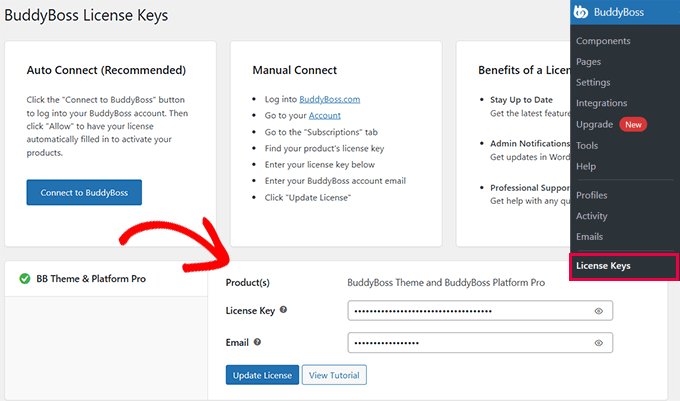
If you are using the Pro version, then visit BuddyBoss » License Keys from the WordPress admin sidebar and enter your license key. You can find this information in your account on the BuddyBoss website.
If you are using the free version, you can simply skip this step.
Before diving into the private messaging setup, I suggest checking out our guide on creating a private community with WordPress.
It walks you through setting up your entire community site step by step, so you’ll have a solid foundation before configuring private messaging.
Step 2: Activate Private Messaging in BuddyBoss
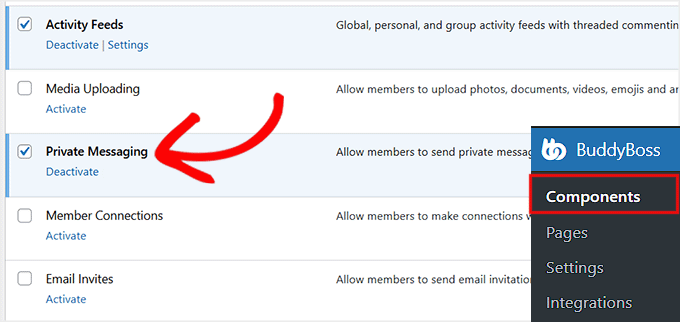
Now that you have your private community set up, it’s time to add private messaging to your site. To do this, go to the BuddyBoss » Components page from your WordPress dashboard.
Here, find the ‘Private Messaging’ component and click the ‘Activate’ link under it.
Once activated, the private messaging functionality will automatically be added to your website—there’s no extra setup required on your part.
Your members can start sending messages right away, making your community more engaging and interactive.
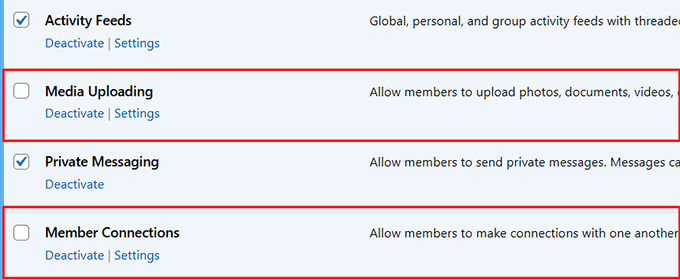
After that, you should also activate the ‘Media Uploading’ and ‘Member Connections’ components from the same screen.
Media Uploading lets users attach images or files to their messages, and Member Connections enables members to connect with each other, similar to “friend requests” or “following.”
I’ll go into more detail on how to use these components later, but for now, just enabling them ensures your private messaging system will work smoothly.
Step 3: Configure Media Uploading for Private Messaging
Next, head over to the BuddyBoss » Settings » Media page from your WordPress dashboard. This is where you configure the ‘Media Uploading’ component that you just activated.
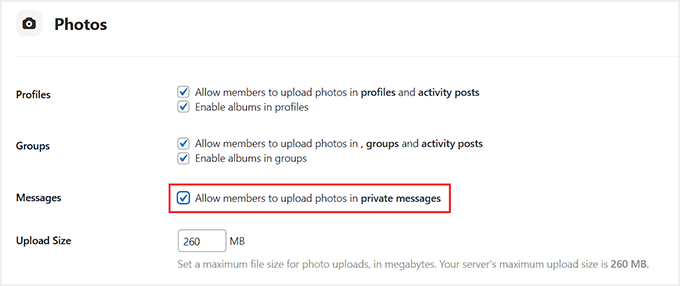
Start by checking the ‘Allow members to upload photos in private messages’ box. It lets users attach images directly to their messages, making conversations more engaging and interactive.
You can also set an image upload size and limit from here.
Then scroll down to the ‘Documents’ section and check ‘Allow members to upload documents in private messages’ if you want users to share files like PDFs, spreadsheets, or other documents.
I recommend this setting for communities where collaboration or resource sharing is important.

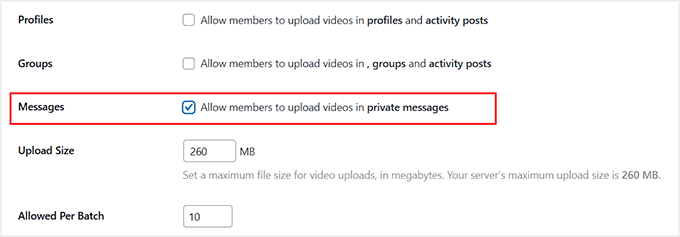
Next, scroll further and enable ‘Allow members to upload videos in private messages.’
Videos can add another layer of interaction, letting your members share short clips or presentations directly in their conversations.
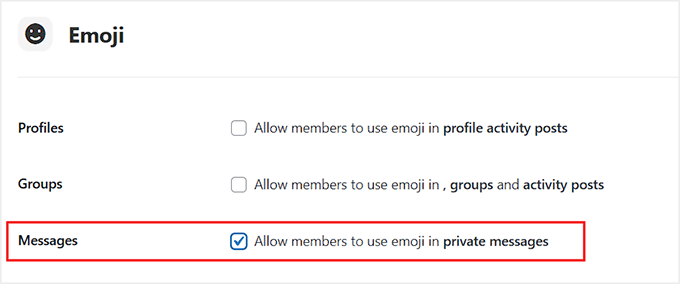
Finally, I also recommend checking the ‘Allow members to use emoji in private messages’ option. Emojis make messages feel more personal and fun, helping members express themselves and keeping conversations lively.
Once you’ve enabled all the options you want, scroll to the bottom and click ‘Save Settings’ to apply your changes.
Now your private messaging system is ready to handle media, documents, videos, and emojis, giving your community a richer and more interactive experience.
Step 4: Make Member Connection a Requirement For Private Messaging
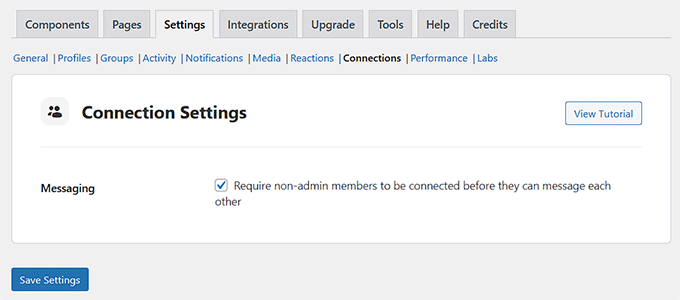
Next, switch to the ‘Connections’ tab at the top to configure the settings for the ‘Member Connections’ component you activated earlier.
Here, you need to check the box for ‘Require non-admin members to be connected before they can message each other.’
This means that regular members must first send a connection request and have it accepted before they can exchange private messages. It helps prevent spam and unwanted messages, keeping your community interactions more secure and organized.
Once you’ve checked this option, just click the ‘Save Settings’ button.
Step 5: Set Up Notifications for Private Messaging
After configuring member connections, switch to the ‘Notifications’ tab at the top. Keep in mind that this tab won’t be available if you haven’t activated the ‘Notifications’ component when setting up your private community.
Once you’re here, scroll down and make sure the ‘A member receives a new private message’ box is checked.
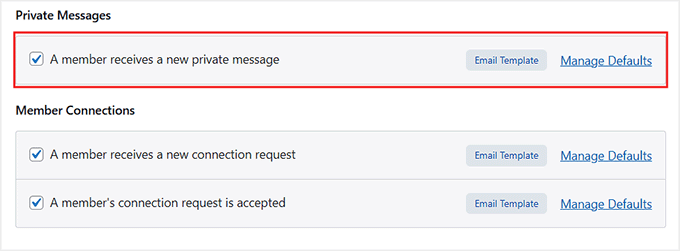
This ensures that users are notified whenever they receive a new message, either via email or on-site notifications, depending on your community settings.
After enabling this option, scroll down and click ‘Save Settings’ to apply your changes.
Step 6: Add the Messages Page to Your Site Navigation
By default, BuddyBoss automatically creates a Messages page when you activate the ‘Private Messaging’ component.
However, I recommend adding this page to your navigation menu as well. This makes it easy for your members to find and start private messaging with their connections.
To do this, go to the Appearance » Menus page from your WordPress dashboard. Here, expand the ‘BuddyBoss’ tab in the left column to see all the pages provided by BuddyBoss.
Once the list opens, select the ‘Messages’ option, then click the ‘Add to Menu’ button.
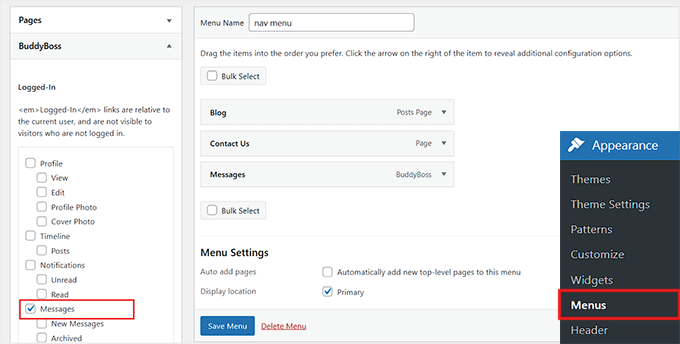
After that, don’t forget to click ‘Save Menu’ to store your changes. Now the Messages page will appear in your site’s navigation, giving your users quick and easy access to private messaging.
If you need more guidance on menus, check out our detailed guide on creating a navigation menu in WordPress.
Step 7: Test Your Private Messaging System
Now that your private messaging system is fully set up, it’s time to see it in action on your community platform. I recommend logging in as a test user first so you can experience exactly what your members will see.
Try sending a message to yourself or another test member.
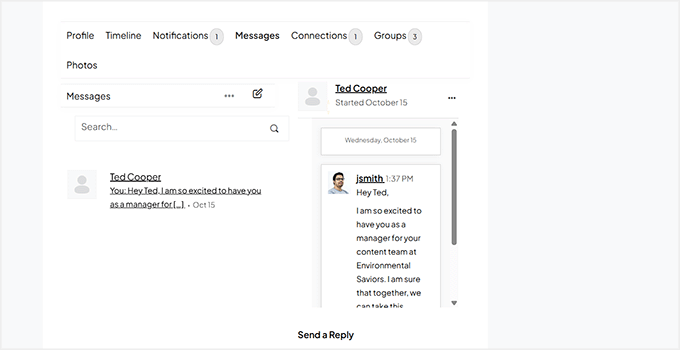
Check the inbox, notifications, and the front-end display to ensure messages appear correctly. Test sending different types of media, such as photos, documents, videos, or even emojis, if you enabled those options earlier.
This testing step is important because it helps you catch any issues before your members start using the system.
Once everything works smoothly, you can be confident that your community has a fully functional, engaging private messaging system.
Bonus: Allow Users to Privately Message You (the Website Owner)
In addition to letting members message each other, you can also give users a way to contact you directly. That’s where live chatting comes in.
It is an excellent way for visitors or members to reach out instantly with questions about your site, products, courses, or community.
Offering this option builds trust, improves support, and makes your website feel more personal.
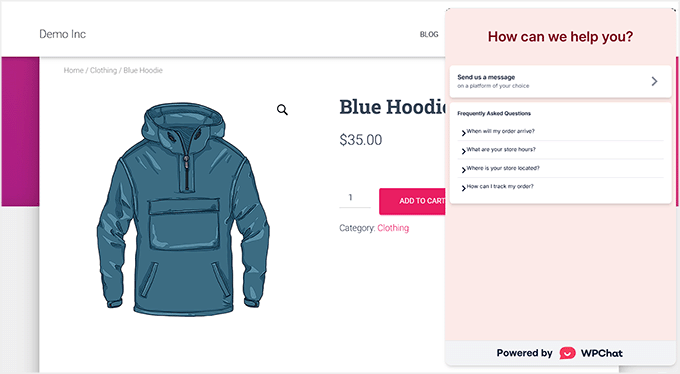
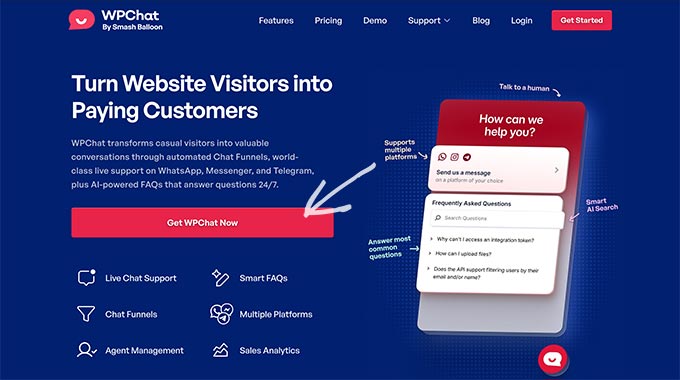
I recommend WPChat. It is a powerful live chat software that allows visitors to contact you directly through popular messaging apps like WhatsApp, Telegram, Facebook Messenger, and Instagram.
You can configure all settings directly from your WordPress dashboard, but actual conversations happen in the messaging apps you already use on your phone or computer.
This makes it easy to manage chats without switching platforms.
If you’re interested in setting it up, check out our tutorial on how to add live chat to WooCommerce stores.
Best Practices for Private Messaging on Your WordPress Site
Creating a private messaging system is just the first step—how you manage it can make a big difference in engagement and community safety.
I’ve seen many websites achieve better results and safer interactions by following a few simple best practices. Here are the key tips I recommend:
- Set Community Guidelines: Clearly outline what’s acceptable in private messages to prevent misunderstandings and keep interactions respectful.
- Monitor Messages for Abuse or Spam: Stay proactive and use moderation tools to maintain a safe environment.
- Integrate Messaging into Onboarding: Show new members how to send and receive messages to encourage engagement from day one.
- Keep the Interface Simple and Mobile-Friendly: Ensure your messaging system works well on all devices for a smooth user experience.
- Use Email Notifications Wisely: Keep members informed about new messages without overwhelming their inboxes.
Following these practices helps you create a private messaging system that is safe, user-friendly, and keeps your community active and connected.
Frequently Asked Questions About Private Messaging in WordPress
Before we wrap up, here are some common questions I often get from readers when they’re setting up a private messaging system in WordPress.
These quick answers will help you clear up any confusion and make your setup even smoother.
Can I add private messaging in WordPress without a plugin?
Yes, but it’s not practical for most users. WordPress doesn’t include any built-in private messaging features, so you would need to custom-code the entire system using PHP, usermeta tables, custom post types, and AJAX.
For most sites, using a messaging plugin like Front End PM or BuddyBoss is far easier and much more secure.
Can I restrict private messaging by user role?
Yes, most WordPress messaging plugins allow this. For example, Front End PM lets you choose which user roles can send or receive messages, and BuddyBoss can require users to be “connected” before they can message.
This is helpful if you want only members, customers, or logged-in users to access messaging.
Are private messages stored in the WordPress database?
Yes, chat plugins store messages inside your WordPress database, usually in custom tables created specifically for messaging. This ensures messages remain private and only visible to the sender, recipient, and admins with proper permissions.
Note: Storing thousands of messages can eventually increase your database size. To keep your site running fast, I recommend periodically deleting old messages or using the ‘Export’ features mentioned earlier to archive them.
Can users attach files or images in private messages?
Yes, if the plugin supports it. Front End PM allows attachments like images and documents, and BuddyBoss lets members send photos, videos, and files through private messages once media uploading is enabled.
Just make sure to review file size limits and allowed file types in the settings.
How can I prevent spam or abuse in private messages?
You can reduce spam by limiting messaging to certain user roles, requiring member connections (BuddyBoss), and setting time delays between messages (Front End PM).
It also helps to have clear community guidelines and monitor message reports if your plugin offers moderation tools.
I hope this article helped you add a private messaging system to your WordPress site. You may also want to check out our guide on how to add a login form in your WordPress sidebar and our tutorial on turning your WordPress site into a mobile app.
If you liked this article, then please subscribe to our YouTube Channel for WordPress video tutorials. You can also find us on Twitter and Facebook.


Nathan
Hi. I’m wondering.. I did read the comments but just wondered if I activate this plugin. I have a realestate site. So can a buyer contact the seller say by a link “contact seller” and once clicked it will automatically populates the sellers username in the”to” section of the message? Sorry if this question has already been asked!
Thanks
WPBeginner Support
For that kind of customization, you would want to reach out to the plugin’s support for if it is an option.
Admin
Célia reubrecht
Hello !
Thanks for this plugin, that’s exactly what I was looking for !
But can you tell me how I can change the infos buttons such as the background color of “Message successfully sent” etc
Thanks !
Ahmed Deduice
Is there a way to make member/subscriber have a kind of dashboard to receive the messages sent to them. Currently, it’s showing a long bar at the top of a page and is inaccessible.
Thanks
Delwar Jahan
Thanks a lot for the review. I am going to try this one in one of my project. Independent plugin without the issue of adding buddypress.
Curt
I downloaded Front End PM and it looks great, but how do people get their name in the director so you can message them?
Deepak
Hi, Just add Add <a href=" USER ) ); ?>”>Send Message Where you want to show Link
User name pre-populate new message “To”
Curt Stowell
I think the plugin is great and I appreciate the quick info, but how do my members add to the Directory?
Samedi Amba
Thanks for the article. How can this be integrated with buddypress?
Mohammad Awwad Alnagdawi
I think BuddyPress have its own private messing system.
Jay Clayton
WordPress techniques and a Dr. Who reference in the same article? I knew you people were brilliant! Thanks for the PM tip – I might be able to use this in one of my upcoming projects.
Biplob
This is the best plugin i am using in my website. All are done in front end. So i can keep out my users from dashboard. All needed functions for private messaging are there. A Pro plugin but free of cost.A perfect plugin for private message in wordpress. Thanks to plugin author as well as wpbeginner for showing me this plugin. I was not aware that this plugin exists.