


Have you ever lost a potential customer simply because they weren’t sure what your prices meant in their own currency? It’s a common problem for online stores that sell around the world.
A currency converter solves this by letting visitors quickly check exchange rates without leaving your site, making it easier for them to complete a purchase.
At WPBeginner, we’ve helped many users set up currency converters on their WordPress sites, and we know the right tool depends on your goals.
We found that Currency Converter Widget is perfect if you just want to add a simple calculator, while CURCY is designed for creating a complete multi-currency WooCommerce store.
In this tutorial, we’ll show you two easy ways to add a currency converter in WordPress.

💡Quick Answer: How to Add a Currency Converter in WordPress
Here are the 2 easiest ways to add a currency converter in WordPress:
- Method 1: Currency Converter Widget (Simple WordPress Sites): This method is best for informational purposes and works on any WordPress page or sidebar.
- Method 2: CURCY Plugin (WooCommerce Stores): For online stores using WooCommerce, the CURCY plugin allows you to automatically display product prices in multiple currencies.
What Types of Websites Need a Currency Converter?
Whether you have an online store, a small business website, or a WordPress blog, as long as you have an international audience and are selling something, you can use a currency converter.
Here are a few examples of websites that may need a currency calculator for WordPress:
| Website Type | Use Case for Currency Converter |
|---|---|
| eCommerce Stores | Allows international customers to see product prices in their local currency. This can increase conversions and reduce cart abandonment. |
| Travel Blog & Agencies | Helps users calculate travel costs (flights, hotels, tours) in different currencies for planning and budgeting. |
| Business Websites (International) | Enables clients and partners to view service costs or financial figures in their local exchange rate. |
| Finance & Banking Websites | Provides visitors with quick, on-site conversion rate calculations for various financial transactions. |
| Crypto & Forex Exchange Sites | Essential for users to rapidly calculate conversion rates between cryptocurrencies, fiat currencies, and forex pairs. |
| Digital Product Sellers (e.g., courses, software) | Displays product prices in local currencies for a global audience, making purchasing decisions clearer and more accessible. |
There can be many other WordPress websites that may need a currency converter. That being said, let’s take a look at how to easily add a currency converter in WordPress.
What’s the Difference Between a Currency Calculator and a Multi-Currency Store?
Before we start, it’s important to understand the two main types of currency converters you can add. This will help you choose the right method for your site.
- Currency Calculator: This is a simple tool or widget that lets users manually convert an amount from one currency to another. It’s useful for informational purposes, like on a travel blog, but it doesn’t automatically change the prices in your online store.
- Multi-Currency Switcher: This tool integrates with an eCommerce plugin like WooCommerce. It automatically detects a user’s location or lets them choose their currency, and then it displays all your product prices in that currency. This is the best option for online stores.
We will show you 2 methods, including a way for a WordPress site and a WooCommerce store. You can click the links below to jump ahead to your preferred section:
How to Add a Currency Converter in WordPress
You can easily add a currency converter in WordPress using the Currency Converter Widget. It is a free WordPress plugin that calculates and displays up to 168 currencies.
The first thing you need to do is to install and activate the Currency Converter Widget plugin. For more details, see our step-by-step guide on how to install a WordPress plugin.
Setting Up Your Currencies
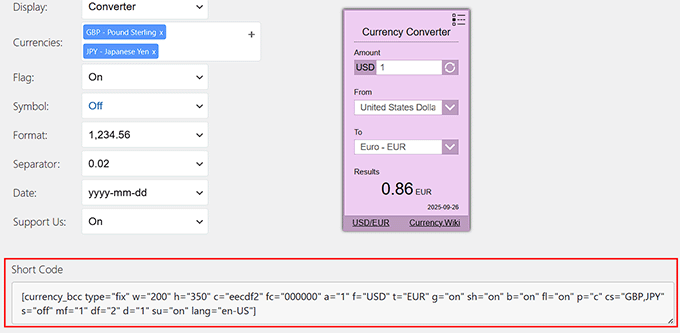
Upon activation, head over to the Currency Tool page from your WordPress dashboard. This will take you to the ‘Widget Parameter’ screen, where you will see plugin settings on the left and your currency converter widget preview on the right.
Now, to begin with, you need to select the primary currency. This is the currency you use on your site and the currency users will be converting prices from. For example, here you can choose USD.
Next, select a default secondary currency that users will see initially. This will be the main currency displayed on the converter until they choose another.
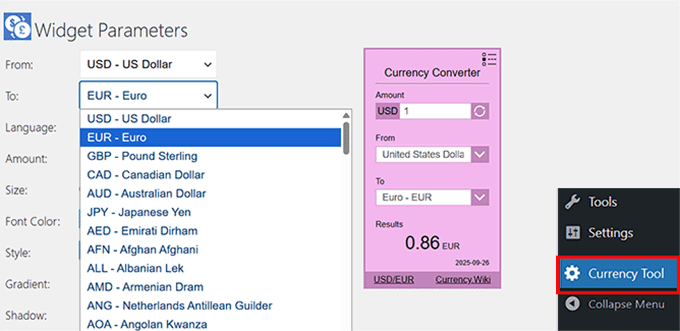
A good rule of thumb is to select the currency from where most of your traffic comes. For example, if many of your visitors are from Europe, you could set the Euro as the secondary currency.
After that, choose a language for your converter. This is useful if you run a multilingual site because it allows the converter to adapt to your visitors’ preferred language.
Customizing Your Currency Converter
Next, set the converter widget size. You can choose the auto option (a square box), 200×350, or set custom dimensions.
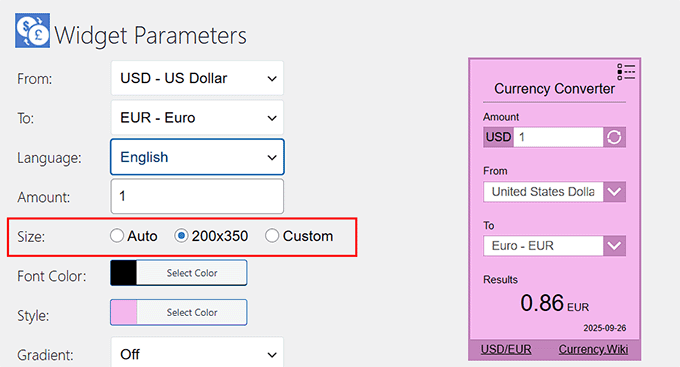
Since this will be a widget, we recommend using the 200×350 option. This size makes your currency converter visible and easy to notice without being too intrusive.
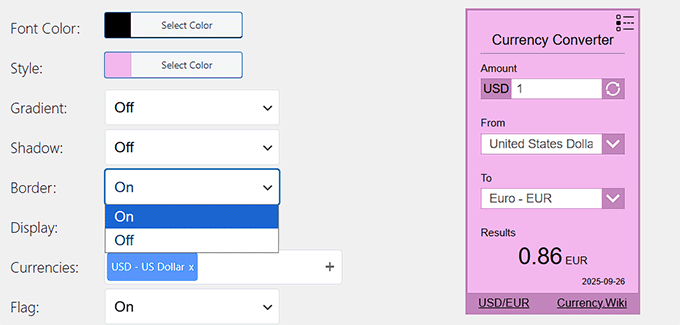
Then, you can customize the widget’s design by selecting the font color, background, gradient, shadow, and border.
After that, scroll down to the Currencies section. Here, you can select all the currencies that you want to add to your converter, such as the Canadian Dollar, Saudi Riyal, Japanese Yen, or any others.
Keep in mind that the secondary currency you set earlier (e.g., Euro) will be shown by default. But once users click the dropdown, they’ll also be able to see all the other currencies you select here.
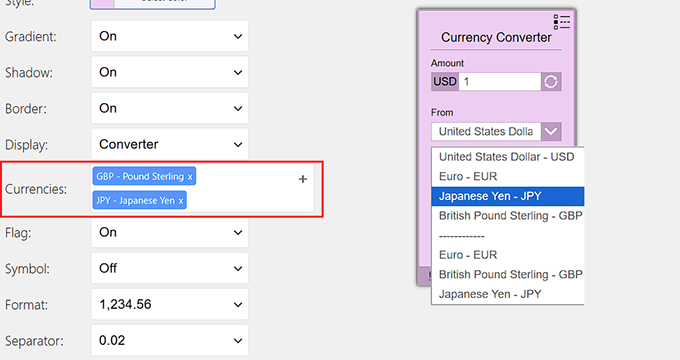
Next, configure the currency display format and choose a separator. You can also select a date format, since the currency converter displays the date in the bottom-right corner.
Once you are done, your changes will be saved automatically — you don’t need to click any button.
Finally, scroll down to the ‘Short Code’ section and copy the code from there.
Displaying the Currency Converter on Your Site
You can easily display the currency converter anywhere on your website using this shortcode.
First, you can create a new page or edit an existing one. Once you are in the content editor, simply click the ‘+’ button and add the ‘Shortcode’ block.
Then, simply add the shortcode you copied earlier into the box and click the ‘Update’ button.
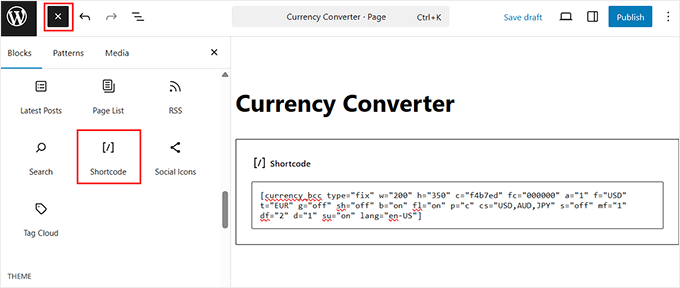
Alternatively, you can also display the currency converter in the sidebar of your website.
You can go to Appearance » Widgets from your WordPress dashboard. After that, you can simply add the shortcode block to the sidebar area.
Then, add the shortcode into it.
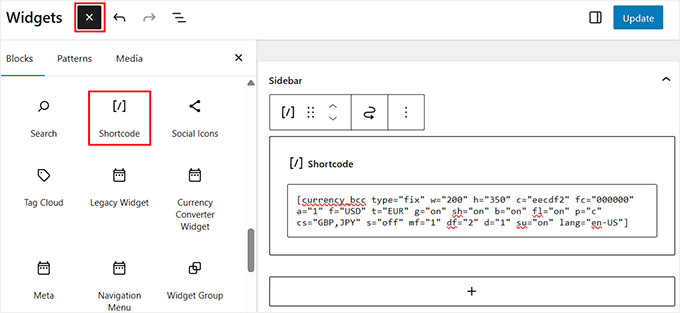
Once you are done, simply click the ‘Update’ button.
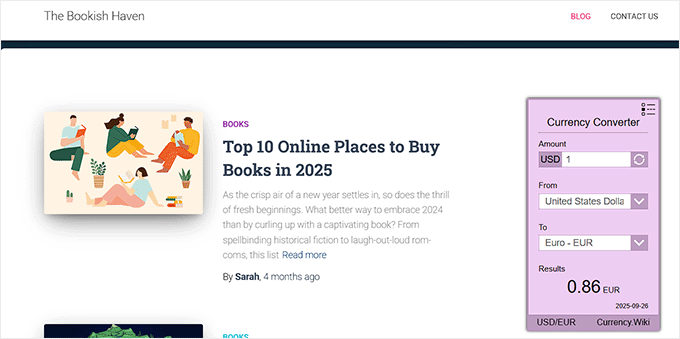
Now, you can visit your website to see the currency converter in the sidebar widget or WordPress page.
Your users will be able to enter an amount, select the currency they want to check, and then the results will be displayed.
The first method is perfect for adding a simple calculator to your site for informational purposes.
However, what if you want to automatically change the product prices in your WooCommerce store for international customers?
For that, you’ll need a dedicated multi-currency plugin. Let’s look at how to set that up using a free and easy plugin.
How to Add a Currency Converter in WooCommerce
If you have a WooCommerce store that attracts customers from different parts of the world, then a currency converter can show prices in local currencies and boost conversions.
The easiest way to add a currency converter in WooCommerce is by using the CURCY plugin. It is a free WooCommerce plugin that is easy to use and offers multi-currency support.
First, you will need to install and activate the CURCY plugin. For more details, please see our guide on how to install a WordPress plugin.
Setting Up the Currency Converter
Upon activation, you can head to the Multi Currency page from the WordPress dashboard and view the ‘General’ settings tab.
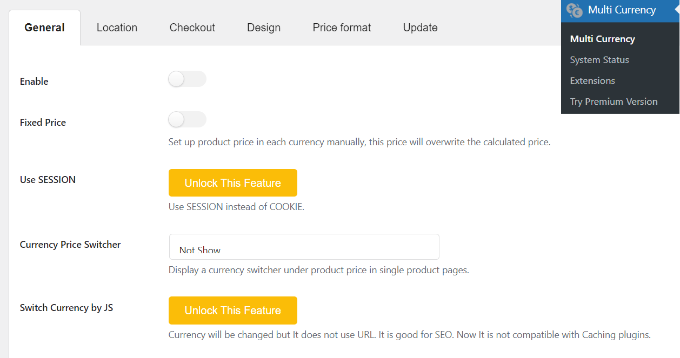
Here, you can click the ‘Enable’ toggle to activate currency converter options for WooCommerce. Additionally, the plugin allows you to set price rounding rules or add a small fee to converted prices..
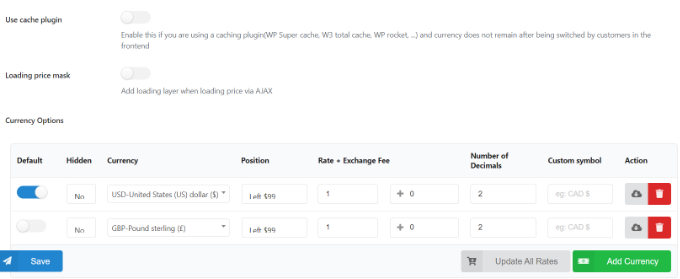
Next, you can scroll down and add different currencies. Simply click the ‘Add Currency’ button. Remember that in the free plugin, you can only add 2 currencies at a time.
This is great if you primarily sell to two regions, like the United States (USD) and Europe (EUR). If you need to display more currencies for a global audience, you can upgrade to the premium version.
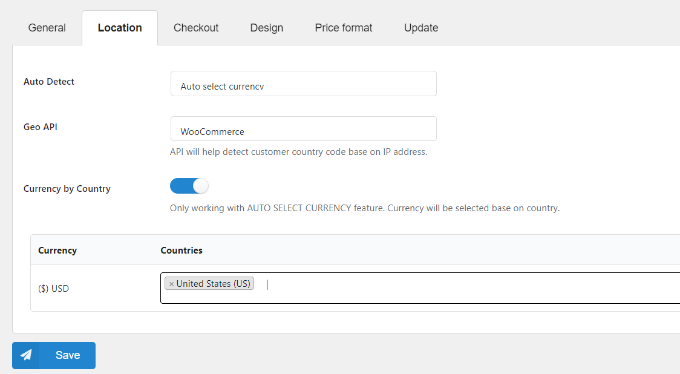
After that, you can switch to the ‘Location’ tab.
Here, you’ll find options to auto-detect currencies and show a particular currency for visitors from different locations.
Customizing Your Currency Converter
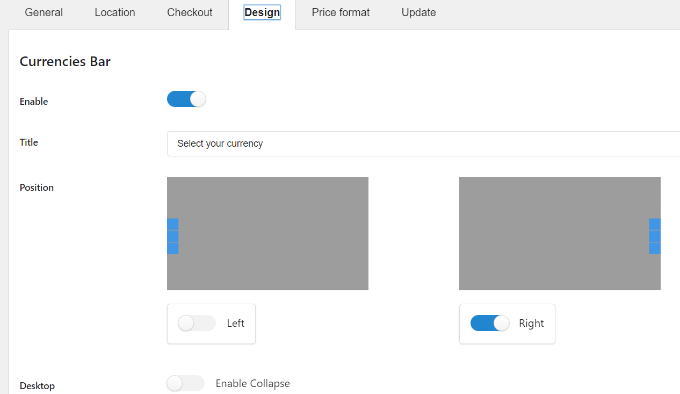
Next, you can head to the ‘Design’ tab and edit your currency converter’s appearance.
The plugin lets you choose its position, add a title, change the text color, style, main and background color, and much more.
Once that’s done, you can save your changes.
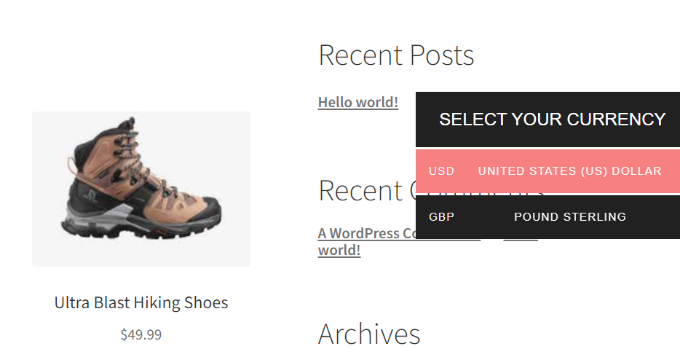
You can now visit your WooCommerce store to see the currency converter in action.
Frequently Asked Questions About Currency Converters in WordPress
Here are some questions that our readers frequently ask about adding currency converters in WordPress:
Do I need a currency converter if I only sell to one country?
No, if you only sell products or services locally and don’t expect international visitors, then you don’t need a currency converter. It’s mainly useful for websites with a global audience.
Will a currency converter automatically update exchange rates?
Yes — most currency converter plugins (such as Currency Converter Widget or CURCY) automatically fetch exchange rates from trusted sources like Currency Wiki or APIs. The rates are updated in the background, so you don’t have to refresh them manually.
Can I show multiple currencies at the same time?
Yes. With Currency Converter Widget, you can display a list of different currencies or a calculator. CURCY also lets you add multiple currencies in WooCommerce (though the free version is limited to 2).
Is a currency converter the same as multi-currency checkout?
Not exactly. A currency converter only shows prices in different currencies for convenience, but checkout still happens in your store’s base currency. For true multi-currency checkout, you’ll need a WooCommerce plugin that supports payments in multiple currencies.
Will adding a currency converter slow down my website?
No, a well-coded plugin won’t slow down your site. Both Currency Converter Widget and CURCY are lightweight and optimized for WordPress.
Can I customize the design of the currency converter?
Yes — both plugins allow you to customize the look of the converter. For example, CURCY lets you adjust the position, colors, and overall style within WooCommerce, while Currency Converter Widget lets you tweak the size, border, gradient, colors, and shadow to better match your site’s design.
We hope this article helped you learn how to add a currency converter in WordPress. You may also want to see our expert pick of the best WooCommerce alternatives for your specific needs and our tutorial on how to add a shipping calculator to your WordPress site.
If you liked this article, then please subscribe to our YouTube Channel for WordPress video tutorials. You can also find us on Twitter and Facebook.




Dennis Muthomi
Thanks for putting together such a detailed guide on currency converters! I’ve been working with these on different client sites, and I’ve picked up some useful tricks along the way.
Here’s what’s really interesting – where you put the converter makes a huge difference! While I love using the sidebar widget for blogs, I’ve had much better luck putting it right above product prices on online stores. That’s where the CBX Currency Converter really shines – it’s super flexible with placement options.
By the way, great call on suggesting Exchangerate.host as the default API. I’ve been using it in my projects, and it hasn’t let me down yet!
Ragh
Nice information
WPBeginner Support
Thank you
Admin
Elliot
Please i want to know if there is a plugin where i can define the exchange rates my self
WPBeginner Support
At the moment we do not have a recommended plugin for that.
Admin
Anees Imran
Thank you very much for your help I was cofused when I was searching for this, How to to add currency converter in my site. But now I can add. Thanks!
WPBeginner Support
You’re welcome, glad our guide was helpful
Admin
Mubasher
I’m running a multi-vendor store, and is it possible to change base currency based on user location? For example if my user is from the UK then he’ll upload his product using that front end uploading product in GBP. As well as USD from the USA.
Appreciate your help
Thanks
WPBeginner Support
You would want to reach out to the support for your vendor plugin for what is available.
Admin
Maxime
To do currency conversion anywhere in your website you can also try the plugin Multi-Currency Switcher Converter
WPBeginner Support
Thank you for letting us know about this plugin
Admin