


If you have added multiple bloggers to your site, then a blog post checklist can help ensure everyone writes in the same style and remembers all the important details. ✔
At WPBeginner, we use a blog post checklist ourselves, and it has helped us maintain consistency across our content and ensure that every post meets our quality standards. 🌟
We’ve found it especially useful as our team has grown, making sure every writer follows the same process.
If you want to do the same, then follow our step-by-step guide on how to add a blog post checklist to the WordPress editor.
Why Add a Blog Post Checklist to the WordPress Editor?
A blog post checklist helps you publish well-optimized, high-quality posts faster.
It ensures every author follows the same steps — from proofreading and formatting to adding categories and SEO details — before hitting publish.
This keeps your content consistent and minimizes mistakes, especially if you manage a multi-author blog.
Typically, editorial checklists focus on content quality, tone, and structure. Since they run inside the WordPress editor, you’ll instantly see what’s complete and what still needs attention before your post goes live.
Overall, checklists help streamline your workflow, save time, and maintain consistent content quality across your entire blog.
With that in mind, let’s look at how to add a blog post checklist in WordPress.
How to Add a WordPress Blog Post Checklist to the Block Editor
The easiest way to add a blog post checklist function to the WordPress editor is by using PublishPress Checklists.
This WordPress checklist plugin adds a checklist to the right-hand menu of the page or post editor.
Note: If you have a multi-author blog, then we recommend purchasing the PublishPress suite to improve your editorial workflow.
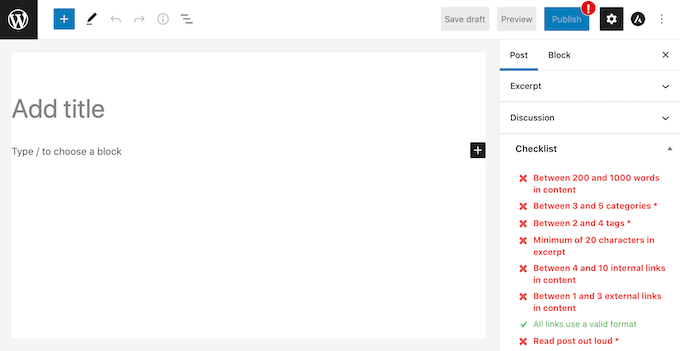
PublishPress has a list of default tasks that you can add to your article writing checklist. It also lets you create custom checklist tasks for your WordPress blog.
Step 1: Install and Activate the PublishPress Checklists Plugin
First, you’ll need to install and activate the PublishPress Checklists plugin.
If you need more instructions, then please see our guide on how to install a WordPress plugin.
Step 2: Enable Checklists for Blog Posts
Upon activation, head over to Checklists » Settings in the WordPress dashboard.
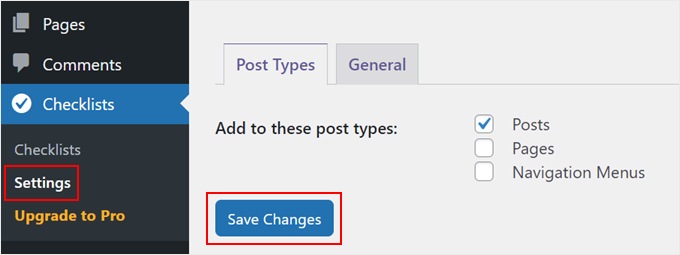
Here, you can choose where WordPress will show your checklist. To add a blog checklist to the Gutenberg editor, you’ll want to check the ‘Posts’ checkbox.
Once you’ve done that, just click on the ‘Save Changes’ button.
Step 3: Build Your Checklist
You can then build your checklist by going to Checklists » Checklists.
Here, you’ll see all of the default tasks that you can add to your blog post checklist. For certain tasks, PublishPress can automatically detect if they are completed and check them off for you.
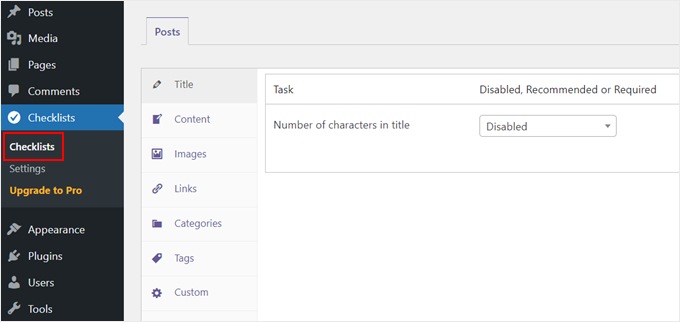
All these tasks are disabled by default and categorized by title, content, images, links, categories, tags, and custom.
Step 4: Choose Between Required or Recommended Tasks
To add a task to your blog post checklist, simply open the ‘Disabled, Recommended or Required’ dropdown menu.
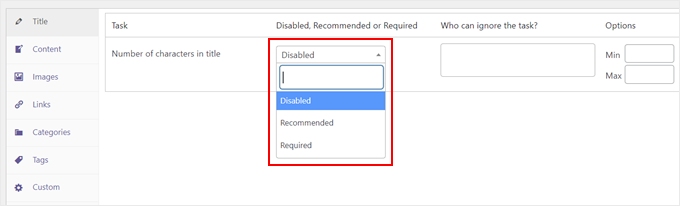
You can now choose between ‘Required’ or ‘Recommended.’
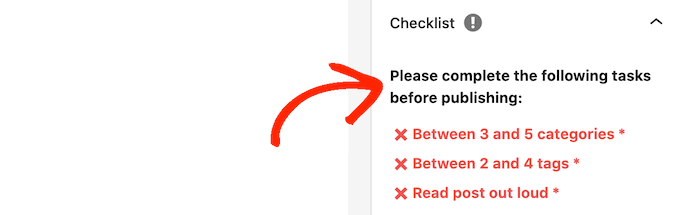
If you click on ‘Required,’ then authors won’t be able to publish their WordPress posts without checking off the task first.
If the user clicks on the ‘Publish’ button without completing all ‘Required’ tasks, then WordPress will show a ‘Please complete the following tasks before publishing’ message.
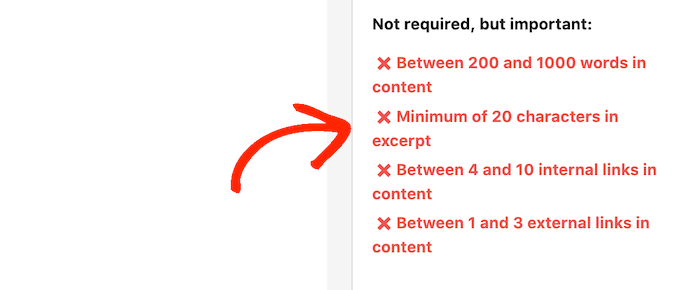
If you choose ‘Recommended’ instead, then the editor will show a message encouraging authors to complete any outstanding ‘Recommended’ tasks before publishing.
However, authors will be able to publish their posts without completing these tasks.
Step 5: Allow Certain User Roles to Ignore Tasks
After choosing between ‘Recommended’ and ‘Required,’ you can move on to ‘Who can ignore the task?’
Here, you can let certain user roles publish a post without completing a task, even if it is marked as ‘Required.’ This gives you more flexibility in your workflow.
For example, you could make ‘Add a featured image’ a required task for all Contributors, but allow your Editors to ignore it if they decide a post doesn’t need one.
To add a user role to your ‘ignore’ list, click on the ‘Who can ignore the task?’ box.
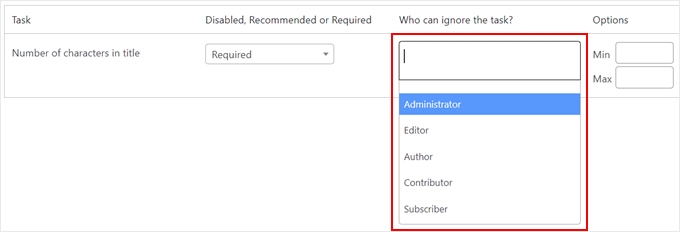
This opens a dropdown showing all of the different user roles on your site.
You can now simply click on a role to add those users to your ‘ignore’ list.

Step 6: Set Minimum or Maximum Values for Tasks
For some tasks, you may need to set a maximum and minimum value. For example, you can set a minimum number of categories that authors must add to a post. To learn more, please see our guide on how to add categories and subcategories in WordPress.
If the task has a ‘Min’ and ‘Max’ section, then you can type in the numbers you want to use.
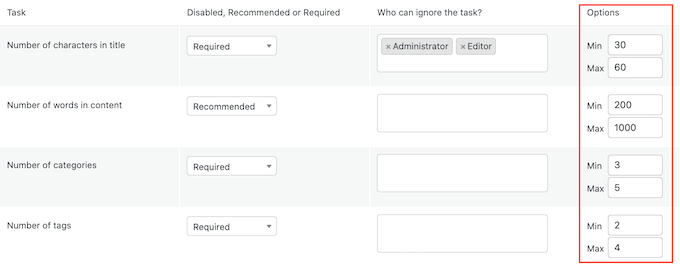
To add more tasks to your checklist, simply repeat the process described above.
Step 7: Add Custom Tasks
You can also add custom tasks to your blog post checklist.
The drawback is that PublishPress can’t check whether the author has completed custom tasks. This means the author will need to do this check manually.
For more information about custom tasks you may want to add, please see our guide on how to optimize your blog posts for SEO like a pro.
To create a custom task, simply scroll to the very bottom of your screen and then click on ‘Add custom task.’
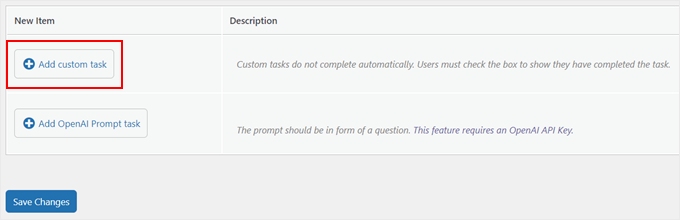
This adds a new task ready for you to customize.
To start, type the task’s name into the ‘Enter name of custom task’ field. This text will be shown in your publishing checklist, so make sure it lets authors know exactly what they need to do.
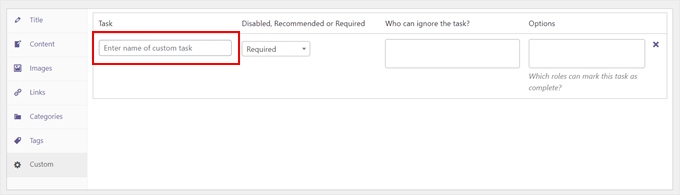
You can now make this task ‘Recommended’ or ‘Required’ and give some users the option to ignore this task by following the process described above.
Step 8: Choose Who Can Mark Custom Tasks as Complete And Save Your Changes
For custom tasks, you can specify the users who can mark this task as complete. For example, you might use custom tasks to create a special ‘Editing’ checklist for users who have the Editor role.

To do this, click on the ‘Which roles can mark this task as complete’ box. This opens a dropdown where you can click to select any of your user roles.
Once you’ve added all the tasks to your checklist, simply click on the ‘Save Changes’ button. Now, you can visit the WordPress editor to see your blog post checklist live.
What Type of Tasks Can You Add to a Pre-Publish Blog Post Checklist?
Every WordPress site will have a different workflow. A good checklist plugin allows for both automated checks and manual reminders. Here are some examples to get you started.
Examples of Automated Checklist Tasks
These are tasks that a plugin like PublishPress can automatically verify by checking your content for specific elements:
- Add a featured image.
- Add alt text to all images.
- Include a minimum number of internal links.
- Insert a meta title and meta description for SEO.
Examples of Custom (Manual) Checklist Tasks
These tasks require a human touch. You can add them as custom items that authors must manually check off before publishing.
- Use a grammar checker and proofread the article.
- Add relevant call-to-action buttons.
- Check that the post’s formatting looks good on the live site.
- Include external links to authoritative sites, marking any sponsored links as nofollow.
Frequently Asked Questions About Blog Post Checklists
Here are some questions that our readers frequently ask about adding a blog post checklist in WordPress:
Can I assign different checklists to different user roles?
Yes, plugins like PublishPress Checklists allow you to customize task requirements based on user roles. For example, you can make certain tasks ‘Required’ for Contributors but only ‘Recommended’ for Editors, giving experienced users more flexibility.
Are there other free checklist plugins for WordPress?
While PublishPress Checklists is a popular option, other plugins offer similar functionality. Some alternatives include Pre-Publish Checklist and Ozone Pre-Publish Post Checklist.
However, feature sets vary, so it’s important to check which one best suits your specific workflow needs.
Does a pre-publish checklist slow down the WordPress editor?
A well-coded checklist plugin should have minimal impact on your editor’s performance. These tools are typically lightweight and run checks in the background without causing noticeable lag during the writing process.
Expert Tips and Tricks to Customize Your WordPress Editor
Adding a blog post checklist is just one way to improve your WordPress editor experience.
Here are some more expert tips and tricks to help you customize and improve your editing workflow:
- How to Add Collaboration in WordPress Block Editor (Google-Doc Style)
- How to Replace ‘Add Title’ Placeholder Text in WordPress
- How to Hide Blocks from Specific Users in WordPress Editor
- How to Customize the Background Color of the WordPress Block Editor
- How to Disable the Fullscreen Editor in WordPress
- How to Use the Distraction-Free Fullscreen Editor in WordPress
We hope this article helped you learn how to add a blog checklist to the WordPress editor. You may also want to check out our expert picks of the best Gutenberg block plugins for WordPress and our guide on how to undo changes in WordPress with post revisions.
If you liked this article, then please subscribe to our YouTube Channel for WordPress video tutorials. You can also find us on Twitter and Facebook.




Jiří Vaněk
I’m currently finishing up a website for multiple authors and came across this article. I was also thinking about how to set up rules and ensure they’re followed effectively. There’s a big difference between rules established by agreement and having those rules enforced with the help of this plugin. It’s truly a perfect solution for my needs. Once again, a brilliant article from WPBeginner and its fantastic team.