


Creating an eBook from your blog posts is one of the smartest ways to repurpose your hard work. But the technical details of formatting pages and designing covers can feel overwhelming.
The good news is that you don’t need expensive software or specialized skills. The hardest part is writing the content, and you have already done that.
You likely have enough posts on your site to publish your first book today. I’ve helped a lot of different bloggers launch successful digital products using this exact strategy.
In this guide, I will show you how to create and sell eBooks in WordPress from start to finish.
Quick Summary: You can create eBooks for free using Google Docs or use a plugin like Beacon to automate the design. To sell your book, I recommend using Easy Digital Downloads so you can keep more of your profits.
Why Create an eBook From Your WordPress Blog Posts?
If you publish regular blog posts on your WordPress website, then you have a lot of content that you can repurpose or monetize. And one of the best ways to repurpose your content is to package it into an eBook.
Writing an eBook can build your site’s credibility. You can use it to grow your email list, offer it as exclusive content on a membership site, or sell it to make money from your blog.
However, writing a book is difficult, and 97% of people who start to write a book never finish.
The good news is that you may have already written a book. Your most popular blog posts may already contain enough quality content to repurpose as a successful eBook. Or you can use your blog to write a new book one post at a time.
Now, let’s take a look at how to create an eBook from your WordPress blog posts. Here’s what I will cover in this tutorial:
- Choosing Which Blog Content to Use in Your eBook
- Creating Professional-Looking Cover Art for Your eBook
- Method 1: Create a PDF eBook Using Google Docs (Free)
- Method 2: Design a Professional eBook Using Beacon (Recommended)
- How to Promote and Monetize Your eBook in WordPress
- Frequently Asked Questions About Creating eBooks in WordPress
- Additional Resources for Making Money Online
Choosing Which Blog Content to Use in Your eBook
Your first job is to decide which blog posts should be included in your eBook. If your blog is about a certain topic or niche, then you may just need to find your most popular blog posts.
Each post will become a chapter of your eBook.
However, if you wish to create multiple eBooks, then you should choose blog posts covering more specific topics, such as popular posts in a specific category. You can even consider future eBook ideas when you are planning the content to write about on your blog.
How to Find Your Most Engaging Content to Include in an eBook
You want to create an eBook that people actually want to read.
You should start by identifying your most popular and engaging blog posts. That way, you already know that your readers are interested in these topics.
If you are not already tracking user engagement on your WordPress blog, then the best way to get started is by using MonsterInsights. It is the best analytics plugin for WordPress and lets you see your Google Analytics data right in your dashboard.
We use MonsterInsights on WPBeginner to track how visitors interact with our content. To read more about our experience, see our complete MonsterInsights review.

There’s also a free version of MonsterInsights that you can use as well.
Expert Tip: While the core plugin is free, automatic file download tracking is a Pro feature that requires a paid MonsterInsights Plus plan or higher.
When you install and activate MonsterInsights, you will also set up Google Analytics tracking in WordPress. Once your blog has been tracked for some time, you will be able to view important user engagement metrics, such as your most popular content.
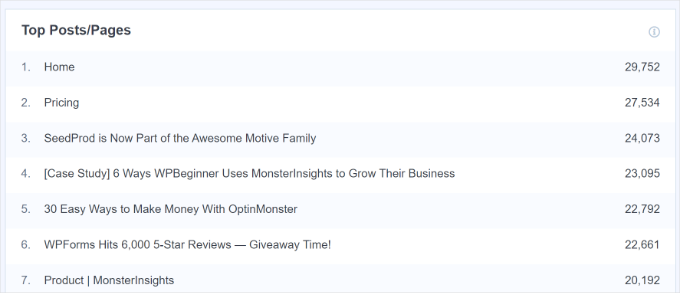
You just need to visit the Insights » Reports page in your WordPress admin area and go to the ‘Overview’ report. You can scroll down to see different reports and find your most popular content under the ‘Top Posts/Pages’ section.
To learn more about identifying your top-performing content, see our guide on how to track user engagement in WordPress with Google Analytics.
Now that you know your most popular posts, you need to choose which ones to include in your eBook. They should contain evergreen content that will stay fresh and also fit together logically as chapters to form a complete eBook.
Writing a Series of Blog Posts to Create Content for an eBook
Another way to come up with blog content for an eBook is to write a series of articles on a particular topic. These blog posts can then be compiled into an eBook.
We do something similar on WPBeginner, where we regularly compile a series of posts into a new article.
Here are some examples of articles we have compiled with repurposed content from our existing articles:
- Most Common WordPress Errors and How to Fix Them
- Extremely Useful Tricks for the WordPress Functions File
- How to Fix Common Image Issues in WordPress
- Useful WordPress Configuration Tricks That You May Not Know
- The Ultimate Guide to Boost WordPress Speed & Performance
In fact, whenever you are writing about a complex topic, it is almost always better to write a series of posts that break the topic up into smaller parts.
You can learn more in our guide on how to efficiently manage post series in WordPress.
Quickly Updating the Posts You Choose for Your eBook
Once you have chosen the blog posts you wish to include in your eBook, take some time to quickly update them if necessary.
By doing that now, you will make sure that both the blog post and eBook are free from errors and contain all of the necessary information.
You can start by fixing any spelling or grammar errors in the live posts. Most likely, you did this before publishing, but it’s worth checking again.
Important: Only fix typos or factual errors on your live blog posts. Do NOT remove internal links, call-to-action buttons, or SEO keywords from your website. You will remove those elements later in the document editing phase so you don’t hurt your website’s SEO.
You can learn the best ways to proofread your posts in our guide on how to check grammar and spelling mistakes in WordPress.
Also, take time to check the comments on each post. They may identify areas where the blog post isn’t clear enough or is missing important information. Take time to address those issues.
Later in this article, you will make further edits that will be needed in the eBook but not the blog posts.
Creating Professional-Looking Cover Art for Your eBook
One of the best ways to create a professional-looking eBook is to use a well-designed cover. Your readers will actually judge your book by its cover.
Note: While the Beacon plugin (Method 2) includes basic templates, I recommend creating a custom cover in Canva first. This gives you a high-quality image file (JPG or PNG) that you will need later to display on your eCommerce store page.
You could hire a professional graphic designer from a freelance marketplace like 99designs or Fiverr. Or you can use graphic design software or web services to do it yourself, even if you don’t have design skills.
Before you create the cover art for your book, make sure you first finalize the eBook title. It should be clear and concise, grab the reader’s attention, and describe what the book is about. You may also want to create a subtitle and book description.
One of the easiest ways to create cover art is with Canva, a free online graphic design platform. It comes with easy-to-use tools that allow you to create a book cover from a template.
The basic Canva account is free and gives you access to many ready-made templates. To get the full power of Canva, you may want to sign up for a Pro account for about $12 per month. This lets you upload your own fonts, set your brand colors, and more.
After creating your account, simply type ‘book cover’ into the search bar and press Enter. Then you can select ‘Book Cover’ from the Category dropdown menu to filter the results.
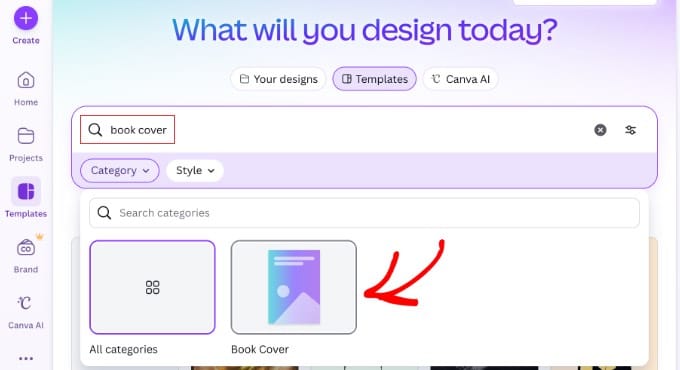
Canva will display a list of thousands of book cover templates.
These typically have the correct width ratio of 1.6 and a high-quality resolution perfect for eBook publishing.
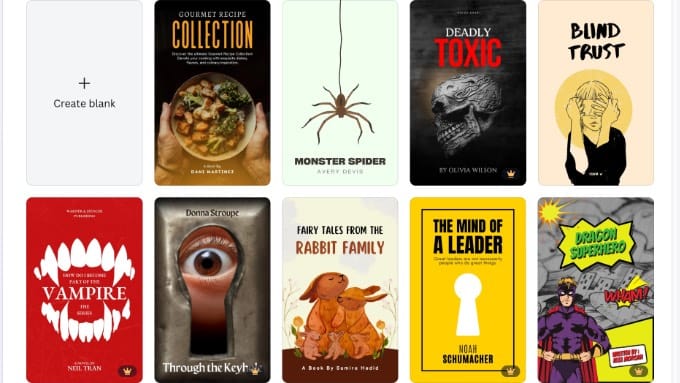
You can further refine the results by clicking the Style dropdown at the top.
This allows you to choose from options like Modern, Simple, Corporate, or Illustrated to find the perfect look for your book.
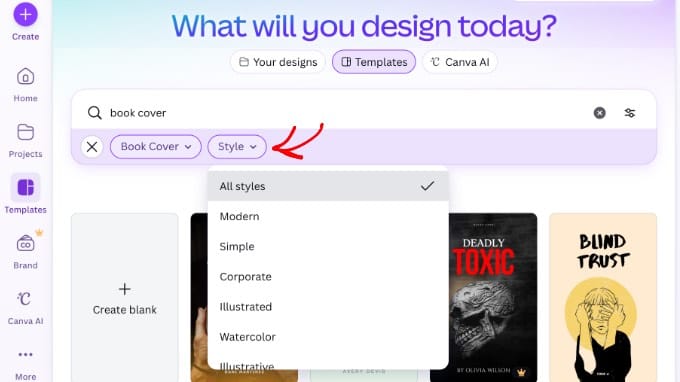
Once you find a template you want to use for your cover art, just click it to preview it. You will also see whether it is a free, paid, or pro template. After that, you should click the ‘Customize this template’ button.
Canva will now load its drag-and-drop editing interface. You can point and click on any item in the template to edit it. Make sure you type the correct title, subtitle, and author. You can rotate, resize, crop, and delete items.
On the left sidebar, you can use the Elements tab to add shapes and graphics, or the Text tab to add dynamic text effects. If you have a Canva Pro Brand Kit, then you can use the ‘Brand’ tab to instantly apply your logo and fonts.
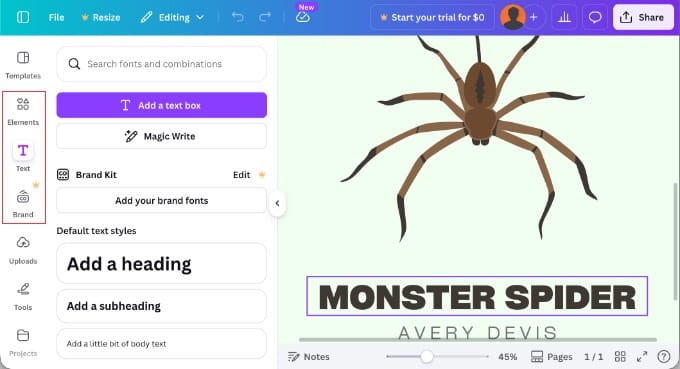
When you have finished creating your cover art, you will need to save it to your computer.
Simply click the Share button in the top right corner and select ‘Download’ from the menu.
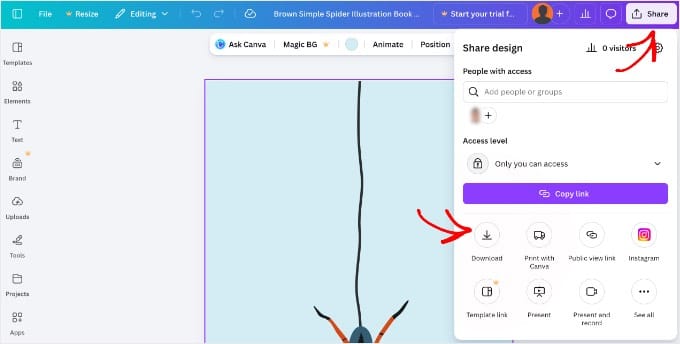
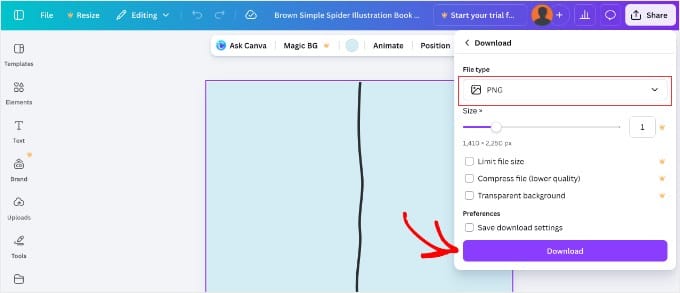
You can select a variety of file types from the drop-down menu, including PDF, JPG, and PNG.
For this tutorial, we will choose PNG and then click the ‘Download’ button.
Method 1: Create a PDF eBook Using Google Docs (Free)
You can create an eBook from your blog posts using Google Docs. This requires a little more manual work than our second method, but it’s free and makes it easy for you to edit and customize your eBook.
You need to start by creating a new Google Doc and naming it with your eBook’s title.
After that, make sure that under the View menu, ‘Show Print Layout’ is checked. This will allow you to see how each page of your eBook will look.
Step 1: How to Insert Your eBook Cover Art
The first thing you need to do is insert the cover art you created earlier.
You can either use drag and drop to place it on the first page or select Insert » Image from the menu and upload it to your computer.
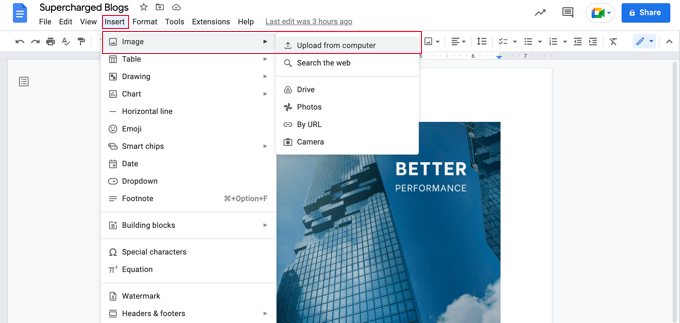
Once you’ve done that, you should select Insert » Break » Page break from the menu to start a new page.
Step 2: How to Create a Title Page and Table of Contents
On the new page, you should type the title of your eBook. Before you press enter, make sure you format it as a title by selecting ‘Title’ from the Styles drop-down menu.
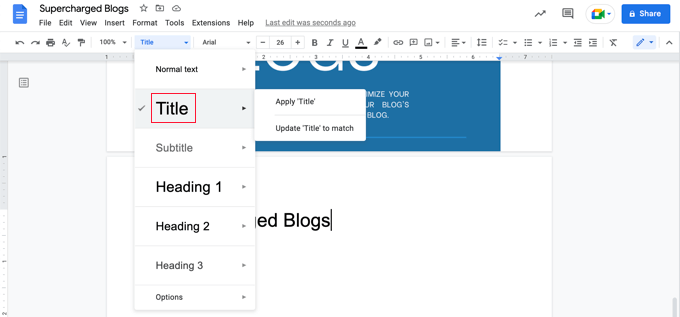
If you wish to center the title, then you need to select Format » Align & Indent » Center.
You can now press the Enter key several times and type the eBook’s subtitle if you have one, as well as your name or your blog’s name as the author.
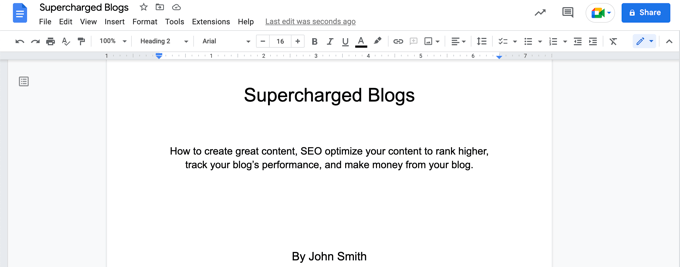
You might like to format them using a larger font and center them. Don’t use a heading style, or these lines will be included in your table of contents. You can also use the enter key to space these lines appropriately down the page.
Once you’re done, you should select Insert » Break » Page break from the menu again to start another new page.
On the next page, you will add the table of contents. Google Docs will populate this with headings as you add content to the document.
Start by typing the heading ‘Table of Contents’ and format it with the Heading 1 style.
Tip: If your text is still being centered, then you will need to select Format » Clear formatting from the menu to return to the default formatting.
Now you can press Enter and select Insert » Table of Contents from the menu. You can choose from a version with page numbers and a version with hyperlinks.
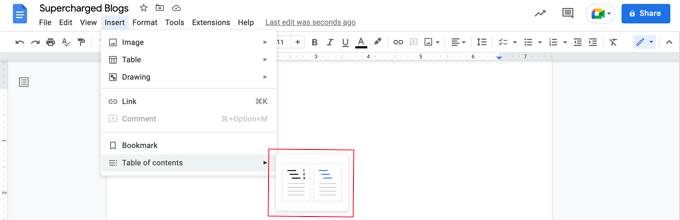
At the moment, the table of contents will be quite empty, but it will be updated as you add blog posts to your eBook.
Step 3: How to Paste Your Blog Post Content
Now it’s time to start pasting the content from your blog posts into Google Docs. Before you paste each blog post, make sure you insert a new page break (Insert » Break » Page break) so each eBook chapter starts on a new page.
Then, just head to your WordPress website and navigate to your blog post.
Simply highlight the entire post, copy it to the clipboard, and then paste it into Google Docs. Then, you need to repeat this for every post:
- Insert a Page Break in Google Docs.
- Open your next WordPress blog post.
- Copy the text and paste it into the Doc.
Pro Tip: If you paste the content and it looks messy or brings over weird formatting from your theme, then try pasting as ‘Plain Text’ (Ctrl+Shift+V or Cmd+Shift+V). You will have to re-add bolding and headers, but it ensures your eBook has a clean, consistent look.
You may also want to set the post titles (the new chapter headings) to Heading 2 in Google Docs so they are included as chapters in your Table of Contents and document outline.
For my demo eBook, I pasted the contents of 7 blog posts into Google Docs to produce a 167-page eBook. Selecting Tools » Word count from the menu shows that the document contains almost 25,000 words.
Step 4: How to Edit Your eBook Content
Now, you should work through your eBook content and make any changes that are necessary. Some things that work well in a blog post won’t belong in an eBook.
For example, you may need to tweak the title of each blog post so it works better as a chapter heading. And if you added a call to action at the bottom of each blog post, then you may need to remove it from each chapter in your eBook.
You may need to replace references to ‘posts’ with ‘chapters’. Also, you should replace internal links to your blog with links to the chapters in your eBook if they are included.
You should also work on the transitions between chapters so your book flows better. Otherwise, it might read like a collection of separate blog posts. You might also want to add a stronger introduction and conclusion to the book.
You might also like to add additional material to the book, such as sections on:
- How to use this book
- What you’ll find in this book
- About the author
- Contact information
- Copyright information
- Disclosures and Terms of Use
- Resources and links
- Footnotes and sources
Finally, make sure you correct any spelling and grammar errors you find while editing.
Step 5: How to Customize Your eBook’s Design
Before you export your eBook from Google Docs, consider whether you can improve the design of your eBook.
For example, you can customize the appearance of your headings or normal text.
This is easy to do in Google Docs. You can start by changing the format of a particular heading directly. Just select the font you want, if you want it bold or underlined, or other design choices.
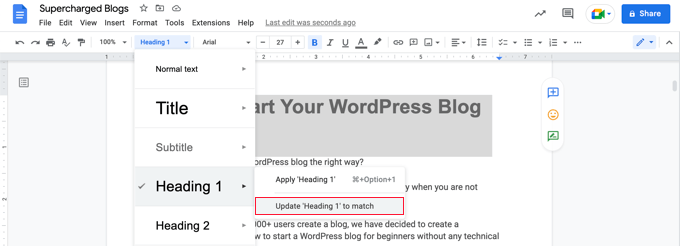
After that, keep your text highlighted. Click the Styles drop-down menu (which may currently say ‘Heading 1’ or ‘Normal text’) on the toolbar.
Then, hover over Heading 1 » Update ‘Heading 1’ to match. This will automatically update all other headings in your document to look the same.
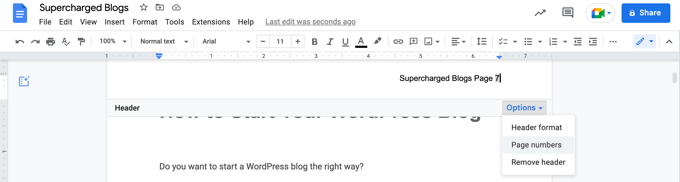
You can also add a header or footer that includes your eBook title and page numbers.
Just select Insert » Headers & Footers and then click ‘Header’ or ‘Footer’ in the menu. You can set up page numbers by clicking the ‘Options’ menu from the header.
When you are happy with the way your eBook is formatted, then it’s time to export it in an eBook format.
Step 6: How to Export Your eBook as a PDF
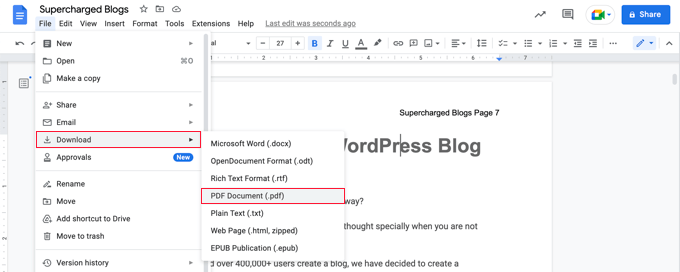
Now that you have finished creating your eBook, you can save it to your computer as a PDF. Simply select File » Download » PDF Document from the menu.
Tip: Before exporting your eBook, I recommend you update the table of contents to include any new chapters you have added. When you click on the table of contents, you will find a button labeled ‘Update table of contents’ at the top.
Google Docs also allows you to download the eBook as an EPUB Publication.
While PDFs are great for computers, the EPUB format is better for eReaders and Kindle devices because the text can resize to fit the screen. You should use this format if you plan to list your book on Amazon.
Method 2: Design a Professional eBook Using Beacon (Recommended)
Beacon is the most beginner-friendly tool for creating lead magnets and eBooks directly from your WordPress posts. I have thoroughly tested Beacon to see how it compares to other solutions. To read more about my experience, see my complete Beacon review.
It offers a free plan that allows you to create one eBook per month, which is perfect for getting started.
Beacon comes with professionally designed templates and a user-friendly editor, so you can create eBooks without having to hire a developer or designer. Note that the free version includes Beacon branding on the PDF, but you can upgrade to a paid plan to remove it.
The first thing you need to do is install and activate the Beacon plugin. For more details, see our step-by-step guide on how to install a WordPress plugin.
Step 1: Import Your Blog Content
Upon activation, navigate to Beacon » Create in your WordPress admin dashboard. If you haven’t used Beacon before, then you will be prompted to create a free account to access the eBook builder.
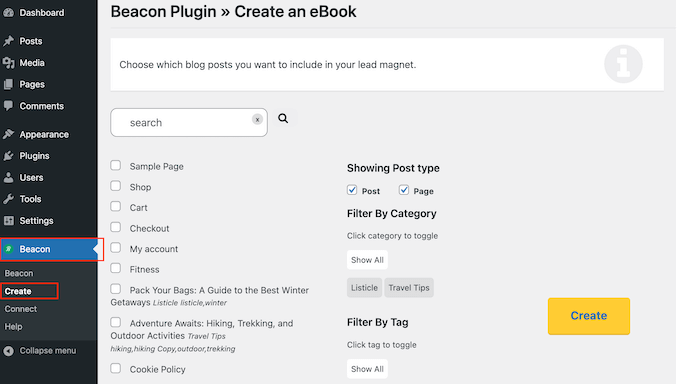
Beacon will scan your site and display all the pages and posts it discovers.
You can filter this content by checking or unchecking the ‘Pages’ and ‘Posts’ boxes. If you have a lot of content, then you can also filter by specific categories and tags to find the exact posts you want to include in your eBook.
Simply find the blog posts you want to use and check the box next to them. You can select multiple posts to combine them into a single eBook.
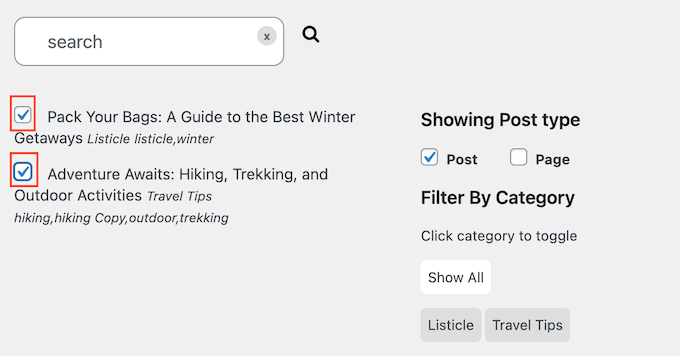
When you’re happy with your selection, click on the ‘Create’ button.
Step 2: Choose a Template
Beacon will now open in a new tab and ask you to choose a template for your eBook.
Beacon offers a wide range of ready-made templates. While you can customize these designs later, choosing a template that closely matches your vision will save you a ton of time.
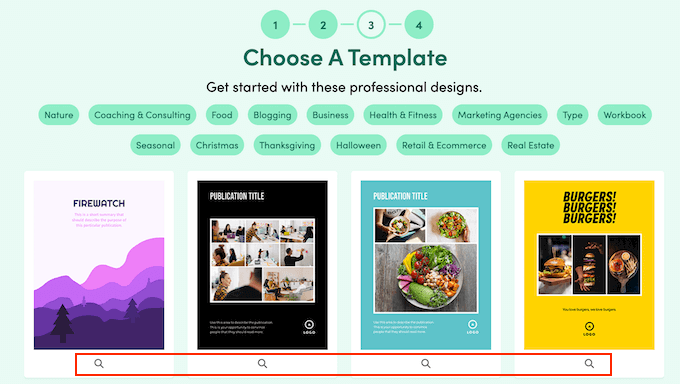
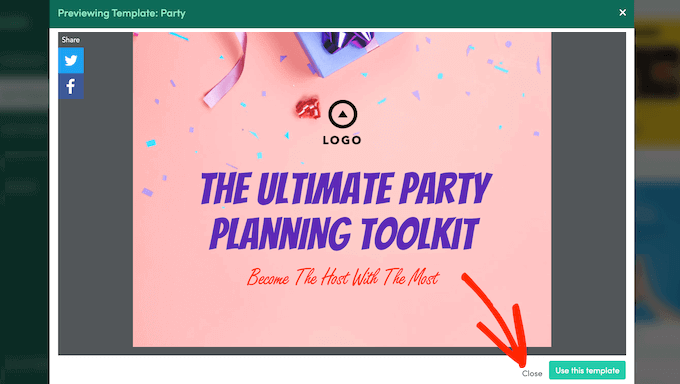
To preview a template, click the small magnifying glass icon beneath it.
Once you find the design you want to use, click on ‘Use this template’.
Step 3: Customize Your eBook
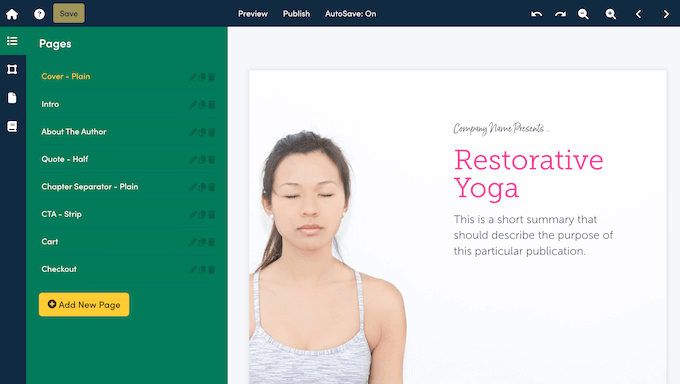
Beacon will now generate an eBook using your selected blog posts and open it in a drag-and-drop editor so you can customize it.
Adding Your Custom Cover
Beacon automatically generates a generic cover page. However, since you created a professional cover in Canva earlier, you should use that instead.
Simply click on the Cover page in the left-hand menu. You can then delete the default text elements and upload your Canva image to use as the full-page cover.
Customizing the Visual Design
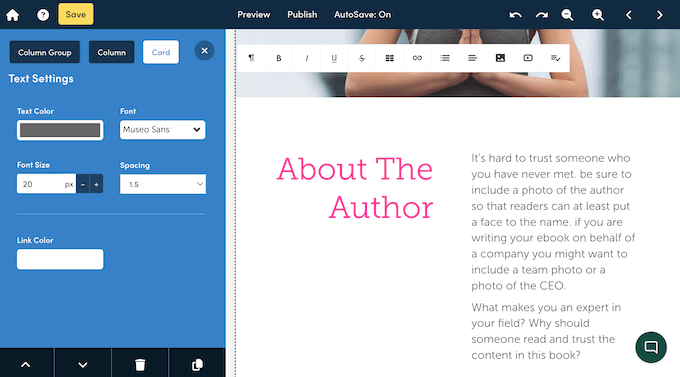
On the right side of the screen, you will see a live preview of your eBook. On the left is a menu showing all the pages and settings.
You can use the left-hand menu to change the global styles, such as font size, color, and spacing, to match your brand.
Reviewing Your Imported Content
Even though Beacon automatically imports your content, you should still read through the text to make sure it flows like a book. You can click on any text block in the live preview to edit the content directly.
You may need to remove elements that work in blog posts but not in eBooks, such as ‘Read More’ links, internal calls to action, or references to other posts. For a full checklist of what to look for, see the editing section in Method 1.
Rearranging and Adding Pages
You can also use the ‘Pages’ tab to rearrange your chapters. Simply drag and drop the pages into the order you want them to appear in the book.
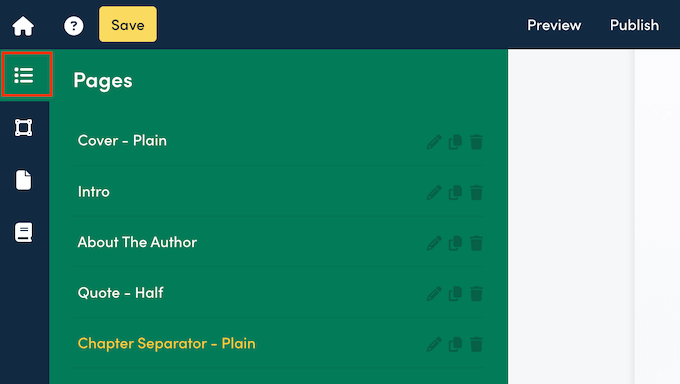
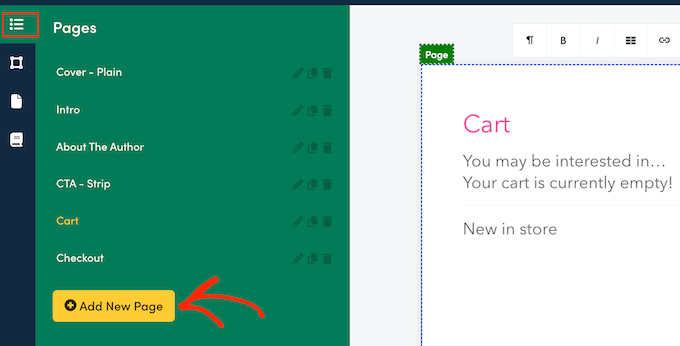
If you need to add more content that wasn’t in your blog posts, like an ‘About the Author’ page or a table of contents, then you can do that easily.
Just click the ‘Add New Page’ button and choose from Beacon’s pre-made page templates.
Step 4: Publish Your eBook
When you are happy with how your eBook looks, it’s time to publish it.
Simply click the ‘Publish’ button in the top toolbar.
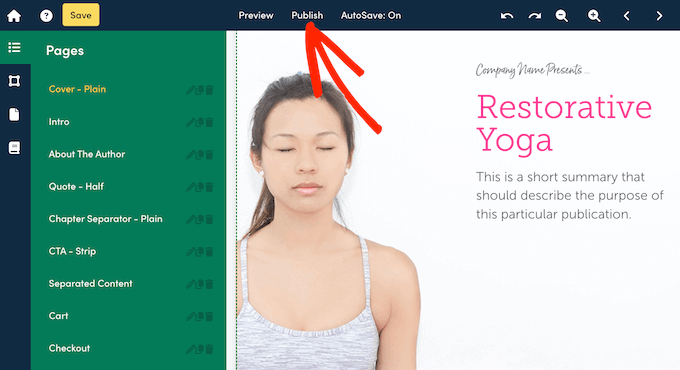
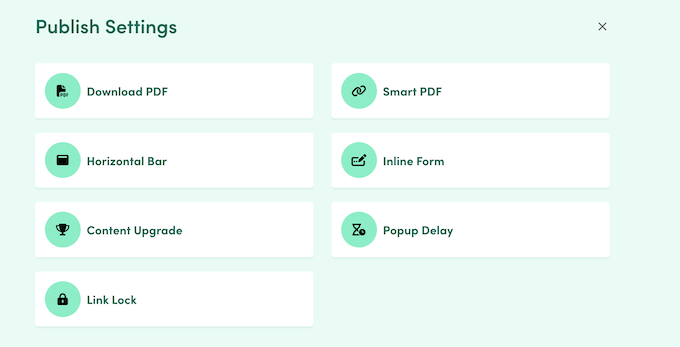
Beacon gives you several options for publishing:
- Download PDF: This allows you to download a standard PDF file to your computer. You can then upload this file to your WordPress media library or sell it using an eCommerce plugin.
- Smart PDF: This creates a web-based version of your eBook. It is mobile-friendly and allows you to track analytics, like how many people are reading your book.
For this tutorial, I’ll click ‘Download PDF’ and then confirm by clicking the ‘Generate PDF’ button so you have a file you can distribute.
Simply wait for Beacon to generate the file, and then save it to your computer.
How to Promote and Monetize Your eBook in WordPress
Now that you have created an eBook from your blog posts, you need a way to promote it so more visitors can get your eBook. There are a few ways to do this.
The method you choose depends on your business goal. You can give away the eBook for free to raise awareness, use the eBook as a lead magnet to get more email subscribers or sell your eBook to make money online.
1. Allowing Free eBook Downloads in WordPress
You can offer your eBook as a free download using the WordPress File block.
Simply edit the post or page where you want to add your eBook download and then add a ‘File’ block.
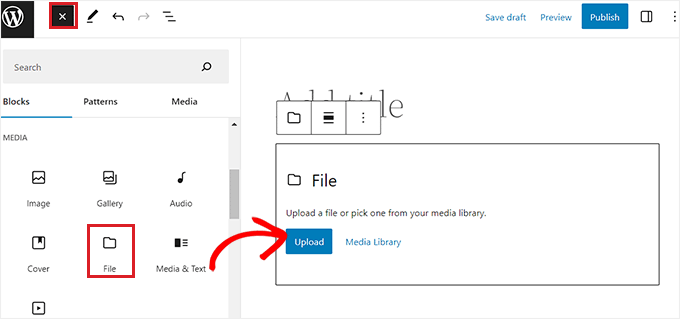
This will allow you to upload the eBook to your site, and it will be displayed in the post in a small PDF viewer by default.
For step-by-step instructions, see our guide on how to add eBook downloads in WordPress.
Tip: If you want your visitors to be able to search for your eBook’s content on your website, then you should know that WordPress doesn’t do this by default. I wrote a guide on how to add PDF indexing and search in WordPress, but I only recommend doing this if your eBook is free.
2. Using eBook Downloads to Get More Subscribers
If you’re using your eBook to grow your email list or capture leads, then you’ll want to make sure your visitors can’t access the eBook until they share their email addresses.
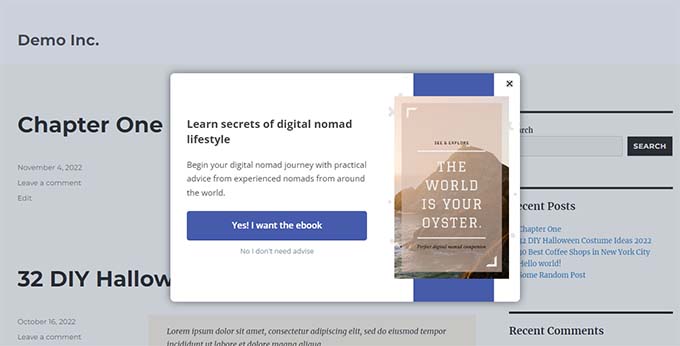
You can set that up using OptinMonster, the best lead generation plugin for WordPress. We use it on WPBeginner and have increased our conversions by over 600%.
For detailed instructions, see our guide on how to add content upgrades in WordPress.
3. Selling eBook Downloads in WordPress
Selling digital products like eBooks online is one of the best ways to earn money from your WordPress website.
To sell eBooks, you will need Easy Digital Downloads, the best digital eCommerce plugin for WordPress. This tool makes it easy to sell any type of digital file from your own online store without paying high marketplace fees.
Once installed and activated, you can easily add new downloads to your website. It’s easy to add a title and description for your eBook, as well as categories and tags.
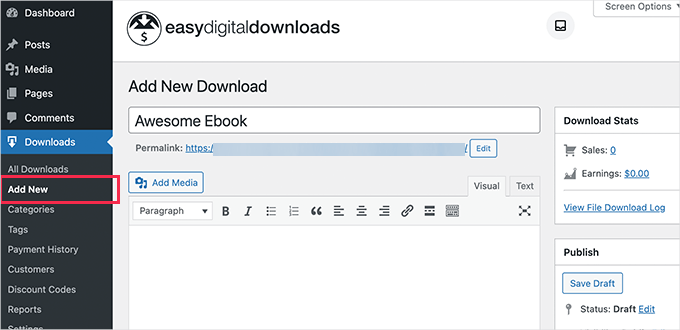
The plugin also handles pricing. You can easily set a single price for your eBook purchase for free. If you want to offer more options, then you can use the paid version of EDD to set up variable pricing.
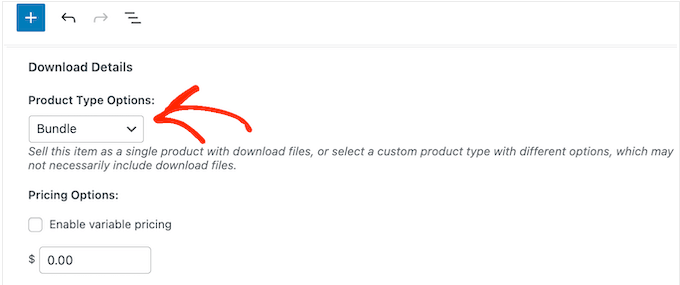
For example, you could have one option to sell just the eBook and another that includes a bundle with an additional product. Using a paid EDD pass, you can even create product bundles that show up on the same product page.

Note: To accept payments, you will need to configure a payment gateway. Easy Digital Downloads supports Stripe, PayPal, and others. You can set this up by navigating to Downloads » Settings and clicking on the Payments tab.
Preventing eBook Piracy
One of the biggest concerns for eBook sellers is people sharing their files for free. Easy Digital Downloads has built-in features to prevent this.
In the product settings, you can set a File Download Limit. I recommend setting this to 3 or 5. This makes sure the customer can download the file if they lose it, but the link will expire after the limit is reached so they cannot share it with others.
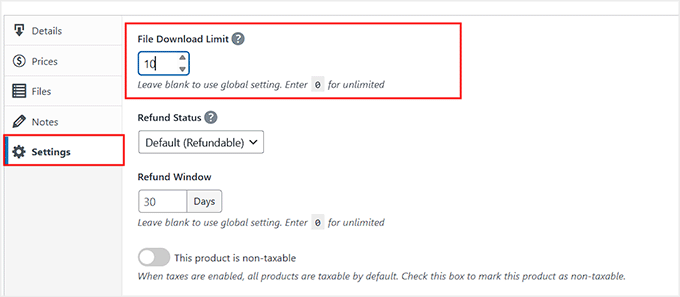
After that, you can upload your eBook and add a cover image that will be displayed on your website.
You can find more detailed instructions in Method 3 of our guide on how to add eBook downloads in WordPress.
Creating a Custom Sales Page for Your eBook
While Easy Digital Downloads creates a basic product page for you, you may want to create a custom landing page to boost your sales.
A custom sales page allows you to remove the sidebar, use full-width images, and focus entirely on converting visitors into buyers. This is how top marketers sell their eBooks.
The best way to do this is by using SeedProd. It is the best drag-and-drop WordPress page builder and includes six pre-designed templates specifically for eBook promotions.
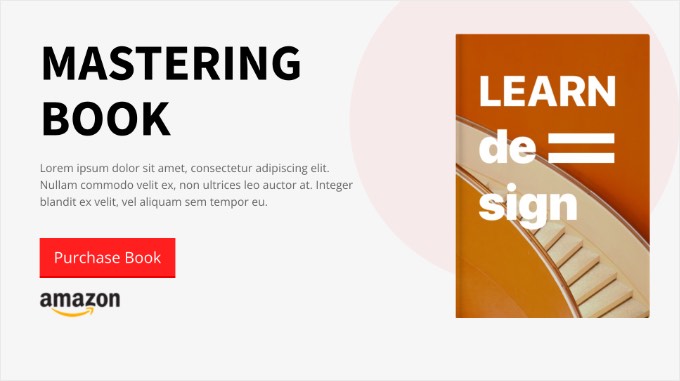
These templates use industry best practices and responsive layouts. For example:
- eBook Sales Page: A minimalist design with a sneak peek to convince visitors to buy.
- eBook Squeeze Page: A high-focus, dark background design perfect for capturing leads.
- eBook Opt-In Page: A colorful, long-form layout that lets you answer FAQs and provide details.
All of these templates are fully customizable, so you can match your brand perfectly. You can also connect your Easy Digital Downloads ‘Buy’ button directly to your SeedProd page.
For more details, see our guide on how to create a sales page in WordPress (that converts).
Bonus Tips to Promote Your eBook
The first step is simply making the eBook. To make sales, you need to get it in front of the right people.
Here are a few proven strategies to promote your new book.
1. Promote to Your Existing Audience
The easiest way to get your first sales is to market to the people who already know you. You should send an email newsletter and use push notifications to announce your launch.
For email marketing services, I recommend either Constant Contact or Brevo since they are affordable for new users.
You can also use PushEngage, the best push notification plugin for WordPress, to reach your blog readers. It has some of the highest engagement rates and helps you bring visitors back to your site automatically. See our guide on how to send push notifications for more details.
2. Run a Viral Giveaway
Another proven technique for promoting your eBook is giveaways. These help you leverage the power of social media to attract more new users to your blog.
I recommend RafflePress, the best giveaway plugin for WordPress, to create a viral giveaway. It connects easily with all major social media platforms and makes it simple for visitors to share your book.
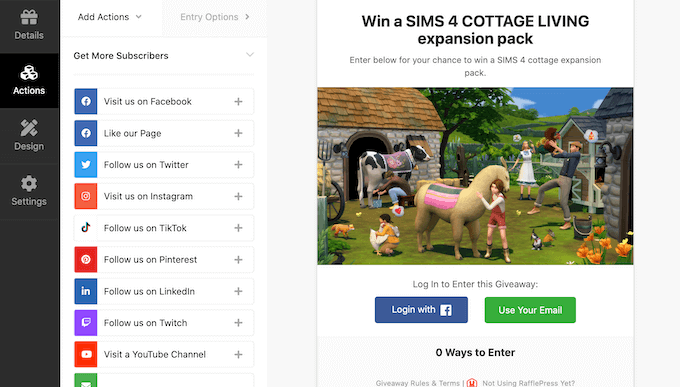
For more details, see our guide on how to run a viral giveaway in WordPress.
3. Use Social Proof to Boost Sales
When visitors see that others are buying your eBook, they are more likely to buy it themselves. This is called social proof.
You should use TrustPulse, the best social proof plugin for WordPress, to show notification bubbles when someone buys your book. This uses FOMO (Fear Of Missing Out) to increase your conversion rates.
4. Create eBook Bundles to Increase Revenue
If you have written multiple eBooks or if you have other digital products, then you can bundle them together to increase your average order value.
For example, instead of selling three eBooks for $10 each, you can sell a ‘Complete Masterclass Bundle’ for $25.
Easy Digital Downloads allows you to easily create product bundles. This makes the customer feel like they are getting a deal, while you earn more per sale.
Frequently Asked Questions About Creating eBooks in WordPress
I often hear from users who want to repurpose their content but have specific questions about the process. Here are some of the most common questions about creating and selling eBooks.
1. Can I sell blog posts that are available for free on my site?
Yes, absolutely. Even though your blog posts are free, digging through archives to find them is time-consuming. An eBook packages that information into a single, easy-to-read file.
Many top bloggers sell compilations of their best work because readers value the convenience of a curated format.
2. What is the best WordPress plugin for creating eBooks?
I recommend using the Beacon plugin. It allows you to import existing WordPress posts, choose a professional template, and customize the design using a drag-and-drop editor. Beacon handles the formatting automatically, which saves you hours of work compared to manual tools.
3. Should I create a PDF or an EPUB file?
If you plan to sell the eBook directly on your WordPress website, then a PDF is the best format. PDFs keep your design consistent across all devices and are easy for customers to download and read.
However, if you want to sell your book on Amazon Kindle or Apple Books, then you will need to generate an EPUB file.
Note: You can export to EPUB using Google Docs (Method 1), but the Beacon plugin (Method 2) currently only creates PDF files.
4. How do I sell my eBook without paying high fees?
To keep more of your profits, you should sell your eBook directly on your own site using Easy Digital Downloads. Third-party marketplaces often take a large cut of your sales. By using Easy Digital Downloads, you avoid those high marketplace fees and keep maximum profit.
5. How long should my eBook be?
There is no strict rule for eBook length. The goal is to solve a specific problem for your reader. Some successful eBooks are short, 20-page guides that offer a quick solution, while others are comprehensive 100-page manuals.
Focus on delivering value rather than hitting a specific word count.
Additional Resources for Making Money Online
Now that you know how to create an eBook, you may want to learn more about selling digital products or growing your audience.
Here are some other guides to help you succeed:
- How to Add eBook Downloads in WordPress
- Proven Ways to Make Money Online Blogging With WordPress
- Tested and Easy Ways to Grow Your Email List Faster
- Ultimate Guide to Creating a WordPress Membership Site
- How to Track User Engagement in WordPress With Google Analytics
If you liked this article, then please subscribe to our YouTube Channel for WordPress video tutorials. You can also find us on Twitter and Facebook.



Jiří Vaněk
It’s a great idea, and thank you for all the information in the article. I’ve been thinking for a while about how to increase the number of email addresses for my newsletter, and I’ve been playing with this idea. Turning articles into a book and offering it for free in exchange for an email address seems like a fantastic way to move forward. Thanks for the excellent advice and tips.
WPBeginner Support
You’re welcome, glad our recommendations were helpful!
Admin
Hajjalah
For sure, this is one of the most important guides I have ever implemented. By carefully following this article, I have managed to create my first ever e-book. I am very glad to become a successful author
courtesy of WPBeginner.
I have so far made 11 sales on my website using Easy Digital Downloads plugin and 4 sales on my Patreon account . This can sound as small but it is a huge achievements for me and I see my publishing future as bright. Thanks WPBeginner for your helpful articles.
Jiří Vaněk
Everyone starts with small numbers. To me, any beginning is a great boost, whether you’ve sold just 4 units or 400. Those of us who have blogs know how challenging those first few daily users were and how we delighted in seeing the traffic graphs rise. I wish you many more successes, and I’m curious to see if, when I try the same approach as you, I’ll also manage to make some sales or at least exchange for an email address.
Moinuddin Waheed
I have been planning to write an ebook for a long time and you have rightly said that most people who start writing book never finish as it is a tough and time taken task.
I have used the second technique i.e to write blog post and then eventually convert that into an ebook. This method is very helpful as it never lets us feel like we are doing nothing, it feels like we are creating engaging posts for my readers.
it also helps in growing our email lists. I myself have download free ebooks by subscribing to their email list.
Regina Ryerson
Awesome job— game-changer. This came just in time for me. I’ll definitely get the ebook/blog plugin, and possibly the analytics tool.
WPBeginner Support
Thank you!
Admin