


Ever notice how some websites have perfectly spaced content that’s easy to scan, while others feel cramped and hard to read?
The secret often comes down to something simple: proper line breaks and spacing.
If you’ve ever added line breaks in your WordPress editor only to find they don’t show up on your published page, you’re definitely not alone. WordPress handles spacing a bit differently than word processors like Google Docs or Microsoft Word.
Once you understand how it works, though, you’ll have complete control over how your content looks.
We’ll show you several reliable methods to add line breaks in WordPress, from quick shortcuts to more advanced formatting options.
Why Add a Line Break in WordPress (New Line Spacing)?
At first glance, a line break might seem like a small formatting choice—but it can have a big impact on how your content performs.
From improving readability to boosting user experience, adding proper spacing helps your pages look clean and professional. Here’s why it matters:
- Better readability: Breaks up walls of text for easier scanning.
- Mobile-friendly: Keeps content clear on smaller screens.
- Fixes pasted text: Cleans up formatting from other sources.
- Draws attention: Helps tips and CTAs stand out.
In short, line breaks make your content easier to read and more engaging—both for visitors and search engines.
Note: Before we start, it’s important to know that line spacing is controlled by the WordPress theme you use.
We’ll show you how to add space between blocks in the block editor, and then cover how to adjust line spacing in your theme if you’re not happy with the default results.
Having said that, let’s take a look at how to easily add a line break in WordPress.
How to Add Double Line Space Between Blocks
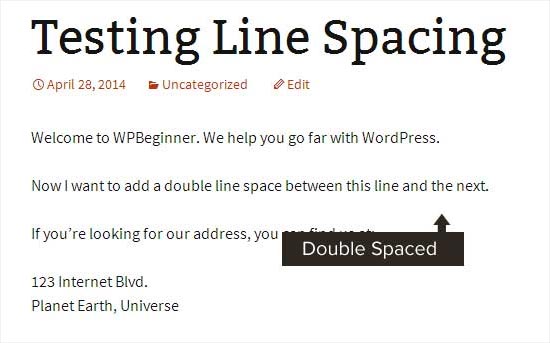
When you press the Enter key for Windows or the Return key for Mac on your keyboard to add a line break, WordPress considers it as a new paragraph.
This means it will automatically add a double line space. The amount of spacing is controlled by your theme, and this styling is a standard feature in all good WordPress themes.
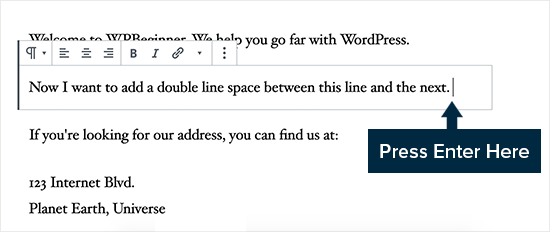
Simply go to the content editor, press the Enter or Return key after the line, and then type something else in the next line.
By simply doing that, based on your theme styling, you should see a clear distinction between paragraphs.
How to Add a Single Line Space
Now, if you are writing something like an address, then you probably want it to be single-spaced instead of double-spaced on your WordPress site.

In this case, you need to press the SHIFT + ENTER key on Windows or the SHIFT + RETURN key on Mac.
This tells WordPress that you want to start a new line within the same paragraph. This action creates a single line break instead of the double space used for a new paragraph.
The Easiest Way: Using the Spacer Block
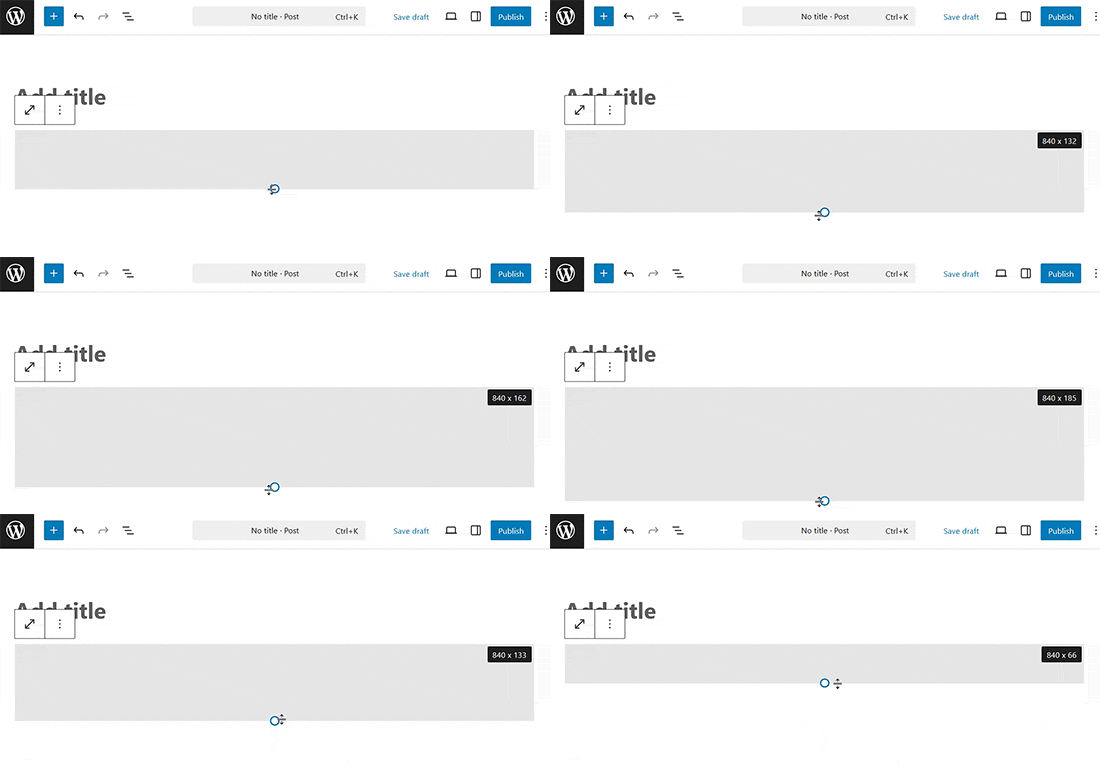
For a simple, no-code way to add extra space between any two blocks, the easiest method is to use the built-in Spacer block.
Simply click the ‘Add Block’ button in the editor to add a new block and search for ‘Spacer’. Once you add it, a new empty space will appear on your page.
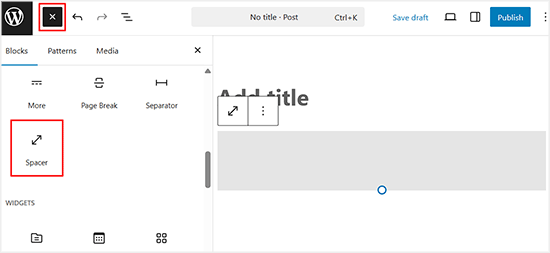
You can then click on the spacer and drag the blue handle up or down to adjust its height.
This gives you precise control over your vertical spacing right inside the editor.
Modifying the Line Height and Spacing
Sometimes, even when you add the proper line spacing in the editor, it doesn’t display the way you want it to in your theme.
There are two ways to fix it:
- Using a plugin (the easy way)
- Manually with CSS code (more advanced)
Let’s take a look at the easy method first.
Adding Line Spacing Using a Plugin
If you want to make style changes to your theme without having to learn code, using a plugin like CSS Hero is the best way to do that.
CSS Hero makes it easy to change the design of your WordPress site without knowing any code.
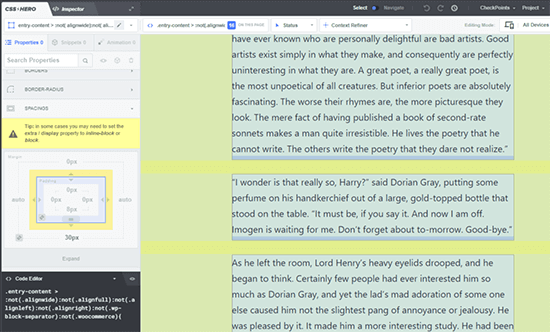
You can see more details in our full CSS Hero review.
If you want to make bigger changes to your theme, like moving a sidebar or adding a footer, then a drag-and-drop page builder plugin would be a better option. A page builder plugin would also let you make small tweaks like changing font colors or adding line breaks in WordPress.
Don’t want to use a plugin, or just need to make this one change? Then, the manual CSS code option might be best for you.
Changing Paragraph Spacing Manually With CSS Code
To add line breaks manually without a plugin, you need to add some CSS to your theme.
CSS is basically like the formatting feature in Microsoft Word. Instead of clicking buttons, you will be writing some plain CSS code. It is not as scary as some beginners may think. CSS is very easy to understand if you are just following instructions.
To add custom CSS to your theme, you need to visit the Appearance » Customize page. This will launch the WordPress theme customizer, where you need to click on the ‘Additional CSS’ tab from the left column.
If you can’t see these menu options, then you might be using a block theme. Please see our article on how to fix missing theme customizer in WordPress admin.
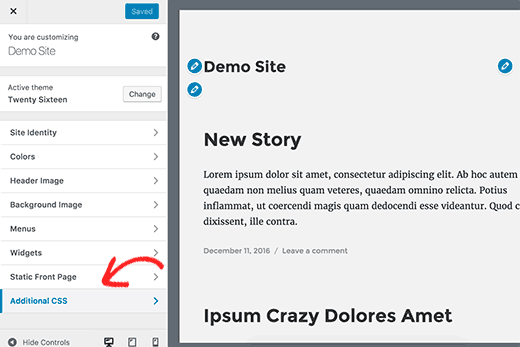
In the custom CSS box, you need to add the following CSS code:
This code targets all paragraph elements (p) specifically within the main content area of your posts, which WordPress often identifies with the .post class. This ensures it only affects your articles.
.post p{line-height: 1.5em;}The CSS rule shown above will change the line spacing of paragraph content to 1.5em. Em is a unit of width for typography.
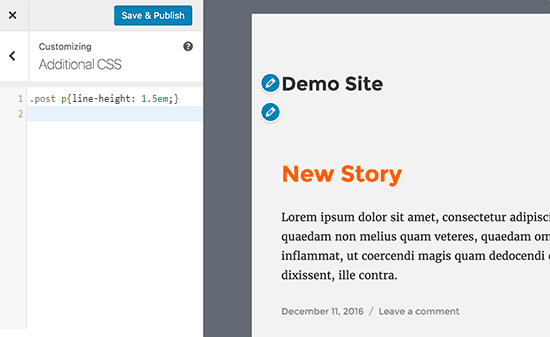
Now, this only changes the spacing of single spacing.
If you want to change the paragraph spacing in WordPress (i.e., double spacing), then you would need to add padding.
.post p {
line-height: 1.5em;
padding-bottom: 15px;
}
Feel free to adjust the numbers in this CSS code. Changing the padding-bottom value will change the space between your paragraphs.
You can also add custom CSS to your site using the WPCode plugin. The plugin makes it very easy to insert and manage code on your site.
For more details, please see our guide on how to add custom CSS to your WordPress site.
If you don’t like reading the instructions, then just watch our video tutorial.
Video Tutorial
For a visual walkthrough, you can watch our video tutorial below. It covers all the methods we’ve discussed for adding single and double line spacing in your content.
We hope this article helped you add a line break in WordPress. You may also want to see our guide on how to use WordPress block pattern and our list of the best Gutenberg friendly WordPress themes.
If you liked this article, then please subscribe to our YouTube Channel for WordPress video tutorials. You can also find us on Twitter and Facebook.



Ralph
This was huge problem back in old creator. I never knew how it will look like and had to hit preview every couple of lines but i think with gutenberg it is way easier and i learnd to just use shift+enter. I do this automatically and almost without consciousness. Don’t know why but some websites don’t allow shift+enter only enter or not and then I’m like “WHY it is not working”!
Deepak Sahani
Superb video & post solved my query.
WPBeginner Support
Glad our guide could be helpful!
Admin
Jennyfer
Thank you very much for thus information! Very useful. Just what I was looking for.
WPBeginner Support
Glad our guide was helpful
Admin
Colleen Cochran
I finally figured out the shift-enter thing for poetry single space lines, but when the post is published and emailed to followers, it loses formatting and all the lines run together. How do I fix that?
WPBeginner Support
You would want to check with the tool being used to send the notification for the styling for fixing that issue.
Admin
Luiz
Thank you! Very useful!
WPBeginner Support
You’re welcome
Admin
Robin
So helpful! Thank you!!
WPBeginner Support
You’re welcome
Admin
Dhirendra
Any option for reduce image gap…
WPBeginner Support
It would depend on the specific image but for a starting point to find what is causing the gap you would want to take a look at our guide below:
https://www.wpbeginner.com/wp-tutorials/basics-of-inspect-element-with-your-wordpress-site/
Admin
jan van den hoed
Thanks for the explanation. One question though. How can i do the same thing on a smartphone. I’m editing my blog on the way and do not have a laptop available. i tried to do shift enter but that did not work
WPBeginner Support
Due to the limitations of mobile, you would likely need to use the CSS method.
Admin
Val
Thank you so much, such a great help. I agonized over spacing!
WPBeginner Support
Glad our guide was helpful
Admin
Stephen
Thanks, it helped a great deal.
WPBeginner Support
Glad our article was helpful
Admin
Douglas Daniel
To change the CSS it’s telling me I have to purchase a premium plan. Am I out of luck?
WPBeginner Support
It sounds like you are on WordPress.com and this tutorial is for WordPress.org sites:
https://www.wpbeginner.com/beginners-guide/self-hosted-wordpress-org-vs-free-wordpress-com-infograph/
you would sadly be limited to the other options such as shift+enter to single line space the content.
Admin
SOO
Thank You! Helpful!!
WPBeginner Support
You’re welcome, glad our article could help
Admin
Rebecca
I did not work for me. Any reasons it would not work?
WPBeginner Support
If you’re using a page builder plugin they may have a different method for the single/double line spacing. Otherwise, it could be a plugin/theme conflict where you would need to disable your plugins and/or swap your theme to check
Admin
Tim G
I would like to reduce the spacing between normal paragraph lines — IMHO, there is too much white space by default. I’d also like to add a half line at the end of a paragraph, rather than a full line: Wordpress by default seems to just do the equivalent of a double carriage return which is rather twentieth century and doesn’t emulate what Word can do. Any ideas?
WPBeginner Support
You would want to reach out to the support for your specific theme and they should be able to tell you what CSS needs to be added to reduce your line spacing
Admin
sofar ahmad
TQ so much
very helpful
WPBeginner Support
Glad our guide could be helpful
Admin
Sumeet
thanks that was what i was looking for it helped …
WPBeginner Support
Glad our article helped
Admin
Jen
God bless you! I’m so grateful for you posting this with the CSS! Who knew that’s all it took for me to change the spacing! I’ve been looking for something like this for a long time! Thank you so much!
WPBeginner Support
Glad our article could help you
Admin
Kathy
I am using the “shift” enter method but it does not allow for different size font when I do. Is there a work around?
WPBeginner Support
Hi Kathy,
Please see our guide on how to change font sizes in WordPress.
Admin
Lora Staples
GREAT video. Loved the content, pacing, and tone of the speaker. THANKS!
Kunal Khandelwal
Thank you so much for this suggestion. Didn’t know it was so easy