


Ever notice how some websites have perfectly spaced content that’s easy to scan, while others feel cramped and hard to read?
The secret often comes down to something simple: using new lines and spacing effectively.
If you’ve ever added line breaks in your WordPress editor only to find they don’t show up on your published page, you’re definitely not alone. WordPress handles spacing a bit differently than word processors like Google Docs or Microsoft Word.
Once you understand how it works, though, you’ll have complete control over how your content looks.
We’ll show you several reliable methods to add line breaks in WordPress, from quick keyboard shortcuts to more advanced formatting options.
Let’s start with the easiest ways to add a line break.
💡 Quick Answer: How to Add a Line Break in WordPress
In a hurry? Here are the 5 ways covered in this article:
- Add Double Line Space (New Paragraph): Press Enter/Return for automatic double spacing between paragraphs.
- Add Single Line Space (Same Paragraph): Use Shift + Enter/Return to start a new line within the same paragraph.
- Use Spacer Block (Visual Control): Drag and drop a Spacer block for precise vertical spacing without code.
- Use a Plugin (No Code Styling): Modify line spacing and other styles easily with a visual CSS editor plugin.
- Add Custom CSS (Advanced Control): Write CSS code in the Customizer to fine-tune line and paragraph spacing.
Why Add a Line Break in WordPress (New Line Spacing)?
At first glance, a line break might seem like a small formatting choice—but it can have a big impact on how your content performs.
From improving readability to boosting user experience, adding proper spacing helps your pages look clean and professional. Here’s why it matters:
- Better readability: Breaks up walls of text for easier scanning.
- Mobile-friendly: Keeps content clear on smaller screens.
- Fixes pasted text: Cleans up formatting from other sources.
- Draws attention: Helps tips and CTAs stand out.
In short, line breaks make your content easier to read and more engaging—both for visitors and search engines.
Note: While you control where you add new lines and paragraphs, the exact amount of space between lines within a paragraph (line height) and between paragraphs is often set by your WordPress theme.
We’ll show you how to add new lines and space using different methods, and then how to fine-tune the default spacing settings in your theme if needed.
Having said that, let’s take a look at how to easily add a line break in WordPress.
How to Add a Line Break in WordPress (Quick Methods)
In WordPress , you can easily add line breaks using your keyboard. To create a double line space (new paragraph), simply press the Enter key (or Return on Mac).
For a single line space within the same paragraph, hold Shift + Enter (or Shift + Return on Mac). These are the quickest ways to control spacing in the block editor.
How to Add a New Paragraph (Default Spacing)
When you press the Enter key (Windows) or Return key (Mac) on your keyboard, you are creating what’s often referred to as a “hard return” or a new paragraph break.
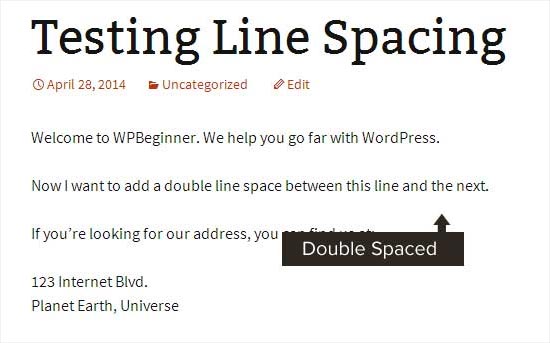
WordPress creates a new paragraph. By default, your theme adds some vertical space between paragraphs, which helps separate your thoughts and make content easier to read.
The exact amount of this spacing is controlled by your theme’s design.
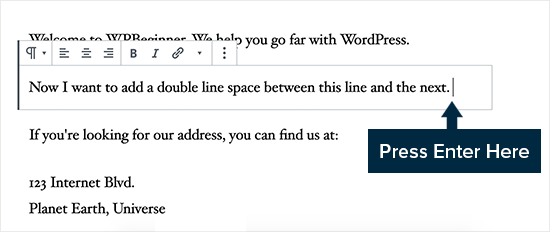
Simply go to the content editor, press the Enter or Return key after the line, and then type something else in the next line.
By simply doing that, based on your theme styling, you should see a clear distinction between paragraphs.
How to Add a Single Line Space (Soft Return / Line Break within Paragraph)
Now, if you are writing something like an address or a poem and want a single-spaced line break without starting a new paragraph, you’ll need to use a “soft return.”

In this case, you need to press the SHIFT + ENTER key on Windows or the SHIFT + RETURN key on Mac.
This tells WordPress you want to start a new line but keep it part of the same paragraph.
This action creates a “soft return” or single line break (using an HTML <br> tag), which means there won’t be the extra vertical space you get with a new paragraph.
It is a userful method for cleaning up text pasted from other sources that might have excessive double line breaks; simply delete the extra paragraph breaks and re-insert single line breaks with Shift + Enter as needed.
Single vs. Double Line Breaks in WordPress: A Quick Comparison
| Type of Break | Keyboard Shortcut | WordPress Interpretation | Visual Result | Best Use Cases |
|---|---|---|---|---|
| Double Line Break (New Paragraph/Hard Return) | Enter (Windows) / Return (Mac) | Starts a new paragraph, applying default paragraph spacing from your theme. | Adds a noticeable gap between blocks of text. | ✔Separating distinct ideas ✔Starting new paragraphs ✔Improving overall readability |
| Single Line Break (New Line/Soft Return) | Shift + Enter (Windows) / Shift + Return (Mac) | Starts a new line *within the same paragraph*, without adding extra paragraph spacing. | Creates a new line directly below the previous one, with minimal vertical space. | ✔Addresses ✔Poetry ✔Lists where items need internal line breaks ✔Short phrases that belong together |
Understanding these differences will give you precise control over your content’s layout and readability.
Adding Custom Vertical Space with the Spacer Block
For a simple, no-code way to add extra space between any two blocks, using the built-in Spacer block is a highly intuitive method. It offers precise visual control directly within the editor.
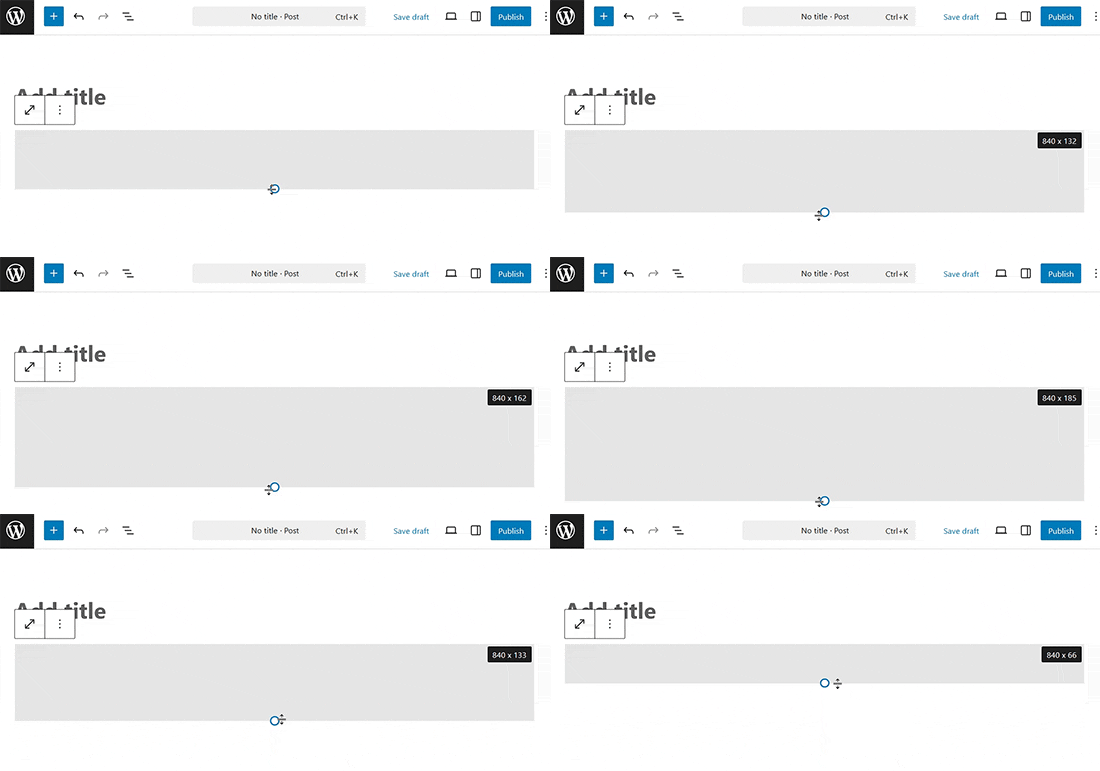
Simply click the ‘Add Block’ button in the editor to add a new block and search for ‘Spacer’. Once you add it, a new empty space will appear on your page.
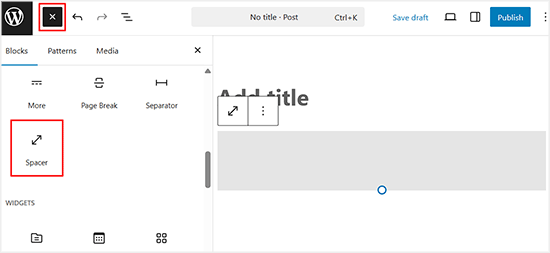
You can then click on the spacer and drag the blue handle up or down to adjust its height.
This gives you precise control over your vertical spacing right inside the editor.
Adjusting Default Line Height and Paragraph Spacing
Sometimes, even when you add the proper line spacing in the editor, it doesn’t display the way you want it to in your theme.
There are two ways to fix it:
- Using a plugin (the easy way)
- Manually with CSS code (more advanced)
Let’s take a look at the easy method first.
Adding Line Spacing Using a Plugin
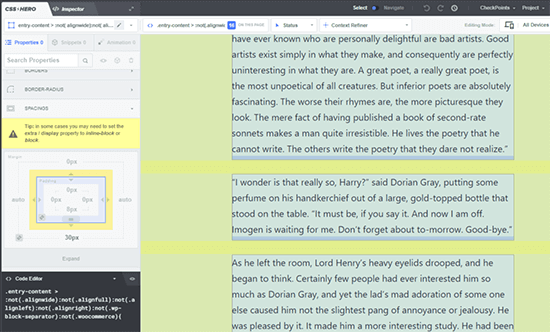
If you want to make style changes to your theme without having to learn code, using a plugin like CSS Hero is a great way to do that. This is because the plugin is trusted by over 100,000 websites for its intuitive visual editor.
CSS Hero is specifically designed for beginners and non-coders, allowing you to visually change your WordPress site’s design with a few clicks – a feature highly praised in its 4.8/5-star average rating.
You can see more details in our full CSS Hero review.
For more extensive structural changes to your theme, such as moving a sidebar or adding a footer, a drag-and-drop page builder plugin offers more comprehensive visual control and dedicated tools. This makes it a more suitable option for those tasks.
Don’t want to use a plugin, or just need to make this one change? Then, the manual CSS code option might be best for you.
Changing Paragraph Spacing Manually With CSS Code
To add line breaks manually without a plugin, you need to add some CSS to your theme.
CSS (Cascading Style Sheets) is a language that tells web browsers how to display your website’s content.
Think of it as a set of instructions for styling, rather than clicking buttons like in Microsoft Word. It’s not as scary as it sounds and is quite easy to understand once you grasp the basics.
To add custom CSS to your theme, you need to visit the Appearance » Customize page. This will launch the WordPress theme customizer, where you need to click on the ‘Additional CSS’ tab from the left column.
If you can’t see these menu options, then you might be using a block theme. Please see our article on how to fix missing theme customizer in WordPress admin.
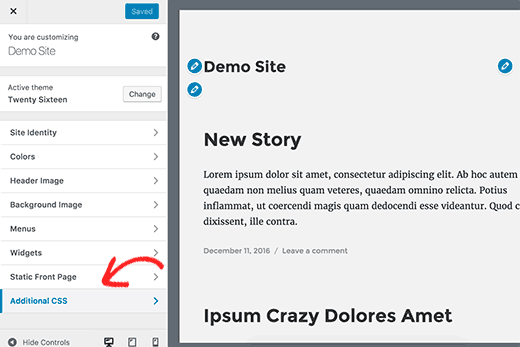
In the custom CSS box, you need to add the following CSS code:
.post p{line-height: 1.5em;}This rule increases the space between lines inside each paragraph, making your content easier to read.
Keep in mind that this code assumes your theme uses .post for blog content. If nothing changes after adding it, try replacing .post with .entry-content instead.
If you’re not sure which one your theme uses, you can check by opening a blog post, right-clicking inside the text, and selecting Inspect. Then, look for the main content wrapper class (such as .post or .entry-content).
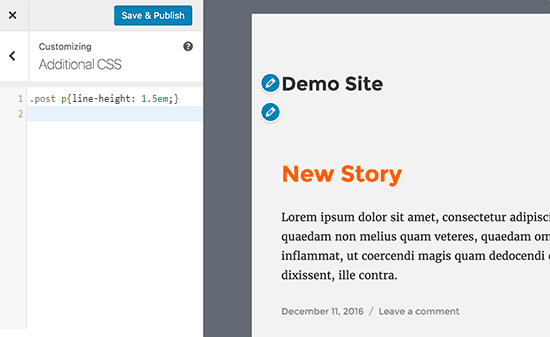
Note that this line-height property only adjusts the vertical space between lines of text within each paragraph, not the space between entire paragraphs.
If you want to increase the vertical space between paragraphs in WordPress, you would typically add a padding-bottom to your paragraph elements.
.post p {
line-height: 1.5em;
padding-bottom: 15px;
}
Feel free to adjust the numbers in this CSS code. Changing the padding-bottom value will change the space between your paragraphs.
You can also add custom CSS to your site using the WPCode plugin. It is used by over 1.5 million websites and boasts a 4.9/5-star rating on WordPress.org for making code insertion super easy.
For more details, please see our guide on how to add custom CSS to your WordPress site.
If you don’t like reading the instructions, then just watch our video tutorial.
Video Tutorial
For a visual walkthrough, you can watch our video tutorial below. It covers all the methods we’ve discussed for adding single and double line spacing in your content.
Frequently Asked Questions About Adding a Line Break in WordPress
Here are some questions that our readers have frequently asked about adding a line break in WordPress:
How to make 1.15 line spacing in WordPress?
You can set 1.15 line spacing by adding custom CSS to your child theme or using a code snippets plugin like WPCode. For example, use line-height: 1.15; for the text elements you want to adjust.
This gives you precise control since WordPress doesn’t include this option by default.
Is 1.5 and 1.15 line spacing the same?
No, 1.5 and 1.15 spacing are different. A 1.5 line height creates much more space between lines, while 1.15 keeps the text tighter and more compact.
How to add custom line spacing in WordPress?
You can add custom line spacing using CSS or a block editor setting. In most cases, adding a line-height value in your theme customizer or a CSS plugin is the easiest method.
What is the difference between a separator and a line break in WordPress?
A separator adds a visible line or space between sections, while a line break simply moves text to the next line without adding extra visual elements.
How to fix unwanted line breaks in WordPress titles?
Sometimes your WordPress post or page title may break onto multiple lines in an awkward way. This usually depends on your theme and the available space in the title area.
In most cases, WordPress automatically wraps long titles to fit the layout. However, if you want more control, you can adjust it using CSS.
For example, you can prevent title line breaks by adding:
.entry-title { white-space: nowrap;}
This will keep the title on a single line, but be careful — very long titles may overflow on smaller screens. A better approach is usually to shorten the title or adjust your theme’s typography settings instead of forcing it into one line.
We hope this article helped you add a line break in WordPress. You may also want to see our guide on how to use WordPress block pattern and our list of the best Gutenberg friendly WordPress themes.
If you liked this article, then please subscribe to our YouTube Channel for WordPress video tutorials. You can also find us on Twitter and Facebook.





phil rooksby
I don’t have Additional CSS. I’ve tried all sorts of other ways to alter the paragraph spacing but nothing works, looks a real mess. Help please!!!
Norm
Thank you for the help. I have been looking all over the place, and wanted to do it with a plug-in. You made it so easy. Again, thank you very much.
Maria
Hello! I want to have a simple spacing between my paragraphs and even after pressing enter (for the double space), when I preview the draft nothing has changed (it’s still all one paragraph). Could anyone help?
Rashmi
Hi
I would like to modifying the Line height and Spacing. However there is no ‘editor’ icon ( Appearance » Editor) from theme’s CSS file.
So, what can I do?
Thank you for your reply!
Hannah
Wow. Didn’t know it was so easy. Thank you so much! This double space was driving me crazy!
Christine
Thank you! So much easier!
Donna
Thank you, thank you, thank you!
I was in another html editor and could not figure out how to do single spacing.
You saved the day!
Gerard
Brilliant and what an eternal lifesaver.
I was struggling with spacing on one of my client sites and absolutely amazing that you had the exact answer almost at your finger tips. I am now becoming a permanent subscriber
Elandre
Thanks for all the Wordpress tips. This site has helped me a lot with most struggles I had
LR
I am using the Pilcrow theme and I have no idea how to make the double space between paragraphs happen. Sometimes it happens in my posts but sometimes it doesn’t. When I look in the HTML file I don’t see any post p or padding. I only see the end result of what the post will look like and thats when I know the double spacing didnt work. Can I still go back and re-edit and fix it? Last but not least where you say to go from the appearance to editor menus i dont have those options.
I have under appearance the following options: themes, customize, widgets, menus, header, background, AMP, Theme Options, Mobile.
Please help.
WPBeginner Support
Hey LR,
You can add the CSS by visting Appearance->Customize and then clicking on the Additional CSS tab in customizer. See our guide on how to add custom CSS in WordPress.
If you believe it to be a theme issue, then try temporarily switching to a default WordPress theme. If the issue disappears, then you can ask your theme developer for support.
Admin
Derek Cummings
My theme is broken, as in it doesn’t have the double spacing by default. The theme is stuck on the shift+enter mode in other words. So in relation to the following code:
.post p {
line-height: 1.5em;
padding-bottom: 15px;
}
Is 15px a normal default double space? How many pixels should it be by default? Also doesn’t it matter where I put this code? Thanx!
Femi
Thank you for the tip on the shift + enter. I never knew this for years. Your site has always been a rescue when I get stuck.
Lyn
Hello: How do you get custom line spacing (say, 1.5em) for one instance on one page instead of changing the entire theme CSS? I see two other people have asked the same thing with no response, at least not that I found. Thanks!
Denise B
I set the p margins to zero. In your CSS, it would be something like p {margins: 0; }
Los Hundlos
Shift+Enter to avoid huge gap between lines in wysywig tinye mce editor in wordpress. Works !!!! Awesome!
Cat
How about simply adding some text and changing the text colour to white (if the background is white)? This should make it possible to create and customise line spaces much easier (unless, of course, the background is a picture of something that cannot be matched with font colour).
Tim
Thanks so much! Life saver!
Michael Rich
Hi WPBeginner staff,
I have a different question. I use Visual Composer and have added many Separator with Text dividers between my section headings on my homepage. I would like to make those text headings also be a link to that section.
However everytime I add the link I lose the section identifying text that I had in the separator and it’s magically replaced with the default text saying “TITLE”.
To try to make it a link I am adding a the linking code inside this bracket:
[vc_text_separator title=”1950s CARS”]
I am scratching my head so hard that I think I’m bald. Any help will get you a lifetime of gratitude!!!
Thankyou,
Mike
Anthony Cooper
I am using the WordPress ‘Divi’ theme and found that if you press enter (or shift + enter) twice, in order to create a larger space, it is ignored. To get round this press enter once, type a character on the line, (it does not matter what), highlight it and change the font colour of the character to white and then press enter again; this results in the desired space between lines without having to edit the theme. The same applies to extra spaces in a line; enter as many characters as desired, highlight them and change their font colour to white and then carry on in the desired font colour.
Julie
Brilliant tip! Thanks so much for this, you saved me from lots of headaches and hassle Anthony!
Robin Brinkler
Remember that some search engines could treat “hidden” text like this as spam.
Ellen
This was really helpful, thanks!
Christy
THANK YOU!! I Love you guys! So glad I found this site! I’ve almost literally been banging my head against the wall. If I knew how to insert emojis, this post would be covered with hearts and smiley faces.
Christy
P.S. ~ HA! I did NOT know that my little colon and parentheses would actually turn into a smiley. LOL
Linda Paul
Oh yeah! You have just helped me solve a problem (forced single space paragraphs) that has vexed me for years!
WPBeginner Support
Glad you found it helpful
Admin
David M. Ebersole Sr.
I am a subscriber to WP Beginner.
I had a question concerning entering Engineering data for my product on my site. Spacing in the tables appeared too large on the page. I searched Wordpress support and all I saw was snippy responses to the question of single line spacing.
Your the first to answer the question, and it obviously was correct. Thank You.
Sincerely,
Dave
WPBeginner Support
Glad you found it helpful
Admin
Mark
What about on Android. The latest update has forced a double spacing (new paragraph). Not very good for poetry writers. Is there any way to revert it back to single?
Cheryl
I use Omega Theme and the control/enter does not work. Is there something else I can do. I cannot find post.p in the CSS file.
Becky
Very helpful, thank you!
Adnan Khan
Thanks, this most useful Tip for new wp user
Tina Gleisner
Thanks for the “shift” and enter for single line spacing as I’ve wanted to figure this out for years … and never got around to finding the solution.
Ian
Hi,
This worked for me but the CSS doesn’t do anything in my page…
Will
Same thing happened to me. Is there an updated code to insert?
A. Lougheed
I’m searching everywhere for an answer … when I add a in the text editor, it is removed in the visual editor. Drives me crazy. Does wpbeginner have a recommendation?
Should I add a plug-in to stop this?
I tried a plugin years ago, but I had to go back and re-format every post.
Any link with tutorial or advice is greatly appreciated!
WPBeginner Support
Actually it is also removed from your comment.
Please see our guide on How to add special characters in WordPress posts.
Admin
Jessica
Whats the code for adjusting line height for one single post?
Bharadwaj
Thank you, Helpful
Samadarshi
Thank you for such wonderful articles
I was completely lost when I started wordpress but now I have a pretty basic idea
Thank u
Neal Umphred
Thanks! This helped me tighten up my posts—except for the first paragraph in each post. For some reason, the lines appear to be double-spaced. Is there a snippet of code that I could add to Edit CSS that would allow me to tighten them?
Neal Umphred
Thanks! Adding the snippet (.post p{line-height: 1.5em;}) to my Edit CSS made my text so much easier to read. Now, here’s my problem: the opening paragraph in each WordPress post has much larger line spacing than the rest of the paragraphs—and it is NOT affected by this piece of line-height code. Is there another snippet of code that I could add to Edit CSS that would tighten up those opening lines?
tiffany
Thank you so much. Your site is remarkable. It has helped me so much. Subscribed!! Please keep up the great work!!
WPBeginner Support
Thanks for the kind words. We are glad to help.
Admin
Joe Simmons
Thank you! I didn’t know about the “shift+enter” thing either.
Debby
Shift + Enter. Who knew it was that simple! Thank you, thank you, thank you!
Gamo Nana
thanks for the single line spacing with SHIFT + Enter
Bob M.
I’d like to thank you for this bit of wisdom (Shift+Enter) too!
JE
Thanks for the tutorial. Although, how can I adjust single paragraph line spacing? I have a 3 word title, centered and stacked in 3 lines. All of the lines have different font size, so the line spacings are inconsistent. I’ve been looking for a way to easily adjust through a text editor tool or plugin.
Any ideas?
Syed Balkhi
We just used a browser search box which you can find by pressing Ctrl + F
Mx
Finding .post p you used a search box. Will you tell me how to find that search box? Thanx4
Jun Han
This is very helpful.
Thanks.
http://www.digitalgrog.com.au/
it was my pet peeve until now ..thanks now i can space properly ..btw i made a list of hosts check itout
http://www.digitalgrog.com.au/australian/comparison-on-blog-web-hosting-for-australians/
Karen Surfy Mum
Awesome!! I also have wanting to find out how to do this for ages!!! So simple when you know… cheers xxx
Widdershins
Oiiiiiiiiiiii!!! I’ve been trying to find out how to do that for yonks!!!!
Thankyouthankyouthankyou
fastow2012
“If you do not find the .post p tag, then simply create one.”
Where? should i just copy/paste it anywhere in the css file?
WPBeginner Staff
preferably at the bottom of the css file.
Mx
Sorry, but I still dont get where to place it. Is is possible to explain it more detailed? Thanx
James
I’ve always wondered how to do this. Thanks for the training.
Valerie
I’m not even a true “beginner” but there are gaps in my knowledge and you have just solved one of the most frustrating things about WP for this writer and Word user… Thank you for this and for all your fantastic info… I continue to learn great things from your posts and your site. Thanks and cheers to you!
kelly
almost four years of blogging and finally! so awesome, thanks!!