


Many website owners collect user feedback but never act on it, so they keep making the same guesses about what to build, write, or fix next.
A customer feedback loop changes that by turning survey responses into a clear list of the improvements that will actually grow your business.
It takes the guesswork out of your strategy by letting your users tell you exactly what they need. We have used a similar process to decide which features to build in our plugins and which tutorials to write next for our readers.
In this guide, I’ll walk you through how to set up a customer feedback loop in WordPress. This helps you make the improvements that matter most to your users.
💡Quick Answer: How Do You Create a Customer Feedback Loop in WordPress?
In WordPress, the easiest way to create a customer feedback loop is by using a survey plugin like WPForms or UserFeedback to gather feedback from visitors or customers.
Once responses come in, you can review the results, identify patterns, and make improvements to your site or product.
You can also share updates with your audience to show them that their feedback made a difference.
Here is a quick overview of all the topics I’ll be covering in this guide:
- Why Customer Feedback Matters for WordPress Sites
- What Is a Customer Feedback Loop?
- The Tool We Use to Run Our Surveys at WPBeginner
- Step 1: Collect Feedback Using a Survey
- Step 2: Analyze the Survey Responses
- Step 3: Turn Feedback into Improvements
- Step 4: Close the Feedback Loop
- Common Mistakes to Avoid When Running Surveys
- Frequently Asked Questions About Customer Feedback Loop in WordPress
Why Customer Feedback Matters for WordPress Sites
Customer feedback helps you understand what your visitors and customers actually want from your website and business. Instead of guessing what might work, you can use real responses to guide your decisions.
For example, feedback can help you improve your products or plugins. It also helps you decide what kind of content to publish next and spot confusing areas on your website that might frustrate visitors.
Without a feedback loop, most site owners end up prioritizing whatever feels urgent or interesting to them — which often isn’t what their users actually need. Feedback gives you a ranked list of what to fix first, so you stop wasting time on updates that don’t matter.
The best part is that you don’t need a huge website to benefit from this. Even smaller WordPress sites can learn a lot by collecting feedback and paying attention to what users are saying.
What Is a Customer Feedback Loop?
A customer feedback loop is a simple system. It helps you collect user feedback, review it, improve your website or product, and then communicate the changes you made.
The goal isn’t just to gather opinions. The real value comes from turning that feedback into meaningful improvements that make your website more helpful and easier to use.
This process works for many different types of WordPress sites. Whether you run a blog, an eCommerce store, or sell WordPress plugins, a feedback loop can help you understand your audience better. This allows you to make smarter decisions.
The 4 Stages of a Customer Feedback Loop
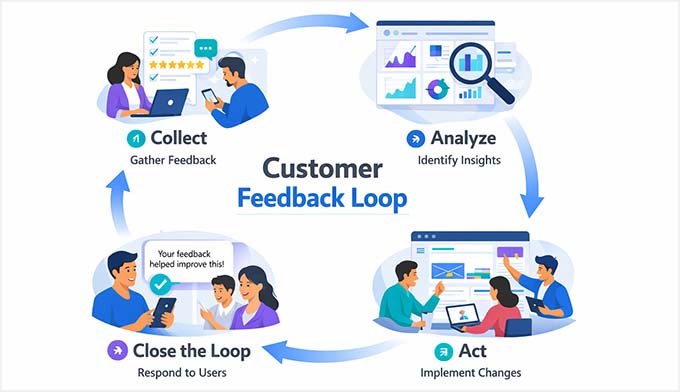
To make it easier to understand, I like to break a customer feedback loop into four simple stages.
Each step shows you exactly how to move from collecting feedback to turning it into real improvements on your website:
- Collect: Gather feedback from your users using surveys, polls, or feedback forms. This is where you listen to what your audience really thinks.
- Analyze: Look at the responses and spot patterns. Identify common problems, suggestions, or confusing parts of your site that need attention.
- Act: Use the insights you gathered to make improvements. This can mean updating your content, improving products, or fixing usability issues.
- Close the Loop: Finally, show your users that their feedback mattered. Tell them what changes were made based on their input. This builds trust and encourages future feedback.
Several of our partner brands use this exact loop to continuously improve their products and services, and it works even for small websites.
The Tool We Use to Run Our Surveys at WPBeginner
Since we use this customer feedback loop at WPBeginner, I want to be transparent and share the tools we use to collect feedback.
You can do this with many WordPress survey plugins, but at WPBeginner, we have used both WPForms and UserFeedback.
They make it really easy to create surveys with a drag-and-drop interface, with no coding required.
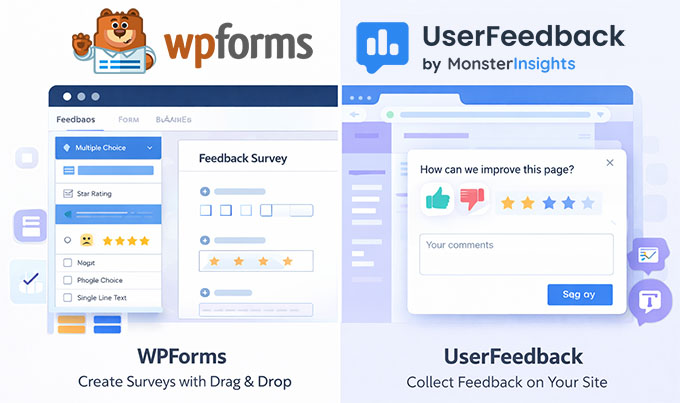
Both tools let you add ratings, multiple-choice, and open-ended questions, making it simple to gather useful insights from your users.
They also integrate easily with WordPress, so you can place surveys anywhere on your site, including pages, posts, or popups.
Now that you know the tools we use, let’s start building your customer feedback survey.
Step 1: Collect Feedback Using a Survey
The first step in your customer feedback loop is gathering responses from your users. This is where you hear directly from the people who use your website, products, or content.
A well-designed survey makes it easier to identify missing features, improve your content, and fix confusing parts of your site. This gives you actionable insights instead of vague opinions.
How to Decide What Questions to Ask
When creating your survey, each question should help you make a decision. Start with a clear goal for your survey, whether it’s improving content, identifying missing features, or understanding user satisfaction.
Here are some examples of questions that usually give helpful insights:
- What problem were you trying to solve on our site?
- What feature or topic would you like to see more of?
- How satisfied are you with your experience?
- What do you like most about our website or product?
- What frustrates you the most when using our site?
- Is there anything you expected but didn’t find here?
- How likely are you to recommend our site to a friend or colleague?
If you need help, you can check our guide on user experience feedback questions to ask visitors.
💡Expert Tip: Keep your surveys short. Surveys that take less than 5 minutes to complete usually get the highest response rates, making it easy for users to share feedback without feeling like it’s a chore.
Method 1: Build a Survey Form with WPForms – Powerful, Detailed Feedback for WordPress
🥇Best for: Collecting in-depth feedback, detailed user insights, and surveys that guide big decisions on your site or product.
I recommend WPForms if you want to collect detailed feedback.
It’s the tool we use at WPBeginner whenever we launch our annual feedback campaign to gather in-depth insights from our readers.
WPForms combines ease of use with powerful features, letting you create detailed surveys without touching any code. Overall, it’s the best survey plugin for WordPress.
Some of the features that make WPForms ideal for feedback surveys include:
- Survey and Polls Addon – Gives you pre-built templates and interactive survey fields.
- Ratings, Multiple-Choice, and Open-Ended Questions – Lets you ask exactly what you need to know.
- Conditional Logic – Show or hide questions based on previous answers.
- AI Builder – Generate custom feedback questions tailored to your audience.
- Built-In Reports – Automatically visualize responses in charts, graphs, and summaries.
You can learn more about all its features in our detailed WPForms review.
To build a survey with these visual reports, you will need the WPForms Pro license. Once it’s installed and activated in your WordPress dashboard, go to WPForms » Addons and enable the Survey and Polls Addon to unlock the survey templates.
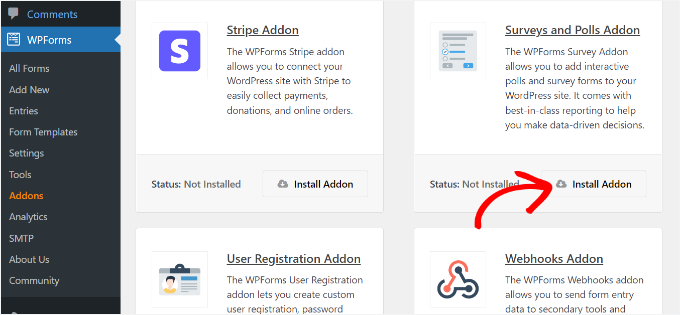
After that, you can create a new form using the AI form builder or the drag-and-drop builder, add the survey fields you want, and save your changes.
Next, preview your form and publish it anywhere on your site—pages, posts, or popups—to start collecting feedback.
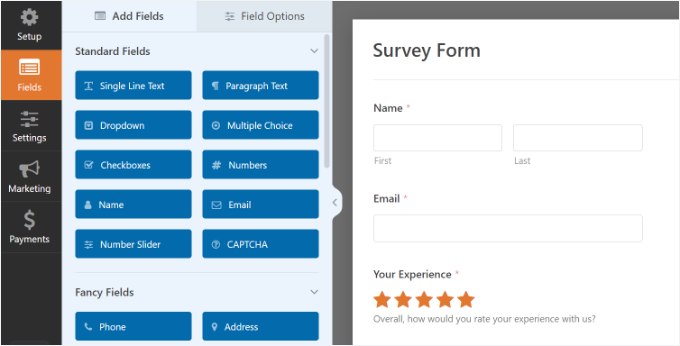
For step-by-step instructions, I’ve curated a list of all the guides you’ll need to create surveys with WPForms:
- How to Create a Survey in WordPress (with Beautiful Reports)
- How to Easily Create Post Purchase Surveys in WooCommerce
- Beginner’s Guide to Creating a Net Promoter Score® (NPS) Survey in WordPress
- How to Easily Add a Client Feedback Form in WordPress
Method 2: Collect Quick Feedback with UserFeedback – Quick Popup Surveys and Feedback Prompts
🥈Best for: Getting fast, lightweight feedback from your visitors without creating a full survey form.
On the other hand, I suggest UserFeedback for collecting quick, actionable insights.
It’s one of the easiest ways to run targeted popup surveys on your WordPress site and lets you gather feedback without sending users to a separate page.
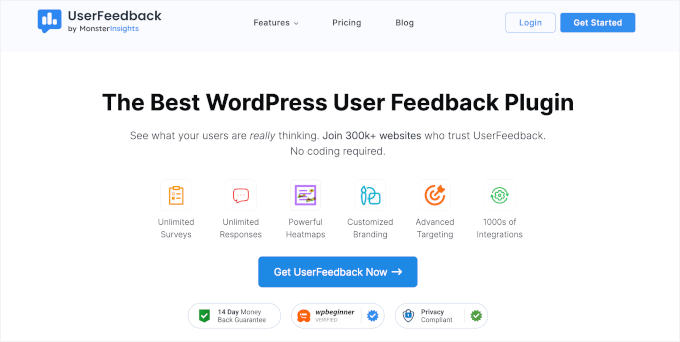
At WPBeginner, we have used UserFeedback to run quick polls and see what readers want, helping us improve content and user experience in real-time.
Some of the things that I like about UserFeedback include:
- Popup feedback prompts – Show up gently on any page without annoying your visitors.
- Pre-built question templates – Like “What stopped you from making a purchase?” or “How can we improve this page?”
- Customizable questions – Unlimited multiple-choice, free-form, star ratings, and email capture.
- Targeting and behavior rules – Control which pages, devices, or visitors see your survey, and when it appears.
- Built-in analytics – View responses directly in WordPress or integrate with Google Analytics and MonsterInsights.
If you need more information about the tool, you can take a look at our UserFeedback review.
To get started, sign up for UserFeedback, copy your license key from your UserFeedback account dashboard, and install the plugin in WordPress.
For details, see our guide on how to install a WordPress plugin.
Once activated, the setup wizard guides you through choosing survey questions, enabling features, and configuring notifications.
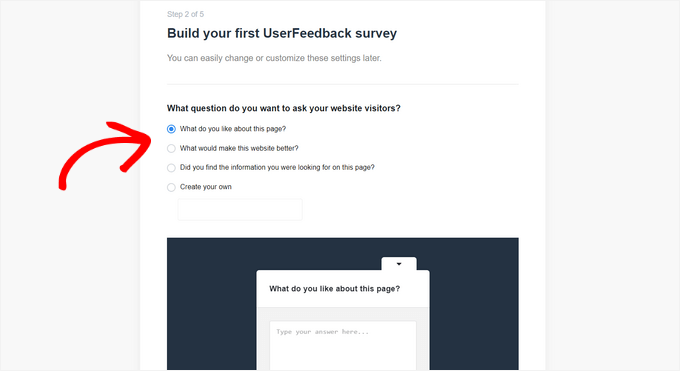
From your dashboard, you can edit questions, add new ones, and customize thank-you messages.
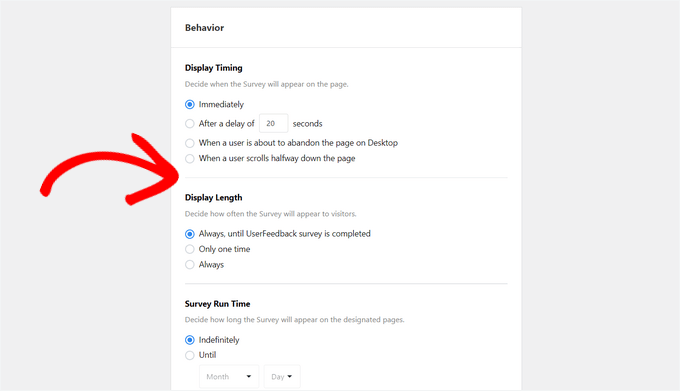
You can also tweak settings like display timing, run length, and minimized surveys. When everything is ready, just save and publish, and your survey popup will appear live on your site.
Here are some step-by-step guides you can follow to create different types of feedback forms with UserFeedback:
- How to Create a Survey in WordPress (with Beautiful Reports)
- How to Get Quick Feedback on Your Articles in WordPress
- Beginner’s Guide to Creating Post Purchase Surveys in WooCommerce
Where to Share Your Survey in WordPress
Now that you’ve created your survey form, I recommend sharing it in the right places to get the best response rates.
How and where you distribute your survey can make a big difference in the amount and quality of feedback you receive.
Some of the most effective ways to share your survey include:
- Email It Directly to Your Customers: Automatically send an email to customers with a survey link after they have completed a purchase. This can be helpful for getting specific feedback on your products, customer service, and more. You can learn how to do this in our guide on how to send post-purchase surveys in WooCommerce.
- Create a Dedicated Survey Page: Give users a clear destination to submit feedback and include it in your navigation menu.
- Use Survey Popups: A popup tool like OptinMonster allows you to show customer surveys in a popup on specific pages on your website or based on customer location, custom cookie retargeting, and more. See our guide on how to create mobile popups that convert.
- Embed it Inside Blog Posts: Collect responses from readers while they’re engaged with your content. I recommend placing these at the bottom of your post. This makes sure readers have actually consumed your content before sharing their thoughts.
- Share Through Email Newsletters: This often produces the highest response rates, since your subscribers are already interested in your content. We use this strategy on WPBeginner when we send out our annual reader survey.
- Link to it in Community Groups or Social Media: Reach users outside your website for broader feedback.
Adding your survey in visible, strategic locations makes it easy for users to share their feedback, which leads to more responses and higher-quality insights.
💡 Pro Tip: Once your survey is live, you might wonder whether the responses you’re getting are normal.
Here’s a quick guide to help set realistic expectations:
- On-site popup surveys (like UserFeedback) typically see a 1-3% response rate, so if 1,000 people visit the page, expect around 10-30 responses.
- Email surveys tend to perform better, with roughly 5-15% of recipients completing them.
- Post-purchase surveys usually get the highest completion rates of around 15-25% since buyers are already engaged with your brand.
If your numbers are lower than this, then the most common culprits are a survey that’s too long, putting it in a place with too little traffic, or questions that aren’t clearly worded. Revisiting the tips in Step 1 can help you figure out what to adjust.
Step 2: Analyze the Survey Responses
Once responses start coming in, the next step is understanding what they mean.
Don’t worry—you don’t need advanced data skills. Even a simple look at trends and patterns can reveal actionable insights for improving your site, content, or products.
Viewing Survey Results with WPForms
For WPForms, go to WPForms » All Forms in your WordPress dashboard and click the ‘Survey Results’ link under your survey form.
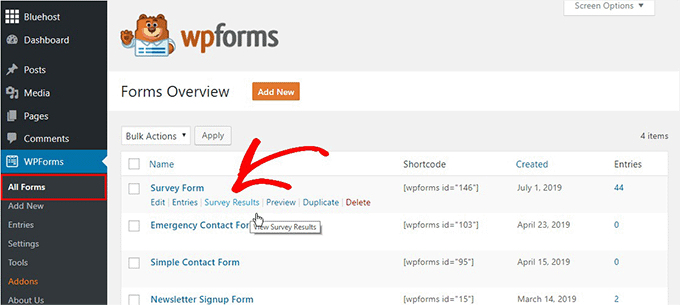
On the results page, your survey responses appear in interactive charts and tables.
I suggest clicking the chart icon in the top-right to change how you view your results. You can choose from several different styles:
- Pie charts
- Line charts
- Vertical bar graphs
- Horizontal bar graphs
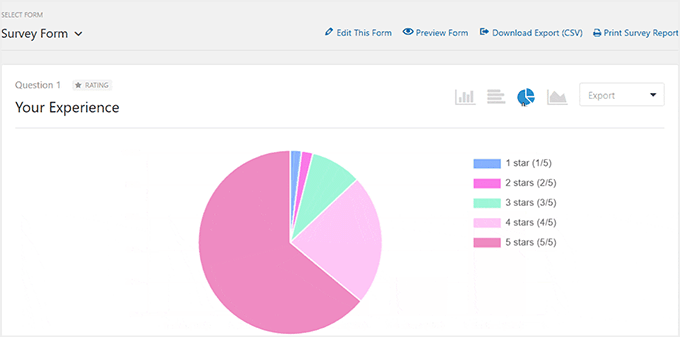
WPForms also allows you to export charts and graphs as JPG or PDF files, making it easy to include them in reports, presentations, or blog posts.
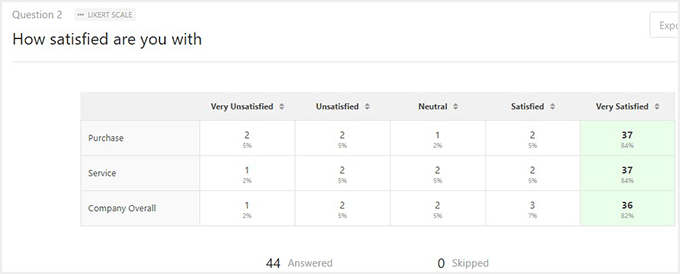
Likert scale responses (where users rate things from ‘Strongly Disagree’ to ‘Strongly Agree’) and detailed question-level results are also displayed further down the page.
Viewing Survey Results with UserFeedback
If you used UserFeedback for collecting feedback, go to UserFeedback » Results in your WordPress dashboard.
Here, you can see the total number of responses, impressions, and engagement trends over the past 7 or 30 days.
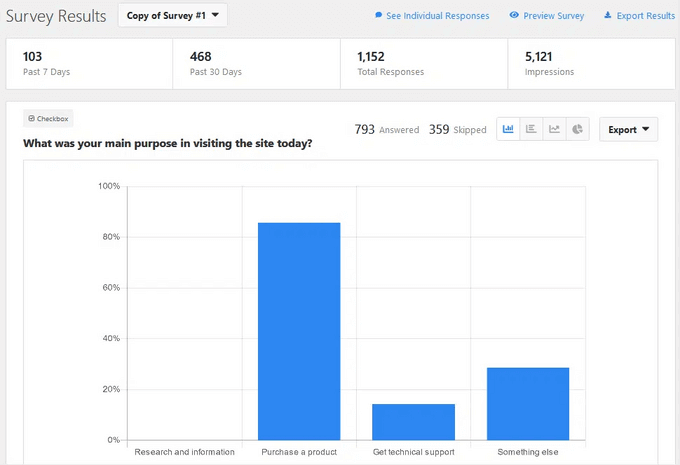
Select an individual survey from the dropdown or click ‘View Results’ to see more details.
Depending on the question type (checkboxes, radio buttons, text fields, star ratings, or Net Promoter Score Pro), responses are displayed visually with bar charts, line charts, or pie charts.
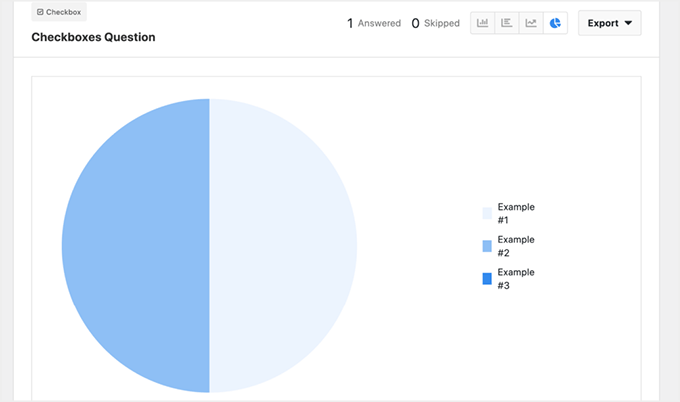
You can also read open-ended responses directly in the dashboard, allowing you to identify recurring themes, common suggestions, and areas where visitors might be struggling.
I suggest monitoring these responses regularly to track engagement, see changes after updates, and uncover opportunities to improve your site experience.
How to Analyze Open-Ended Feedback
Open-ended questions are survey questions that allow users to answer in their own words instead of choosing from predefined options.
These responses often contain the most valuable insights, as they reveal honest thoughts, suggestions, or frustrations that multiple-choice questions can’t capture.
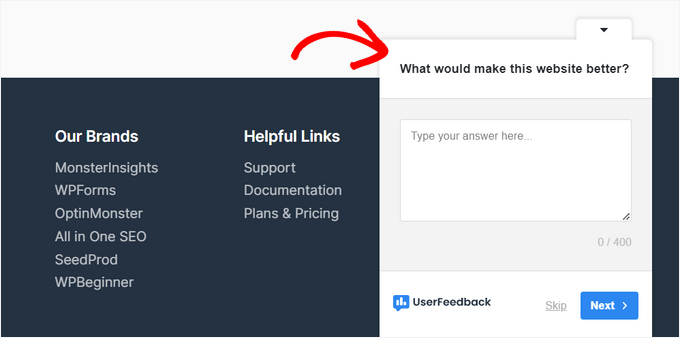
I recommend taking the time to review open-ended feedback carefully—it’s one of the best ways to uncover patterns, pain points, or opportunities for improvement.
Here’s a simple process you can follow to analyze open-ended responses:
| What to Do | Example |
|---|---|
| Read through all responses to get a general sense of user feedback. | Users mention difficulty finding the checkout button or understanding product details. |
| Highlight recurring themes that appear multiple times. | Several responses say “checkout is confusing” or “hard to navigate.” |
| Group similar feedback into categories such as feature requests, usability issues, or content suggestions. | Category: Checkout & Navigation issues. |
| Identify actionable insights from common complaints or suggestions. | Improve checkout flow and add clearer navigation prompts. |
For example, if multiple users mention that your checkout process feels confusing, you’ve identified a common pain point that can be addressed.
Similarly, repeated requests for more tutorials on a specific topic indicate an opportunity to create content your audience wants.
Following this process helps you turn these written answers into real improvements for your website, products, or content.
Step 3: Turn Feedback into Improvements
Collecting feedback only matters if you actually act on it. I recommend going through your survey results and picking out the insights that will make the biggest impact for your users.
Not everything needs to be set up at once, but prioritizing changes that help the most people makes your feedback loop truly effective.
Several of our partner brands have seen how powerful this can be. For example, some brands added new features to existing products based on feedback, while others even created entirely new plugins to address user requests.
They didn’t just collect feedback. Instead, they turned it into an actionable plan that improved their products and user experience for their customers.
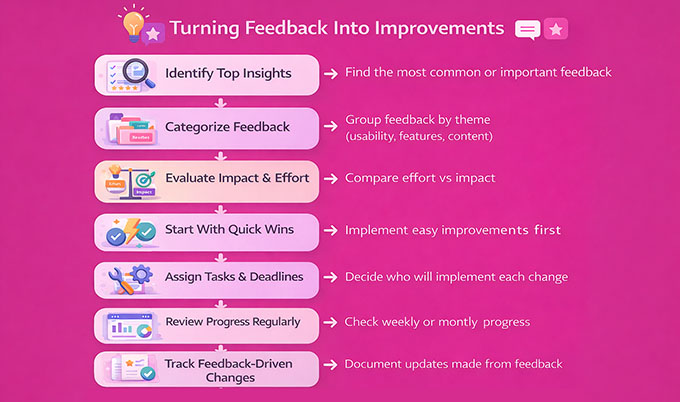
You can do the same by following this simple process to create your own action plan:
- Identify Top Insights – Start with the survey responses that appear most often or have the biggest impact. For instance, if many users find a plugin feature confusing, that becomes a priority.
- Categorize Feedback by Theme – Group related suggestions together, such as ‘usability issues,’ or ‘content improvements.’ This helps you see patterns more clearly.
- Evaluate Impact and Effort – Decide which improvements will benefit the most users and which are quick wins versus bigger projects. I recommend tackling “quick wins” first—these are small, easy changes that give visible results and build momentum.
- Assign Responsibility and Set Deadlines – Determine who will make each change and when. This keeps your plan actionable instead of just a list of ideas.
- Review Progress Regularly – Check weekly or monthly to see what’s been completed and assess if any adjustments are needed.
- Track Feedback-Driven Changes – Note which updates came directly from user responses. This helps you highlight them later and shows your users that their feedback matters.
Here’s a visual flow you can use to guide your action plan:
What to Do When Feedback Conflicts
At some point, you’ll get feedback that contradicts itself. Some users might ask for longer, more detailed tutorials while others say your content is already too long.
This is completely normal, and here’s how I handle it.
First, go with the majority. If 40 users ask for shorter content and 8 ask for longer content, start with what most people want. You can always revisit the minority view in a future survey cycle.
Second, think about who is leaving the conflicting feedback. For example, if new visitors want a simpler overview but long-term members want more detail, the right answer might be different for each group. In that case, you could create both versions or add a “read more” option to serve both audiences.
If the feedback is genuinely split down the middle, I recommend running a small experiment instead of guessing.
Run an A/B test and track which page or content type gets better engagement. Let the data make the decision for you.
Step 4: Close the Feedback Loop
Closing the feedback loop means letting your users know that their input has led to real changes.
This builds trust, shows that you listen, and encourages people to share feedback again in the future.
There are several ways you can share updates with your users:
- Email Newsletters: Send a quick note highlighting the changes or improvements made based on feedback.
- Blog Posts: Summarize survey results and explain what actions were taken.
- Product Changelogs: Mention updates or new features in your plugin or product logs. Something as simple as “Added X feature based on user requests” builds trust with existing customers and shows potential buyers that you take feedback seriously.
- Simple Messages: Phrases like “You asked, we listened” make users feel valued and heard.
If you used UserFeedback or WPForms to collect responses, then you can also customize the thank-you message that appears after someone completes your survey. This is an easy way to let respondents know their feedback will be reviewed, so they feel acknowledged right away rather than waiting for a future announcement.
But you don’t need to write a massive announcement. Even a simple ‘P.S.’ at the bottom of your weekly newsletter saying, “Thanks to your feedback, we’ve updated X on our site!” works perfectly.
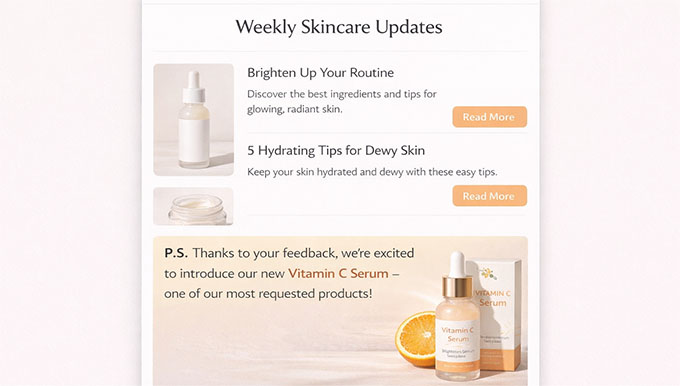
I also recommend planning your next feedback cycle. Regular surveys keep your site or product continuously improving.
Start with an annual survey for major insights, and use short, one-question surveys throughout the year to stay connected with your audience.
Common Mistakes to Avoid When Running Surveys
I’ve seen many users make these mistakes when starting with a customer feedback loop, and I want to help you avoid them.
Collecting feedback is powerful, but only if it’s done thoughtfully. Here are the most common pitfalls and how to avoid them:
| Common Mistake | Why It’s a Problem | How to Avoid It |
|---|---|---|
| Asking too many questions | Long surveys overwhelm users, leading to low completion rates. | Keep surveys short—5 questions for quick polls, and under 10–12 for detailed surveys. |
| Writing confusing or leading questions | Users may misinterpret questions or answer what they think you want. | Use clear, neutral wording and test your questions with a small audience first. |
| Collecting data but never reviewing it | Feedback is useless if it’s never analyzed or acted upon. | Schedule regular times to review survey results. |
| Ignoring feedback from the majority of users | Implementing only niche suggestions can alienate most of your audience. | Look for patterns and prioritize improvements that impact the largest group of users. |
| Failing to tell users about improvements | Users won’t know their feedback matters, reducing future engagement. | Close the loop—share updates via emails, blog posts, or changelogs to show you listened. |
By keeping these tips in mind, you’ll set up a feedback loop that’s effective, actionable, and trusted by your users.
Frequently Asked Questions About Customer Feedback Loop in WordPress
Even after reading through this guide, you might have questions about creating a customer feedback loop in WordPress.
To help, I’ve put together answers to the most common questions we get from beginners. This way, you can get clarity and start collecting actionable feedback with confidence.
What is the best free survey plugin for WordPress?
For beginners, the UserFeedback Lite is excellent for quick popup surveys.
If you want a dedicated form, WPForms Lite lets you ask basic questions, but to get the beautiful visual survey charts and specific survey fields (like Likert scales), you will need to upgrade to WPForms Pro.
How many questions should a survey have?
I suggest keeping surveys between 5–10 questions. Shorter surveys are easier to complete and typically get higher response rates, while longer surveys can feel overwhelming to users.
How often should I run a customer survey?
A full, detailed survey is best run once per year to gather major insights. You can also run shorter surveys more frequently throughout the year to stay in touch and collect quick feedback.
Can I analyze survey results directly in WordPress?
Yes! Both WPForms and UserFeedback let you view results inside your WordPress dashboard.
WPForms includes built-in charts and graphs, while UserFeedback offers visual reports with response counts, impressions, and engagement trends.
You can also export survey data to spreadsheets if you want to do deeper analysis.
How can I increase survey responses?
To get more people to share their feedback, I recommend:
- Keeping surveys short and focused.
- Explaining why their feedback matters.
- Offering incentives if appropriate (for example, giving WooCommerce customers a 10% off coupon code upon completing a post-purchase survey).
- Sending gentle reminders to encourage completion.
Overall, building a feedback loop turns casual visitors into a community that helps you grow. By collecting responses, making changes, and closing the loop, you show your audience that their voice actually matters.
You may also want to see our guide on using AI to improve customer service in WordPress and our expert tips for getting more customer reviews.
If you liked this article, then please subscribe to our YouTube Channel for WordPress video tutorials. You can also find us on Twitter and Facebook.



Have a question or suggestion? Please leave a comment to start the discussion.