


Figuring out whether to use a 301 or 302 redirect can feel like a high-stakes guessing game. We know the feeling well, as we’ve managed countless redirects since starting WPBeginner in 2009.
Choosing the wrong one can quietly damage your site’s SEO, sending your search rankings in the wrong direction without you even realizing it. It’s a common mistake we’ve helped thousands of our readers fix.
Based on our hands-on experience, we’ll clear up the confusion for you. In this guide, we’ll explain the difference in simple terms and show you exactly when and how to use each type of redirect safely.
What’s the Difference Between 301 and 302 Redirects?
| Feature | 301 Redirect (Permanent) | 302 Redirect (Temporary) |
| What It Means | This page has moved forever. | This page has moved for a short time. |
| Best For | Changing domains, merging content, switching to HTTPS. | A/B testing, running short-term promotions, location-based redirects. |
| SEO Impact | Passes nearly all link equity (ranking power) to the new URL. | Does not pass link equity. Tells Google to keep the original URL indexed. |
Redirection in WordPress allows you to send users and search engine crawlers to a different URL than the one they clicked on.
You’d need to set up redirects if you delete a page on your WordPress site, move to a new domain, conduct A/B experiments, and more.
Without redirects, users would not be able to see the content they requested. Instead, they’ll see a 404 error page, which is bad for your site’s user experience and search engine rankings.
When it comes to setting up redirects, you’ll come across two most common types: 301 and 302 redirects. Let’s look at each one of them and see what’s the difference.
What is a 301 Redirect?
A 301 redirect is a permanent redirect. If your website or web page has been moved permanently to a new location, then you can use 301 redirects to point users in the right direction.
For example, when a visitor types your site’s address or clicks on a link, the 301 redirect will automatically change the requested address to the new address.
What is a 302 Redirect?
A 302 redirect also helps point users and search engines in the right direction, but temporarily.
Unlike 301, which is a permanent redirect, 302 redirects are temporary. You can move your website traffic to a new location for a limited amount of time and then go back to the original URL whenever you want.
When Should You Use 301 and 302 Redirects?
Now that you know the main difference between the two types of redirections, you may be wondering when is the best time to use 301 and 302 redirects.
When to Use a 301 Redirect?
Since 301 redirects are permanent, here’s when to use them:
- You’re migrating your WordPress website to a new domain
- Switching your site from HTTP to HTTPS
- Moving a web page to a new location
- Merging multiple pages together and pointing them to a new page
- Changing your site’s URL structure permanently
When to Use a 302 Redirect?
On the other hand, if you don’t want to point your audience to a new page or another location permanently, then it’s better to use 302 redirects. Here are some situations where using 302 redirection makes sense:
- Conducting A/B tests for designs, layout, and features of a new website or page
- Temporarily redirecting users to a sales page or promotional offer
- Send users to the correct version of your website based on their language or location preference
- Collect user feedback about a new product or service without impacting your current SEO rankings
Impact of 301 Redirects vs 302 Redirects on SEO
When it comes to using 301 or 302 redirects, you have to consider the impact it will have on your site’s WordPress SEO (search engine optimization).
Search engines work by crawling your website pages using bots and indexing them on the search results. These search engine bots follow links to discover new content and find different pages on your site.
Using the right type of redirection is important if you want to your blog posts to be easily uncovered by search engine crawlers and continue to rank higher on search results.
With 301 redirects, Google and other search engines will know that you’ve moved a site or web page permanently. This way, it will fully pass the link equity or link juice to the new URL. Link equity is like a vote of confidence from other sites that your page is valuable and worth promoting.
On the other hand, if you’re performing a temporary change and don’t want any impact on your original page’s SEO rankings, then it’s better to use 302 redirects. It doesn’t pass the link juice fully and tells search engines that the change is temporary.
How to Set Up 301 and 302 Redirects in WordPress
The easiest way of setting up 301 or 302 redirects on your site is by using a WordPress redirect plugin.
For instance, you can use All in One SEO (AIOSEO) for configuring redirects. It is the best SEO plugin for WordPress and offers a powerful redirection manager tool.
Do note that you’ll need the AIOSEO Pro version to use the redirection manager. There is also an AIOSEO Lite version you can use to get started for free.
First, you’ll need to install and activate the AIOSEO plugin. If you need help, then please see our guide on how to install a WordPress plugin.
Upon activation, you’ll see a welcome screen and the setup wizard. Simply click the ‘Let’s Get Started button’ and follow the onscreen instructions to configure the plugin.

You can also see our guide on how to set up All in One SEO for WordPress correctly.
Next, you’ll need to go to All in One SEO » Redirects from the WordPress admin area and click the ‘Activate Redirects’ button.
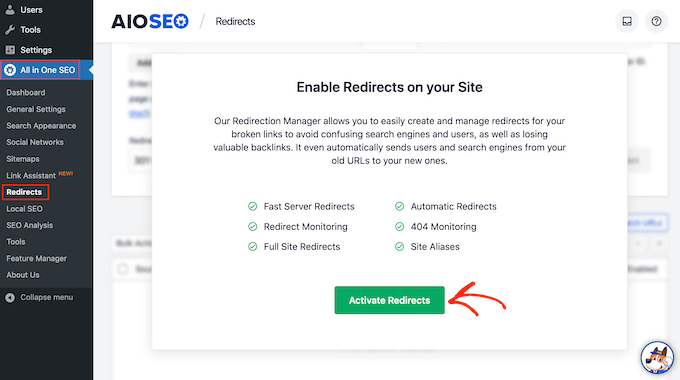
Once the Redirection Manager tool is active, you can go to the ‘Redirects’ tab at the top.
From here, you can enter the link that you’d like to redirect in the ‘Source URL’ field. Next, enter the new location for the link under the ‘Target URL’ field.
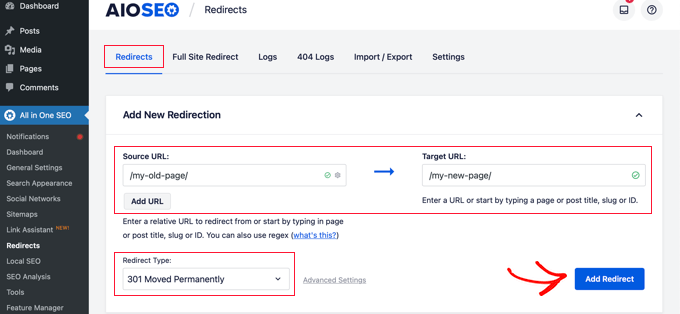
After that, you can click the ‘Redirect Type’ dropdown menu and select 301 or 302 redirection.
Once that’s done, simply click the ‘Add Redirect’ button. You can repeat this step and add as many redirects as you want.
If you scroll down, then AIOSEO will show you a log of redirects you’ve created for your website.
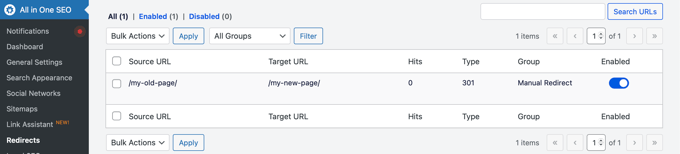
Besides that, AIOSEO also lets you perform full site redirects without any technical knowledge or editing code.
Best Practices for Implementing 302 and 301 Redirects
Setting up redirection on your WordPress website can be complicated. To help you out, here are some best practices to follow.
1. Testing Redirects to Ensure They’re Working
After you’ve set up 301 or 302 redirects, it is better to test each link multiple times.
This is to ensure that the 301 and 302 redirection is working properly. If something goes wrong, then it will be bad for your site’s user experience and SEO rankings.
A simple way to check is by visiting your site in incognito mode and opening the link that you redirected. If it opens the new location, then it means your redirects are working fine.
There are also free tools available on the internet that will check redirection for you. Or you can use the AIOSEO plugin, which shows logs of your redirects inside your WordPress dashboard.
2. Monitoring Redirects for Broken Links
Next, you should also set up tracking for broken links after adding 301 and 302 redirects to your website.
If you moved a web page to another location or send users to a new page temporarily and the redirection didn’t work properly, then it will result in a broken link. As a result, users will see a 404 error page on your website.
Tracking these broken links after 301 and 302 redirection will help you fix them quickly, provide a better user experience, and avoid any impact on your keyword rankings.
The best way to track broken links is by using the AIOSEO plugin. You can enable the ‘404 Logs’ to start monitoring for 404 error pages.
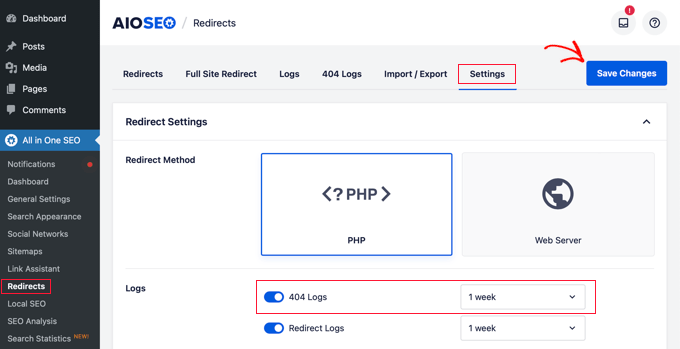
Do note that initially, you won’t see any data because it will only start recording broken links after you enable the setting.
Once the plugin starts gathering information, you can view broken links on your site under the 404 Logs tab.
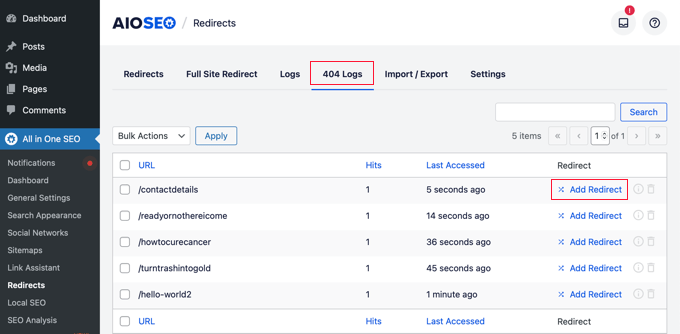
To quickly fix 404 error pages, you can click the ‘Add Redirect’ option and set up 301 or 302 redirections.
For more details, please see our guide on how to find and fix broken links in WordPress.
PRO TIP: If you want continuous updates on broken links that aren’t just 404 errors, check out our free Broken Link Checker plugin.
3. Avoid Creating Redirection Chains and Loops
A redirect chain is when one URL redirects to another, which then redirects to a third, and so on. Think of it like a series of mail forwarding addresses.
Google’s search bots will only follow about 10 of these ‘hops’ before they give up. If your chain is too long, the bot might never reach the final destination, which means your page won’t get indexed or ranked properly.
That’s why it’s a best practice to avoid long redirect chains and always point the original URL directly to the final destination. This is especially important when setting up permanent 301 redirects.
Creating long redirect chains, where one page redirects to another and then another, can cause errors and slow down your site.
Besides that, you should also try to avoid redirection loops. It occurs when the URLs in a chain redirect back to themselves and creates an infinite loop.
As a result, users and search engines won’t see the intended page and instead view the original page. This could also result in a ‘redirected you too many times’ error.

One way of fixing it is to remove all redirects in the chain and try redirecting to the final destination.
To learn more, you can see our guide on how to fix too many redirect issues in WordPress.
4. Use Redirects to Avoid Duplicate Content
Search engines can see http://www.example.com, https://www.example.com, and https://example.com as three separate websites. If you don’t tell them which one is the real or canonical version, they might see it as duplicate content, which can hurt your SEO.
The best practice is to choose one version as your primary URL and use permanent 301 redirects to send traffic from all other versions to it. For instance, you can redirect all HTTP and non-www versions to https://www.yourdomain.com.
Luckily, WordPress helps set your preferred version automatically based on the ‘Site Address (URL)’ in your Settings » General page. An SEO plugin like AIOSEO can also help enforce these rules, ensuring search engines only see one authoritative version of your site and content.
Frequently Asked Questions About 301 and 302 Redirects
Here are answers to some of the most common questions we receive about using 301 and 302 redirects correctly in WordPress.
1. Which is better for SEO, a 301 or 302 redirect?
A 301 redirect is better for SEO in most cases because it signals a permanent move. This tells search engines like Google to pass all the authority, or link equity, from the old page to the new one. A 302 should only be used for temporary changes, as it doesn’t transfer the full ranking power.
2. How long should I keep a 301 redirect active?
It is best practice to keep 301 redirects in place for at least one year. However, keeping them active indefinitely is even better. This ensures that anyone who bookmarked the old link or clicks on it from another website will still reach the correct page, preserving both user experience and link value.
3. Can a 302 redirect hurt my SEO?
A 302 redirect can hurt your SEO if you use it for a permanent move. Search engines may become confused and split ranking signals between the old and new URLs. This prevents your new page from getting the full SEO benefit of the old one. Only use 302 redirects for short-term purposes, like running a promotion.
4. How many 301 redirects are too many?
While there isn’t a strict limit on the total number of redirects, creating long redirect chains is bad for SEO and site speed. A redirect chain is when one page redirects to another, which redirects to another. It’s best to redirect directly to the final destination. Tools like the redirection manager in All in One SEO can help you avoid these chains.
Bonus: Additional Resources
We hope this article helped you learn the difference between 302 redirects vs 301 redirects and best practices. You may also want to see our guide on how to appear in Google Answer Boxes with your WordPress page and the best free 404 redirect plugins for WordPress.
Here are some more guides and reading material you can go through:
- Ultimate WordPress Migration Guide for Beginners (Step by Step)
- How to Migrate Google Business Profile Website to WordPress
- How to Do a Full Site Redirect in WordPress (Beginner’s Guide)
- How Long Does Website SEO Take to Show Results? (Real Data)
- How to Redirect Users After Form Submission in WordPress
If you liked this article, then please subscribe to our YouTube Channel for WordPress video tutorials. You can also find us on Twitter and Facebook.




Moinuddin Waheed
Thanks for this informative post about redirects.
I didn’t use to care about the redirects and didn’t know how redirects impact seo.
But now after reading this article, I am well aware all about redirects and how to do it properly for permanent and temporary redirects.
WPBeginner Support
Glad we could clear up how to handle the redirects properly
Admin
Piyari
Thanks for the great post! I recently used a 302 redirect on my site, and your explanation helped me understand when to use 301 instead for better SEO.
WPBeginner Support
Glad our guide was helpful!
Admin
Dennis Muthomi
I have a question about using redirects for cloaked affiliate links. When it comes to cloaking affiliate links, what type of redirection is used by default?
WPBeginner Support
It would depend on the site but normally a 301 is used
Admin
Dennis Muthomi
Thanks for clearing that up for me.
I had incorrectly assumed cloaked affiliate links used some kind of special redirect
Jiří Vaněk
Thank you for the great explanation. I used to not care about how I performed redirections, but this article provided me with a lot of information, showing me that I had been doing it wrong many times. It is very valuable article for me.
WPBeginner Support
Glad we could clear up any confusion you may have had
Admin
Mrteesurez
Yes, the article helped me in to fix a redirect issue on my website, I used it most during link broken in contents.
I advise when testing a redirect, one should clear a cache from browser, website and server to ensure proper testing results of the redirect.
Dennis Muthomi
hey Mrteesurez thanks for the tip. I have had problem before with this – thinking it is not working only to realize that I am seeing the cached version.