


Setting up a WordPress multisite network allows you to manage multiple websites from a single WordPress installation. This feature is especially useful for blogs, schools, and businesses that need to operate separate sites while maintaining a centralized dashboard.
We have used a multisite network for our own websites and found it very helpful in organizing content for several use cases.
In this guide, we’ll walk you through the steps to properly install and set up a WordPress multisite network, ensuring you get the most out of this feature.
Since this is a comprehensive article, we have added this table of contents for easier navigation. You can use the quick links below to jump to the section you want to learn about:
WordPress Multisite Basics
- What Is WordPress Multisite?
- Pros of Using a WordPress Multisite Network
- Cons of Using a WordPress Multisite Network
- Who Needs a WordPress Multisite Network?
WordPress Multisite Installation and Setup
- Requirements for a WordPress Multisite Network
- Choosing a Domain Structure for Your Multisite Network
- Setting Up Wildcard Subdomains
- Setting Up Custom Domain for WordPress Multisite
- Enabling WordPress Multisite Network Feature
- Setting Up Your WordPress Multisite Network
WordPress Multisite Configuration Settings
- Configuring Network Settings
- Opening Your Multisite Network for Registrations
- New Site Settings
- Upload Settings for Your Multisite Network
- Plugin Menu Settings
Setting Up Default Content, Theme, and Plugins
- Adding New Sites to Your WordPress Multisite Network
- Adding Themes and Plugins to Your Multisite Network
- Adding Default Content to New Sites
Troubleshooting and FAQs
What Is WordPress Multisite Network?
A WordPress multisite network allows you to run and manage multiple WordPress blogs or websites from a single WordPress installation.
It enables you to create new sites instantly and manage them using the same username and password. You can even allow other users to sign up and create their blogs or websites on your domain.
The WordPress multisite network comes with advanced settings that you can use to customize each website/blog on your network.
Pros of Using a WordPress Multisite Network
In many situations, a WordPress multisite network can be more useful than managing multiple standalone WordPress sites. Here are some of the advantages of using a WordPress multisite network:
- As the network administrator, you can easily manage multiple sites from a single dashboard.
- Each site on the network can have its admin users. The site admins will have the capability to manage only their website.
- You can install plugins/themes and activate them for multiple sites with one download.
- A multisite network also makes it easier for you to manage updates. You only need to update your WordPress, plugins, or themes on one “master” install.
Cons of Using a WordPress Multisite Network
Creating a WordPress multisite network is not always helpful for managing multiple sites.
Here are some of the disadvantages that you should keep in mind before setting up a multisite network.
- All sites on the network share the same resources, so when your network is down, all other sites also go down.
- It’s difficult for beginner-level users to manage traffic and server resources. If one of your websites gets unexpected traffic, it will affect all other websites on the network.
- If one website gets hacked, all sites on your network get hacked. For more information, see our guide on WordPress multisite security tips.
- Some WordPress plugins may not work well on a multisite network.
- All web hosting providers do not adequately support the WordPress multisite network, which limits your options. We will discuss this further later in the article.
Who Needs a WordPress Multisite Network?
Just because you manage multiple WordPress websites does not mean you need to start using a multisite network.
There are third-party tools to manage multiple WordPress sites from a single dashboard. Tools like InfiniteWP or MainWP make it easier to maintain multiple WordPress sites under one roof without switching back and forth from one site to another.
Here are some scenarios when creating a multisite network makes sense:
- A magazine website with different sections managed by separate teams
- A business website with sub-sites for different locations and branches
- Government or non-profit websites using WordPress multisite for different departments, locations, and regions
- Your network of blogs running on multiple subdomains
- Schools and colleges using multisite for different departments and blogs or letting students create their websites on school servers
Requirements for a WordPress Multisite Network
All websites on a WordPress multisite network share the same server resources. This means that the most important thing you will need is good WordPress hosting.
If you plan on having just a couple of websites with low traffic, shared hosting is probably a good option.
However, due to the nature of a multisite network, you will typically need VPS hosting or a dedicated server as your sites grow.
We recommend Bluehost because they offer shared hosting and VPS/Dedicated servers. They are also one of the official WordPress hosting partners.
If you’re looking for an alternative, then SiteGround and WP Engine also provide excellent service for WordPress multisite networks.
Apart from web hosting, you will need the basic knowledge of installing WordPress and editing files using FTP.
Choosing a Domain Structure for your Multisite Network
On a WordPress multisite network, you can add new sites using either subdomains or sub-directories.
Example of a subdomain:
http://site1.example.com
Example of sub-directory:
http://example.com/site1/
If you choose subdomains, then you’ll have to configure wildcard subdomains on your server. We will show you how to do that in the next step.
On the other hand, if you choose sub-directories or path-based URLs for sites on your network, you can skip the next step.
Setting Up Wildcard Subdomains
Wildcard subdomains create a placeholder subdomain under your domain name. This placeholder subdomain can then be used to map subdomains that you haven’t already defined.
This setting enables WordPress multisite to create new sites using their own subdomains.
If you decide to use subdomains for websites on your multisite network, then you will need to set up wildcard subdomains.
We will show you how to do that on Bluehost. However, the basic process is the same for all hosting providers.
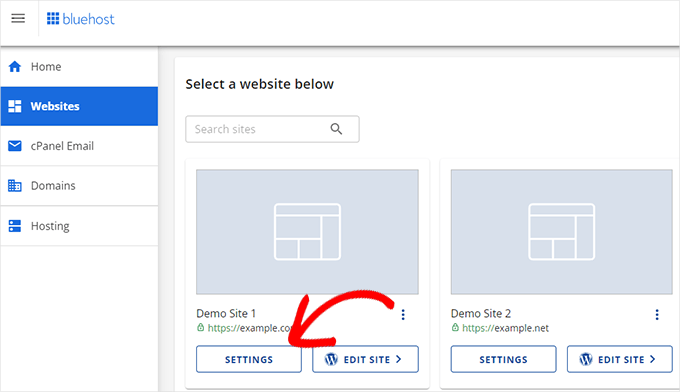
First, you need to log in to your WordPress hosting account’s dashboard. Locate your site under Websites and click on the ‘Settings’ button.
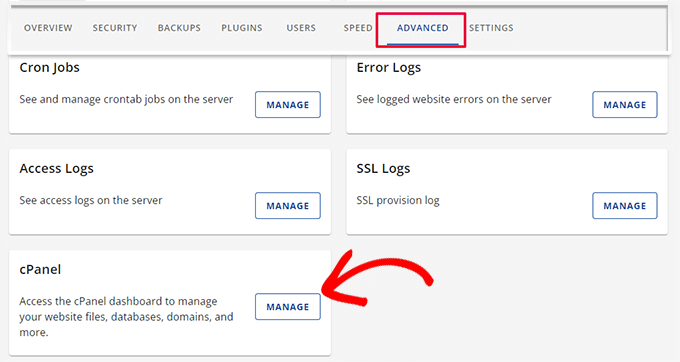
This will open your site’s Settings page, where you need to switch to the ‘Advanced’ tab.
From there, scroll down to the cPanel section and click the ‘Manage’ button.
This will launch the cPanel dashboard.
Now, scroll down to the Domains section and click ‘Domains’.
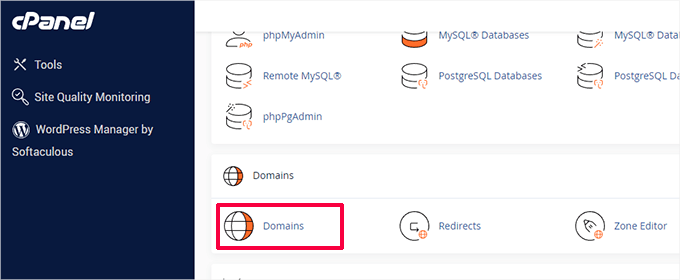
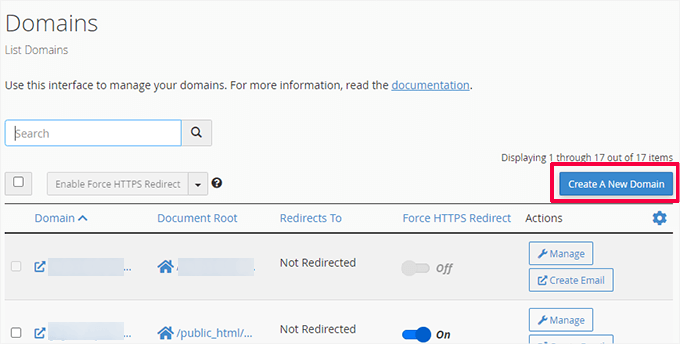
It will then show you a list of domains and subdomains on your hosting account.
You need to click the ‘Create A New Domain’ button to continue.
On the next screen, you need to add a wildcard subdomain under the Domain field.
A wildcard subdomain contains an asterisk sign followed by a dot and your domain name. Like this:
*.example.com
Don’t forget to replace example.com with your domain name.
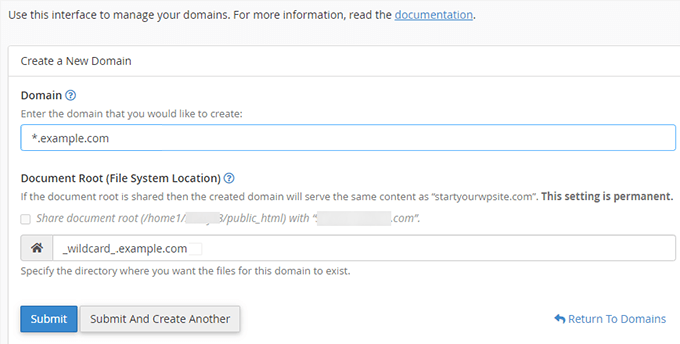
The document root field will be automatically filled to match the wildcard.
Just click the ‘Submit’ button to save your domain settings.
Your hosting account is now ready to support WordPress multisite with subdomains.
Setting Up Custom Domains for Each Site
WordPress multisite also allows you to set different domains for each website in your multisite network.
To set up custom domains, you will need to use the domain mapping feature and update nameserver records in your domain registrar account.
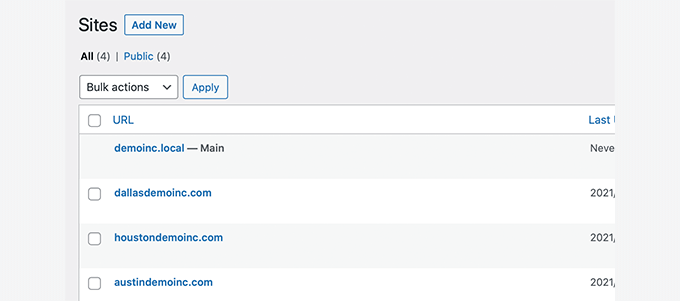
We have created a detailed step-by-step guide on how to create WordPress multisite with different domains with the setup instructions.
Enabling the WordPress Multisite Network Feature
The multisite network feature is built into each WordPress installation. To use it, you simply install and set up WordPress as you normally would.
After that, you just need to enable the multisite feature. You can also enable the multisite feature on any existing WordPress site.
Before you enable multisite, don’t forget to create a complete backup of your WordPress site.
Then, connect to your site using an FTP client or cPanel file manager, and open the wp-config.php file for editing.
You need to add the following code to your wp-config.php file just before the /* That’s all, stop editing! Happy publishing. */ line:
/* Multisite */
define( 'WP_ALLOW_MULTISITE', true );
Once that’s done, you can save and upload your wp-config.php file to the server.
This code simply enables the multisite feature on your WordPress site. Once enabled, you will still need to set up the multisite network.
Setting Up Your WordPress Multisite Network
Now that you have successfully enabled the multisite network feature on your WordPress site, it is time to set up the network.
If you are setting up a multisite network on an existing WordPress website, then you will need to deactivate all plugins on your site.
Simply visit the Plugins » Installed Plugins page and select all plugins. Then, select ‘Deactivate’ from the ‘Bulk Actions’ dropdown menu and click on the ‘Apply’ button.
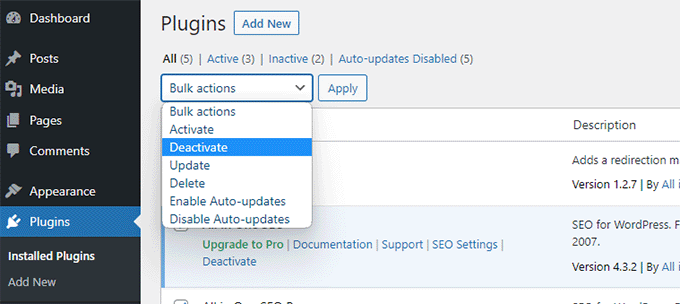
You can now head over to the Tools » Network Setup page.
Here, you can configure your multisite network.
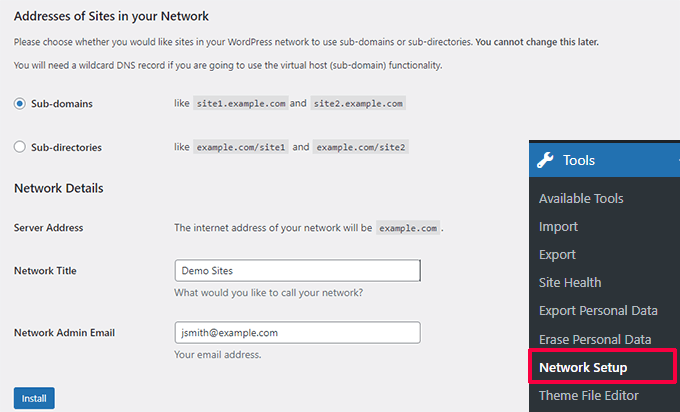
On the network setup screen, you will notice that you need Apache’s mod_rewrite module installed on your server. This module is installed and enabled on all the best WordPress hosting providers.
Next, you need to tell WordPress what domain structure you will use for sites in your network, e.g., Subdomains or Subdirectories.
After that, you will need to provide a title for your network and ensure the email address in the ‘Network Admin Email’ field is correct.
Click on the ‘Install’ button to continue.
WordPress will now show you some code to add to your wp-config.php and .htaccess files, respectively.
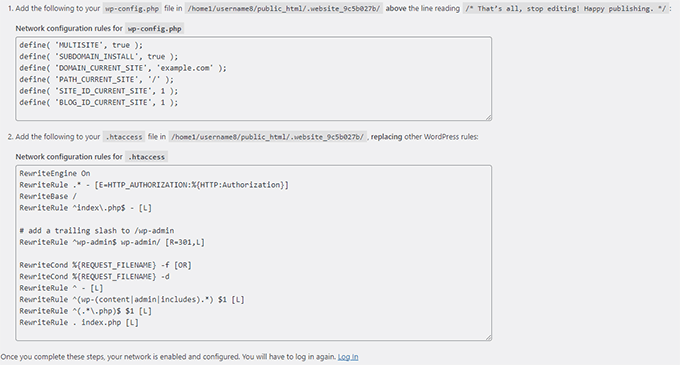
You can use an FTP client or the File Manager in the cPanel to copy and paste the code.
First, edit the wp-config.php file and paste the code just below the line you added in the earlier step.
Secondly, you need to edit the .htaccess file and replace the existing WordPress rules in your .htaccess with the WordPress multisite code you copied.
Don’t forget to save your changes and reupload the edited files back to your server.
Once finished, you will need to re-login to your WordPress site to access the multisite network.
Configuring Network Settings
Now that you have set up the multisite network, it is time to configure its network settings.
Start by logging in to your WordPress website admin area.
After that, you need to switch to the ‘Network Dashboard’ settings to change network settings, add new sites, and configure other settings.
When you take your mouse over to the ‘My Sites’ menu in the admin toolbar, a flydown popup will appear. Click on the Network Admin » Dashboard.
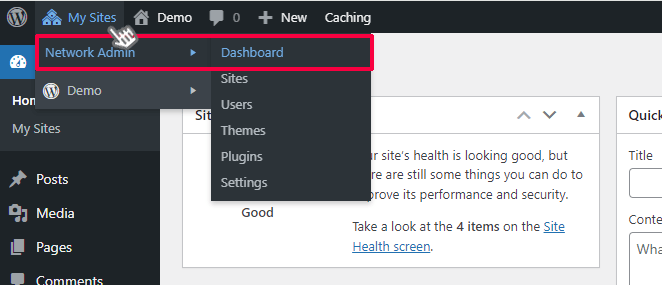
This will take you to the multisite network dashboard. You will notice that there are new menu items to manage your multisite network.
You will also see a ‘Right Now’ dashboard widget that allows you to create a new site and add new users.
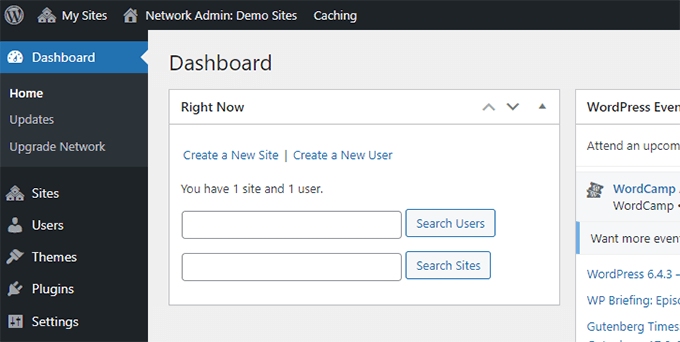
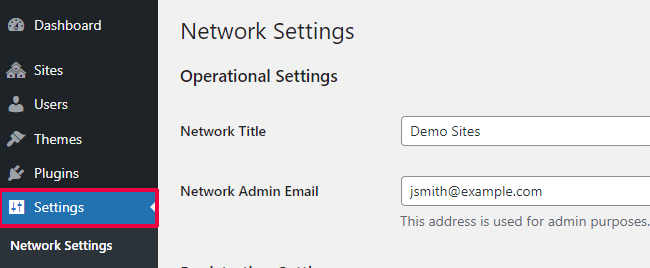
To configure network settings, click on the ‘Settings’ link in the admin sidebar.
The first option on the network settings page is to set your site title and admin email address. These fields will be filled automatically with the network title and admin email you entered during setup.
Opening Your Multisite Network for Registrations
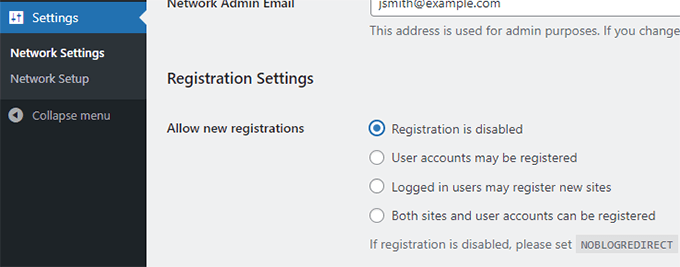
The ‘Registration Settings’ section on the network settings page is probably the most important setting in your entire network setup.
By default, both user and site registrations are disabled on the network.
You can choose to open your site to user registration, allow only existing users to create new sites, or allow both user and site registration.
If you are opening your multisite network to registration, then you can check the box next to the ‘Registration Notification’ option.
This will allow you to receive email notifications every time a new user or site is registered.
If you want to allow individual site administrators to add new users to their sites, check the box next to the ‘Add New Users’ option.
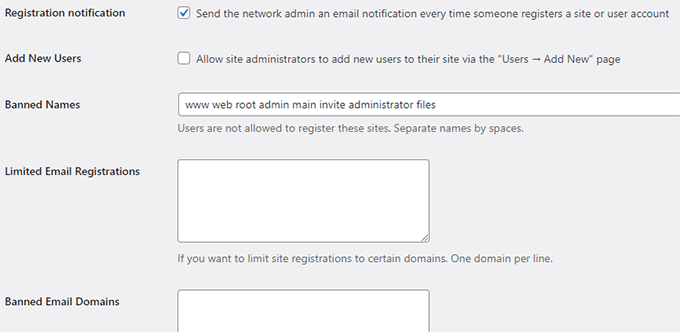
The limited Email Registration option allows you to limit site or user registration to email addresses from specific domains.
This is particularly useful if you want to allow only people from your organization to register and create users or sites.
Similarly, you can also ban certain domains from registration.
New Site Settings
The ‘New Site Settings’ section allows you to configure default options for new sites created on your multisite network.
You can modify the welcome emails and the contents of the first default post, page, and comment in these settings.
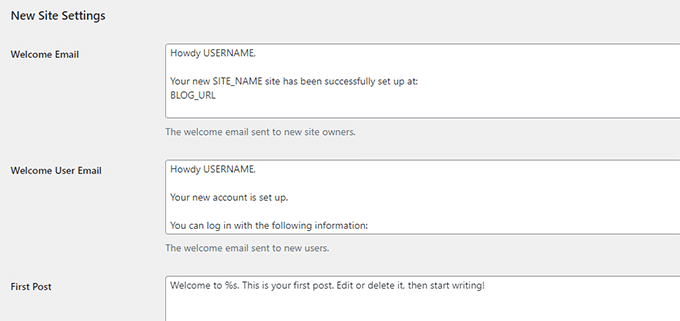
As a network administrator, you can change these settings anytime.
Upload Settings for Your Multisite Network
It is important to monitor your server resources’ usage. Under the ‘Upload Settings’ section, you can limit the total amount of space a site can use for uploads.
The default value is 100 MB, which is probably enough for at least 100 photo uploads. You can increase or decrease this space depending on your disk space.
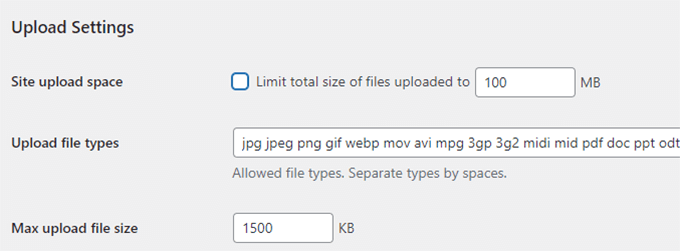
The default upload file types are images, audio, video, and PDF files. You can add additional file types, like doc, docx, odt, and so on.
Afterward, you can choose a file size limit so that users can’t upload insanely large files to the server.
Plugin Menu Settings
Next, you can jump to the Menu Settings. It will allow you to enable the administrative menu for the plugins section on your network sites.
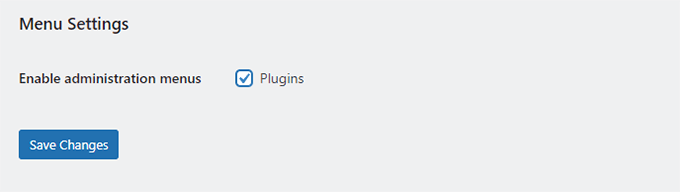
Enabling this will show the Plugins menu to respective site admins. They can activate or deactivate a plugin on their sites, but they cannot install new plugins.
Once you are satisfied with all the configuration settings, go ahead and click the ‘Save Changes’ button.
Adding New Sites to Your WordPress Multisite Network
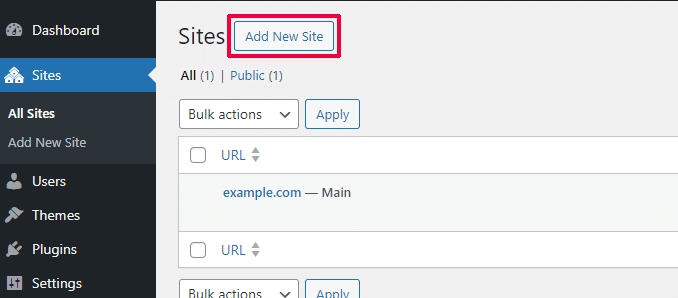
To add a new site to your WordPress multisite network, simply click on ‘Sites’ under the My Sites » Network Admin menu in the admin toolbar.
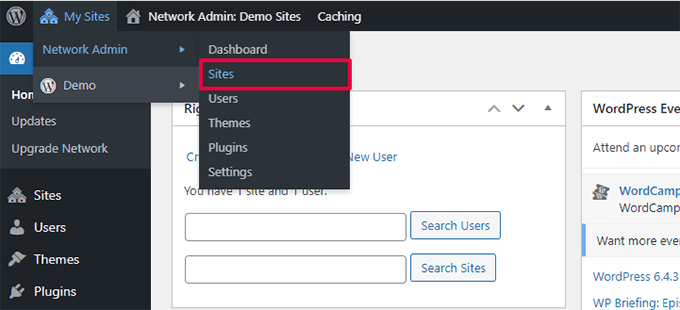
This will show you a list of sites on your current multisite installation. By default, your primary site is listed as the only site in your WordPress multisite network.
To add a new site, click the ‘Add New’ button at the top.
On the ‘Add New Site’ page, provide the site’s address. You don’t need to type the full address, just the part you want to use as the subdomain or sub-directory.
Next, you add a site title and enter the site admin’s email address.
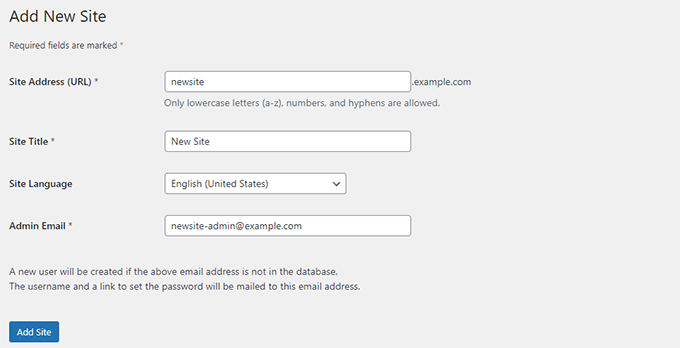
You can add an admin email address other than the one that you are currently using to manage your multisite network.
If another user does not currently use that email address, then WordPress will create a new user and send the username and password to the email address you enter.
Once you are done, simply click on the ‘Add Site’ button.
A new site will be added to your WordPress multisite network. You will also receive a new site registration email as the network admin.
If you create a new user, that user will receive an email with instructions for setting the password and logging in.
Adding Themes and Plugins to Your Multisite Network
By default, individual site administrators in a multisite network cannot install themes and plugins on their own.
As the network admin, you can install the respective plugins and themes so they are available for all sites on your network.
Installing Themes for Your Multisite Network
To add themes, go to the My Sites » Network Admin » Themes page.
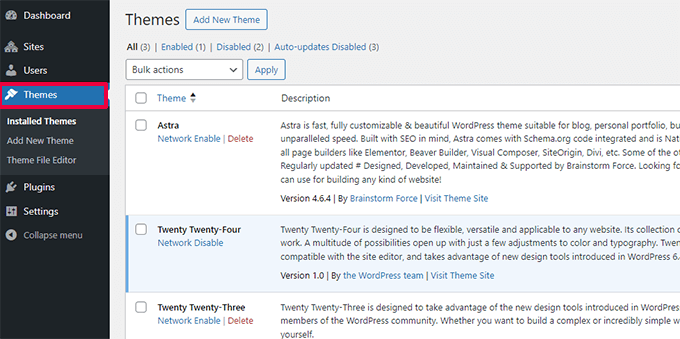
On this page, you will see a list of themes that are currently installed on your WordPress multisite.
You can make a theme available to other sites by clicking on the ‘Network Enable’ option under that theme.
You can also disable a theme by clicking on the ‘Network Disable’ link under it. Note that the Network Disable option will only appear when the theme is enabled.
To add a new theme, click the ‘Add New’ button at the top of your screen and install a WordPress theme as you would normally do.
Once the new theme is installed, you will be able to make it available to other sites on your network with the ‘Network Enable’ option.
If you need recommendations on which themes to make available to your network, here are our picks of the best WordPress themes that you can use:
- Best free WordPress blog themes
- Best free WordPress photography themes
- Best WordPress multi-purpose themes
Setting a Default Theme for Your Multisite Network
Even if you have added a couple of themes, WordPress will still activate the default WordPress theme for each new site.
If you want to make another theme the default for new sites, then you need to add the following code to your wp-config.php file:
// Setting default theme for new sites
define( 'WP_DEFAULT_THEME', 'your-theme' );
Replace your-theme with the name of your theme. You will need to use the name of the theme’s folder, which you can find by looking at the /wp-content/themes/ folder using FTP or File Manager.
Installing Plugins for Your Multisite Network
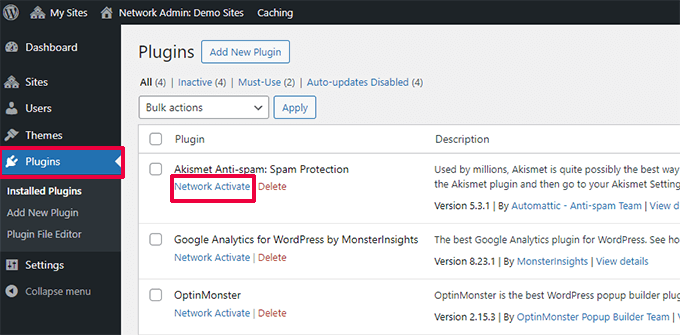
Similarly, you can visit the My Sites » Network Admin » Plugins page to install plugins and click on the ‘Network Activate’ link below each plugin to activate it on your multisite network.
Here are a few essential WordPress plugins that we recommend for every website:
- WPForms – It is the best WordPress contact form plugin that allows you to quickly create beautiful forms using a simple drag-and-drop form builder.
- All in One SEO – It is the most comprehensive WordPress SEO plugin on the market that will help you get more visitors from search engines.
- MonsterInsights – The best Google Analytics solution for WordPress that lets you view traffic data and other helpful reports in your WordPress dashboard.
- SeedProd – Site admins may want to show a coming soon page as they work on their sites. SeedProd allows them to add beautiful coming soon and maintenance mode landing pages.
- WP Mail SMTP – WP Mail SMTP helps you fix the WordPress not sending email issue by using an SMTP server to send crucial multisite registration and notification emails.
For more plugin recommendations, see our list of the essential WordPress plugins for all websites.
Note: If you previously enabled the Plugins Menu option for site admins in the ‘Network Settings,’ then site admins can activate or deactivate installed plugins on their own. However, they cannot delete or install a new plugin on their own.
Adding Default Content to Multisite Sites
By default, WordPress allows you to add and edit some default content for each site on your multisite network. You can go to Settings » Network Settings page and add this content in the ‘New site settings’ section.
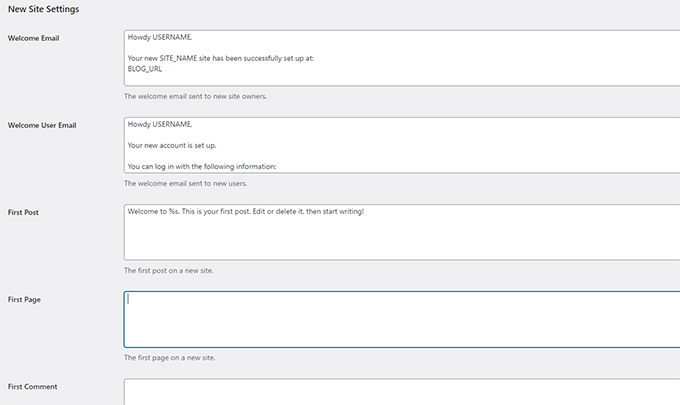
You can edit the content for the default post, page, and comment. We recommend replacing the default content with something more useful for your site admins.
But what if you wanted additional default content to be added to each new site?
By default, WordPress does not give you an option to create additional default content for new sites. If you want to do that, then you will need to add custom code to your WordPress multisite.
In this example, we are going to add a new default page to be created for each new site. You can add this code to your main site’s functions.php file or by using the WPCode plugin on your main site:
add_action('wpmu_new_blog', 'wpb_create_my_pages', 10, 2);

function wpb_create_my_pages($blog_id, $user_id){
  switch_to_blog($blog_id);

// create a new page
  $page_id = wp_insert_post(array(
    'post_title'     => 'About',
    'post_name'      => 'about',
    'post_content'   => 'This is an about page. You can use it to introduce yourself to your readers or you can simply delete it.',
    'post_status'    => 'publish',
    'post_author'    => $user_id, // or "1" (super-admin?)
    'post_type'      => 'page',
    'menu_order'     => 1,
    'comment_status' => 'closed',
    'ping_status'    => 'closed',
 ));

restore_current_blog();
}
You can use the same code with little modifications to create default posts for new sites. Check out the following code:
add_action('wpmu_new_blog', 'wpb_create_my_pages', 10, 2);

function wpb_create_my_pages($blog_id, $user_id){
  switch_to_blog($blog_id);

// create a new page
  $page_id = wp_insert_post(array(
    'post_title'     => 'A sample blog post',
    'post_name'      => 'sample-blog-post',
    'post_content'   => 'This is just another sample blog post. Feel free to delete it.',
    'post_status'    => 'publish',
    'post_author'    => $user_id, // or "1" (super-admin?)
    'post_type'      => 'post',
 ));

restore_current_blog();
}
Troubleshooting WordPress Multisite Issues
The most common issues with WordPress multisite network setup are incorrect configuration of wildcard subdomains and domain mapping issues. Before setting up multisite, make sure that your web host supports wildcard subdomains.
The following are some other common issues and their quick fixes.
Fixing Login Issues on Multisite Installs
A common issue is that when using WordPress multisite with sub-directories, some users are unable to log in to the admin area of their sites after they add the required code in the wp-config.php file.
To fix this, locate the following line in the wp-config.php file:
define('SUBDOMAIN_INSTALL', false);
Now, simply replace it with the following line:
define('SUBDOMAIN_INSTALL', 'false');
Find Unconfirmed Users
Another issue you may encounter is not being able to find users who registered on your network but didn’t get the activation email.
To fix this issue, see our guide on how to find pending unconfirmed users in WordPress.
Exporting a Site From Multisite to Its Own WordPress Install
Later, you or another site owner may want to export a site from multisite to a separate WordPress install. This can be easily done. For step-by-step instructions, see our guide on how to move a site from WordPress multisite to single install.
You may also want to bookmark our ultimate guide to common WordPress errors and how to fix them. This will save you a lot of time fixing the most common WordPress issues quickly.
FAQs About WordPress Multisite Network
Many of our users have asked us plenty of questions about WordPress multisite network and how to use it more efficiently. The following are the most frequently asked questions that we have answered.
1. Would I be able to better manage my sites with a multisite network?
To be honest, the answer really depends on your usage scenario.
For example, if your websites are not related to each other, then you would be better off with a multiple site management tool like InifiteWP.
However, if you manage multiple sites for a restaurant chain, university, or online magazine, then WordPress multisite will be more efficient.
2. Does WordPress multisite make my websites load faster?
Once again, it depends on several factors. Better WordPress hosting with plenty of server resources will allow multisite to be faster, but then again, with these resources, individual WordPress sites will also run faster.
However, on a shared hosting account, traffic spikes will increase memory usage and slow down all websites on the multisite network at the same time. To improve multisite speed, see our guide on WordPress performance and speed optimization.
3. Can I add an online store to a WordPress Multisite Website?
Yes, you can add an online store in the WordPress multisite network. Most likely, you will be using an eCommerce plugin like WooCommerce for that, which is compatible with WordPress multisite.
4. Can I install ‘x plugin’ on my WordPress multisite?
Some WordPress plugins may not be compatible with WordPress multisite. Normally, plugin authors mention it on the plugin’s website, and you can avoid installing a plugin that may not work on a multisite setup. However, if it is not mentioned, then it is safe to assume that it is multisite compatible.
5. How do I share user logins and roles across the multisite network?
By default, a user who is registered on one site cannot register or be added to another site on the same network. That’s because they are already registered in the shared WordPress database. However, they don’t have any user role privileges on other sites.
You can use third-party plugins like WP Multisite User Sync to sync users across the network. However, you need to be careful, as you may end up giving someone admin privileges to a site.
We hope this article helped you learn how to install and set up a WordPress multisite network. You may also want to see our tutorial on creating a WordPress multisite with different domains or our expert pick of the best WordPress multisite plugins.
If you liked this article, then please subscribe to our YouTube Channel for WordPress video tutorials. You can also find us on Twitter and Facebook.




Dayo Olobayo
I must admit, I wasn’t entirely convinced of the merits of WordPress Multisite Networks before reading this article. However, the way you’ve presented the potential advantages particularly for managing a network of similar websites, has definitely shifted my perspective. The step-by-step setup instructions are clear and concise and the emphasis on understanding the implications of subdomains versus subdirectories is well-placed. This is definitely a bookmarked article for future reference!
Johann
Would it be possible to reuse synced patterns on multiple sites in the network?
WPBeginner Support
It would depend on the pattern but there are also plugins that would allow you to share the patterns
Admin
Jiří Vaněk
I would like to ask because I’m not sure if I understand multisite correctly. I have multiple websites and I would like to manage them centrally. I know that there are many paid and unpaid tools for this purpose, such as Main WP, for example. However, can multisite be used for the same purposes? That is, one WordPress and multiple websites under central management. However, I assume that I would have to have all the websites on the same server, is that correct?
WPBeginner Support
You are correct that the sites would need to be on the same server as they are using the same database normally. Multisite can be partially used for similar purchases but if the sites should not be connected normally we would still recommend using plugins to manage multiple sites for the plugins that do not have compatibility with multisite.
Admin
Jiří Vaněk
Thank you for your reply. I suspected that might be the case. Still, I appreciate your response. Currently, I’ve started testing management through MainWP, and so far it seems like a great service for exactly the purposes I had in mind. So once again, thank you for your time and guidance.
Mrteesurez
As you have said that users can be allowed to create their blog (entire site).
Does that means I can turn my WordPress multisite into something like Medium, Quora, WordPress.com, Mastodon and others ?
Please let me know
WPBeginner Support
You would need a plugin or tool to recreate all the functionality but you could create sites for users similar to those sites
Admin
WPBeginner Support
You would require a plugin or tool for all of the features but it would be something close to those sites
Admin
Mrteesurez
While multisite might be good in some cases but the Cons sees to outweigh the Pros especially in the issue of security for if a site got hacked, other are affected.
Your word: ‘You can even allow other users to sign up and create their own blogs on your domain’
Creating blogs or blog posts ??
WPBeginner Support
Blogs as in entire sites
Admin
Thomas
Hi, when you install the code into the wp-config.php file is multisite typically activated right away — or does it take a while?
I installed code- and replaced old file on my Bluehost account–confirmed the code was there but do not see Network Setup option is tools… yet!
WPBeginner Support
If you have any caching you may need to clear it but you should see the changes immediately.
Admin
Jiří Vaněk
I just tried the code and it works really fast. Try to see if you have a cache in your browser, on your hosting (plugin) or if you’re not using a CDN and you don’t have a cache there yet.
WPBeginner Comments
Yes, checking and clearing CDN or browser cache is also a good idea.
Ashikur Rahman
just like default theme set. is it possible to set new website permalink structure to POST NAME ? cause in default it’s include months and then post name.
Thanks for your this tutorial
WPBeginner Support
While you can’t set that as default from creation, you can change the permalink as a new site in your multisite would not have any content.
Admin
Quintin
Hello.
I am creating a network and will be creating a number of themes for those sites to use.
My question is how do i update those themes if they need to be updated for whatever reason?
Do i simply overwrite the folder for that theme?
Thank you.
Quintin
Hello.
Thanks for the article.
I followed it all and unfortunatly, when i create the sites, the details are under the “sites” area, but when i click on those sites to view or admin the sites, they do not exist.
I tried to manually add the subdomains, but even when i did that, the error is “File not found.”.
I have no idea what i am doing wrong.
WPBeginner Support
For the most common reason, you would want to check with your hosting provider to ensure there is no domain issue
Admin
Mary Gaughan
I’m new to WordPress and considering a multisite. I understand themes can be enabled or disabled per site, but what about things like headers and footers? The other sites on my instance would have their own branding.
WPBeginner Support
Theme customizations would be unique to each site unless you are directly editing the code for the theme in which case you would want to create a child theme.
Admin
Kaye fiq
Thanks for the great write up followed up and got it set up. Thou am getting “500 internal error” when i access the second site i have created.
WPBeginner Support
For fixing the 500 internal server error, we would recommend taking a look at our article below and it should help:
https://www.wpbeginner.com/wp-tutorials/how-to-fix-the-internal-server-error-in-wordpress/
Admin
Sarah
Thank you for this fantastic article, very easy to follow and saved a lot of time. Keep up the great work, team!
WPBeginner Support
Glad our guide was helpful
Admin
Brian
I’m a newbie so please forgive me for the potentially stupid question.
With the default post and page setting, where do I put the code which you have given above?
WPBeginner Support
It would depend on which code you are talking about, if you mean the wp-config.php code then you would either use FTP or your hosting provider’s file manager to add the code.
Admin
Paul
Our multisite keeps giving
The link you followed has expired.
Please try again.
We’ve updated upload sizes and expires times and it hasn’t resolved anything
WPBeginner Support
You would want to reach out to your hosting company in case they are overriding your upload size from their end or if there is an error on their end.
Admin
shlomo
Hi,
Your post is really amazing, (also the rest of the posts)!
I want to ask,
For me it is set automatically on subdomain, not subdirectories
How can I change that?
Thanks
WPBeginner Support
You would want to check with your hosting provider to see if they have something set up for that.
Admin
Sammie
I’ve got as far as seeing the ‘my sites’ menu but no submenus appear and no option to create an additional site.
WPBeginner Support
Just to be certain you may want to check your user role and that you are at the primary site for the multisite for the most common issues.
Admin
Bounnoy
Seems Wordpress has changed some things. There’s no submenu when you hover over “My Sites” on the left menu. It’s now under the “My Sites” at the very top to the right of the Wordpress icon.
Tzvika
Hi, i have followed your guide and now i have main site which works well, but i have 2 problems;
1. For each new site i need to create manual A record on DNS. Is there a way to automate this?
2. Main site works well, I have downloaded a bunch of themes and enabled them for the network, but on any new site i create when i chose a theme, it doesn’t show the built-in images. Only text, and there are gray squares where images supposed to be.
Maybe you can advise?
Thank you
WPBeginner Support
1. You would need to look into the wildcard DNS we mention in our article, yours may not be set up correctly for your host.
2. You would need to add the demo content to the sites manually for it to load properly unless the theme added has a workaround they would recommend.
Admin
Lyle
Hi,
I’m attempting this as a test on a new site that is in fact hosted a bluehost. I have done all the steps up to the point where I create a new site(subdomain). It appears to create it just fine under my ‘All Sites’, but when I attempt to visit the site itself, there is no installation. Do I need to do this manually, or should creating the subsite perform the installation of the subsite core as well?
Note, the ‘alias’ configuration that points to ‘wildcard’, made the folder, but nothing is in it, so thats why I think I’m missing something here.
WPBeginner Support
You would want to reach out to BlueHost to ensure the wildcard is set up properly
Admin
Stylianos
Hey, Multiside settled. I want to add a second domain i own. How can i add it. Do i need a new configuration?
Thanks
WPBeginner Support
You would need to use domain mapping plugins or similar for that which is beyond what we go into for this specific guide
Admin
Woon
After i added the new site, i click on the dashboard or visit, it prompt me the ip address not found error page.
Do i need to create the subdomain on the server first? But i have try this also not working, please help thanks.
WPBeginner Support
You would want to ensure you followed the wildcard subdomain section of this article and should you continue to run into this error, you may need to check with your hosting prover to ensure that there isn’t something on their end that would be preventing the subdomains.
Admin
Aryan Chaurasia
Getting Error’ ” An existing WordPress network was detected. ” on the Network Setup Page.
WPBeginner Support
You would want to ensure you placed the code in the correct location in the wp-config file.
Admin
Hazit
This site can’t be reached
The webpage at MYSITE.com/wp-admin/ might be temporarily down or it may have moved permanently to a new web address.
ERR_SSL_UNRECOGNIZED_NAME_ALERT
WPBeginner Support
That looks to be an error with your SSL certificate, you would want to take a look at our article here: https://www.wpbeginner.com/wp-tutorials/how-to-fix-common-ssl-issues-in-wordpress-beginners-guide/
Admin
Chris
What if I wanted to manage multiple sites with different domain names? For example, siteA.com, siteB.org, and siteC.gov. They would be completely separate sites. Could this be managed the same way?
WPBeginner Support
By default, those would be 3 separate sites, if you really wanted you could create a multisite for them but you may want to take a look at the recommendations in this article for other options: https://www.wpbeginner.com/showcase/how-to-easily-manage-multiple-wordpress-sites/
Admin
Inioluwa Olaposi
Thanks for helping.
WPBeginner Support
You’re welcome
Admin
yq
Hello. Install your method, set the default theme, no effect, WordPress still activate the theme of WordPress, there are other ways?
WPBeginner Support
You may want to make sure you set the correct folder name for the theme as that is a common reason for it not working as expected
Admin
Ajit Singh
Would this approach work to set up multiple main domains, not sub-domain like “domain1.com, domain2.com, example.com, etc.”?
So, my requirement is to set up multiple main domains on 1 WP instance
WPBeginner Support
This would not work for multiple domains, for that you would want to check with your hosting provider about parked domains.
Admin
Lungani
Ive tried almost 5 times following all the steps and im stuck in apache server error when the site1.mysite.com is created
WPBeginner Support
It would depend on the specific error, you likely would want to reach out to your hosting provider and they should be able to help solve the problem.
Admin
Oliver Davenport
Is there any way of setting up for each new site to start with a navigation menu that links to all the other sites in the network? I assume some similar method to the setting up a default starting page for each site, but it would be different enough that I cannot see how that would work, if at all possible.
WPBeginner Support
At the moment we don’t have a recommended method but we will certainly keep a lookout for a method.
Admin
aessa
thank you for this informations
I followed these instructions and I can’t log in my subdomain dashboard
this error appears to me
Not Found
The requested URL /404.html was not found on this server.
Additionally, a 404 Not Found error was encountered while trying to use an ErrorDocument to handle the request.
can you help me?
WPBeginner Support
You may want to check with your host that subdomains are set up properly.
Admin
Niall
Hi,
Unfortunately, the bad news is that I can not see the footer widgets, that contain Contact us, Terms and conditions etc…
It also seems to me that the styling has slightly changed from the main domain to my subdomain… and only slightly, but definitely changed…
Do you have information about how to migrate the footer form the main website to the subdomain
WPBeginner Support
You would need to recreate the widgets on a subsite if you have not done so already. If you mean they are not displaying when recreated you would likely need to reach out to your theme’s support to ensure it is not a styling issue.
Admin
Peter
What happen if my site doesn’t have a .htaccess file? I use nginx server. Please help how to config these code.
Thank you,
Peter
WPBeginner Support
We will certainly look into how to set that up for updating this article.
Admin
Mark
What I’m battling with is domain mapping and getting an SSL to cover that the new subsite with it’s own domain
WPBeginner Support
If you reach out to your hosting provider they should be able to help you get your SSL to cover the subsites.
Admin
Einar
I installed WP multisite with subfolders. When I edit the main site the controll panel is on the well known adresse: domain-name.com/wp-admin/
But when I try do edit the first of the extra sites it goes to domain-name.com/sitename2/wp-admin/
And the next site is
domain-name.com/sitename3/wp-admin/
Should it not be possible to edit all sites from the root wp-admin?
WPBeginner Support
While that could be an option, the current method allows the content to be limited to one site at a time rather than one dashboard with posts/pages from multiple sites that you could accidentally post on the wrong site.
Admin
Eddie
Hi, I managed to set up the multisite online. The main site site works perfectly and is live. When I add a subsite for my blog I can see it in network dashboard.When i click on dashboard for that subsite i get this error.
“Not Found The requested URL /index.php was not found on this server..”
When I click on “visit” I get only this on a blank page.
What have i not done. Any help is appreciated.
Regards
Eddie
WPBeginner Support
You may want to try resaving your permalinks and disabling any caching on your site to start with as well as the general troubleshooting steps in: https://www.wpbeginner.com/beginners-guide/beginners-guide-to-troubleshooting-wordpress-errors-step-by-step/
Admin
Betty
Hi,
I’m having trouble with the multiset setup.
I’ve followed the steps, and created network with the subdomains and sites. I’ve confirmed with my hosting company that they support wildcard subdomains and multisite wordpress site. And they keep referring me to my developer to ask for assistance. Sooooo, I’m stuck.
SOMEHOW the site is not pointing towards the subdomain I’ve created. What did I do wrong and how can I fix it?
WPBeginner Support
It would depend on what error message you are receiving for the possible reason but you could also be running into a caching issue for the subdomains due to your DNS not seeing the change.
Admin
Betty
Hi there, I managed to fix it. When I created the subdomain in the cpanel, it automatically generated a document root that was the exact same as the subdomain name, (meaning it created an additional folder in the public_html, so all I did was to change the root back to public_html and it worked.
But now, I have a different problem. I need to create 15 subdomains (sites part of the network) that represent regions. So all the sites needs to look the same, but with varying products etc. Is there a way that I can replicate the primary site in the network?
WPBeginner Support
Glad you were able to resolve the issue, using multisite you should have the same themes and plugins available to let you manually recreate the design on your other sites.
Dhaundiyal
Worked like a charm..
I had been struggling to do this and everyone was looking forward with “how does it benefit me| attitude.
No cost, simple steps, really wonderful.
Thanks a ton for saving my money, effort and time
Dhaundiyal
WPBeginner Support
Glad our article could help
Admin
Marta
Hi,
I wanted to implement multisite on my customers’ website, but noticed that “tools” section is missing from dashboard. I research the problem in Google, but so far no luck. I have no idea why tools are missing….
Any idea what is wrong?
Thanks!
WPBeginner Support
You may want to ensure you have admin privileges for your user on your site.
Admin
Marta
Thanks – this one was solved, but I have another problem.
Before setting up network I disabled all the plugins, like you explain in this tutorial. But when I go to Tools > Network Setup I still see the warning: “Warning: Please deactivate your plugins before enabling the Network feature. ”
I can’t pass this, any idea what is wrong? Thank you!
WPBeginner Support
You could have plugins in your mu-plugins folder that are active, you could try disabling them using the steps in our article: https://www.wpbeginner.com/plugins/how-to-deactivate-all-plugins-when-not-able-to-access-wp-admin/
AQ
DO IT ALSO REDUCE STORAGE ISSUES?
WPBeginner Support
Multisite should not change your storage for your site, it is for grouping the sites together rather than reducing storage
Admin
John
Hi. I want to set up a multisite network for an online store and I want each city to have its site which will be on my multisite network. Now after setting up all the sites on my network, how can I create a landing page that will list all the sites using city names as anchor text so that users can click on the link for their respective city stores. Cecommerce has a plugin that does that. It’s called multisite store viewer. Only problem is that it hasn’t been updated for 3 recent versions of WordPress. I’d like to have an alternative, in case their plugin doesn’t work. Thank you and keep up the good work
WPBeginner Support
While we don’t have a recommendation at the moment, we’ll certainly keep an eye out.
Admin
andrew nasef zaki
i have multi wordpress site and when i active a plugin the site give me error 500
how i can fix it please
WPBeginner Support
Hi Andrew,
Please see our guide on how to fix 500 internal server error in WordPress.
Admin
Neer
Hi can I host multiple websites if I buy the 25 per month plan
How many websites I can host is there any number or space I need to host 50 website they all are small websites 4 pages 6-7 pictures
Thanks
WPBeginner Support
That would depend on your specific hosting provider. If you reach out to them with your requirements they should be able to point you toward what you need.
Admin
gg
THIS IS THE ANSWER!
Wow! So many people having problem setting up multisite.
IT DEPENDS ON YOUR HOST IF IT IS POSSIBLE.
For example bluehost doesnt support multisite with any plan.
So ask your host whether they support multisite or not.
WPBeginner Support
This article was created using BlueHost, you can create a multisite setup for this with them but you will need their plus or prime plans normally.
Admin
John
Hi, do you know if there’s a way to create a default instance of the multisite installs?
For example, I want to create a single install (let’s say default.multsite.com), and then configure the plugins and content. Then, when a new multisite site is created, have that version I’ve created be the default installation.
Any knowledge on this?
Thanks!
WPBeginner Support
Hi John,
You can choose default theme and plugins for new sites. You can also modify the text thats added to default sample content.
Admin
Emm
Hi there!
Might be an idiot question but hey, ill try. If i want sites linked between two different hosts, lets say one.com and another, would that be possible? If so, would it be an easy process?
Thanks,
Rajender Singh Bisht
You gave very good information. I have seen many such websites but they do not understand their technology. Your article has cleared the whole story as water. In fact, the solution comes on your website.
Editorial Staff
Thanks Rajender for the kind words.
Admin
Marjana
In tools I do not have -> Network Setup page to confugure my multisite network. I would like to have subdomains.
site1/example.com
But now I have example.com/site1
How can I change sub directories to subdomains.
In file wp-config.php I added both code for multisites:
Thanks.
Karen
Hello, I need help, I feel like an idiot asking this.
In case I dont want to run multiple sites under the same wordpress installation then what should i do?? Do I upgrade my current basic plan with bluehost, or do I purchase a new plan?
thanks
WPBeginner Support
Hi Karen,
You will need to upgrade your hosting to Plus or Prime plans.
Admin
Joseph
I did everything you said to do, but when I go to the subdomain’s dashboard, it comes up that the server’s IP address can’t be found. Help!
moonbeetle
Of all the articles and blog posts on how to setup WordPress Multisite, this tutorial worked for me. It’s just important to do the install step by step.
Stian
Problem at Bluehost: When I created the wildcard subdomain *.mymaindomain.com Bluehost came up with /public_html/wildcard as the default suggested Home folder. This didn’t work for a multisite WP.
Solution: I changed the Home folder to /public_html/ and everything is working