


I once found the perfect GIF to make a post more engaging, but it turned into a static, non-moving image immediately after upload. It was incredibly annoying to see the animation disappear right when I wanted to engage my readers.
This happens because when WordPress automatically creates smaller image sizes (like thumbnails), it only uses the first frame of the animation. The rest of the animation data is not included in these generated sizes.
Luckily, fixing this is simple once you know which setting to tweak. I have used this specific method on my own sites to keep animations playing smoothly without any code.
Here is how to add animated GIFs in WordPress the right way.

Why Are WordPress GIFs Not Working Properly?
Whenever you upload an image to the media library, WordPress automatically creates several copies of that image in different sizes.
There are 3 default WordPress image sizes that are automatically generated: thumbnail, medium, and large. WordPress also keeps your original upload, which is called ‘Full Size’.
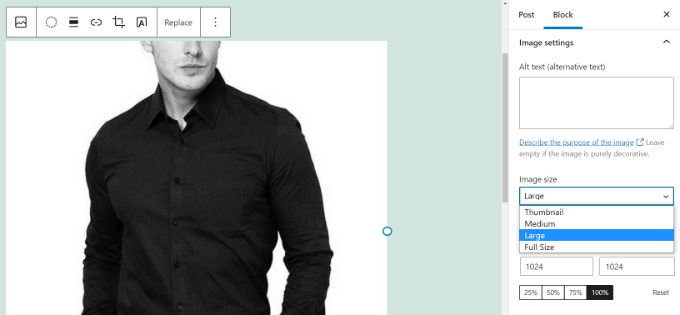
The problem is that when creating these new image sizes for animated GIFs, WordPress only captures the first frame of the animation.
As a result, when you add any of those generated image sizes to your post or page, they will be static images and result in WordPress GIF not working.
Now, let’s look at the right way to add animated GIFs in WordPress so they keep their animation.
Properly Adding Animated GIFs in WordPress
First, you need to edit or create a new WordPress post or page in the WordPress Gutenberg editor to add the animated GIF.
Once you are in the WordPress content editor, go ahead and click the ‘+’ button and add an Image block.
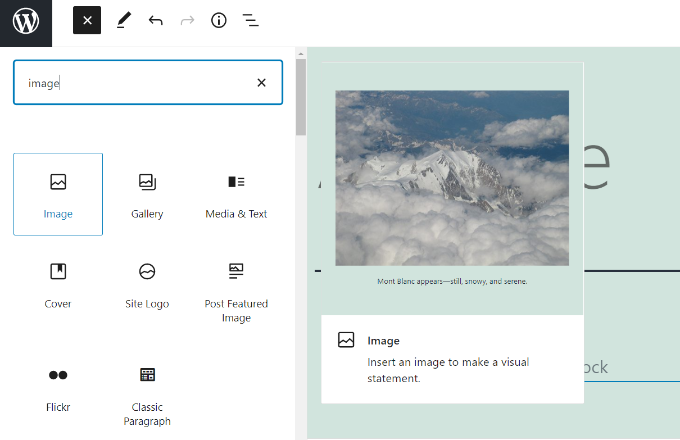
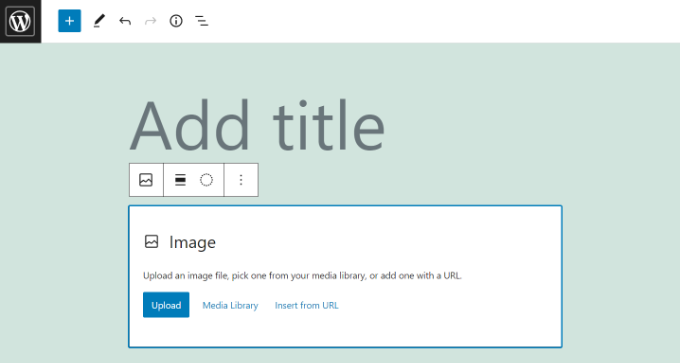
Next, you’ll find multiple ways to upload your animated GIF in the Image block.
To start, simply click the ‘Upload’ button and select your animated GIF from your computer. Or you can click the ‘Media Library’ button and add media files that have already been uploaded to your media library.
There’s also an option to enter the link to your GIF by clicking the ‘Insert from URL’ button, but we don’t recommend this because it does not upload the image to your website.
Once you upload your GIF, the block editor will insert it into your content, and you can customize it.
After adding the GIF, you’ll need to select the ‘Full Size’ option under ‘Image size’ from the menu on your right.
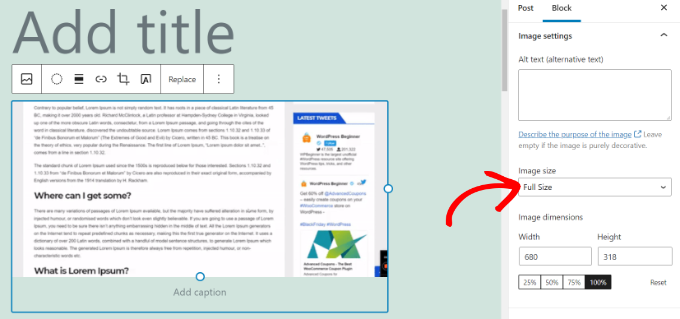
It’s important to select ‘Full Size‘ because this tells WordPress to use the original, untouched animated GIF you uploaded.
The other sizes (like ‘Thumbnail’, ‘Medium’, or even ‘Large’) are static copies that WordPress generated using only the first frame. By choosing ‘Full Size,’ you ensure the animation plays correctly. 👍
You will be able to see the animation right away in the content editor.
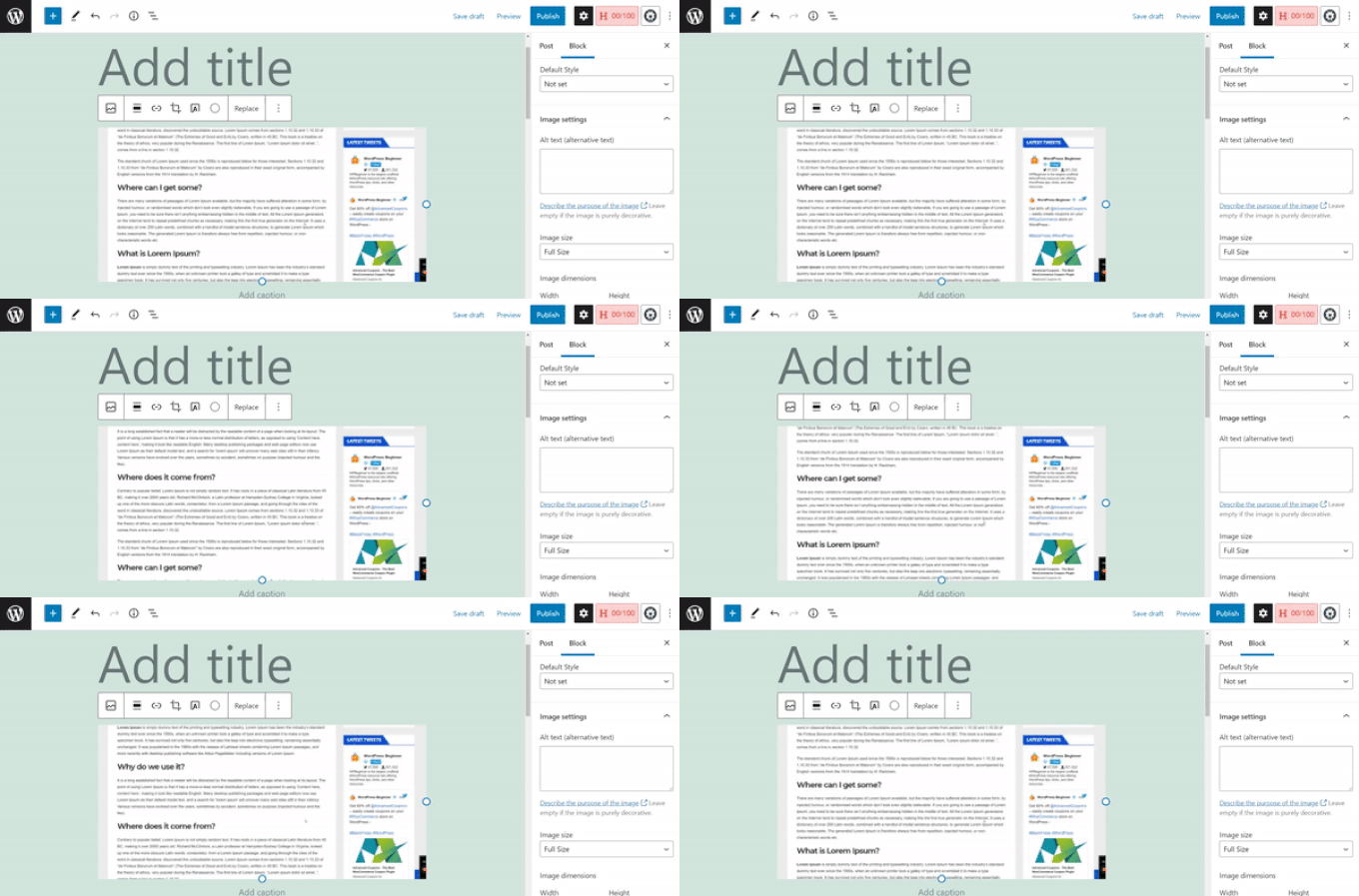
Go ahead and publish or update your blog post to see the animated GIFs in action.
Note: Don’t forget to add descriptive Alt Text to your GIF in the block settings. Since GIFs often convey a reaction or feeling, describing the animation helps users using screen readers understand your content.
Bonus Tips for Using Animated GIFs in WordPress
Animated GIF images are usually larger in file size than other image files. That’s because they contain several compressed images used as frames to create the animation.
Using large GIFs or adding too many GIF images on a WordPress page can slow down your website and hurt your search engine optimization (SEO). See our ultimate guide on how to improve WordPress speed and performance for more details.
If you use Giphy.com to find animated GIFs, then you may find the GIF Master plugin very useful. It allows you to search the Giphy database from your WordPress dashboard and add GIFs without leaving your WordPress site.
If you have a link to a GIF from Giphy, you can also simply paste the URL directly into the WordPress editor on its own line. WordPress will automatically embed the animated GIF for you, no plugin required.
Frequently Asked Questions About GIFs in WordPress
Here are answers to some of the most common questions we get about using animated GIFs in WordPress.
Why are animated GIFs so large?
Animated GIFs are essentially a series of static images, or frames, packaged into a single file. The more frames and colors a GIF has, the larger its file size will be.
This is why they are often much larger than standard JPG or PNG images.
How can I optimize GIFs to make them smaller?
You can use free online tools like EZgif or GIMP to optimize your animated GIFs. These tools can reduce the file size by removing extra frames or lowering the number of colors.
Pro Tip: For longer animations, consider converting your GIF to an MP4 video file. Videos are much smaller in file size and load faster. You can add them using the Video block and set it to ‘Autoplay’ and ‘Loop’ to mimic a GIF.
Is it bad to use many GIFs on a single page?
Yes, adding too many large GIF files to a single page can significantly slow down your website’s loading time. This can create a poor user experience and negatively impact your SEO rankings.
It’s best to use them sparingly to highlight key points or add visual interest where it matters most.
Additional Resources for Managing Your Media
We hope this guide helped you correctly add animated GIFs to your WordPress site. Now that you’ve mastered GIFs, you may find these other articles on media management useful.
- Great WordPress Plugins for Managing Images – Discover tools that can help you organize, optimize, and display your images more effectively.
- Why You Should Never Upload a Video to WordPress – Learn why hosting your own videos can hurt your site’s performance and what you should do instead.
If you liked this article, then please subscribe to our YouTube Channel for WordPress video tutorials. You can also find us on Twitter and Facebook.


Derick Melander
Thanks, I was losing my mind.
WPBeginner Support
Glad our guide was helpful!
Admin
Dana
Thanks for this. Super helpful and easy to follow.
WPBeginner Support
You’re welcome
Admin
Mike
Is it better to embed some code or insert the gif as you describe above for site speed? Or does it not really impact anything?
WPBeginner Support
As long as the gif is optimized then there shouldn’t be a major impact having the gif uploaded on your site instead of embedding it.
Admin
Evans Mary
So grateful for this knowledge. Thankyou so much for sharing.
WPBeginner Support
You’re welcome, glad you found our article helpful!
Admin
Lise
This was a very helpful blogpost.
I’ve been uploading gifs to giphy, but they became blurry in my page.
However I now have high quality gifs.
WPBeginner Support
Glad you found our guide helpful!
Admin
Karl Heinz Burkhardt
This was very helpful. Thank you very much.
WPBeginner Support
Glad our guide was helpful!
Admin
Melissa
Thank you – lifesaver!
WPBeginner Support
You’re welcome, glad our guide could be helpful
Admin
Alexandre
Doesn’t work for me?
WPBeginner Support
You may want to ensure you don’t have an image optimization plugin that is attempting to modify the GIF
Admin
Giron
How to make start and stop by clicking the mouse for gif animation?
WPBeginner Support
While we don’t have a recommended method at the moment, we will certainly take a look for a possible addition to this article
Admin
Joy
Thank you guys. This really helped.
ed
are there any user comment plugins out there that allow users to add gifs?
Brian
Any idea how to easily add a post with an iOS Live Photo? Thanks!
Christophe
Hi,
I’ve added a animated gif on my WordPress site following your example. It worked but now the .gif has completely disappeared, even from my Media Library.
Any idea where this could be coming from?
Many thanks
Christopher Eldridge
Hi, in my case, the media uploader does not offer the option to change the size of the file. Is that because I’m using the free version of Wordpress? If so, which version must I purchase to be able to modify the size of the file and have a functioning GIF animation?
Thanks!
Chris
Johnson
I have an auto blog site in which I use to post to my social networks. I do not write posts I only upload images and use Auto Image Post and Draft Scheduler plugins to automate them.
Admin please how do I make all my uploaded gif animate automatically?
I have tried several plugins but none worked. i will greatly apreciate your help.
Thanks.
John Mauldin
Great article and GREAT Timing! Just looked at and downloaded an animated gif I need to put on a wp site. Thanks so much for this information, wpbeginner.com!
Rakesh kumar
Thanks a lot!! It was very simple and yet very effective. Most of us will miss this trick.
Donna Merrill
To my knowledge I’ve always heard that adding a GIF will slow down my blog. This is why I haven’t used it as yet. However I do have some niche sites that it just may not be a problem.
Thanks for clarifying it.
-Donna