


Do you want to show different content in your WordPress sidebar for certain posts and pages?
A standard, one-size-fits-all sidebar is often a missed opportunity. By customizing the sidebar for specific content, you can boost user engagement and increase conversions.
While this sounds technical, we’ve seen firsthand how the right tools make it easy to create and manage different sidebars for your site.
In this guide, we will show you how to display different sidebars for each post and page in WordPress.
💡Quick Answer: How to Display a Different Sidebar For Certain Pages
In a hurry? Take a quick look at the 3 easy ways to add different sidebars and choose the one that suits your needs:
- For New Sites or Full Customization (Recommended): Method 1 is best if you’re starting a new website or want complete design control. It uses a theme builder to create custom sidebars and templates from scratch.
- For Classic Themes: If you are using a traditional WordPress theme, Method 2 is for you. It uses a free plugin to add multiple sidebars and assign them to different pages.
- For Block Themes: If your site uses a modern block theme (like Twenty Twenty-Four), then jump to Method 3. It shows you how to use the built-in Full-Site Editor to create and manage sidebars.
Keep in mind that the method you choose should depend on the type of theme you are using on your website.
Why Use Different Sidebars for WordPress Posts and Pages?
Using different sidebars in WordPress lets you show more relevant content based on the page or post a visitor is viewing.
This can improve engagement, create a better user experience, and help increase conversions. Here are some of the main benefits of using different sidebars in WordPress:
- Show More Relevant Content: You can display related articles, products, ads, or resources that match the current page.
- Improve User Engagement: Contextual sidebar content can encourage visitors to explore more of your website.
- Increase Conversions: You can add targeted calls to action, newsletter forms, or promotions based on specific content.
- Create Better Navigation: Different sidebars can help guide users toward the most useful next steps for each section of your website.
- Customize Different Areas of Your Site: You can create unique experiences for blog posts, landing pages, WooCommerce pages, membership areas, and more.
With that said, let’s look at 3 methods to add different sidebars for posts and pages in WordPress. Whether you’re building a new site, using a classic theme, or working with a modern block theme, we’ve got a solution for you.
You can use the quick links below to jump to the method that suits you most:
- Method 1: Create a Custom Theme With Different Sidebars for Specific Pages or Posts (Recommended)
- Method 2: Show a Different Sidebar on Certain Pages With a Free Plugin (Classic Themes)
- Method 3: Add Different Sidebars to Specific Templates in WordPress Full-Site Editor (Block Themes)
- Frequently Asked Questions About Custom Sidebars
Method 1: Create a Custom Theme With Different Sidebars for Specific Pages or Posts (Recommended)
Out of all the methods we’ve tried for this tutorial, we recommend creating a custom theme the most. This approach provides unparalleled flexibility and control.
It allows you to fully design every element of your site, from headers to footers and sidebars, unlike the more limited options of plugins or the block editor alone.
That being said, we only suggest following this method if you’re in the beginning stages of building your site or you’re interested in properly switching your WordPress theme. That’s because changing themes can significantly impact your existing content and layout.
If you don’t want to switch themes, then you can skip to method 2 (classic themes) or method 3 (block themes).
For this method, you will need a WordPress page builder plugin.
Based on our experience testing dozens of theme builders, we recommend using a tool like SeedProd or Thrive Architect.
These tools provide drag-and-drop interfaces, pre-built templates, and design controls that go beyond WordPress’s built-in features, enabling complete design freedom.
Several of our partner brands use SeedProd because its intuitive drag-and-drop interface makes it incredibly beginner-friendly, and it’s trusted by over 1 million websites. You can learn more about the tool in our SeedProd review.
Step 1: Install and Activate SeedProd
First things first, go ahead and install the SeedProd plugin on your website. If this is your first time, then head over to our beginner’s guide on how to install a WordPress plugin.
Note: For this tutorial, we will use the Pro version of SeedProd for demonstration purposes. While there is a free version, it doesn’t come with the theme builder feature, which is necessary for creating a custom theme from scratch.
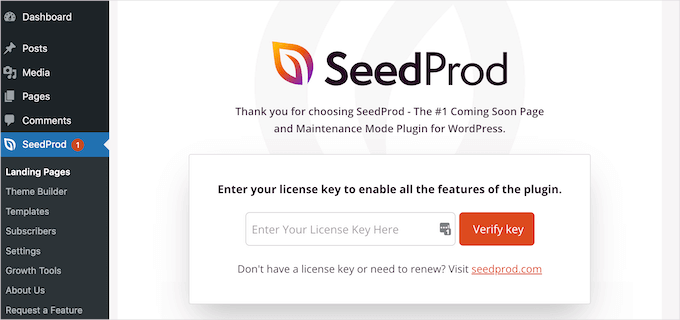
Once done, insert your SeedProd license key in the appropriate field and click ‘Verify key.’
Step 2: Choose a Theme Template Kit
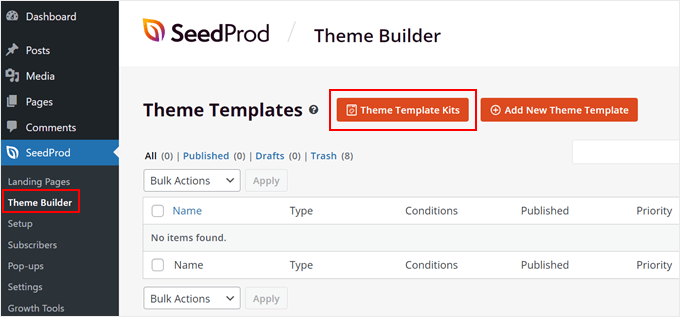
Next, go to SeedProd » Theme Builder.
Then, click on the ‘Theme Template Kits’ button.
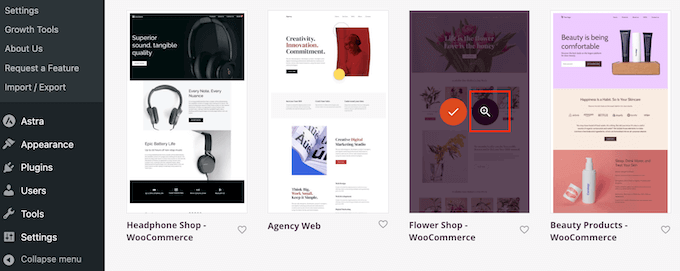
You should now see all of the theme template kits available. Feel free to use any of them as a base for your custom theme.
You can also hover on each kit and click on the magnifying glass button to view the theme more closely.
For this tutorial, we recommend choosing a theme kit that already includes a sidebar design.
This allows you to duplicate the existing ‘sidebar template part’ and customize it, which is much faster than building a new one from scratch.
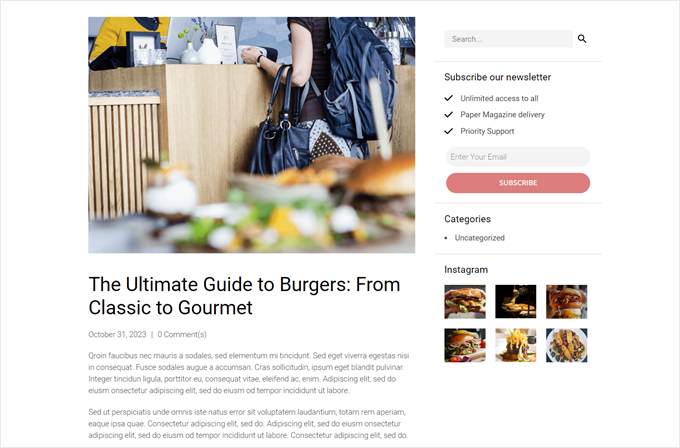
For example, the Curbside Food Truck theme kit has a single post template that already includes a sidebar:
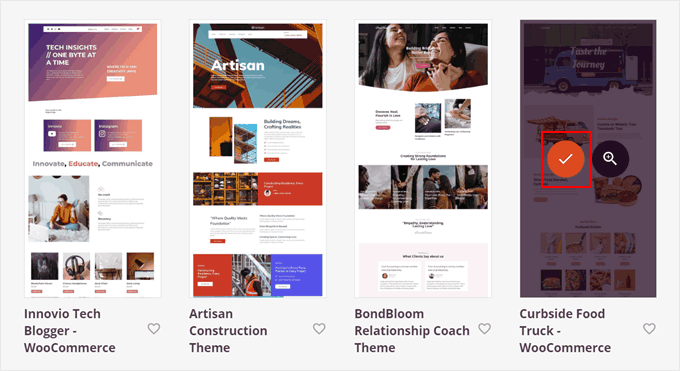
Once you’ve decided on a kit, just hover your cursor on it.
Then, click on the orange checkmark icon when it appears.
Now, wait for a few moments for SeedProd to set up your theme.
Step 3: Duplicate and Edit the Sidebar Template
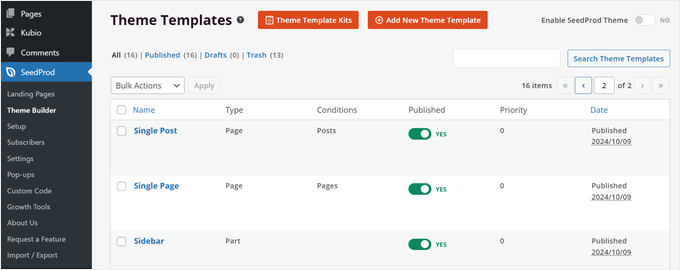
After that’s done, you should be redirected to the ‘Theme Builder’ settings page again and see that SeedProd has created several theme templates for your WordPress website.
We can now start editing your theme template.
Let’s say you want the sidebar on your blog category archive pages to look different from the one on your blog posts. In that case, you need to create 2 different sidebar theme templates.
First, find the ‘Sidebar’ theme template in your kit. This is the default sidebar that your theme uses when a page requires a sidebar.
For illustration, we will duplicate this template and then edit it to make it different from the original version. To do this, you can hover over the template and click ‘Duplicate.’
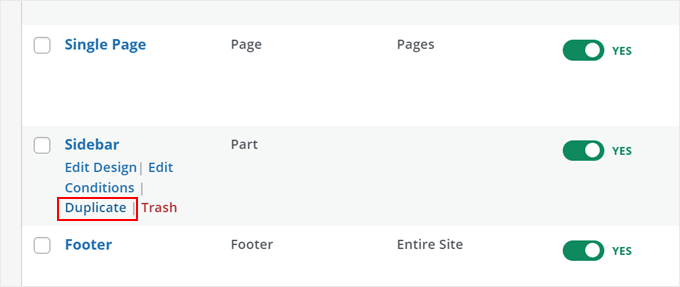
You should now see a copied version of your sidebar template.
Here, go ahead and click ‘Edit Design.’
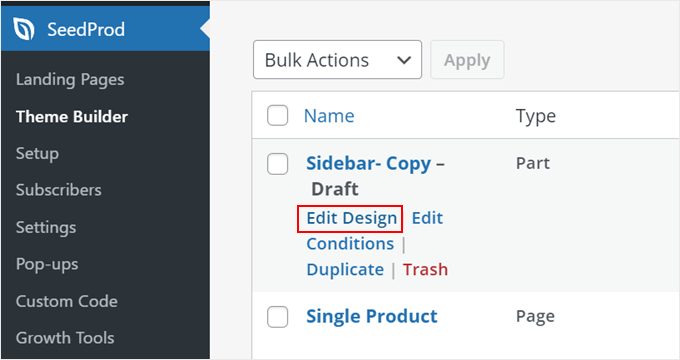
Step 4: Customize Your New Sidebar
You will now arrive at the SeedProd editor. If the sidebar template looks wider than what you’d expect, don’t worry. The size will adjust as the sidebar is added to a page later on.
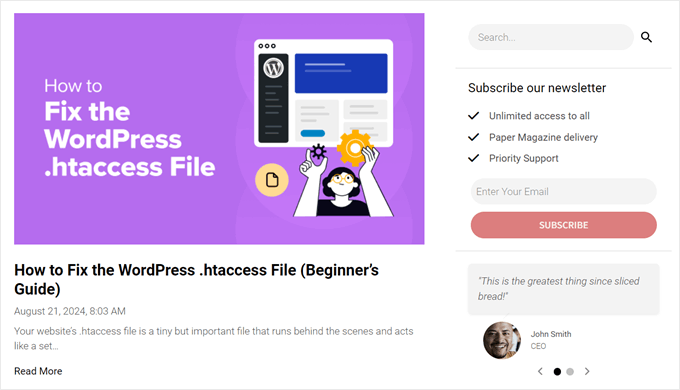
In our chosen theme, the default sidebar template displays a search bar, a newsletter subscription call-to-action, links to our blog category pages, and a preview of our Instagram feed.
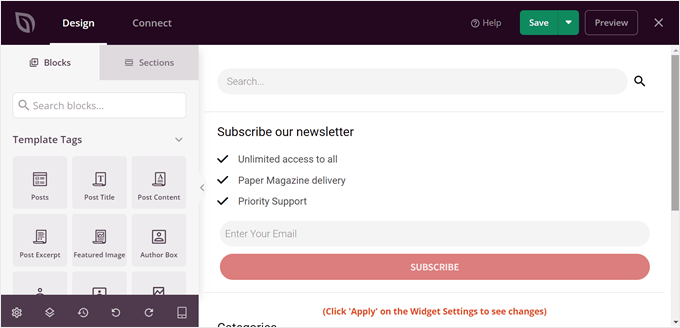
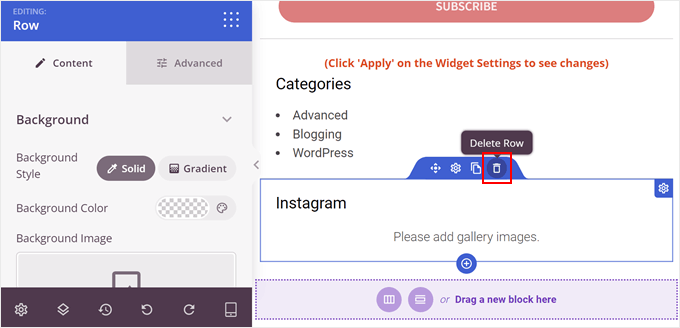
We’re going to replace some of these elements. These blocks have been organized in groups or rows, so we can delete multiple blocks in a single row at once rather than remove them one by one.
To do this, you can just hover over an element until a dark blue line appears over an entire group of blocks. Then, click on the trash ‘Delete Row’ icon at the top of the element.
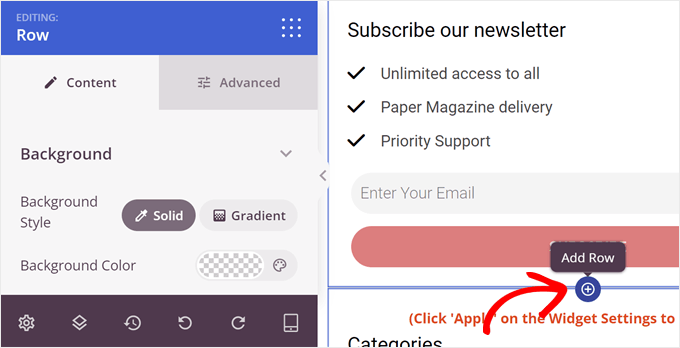
To create a new row, hover over the element immediately above where you want the new row to appear. When a dark blue line appears, click on the ‘+’ icon that shows up below it.
Then, you need to click on the ‘+’ icon below.
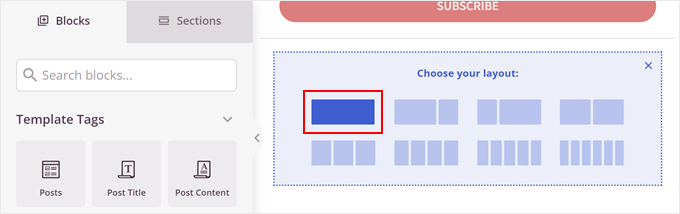
Now, you can choose a layout for the row.
We’re going to pick the first option because that’s the most suitable for our needs.
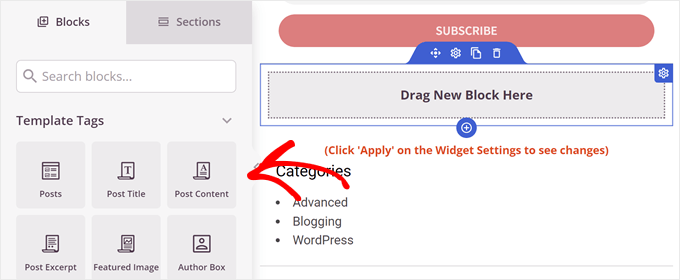
This is where you can start having fun and adding all kinds of blocks to your sidebar.
SeedProd has tons of options to choose from, from a countdown timer and an image hotspot to a progress bar and more. You can use the search bar or scroll down on the ‘Blocks’ tab to find the block you need.
Once you’ve found a block you like, just drag and drop it to the row.
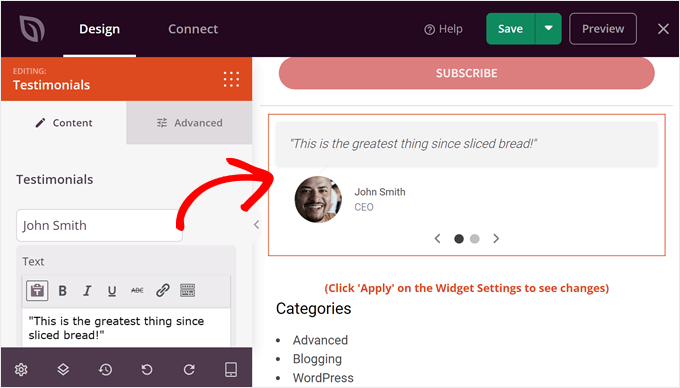
For the sake of example, we’ve decided to add the ‘Testimonials’ block.
You can use this to display a positive review from a customer as social proof. If you want to learn how to add one too, you can read our guide on adding rotating testimonials in WordPress.
Feel free to add more rows and blocks at this point.
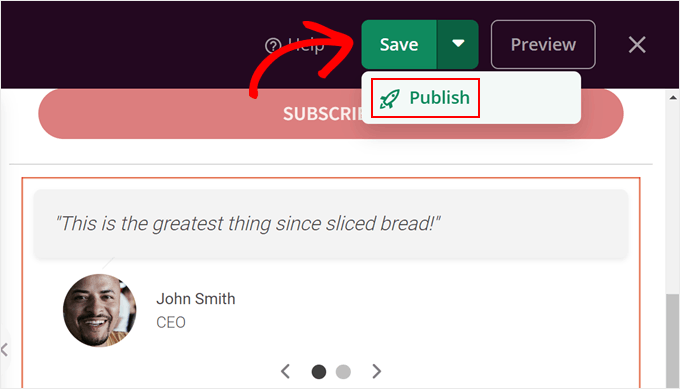
After you’re happy with the sidebar’s design, just click on the arrow icon next to the ‘Save’ button at the top right corner of the page. Then, click ‘Publish.’
Step 5: Add the New Sidebar to a Page Template
Now, let’s go ahead and add this new sidebar to a post or page template. To do this, go back to SeedProd » Theme Builder on your WordPress dashboard.
The theme kit we’re using has 2 theme templates that feature a sidebar: ‘Single Post’ and ‘Archives, Search Results.’ The first is for WordPress posts, while the second is for all archive pages, including category archives, as well as the search results page.
Both templates currently use the same sidebar template.
In this case, we want the ‘Archives, Search Results’ template to use the new sidebar we just created. So simply locate the template you want to edit and click ‘Edit Design.’
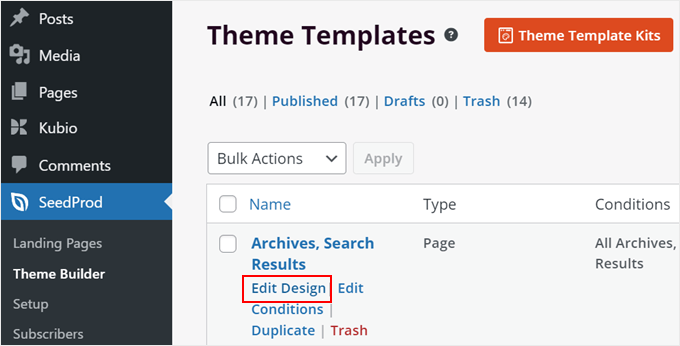
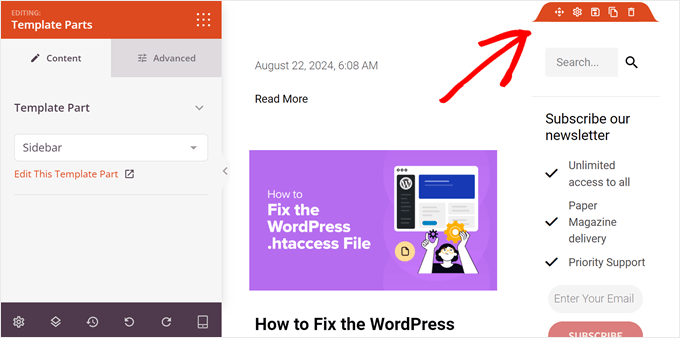
In the SeedProd editor, hover over the area with the sidebar, and when an orange toolbar appears on top of it, click on it.
The left settings panel should say ‘Editing: Template Parts.’
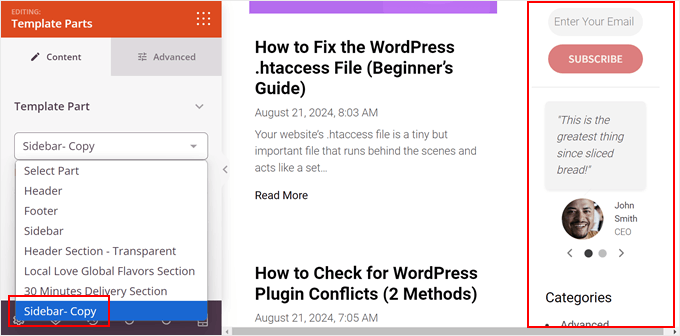
In the Template Part dropdown menu, you need to select the sidebar template you just created.
You should now see that your new sidebar has been added to your page template.
After that, just click ‘Save’ to publish your changes.
Step 6: Activate Your SeedProd Theme
At this stage, you can create more sidebars and add them to other pages by repeating the same steps as before.
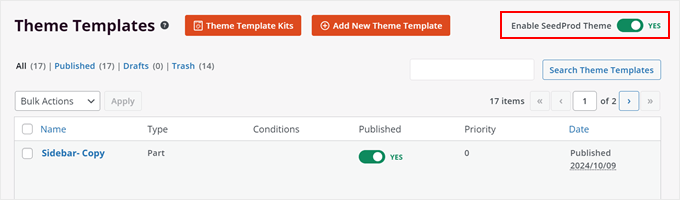
Once you’re happy, just go back to SeedProd » Theme Builder again, and toggle on the ‘Enable SeedProd Theme’ setting until it says ‘YES.’ This will activate your SeedProd theme on your website.
And that’s it!
Here’s what our custom sidebar looks like:
Method 2: Show a Different Sidebar on Certain Pages With a Free Plugin (Classic Themes)
Most classic WordPress themes have predefined sidebar areas, and they typically show the same sidebar across your entire site.
While this works, it can feel limiting if you want to display unique content for different sections.
Thankfully, you can easily get more control by using a free plugin. We recommend Lightweight Sidebar Manager. This plugin lets you create unlimited custom sidebars and assign them to specific posts, pages, categories, and more.
Plus, it has over 80,000+ active installations on WordPress.org, making it a reliable choice.
Step 1: Install the Lightweight Sidebar Manager Plugin
The first thing you need to do is install and activate the Lightweight Sidebar Manager plugin. For more details, see our step-by-step guide on how to install a WordPress plugin.
Step 2: Create a New Custom Sidebar
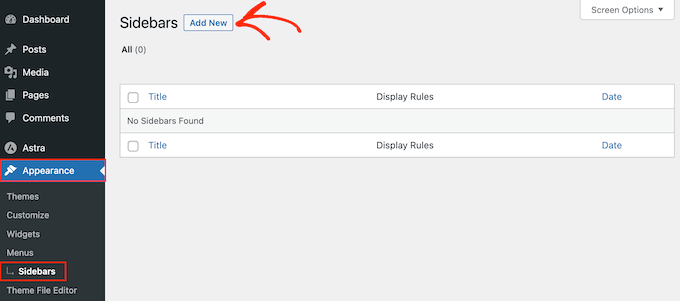
Upon activation, you need to go to Appearance » Sidebars. To create the first sidebar, click on the ‘Add New’ button.
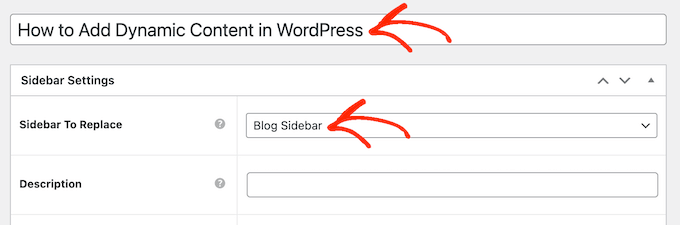
You can now type in a title for the new WordPress sidebar. This is just for your reference, so you can use anything you want.
With that done, open the ‘Sidebar To Replace’ dropdown menu. This setting lets you choose which of your theme’s default sidebar areas (like ‘Main Sidebar’ or ‘Blog Sidebar’) will be replaced by your new custom one.
Choose the location where you want to show the sidebar. The options you see may vary depending on your WordPress theme.
Step 3: Configure Display and Exclusion Rules
Now, you can control where the sidebar appears by creating inclusion or exclusion rules.
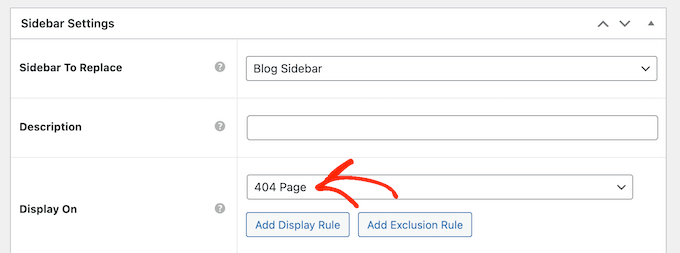
To create an inclusion rule, just open the ‘Display On’ dropdown and choose the pages, posts, custom post types, or categories where you want to use the sidebar.
For example, you might add the sidebar to a specific page, such as your 404 error page, the author archive, or blog page.
Another option is using the sidebar for a particular page, post, or category by selecting ‘Specific Pages/Posts/Taxonomies.’
This adds a box where you can type in the page, post, or category.
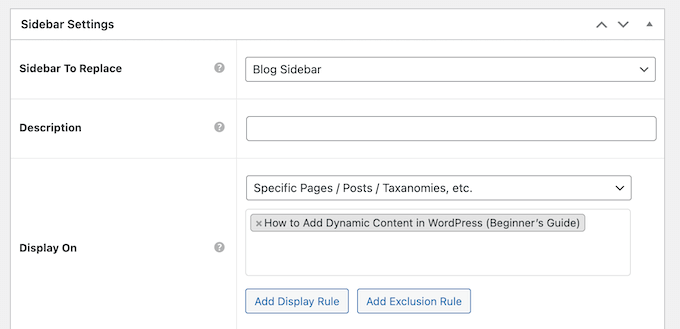
To create more inclusion rules, simply click on the ‘Add Display’ Rule button.
This adds a section where you can create the new inclusion rule.

If you prefer, then you can create exclusion rules instead. For example, you may want to show the sidebar on every page except the homepage.
You can also combine inclusion and exclusion rules to control exactly where the sidebar appears on your WordPress blog.
To create an exclusion rule for the sidebar location, just click on the ‘Add Exclusion Rule’ button.
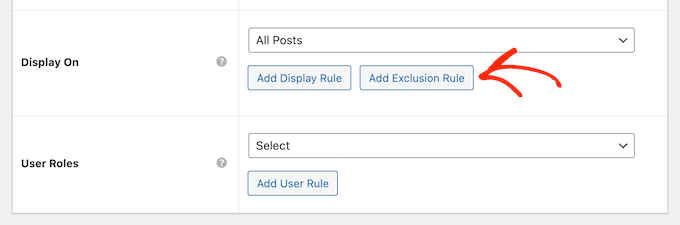
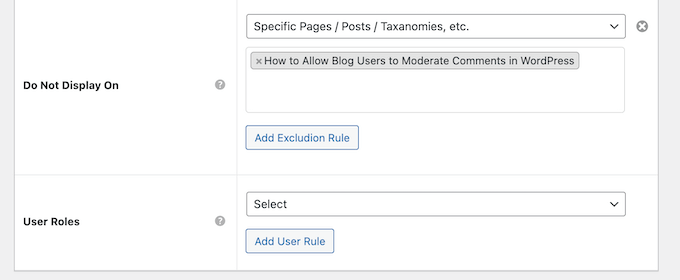
In the new ‘Do Not Display On’ section, open the dropdown menu and select the page or post that shouldn’t use this sidebar.
You can also exclude the sidebar from WordPress pages that have a specific category by following the same process described above.
Step 4: Set User Role Visibility (Optional)
After deciding where the sidebar will appear, you may want to show different content to different users.
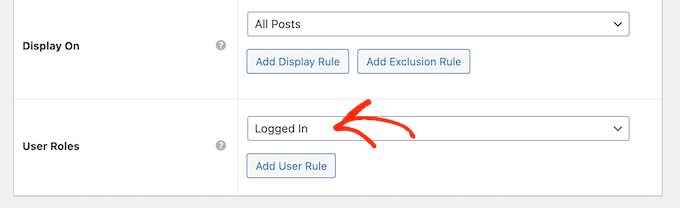
For example, if you have a membership site, then you might want to use a different sidebar for visitors than for logged-in members.
To do this, open the ‘User’ dropdown and choose a role from the dropdown menu. Now, only people with this specific user role will see the sidebar.
Finally, you may want to type in an optional description. This will only appear in the WordPress dashboard, so it’s a good way to share information with other admins or users.
If you are going to create lots of sidebars, then you can also use this field to leave yourself notes and helpful reminders.
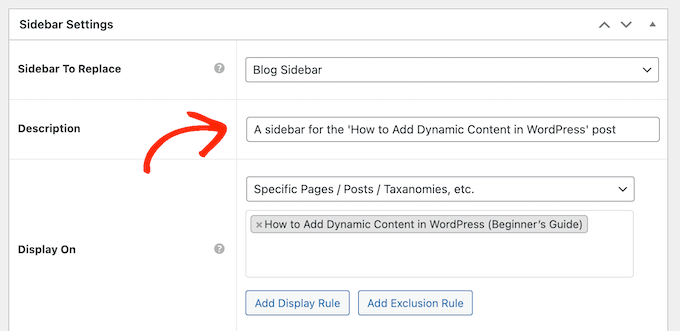
When you are happy with the information you have entered, simply click on ‘Publish.’
Step 5: Add Widgets to Your New Sidebar
With that done, go to Appearance » Widgets. You will now see all the widget areas that your theme supports by default, plus the new sidebar you created in the previous step.
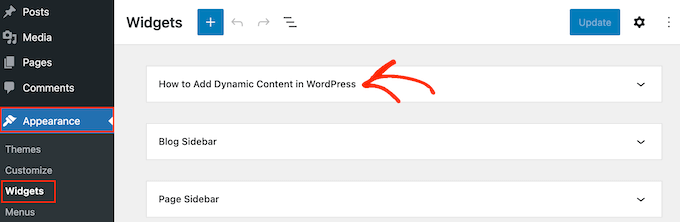
You can now go ahead and add widgets to the sidebar, just like any other widget section.
For step-by-step instructions, please see our guide on how to add and use WordPress widgets.
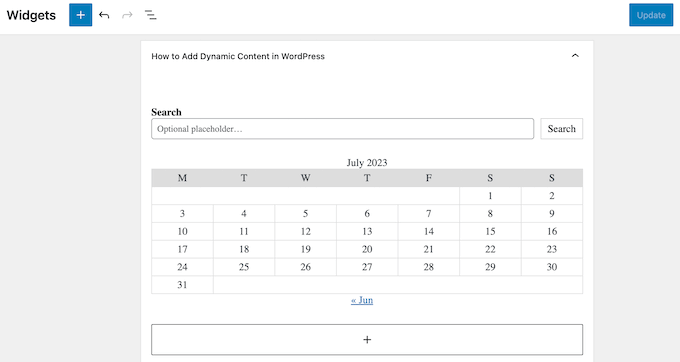
When you are happy with how the sidebar is set up, click on ‘Update.’
Now, if you visit your WordPress blog, you will see the new sidebar live.
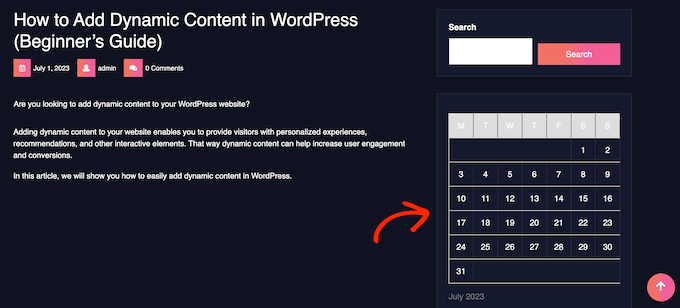
To create more theme sidebars, simply keep repeating these steps.
Method 3: Add Different Sidebars to Specific Templates in WordPress Full-Site Editor (Block Themes)
If you use a block theme, like the Twenty Twenty-Four or Hestia theme, then you can use the full-site editor to create custom sidebars and place them wherever you like.
We will use the Twenty Twenty-Four theme to demonstrate this method.
The great thing about block themes is that they all use the same standard tool: the Full-Site Editor. While the specific templates inside each theme can be different, the editing process is consistent.
This means you don’t need a special sidebar plugin to add a different sidebar to your pages or posts.
Step 1: Open the Full-Site Editor
First, head to Appearance » Editor in your WordPress admin.
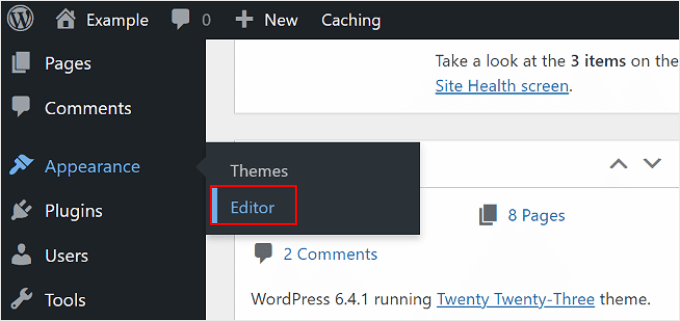
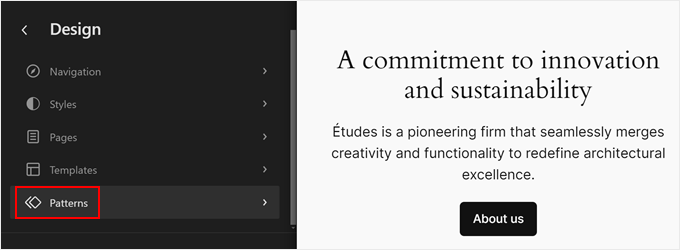
Here, you will see some menus to customize your block theme.
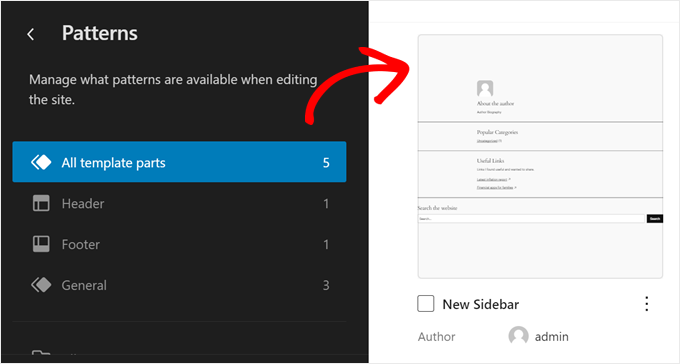
To create a new sidebar, you have to select ‘Patterns.’
Step 2: Duplicate the Sidebar Template Part
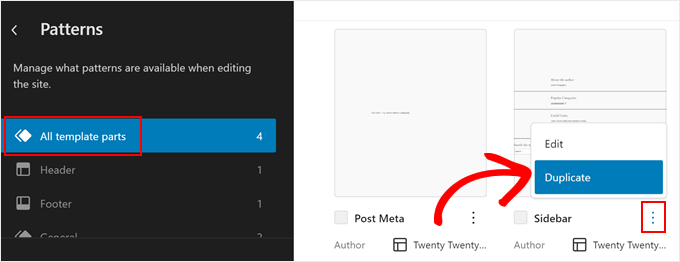
Now, click ‘All template parts.’
Template parts are reusable blocks of content, like a header, footer, or sidebar, that can appear across multiple pages of your site.
You should see a template part called ‘Sidebar.’ Go ahead and click on the three-dot menu, and then select ‘Duplicate.’ This will make a copy of the sidebar template that you can then customize.
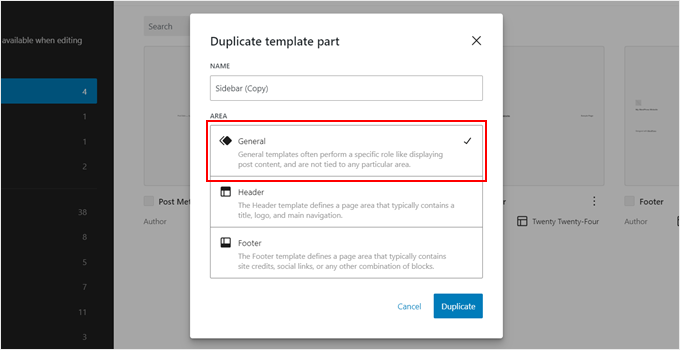
In the new popup, give your new sidebar a name to easily identify it later.
In the ‘Area’ section, select ‘General.’ Once done, just click ‘Duplicate.’
Step 3: Customize the New Sidebar
You should now see your newly duplicated sidebar in the list of template parts.
Simply click on the thumbnail to open the editing interface.
Now, you can start customizing your sidebar, add more blocks, or configure them to match your website design. The full-site editor works the same way as the block editor in that you only need to drag and drop blocks onto the template part.
In our case, we’ve decided to display our most recent posts, a call-to-action button to subscribe to our email list, and a shape divider to separate these elements.
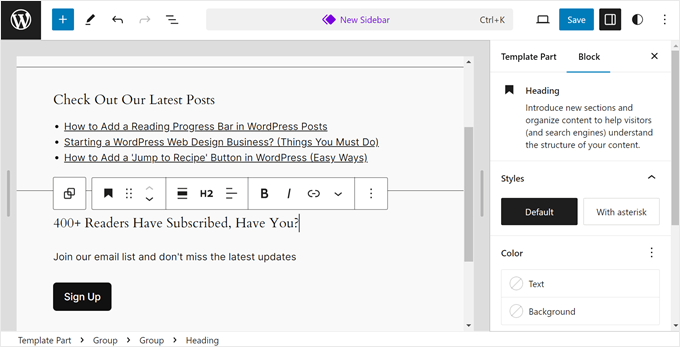
Once you’re happy with how the sidebar looks, click on the ‘Save’ button.
Step 4: Add the New Sidebar to a Page Template
Now, we need to add this new sidebar to a page template.
First, go back to the full-site editor main menu. Then, click ‘Templates.’
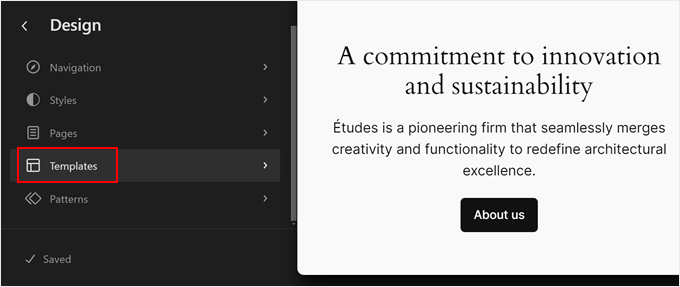
The Twenty Twenty-Four template has several page templates with a sidebar, but they’re all using the same sidebar template part. Let’s change one of them with our newly created sidebar.
To do this, select a page template with a sidebar. In our case, we will select ‘Page with Sidebar’ so that the sidebar on regular pages looks different from the one on single WordPress posts.
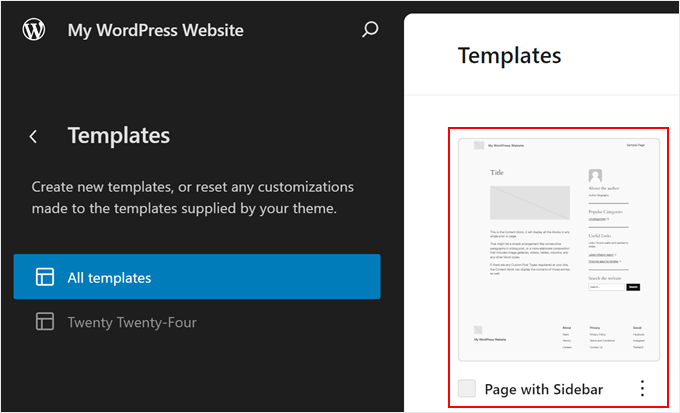
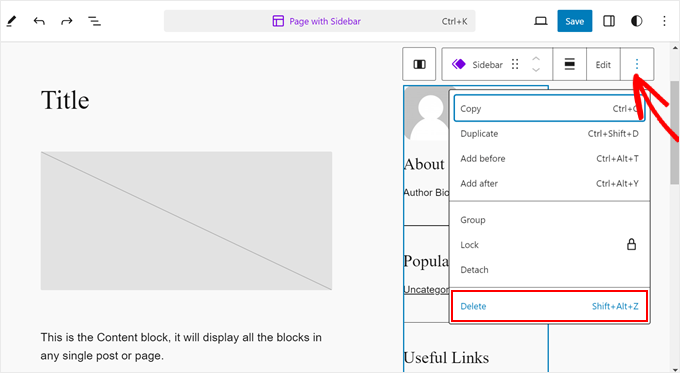
In the editing interface, click on the ‘Sidebar’ section.
On the block toolbar, click on the three-dot menu and select ‘Delete’ to remove the old sidebar.
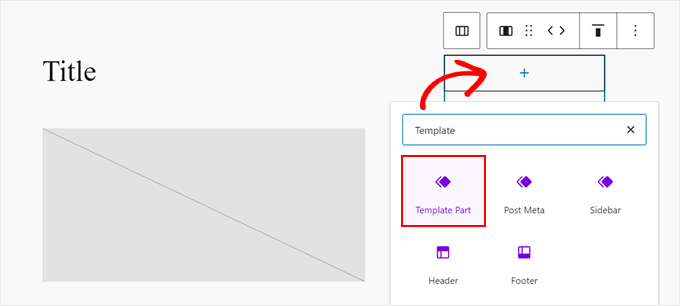
Next, click on the ‘+’ icon on that same section.
After that, locate and select ‘Template Part.’
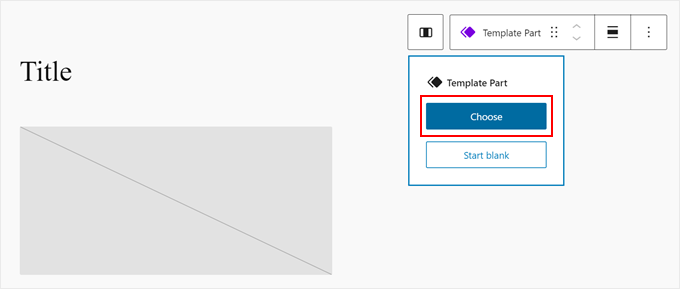
Once you’ve done that, go ahead and click ‘Choose.’
This will allow you to choose the sidebar you just created.
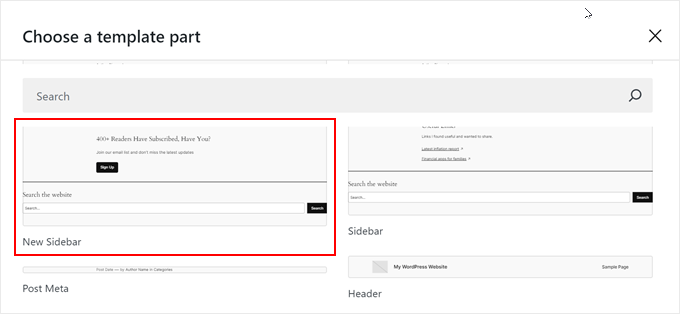
A new popup will appear, showing you the different template parts the theme has.
Here, just click on the new sidebar template.
At this stage, you can continue customizing the template if needed.
Then, just click ‘Save.’
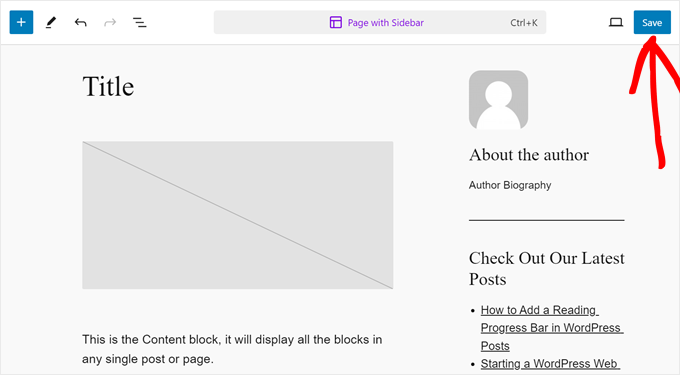
You have now customized a page template and added a custom sidebar to it.
Step 5: Assign the New Template to a Page
However, we need to make sure that this template is actually used on your website. To do this, go back to the full-site editor main menu and click ‘Pages.’
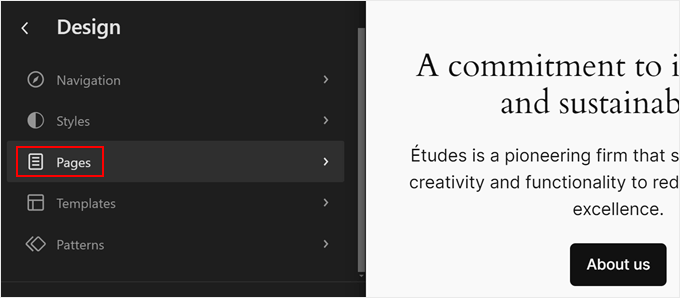
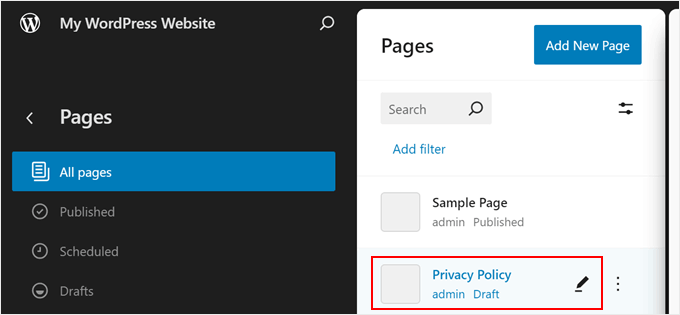
Next, choose a page you want to add the sidebar to.
For the sake of example, we will go with our ‘Privacy Policy’ page.
Now, click on the settings icon on the top left side of the page and click on ‘Pages’ in the page settings panel.
After that, you need to select ‘Swap template.’
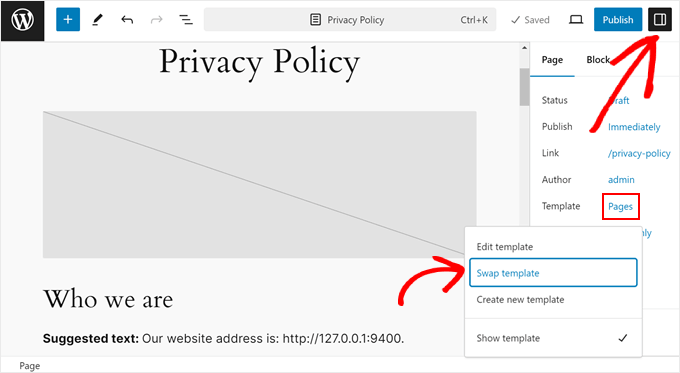
Once you do that, a popup will appear.
Here, just select the page template with the new sidebar.
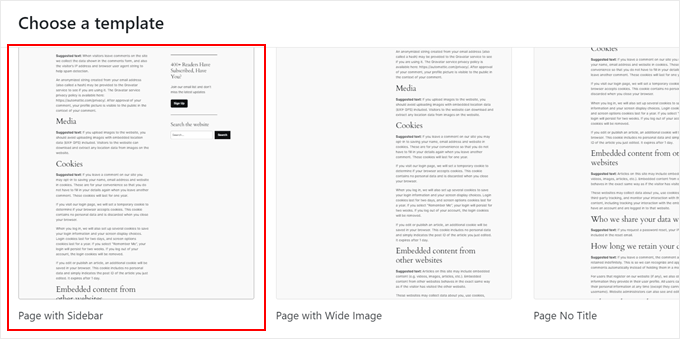
And that’s it! Feel free to repeat the same steps to create a new custom sidebar and implement it on different pages and posts.
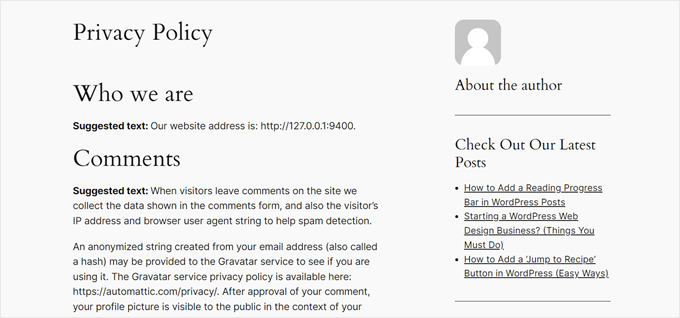
Here’s what our sample privacy policy page looks like with the new sidebar:
Frequently Asked Questions About Custom Sidebars
Here are some questions that our readers have frequently asked about adding a custom sidebar to specific posts or pages in WordPress:
1. How can I create a unique sidebar for just one specific blog post?
If you are using a plugin like Lightweight Sidebar Manager, you can create a new sidebar and set the ‘Display On’ rule to ‘Specific Pages/Posts/Taxonomies.’ Then, simply type in the name of the exact post you want it to appear on.
If you’re using a theme builder like SeedProd, you can create a new page template, assign your custom sidebar to it, and then apply that template to the individual post from the post editor.
2. Will having many different sidebars slow down my website?
Generally, no. The number of sidebars has minimal impact on site speed. Performance primarily depends on the content within them.
Heavy widgets like large images or complex scripts can slow a page, but sidebar management tools themselves are typically lightweight and optimized.
3. How do custom sidebars work on mobile devices?
Most modern WordPress themes are responsive. This means that on smaller screens, such as phones, the sidebar content isn’t displayed on the side. Instead, it is “stacked” and moved to appear below the main page content.
Your custom sidebars will still be visible to mobile visitors, but they will need to scroll down past the article to see them.
4. Can I remove the sidebar from a specific page instead of replacing it?
Yes. Most WordPress themes include a ‘Full-Width’ or ‘No Sidebar’ page template. You can select this template from the page editor to remove the sidebar from that specific page.
If your theme doesn’t have this option, a theme builder like SeedProd (Method 1) gives you full control to create templates without sidebars.
5. How can I customize my sidebars in WordPress?
You can customize sidebars in WordPress by adding or removing widgets, designing custom layouts with a theme builder like SeedProd, or using the Full-Site Editor for block themes. These methods allow you to tailor sidebar content, appearance, and placement to match specific posts or pages.
We hope this article has helped you learn how to show different sidebars on pages and posts in WordPress. You may also want to check out our guide on how to change the sidebar side in WordPress and our expert picks of the best Canva alternatives for website graphics.
If you liked this article, then please subscribe to our YouTube Channel for WordPress video tutorials. You can also find us on Twitter and Facebook.




Jiří Vaněk
I have a technical section on my blog, which is the majority, and I write technical articles on various topics. The minority part is private, where I write my own opinions on anything (politics, personal life, sports). In elementor, I created a different header and a different footer for both sections so that it was graphically separated. I just needed to finish another menu. I will try your instructions so that both the technical and personal sections have a completely different structure. Thank you very much for the instructions.
Ralph
Wow! I never knew i could have different sidebars!
This is great feature for different categories for my use. Thank you for this guide i will definitely put it to good use!
WPBeginner Support
You’re welcome, glad we could share how to set this up
Admin
poonam
thank you so much
WPBeginner Support
You’re welcome
Admin
Rashmi
Thanks for sharing such an interesting article
WPBeginner Support
You’re welcome!
Admin
Rajat
thankyou for sharing this information
WPBeginner Support
You’re welcome!
Admin
Folake Taylor
Unfortunately, this plug-in did not work with my version of WP.
WPBeginner Support
Thank you for letting us know. For the not tested message, we would recommend taking a look at our guide below for understanding why it is not always something you should be concerned about:
https://www.wpbeginner.com/opinion/should-you-install-plugins-not-tested-with-your-wordpress-version/
Admin
Finn G
can you use this to add sidebar images to both sides of the page and have different images on different pages?
thanks
WPBeginner Support
You can use this to have a different image on different pages but for the sidebars of your site normally, it would depend on the specific theme you are using for if they have a second sidebar for the other site or if one would need to be added with a page builder or custom code.
Admin
Muhammadd Farhan
Wow, you just saved my day! looking for this solution and I got exactly what I need. Thank you for the post.
WPBeginner Support
Glad our guide was helpful
Admin
Jim Joshua Oba
Hello! My Sidebar has disappeared. It was displaying before it got missing. However, i din’t change the theme.
The message reads “Your theme has 1 widgets area but this particular page doesn’t display it”.
WPBeginner Support
You would need to reach out to your theme’s support for displaying the widgets properly on that page.
Admin
Ken Mbesa
This is exaaaaactly what I needed for my portfolio website.
Thanks WP Beginner. You guys are the best, always!
I have been a huge user of your resources for over three years now, and your website is one of my most opened bookmarks in all my browsers (in fact, it’s usually just open even when am not using it looking for WP info ;-)).
WPBeginner Support
Glad our guides are helpful and continue to be helpful
Admin
Polly
Mine is a very basic website but this worked like a charm. Thank you
WPBeginner Support
You’re welcome, glad our article was helpful
Admin
M.IFTIKHAR
Hi ! I have a problem in my wordpress website that the sidebar on shop page is not showing up but when i custimize the shop page it still show but not showing on default shop page .Please tell me why this is happening ?
WPBeginner Support
You would want to start by reaching out to your theme’s support to see if this is a known issue with your theme and they should be able to assist.
Admin
Peter P.
We tried this plugin but it wasn’t really usable for many sidebars. We had a hundred posts where the sidebar should contain more information about each product. Already after 10 sidebars the system became slower and slower, until it finally became unbearable with 20 or 30 sidebars.
We then used a different, differently designed solution that didn’t require a sidebar.
WPBeginner Support
Thank you for sharing your feedback about the plugin
Admin
Poorya
What happens to the posts/pages which have multiple categories selected?! or with several tags?
For example, I want a custom category for the news section and another for tourism, but what happens when a post appears on both of these categories?
WPBeginner Support
You would need to check with the plugin for what would happen when a conflict like that happens. If you have multiple posts in different categories then you may want to take a look at how you have your categories themselves set up
Admin
Marco Diversi
hello, I am trying to find a solution to add embed code to the sidebar of a post.
what i would like to have is a plugin that allow you to add a html or txt widget to the side of one single post, I have spent some time trying to find this but can not find! I have a website where every post is a different location and it needs a different map each post.
WPBeginner Support
You may need to look for another solution as your needs grow but for now you may want to take a look at: https://www.wpbeginner.com/plugins/how-to-show-or-hide-widgets-on-specific-wordpress-pages/
Admin
Shivaja
This is what I was looking for! Thanks for the video tutorial wpbeginner…
WPBeginner Support
Glad you liked our guide and it was helpful
Admin
BRENDAN
This one seems dead Syed, plugin not updated in 2 years so likely missing a lot of integration since WordPress has undergone some major core upgrades over the last 12 months. Is there a more recent solution for sidebars?
WPBeginner Support
Thank you for letting us know, we’ll certainly take a look at this article and possible alternatives
Admin
Rushikesh
Is it possible without any plugin, on Genesis framework? because I have purchased NEWS PRO Genesis Theme.
Nick
Great article ! THanks
Katy
Thank you so much! I have been driving myself mad trying to fix the sidebar then I found your video! Thankyoooou!!
aba charles
Really nice and detailed tutorial you have here. But i don’t know why after following it my sidebars are still not appearing
Greg Svishchov
Hi, great video! What about creating a separate sidebar for the HOME PAGE? Is that possible?
WPBeginner Support
Yes you can create a separate sidebar for the homepage if you are using the static front page.
Admin
Soumik Sadman Anwar
Is there any way to show no sidebar on a certain page at all?
Remember, the other pages will have to show the sidebar.
becka
Is there a way to change the sidebar on certain pages and have it removed entirely on others? Before I download and activate I would like to know if removing the sidebar completely and making the page width 100% as easy as making different sidebars for different pages
Linda
Hello – I have a sidebar on my weekly blog page but when I click on read more, it takes me to the full page width and doesn’t show the sidebar. I have looked everywhere to try and do this. Can anyone help please?
Dr Jill SM
I tried to use the easy side bar and it does not work! I want to put a side bar only on specific pages and this put it on ALL of them.
I had learned how to use the original appearance > widgets and had right side bar on certain pages. I just added a new page to my web site and got the side bar that I did NOT want. I tried to add a left side bar to ONLY my new page and could not do it. So I looked at this video and got the plug-in easy side bars and it does not add a left side bar to ONLY the new page nor does it help me remove the right side bar [done through appearance > widgets] from the new page. Not real helpful.
K.Mr
Hi, I need small help that you could do. I’m planning to buy managed wordpress on godaddy. I write posts in two languages. 1 is supported by adsense and one is not. I would like to place ads on posts using this on supported only language posts. Can I do this ? Can i use this to place ads? Please could you tell me?
Kati K.
Hi! Can I add more sidebars with this plugin? Do I have to replace my existing sidebars with these new sidebars? For example, I have now 3 optional sidebars and I would like to have more than that. Is that possible somehow? Thanks!
Jennifer L
I installed this plugin and now my site doesn’t work at all!! How do I fix this, it is really important! Please advise.
Jennifer
WPBeginner Support
Hi Jennifer,
You can manually delete the plugin using FTP. Connect to your website using FTP client and go to /wp-content/plugins/ folder inside it you will find easy-custom-sidebars folder. Delete it and then login to your WordPress site. You can reinstall the plugin again if you want to give it another try.
Admin
Jahbless
Sir my sidebars are appearing at the bottom of my blog and not the side why?
WPBeginner Support
Hi Jahblees,
Please check plugin settings and make sure that you set your sidebar to replace the appropriate sidebar.
Admin
Ale Goedrich
Hello – I have the same problem. The only choices I get is to replace the Footer Widgets 1 – 4. There are no other choices. Any ideas? I’d like to add a sidebar to my products thats different from my blog sidebar. I am using Divi.
Thank you, Alex
Jason A.
I needed a super quick fix, and this did the trick nicely. Thanks!
Claire C
Useful! I definitely want the ability to change my sidebar at times – my theme provides up to 8 choices, including full width (ie. none) for my pages but only ‘on’ or ‘off’ for all posts. So my question is, specifically for each individual post, could I chose 1. to add a sidebar of my choosing or 2. to have no sidebar at all (ie. full width)? Thanks
WPBeginner Support
Hi Claire,
Yes, you can do that.
Admin
Iboro
Thanks a lot. Your articles has been really helpful especially for me a major novice
Dave DeWitt
Wow! This feature is something I’ve been wanting to do for a while. As usual, wpbeginner, makes it easy and fun! Thank you!!