


Have you ever noticed how hard it is for visitors to keep track of posts they want to revisit on your site? They might bookmark pages in their browser, but those links get lost, or they simply forget which articles caught their attention.
A “favorites” feature solves this problem. Letting readers save posts directly on your site gives them a personal library they can come back to again and again. This makes your content easier to organize and keeps people engaged for longer.
After building many WordPress sites over the years, I’ve found a simple way to add this feature without any custom code.
In this guide, I’ll show you how to let logged-in users create their own favorite posts collection using a plugin that works with any WordPress theme.

Why Let Users Save Favorite Posts on Your WordPress Site? 💡
Adding a favorites feature to your WordPress site gives visitors a convenient way to save content they find valuable, directly on your website. This small addition can significantly improve the overall user experience and turn casual readers into loyal visitors.
When users can mark content to revisit later, they’re more likely to stay engaged, spend more time on your site, and come back regularly.
Here are some key benefits of adding a favorites feature:
- Encourages repeat visits by giving people a reason to return
- Improves the user experience by making content easier to find and revisit
- Increases engagement as users interact more deeply with your site
- Reduces bounce rate since users are more likely to stick around
- Builds loyalty through a more personalized and user-friendly experience
If your site includes content that users might want to return to, reference, or compare later, then adding a favorites feature is a simple yet powerful way to meet that need.
What Kinds of Websites Benefit Most From a Favorites Feature? 🌐
While almost any site can benefit from letting users save content, it’s especially useful for websites that offer evergreen, educational, or product-based content.
I’ve seen this feature add a ton of value to sites where visitors need to organize information or track their progress.
Here are the types of websites where a favorites feature can make a real difference:
- Blogs with evergreen content: Recipe blogs, DIY sites, and travel guides often publish articles that readers want to revisit later.
- Online learning platforms: Students can save lessons, worksheets, or study resources to review at their own pace.
- Membership sites: Members can bookmark exclusive content, downloads, or tools, making it easier to navigate premium content.
- eCommerce stores: Let shoppers create wishlists or save products they’re interested in for future purchases.
- News and media outlets: Readers can save long-form articles or fast-moving updates they want to read later.
If your website falls into any of these categories, offering a way to save favorites isn’t just convenient — it can become a core part of the user experience.
🚨Note: Before a visitor can start saving favorite posts, they’ll need to have an account on your site.
This is because WordPress needs a way to connect the list of favorite posts to a person. Without a user account, the website has no way of remembering who saved what.
If you don’t already have user registration set up, there are a couple of easy options. You can create a full membership site to offer premium content and monetize your audience, or you can enable basic user registration with WordPress’s built-in roles and capabilities.
Once that’s in place, you’re ready to start adding the ‘favorite’ button and giving users a more personalized experience.
With that in mind, let’s show you how to allow users to add favorite posts in WordPress, step by step:
- How to Allow Users to Add Favorite Posts in WordPress
- How to Add a List of Favorite Categories to Your WordPress Website
- How to Show Your WordPress Site’s Most Frequently Bookmarked Posts
- How to Monitor Your Audience's Favorite Posts
- 🎯Bonus: Show Off Your Most Viewed Posts in WordPress
- Frequently Asked Questions
How to Allow Users to Add Favorite Posts in WordPress
The easiest way to let users save their favorite posts is by using a plugin. After evaluating several options, I’ve found that the CBX Bookmark & Favorite plugin is by far the most beginner-friendly and reliable solution.
Once activated, this plugin allows you to quickly add a bookmark (favorite) button to any post, page, or even custom post type — no complicated setup required.
I’ve tested it thoroughly and can confidently say it works seamlessly, even if you’re brand new to WordPress. The interface is clean, intuitive, and plays nicely with popular tools like membership plugins, user registration form plugins, and even LMS solutions.
Better yet, the free version of CBX Bookmark & Favorite works great for most websites and offers all the essential features to get started.
After installation, you have two main ways to display the favorite button:
- Automatic placement: You can configure the plugin to automatically add a favorite button to all your posts, all your pages, or both. This is the most efficient option if you already have a lot of content and want to save time.
- Block-based placement: The plugin also offers a block that you can manually insert into individual posts or pages. This gives you full control over where the button appears — useful if you only want the option on specific types of content.
I’ll cover both methods in this guide, starting with the automatic approach for maximum efficiency, and then moving to the block method for more customization.
Install and Configure the CBX Bookmark & Favorite Plugin
First, you have to install and activate the CBX Bookmark & Favorite plugin. If you need help, please see our guide on how to install a WordPress plugin.
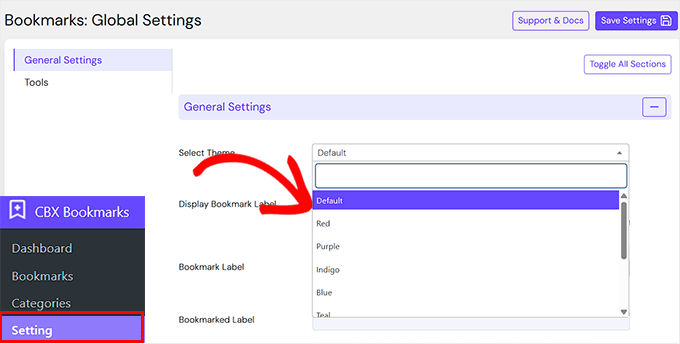
Upon activation, head over to the CBX Bookmark » Setting page in your WordPress dashboard. Here, you will see settings that apply regardless of how you choose to display the favorites button—so it’s a good idea to set them up first.
You can start by choosing a theme for the bookmark button. The default option works well for most websites, but if you want to match your site’s design more closely, feel free to test the other themes available.
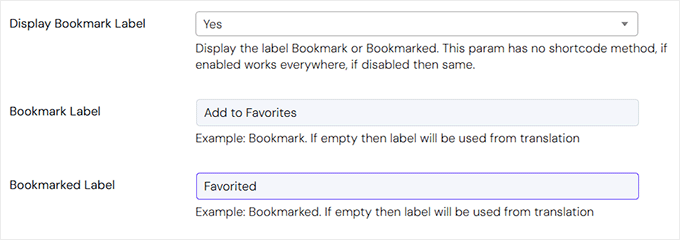
Then, you’ll also see an option to ‘Display Bookmark Label’ next to the bookmark icon. This lets you show a short text like ‘Bookmark‘ or ‘Bookmarked‘ beside the button, making it clearer for users what the icon does.
If you turn this on, you can customize the label text to say anything you like—such as ‘Save Post‘ or ‘Add to Favorites.’ If you leave it blank, the plugin will just use its default wording.
Similarly, you can set a custom label for the bookmarked label, such as ‘Saved‘ or ‘Favorited.’
After that, scroll down to the ‘Post Type Selection’ section. This is where you tell the plugin what kind of content users should be able to add to their favorites.
Clicking on the field will open a dropdown showing all the post types on your site — like Posts, Pages, or even custom post types if you have them.
Selecting them here means that users will be able to save those specific types of content.
I recommend choosing both ‘Posts’ and ‘Pages’, especially if your site includes a mix of blog content, tutorials, landing pages, or resources. This way, visitors can save anything they find useful or interesting.
Just click on the post types you want, and they’ll be selected and highlighted in the list.

Next, go to the ‘My Bookmark Page’ option. This is where you can choose which page will display all of a user’s saved bookmarks.
By default, the plugin automatically creates a page called ‘My Bookmarks‘ for this purpose, and you can simply select it from the dropdown menu.
If you prefer, you can also create a custom page instead. You’ll need to create this page first by going to Pages » Add New in your WordPress dashboard. Give it a title like My Favorites or Saved Posts, and then publish it.
Once created, you can come back to the plugin settings and choose it from the dropdown menu. To get started, you can see our tutorial on how to create a custom page in WordPress.
💡Pro Tip: Once you have your ‘My Bookmarks’ page set up, it’s a good idea to add it to your main navigation menu. You can do this by going to Appearance » Menus in your WordPress dashboard.
This makes it easy for your visitors to find their saved content with just one click. For details, take a look at our tutorial on how to add a navigation menu in WordPress.

After that, choose the login form you’ve created under the ‘Guest User Login Form’ setting.
This way, if someone isn’t logged in, the plugin will show a login form right where the bookmark button would normally appear.
🚨Note: This setting lets you link to a custom login page. If you don’t have a custom login page, you can leave this blank, and the plugin will use the default WordPress login page.
You can also enable a registration link to encourage new visitors to sign up and start saving content.
However, if you prefer to keep it exclusive, then there’s an option to completely hide the bookmark button from guest users so that only logged-in members can see and use it.

Once you’ve reviewed and adjusted everything, don’t forget to click the ‘Save Settings’ button at the bottom of the page.
With these general settings in place, you’re ready to move on to adding the bookmark button to your content—either automatically or by manually placing it where it fits best.
Automatically Add a Bookmark Button to Posts and Pages
The quickest way to start showing the favorite button on your content is by enabling automatic placement. This method is ideal if you already have a lot of content on your site and don’t want to manually edit each post or page.
To automatically add the favorites button across your content, start by going to the CBX Bookmark » Setting page in your WordPress dashboard.
This will open a new screen, where you can decide how the favorite button works on your site.
I recommend starting by checking the ‘Post Type Selection’ section. This helps confirm which content types you’ve allowed users to bookmark, such as posts, pages, or custom post types.
Go ahead and scroll down to this section to make sure everything looks good
After that, you’ll need to enable what the plugin calls auto integration. This just means the plugin will handle inserting the button for you — no need to edit each post manually.
Find the ‘Post Type Auto Integration’ option and select the same content types you chose earlier.

Next, decide where the button should appear. You can choose to show it before the content (at the top of the post) or after the content (at the bottom).
I suggest placing it after the content, especially for blogs and articles, because it gives readers a chance to finish the post before deciding to save it.
But if you think your visitors will want to bookmark something to read later, placing it at the top might be better.
To set this, just open the ‘Auto Integration’ dropdown and click on either ‘Before Content’ or ‘After Content’, depending on what works best for your site.

Once you’re happy with your choices, scroll down and click the ‘Save Settings’ button.
That’s it! When you visit your website, you should now see a working bookmark button on all your posts and pages.

Manually Add a Favorites Button to Any WordPress Post or Page
Alternatively, you can manually add a bookmark button using the block editor. While this method takes more time than the automatic option, it gives you full control over exactly where the button appears on your pages and posts.
For example, you could create a ‘favorite’ button in the middle of a post’s content.
To manually add a favorite button, you’ll first need to make sure that auto integration is disabled. To do this, visit the CBX Bookmark » Setting page and scroll down to the ‘Auto Integration’ option.
From the dropdown menu, simply choose ‘Disable Auto Integration’, and don’t forget to click the ‘Save Settings’ button to store your changes.

Once that’s done, you can manually insert the favorite button anywhere using the block editor.
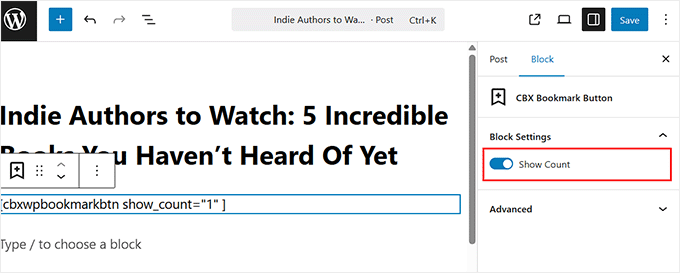
Simply open the post or page where you want to place the button and click the ‘+’ icon to add a new block. In the menu that opens up, search for ‘CBX Bookmark Button’ and select it from the list.
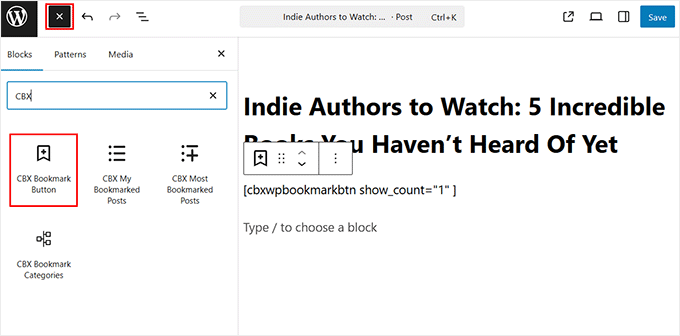
Once you insert it into your content, the button will appear wherever you placed the block. By default, it also shows how many people have bookmarked that post.
This can be a nice way to show visitors that the content is popular because people often trust content that others have found helpful.
That said, if your site is still new and you don’t have many users yet, I would suggest hiding that number for now.
You can do this by clicking on the button block and looking over to the block panel. There, you will see a toggle labeled ‘Show Count.’
Just click it to turn it off, and the favorite count won’t be displayed.
When you’re done, click the ‘Update’ or ‘Publish’ button to save your changes.
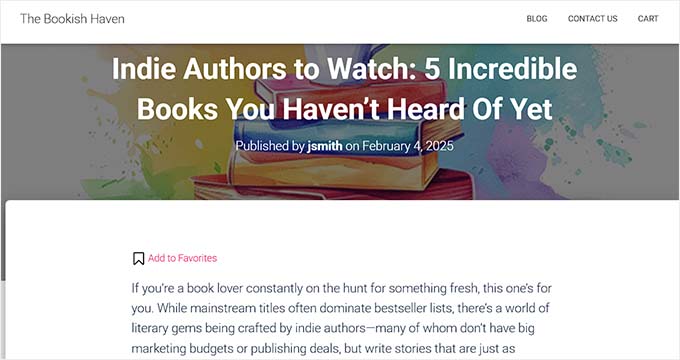
Now, when you view the post, you’ll see the bookmark button exactly where you added it.
How to Add a List of Favorite Categories to Your WordPress Website
Want to help your visitors organize their favorite posts?
The CBX Bookmark & Favorite plugin makes it easy for users to sort bookmarks into categories. This way, they can quickly find what they saved—even if they have a long list of favorites.
It’s good to remember that these categories are completely private to each logged-in user. They are for personal organization and won’t be seen by other visitors on your site.
For example, on a recipe blog, a user could create personal categories like ‘Quick Weeknight Dinners’ or ‘Holiday Desserts’ to organize the recipes they’ve saved.

The plugin gives you two helpful blocks for showing favorites on your site.
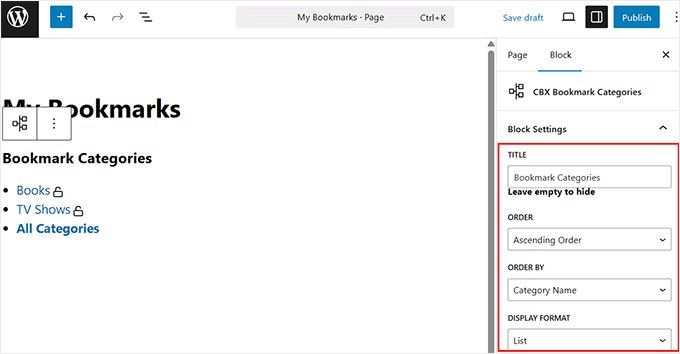
The first one is the ‘CBX Bookmark Categories’ block. It shows all the categories a visitor has created. When they click on a category, they’ll see all the bookmarks they added to it.
You can place this block anywhere on your site. But I recommend adding it somewhere easy to find—like a ‘My Bookmarks’ page. You could even link this page to your site’s navigation menu.

If you have a membership site using MemberPress, then you will already have a ‘My Account’ page.
This is also a great place to add the CBX Bookmark Categories block, so members can quickly find their saved content.
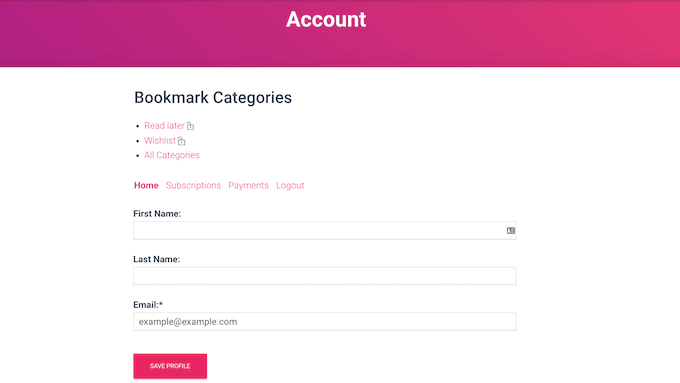
To display the categories users create, you can add the ‘CBX Bookmark Categories’ block anywhere on your site. Just open the page or post where you want the block to appear and click the ‘+’ button to add a new block.
Next, search for ‘CBX Bookmark Categories’ and click on the block when it appears.
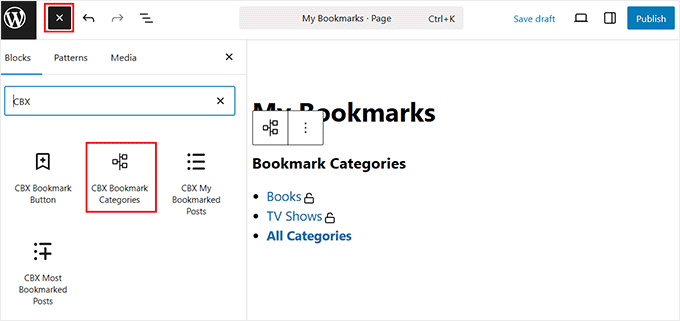
After that, you can customize the block heading that appears above the categories from the block panel. I suggest changing it to something fun or helpful, like ‘Your Saved Lists‘ or ‘Favorite Categories.’
You can also choose how the categories are sorted—either in ascending or descending order based on the number of bookmarks in each one.
And if you want to save space, you can even switch the display format from a full list to a neat dropdown menu.
Once you’re happy with the settings, go ahead and click the ‘Update’ or ‘Publish’ button to store your settings.
On the other hand, you can also show a list of a user’s bookmarked posts without the categories with the ‘CBX My Bookmarked Posts’ block.
Just like before, open the page or post where you want to place the block and click the ‘+’ button. Then, search for ‘CBX My Bookmarked Posts’ and click on it when it shows up.

By default, this block displays 10 of the user’s favorites, starting with the most recent ones. But you can easily change that.
Just click on the block, and in the settings, update the number of posts you want to display.
You can also change the order by selecting ‘Ascending’ instead of the default ‘Descending’ if you want to show older favorites first.
Another useful setting is the ability to choose which post types to include. For example, if you only want to show favorite pages or media files, you can select those from the ‘Post Type(s)’ section.

Once everything looks the way you want, go ahead and publish or update the page.
Now users will be able to see a neat list of all the content they’ve saved.

How to Show Your WordPress Site’s Most Frequently Bookmarked Posts
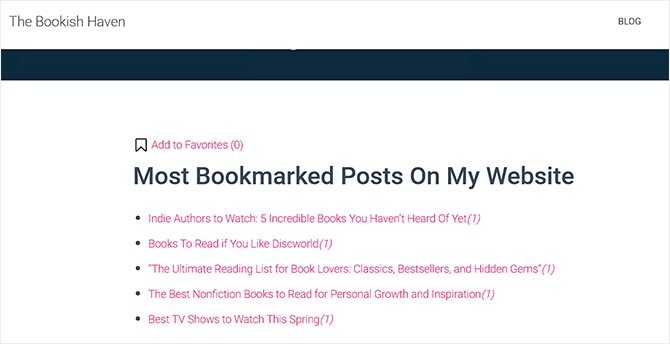
If you want to show the most favorited content on your site, then CBX Bookmark comes with a built-in block called ‘CBX Most Bookmarked Posts’ that does exactly that.
This block automatically pulls and displays the posts that your users have bookmarked the most. It’s a great way to highlight trending content, build credibility, and keep visitors engaged.
I recommend using it if you want to create a sense of community around your content. When people see others are saving certain posts, they’re more likely to check them out, too.
It also helps drive more traffic to your top-performing pages and encourages repeat visits as the list updates over time.
To add the block, just open the page, post, or widget-ready area where you want it to appear. Click the ‘+’ button and search for ‘CBX Most Bookmarked Posts’, then click to insert the block.

Once added, you’ll see customization options in the block panel. You can:
- Set a custom heading that appears above the list (like “Top Picks” or “What Everyone’s Reading”).
- Choose a duration, such as the last 7 days, 30 days, or 1 year, to control how the block determines popularity.
- Decide how many posts to show in the list.
If you want the list to feel fresh and dynamic, I suggest picking a shorter time frame like 7 or 30 days.

Once you’re happy with the settings, go ahead and update or publish the page.
Now, your visitors will see a list of your site’s most frequently bookmarked posts, helping them discover your most valuable content instantly.
How to Monitor Your Audience’s Favorite Posts
Once you’ve added some bookmark buttons to your website, I recommend monitoring how members use those buttons.
This can help you identify content that’s getting the most user engagement. You can then look for similar products and add them to your affiliate site to try to get even more engagement and sales.
To start, you can see a list of all the different categories that members have created by going to the CBX Bookmark » Bookmark Categories page from your WordPress dashboard.
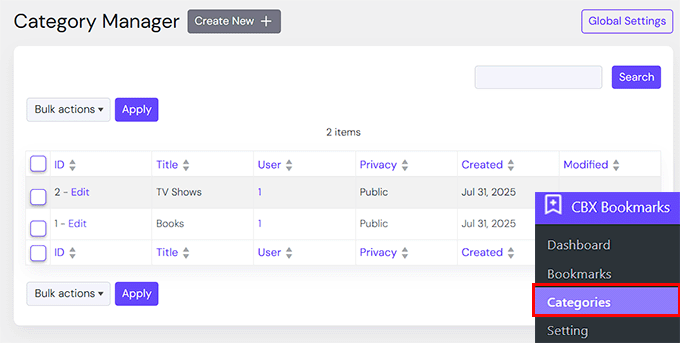
If lots of people use similar categories, then it suggests this type of content is popular with your users. You may be able to increase your blog traffic and keep your members engaged by creating more of this type of content.
You can also see all the posts that users have bookmarked by going to the CBX Bookmark » Bookmarks page.
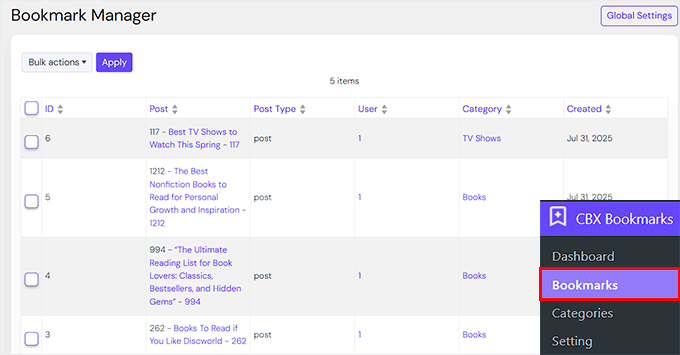
If lots of people favor the same post, then you should create more of this type of content.
Overall, these insights will help you better understand the type of content that’s popular with your audience and help you boost engagement.
🎯Bonus: Show Off Your Most Viewed Posts in WordPress
Letting users save their personal favorites is a great start. But what if you could also highlight which posts are the most viewed by all of your visitors?
To highlight the posts that are getting the most views overall, I recommend MonsterInsights. It has a built-in Popular Posts feature that makes this super simple.
It automatically displays a list of your most visited posts based on real Google Analytics data.
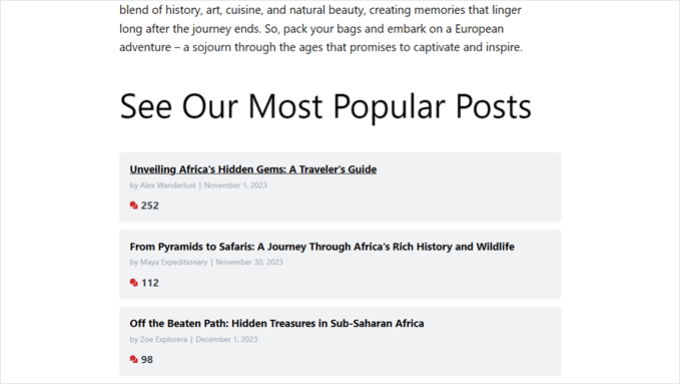
This helps new visitors discover what’s hot right now, and gives them even more reason to stick around and explore. I suggest adding this feature if you want to:
- Get more clicks on your top-performing content.
- Help new visitors discover trending articles.
- Show social proof and build credibility.
To do this, you’ll need to install the MonsterInsights plugin and connect it with your Google Analytics account.
Once that’s set up, you can enable the Popular Posts feature from the plugin settings.
You can choose how the list appears, where it is displayed (such as in your sidebar or after each post), and even select a theme that matches your site’s design.
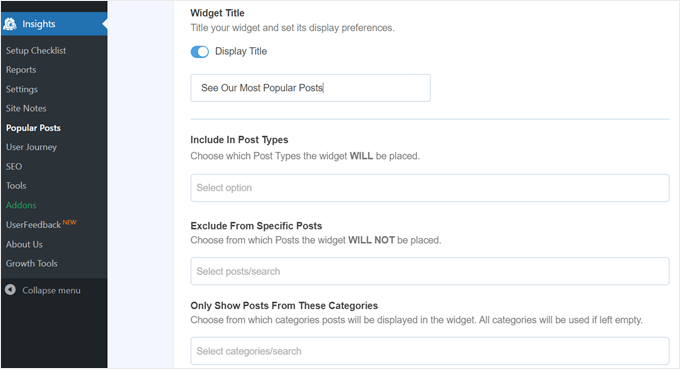
It’s a great way to guide visitors toward your best content and encourage them to stick around.
For step-by-step instructions, you can check out our guide on how to display popular posts by views in WordPress.
Frequently Asked Questions
Here are some questions frequently asked by our readers about allowing users to add favorite posts in WordPress:
Is adding this feature mobile-friendly?
Yes, most favorite post plugins like CBX Bookmark & Favorite are responsive and work well on mobile devices. That means your visitors can tap the favorite icon easily, just like they would on a desktop.
Still, I recommend testing the feature on your phone before going live. It’s important to make sure the button is visible, clickable, and not blocked by other mobile UI elements.
Will this slow down my site?
Not really. As long as you’re using a well-coded plugin, the impact on speed is very small. I’ve used CBX Bookmark on several demo WordPress sites, and I didn’t notice any slowdown. Just be sure to keep your plugins updated and use good hosting.
If speed is a concern, avoid installing too many plugins at once—especially ones that load extra scripts on every page. For some more tips, take a look at our ultimate WordPress speed and performance guide.
Can I show favorite posts in a widget or menu?
Yes! Many plugins offer a widget or shortcode to display popular or user-favorited posts. I like to place a widget in the sidebar or footer, so returning visitors can quickly jump back into their saved content.
Some plugins also let you display most-favorited posts across your site, which is a great way to highlight content that people love.
Do I need to pay for this feature?
Not necessarily. There are free plugins that do the job well, but some offer premium features if you want more control.
For example, CBX Bookmark has a free version that works great for basic use. If you want things like category support, display customization, or more styling options, you can explore the pro version.
I suggest starting with the free plugin to see if it fits your needs and upgrading only if necessary.
I hope this article helped you learn how to allow users to add favorite posts in WordPress. You may also want to check out our tutorial on how to list future upcoming scheduled posts in WordPress and our guide on allowing users to invite their friends to register in WordPress.
If you liked this article, then please subscribe to our YouTube Channel for WordPress video tutorials. You can also find us on Twitter and Facebook.




Globasource
Thanks a lot for sharing this blog. Really nice and fresh content. All the information is helpful for us.
WPBeginner Support
You’re welcome, glad you like our content
Admin
Fede Bcc
Hello,
please, is the “WP Favorite Posts” plugin still updated and supported? I read comments from various people that it is not being updated anymore. If that’s the case, could you please suggest any alternative plugin for user favourite/bookmarking?
Many thanks!
Kind regards,
Fede
Reza
I have a big problem with it!
when I deselect a post after refresh the page, it come back!
remove not work at all!
daf
Hi,
I am using this wp-favorite post plugin, and it is finely working. I used the shortcode to show the favorited post into a seperate page. I want to show the count of favorited post in that perticular page.
Is there any method to get the count of Favorited post .??
Huzan
Hi,
I would like to know if there is a way where in the homepage of my website can be customized based on a users likes/dislikes. The categories he likes their posts should come right at the top.
Looking for a solution.
parteet
Can you tell me about the WordPress site Designing. I wanna design my site
Matus
Could you please make a tutorial how to correctly add a hreflang to Wordpress?
Hope you’ll reconsider my request.
WPBeginner Staff
It can, but you will have to make some changes to the plugin which we don’t recommend/
john
Hello, is that the plugin works with pages ?
jimario
Will this also work with user profiles. For example, i want my site to allow some users to be able to view a list of other viewers profile pages. On those pages, they won’t be able to edit the other users’ profiles, but they will be able to favorite them–at least that’s what I’m trying to accomplish. Will your method work?
WPBeginner Support
No, we think you are looking for something quite different this method will probably not work for that.
Admin
Seth
What plugin do you recommend to get this feature? I tried “GD MyList” and “Favorites” plugins and neither gives the option to see other users lists.
jimario
Is it possible to have user profiles also saved as favorites? If I give access to users to view profiles of other users, I’d like those users to be able to Favorite any other user profile that they view using this plugin. is this possible using the method you described in your article?
ALEXANDRA
Hi, is there any way to create few sites for users, for example:
– Add to favorites,
-Add to currently reading,
-Add to watchlist etc
and create specific pages for all this options?
WPBeginner Support
Yes it is possible to create profile pages with tabs where users can see their favorites, currently reading, watchlist, etc. However, if you want to do that we would recommend using a membership plugin.
Admin
Ayush
Nice plugin and tip brother, I installed it and worked super-fine.
And i was wondering if there’s a way I can show what posts a particular user favorites in user’s profile, I mean a user can indeed see what posts he/she likes but is there a way a user can see what posts other user favorites ?
Jane
i just installed it and it worked fine
I have one question. Is it possible when you show all your favorites that you get image of the article/item/blog you liked also? Orelse you have to remember it by the name.
Then i would be sooo happy
(i am newbie in wordpress, so i am not a geek on codes.. i hope its possible to install something so it just work?)
Editorial Staff
Yes it is possible, but you would have to edit a few codes. wpfp-page-template.php << Look at this file in the plugin's folder. You would basically have to recreate this query in your custom page template. Sorry, it sounds a bit overwhelming, but that is what is needed.
Admin
Jane
Ok – thanks for the reply. I have been looking for a nice theme where its already done, but with no luck. I am not good enough myself, when it comes to make coding from scratz..
Cory
I was able to show the content of my post by adding the_content to the template.
Cory
If you’re having issues with being able to favorite a post and it never shows in your favorites page, try this solution: http://wordpress.org/support/topic/custom-post-type-24?replies=10
worked perfectly for me!
kenny
This plugin is not functioning at all I installed it and activated it but my server respond with fatal error whoever is a developer of this plugin should get rid of it and stop putting low grades on WordPress awsome plugins.
Abigail Gorton
I think this is one of thoie plugins we could politely call ‘delicate’. It has an awesome features list and when it works it is just great but it is obviously NOT working on every theme / relaease / server and it is not playing nicely with other plugins.
I really want this functionality. When I first installed it, it was up and running immmediately. When I tried to configure it a bit, it broke. When I uninstalled it, I found that the uninstall was not clean and complete – it was no longer showing in my admin panel, or through standard FTP, but when I did ‘show hidden files’ on FTP it showed up. This is so wrong – shoulda uninstalled when it claimed to form admin and should not be hidden.
So I deleted the hidden files but when I reinstalled the plugin, some of my settings were still as configured which suggest I was not able to fully remove it form my server. So wrong.
I have tried deleting and reinstalling multiple times and cannot get it back to clean.
So I am one of the 50% for whom it does not work, which is a shame as it looke pretty good for the 5 minutes it was up on my site.
Ubaidullah Butt
When I used “{{wp-favorite-posts}}” for showing up all favorite posts on a page, There was nothing except “Clear Favorites” link. Can anybody help me with this. Thanks in advance.
Editorial Staff
Did you favorite any post? If not, then do that first and the page will update itself.
Admin
Tito
Hi, I’m currently have this problem and yup I’ve favorited numerous posts and still nothing. Any ideas? The support forum is all but dead unfortunately
Cheers
Cory
I have the same issue. Favorited a bunch of posts. they dont show in the favorites page. did you fix it?
Data
Hoping this will help someone else having this same issue – as mentioned below, you have to have posts favorited already for the page to display anything.
If you have marked something as a favorite and it isn’t showing up, it is likely because you are favoriting a page or custom post type, not a post of type “post.”
If you want to favorite “page” types, or any other custom post type (ex: recipes on a cooking site), then you’ll need to make a simple edit to the wpfp-page-template.php file.
Around line 23 you should see a comment on supporting other post types (page, custom types, etc.).
Uncomment this line: $qry[‘post_type’] = array(‘post’,’page’);
That should do it for adding “page” to the types allowed to be favorited.
If you have other custom types you can add them to that array, or in place of something else, like:
$qry[‘post_type’] = array(‘recipe’,’page’);
Milan
Thanks a lot. The post is very helpful.
Guillermo Santiago
The WP Favorite Posts plugin Sucks. It is also deprecated and not functioning properly with wordpress 3.2 up. Do your homework.
Editorial Staff
The article was written in March. We have the plugin running on sites using 3.4.2 and it is working. Perhaps you should do your homework.
Admin
Pranjal
Though, it words good but that Gif loading image is continuously showing wherever, I had implemented. And also there’s no support from the developer of this plugin
Jared
I also used this plugin for a client project a few months back and it worked just fine – despite the voting.
Kyle Suss
Any idea if this works for custom post types?
wpbeginner
@Kyle Suss Not sure if it does, but if it doesn’t, it wouldn’t be very hard to make that customization.
frachmadin
Hi, thanks for this great post. I am currently using GD Star Rating plugin on my blog. Do both have the same or different functions? I am interested to try using the WP Favorite Posts plugin. Thank you.