


When we first started automating customer communications in WordPress, sending targeted coupons manually was eating up hours of our time.
After testing numerous solutions, we discovered that FunnelKit Automations and Uncanny Automator were game-changers for automating coupon campaigns.
They let you create sophisticated coupon campaigns that work on autopilot – without requiring technical expertise.
In this guide, we’ll show you exactly how to set up automated coupon campaigns using these powerful tools.
💡Quick Answer: How to Send Automated Coupons in WordPress
The easiest way to send automated coupons in WordPress is with an automation plugin. After extensive testing, we recommend two top solutions:
- FunnelKit Automations: Best for WooCommerce stores. It lets you create a ‘Customer Win Back’ workflow that automatically emails a unique coupon to customers after a set period of inactivity.
- Uncanny Automator: Most flexible option. It lets you build automated ‘recipes’ that send unique coupons based on triggers like a user logging out or viewing a product multiple times.
Why Send Automated Coupons to Bring Back Customers?
Sending coupons automatically is a great way to bring back old customers. This helps you make more sales and saves you a lot of time.
It costs much less to keep a current customer than to find a new one. Here are the main reasons to use an automated coupon system:
- Bring Back Inactive Customers: The plugins can find customers who are no longer active. For example, they may not have bought anything in two months. A surprise discount can remind them about your store and encourage them to visit again.
- Save Time and Work: You don’t have to check for inactive customers by hand and email them one by one. An automation tool does all the work for you. It runs all day, every day, so you can focus on other parts of your business.
- Make Coupons More Effective: A generic code like ‘COMEBACK20’ is okay, but unique codes work much better. A special code made just for one person feels more personal, cannot be shared on discount websites, and prevents too many people from using the same discount.
Pro Tip: If you send coupons by email, you need to make sure they arrive in the customer’s inbox. A good SMTP (Simple Mail Transfer Protocol) service helps your emails get delivered correctly.
We recommend WP Mail SMTP because it the #1 SMTP plugin on WordPress that ensures email deliverability.
That being said, let’s see how you can send automated coupons in WordPress and bring back customers. Simply use the quick links below to jump to the method you want to use.
Method 1. Using FunnelKit (Best for WooCommerce Users)
One way to send automated coupons in WordPress is by using FunnelKit Automations.
FunnelKit is a sales funnel builder and marketing automation plugin for WordPress. It includes a visual, drag-and-drop workflow builder that lets you create “Customer Win Back” campaigns.
This feature makes it easy to set up rules that automatically generate and send unique, personalized coupons to shoppers.
Based on our testing, FunnelKit is an excellent choice if you use WooCommerce to sell products and services online, as it integrates deeply with the platform. To learn more about its features, see our Funnelkit Automations review.
Step 1: Install and Activate the FunnelKit Plugin
First, you’ll need to install and activate the free version of FunnelKit Automations, as it provides the base for the premium plugin’s features. For more details, please see our guide on how to install a WordPress plugin.
After that, you’ll need to install and activate the FunnelKit Automations Pro plugin.
After activating both plugins, go to FunnelKit Automation » Settings. You can now go ahead and add the license key to the ‘License’ field.
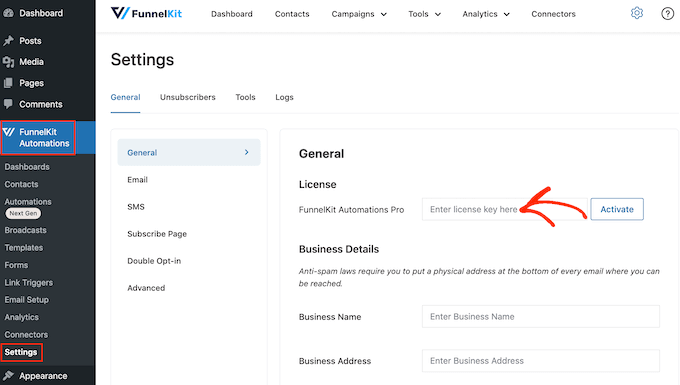
You’ll find this information in your account on the FunnelKit website. After adding this information, click on the ‘Activate’ button.
Step 2: Create a New ‘Customer Win Back’ Automation
Now, we’re going to create a workflow that generates a personalized coupon and emails it to the customer. This workflow will run once 30 days have passed since the customer’s last order.
To create the workflow, go to FunnelKit Automations » Automations (Next Gen) in the WordPress dashboard. Then, click on the ‘Add New Automation’ button.
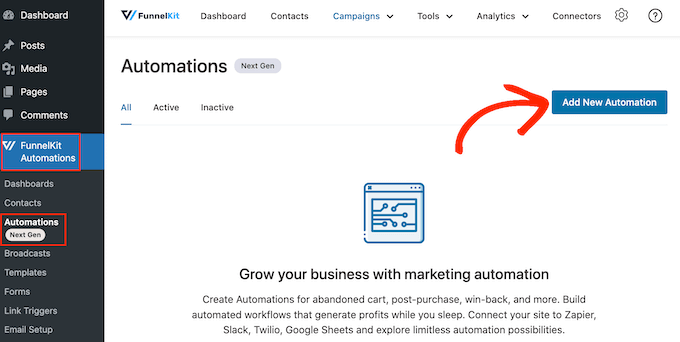
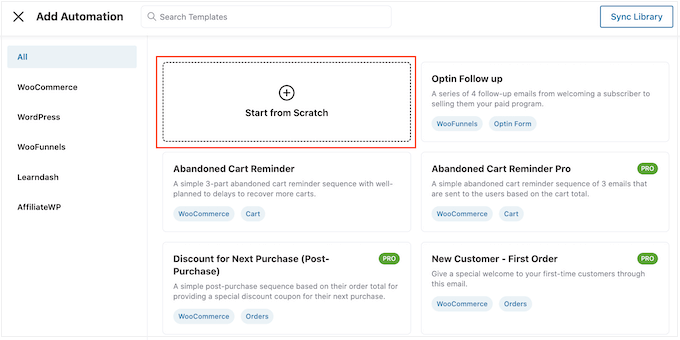
You’ll now see all the different automation templates that you can use.
Since we want to create our own workflow, select ‘Start from Scratch.’
In the popup that appears, type in a name for the automation. This is just for your reference, so you can use anything you want.
Next, click on ‘Create.’
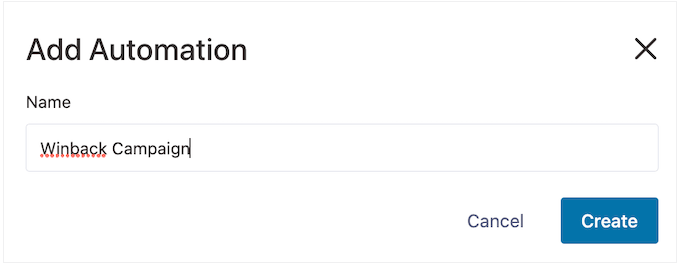
Now, we need to choose the action that will kickstart the workflow, so click on ‘Select Trigger.’
In the left-hand menu, choose ‘WooCommerce’ and then click to select ‘Customer Win Back.’
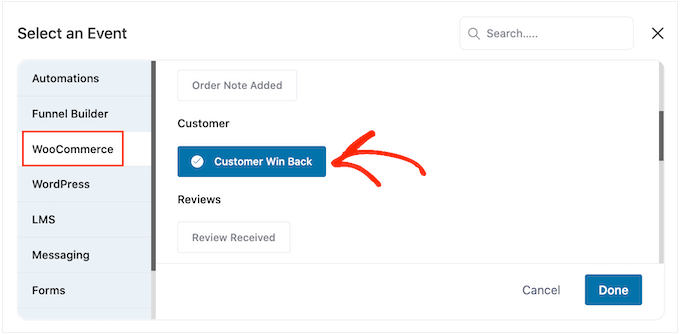
Click ‘Done’ to add the trigger to your automation workflow.
Step 3: Configure the Automation Trigger and Schedule
Back in the main editor, click on the ‘Customer Win Back’ trigger.
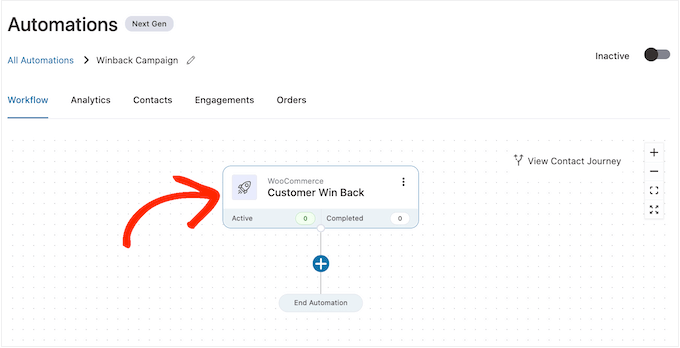
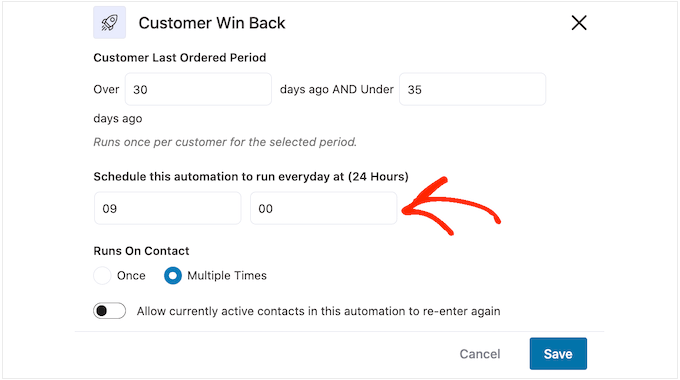
In the ‘Customer Last Ordered Period’ section, you can type in how long FunnelKit will wait before running the workflow.
For example, in the following image, the workflow will run when 30 days have passed since the customer’s last order.
FunnelKit will repeat this automation once every 24 hours, so it’s important to only run it for a short period of time. For this reason, we’ve set the workflow to stop when 35 days have passed since the customer’s last order.
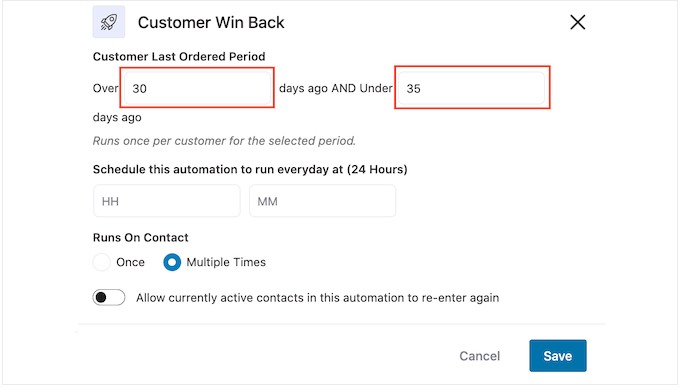
In this way, you won’t annoy customers by sending them dozens of emails.
Next, you can set the time when the automation will run using the ‘Schedule this….’ fields. FunnelKit will use your store’s timezone, so you may want to change your online store settings if you want to use a different timezone instead.
Once you are finished, click on ‘Save.’
Step 4: Add and Customize the Automated Coupon
Back in the main workflow editor, click on ‘+’ and then select ‘Action.’
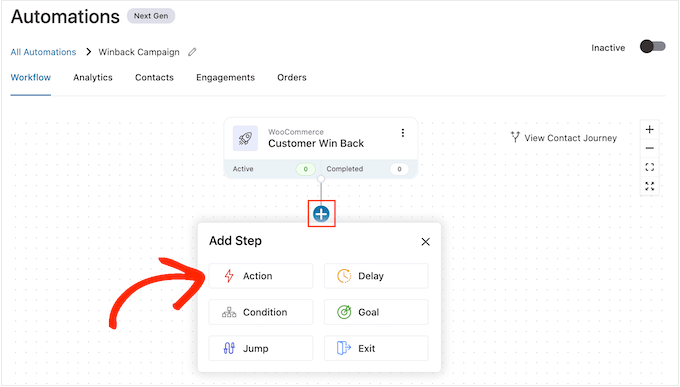
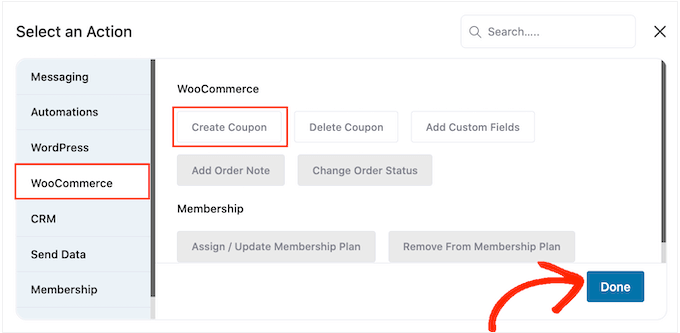
In the popup that appears, select ‘WooCommerce’ and then click on ‘Create Coupon.’
Simply click on ‘Done’ to add this action to the workflow.
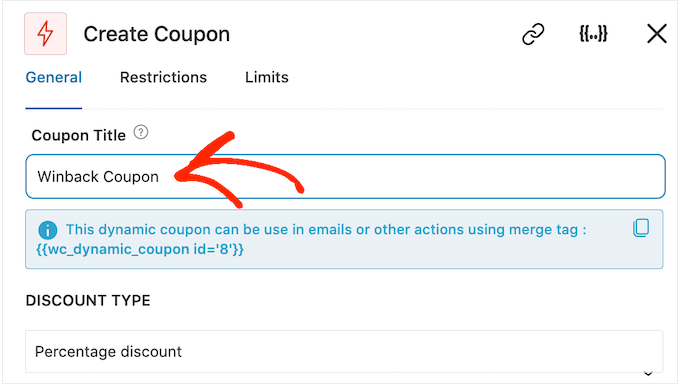
Back in the main FunnelKit editor, click on the action you just added. This opens a popup where you can customize the ‘Create Coupon’ action.
To start, type a coupon name into the ‘Coupon Title’ field. This is just for your reference, so you can use anything you want.
After that, use the ‘Discount Type’ dropdown menu to choose the type of coupon you want to create.
FunnelKit supports percentage discounts, fixed cart discounts, and fixed product discounts.
Most of the time, you’ll want to select ‘Percentage Discount’ to make sure all customers get a similar benefit, no matter how much they spend or what products they buy.
After that, type an amount into the ‘Amount’ field. For example, you might offer customers 20% off, or a $5 discount on all purchases.
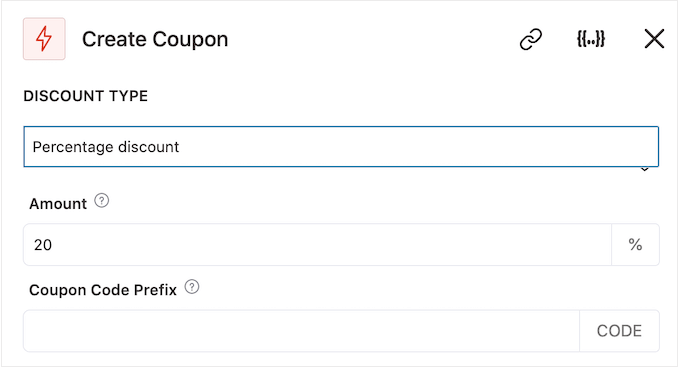
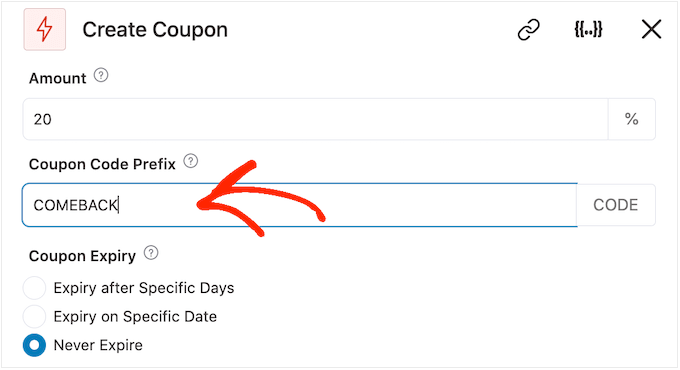
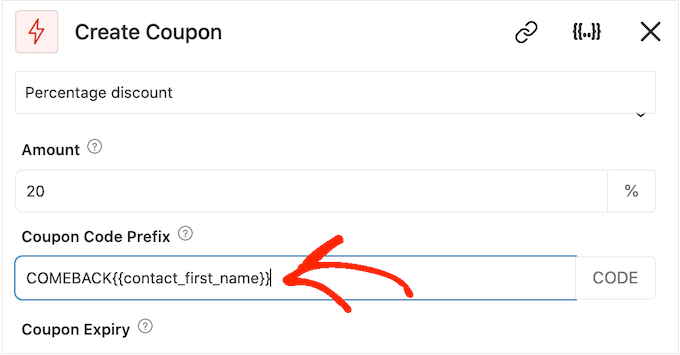
FunnelKit automatically creates a unique coupon code for each contact. However, you can add a prefix to the start of the coupon, which can either be plain text or dynamic tags. FunnelKit will replace these tags with real text every time it creates a code, so this is a great way to create personalized coupons.
Since we want to bring shoppers back in, you may decide to include the customer’s name in the coupon. This can catch their attention and also makes your code easier to remember.
To add plain text as a prefix, simply type into the ‘Coupon Code Prefix’ field.
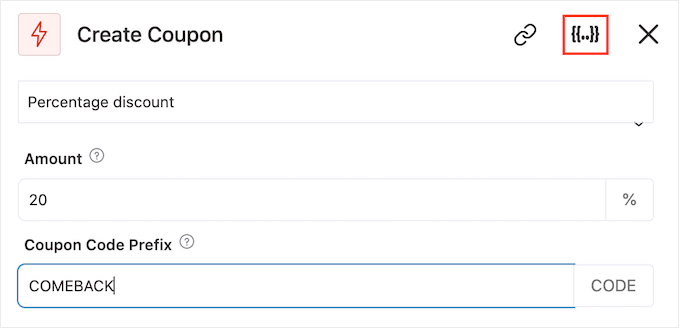
To add one or more tags, click on the ‘Merge tags’ icon.
This is the button that has curly braces.
Now, you’ll see all the tags that you can use in the automated coupon.
We’re going to use the {{contact_first_name}} tag, but you can use any tags you want.
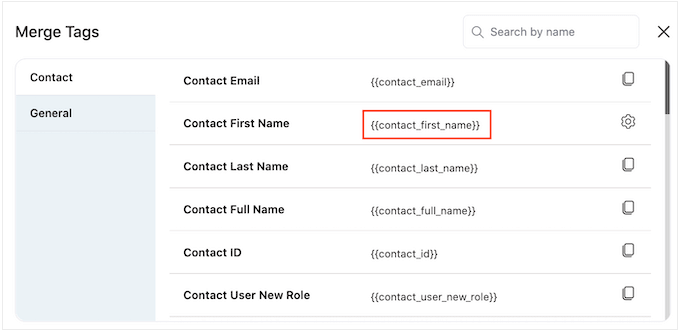
Simply copy each tag and then paste it into the ‘Coupon Code Prefix’ field.
As you can see in the following image, you can use a mix of plain text and tags.
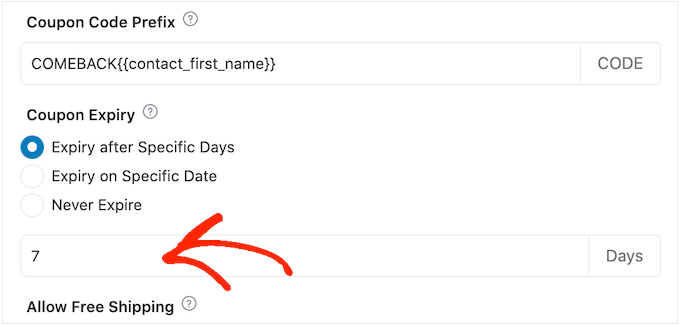
By default, the coupon will never expire. A sense of urgency and FOMO can push customers to use a coupon, so you may want to select the radio button next to ‘Expire after Specific Days’ or ‘Expire on Specific Date.’
You can then use the controls to specify when the coupon will expire.
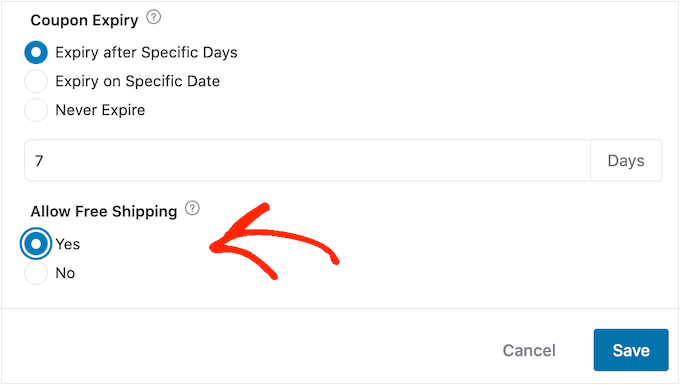
Finally, you can choose whether the coupon gives customers a free shipping discount.
Shoppers love free shipping, so you may want to consider adding this to your coupon by selecting the ‘Yes’ radio button under ‘Allow Free Shipping.’
Step 5: Create the Automated Email to Send the Coupon
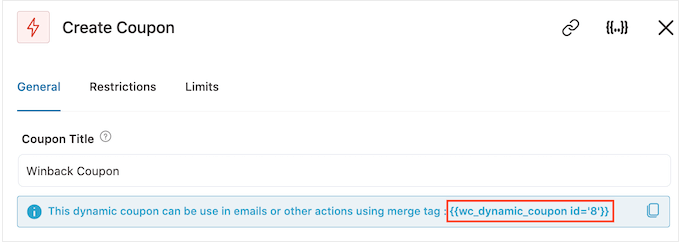
When you’re happy with how the coupon is set up, you need to grab the dynamic tag for it.
Under the ‘Coupon Title,’ you’ll see a small piece of code like {{wc_dynamic_coupon id=8}}.
This isn’t the actual coupon; it’s a placeholder that FunnelKit will replace with a unique code for each customer. Copy this tag so you can add it to the email in the next step.
With the tag copied, click on ‘Save’ to store your changes.
Now we have a coupon, it’s time to create the email that FunnelKit will send to your customers. To add an email action, click on the ‘+’ button and then select ‘Action.’
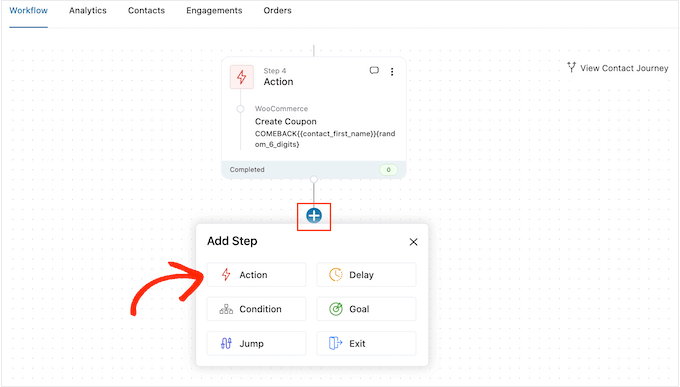
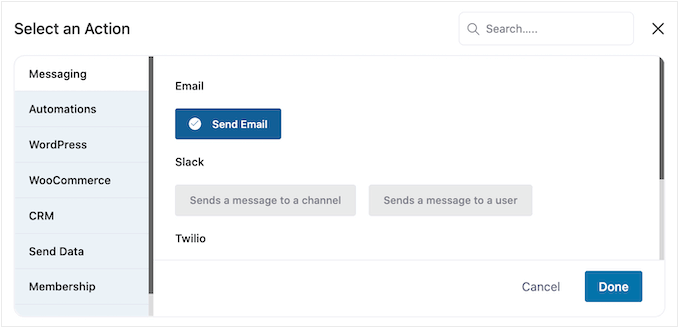
If it isn’t already selected, then click on ‘Messaging’ in the left-hand menu.
Then, select ‘Send Email’ and click on ‘Done.’
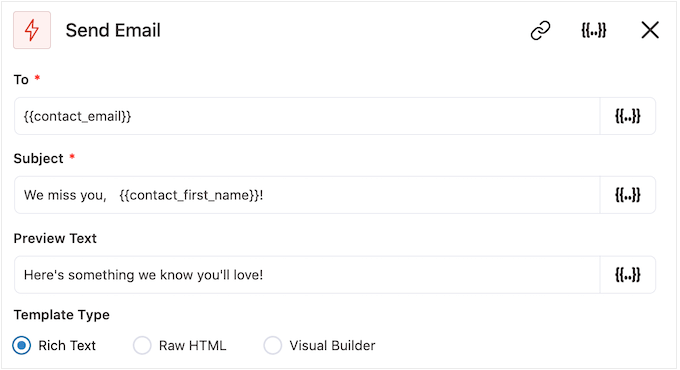
You can now create an email by typing in a subject and previewing and adding body text.
Similar to creating a coupon, it’s best to use a mix of plain text and tags. To add dynamic tags, click on the ‘Merge Tags’ icons that appear next to the To, Subject, and Preview Text fields.
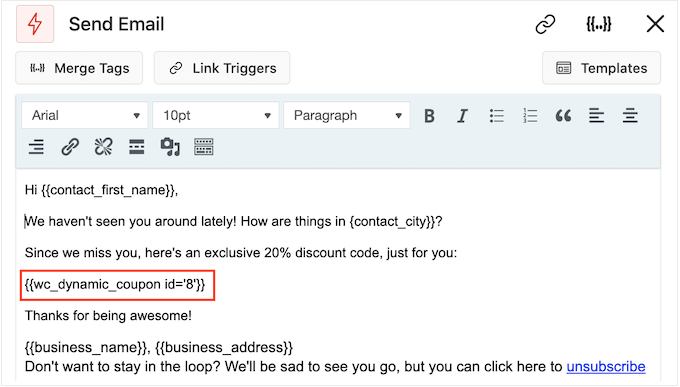
If you want to add tags to the email body, then you can click on the ‘Merge Tags’ button.
To add your coupon code, simply paste or type in the {{wc_dynamic_coupon id=8}} code copied in the previous step.
When you’re happy with how the email looks, click on ‘Save & Close.’
Step 6: Activate Your Win Back Campaign
That’s it. When you’re ready to make the automation live, click on the ‘Inactive’ slider so it turns to ‘Active.’
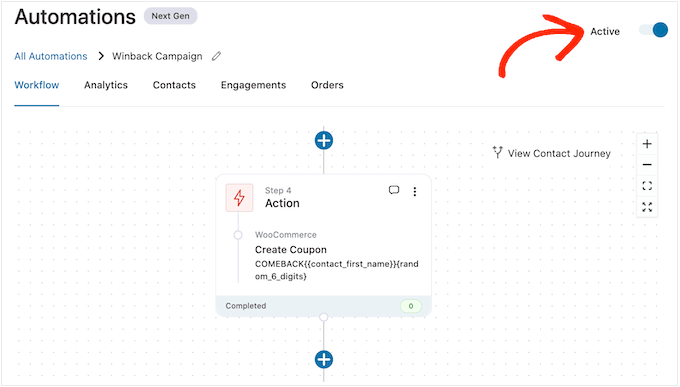
Now, FunnelKit will automatically send the coupon to any customer who hasn’t purchased from you in the past 30 days.
Method 2. Using Uncanny Automator (Over 150 Integrations)
Another way to send automated coupons in WordPress is by using Uncanny Automator. It is one of the best WordPress automation plugins on the market and lets you create powerful workflows to save time and help you respond to customers more quickly.
Upon testing, we discovered that it works seamlessly with WooCommerce, plus all of the must have WordPress plugins and third-party tools.
If you’re already using lots of different software on your online store, then it may be a good choice for you. To learn more about it, see our Uncanny Automator review.
With Uncanny Automator, there are lots of different ways that you can bring customers back to your site. Let’s take a look at a few options.
Scenario 1: Automatically Send Coupons to Logged-Out Customers
It’s smart to let customers create an account with your online store, as it encourages brand loyalty and makes it easier for shoppers to buy from you in the future.
If you allow user registration, then you can track when a shopper logs out of their account, as this suggests they’re losing interest in your store. You can then send a coupon to encourage them to log back in.
Are you using a different eCommerce solution that doesn’t support customer registration? Then see our guide on how to allow user registration on your WordPress site.
After that, you can simply create a new role for your customers. For detailed instructions, please see our beginner’s guide to WordPress user roles and permissions.
Step 1: Install and Activate Uncanny Automator Pro (Mandatory For Both Scenerios)
To start, you’ll need to install Uncanny Automator Pro, plus the free plugin as it provides the base for the premium version. If you need help, then please see our guide on how to install a WordPress plugin.
Note: There is a free Uncanny Automator plugin that lets you automate many common tasks. However, we’ll be using Uncanny Automator Pro because it works with WooCommerce.
Upon activation, go to Automator » Settings and enter your license key into the ‘Uncanny Automator Pro license key’ field.
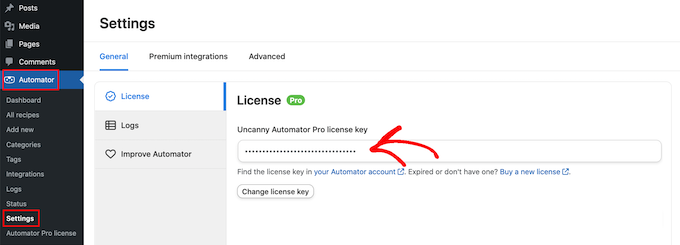
You’ll find this information under your account on the Uncanny Automator website.
Step 2: Create a New Recipe for Logged-in Users
To create this recipe, simply go to Automator » Add new in the WordPress dashboard.
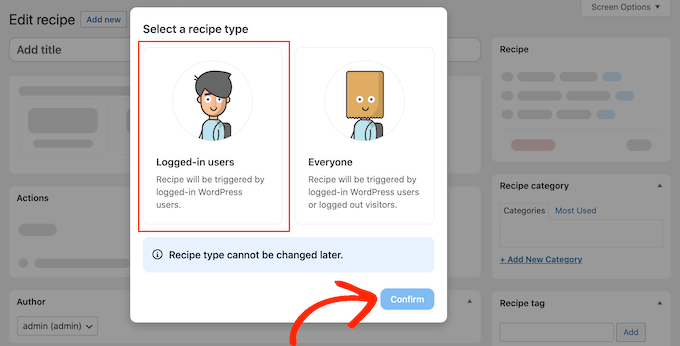
Uncanny Automator will now ask whether you want to create a recipe for logged-in users or everyone. Go ahead and select ‘Logged-in users,’ then click on the ‘Confirm’ button.
Next, you can give the recipe a name by typing into the ‘Title’ field. This is just for your reference, so you can use anything you want.
Step 3: Set the ‘User Logs Out’ Trigger
Once you’ve done that, click on ‘WordPress’ in the ‘Select an integration’ area.
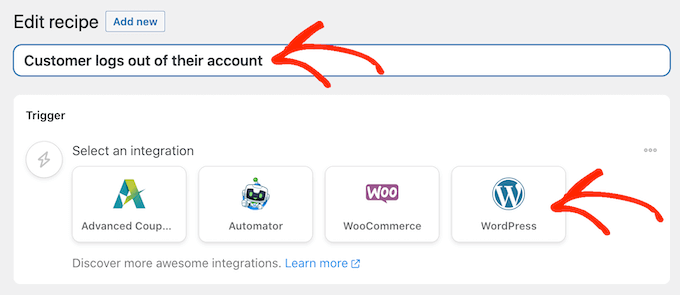
You can now choose a trigger, which is anything that kickstarts the recipe.
In the dropdown menu, start typing the following ‘A user logs out of a site’ and then select the right option when it appears.
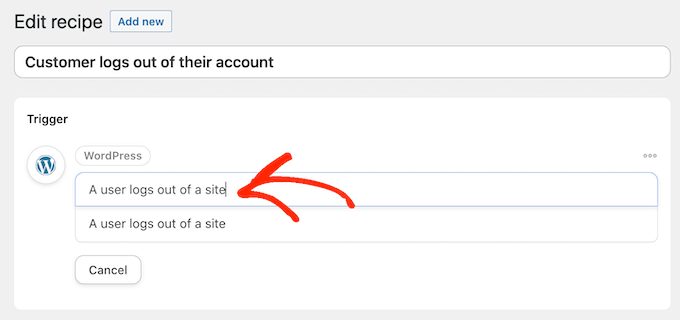
We only want to run the workflow when someone with the ‘Customer’ user role logs out of their account.
With that in mind, click on the ‘Add filter’ button.
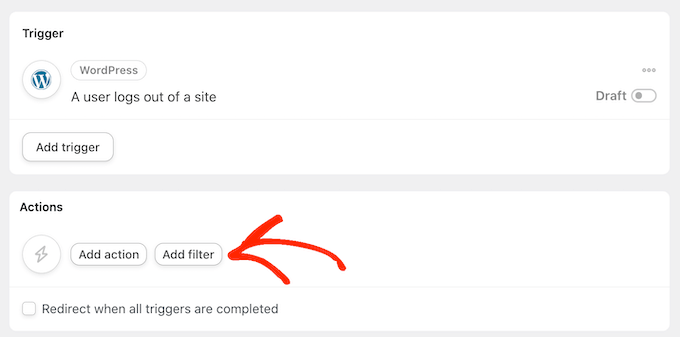
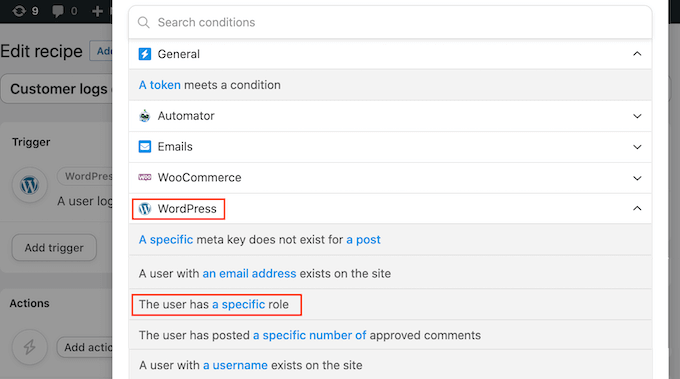
In the popup that appears, click on ‘WordPress.’
Next, find ‘The user has a specific role’ in the dropdown menu.
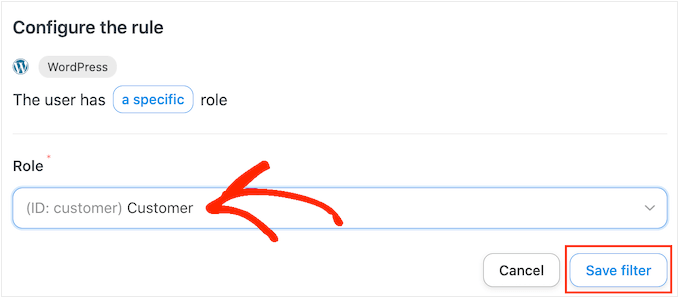
Open the ‘Role’ dropdown and select the role you’re using for your customers.
Finally, go ahead and click on ‘Save filter.’
Step 4: Create the Coupon Email Action
Now, it’s time to specify the action that Uncanny Automator will perform every time this workflow runs.
We’re going to send the customer an email containing a coupon, so go ahead and click on ‘Add action.’
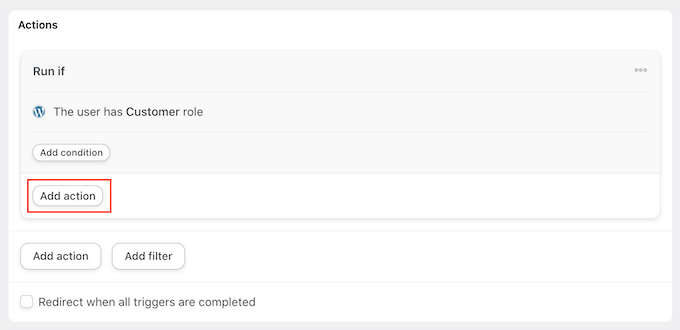
Since we want to send an email, select ‘Emails’ as the integration.
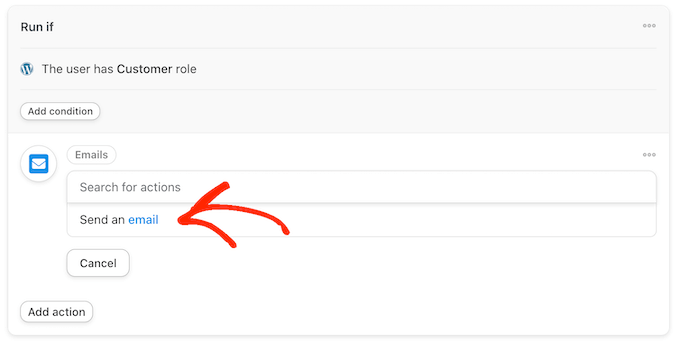
In the dropdown that appears, click on ‘Send an email.’
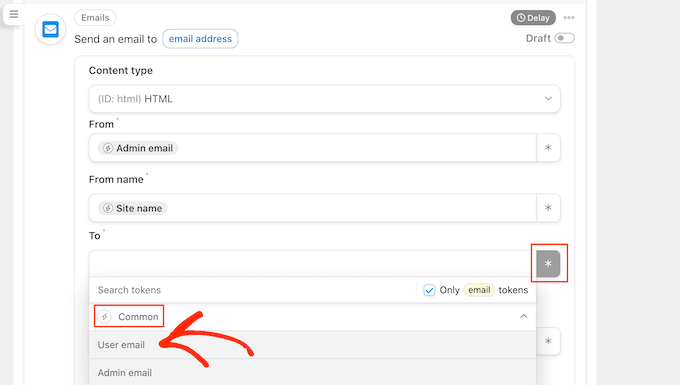
This adds all the fields that you can use to create the email.
To start, we need to make sure the message goes to the right user by clicking on the asterisk next to the ‘To’ field. Then, select ‘Common’ and ‘User email.’
You can now create the email by adding a subject line and body text.
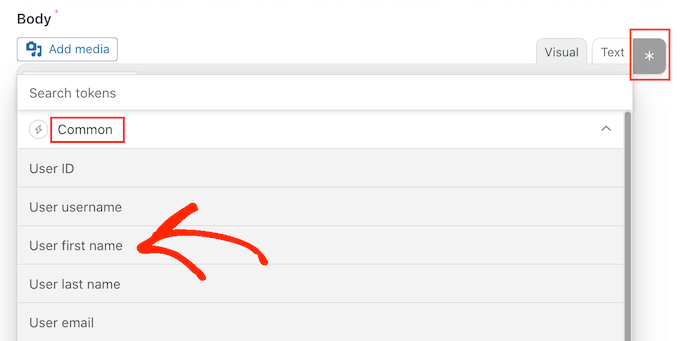
Here, you can use a mix of plain text and merge tags, which are placeholders that Uncanny Automator replaces with real values automatically. For example, if you want to use the customer’s name, then you can click on the asterisk and select ‘Common.’
Simply select the ‘User first name’ merge tag to create the personalized greeting.
You’ll also need to create a coupon and add it to the email.
The easiest way is to use the Advanced Coupons plugin, which is the best WordPress coupon code plugin on the market. It lets you create lots of different advanced coupons to get more sales and grow your business.
For a step-by-step guide, please see our post on how to create smart coupons.
After creating a coupon, you can simply add it to the email.
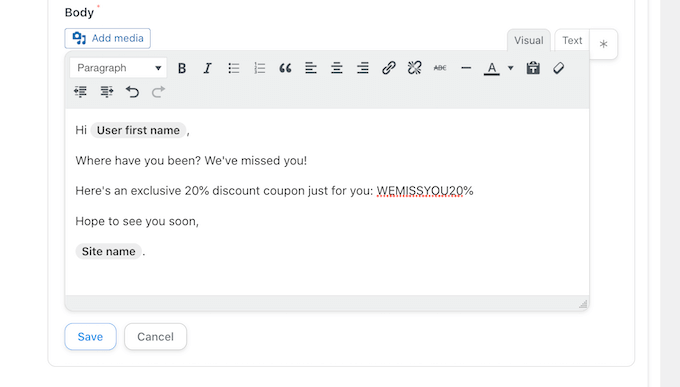
When you’re happy with how the email looks, click on ‘Save.’
Step 5: Add a Delay and Activate the Recipe
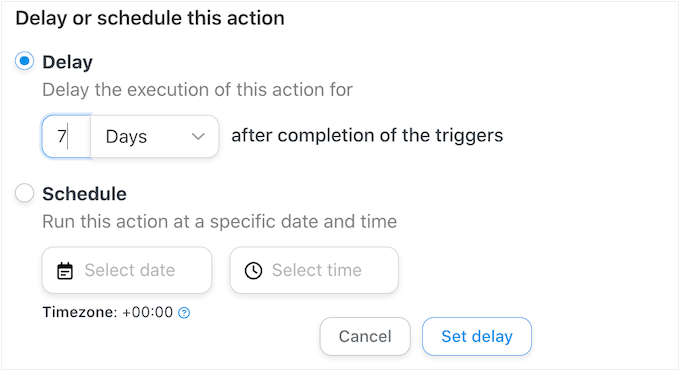
After that, it’s time to set a delay. This is how long Uncanny Automator will wait after the customer logs out before sending them the coupon.
To add a delay, hover your mouse over the ‘Email’ action. When it appears, click on ‘Delay.’
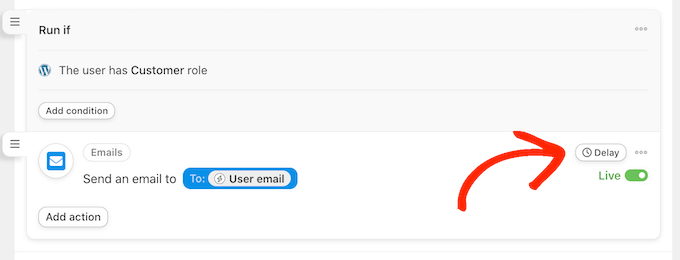
You can then add your delay in the popup that appears.
Once you’ve done that, go ahead and select ‘Set delay.’
When you’re happy with how the recipe is set up, it’s time to make it active.
In the ‘Recipe’ box, click the ‘Draft’ switch so that it shows ‘Live’ instead.
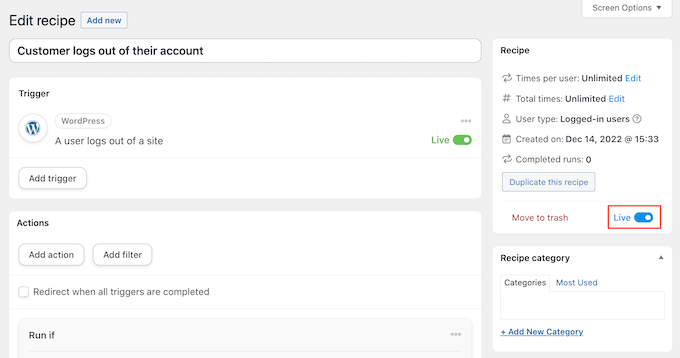
That’s it. Now, when a customer logs out of their account, Uncanny Automator will wait for the specified amount of time before sending them a coupon code.
Scenario 2: Automatically Send Coupons for a Specific Product
Sometimes, a shopper may look at a product multiple times, which suggests they’re interested in the item but are unable to make a purchase.
In this case, you may want to send them a coupon, which will encourage them to splash out on the product.
Step 1: Create a New Logged-In User Recipe And Set the ‘User Views Product’ Trigger
To get started, create a new recipe for logged-in users following the same process described above. After that, click on ‘WooCommerce’ in the ‘Select an integration’ area.
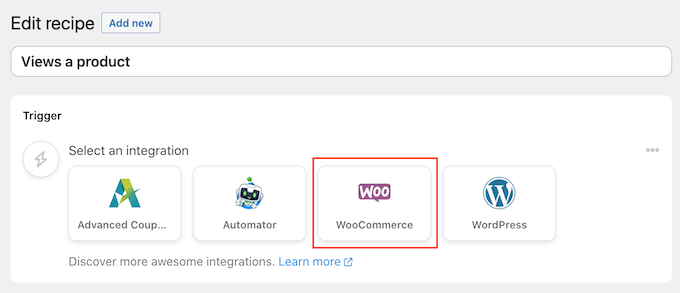
Next, choose a trigger by typing the following ‘A user views a product.’
When the right trigger appears, give it a click.
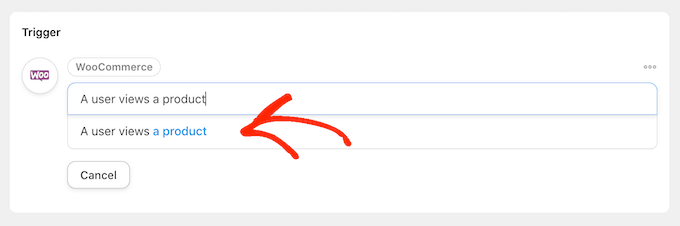
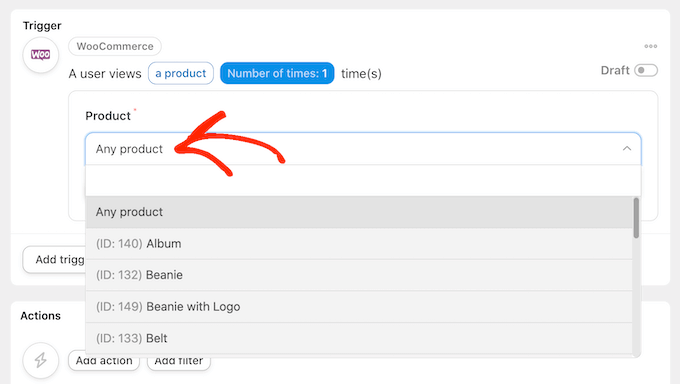
By default, this trigger is set to ‘Any product.’
If you want to link the recipe to a specific product, then open the ‘Product’ dropdown and choose that product from the list.
Once you’ve done that, click on the ‘Number of times’ button.
By default, the recipe will run every time a customer looks at a product. You should change this so the customer has to look at the product multiple times before triggering the recipe. To do this, type a different number into the ‘Number of times’ field.
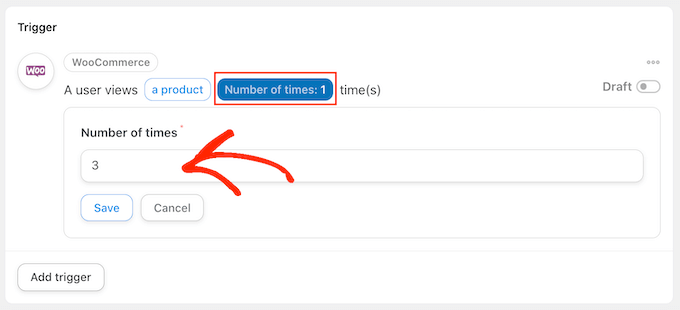
When that’s done, click on ‘Save’ to store your settings.
This recipe should only run when a customer views a product, so click on ‘Add Filter.’ In the popup that appears, click on ‘WordPress’ and then choose ‘The user has a specific role.’
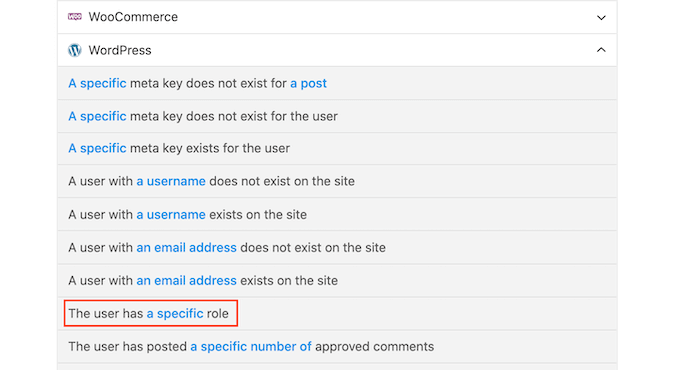
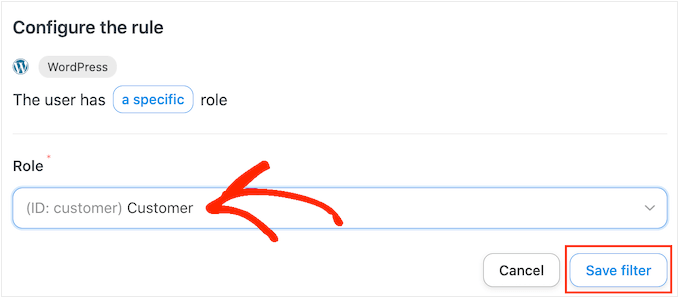
Now, open the ‘Role’ dropdown and select the role you’re using for your customers.
When you’re ready, click on ‘Save filter.’
Step 2: Configure the WooCommerce Coupon Generation Action
Now, it’s time to add the action. There are a few different ways to send automated coupons from your WordPress website.
To email a code to your customers using Uncanny Automator and Advanced Coupons, simply follow the same process described above.
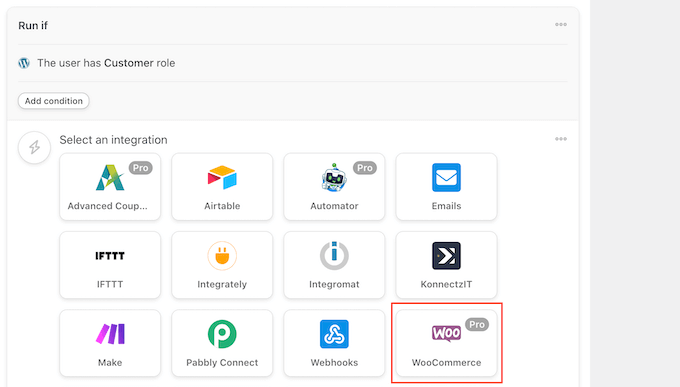
Another option is to generate the code using WooCommerce. To do this, click on ‘Add Action’ and then select ‘WooCommerce’ as the integration.
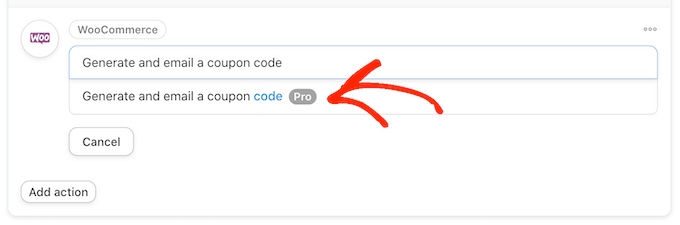
In the search bar, start typing ‘Generate and email a coupon code to the user.’
When the right option appears, give it a click.
This will add some new settings where you can create the coupon code.
To generate a code automatically, simply leave the ‘Coupon code’ field blank.
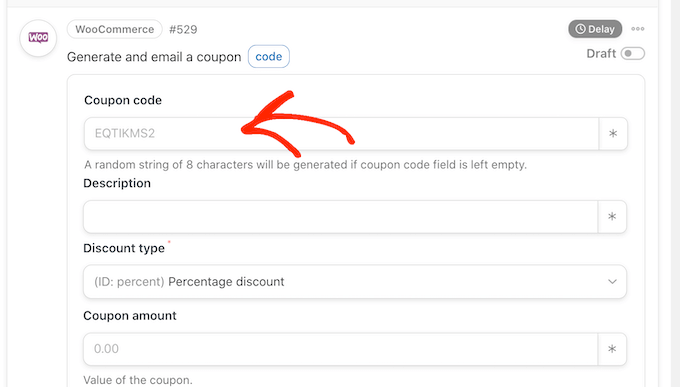
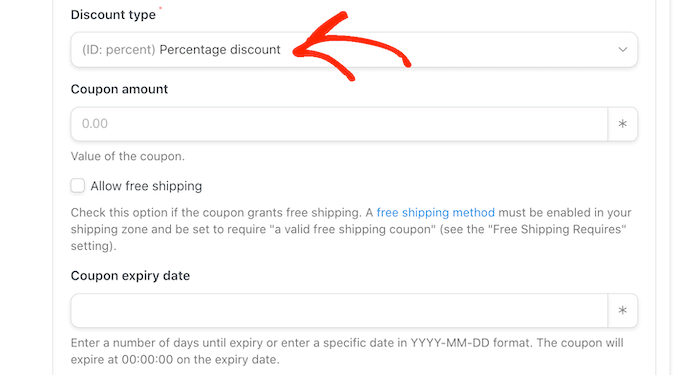
In the ‘Discount type’ field, choose the kind of coupon that you want to create, such as a fixed cart discount or percentage discount.
For this guide, we’ll select ‘Percentage discount’.
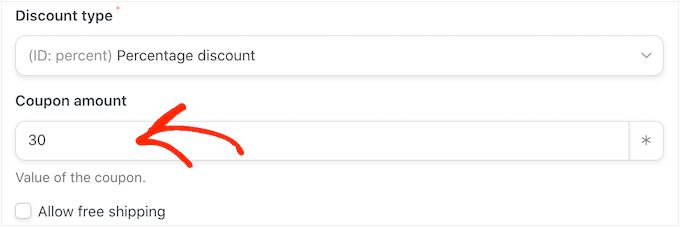
After that, type the percentage discount into the ‘Coupon amount’ field.
In the following image, we’re offering customers a 30% discount on their purchase.
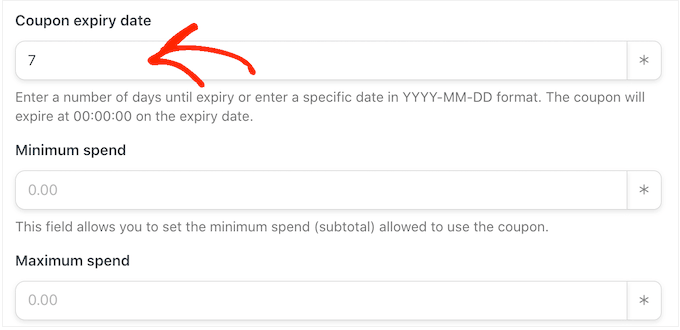
In the next field, you can set an expiry date for the coupon, either by using the YYY-MM-DD format or typing in the number of days until the coupon expires.
For example, in the following image the coupon will expire after 7 days.
You can also set a minimum and maximum spend for the coupon. We’ll leave these fields blank so the customer can use the code with any purchase.
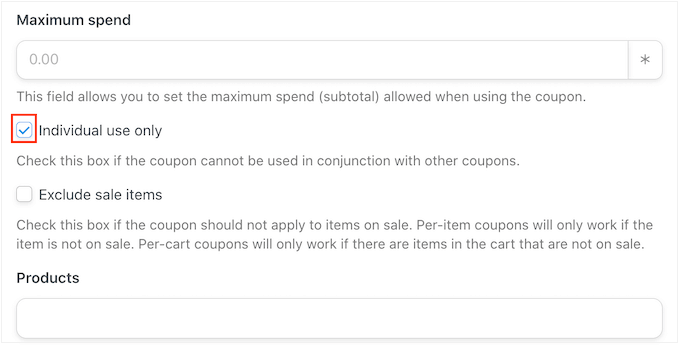
You may also want to check the ‘For individual use only’ box so customers can’t use this code in combination with other coupons.
Next, scroll to the ‘Usage limit per coupon’ section. The shopper should only be able to use the coupon once, so type in ‘1.’
There are lots of other settings you can change for the coupon. It’s a good idea to look through these settings to see whether you want to make any more changes.
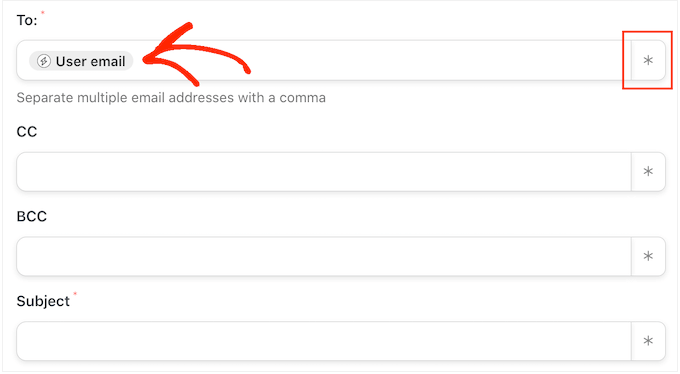
When you’re happy with how the coupon is set up, scroll to the ‘Email’ section. To start, find the ‘To’ field and then click on the asterisk next to it. Then, click on ‘Common’ and select ‘User email.’
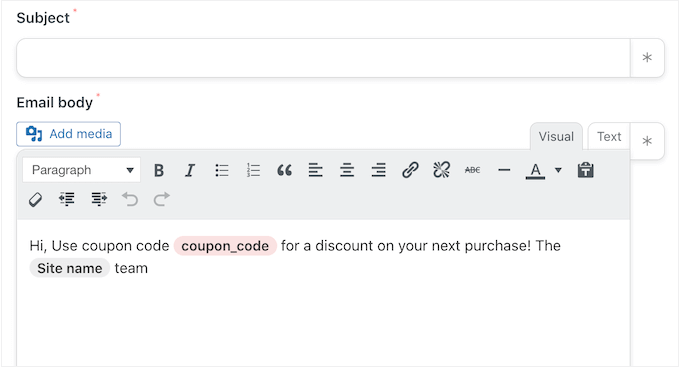
With that done, you can add a subject line and change the text in the email body.
To create a more personalized email, it’s a good idea to use a mix of plain text and merge tags by following the same process described above.
When you’re happy with the email, click on the ‘Save’ button to store the recipe.
Step 3: Activate the Recipe
After that, you can make the recipe live by clicking the ‘Draft’ switch so that it shows ‘Live.’
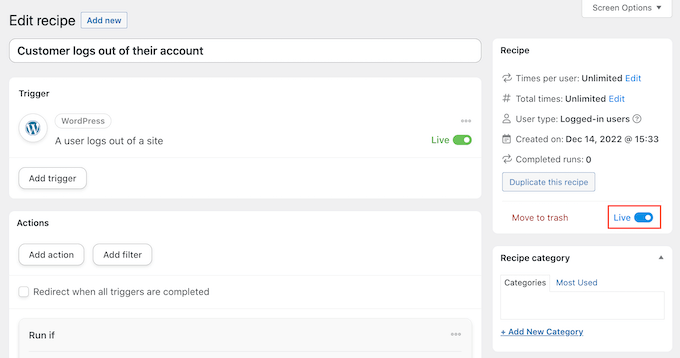
Now, every time someone views a product multiple times, it’ll trigger the recipe workflow.
We hope this article helped you learn how to send automated coupons in WordPress to bring back customers. You may also want to check out our guide on how to create a WooCommerce popup to increase sales and the best WooCommerce plugins for your store.
If you liked this article, then please subscribe to our YouTube Channel for WordPress video tutorials. You can also find us on Twitter and Facebook.


Jiří Vaněk
Sending out coupons is a very good method to attract people back to the store. The funnel kit method seems great and relatively simple. Moreover, it’s a great option to choose the range of days. Thank you very much for the instructions. It looks really promising.