


We recently saved a client from a website disaster after a single plugin update went wrong. Instead of spending hours on tedious fixes, we used our go-to method to reset their WordPress site and had it running perfectly in minutes.
Whether you’re struggling with a broken site, testing new themes, or just want a clean slate, the idea of a reset can feel overwhelming. But it’s often the fastest way to solve complex problems and get a fresh start.
In this guide, we’ll show you exactly how to restart your WordPress site the right way. These are the same safe and simple methods we use to help our users get back on track quickly.
Why Restart a WordPress Site?
Restarting or resetting a WordPress site is like restoring your phone to its default ‘factory settings’. It wipes out all changes, letting you start fresh with a clean slate.
This process removes all your customizations, plugins, and themes, giving you a blank canvas to rebuild your site. It’s often the fastest solution to complex problems. However, a full reset is a big step, so it’s usually overkill for minor issues like a single plugin conflict.
Based on our decade-plus experience managing WordPress sites, here are the most common situations where restarting or resetting a WordPress site can be helpful:
- Development and Testing Environment: When working on a localhost setup, we regularly reset our test sites after moving the site to a live server. This keeps our development environment clean and prevents conflicts between projects.
- Fresh Start After Failed Changes: Sometimes, a website redesign doesn’t go as planned. Instead of manually undoing dozens of changes, a reset can save hours of troubleshooting time. We’ve used this approach countless times when helping our users recover from complicated customization issues.
- Client Website Overhauls: For major client redesigns, starting with a clean slate often leads to better results. We typically use this method on staging sites, allowing us to build new designs without affecting the live site.
- Learning and Skill Development: Whether you’re exploring starter themes or developing custom plugins, having a fresh WordPress installation provides the perfect training ground. Our team regularly uses this approach when testing new features.
What Does a WordPress Reset Actually Do?
Before we dive in, let’s quickly clarify what resetting your site does. When you use a reset plugin, it’s like a factory reset for your content, but not for your core files.
What a Reset WILL Delete:
- All of your posts, pages, and comments.
- All users (except your current admin account).
- All WordPress database tables with the default prefix.
- All your site’s settings and customizations stored in the database.
What a Reset will NOT Delete:
- Your media files (images, videos, etc. in your Uploads folder).
- Your installed themes and plugins (though they will all be deactivated).
- The core WordPress software files.
In short, a reset gives you a clean slate for your website’s content and settings without forcing you to reinstall WordPress or re-upload your files. Now that you know exactly what to expect, let’s walk through the steps to reset your site safely.
How to Restart and Reset a WordPress Site
Restarting your WordPress site might sound difficult, but it’s really not.
We’ll show you two easy methods to reset your site using a plugin. You can use the links below to jump straight to the method you prefer.
⚠️ Important: Before you go any further, you absolutely must create a full backup of your website. A reset is a permanent action that cannot be undone on its own. A backup is your safety net, allowing you to restore your site in one click if you change your mind.
We recommend using a reliable backup plugin like Duplicator. It’s the same tool we use on all our websites to ensure they’re always safe.
Method 1: Restart Your WordPress Site with DB Reset Pro (Simple and Easy)
The easiest way to restart your WordPress site is by using DB Reset Pro. This free plugin allows you to quickly reset your WordPress database to its default state.
To get started, you’ll need to install and activate the DB Reset Pro plugin. If you need help, see our step-by-step tutorial on how to install a WordPress plugin.
Upon activation, navigate to the Tools » DB Reset Pro page in your WordPress dashboard. From here, you need to type ‘reset’ into the Reset Confirmation field.
After entering the text, simply click on the ‘Reset WordPress’ button.
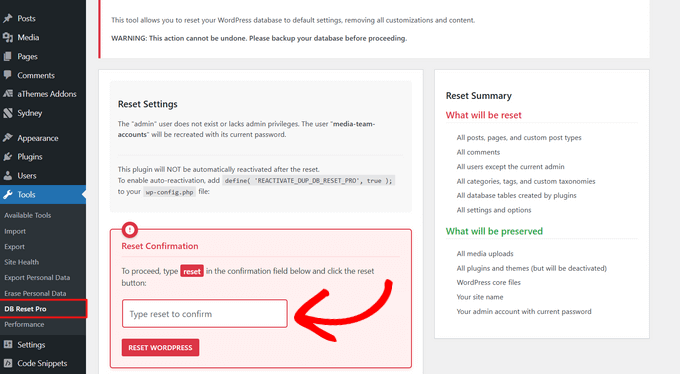
This process will remove all your posts, pages, custom post types, comments, and users except for the admin account you are currently logged into. Your media uploads and WordPress core files will not be affected.
Regarding your themes and plugins, they will not be deleted from your site. However, they will be deactivated.
After restarting your website, you can manually activate each plugin.
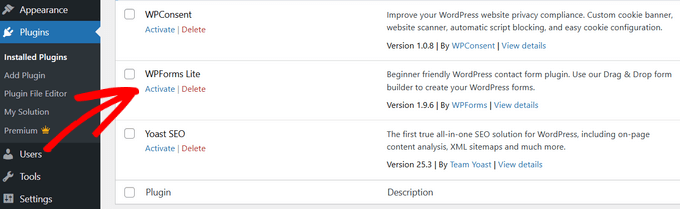
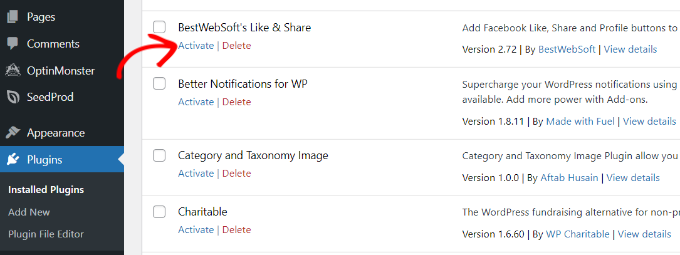
Simply go to the Plugins » Installed Plugins page from your WordPress dashboard and click the ‘Activate’ link under the plugin name.
Similarly, to reactivate your theme, head to the Appearance » Themes page, and click the ‘Activate’ button next to the theme name.
Method 2: Restart Your WordPress Site with Advanced WordPress Reset (More Custom Reset Options)
Another way to restart your WordPress site is with Advanced WordPress Reset.
First, you’ll need to install and activate the Advanced WordPress Reset plugin. For more details, see our instructions on how to install a WordPress plugin.
Once the plugin is activated, you need to go to Tools » Advanced WP Reset in your WordPress dashboard. Here, you can restart your WordPress website by simply typing ‘reset’ into the Reset database field.
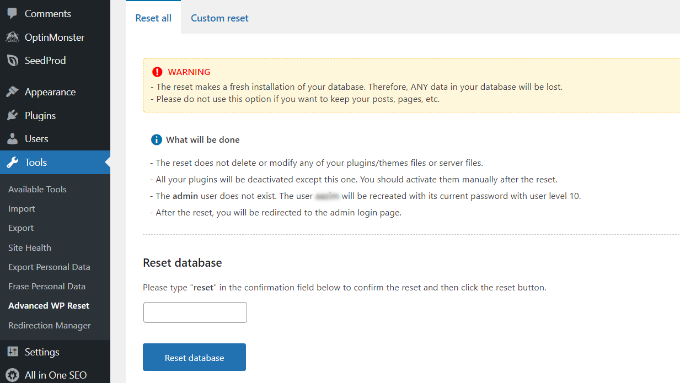
Once you’ve entered the text, simply click the ‘Reset database’ button.
When you reset your website, your plugins and theme files are not deleted. However, all the plugins are deactivated except for Advanced WordPress Reset.
To manually reactivate your plugins, go to the Plugins » Installed Plugins page from your WordPress dashboard. Then, click the ‘Activate’ link under the plugin name.
Configuring Custom Reset Options in Advanced WordPress Reset
Aside from restarting your entire website, Advanced WordPress Reset also lets you reset specific items on your website, like comments, or clean the uploads folder.
To reset individual files, you can go to Tools » Advanced WP Reset from your WordPress admin panel and then open the ‘Custom reset’ tab.
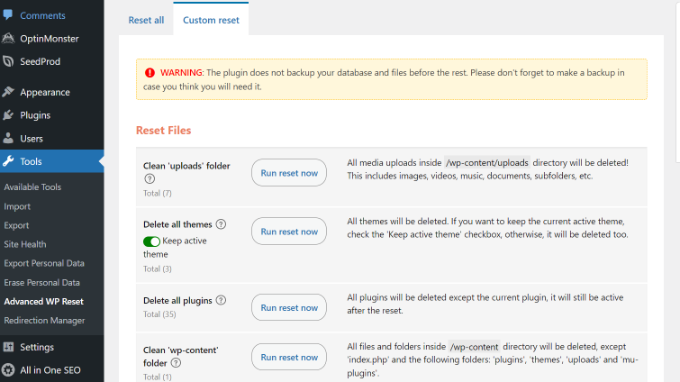
Next, you can click the ‘Run reset now’ button to restart different items on your website.
For example, if you used multiple plugins or themes for testing and now want a clean start, you can delete them all. Similarly, you can clean the uploads folder and wp-content folder.
The plugin also gives you different options to reset comments on your site. Simply scroll down to the ‘Reset Comments’ section in the plugin settings.
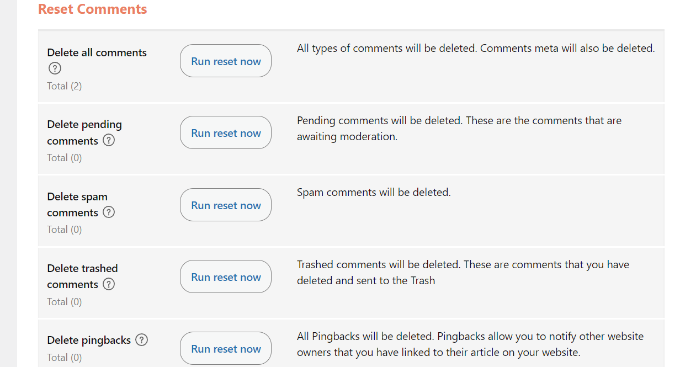
Here, you can delete all the comments, pending comments, spam comments, trashed comments, pingbacks, and trackbacks with a single click.
If you are unsure about which settings to choose, we recommend leaving these settings as is and using the default reset options instead.
This helps save time from deleting individual comments, and you get a fresh start on your WordPress site.
Video Tutorial
Frequently Asked Questions About Restarting a WordPress Site
Having helped thousands of users, we’ve answered just about every question there is about resetting WordPress. Here are the answers to some of the most common ones.
1. What is the difference between resetting and reinstalling WordPress?
Resetting your site with a plugin wipes your database, which includes your posts, pages, and user data. However, it leaves your WordPress core files, plugins, and themes on the server.
Reinstalling is a more drastic step where you delete all files and upload a completely fresh version of WordPress. A reset is usually faster and sufficient for most cases.
2. Will resetting my site delete my themes and plugins?
No, the methods we’ve shown do not delete your theme and plugin files. They will be deactivated, but you can easily reactivate them from your dashboard after the reset is complete.
3. Does restarting a WordPress site affect SEO?
Yes, a full reset deletes all your content, which means search engines will no longer be able to find those pages. This is why a reset is best used on a staging site, a test environment, or when you plan to completely relaunch with new content.
4. Is it safe to reset my WordPress site?
It is very safe, but only if you create a complete backup first. A backup is your safety net, allowing you to restore your website instantly if you decide you want to undo the reset.
Additional Resources
Now that you know how to reset your site, you might find these other guides helpful for setting things up again:
- The Ultimate Guide to Boost WordPress Speed & Performance – Once you have a fresh start, use these tips to make sure your site is as fast as possible.
- How to Customize the WordPress Admin Dashboard – Learn how to personalize the backend of your site for a better user experience.
If you liked this article, then please subscribe to our YouTube Channel for WordPress video tutorials. You can also find us on Twitter and Facebook.



Olaf
Sometimes I need to restart WordPress when working on a client’s website that someone else has previously managed. I’ve been doing it completely differently all this time. Not that my method wasn’t functional, but it’s more time-consuming. Next time I need to do this, I’ll definitely try your approach.
Jiří Vaněk
Sometimes I only delete all tables from database. Then, after calling the domain in browser, a new installation will take place. This easy steps get my website to default state as well.
Annissa
Hello I was successful with the entire thing…except now I can’t get into WordPress. It doesn’t recognize my email. I think I signed up through Bluehost, that’s how I normally login, but when I try that it just takes me back to WordPress login. I can’t reset my password because it doesn’t even recognize my email. Any suggestions?
WPBeginner Support
You can force add an admin user to allow you to log in following our guide below:
https://www.wpbeginner.com/wp-tutorials/how-to-add-an-admin-user-in-wordpress-using-ftp/
Admin
Russell
You can also go into Cpanel > WordPress management > Manage Users > update password for you or anyone else or add a new user.
Tonia Brauer
Ciao! I just attempted to reset my website. However, just as happened to Steve (comment from 2021), when I try to log back in it says my email is not registered on the site. How can I resolve this? Best, Tonia
WPBeginner Support
If the plugin does not set up your user correctly, you can forcefully add a new user following our guide below!
https://www.wpbeginner.com/wp-tutorials/how-to-add-an-admin-user-in-wordpress-using-ftp/
Admin
Steve
I reset my website and it kicked me out, and when I tried logging in again it says my email is not registered on the site. Did the reset delete my account information? How do I get it back if I cant log in to my website?
karl
can i reset WP without affecting the users??
WPBeginner Support
Sadly, you would need to manually reset the content or find a different tool to keep the users.
Admin
Faisal
Thanks for super easy tip
WPBeginner Support
Glad you found our guide helpful
Admin
Daniela Kemeny
Thank you for this it was great and worked perfectly. I want to restore the blog posts ONLY, not the theme, not the plugins, and nothing else from the database, only the blog posts. When resorting the database, it restores everything and the website goes back to what it was like before the reset. Is there a way to bring pack the blog posts only?
thank you!
WPBeginner Support
You would need to have a backup of the posts to restore for what you’re wanting to do if you use this method.
Admin
Vi
Hi! i’ve reset my wordpress but my home page did not reset, it’s still my latest homepage. do you know why?
WPBeginner Support
It would depend on what you reset but the most likely culprit would be if your site has caching enabled that would be showing the old page.
Admin
Jake
I am getting a 500 internal error on my admin page, my website doesn’t work any longer, and I can not log into my dashboard AT ALL to attempt to fix any of this.
WPBeginner Support
For that error, you would want to take a look at our article below:
https://www.wpbeginner.com/wp-tutorials/how-to-fix-the-internal-server-error-in-wordpress/
Admin
Fawad Khan
Salam!
How can I change WP dashboard to old layout?
WPBeginner Support
This plugin should set your site to the default WordPress dashboard layout.
Admin
Ayesha
Hi, if I do this do I keep my domain and blog name? Thanks!
WPBeginner Support
Yes, the blog url would stay the same.
Admin
Max
Hey. Thanks for the article. I reset my website and after that all options of editing it in dashboard dissapeared and i can’t do anything with the website now. I used a plugin to reset it. Do you know what can be done about it?
WPBeginner Support
If something like that happened, then you may want to reinstall WordPress or go through our troubleshooting guide below:
https://www.wpbeginner.com/beginners-guide/beginners-guide-to-troubleshooting-wordpress-errors-step-by-step/
Admin
Wudil
I have problem with my plugins. will resetting help to solve the problem please.
WPBeginner Support
It would depend on the issue, we would first recommend following the steps in our article below:
https://www.wpbeginner.com/beginners-guide/beginners-guide-to-troubleshooting-wordpress-errors-step-by-step/
Admin
Stephen
There is no “website reset” on the Tool dashboard. Could there have been changes on the plugin or does this article need some updating?
WPBeginner Support
This plugin should still currently be working, you may want to ensure the plugin is active and you are an admin user on your site.
Admin
Anil
I have issue with images not loading in media gallery. I have tried resetting the file permissions using your blog, deactivating themes and plugins, changing hyperlinks as well, but problem persists. Will resetting the WordPress help??? Or is there any other way?? Please help
WPBeginner Support
You would want to reach out to your hosting provider, resetting your site would remove all of your content.
Admin
Dave Roeser
What a timely article. Thanks. I am new to WP (I did spend 40+ years as a mainframe systems programmer) and my encore career involves developing Adwords scripts for a small marketing company.
We want to completely blow the site away and start from the beginning. I have downloaded the images and content he wants to save.
What is the best way (or a best way) to delete everything (including the database) so we have a blank slate to start anew?
Thanks,
Dave
WPBeginner Support
You would follow this article
Admin
Sonia Isotov
A friend of mine is having a heck of a time reestting the site-wide font. I’ve found your video on this but that didn’t help. He’s using a template he bought and can’t seem to be able to figure this out. It’s set to 12 and he wants 18 as the default. Any tips? thanks so much, Sonia
WPBeginner Support
That would require changing your site’s CSS rather than resetting the site. You would want to take a look at our guide below:
https://www.wpbeginner.com/beginners-guide/how-to-change-the-font-size-in-wordpress/
Admin