


If you rely on volunteers, your website should make it easy for them to get involved. But too often, potential helpers drop off because the application process is confusing, time-consuming, or not set up for real people.
At WPBeginner, we’ve worked with many nonprofits and community groups to improve their volunteer sign-up experience. Our founder, Syed Balkhi, also runs a nonprofit website himself, so we understand firsthand what it takes to attract and organize the right volunteers.
The biggest difference often comes down to the form.
A good volunteer application doesn’t just collect information – it guides people smoothly from interest to action while giving your team exactly what it needs.
In this tutorial, we’ll show you how to create a custom volunteer application form in WordPress using WPForms, a tool we use ourselves and recommend for its power and ease of use.

Quick Summary: The most efficient way to create a volunteer application form in WordPress is using the WPForms plugin. It features a dedicated ‘Volunteer Recruitment Form’ template, drag-and-drop customization, and secure entry management to streamline your onboarding process.
Why Create a Volunteer Application Form in WordPress?
A digital volunteer application form saves time by automating data entry and removing the need to sort through handwritten paper forms. This helps nonprofits review applications more efficiently and respond to volunteers faster.
It also clearly shows visitors what information you need upfront, such as contact details and prior volunteering experience. This way, you avoid extra follow-up emails or phone calls just to collect missing details.
Plus, you can easily reach more people who may be browsing your site and decide to help you out.
A good form builder plugin keeps all submissions organized in your WordPress dashboard and sends notification emails to the right team members, making follow-ups simple and reliable.
With that in mind, we will show you how to easily create a great volunteer application form in WordPress, step by step. Here is a quick overview of all the steps we will cover in this guide:
- Step 1: Install and Activate the WPForms Plugin
- Step 2: Create a New Volunteer Application Form
- Step 3: Customize Your Form Fields and Add File Uploads
- Step 4: Configure Form Settings and Anti-Spam Protection
- Step 5: Set Up Notifications and Confirmation Messages
- Step 6: Test Your Form and Review Volunteer Applications
- Step 7: Publish Your Volunteer Application Form in WordPress
- Bonus Tip: How to Export WordPress Form Entries to CSV and Excel
- Frequently Asked Questions About Volunteer Application Forms
- More Nonprofit WordPress Website Guides
Let’s get started.
Step 1: Install and Activate the WPForms Plugin
The easiest way to create a great volunteer application form in WordPress is by using the WPForms plugin.
WPForms, the best drag and drop form builder for WordPress, is beginner-friendly and used by over 6 million websites, including ours.
It simplifies volunteer application form creation with a beginner-friendly drag-and-drop builder and specialized templates, including a Volunteer Recruitment Form.
At WPBeginner, we create our contact forms and annual surveys using this drag-and-drop form builder. To learn more about WPForms, you can check out our complete WPForms review.
Now, you’ll need to create a WPForms account. On the WPForms website, click the ‘Get WPForms Now’ button, choose a plan that suits your needs, and follow the on-screen instructions to complete the process.
📝 Note: In this guide, we will be using WPForms Pro. It lets you store volunteer applications directly in your WordPress dashboard and gives you access to the Volunteer Recruitment Form template.
If you’re on a budget, you can use WPForms Lite to receive applications via email.
With that done, you’ll land in your own WPForms account, where you can find your plugin’s license key.
From here, you can go to your WordPress admin area to install and activate the WPForms plugin. Then, navigate to Plugins » Add Plugin.

On the next screen, use the search bar to quickly find the WPForms plugin.
When you see it on the search result, click ‘Install Now’ and then ‘Activate.’
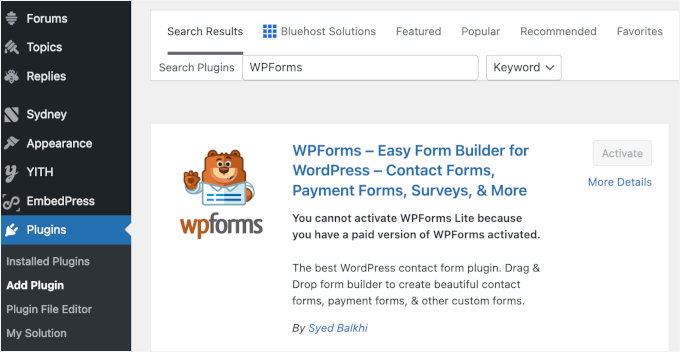
For more details, please see our step-by-step guide on how to install a WordPress plugin.
Upon activating the plugin, you need to visit WPForms » Settings page in your WordPress dashboard to enter your license key.
If you’re using the free version, then you can skip this step.
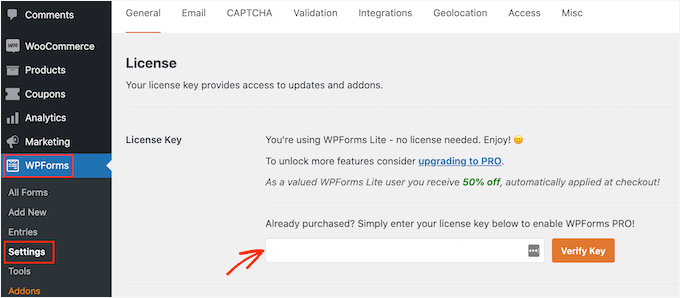
Once you’ve completed the verification process, you’re ready to create your volunteer application form in WordPress.
Step 2: Create a New Volunteer Application Form
The first thing you’ll need to do is navigate to WPForms » Add New.
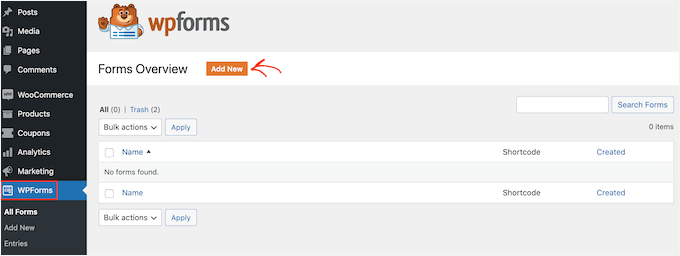
Next, you can name your form and select how you will build your volunteer form – from scratch, selecting a template, or using WPForms AI.
If you want to use the AI builder, then all you have to do is choose a suggested prompt or describe the form you need in plain English. The AI will then generate the form for you.
Expert Tip: Note that the powerful AI form builder that generates complete forms from descriptions is available for all paid license levels, although AI Choices are also available in the free version.

For this tutorial, though, we’ll use a template.
WPForms comes with more than 2,000 pre-made form templates. This can help you quickly build any type of form, such as a contact form and online order form, with minimal to zero edits.
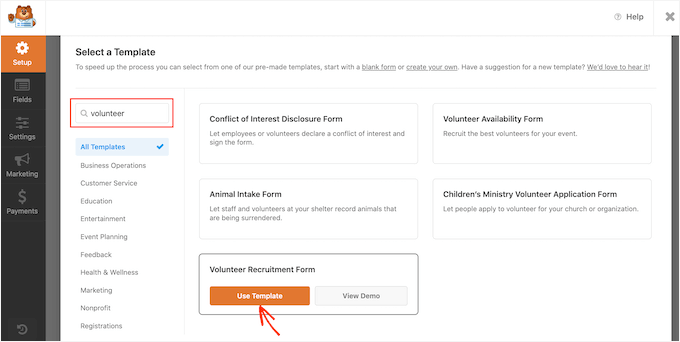
Since we want to create a volunteer application form, let’s type ‘Volunteer’ in the template search bar. You will then see several volunteer form templates to choose from.
To use a template, simply hover over the one you want and click ‘Use Template’. Here, we’re going to use the ‘Volunteer Recruitment Form’ template.
Step 3: Customize Your Form Fields and Add File Uploads
WPForms will now redirect you to the drag-and-drop form builder.
You should be able to find all the tools to help you customize your form in the left panel. In the right panel, you’ll find a live preview.
To customize the form, you can click on the form field that you want to edit. Then, WPForms will show all of the settings that you can customize for this field.
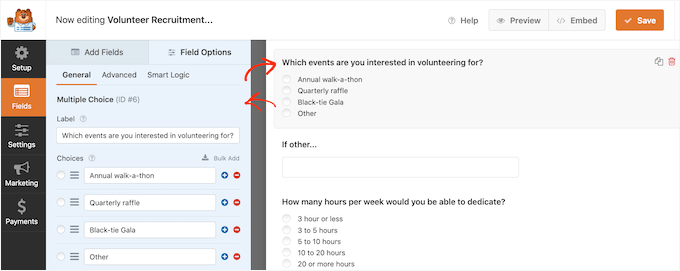
For example, if you want to change the text that appears in this form field, then simply edit the text in the left-hand menu.
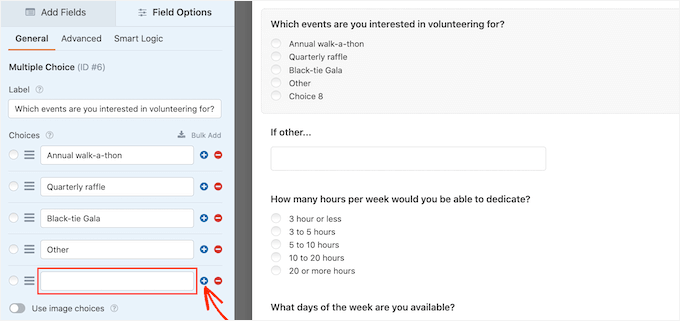
To customize existing multiple-choice options, just click on any of the ‘+’ buttons. This will let you add more options.
🧑💻 Pro Tip: If you’re stuck, then you can take advantage of the AI Choices feature. Just click ‘Generate Choices’, type your prompt, and press ‘Enter.’ The AI tool will then create a list of choices based on your input.
Plus, you can easily add more questions or options to your volunteer application form by clicking the ‘Add Fields’ tab in the left-hand menu.
This will show you all the fields that you can add, including the more advanced options, such as the ‘File Upload’ field.
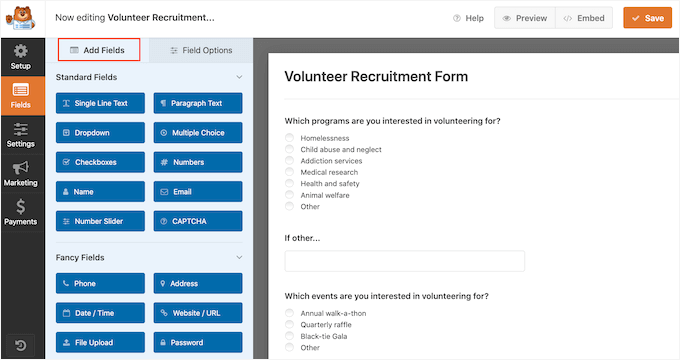
The ‘File Upload’ field is a great field to add, so volunteers can submit a copy of their CV or resume alongside their applications. For security purposes, we recommend restricting the allowed file types to specific formats like .pdf or .docx.
It is also a good idea to set a ‘Max File Size’ (e.g., 5MB) to make sure your website storage doesn’t get full and to make sure email notifications are delivered successfully.
Expert Tip: Because volunteer forms often collect sensitive documents like resumes or IDs, you must disclose this data collection in your Privacy Policy to remain GDPR compliant and maintain user trust.
To learn more, you can see our step-by-step guide on how to create a file upload form in WordPress.
You may also want to make some fields required, such as the field where applicants can type in their email address. If you make a field mandatory, then visitors cannot submit the form without filling in this field.
To do this, you should first click that field. Then, on the left-hand menu, you’ll need to toggle on the ‘Required’ slider to turn it on.
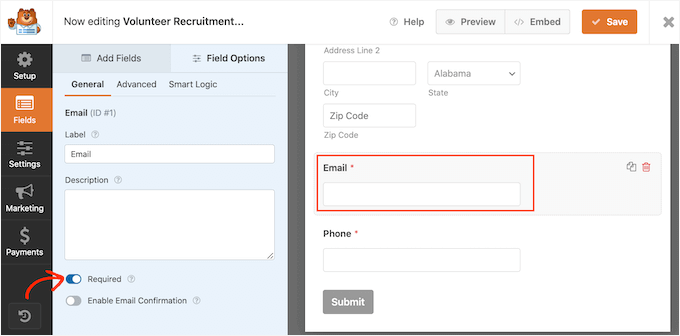
You and your volunteers can easily see which fields are required because they’ll have a small red asterisk next to the field label.
When you’re happy with how your volunteer application form looks, it’s time to configure the settings.
Step 4: Configure Form Settings and Anti-Spam Protection
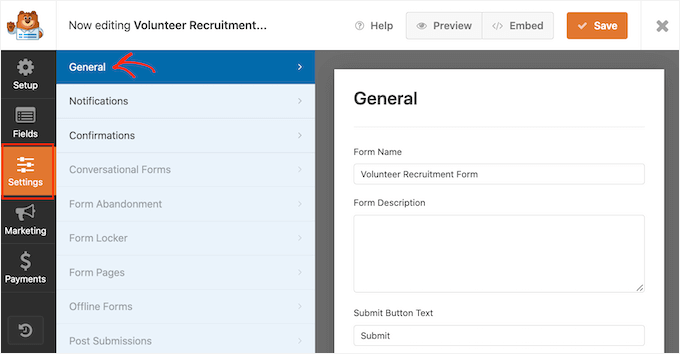
From here, go ahead and click ‘Settings’ in the left-hand menu.
On the ‘General’ settings tab, you can change various form-related settings, such as the form title, form description, submit button text, and more.
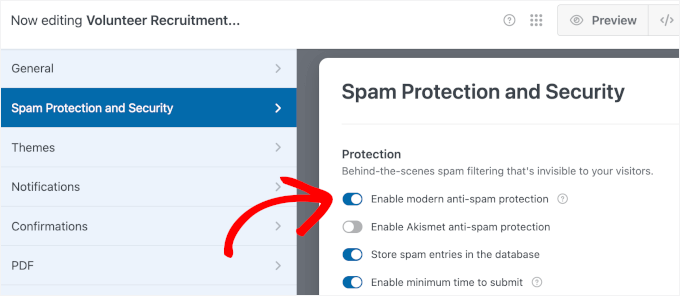
As the leading WordPress form-building solution, WPForms comes with advanced anti-spam settings to help you reduce spam registrations.
You can see that it’s automatically enabled by default in the ‘Spam Protection and Security’ menu. Unless you’re going to use a different form of spam prevention instead, we recommend keeping this setting enabled.
To learn more about how WPForms can protect your site against spam, please see our step-by-step guide on how to block contact form spam in WordPress.
Step 5: Set Up Notifications and Confirmation Messages
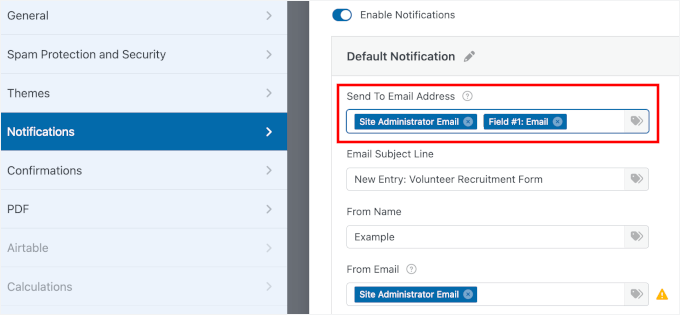
Now you can move to the ‘Notifications’ panel.
By default, every time a visitor submits a form on your site, you’ll get an email containing all the information they’ve submitted. If you are using WPForms Pro, you can see all of your form entries in your WordPress dashboard as a secure backup.
We also recommend sending the volunteer an email confirming that you’ve received their application.
For more details, please see our guide on how to send confirmation emails after WordPress form submission.
After a volunteer clicks Submit, it’s important to confirm their application was received and explain what happens next.
You can configure these settings by going to the ‘Confirmation’ tab on the Settings panel and then choosing from the ‘Confirmation Type’ options.
Here’s how each option works:
- Message – Displays a short note on the same page, such as, “Thanks for applying to volunteer with us! We’ve received your application and will be in touch within 3–5 business days.” This is simple and works well for most sites.
- Show Page – Redirect users to a dedicated Thank You page where you can explain next steps, link to a volunteer handbook, or share past volunteer stories.
- Redirect – Sends them to any URL, even off your site. For example, you could redirect them to an orientation scheduler or an external training portal.
In our experience at WPBeginner, redirecting users to a dedicated Thank You page allows for better form analytics tracking and provides a more professional user experience than a simple text notification.
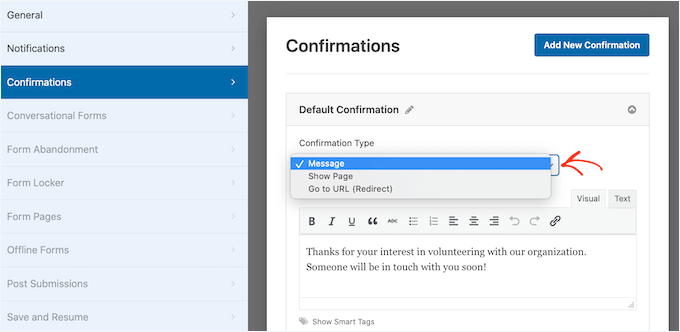
Most organizations will just use the default message. However, it’s a good idea to redirect the visitor to your events calendar, so they can start learning about your upcoming fundraising events.
When you’re happy with how your confirmation message is set up, go ahead and click on the ‘Save’ button to save your changes.
🧑💻 Pro Tip: WPForms integrates with all the best email marketing services. If you have an email newsletter, then WPForms makes it easy to add your new volunteers to this newsletter.
Step 6: Test Your Form and Review Volunteer Applications
Before you share your volunteer application form, take a minute to test that everything works the way you expect.
Let’s click ‘Preview’ to open a live version of the form in a new tab.
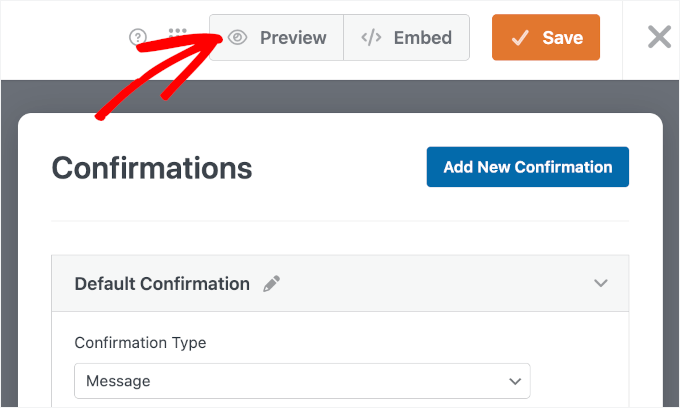
On the form preview, you can fill it out with test information just like a real volunteer would.
We recommend leaving a required field empty or entering an invalid email to make sure the error messages appear correctly. If your form includes file uploads, such as resumes, be sure to upload a test file to make sure everything works as expected.
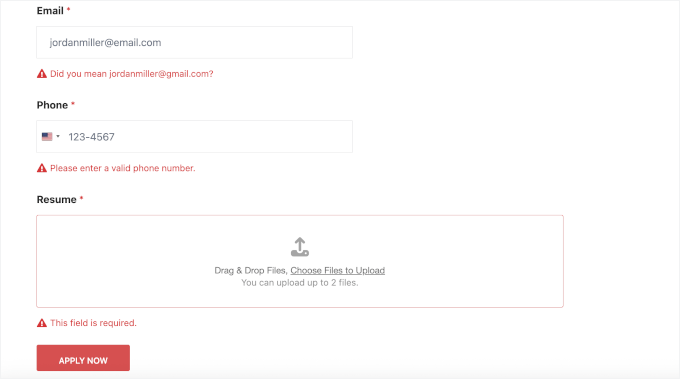
When you’re finished, click ‘Submit’ and double-check that everything works as expected.
This includes making sure the confirmation message or thank-you page appears correctly. Don’t forget to confirm that any notification emails are delivered to you (and to the volunteer, if you’ve enabled those).
📝 Note: If you don’t get an email, then there could be an issue with how your emails are set up in WordPress. We recommend using WP Mail SMTP to fix this. To learn more about it, see our guide on how to fix the WordPress not sending email issue.
If you’re using WPForms Pro, you can also open ‘View Entries’ to verify that the test submission is saved properly in your dashboard.
Step 7: Publish Your Volunteer Application Form in WordPress
Once your volunteer application form is working the way you want, you’re ready to add your form to your WordPress website
With WPForms, it’s easy to add your form to any page, post, or widget-ready area on your site. In the WPForms builder, you can click the ‘Embed’ button.
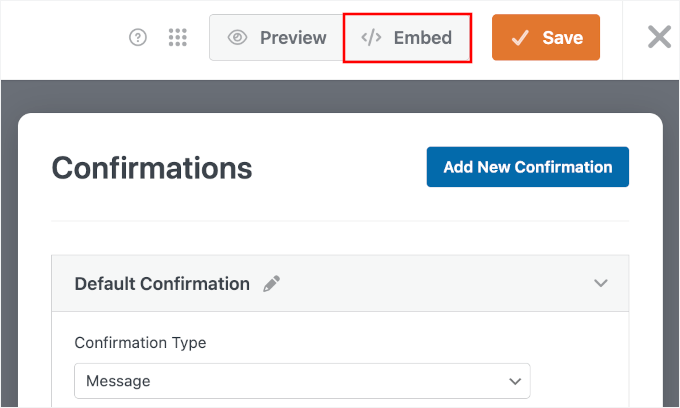
A popup will appear where you can either:
- Select Existing Page – Choose a page you already have.
- Create New Page – Make a brand-new page just for your volunteer application.
If you want a dedicated application page, let’s choose ‘Create New Page.’

On the next popup, you can give your new page a clear name, like “Volunteer Application” or “Apply to Volunteer.”
Then click the ‘Let’s Go!’ button.

This will open the WordPress block editor with your form already added to the page.
On the right-hand side, you can adjust your form settings to show:
- The form title so visitors know this is the volunteer application.
- The description if you added instructions, such as how long the process takes or what documents to prepare.
To show the form’s title and description, you can go ahead and toggle on the sliders.
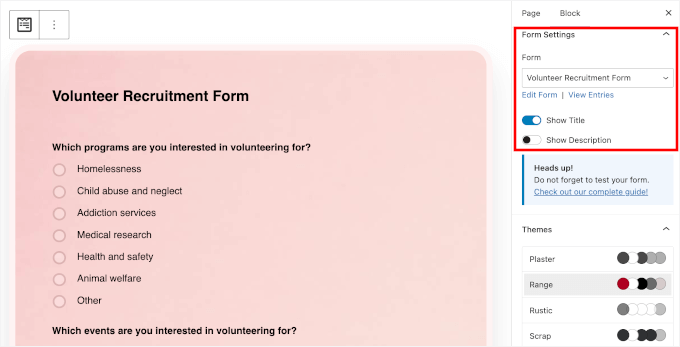
You can also style and customize your forms by choosing a form theme. When everything looks good, click ‘Save,’ then ‘Publish’ or ‘Update’ the page.
Finally, click ‘View Page’ to see your live volunteer application form on your site:
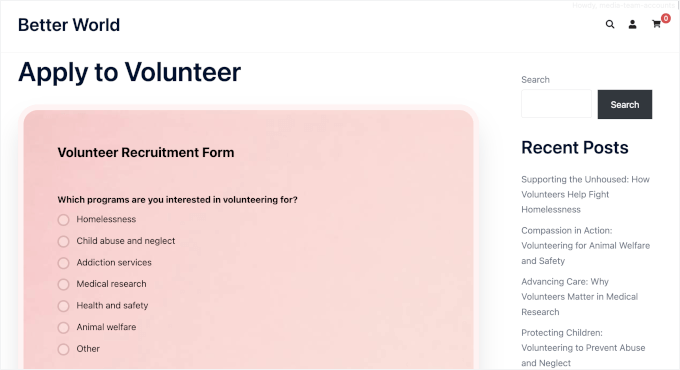
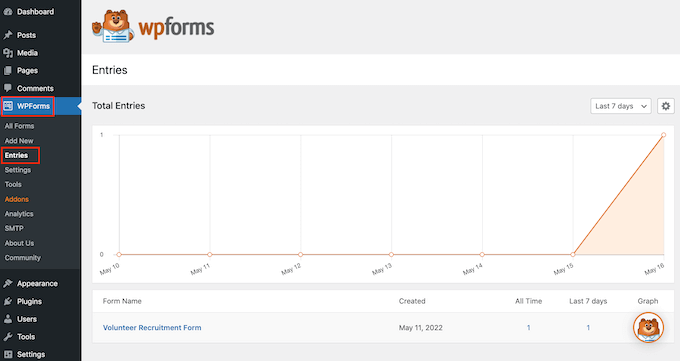
Once you’ve published your form, you can go to WPForms » Entries to see all of your volunteer applications.
Please note that viewing entries in the dashboard is a Pro feature; if you are using WPForms Lite, you will need to rely on email notifications for your applications.
🧑💻 Pro Tip: WPForms has a Form Abandonment addon. Enabling it allows you to see ‘Abandoned’ as the status for the entries where a user started but didn’t finish. It also captures partial entries, letting you follow up with potential volunteers who dropped off.
For more information, see our guide on how to track and reduce form abandonment.
Bonus Tip: How to Export WordPress Form Entries to CSV and Excel
You should export your volunteer application form entries to CSV or Excel because it is important for keeping everything organized.
It allows you to easily sort through all the information, like names, contact details, and availability. This way, it’s much simpler to find the right volunteers for different tasks.
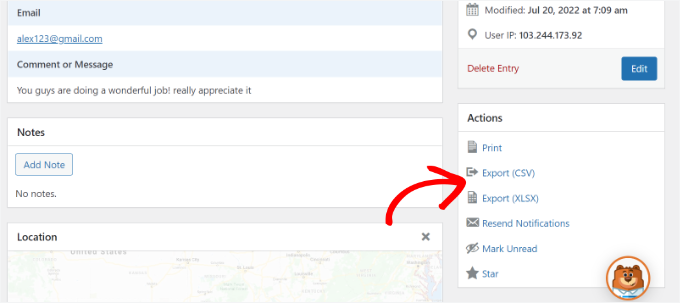
Plus, having the data in a spreadsheet lets you collaborate with your team more efficiently, so everyone can access the same information. It’s also a great way to back up your data, so you don’t lose any important details.
Do note that saving entries is a premium feature, so you will need WPForms Pro. For detailed step-by-step instructions, see our guide on how to export form entries to CSV or Excel.
🔗 Alternative: You can also connect your form to Google Drive to store uploaded files automatically. See our guide on how to upload files from WordPress forms to Google Drive for step-by-step instructions.
Frequently Asked Questions About Volunteer Application Forms
Before we wrap up, let’s answer some common questions about creating volunteer application forms in WordPress.
Can I collect documents from volunteers?
Yes. Most WordPress form plugins, including WPForms, let you add a File Upload field so volunteers can submit resumes, IDs, or certifications directly through the application form.
Is volunteer data secure in WordPress?
Yes, as long as you use a reputable form plugin and basic security best practices. WPForms includes features like Smart CAPTCHA and Cloudflare Turnstile to protect your forms.
Plus, volunteer submissions are stored securely in your WordPress database, and you can limit access so only authorized admins can view application data.
Can I receive volunteer applications by email?
Yes. You can set up form notifications to automatically send each volunteer application to your email address. This way, you can review and respond without logging into WordPress every time.
Is WPForms free for nonprofits?
WPForms Lite is free for everyone and works well for simple volunteer forms. If you need advanced features like file uploads, conditional logic, or entry management, WPForms Pro offers a 75% nonprofit discount for eligible organizations.
More Nonprofit WordPress Website Guides
We hope this article helped you learn how to make a great volunteer application form in WordPress.
Next, you may also want to go through our guides on:
- How to Add a PayPal Donate Button in WordPress
- How to Create a Recurring Donation Form in WordPress
- Top Donation Form Best Practices to Boost Donations in WordPress
- Best Crowdfunding Plugins for WordPress
- Best WordPress Plugins for Nonprofits
If you liked this article, then please subscribe to our YouTube Channel for WordPress video tutorials. You can also find us on Twitter and Facebook.



Dennis Muthomi
I’m working on building a job application form on my site and was wondering if the process you outlined here would also apply for that use case?
Specifically, I’d like job applicants to be able to upload their resumes along with the form. Would I follow the same steps or that requires a different method?
WPBeginner Comments
It would likely be similar in many ways, yes, depending on your needs.
You may also want to check out this guide on creating a job application form: https://www.wpbeginner.com/wp-tutorials/how-to-create-a-job-application-form-in-wordpress-easily/
Dennis Muthomi
I really appreciate your helpful response!
The article you linked is exactly what I needed to get started with creating a job application form.
THANKS again!
Natan Ray
Hello,
Can I make the volenteer forum for free or it’s a paid feature?
Regards
WPBeginner Support
For this tutorial, we are using the paid version of the plugin
Admin
Agaigbe Tyongi Stephen
Your review of how to created a great volunteer application form and the use of wpf for installation on the website is very informative and educative keep it up
WPBeginner Support
Thank you, glad you liked our article
Admin