


Not every user on your WordPress site needs access to every block in the editor.
After running a multi-author blog for more than a decade, we’ve found that limiting block access helps keep content consistent and prevents accidental changes to your site’s layout or design.
One of the great things about WordPress is that you can tailor the editing experience based on user roles. This lets you give each team member the exact tools they need while hiding blocks that could cause confusion or clutter the editor.
In this guide, we’ll show you how to easily hide specific blocks from certain users in the WordPress content editor.
Why Hide Blocks from Specific Users in the Content Editor?
WordPress blocks, also known as Gutenberg blocks, are the content elements you use to build posts and pages. While having lots of blocks is powerful, it can also create a cluttered workspace for your team.
Hiding certain blocks for specific user roles offers several key benefits:
- Streamline the Editorial Workflow: A cleaner editor with fewer options helps your content creators focus on writing. They only see the tools they actually need for their role.
- Maintain Design Consistency: You can hide layout blocks like ‘Columns’ or ‘Spacer’ for certain users. This ensures all blog posts follow a consistent, branded template.
- Reduce Errors and Boost Security: You might hide the ‘Custom HTML’ block for authors to prevent them from adding code that could break your site. This also lets you control where plugin blocks, like from WPForms, can be placed.
It’s important to know that while the WordPress editor lets you lock individual blocks to prevent them from being moved or deleted, it doesn’t have a built-in way to hide blocks for different user roles.
That’s where a plugin becomes essential, giving you the precise control you need.
Having said that, let’s see how to hide or disable blocks for specific users on your WordPress website.
Hiding Blocks from Specific Users with a Plugin
The best way to manage your block visibility based on user roles is by using the PublishPress Blocks plugin. It gives you more control over the WordPress block editor and adds more blocks like an image slider, search bar, pricing table, and more.
First, you’ll need to install and activate the PublishPress Blocks plugin. The free version is perfect for this tutorial, but the Pro version offers even more powerful features, like the ability to disable blocks for individual users, not just entire user roles.
If you need help with the plugin installation, then please see our guide on how to install a WordPress plugin.
Once installed, you can head to the Blocks » Block Permissions plugin settings from the WordPress dashboard.
From the dropdown menu at the top, select the user role that you want to customize.
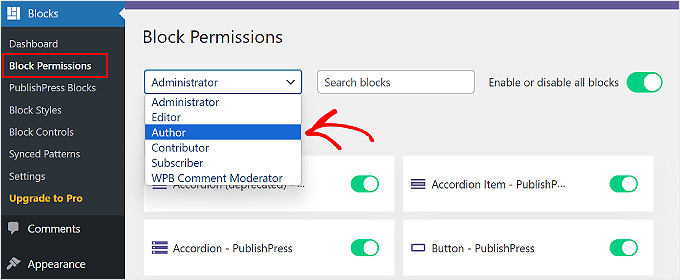
To hide a block from the selected user role, simply click the toggle to disable it.
For example, in the image below, we will disable the ‘Heading’ and ‘Quote’ blocks for any user with the Author role.
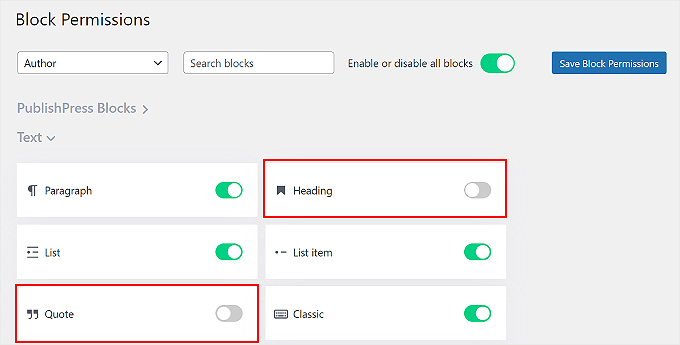
Don’t forget to click the ‘Save Block Permissions’ button when you’re done.
Additionally, you can click ‘Enable or disable all blocks’ to activate or deactivate all of the blocks at once for a specific user role. This feature may come in handy if the user is not supposed to deal with editing your post or page content, like a subscriber
That’s it! You’ve successfully disabled the block for a user role on your WordPress site. Now, you can repeat this to hide or show blocks for other WordPress user roles.
Frequently Asked Questions About Hiding Blocks From Specific Users in WordPress
Here are some questions that our readers frequently ask before hiding specific blocks on their websites:
Can I hide editor blocks in WordPress without a plugin?
Yes, you can hide blocks using custom code by deregistering them for specific user roles. However, this requires adding PHP snippets to your site’s files.
This method can be risky if you’re not a developer. For most people, using a plugin like PublishPress Blocks is the safest and easiest solution.
What happens to existing content if I hide a block?
Hiding a block does not affect content that has already been published. The content in those blocks will still display correctly on your live website.
It only removes the block from the editor for certain users, so they cannot add it to new posts or pages moving forward.
Can I set block permissions for a single user instead of a whole role?
The free version of PublishPress Blocks primarily manages permissions by user role (like Author, Editor, etc.).
To get more specific controls for individual users, you would typically need to upgrade to the premium version of the plugin.
Other Ways to Customize the Block Editor
If you want to add more functionality to the Gutenberg block editor, here are some other ideas you can try out:
- How to Add Collaboration in WordPress Block Editor (Google-Doc Style)
- How to Replace ‘Add Title’ Placeholder Text in WordPress
- Beginner’s Guide to Using the Distraction Free Fullscreen Editor in WordPress
- How to Add a Blog Post Checklist to the WordPress Editor
- How to Create a Custom WordPress Block (Easy Way)
- Ultimate Guide to Customizing the Background Color of WordPress Block Editor
- How to Disable Fullscreen Editor in WordPress
We hope this article helped you learn how to hide blocks from specific users in the WordPress editor. You may also want to see our guide on WordPress post revisions and our expert picks of the best Gutenberg block plugins for WordPress.
If you liked this article, then please subscribe to our YouTube Channel for WordPress video tutorials. You can also find us on Twitter and Facebook.



Have a question or suggestion? Please leave a comment to start the discussion.