


Seeingthe “updating failed” or “publishing failed” message on your WordPress website stops your work in its tracks. Everything seems to be going smoothly, and then, out of nowhere, an error message disrupts your workflow.
We’ve been there and understand the confusion that comes with it. The good news is that fixing these errors is usually simpler than it seems.
Whether it’s a plugin glitch or a temporary network issue, we’ll guide you through each step to troubleshoot and fix the issue.

Quick Answer:
The “Updating Failed” error in WordPress is often caused by:
- A lost internet connection
- REST API blocks
- Plugin conflicts.
We recommend checking your WiFi connection first, then checking your Site Health stats.
What Causes the Updating Failed or Publishing Failed Error in WordPress?
The “updating failed” or “publishing failed” error in WordPress usually happens due to communication issues with the REST API (Representational State Transfer Application Programming Interface). This is the bridge WordPress uses to communicate with the server database.
When this communication breaks down, features like the block editor might not function properly.

If you’re puzzled about why the REST API might not be working, you’re not alone. Even without changes to your site, several situations can affect its performance.
Sometimes, internet connectivity issues are to blame, which are easy to fix by ensuring you’re online. However, the causes can also be more involved.
You might have accidentally changed your site URL, or a plugin could be interfering. Additionally, some third-party services might block API calls, adding an extra layer to the challenge.
Knowing what could go wrong is the first step. Now, let’s walk through troubleshooting and fixing this error with practical methods.
Jump to any method using the quick links if you need specific guidance:
- Step 1: Check Your Internet Connection and Site URL
- Step 2: Update Your WordPress Software
- Step 3: Check REST API Status Using WordPress Site Health
- Step 4: Disable All Your WordPress Plugins
- Step 5: Check Website Firewall Service
- Step 6: Enable and Review the WordPress Debug Log
- Step 7: Temporarily Switch to the Classic WordPress Editor
- Step 8: Increase Your PHP Memory Limit
- Final Step: Ask for Support
- Frequently Asked Questions About WordPress Errors
- Bonus Helpful Guides for WordPress Troubleshooting
Step 1: Check Your Internet Connection and Site URL
The most common cause of a WordPress publishing or updating failure is a loss of the Wi-Fi connection. If your computer loses the internet connection while you are writing a blog post, WordPress will fail to save your changes.
You’ll want to make sure you are connected to the internet by visiting other websites in a new browser tab.
If your internet is working fine, then the next thing you need to check is your WordPress site URL settings.
Go to the Settings » General page and check your ‘Site Address’ and ‘WordPress Address’ settings.
Important: Do not change these fields unless you are certain they are wrong, as this can break your site access. For most websites, these two URLs should match.

If your site URL settings look good and you are connected to the Internet, you can move on to further troubleshooting.
Step 2: Update Your WordPress Software
Sometimes, the updating failed or publishing failed error may occur because you’re using an outdated WordPress version.
An outdated WordPress core can contain bugs that interfere with various functionalities, including publishing. Updating to the latest WordPress version can eliminate these bugs.
Here is a quick way to check for updates:
- Go to Dashboard » Updates.
- Click the ‘Update Now’ button if a new version is available.
- Ensure you back up your site before proceeding.
Backup Your Site Before Fixing Errors 🚦
Before any further troubleshooting, you need to back up your website first. It protects your site from accidental changes that could break it or make it unavailable.
The easiest way to do this is by using Duplicator, which is the best WordPress backup plugin.
With Duplicator, you can clone your site or create a safe restore point in minutes. This ensures that if anything goes wrong during troubleshooting, you can get your site back online instantly.
If updating doesn’t help, you can proceed to the next step.
Step 3: Check REST API Status Using WordPress Site Health
WordPress comes with a built-in site health tool, which shows important information about your site’s security and performance.
Go to the Tools » Site Health page to view the report. If the REST API is not working, you will see it under recommended improvements, such as ‘The REST API encountered an unexpected result.’
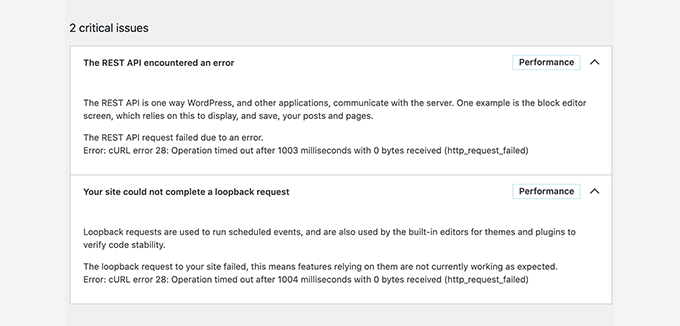
It might also show you debugging information that explains what happened when WordPress made the REST API call. Studying this may give you clues about which plugin or third-party service is causing the issue.
If it doesn’t give you any clues, move on to the next step.
Step 4: Disable All Your WordPress Plugins
In our experience, plugin conflicts are the culprit in the majority of publishing error cases. If a plugin is causing the REST API to misbehave, the easiest way to find it out is by deactivating all your WordPress plugins.
Go to the Plugins » Installed Plugins page and check the box at the top to select all plugins. After that, use the ‘Bulk Actions’ dropdown, select ‘Deactivate,’ and then click ‘Apply’ to deactivate all plugins.
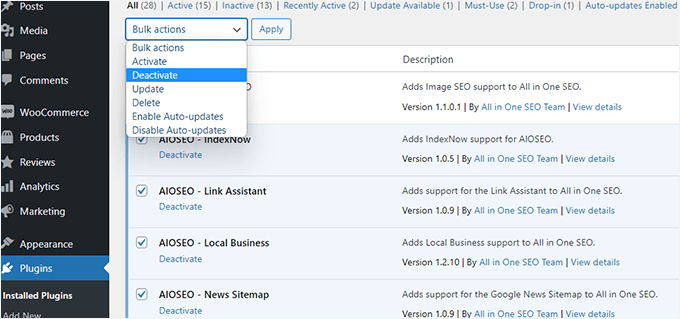
Next, open the post editor and try to update the post. If the ‘Updating Failed’ error disappears, this means that one of your plugins was causing the issue.
You can now start activating your WordPress plugins one at a time and try to reproduce the error. Once you find the plugin causing the issue, you can seek support from the plugin author or find an alternative plugin.
But if disabling all WordPress plugins didn’t remove the error, let’s proceed to the next step.
Step 5: Check Website Firewall Service
If you are using a website firewall service like Cloudflare or Sucuri, there is a chance that these services may block REST API requests.
This could happen if their firewall filters consider your IP address to be suspicious. They may also block REST API requests if your website is currently facing a DDoS attack.
If you are using Cloudflare, you can temporarily disable it to see if it resolves your issue. Typically, you can find your hosting’s Cloudflare settings in the ‘Domains’ section of your hosting account dashboard.
If you are using Sucuri, you can reach out to their support team, and they can whitelist your IP address or let you know what’s causing the issue.
Plugins and firewall services are the most common causes of the ‘updating failed’ error. However, if you still see the WordPress update failed error, there are a few more steps you can take.
Step 6: Enable and Review the WordPress Debug Log
WordPress includes a built-in feature that logs all WordPress errors. It does not log the REST API errors, but it will help you see if there are some other issues causing the error.
Important: Before adding the code below, look for an existing line in your file that says define( 'WP_DEBUG', false );. If you see it, please remove it.
Then, copy and paste the following lines into your wp-config.php file:
// Change WP_DEBUG to true

define( 'WP_DEBUG', true );

// Keep a log of WordPress errors

define( 'WP_DEBUG_LOG', true );
Don’t forget to save your changes and upload the file back to your server. For more information, check out our guide on how to easily enable WordPress debug mode.
You can now try publishing or updating a WordPress post to reproduce the error.
The next step is to connect to your WordPress website using an FTP client or the File Manager app in your hosting account.
Next, go to the wp-content folder. Look for a file named debug.log.
If you don’t see this file, it likely means no errors were recorded. If you do see it, download it to your computer.
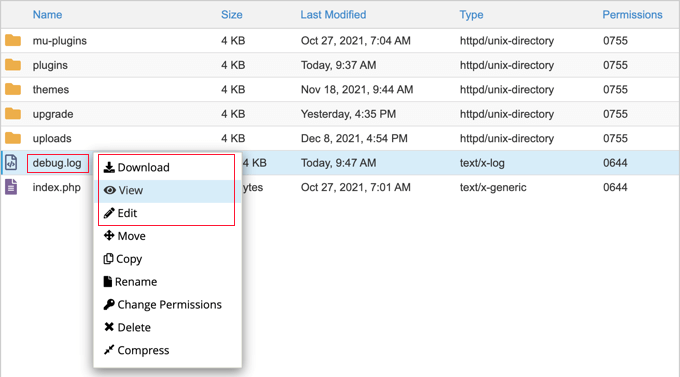
Next, you must open the debug file in a plain text editor like Notepad.
It may contain a few errors, warnings, or notices caught by WordPress as you worked on your site or a user visited it.

If you see something pointing to a plugin or theme file, this can be a useful hint. You can then mention this error when asking for support on WordPress.org forums or from your hosting provider.
Step 7: Temporarily Switch to the Classic WordPress Editor
Enabling the classic editor is a temporary solution. It often works because the Classic Editor relies on older PHP submission methods rather than the REST API used by the block editor.
You can enable it by installing and activating the Classic Editor plugin.
For more details, see our step-by-step guides on how to enable the classic editor in WordPress.
Upon activation, edit the post you were working on. You can then save and publish it without seeing the updating failed or publishing failed error in WordPress.

Step 8: Increase Your PHP Memory Limit
The publishing process in WordPress can involve complex tasks like image processing, plugin execution, and database interaction. All these activities require memory to function properly.
When the PHP memory limit is reached during publishing, WordPress may not have enough resources to complete the task. This can result in various errors, including failing to publish and update.
To solve this problem, you can increase the PHP memory limit to give WordPress more resources to handle the publishing process. We recommend increasing your PHP memory limit to at least 256M (or 512M if available) to ensure the block editor functions correctly.
You can read our guide on how to fix the WordPress memory exhausted error for more information.
Final Step: Ask for Support
If all else fails, you may need to ask for support. You can start by directly contacting your hosting provider. They have access to server logs and additional tools. The error could also be caused by a misconfigured server or a glitch on their end.
You can also seek help on WordPress.org forums or the WPBeginner Facebook Group, where other experts and users can help you fix the error.
For more details, feel free to see our article on how to properly ask for WordPress support and get it.
Frequently Asked Questions About WordPress Errors
1. Why do I keep seeing the “updating failed” error even after checking my internet connection?
This error can occur due to issues beyond just internet connectivity, such as incorrect site URL settings, plugin conflicts, or API communication problems.
2. How can I identify which plugin is causing the REST API issue?
Deactivate all your plugins first. Then, reactivate them one at a time while trying to reproduce the error. This method helps identify the problematic plugin.
3. What should I do if updating WordPress software doesn’t fix the problem?
If updating doesn’t work, continue with other troubleshooting steps, such as checking the REST API status or contacting your hosting provider for assistance.
4. Can switching to the Classic Editor be a permanent solution?
Using the Classic Editor can bypass the REST API issues temporarily, but it’s not a permanent fix. It’s better to resolve the underlying API problem for long-term stability.
Bonus Helpful Guides for WordPress Troubleshooting
We’ve gathered some useful resources to assist you with common WordPress issues.
Whether you’re dealing with website updates or access problems, these guides can be helpful.
- How to Fix WordPress Website Not Updating Right Away
- How to Fix the “Sorry, You Are Not Allowed to Access This Page” Error in WordPress
- How to Fix Broken CSS in the WordPress Admin Dashboard
- 13 Common WordPress Block Editor Problems and How to Fix Them
- How to Hide Blocks from Specific Users in WordPress Editor
We hope this article helped you fix the WordPress updating failed or publishing failed error. You may also want to bookmark our complete guide on the most common WordPress errors and how to fix them, or our complete WordPress troubleshooting guide.
If you liked this article, then please subscribe to our YouTube Channel for WordPress video tutorials. You can also find us on Twitter and Facebook.




AA
It can also help to show web browser developer console (try F12 key or the menu) and Console tab. Reload page and retry to cause output. It may show some error.
WPBeginner Support
Thank you for sharing, that is another option to try for those who are comfortable reading errors in the console
Admin
Shahed Hossain Prem
Thanks man nice and Helpful Article i was encountering this problem this article has help me
WPBeginner Support
Glad to hear our article was helpful!
Admin
Panneer
Thank you for your support.
WPBeginner Support
Glad we could help!
Admin
Gabor Horvath
Thank you for the detailed article.
For me the Updating Failed error was caused by two special emoji-like characters at the end of my blogpost. I deleted them and now everything works fine.
Sunday Zuoke
This is exactly the issue I had. Thanks for pointing that out.
Jiří Vaněk
Thank you for the instructions and description of possible errors. He encountered this problem once. I finally found out that the Twitter feed plugin was causing the problem. So it helped to deactivate the plugin and everything went well. But I can ask about another thing related to the update. Practically every time I update the WordPress core, everything goes fine, but the process says that no key was found. I still haven’t found what the problem is.
WPBeginner Support
From the sound of the error you may want to check any reCAPTCHA you have on your site as that is the first thing that comes to mind.
Admin
Jiří Vaněk
Thank you. Yes, two plugins use reCAPTCHA. I’ll see if there’s a problem here and thanks for the push forward.
Morteza
Hi
Thanks for your useful article…
I troubleshoot this issue by adding a shorter URL for permalink. It seems using long permalink caused the problem..
Regard
WPBeginner Support
Thank you for sharing the issue you ran into in case someone else has the same problem
Admin
Barney Davey
Thanks for the tips. I deactivated all plugins, and the error went away. Then I activated them one at a time and never found the problem. All plugins are active, and the error is gone. Fixed but without knowing the cause. I’ll take that over stressing to fix the problem any day.
WPBeginner Support
While knowing the error would be good, we’re glad to hear you were able to solve the issue!
Admin
A Stuart
I had a major issue with this.
Then I realized I timed out and just logged back in on a new window. I imagine might have lost my work to be updated if I used a separate tab or different machine to log in.
Go figure!
WPBeginner Support
Thanks for sharing your experience with this!
Admin
George Aprilov
Thank you for your advice! I reached Step 3 and followed the tedious process of deactivating and activating the plugins one by one. Finally, I found out that WooCommerce was the reason. Thanks!
WPBeginner Support
Glad our article was able to assist!
Admin