


There’s nothing quite as frustrating as clicking on a post you know exists—only to land on a 404 error page. We’ve run into this issue more than once, and it can feel confusing when nothing seems obviously broken.
The good news? In most cases, you can fix it in under a minute. Just go to Settings » Permalinks and click ‘Save Changes’—that simple step resolves the issue for the majority of WordPress sites.
If that doesn’t work, don’t worry. We’ve put together a step-by-step guide covering every common cause… from plugin conflicts to .htaccess issues so you can get your posts back online fast.
Why Are My WordPress Posts Returning a 404 Error?
A 404 error means the server couldn’t find the page you requested—even though it may exist in your WordPress dashboard. This disconnect usually happens because something has broken the link between your post’s URL and its actual content.
Here are the most common reasons your posts might show a 404 “Page Not Found” error:
- Plugin or theme conflicts: Some plugins or themes can interfere with how WordPress handles permalinks. This can lead to broken links and 404 errors on posts that were working fine before.
- Custom code issues: If you’ve added custom code to your site, even a small error can affect permalinks or cause conflicts that result in 404 errors.
- Problems with your .htaccess file: The .htaccess file controls how WordPress structures URLs. If this file is corrupted, missing, or misconfigured, your posts and pages may return 404 errors.
How to Find All WordPress Posts With 404 Errors
Before jumping into fixes, it helps to know if this error affects just one post or many. Understanding the scope makes it easier to choose the right solution.
We recommend using Google Search Console. If you haven’t set it up yet, see our guide on how to add your WordPress site to Google Search Console.
Once the Google bot has crawled your site, Search Console will show you detailed reports—including any 404 errors it finds.
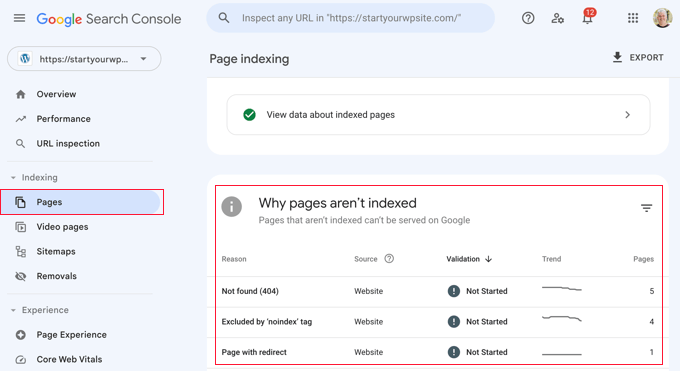
To see which posts are returning errors, log in to your Search Console dashboard. Navigate to the ‘Pages’ report, and you’ll find a list of all flagged URLs.
For more help, check out our tips for using Google Search Console to grow website traffic, which includes advice on fixing 404 errors.
Now, let’s look at how to fix WordPress posts returning 404 errors. You can use the links below to jump to a specific method:
- Method 1: Check for Plugin or Theme Conflicts and Custom Code Issues
- Method 2: Fix Your Permalink Settings
- Method 3: Update the WordPress .htaccess File
- Method 4: Contact Your Hosting Provider
- Method 5: Enable mod-rewrite (Local WordPress Installation)
- Frequently Asked Questions About WordPress 404 Errors
- 🎁 Bonus: Additional Guide on Handing 404 Errors
Method 1: Check for Plugin or Theme Conflicts and Custom Code Issues
Plugins, themes, or custom code can sometimes interfere with permalinks and cause 404 errors. We’ve run into this ourselves when testing tools on our demo sites.
When we troubleshoot, we use a staging environment to safely deactivate plugins one by one. This helps us isolate the problem without affecting the live site.
To try this yourself, start by temporarily deactivating all your plugins. Then reactivate them one at a time, checking after each one to see if the 404 error returns.
If the error appears after activating a specific plugin, that’s likely the cause. You can search for solutions related to that plugin or contact the developer for support.
Your WordPress theme could also be the issue.
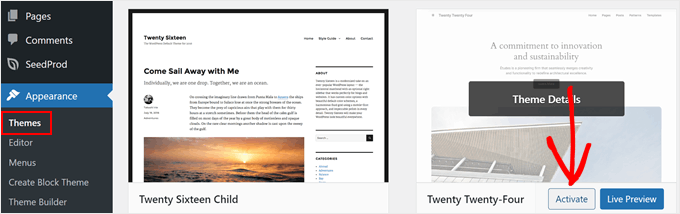
To check, temporarily switch to a default WordPress theme like Twenty Twenty-Three or Twenty Twenty-Four. Go to Appearance » Themes and click ‘Activate’ on a default theme.
If the 404 error goes away with a default theme, your original theme is probably causing the conflict. You can troubleshoot it further or consider switching to a different theme.
For recommendations, check out our expert pick of the most popular WordPress themes.
If you’ve recently added code snippets to your website, review them carefully. Even small mistakes can cause 404 errors.
We recommend using the WPCode plugin for adding custom code. It lets you insert snippets without editing theme files directly, which reduces the risk of breaking your site.
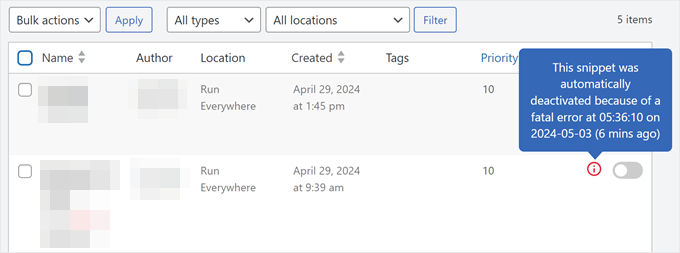
WPCode also detects errors automatically. If something goes wrong, it deactivates the snippet and alerts you. You can even use testing mode to check your code before pushing it live.
If none of these steps fix the issue, move on to the next method where we’ll troubleshoot your permalink settings.
Method 2: Fix Your Permalink Settings
WordPress posts often return 404 errors because of problems with rewrite rules in your .htaccess file. In most cases, you can fix this by simply resaving your permalink settings.
Go to Settings » Permalinks in your WordPress admin and click the ‘Save Changes’ button.
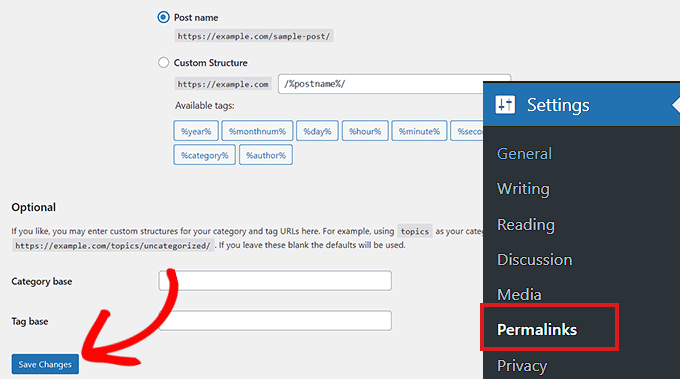
You don’t need to change anything. Just clicking ‘Save Changes’ flushes the rewrite rules (meaning WordPress regenerates the URL routing instructions that tell your server where each post lives).
This simple step fixes the 404 error for most WordPress sites. If it doesn’t work for you, you may need to update your .htaccess file manually.
Method 3: Update the WordPress .htaccess File
Before making any changes, we recommend backing up your WordPress site and your .htaccess file. If something goes wrong, you can easily restore the original.
You’ll need to connect to your server using an FTP client like FileZilla, or use the File Manager in your hosting control panel.
Next, find the .htaccess file (a hidden configuration file that controls how your server handles URLs) in your site’s root folder. This is the same directory that contains folders like /wp-content/ and /wp-includes/.
Right-click on the file and select ‘File permissions’ or ‘Change permissions’ from your FTP client.
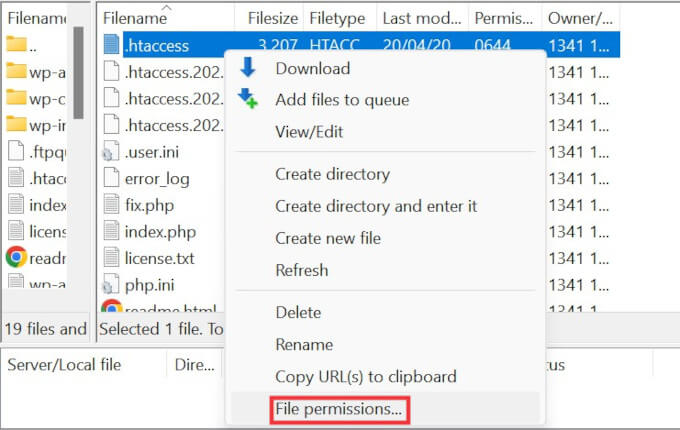
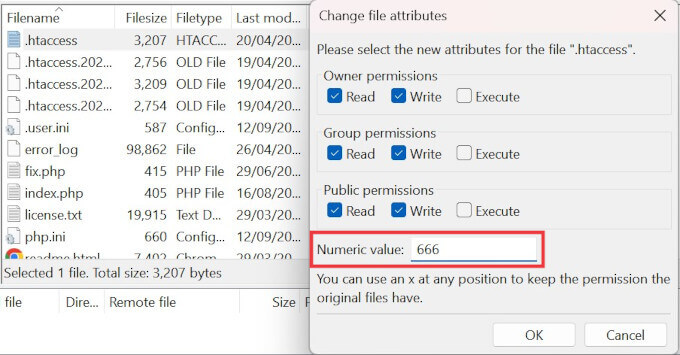
If WordPress couldn’t write to the file before, try changing the permissions temporarily to 666 to make it writable.
Important: Permission 666 means anyone can read and write to the file, which is a security risk. Only use this setting temporarily and change it back immediately after you’re done.
Now, return to your WordPress admin and resave your permalink settings (Settings » Permalinks » Save Changes). This lets WordPress regenerate a proper .htaccess file.
Once that’s done, go back to your FTP client and change the file permissions to 644. This setting allows WordPress to read the file while protecting it from unauthorized changes.
Alternatively, you can edit the .htaccess file manually.
Right-click on the .htaccess file and select the View/Edit option.
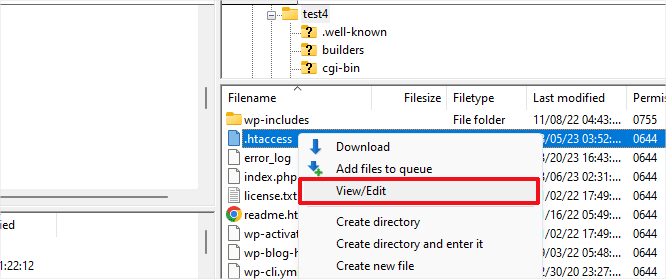
The file will open in a plain text editor like Notepad or TextEdit.
Add the following default WordPress rewrite rules:
# BEGIN WordPress
<IfModule mod_rewrite.c>
RewriteEngine On
RewriteBase /
RewriteRule ^index\.php$ - [L]
RewriteCond %{REQUEST_FILENAME} !-f
RewriteCond %{REQUEST_FILENAME} !-d
RewriteRule . /index.php [L]
</IfModule>
# END WordPress
Save the file and upload it back to your server. Then check if your posts are loading correctly.
Method 4: Contact Your Hosting Provider
If none of the solutions above have fixed the 404 error, we recommend contacting your WordPress hosting provider.
There may be a server-side issue on their end, or they can help you troubleshoot the problem further. In our experience, good hosting support teams can often spot configuration issues that are easy to miss.
For tips on getting help, see our guide on how to properly ask for WordPress support and get it.
Method 5: Enable mod-rewrite (Local WordPress Installation)
If you’re running WordPress on a local server for testing, you’ll need to enable mod_rewrite in your Apache configuration. This applies to MAMP, WAMP, or XAMPP setups.
Enabling mod_rewrite allows WordPress to generate clean URLs and prevents 404 errors on your local posts and pages.
The steps vary by platform. If you’re using XAMPP, open the control panel and click the ‘Config’ button in the Actions column. Then select ‘Apache (httpd.conf)’.
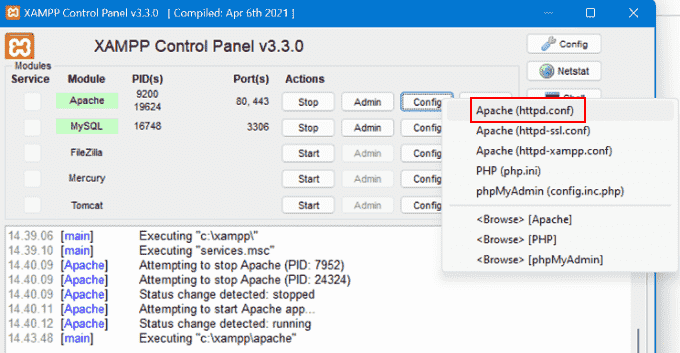
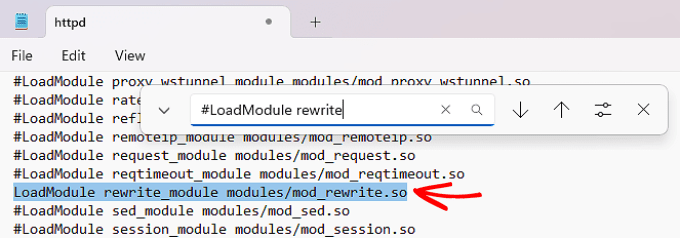
Find this line: #LoadModule rewrite_module modules/mod_rewrite.so
Remove the ‘#’ at the beginning to uncomment it. This enables the mod_rewrite module.
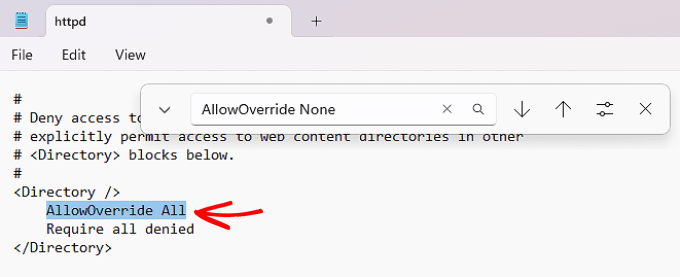
Next, look for lines that say AllowOverride None and change them to AllowOverride All. This tells Apache to allow .htaccess files to control URL routing.
You’ll typically find these inside <Directory> blocks, especially the one pointing to your site’s folder (like htdocs in XAMPP). For local testing, it’s usually safe to apply this change wherever you see it.
Save the httpd.conf file and close it. In the XAMPP control panel, click ‘Stop’ on the Apache module, then click ‘Start’ again to restart it.
Now go back to your WordPress admin dashboard and check if your permalinks are working.
Video Tutorial
If you prefer visual instructions, watch the video below.
Frequently Asked Questions About WordPress 404 Errors
Running into 404 errors on your WordPress site can be confusing. Here are answers to common questions that can help you troubleshoot more effectively.
Why am I getting a 404 error on my WordPress posts?
A 404 error on WordPress posts usually means the server can’t find the page at the requested URL. This can happen due to broken permalinks, a corrupted .htaccess file, deleted posts, or a plugin/theme conflict that changes how URLs are handled.
How do I fix a 404 error in WordPress?
The fastest way to fix a WordPress 404 error is to resave your permalink settings. Go to Settings » Permalinks and click ‘Save Changes’. If that doesn’t work, check your .htaccess file, disable plugins, or switch to a default theme to rule out conflicts.
How can I find all 404 errors on my WordPress site?
Google Search Console is the best way to find 404 errors on your WordPress site. It shows you a list of all 404 errors that Googlebot encounters. You can also use plugins like Broken Link Checker to spot broken links and missing pages.
What does the .htaccess file do in WordPress?
The .htaccess file in WordPress is a configuration file that controls how URLs are processed. WordPress uses it to manage permalink structure and route URLs to the correct content. If this file is missing or corrupted, your URLs may stop working correctly.
How do I safely edit the .htaccess file?
You can safely edit the .htaccess file using an FTP client or your hosting file manager. Always create a backup first. After editing, make sure the permissions are set to 644 so it stays readable and secure.
Why do my WordPress category or tag pages show 404 errors?
WordPress category or tag pages may show 404 errors if your theme doesn’t support archive templates or if permalink settings are misconfigured. Resaving permalinks and checking your theme’s archive support can usually fix this issue.
How do I fix 404 errors for custom post types?
To fix 404 errors for custom post types, go to Settings » Permalinks and click ‘Save Changes’ to refresh rewrite rules. Also check that your custom post type is registered with the correct rewrite settings and has archive support if needed.
Can I redirect 404 pages to my homepage or another page?
Yes, you can redirect WordPress 404 pages using plugins like Redirection. This lets you create 301 redirects from old or broken URLs to new ones. You can also create a custom 404 page to guide users back to useful content.
🎁 Bonus: Additional Guide on Handing 404 Errors
Here are more resources we’ve put together to help you manage 404 errors and other common WordPress issues:
- How to Improve Your 404 Page Template in WordPress (2 Ways)
- Best WordPress 404 Error Page Design Examples
- Best Free 404 Redirect Plugins for WordPress
- How to Get Email Alerts for 404 Errors in WordPress
We hope this article helped you fix WordPress posts returning 404 errors. You may also want to see our guide to the most common WordPress errors and how to fix them, along with our expert picks for the best WordPress plugins to grow your site.
If you liked this article, then please subscribe to our YouTube Channel for WordPress video tutorials. You can also find us on Twitter and Facebook.


Robert
Well, your tip saved me hours of searching – many thanks
Nima Arefi
Thank’s you saved my life :d
Juan
Hello, I have a problem since I migrate the website from localhost to a server, the main page looks good but the menu is not displayed but the links do not work always throws error 404.
They can help me, this is a cause of a migration from a local server.
Marissa
I can’t thank you enough for such a simple tutorial!! Everything else I found made it seem so difficult. I recently switched from http to https and it has been one problem after another..
WPBeginner Support
Hi Marissa,
Glad you found this tutorial helpful. Don’t forget to join us on Twitter for more WordPress tips and tutorials.
Admin
Rick
I didn’t have an .htaccess file so I created one with the info you provided above; then uploaded it and the site works perfectly again. Thanks!
Curtis
Hi I have done all the above and noticed the bit of text to copy and paste was already in there! It still is not working and im stressing out!
Tibi
I’ve done the same thing and nothing changed, the home page still not found
Please contact me if you find a solution
Patrick
Wow. This really saved my bacon. Thank you so much for the tip on simply saving the permalinks page. Incredible advice!
Alexis
hello! i’ve reset permalinks many times to deal with the 404 error. this time when i hit save a file downloaded to my computer: options-permalink.php and the site broke. just got a white screen and each time a file downloaded. finally i got the default permalinks to work but this is not a great solution. does this sound familiar to you? tech support didn’t think it was the .htaccess file but i’m not convinces. moved site from one host to another. any help would be much appreciated.
Mike Birdsall
How do I update settings if I can’t log into the WP admin. I get the 404 error when going to /wp-admin
Kelly
So helpful!! thank you!!!!!!
seun
Hello, please help, i seem not getting solution through this tutorial cos i can’
t access my dashboard, i keep getting this message any site directory i open.
Not Found
The requested URL /index.php was not found on this server.
Additionally, a 404 Not Found error was encountered while trying to use an ErrorDocument to handle the request.
Nukak
if you cannot access your dashboard. your issue is most likely a plugin issue. go to phpAdmin and disable all plugins.
this link might help you https://www.wpbeginner.com/plugins/how-to-deactivate-all-plugins-when-not-able-to-access-wp-admin/
once deactivated and you log back in you can then activiate the plugins that you need. all your initial settings before you got locked out of yur site would still remain in tact. all the best.
Clint
Thank you, just clicking save on my permalink page (which has been customised for years) worked immediately.
Chris Keeble
Perfect!
Clicking Save Changes on Settings > Permalinks works first time.
tamim
Wow! that’s a great solution.
Jason
Hi, I was having the 404 error problem. Homepage works fine, all other links have the 404 error. Tried the method you suggested in wordpress settings permalinks and click save changes but it didn’t work for me.
Saw some post earlier about sync the htaccess file through the webhosting settings page somewhere but don’t really know how to do it. Any advice? Thanks
Mohamad Zidani
Hi
I was using Fv Top Level Cats, when i removed still redirection worked from
example.com/category/tech to
example.com/tech.
i try your solution and it doesn’t work.
Joerg Naussed
the 404 appear right away what happen?
Tamara
That worked!! Thank you
Lijo Jose
Thank you, My problem was solved
Mariana Cervantes
Thank you so much!!!! My problem was fixed with the permalink solution
Michael
If this error is affecting your login page, go to .htaccess and remove:
“deny from all”
“allow from 00.00.00.00”
Matt Kay
Fantastic – I had moved my site from one server to another and started getting worried about 404 errors. The fix worked perfectly – so easy!
Bienvenido
A very simple answer to a hair pulling issue. Thanks a bunch. BTW this issue started after I installed BJ Lazy Loading.
Gail Gardner
Thank you! This did the trick.
Ahmed
Hi, One of my site was hacked. There was few hundreds article inserted. Now those has been removed. Google webmaster console showing those as 404.
How this can affect my site how to fix this?
Thanks
Stephanie
Wow, thank you! This worked perfectly.
Mawuli Tanor
Spot on! On the dot!
First fix worked.
Thanks a lot!
Peter Mazzi
Thanks. pity there’s no rating on this page. *****
David M. Curtis
Thank you for posting this article. I had spent months building a store / blog and today none of my pages or posts were working other than the front home page, all other links were taking me to a 404 error page. I was about to start completely over – re-peat months of work. This article saved my site. Now everything is working again. I can’t thank you enough.
WPBeginner Support
Hi David,
We are glad you found the article helpful Don’t forget to join us on Twitter for more WordPress tips and tutorials.
Admin
Robin
Hi there, completely stuck here, not a computer guy at all so it’s all greek to me. my homepage is good but I’ve created another 5 pages such as blog post, services, etc. and every time I try to view the page I’ve just created I get NOT FOUND The requested URL /services/ was not found on this server.” I’ve tried saving changes didn’t make any difference and I have no idea what an FTP is. Any help ? thx
WPBeginner Support
Hey Robin,
Try updating your permalink structure. Simply visit Settings » Permalinks and then click on the save changes button without changing anything.
Admin
Preet Karan
Hi everyone,
i installed yoastseo plugin. i generated the XML site successfully, but when i tested it on google search console it is showing 404 error.
i tried the method listed in article but the problem still persist.
also i need to mention that in the CCpanel there are two files of the same name htaaccess and htaaccess.1 (with the same code written that has been mentioned by article above ); is it normal,
can you help me wth the issue
David
I can’t believe just clicking “Save Changes” worked. Thanks!
jorge
hello there im I would really appreciate help I followed the instructions on saving changes on permalinks not a computer person so do not know how to do the other after is showing me this
Fatal error: Class ‘Epsilon_Editor_Custom_Control’ not found
WPBeginner Support
Hi Jorge,
It looks like a plugin on your website is causing the error. You need to deactivate all plugins installed on your website, and then reactivate them one by one until you find the plugin causing the error. See our guide on how to deactivate all plugins when not able to access wp-admin for detailed instructions.
Admin
yugal joshi
great man..thank you much.. i open my site but its throwing 502 error then 503 error and then lastly 500 error..then i solve the problem of 500 from cpanel threw ur post.
but when i open my post pages its showed 404 error then i googled it and find ur post…thanks…
Bren
In the event this is a new server, or an Apache upgrade you may have to check the following:
Open the httpd.conf ie: /etc/httpd/conf/httpd.conf.
Change the AllowOverride None to AllowOverride All.
Save changes
Restart the Apache server.
Mariyam
Wow, as easy as that, Thank you!
Ashley Adams
Having a little trouble… After I hit save changes on the permalink page, another 404 error popped up.
Katherine
This just saved me hundreds of dollars in help. <3
James V
Quick fix…thanks for the help!
marco
still having problems, not sure what to do, i followed steps above, and get same results. my web host company uses windows 2012 server so no .htaccess file. so many of these help posts refer to .htaccess which windows does not use. they use the web.config file i think, is that correct? please help
marco
I have followed the above steps, but still does not work. I am on windows 2012 R12 server and do not have a .htaccess file, even while in FTP force hidden files to display . are there instructions on how to fix this problem when on windows server
WPBeginner Support
Hey Marco,
First you need to download a backup of your existing web.config file to your computer. After that you need to edit the file on your server and add following rule to the system.webServer element:
<?xml version="1.0" encoding="UTF-8"?> <configuration> <system.webServer> <rewrite> <rules> <rule name="WordPress Rule" stopProcessing="true"> <match url=".*" /> <conditions> <add input="{REQUEST_FILENAME}" matchType="IsFile" negate="true" /> <add input="{REQUEST_FILENAME}" matchType="IsDirectory" negate="true" /> </conditions> <action type="Rewrite" url="index.php" /> </rule> </rules> </rewrite> </system.webServer> </configuration>1-click Use in WordPress
Admin
Salami
Hi WPBeginner Support. I have tried all the solutions pasted on this blog to solve the same problem(404 error on wordpress) am confronting now since two days, but i haven’t got it right. Am developing my website with windows platform using wordpress. Please what other thing I should do to solve this problem?
Thanks in anticipation to your response.
Dale
Amazing help thank you! As simple as clicking save!
david c
worked like a charm – thank you thank you!
Tom
Many thanks,
Worked a treat!
Michelle
I want to hug you for all your extremely helpful posts. Thank you very much!!!
Steve Andrews
I migrated a site to, imported the mySQL DB and uploaded the entire file structure of the wordpress directory.
I still got a 404 error for everything but the home page, and re-saving the config in the permalinks section did not work.
What worked for me was renaming the htaccess file on the FTP site to htaccessOLD so it would not be referenced, but I still have it backed up if needed, then I went and saved the permalink options, had to chose what type of link I wanted (IE date, page no or description). Once I saved all the pages were back up and running.
Thanks for the post, it gave me the pointers to find this and fix it.
Rene
I followed the exact steps but unfortunately they don’t work for me. I keep getting errors 404 despite saving my permalink info, removing .htaccess and re-generating it. I am able to view my home page, but as soon as I want to visit a sub page, the error 404 pops up. I also tried switching to WPs default themes, also that doesn’t help. Are there any advices for “advanced” bug solving in case of 404 errors?
WPBeginner Support
Hey Rene,
Try updating WordPress URLs by visiting the Settings > General page. Make sure that your site and WordPress URL are the same.
Admin
sampurna
Hey. I have a little problem with 404. I had changed the permalink of a single post. now for a certain keyword google is displaying the same post in two different positions with same title but different url and one has 404 error. please help.
WPBeginner Support
Hi Sampurna,
You can setup a redirect for the URL returning 404 error. See our guide on how to setup redirects in WordPress.
Admin
Rene
Not needed, problem is fixed. I coincidentally found out that my host is reading a different .htaccess file than the one that WP generates. So a “sync” had to be done via their webhosting portal, that was all. Now it works, thanks a lot anyway and perhaps this alternative solution is still useful for other to know that may have a similar setup by their host. Rgds!
Carey
Same here! Needed to ‘sync’ the htaccess file through the webhosting settings page somewhere… thanks for the tip!
Rajinder S. Gill
This was quick. Thank you
Lois
You saved my life today. I was at the verge of crying because after creating a post, I was unable to read the post. it returned 404 error. I eearched several websites for answers but your post was well explicit and once I changed the permalink structure, it worked. Thank you thank you.
Kaylee
I’m still now following at where you exactly change the permissions at. Could you please explain?
Mike lavie
The solution: Login to your server using FTP, and modify the folders like /wp-content/ and /wp-includes/ are located. The easiest thing you can do is to temporarily make the file writeable by changing the permissions to 777. Then repeat the original solution.
Go to Settings » Permalinks, and simply click on Save Changes button.
Don’t forget to change the permissions back to 755 ( /wp-content/ and /wp-includes/ ).
I do it for is perfect now!
Lukas
Great, that help a lot!