


Imagine logging in to your WordPress dashboard and finding out that an important plugin is completely missing. It’s a stressful moment that can disrupt your workflow, especially if that plugin powers a contact form or sales page.
At WPBeginner, we have helped countless users troubleshoot this exact mystery. Often, the plugin hasn’t been deleted; it is simply hidden due to a permission error or a background conflict.
In this guide, I will share the proven steps to locate your missing plugins and restore them to your dashboard.
Key Takeaways (Quick Summary):
- Check Permissions: Ensure your user account has the correct role to view plugins.
- Rule Out Conflicts: A glitch with another plugin might be hiding the menu item.
- Clear Caches: Your browser or site cache might be showing an outdated version of the admin panel.
- Scan for Malware: Security breaches can sometimes hide plugins to prevent detection.
Why Do Plugins Disappear From the WordPress Dashboard?
When a plugin quietly disappears from the dashboard, it can break important features without you realizing it. You might only notice something’s wrong when a form stops working, or a section of your site goes missing.
I’ve seen this happen for all kinds of reasons. Before you panic, I recommend quickly checking your Plugins » Installed Plugins list.
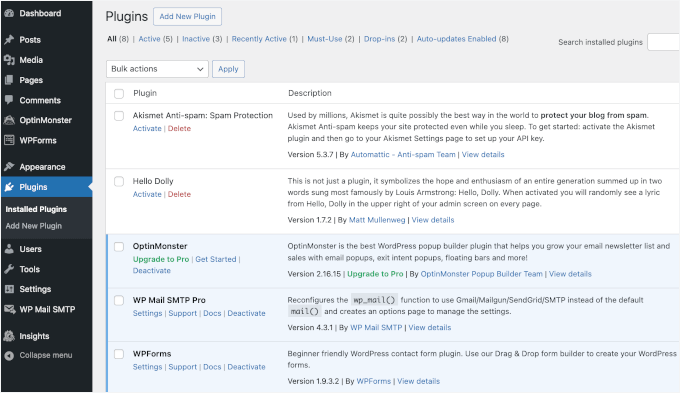
Sometimes the plugin is simply deactivated, not missing.
If it is in the list but inactive, you can just click “Activate.” If it isn’t there at all, or if the “Plugins” menu itself is gone, here are the most common causes:
- Plugin Conflicts: A plugin can become hidden or stop working if its files are corrupted, or if it conflicts with another plugin or your WordPress version. Here’s how to spot plugin conflicts.
- Security Issues: In rare cases, malware or a hacked site can forcefully remove or hide plugins. This usually happens when the site’s core files have been altered.
In the next steps, I’ll go through how to fix each of these and bring your plugins back where they belong:
- Check Permissions for User Roles in WordPress
- Deactivate All WordPress Plugins to Resolve Conflict
- Clear Your Browser and WordPress Cache
- Perform a Security Scan of Your WordPress Site
- Frequently Asked Questions About Disappearing WordPress Plugins
- More Help With WordPress Plugin Errors and Best Practices
1. Check Permissions for User Roles in WordPress
At times, website owners or clients will prevent other users from viewing and changing the plugin settings. This prevents accidental changes that could break the site or cause security breaches.
This is common if you have a multi-author website or you’re working on a multisite network.
The first step is to check if you have the correct user role. A user role is a set of permissions assigned to your account that controls exactly what you can see and do on the site.
If you cannot see the Plugins menu in your sidebar, look for the Users menu. If you can access Users » All Users, check the ‘Role’ column next to your username.
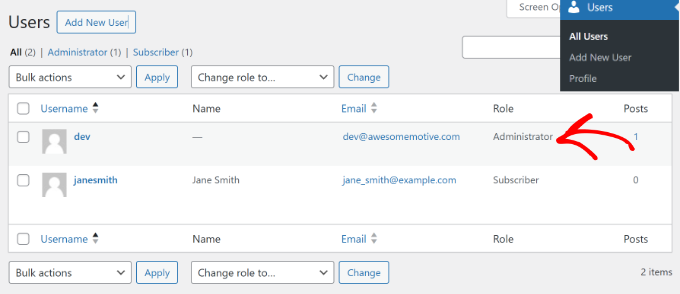
If you cannot see either the Users menu or the Plugins menu, it confirms you do not have Administrator permissions. In this case, you must contact the site administrator to have your permissions fixed.
However, if you are the administrator and your permissions are correct, the issue likely stems from a conflict or error. Let’s look at how to fix that next.
2. Deactivate All WordPress Plugins to Resolve Conflict
Another reason a plugin might disappear from the WordPress dashboard is a conflict with another plugin on your site.
In my experience resolving these issues, I have found the most reliable method is to deactivate all the plugins on your website. Before doing this, I strongly recommend creating a full backup of your site using a tool like Duplicator.
To deactivate all the plugins, simply go to Plugins » Installed Plugins from the WordPress dashboard and select all the plugins by clicking the checkbox.
From here, you can click the ‘Bulk actions’ dropdown menu at the top and select the ‘Deactivate’ option.
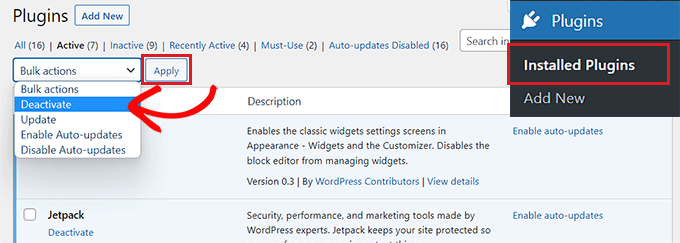
If the missing plugin (or its menu item) reappears after you deactivate everything, this confirms that a conflict was hiding it. You can then reactivate each plugin one by one to find the specific one causing the issue.
If you’re locked out from accessing the WordPress admin panel, then you’ll need to connect to an FTP client or File Manager tool in your web hosting cPanel.
This way, you’ll be able to access all the plugins and deactivate them manually. To learn more, please see our guide on how to deactivate all plugins when not able to access wp-admin.
3. Clear Your Browser and WordPress Cache
You can also try logging out of your WordPress site and clearing the browser cache to fix disappearing plugins from the dashboard.
Browser cache is a technology used by popular browsers that stores website data on a user’s computer to speed up page loading. Sometimes, your browser may load an outdated cached version of the page where the plugin’s menu link is not yet visible.
Clearing the browser cache forces your browser to load a fresh copy of the website. In Google Chrome, you can click the three-dot menu icon in the top right corner and select the ‘Clear browsing data’ option.
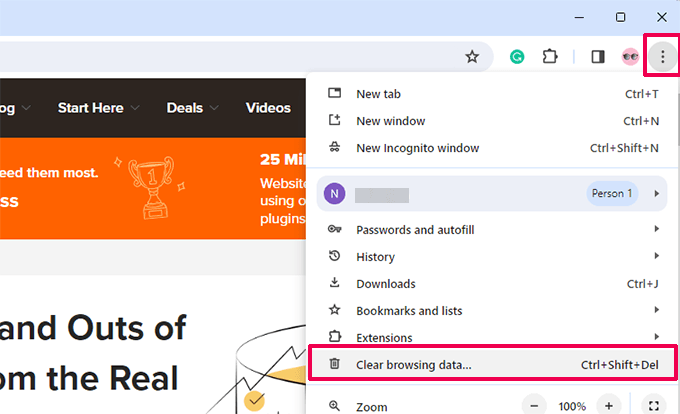
Next, you will see the Clear browsing data settings page popup.
You can switch to the ‘Basic’ tab and click the ‘Cached images and files’ checkbox. You can also select the time range, clear browsing history, and select cookies and other site data.
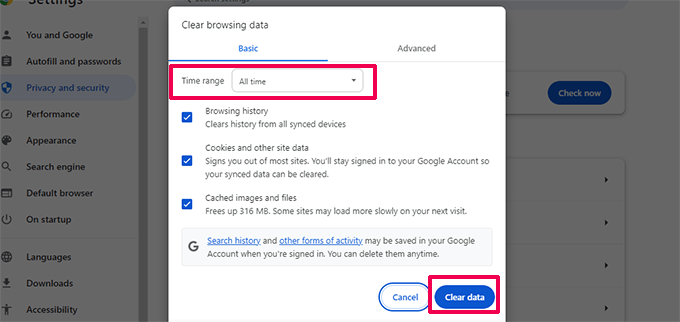
Once you’ve selected the options, simply click the ‘Clear data’ button.
After that, log in to your website and open the WordPress dashboard to see if the plugin that disappeared has returned.
For more details on other browsers, please follow our guide on how to clear cache in all major browsers.
If this doesn’t work, then you can also try clearing the cache in WordPress using your caching plugin or from your WordPress hosting.
Caching in WordPress works similarly to browser caching, where a static version of your site is stored and displayed to users instantly. This helps improve the speed and performance of your site.
Usually, your site needs a caching solution like WP Rocket. Some WordPress hosting providers also offer built-in caching solutions.
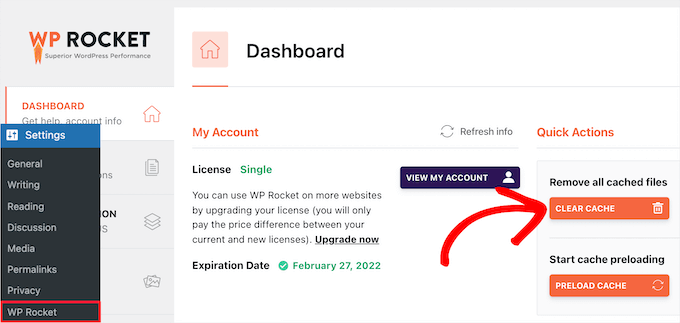
If your plugins are not showing in the WordPress dashboard, then you can simply clear the cache in WordPress. For instance, if you’re using WP Rocket, then you can go to its settings and click the ‘Clear Cache’ button.
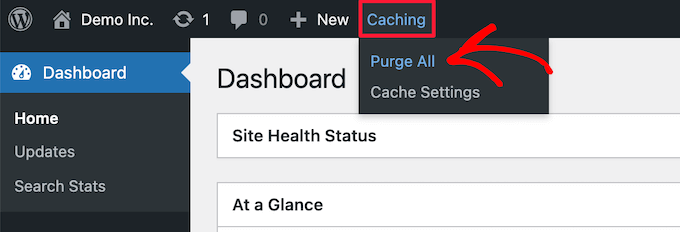
If you’re using Bluehost as your web hosting provider, you will see a ‘Caching’ option in the top admin toolbar.
Simply hover over it and click the ‘Purge All’ option.
You can follow our guide on how to clear cache in WordPress to learn more methods.
4. Perform a Security Scan of Your WordPress Site
In some cases, plugins may keep disappearing from the WordPress dashboard because malware or malicious code has been injected into your site.
To make sure that your site hasn’t been compromised, you should perform a scan for potential malicious code. I personally use and recommend tools like Sucuri or Wordfence to detect these issues.
To learn more, please see our guide on how to scan your WordPress site for malicious code.
Once you’ve detected malicious code or malware, you can use the security plugin to remove and clean up your site. After removal, you can access the admin panel and see if it fixed the issue.
Frequently Asked Questions About Disappearing WordPress Plugins
Here are some quick answers to common questions we hear about plugins disappearing from the WordPress dashboard:
1. Can automatic updates cause a plugin to disappear?
Yes, but it’s rare. Sometimes a plugin update fails or becomes incompatible with your current WordPress version. If that happens, the plugin may deactivate itself or stop appearing in the dashboard.
2. Will reinstalling the plugin bring it back?
It can, as long as the issue isn’t related to user permissions or malware. Reinstalling helps if the plugin files were corrupted or deleted during an update or conflict.
3. Can my hosting provider hide or remove plugins?
Yes. Some managed WordPress hosts automatically disable plugins that are known to cause performance issues. Common examples include duplicate caching plugins, certain backup plugins, or heavy related-post plugins.
4. Is it safe to delete and reinstall a plugin?
In most cases, yes. But deleting a plugin might also remove its settings or data, depending on how it was built. Before deleting, check the plugin’s documentation or take a full site backup just to be safe.
More Help With WordPress Plugin Errors and Best Practices
If you’re still working through plugin-related issues or want to avoid problems down the road, these guides can help.
I’ve linked some of our most popular tutorials on troubleshooting, choosing, and managing plugins the right way:
- Most Common WordPress Errors and How to Fix Them
- Why Can’t I Add or Install Plugins in WordPress? (5 Reasons)
- Must Have WordPress Plugins for Every Website
- How Many WordPress Plugins Should You Install? What’s too many?
- How to Properly Update WordPress Plugins (Step by Step)
We hope this article helped you learn how to fix plugins disappearing from the WordPress dashboard. You may also want to see our guide on how to fix the ‘your connection is not private’ error and our ultimate guide to WordPress maintenance.


Moinuddin Waheed
User roles are also one of the reasons why plugins doesn’t show up in the dashboard.
So anything less than admin role wouldn’t be able to make changes in the plugin.
So it is good practice to check the user roles and permissions before any other fixes.
Jiří Vaněk
Does it make sense in this case to try clearing the cache and DNS in the Windows environment using the command prompt if clearing the browser cache didn’t help, or will this not affect the network cache? Additionally, if the website uses a CDN, should the CDN cache be cleared as well? Just to make sure I eliminate all cache-related issues. Or are these just details that won’t matter if clearing the cache on the website and in the browser doesn’t help?
WPBeginner Support
You could try clearing your CDN but in most cases we would not recommend going through your command line to clear your Windows DNS.
Admin
Moinuddin Waheed
I don’t think that clearing the cache in the windows environment using command prompt would work.
Plugins disappearing is caused inside the dashboard and the files are hosted on some server.
So, clearing the website cache and the browser cache make sense to avoid this issue if it is caused by cache.
I most cases this issue appears because of corrupted plugins and installing one by one would help fix the issue.