


I still remember the frustration of sharing a new blog post on Twitter, only to see a broken image placeholder instead of our carefully designed graphic. It’s a small glitch that can make your brand look unprofessional and cost you valuable clicks.
This happens when X (formerly Twitter) can’t find the right data on your site, and it’s a common headache for many WordPress users. A missing image can seriously hurt the engagement your content deserves.
At WPBeginner, we’ve troubleshooted this exact issue countless times on our own sites and for our readers. The good news is that there’s an easy fix, and we’ll walk you through it step-by-step.

Why Are Twitter Card Images Broken for Some Websites?
The root cause of broken Twitter Card images is often missing metadata. When you share a link on X, the platform looks for specific ‘Twitter Card’ tags (which are similar to Open Graph meta tags) in your website’s code to know which image and text to display.
Here’s the problem: WordPress doesn’t include Open Graph meta tags out of the box. Without these tags, X has no way of knowing which image represents your content, so it either shows a broken placeholder or no image at all.

This broken experience can seriously hurt your social media performance.
When your links look unprofessional compared to competitors who have proper Twitter Cards, you lose credibility and clicks.
We’ve seen websites increase their social media click-through rates just by fixing this issue.

The good news is that fixing broken Twitter Card images is easy once you know what to do. Let’s walk through the most effective solutions we’ve tested across hundreds of WordPress sites.
Here is a quick overview of the topics we will cover in this article. You can jump to the section that interests you or follow the instructions step by step:
- Fixing Broken Twitter Card Images Using All in One SEO
- Setting a Default Twitter Card Image
- Setting a Default Twitter Card Image for the WordPress Homepage
- Using a Custom Twitter Card Image for Each WordPress Post or Page
- Setting Custom Twitter Card Images for Categories & Tags
- Testing That a Post Has a Valid Twitter Card Image
- Troubleshooting Broken Twitter Card Images in WordPress
- Frequently Asked Questions (FAQs)
- Additional Resources
Fixing Broken Twitter Card Images Using All in One SEO
First, you need to install and activate the All in One SEO for WordPress plugin. For more details, see our step-by-step guide on how to install a WordPress plugin.
All in One SEO is the best WordPress SEO plugin on the market. It lets you easily optimize your WordPress website for search engines and social media platforms, including X. It works by automatically adding the hidden code (called meta tags) that X needs to read your content properly, so you don’t have to touch a single line of code yourself!
Note: There’s also a free version of All in One SEO that you can use to fix Twitter card images. However, the Pro version comes with more powerful SEO features.
For the sake of this tutorial, we will demonstrate the Pro version because that’s what we use, but the instructions are similar for the free version.
Upon activation, you need to visit the All in One SEO » General Settings page to enter your license key. You can find this information in your account on the AIOSEO website.
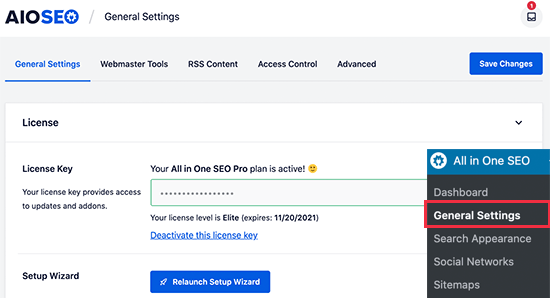
All in One SEO gives you complete control of which images will be used with Twitter cards on your website. We will walk you through all the steps.
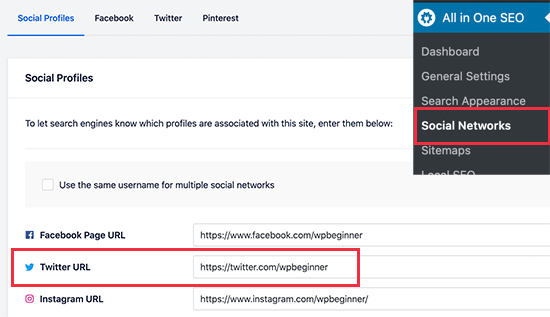
First, you need to add your social media profile URLs. These will associate your website with your X (Twitter) profile and other social media platforms.
Simply go to the All in One SEO » Social Networks page and enter your social media profile URLs, including X.
Setting a Default Twitter Card Image
Next, you need to switch to the ‘Twitter’ tab and click the toggle next to the ‘Enable Twitter Card’ option.
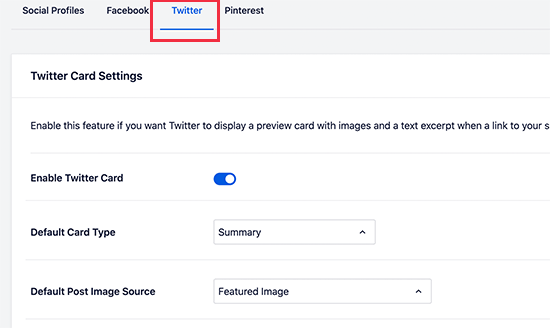
Below that, you will see the default settings for Twitter summary cards, which will work for most websites, but you can change them as needed.
In particular, you will want to change the ‘Default Post Image Source’. All in One SEO gives you a bunch of options.
For instance, you can choose the featured image, attached image, first image in content, image from a custom field, post author image, or first available image.
We recommend using the featured image, as most WordPress themes support featured images that are suitable for Twitter card images.
Below that, you will find the option to select a default term image source. This image is used when someone shares a URL to a category, tag, or other taxonomy term archive page.
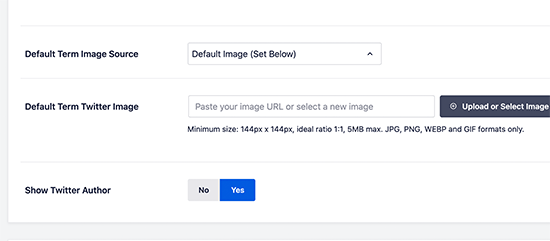
You can upload a default image here, or you can upload a custom image for each category or tag. We will show you how to do that later.
After selecting the default Twitter card image source, don’t forget to click on the ‘Save Changes’ button to store your settings.
Setting a Default Twitter Card Image for the WordPress Homepage
Now let’s take a look at how to set a default Twitter card image for your website’s homepage.
If you are not using a static homepage, then you can set a default Twitter card image directly from the All in One SEO » Social Networks page under the Twitter tab.
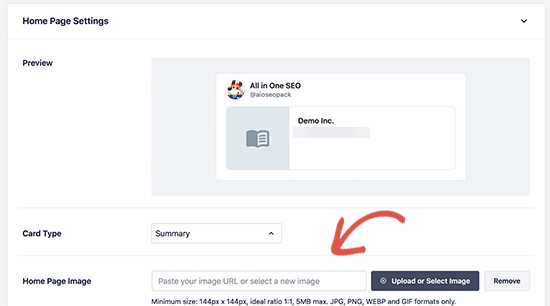
However, if you are using a static front page (under Settings » Reading), the process is a little different. Because your homepage is a specific ‘Page,’ you will set its Twitter Card image directly in the page editor. AIOSEO provides a handy link to take you right there.
In that case, you will see the link to edit your homepage settings directly.
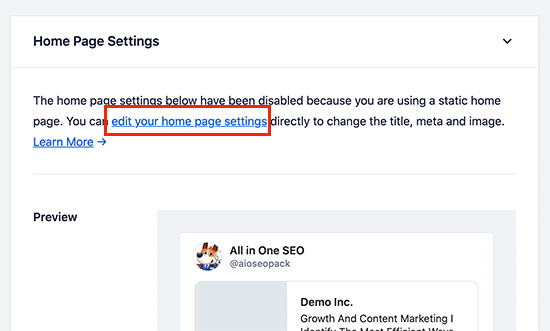
On the page edit screen, simply scroll down to the ‘AIOSEO Settings’ box below the content editor.
From here, you need to switch to the ‘Social’ tab and then select Twitter.
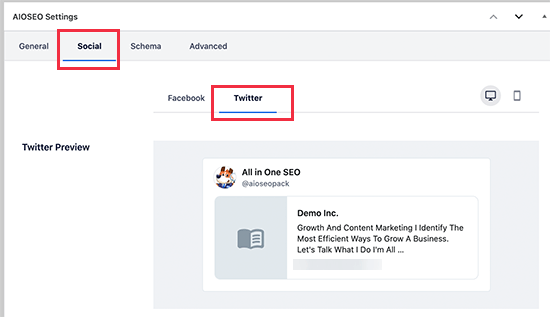
Under Twitter settings, you can override the default options.
Here, you can provide a custom Twitter card image to be used specifically for your homepage.
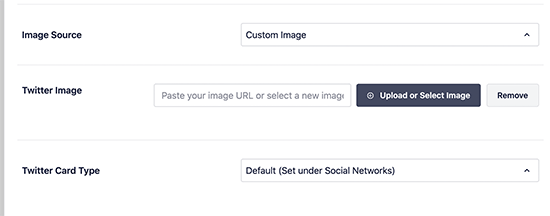
Simply click on the dropdown menu next to ‘Image Source’, and you will see a bunch of options to choose from. You can pick one of the options or upload a new image that you would like to use.
Once you are done, don’t forget to update and save your changes.
Using a Custom Twitter Card Image for Each WordPress Post or Page
A lot of bloggers like to create custom social media images for different platforms like Facebook, X, Pinterest, and more.
All in One SEO makes it easy to override your default Twitter card image settings and provide a custom image for any post or page.
Simply edit the post or page and scroll down to the ‘AIOSEO Settings’ box below the content editor. From here, you need to switch to the ‘Social’ tab and then select ‘Twitter’.
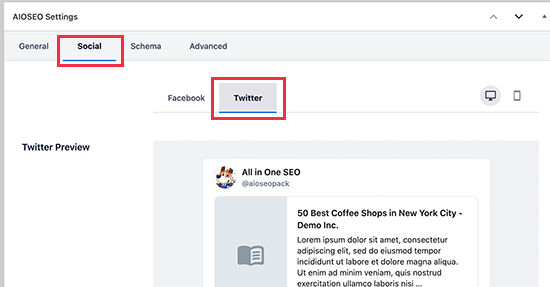
Next, you can set custom Twitter Card data, including a custom image to be used specifically for this article.
Simply scroll to the ‘Image source’ section and click on the dropdown menu.
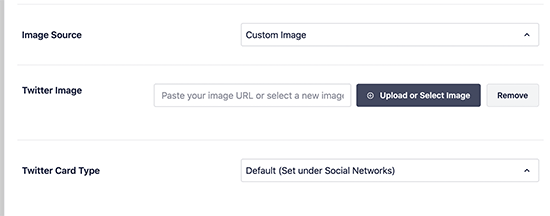
You can choose one of the provided images or select ‘Custom Image’ to upload a new image.
After that, you can just click on the ‘Upload or Select Image’ button to upload an image from your computer or use one from your WordPress media library.
Once you are finished, don’t forget to update or publish your post or page to save your changes.
Setting Custom Twitter Card Images for Categories & Tags
Just like posts and pages, All in One SEO also makes it easier to upload a custom image for individual categories, tags, WooCommerce product categories, and other taxonomies.
Simply go to the Posts » Categories page and click on the ‘Edit’ link below the category where you want to upload a custom Twitter card image.
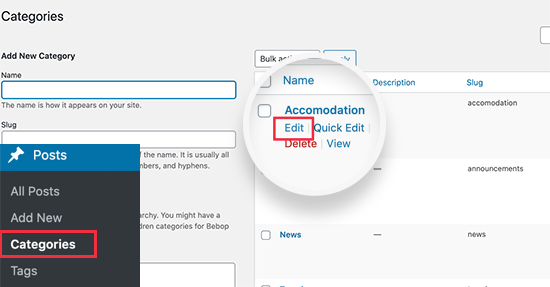
This will take you to the ‘Edit Category’ screen, where you need to scroll down to the ‘AIOSEO Settings’ box.
From here, switch to the ‘Social’ tab and select ‘Twitter’ under it.
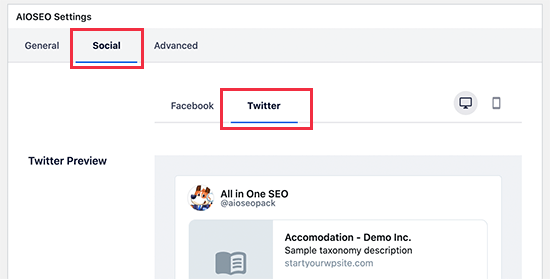
Now, you need to scroll down to the ‘Image Source’ section and click on the dropdown menu.
You can choose one of the supplied image options or select ‘Custom Image’ to upload a new Twitter image.
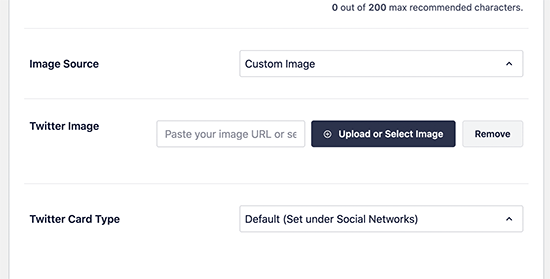
After that, you can just click on the ‘Upload or Select Image’ button to upload an image from your computer or use one from your WordPress media library.
Once you are finished, don’t forget to click on the ‘Update’ button to save your changes.
Testing That a Post Has a Valid Twitter Card Image
Once you have set up your Twitter Card images, you will want to test them. The official tool for this is the Card Validator.
Important: This tool no longer shows a visual preview. Its main job is to check your URL for errors and, crucially, to refresh X’s cached version of your link.
First, go to the X Card Validator website. Paste the URL of your post into the ‘Card URL’ field and click the ‘Preview card’ button.
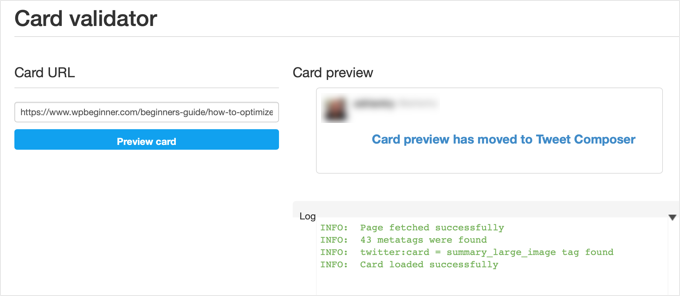
The validator will show a log below. As long as it says ‘Card loaded successfully’ and you don’t see any errors, you are good to go!
To see an actual visual preview of your card, simply go to X.com, start composing a new post, and paste your URL. The card will appear in the compose box, showing you exactly how it will look on the timeline.
Troubleshooting Broken Twitter Card Images in WordPress
If you followed the above steps and still can’t see the correct Twitter card image, then you can try these easy tips for troubleshooting the card error.
Clear the WordPress Cache
The most likely cause of broken images on X is WordPress caching plugins. Even though you have set the Twitter card image in All in One SEO, your cache plugin may still be showing an outdated version.
To fix this, you need to clear your WordPress cache and then test again using the Twitter Card Validator tool.
Choose the Correct Image Sizes
Make sure that the image you are using meets X’s guidelines. For a large summary card, the ideal size is 1200 x 600 pixels (a 2:1 ratio). All images must also be less than 5MB in size.
Tip: You can learn all about social media image sizes in our ultimate social media cheat sheet for WordPress beginners.
Frequently Asked Questions (FAQs)
Here are some of the most common questions we get asked about fixing Twitter card images in WordPress.
1. What is the correct image size for Twitter cards?
For the best results with a large image preview, X recommends using an image with a 2:1 aspect ratio. The perfect size to aim for is 1200 x 600 pixels. This size ensures your picture looks sharp and professional without being cropped. Also, make sure your image file is under 5MB.
2. How can I test my Twitter card to see if the image is working?
You can use X’s official Card Validator tool. Just paste your post’s URL into the tool to check for errors and refresh X’s cache. To see a visual preview, you can paste the URL into the post composer on X.com.
3. I fixed the image, but Twitter still shows the old one. How do I fix this?
Twitter caches images and data for about 7 days. If you’ve updated your image, you need to clear this cache. Simply run your URL through the Twitter Card Validator again to force Twitter to fetch the latest version of your card.
4. Why are my Twitter card images blurry or cropped incorrectly?
Blurry or poorly cropped images are usually caused by using a low-resolution photo or one that doesn’t fit the 2:1 aspect ratio. To ensure your images look sharp, use a high-quality photo that is at least 1200 pixels wide.
Additional Resources
Now that you’ve fixed your Twitter card images, you may want to check out these other guides to further improve your social media presence and website performance:
- Beginner’s Guide to Troubleshooting WordPress Errors
- How to Fix Facebook Incorrect Thumbnail Issue in WordPress
- The Complete Social Media Cheat Sheet for WordPress (Updated)
- How to Add Social Share Buttons in WordPress
If you liked this article, then please subscribe to our YouTube Channel for WordPress video tutorials. You can also find us on Twitter and Facebook.




Jiří Vaněk
I had the same problem with Yoast seo. Each article was set up the same. For some, the image was loaded and for some not at all. Settings the same. I never got to the source of the problem. The social card was filled out in the advice. the problem was completely eliminated only by replacing Yoast seo with AIO SEO.
Abdullah
I did all these, it doesn’t solve the problem.
WPBeginner Support
Please ensure you’ve cleared all caching for your site before using the card validator as that is the most common reasons that it does not update.
Admin