


Before using a contact form plugin, we used lots of Google Forms to collect data and feedback from users. Back in the day, adding a Google Form to WordPress meant dealing with messy HTML and just hoping nothing broke.
But now, we’re happy to say things have gotten so much easier.
Google Forms is still one of our favorite tools for collecting feedback, running surveys, and handling event signups across multiple sites. It’s free, reliable, and you only have to create one form that you can use anywhere.
In this quick guide, we’ll show you the simplest way to embed a Google Form in WordPress. We’ve helped lots of people set this up, and it just requires a few easy steps. 🙌

Why Use Google Forms Instead of a WordPress Form Plugin?
You might choose Google Forms when you need a form that’s easy to share anywhere and want all responses stored in one central place.
Now, WordPress contact form builder plugins like WPForms are excellent plugins for site owners who want full control.
They let you accept payments, show special offers, create a custom login, or even allow user registration. All without leaving your WordPress dashboard.
But if your goal is to collect responses from multiple websites, email lists, or social platforms, Google Forms can be the simpler choice. It’s easy to share, works great on mobile, and automatically saves all submissions to your Google Drive.
Plus, you can add collaborators to help manage and review responses together.
So, let’s look at how you can add a Google Form to your WordPress site. Here’s a quick overview of all the things we’ll cover in this guide:
Let’s get started.
How to Embed a Google Form in WordPress
To get started, you can navigate to the Google Forms website and click the ‘Go to Forms’ button.

Next, you’ll see different Google Form templates.
You can choose a template you like, or start with a blank one to create your own custom form.

Creating a new form in Google Forms is actually quite simple.
You just need to add a form title and description, then start adding your questions.
As you type your questions, Google Forms is smart enough to automatically suggest the best field type (like multiple choice or a short answer), but you can easily change it if you need to.

To add more fields, you can click the ‘+’ button on the right to add more fields. You can also add images, videos, or choose different types of questions.
When you’re happy with your form, hit ‘Send’ to get the code you’ll need to embed it.

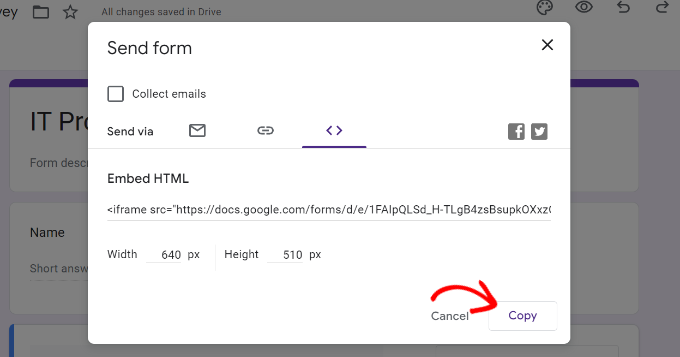
This will bring up the send form popup, where you’ll want to switch to the embed tab (the one that looks like < >).
Before you click ‘Copy,’ you can also adjust the width and height pixels right here to control how large the form will appear on your site. Don’t worry if you’re not sure – you can always change these values later directly in the Custom HTML block in WordPress.
With that done, simply click on the ‘Copy’ to grab the embed code.
After that, head over to your WordPress dashboard and edit the page or post where you want to add the form.
Once you are in the WordPress content editor, go ahead and add a Custom HTML block.
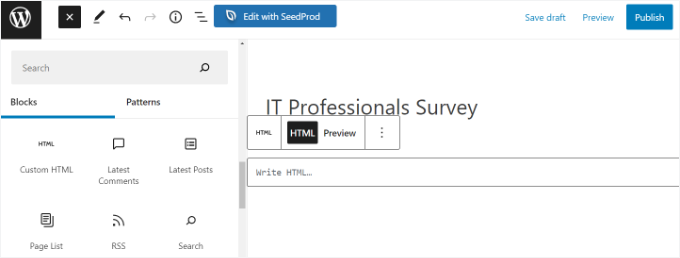
Next, you can simply paste the HTML code in the Custom HTML block to put the Google Form on the website.
There is also an option to preview your Google Form in the content editor. Simply click on it to preview your Google Form in the content editor.
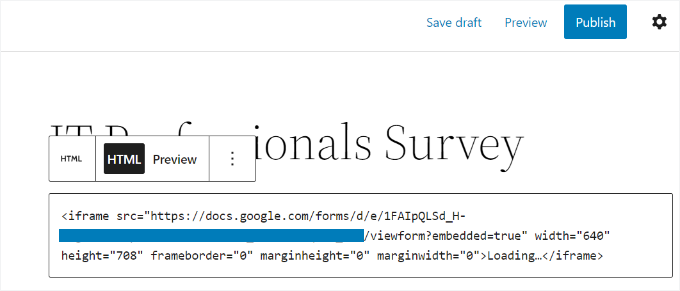
When you’re ready, go ahead and click ‘Publish’ to save your changes. For more details, you can see our guide on how to embed forms in WordPress.
Now, you can visit your website to see the Google Form embedded and ready for your site visitors to fill out.

One thing to keep in mind is that your embedded Google Form might not perfectly match your website’s fonts and colors. For full design control, a WordPress form plugin is often the best choice.
Alternative: Use WPForms to Create Your WordPress Forms 🌟
If you’re looking for a powerful alternative to Google Forms, WPForms is our top pick. It’s the best and most versatile online form builder for WordPress.
At WPBeginner, we use WPForms ourselves to create our contact form — and for good reason. It’s packed with smart features that help you build any kind of form without writing a single line of code.
See our complete WPForms review for more insights into the plugin.

With WPForms, you can easily build:
- contact forms
- online order forms
- lead magnet optin forms
- WordPress surveys
- job application forms
- conversational forms, and more.
And thanks to WPForms AI, you can just describe what you need, and the tool will create a form for you in seconds. If you don’t want to create from scratch, then you can choose from over 2,000 pre-made templates.
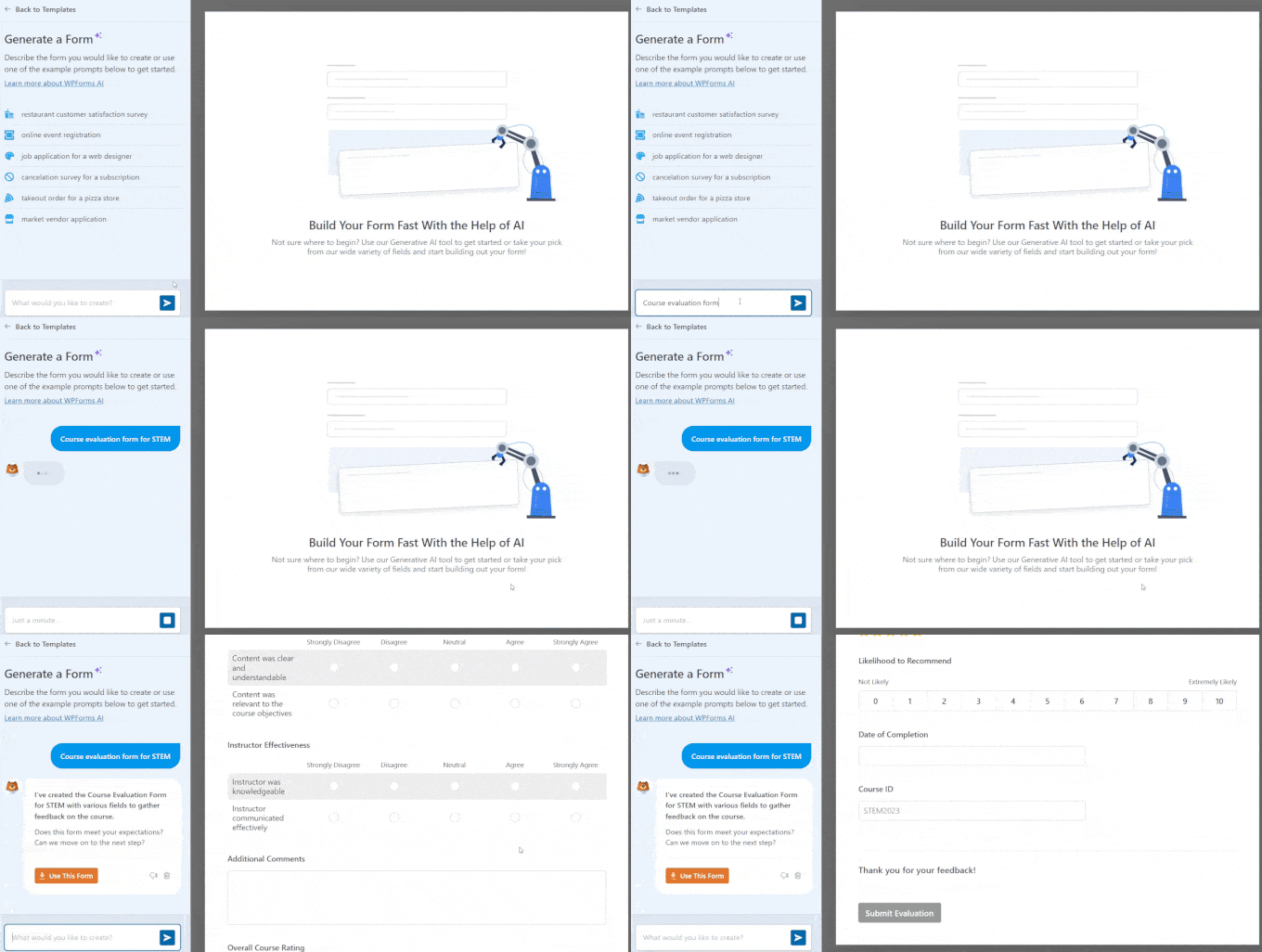
Whether you’re collecting feedback, taking orders, or growing your email list, WPForms has you covered.
If you need more advanced forms, then you can check out Formidable Forms or Gravity Forms. In fact, we have a detailed comparison article on WPForms vs Gravity Forms vs Formidable Forms – feel free to read!
FAQs: How to Embed a Google Form in WordPress
If you still have questions about embedding Google Forms in WordPress, here are some of the common ones answered to help you get started:
Can I embed a Google Form in a website?
Yes, you can easily add a Google Form to your WordPress website. Google gives you a bit of code (called an “embed code”) you can copy and paste right into your site. That way, visitors can fill out your form without ever leaving your page.
Can I embed a Google Form in WordPress without a plugin?
Absolutely! The method we showed in this guide doesn’t require any plugins. Just copy the embed code from Google Forms, then add a ‘Custom HTML’ block to your page or post in the WordPress editor. Paste the code into the block, and your form will appear on your site.
What’s the difference between an iframe and an embed?
An “iframe” is a way to show another page within your own page – it’s kind of like a window to another site. The term “embed” just means you’re adding outside content (like an online form or a video) to your site. Embedding often uses iframes to make that happen.
Video Tutorial: How to Embed a Google Form in WordPress
Prefer a video guide? Don’t miss our YouTube tutorial on how to embed a Google Form in WordPress:
Further Reading for Using Forms and Google Products in WordPress
We hope this article helped you learn how to easily embed Google Forms in WordPress posts and pages.
Next, you may also want to see our other guides on:
- How to Upload Files From WordPress Forms to Google Drive
- How to Add Google Calendar Events From a WordPress Contact Form
- How to Add Autocomplete for Address Fields in WordPress
- How to Track and Reduce Form Abandonment in WordPress
If you liked this article, then please subscribe to our YouTube Channel for WordPress video tutorials. You can also find us on Twitter and Facebook.



Dennis Muthomi
is there a way to customize the look of the embedded form, like changing the background color or font, so it blends in better with my website’s design? I’d love to make the form match my site’s branding.
WPBeginner Support
The customization options would be found in the Google form’s settings when creating it
Admin
Hoangdacviet
I want to insert a form but customize the form and delete the last line “Google Form”, is it possible?
WPBeginner Support
You would need to have a paid plan for removing the branding and some form customizations at the moment.
Admin
Will
I’m trying to embed a google form into my wordpress site. but im having issues with the height. ive tried multiple things to change the height but nothing seems to work.
It also seems to only be an issue with google forms ( i haven’t tried and other google product) but its try to embed a random page and adjust the dimensions it works just fine.
Any advice will be great!!
John S
I have a long Google Form and would like to have the ability for people to save the form as they go, and be able to return to it. Will this plugin allow you to do that?
Thanks,
Karida
It just keeps saying “loading” on my wordpress…what to do?
Ande Anderson
After creating a Google Form and clicking on the “Send” button all I get is an email to send to someone saying “I’ve invited you to fill out a form:”. There is no URL for the form to put into my wordpress website.
Ankur Mittal
Hey google form is embedded on my website properly but its not responsive in mobile
Dan
Hi,
I loose my WordPress access, I tried several times the recovery process, but I wasn’t be able to recover my Admin ID and password to be able to administrate my WP website.
What do you suggest to me in order to fix this issue?
Thanks in advance.
Dan
Shari
Very Helpful, thank you.
Deepak
Hi
I wnt devlope my own online application and put it on google play .can you help/guide how can i do tha
Anne
Can I change the height and width of the form before copying the embed code?
WPBeginner Support
Hi Anne,
Yes, you can do that.
Admin
Artem Russakovskii
Problem is you won’t be able to set the height to auto.