


Keeping your WordPress site looking the way it should can feel stressful. A small update or quick CSS tweak can quietly break a layout, and you often won’t notice until a visitor points it out.
The hard part is that checking every page by hand just isn’t practical. It takes too much time, and it’s easy to miss small changes. 🤦
And while “visual regression testing” sounds technical, you don’t need developer tools to use it. It’s a straightforward way to save hours of manual checking and avoid embarrassing layout issues.
After testing different tools and methods, I’ve found a reliable option that doesn’t require any coding or technical expertise. In this guide, I’ll show you how to run visual regression tests on your WordPress site in just a few simple steps.
What Is Visual Regression Testing?
Visual regression testing is a way to check whether your site’s design changes unexpectedly after an update. It works by comparing before-and-after snapshots of your pages to spot anything that looks different.
Any time you update WordPress core, install a plugin, change a theme, or tweak code, there’s a chance something on the front end might shift out of place — a missing button, a broken layout, or an image that suddenly stops loading.
The problem? These visual bugs often go unnoticed until a visitor points them out through a contact form or design feedback survey. By then, the damage to your site’s user experience might already be done.
That’s why running visual regression tests is so helpful.
The process is simple: take snapshots of your pages before and after an update, then compare them to spot anything that’s changed.
And if you’re testing on a staging site (which I recommend), you can safely make updates and run comparisons to catch visual issues before anything goes live.
You also don’t have to run these comparisons manually.
With visual regression testing tools like VRTs, Percy, or BackstopJS, you can automate screenshot comparisons and check how your site looks across different screen sizes — helping you catch layout issues on desktop, tablet, and mobile.
Why is Visual Regression Testing Important for WordPress users?
If you’re managing a WordPress website, visual regression testing is a time-saving safety net. Instead of clicking through every page after an update, this tool gives you a visual report of what changed – and whether it’s something you need to fix.
It’s especially helpful in many scenarios, such as agencies running updates across multiple WordPress sites, freelancers managing client websites, or online store owners who want to make sure the product and checkout pages stay intact.
In short, visual regression testing helps you avoid frustrating surprises, save time, and keep your WordPress site running smoothly.
With that said, I’ll show you how to easily do visual regression testing in WordPress. Here’s a quick overview of the steps we’ll cover:
- Step 1: Install and Activate the Visual Regression Testing Plugin
- Step 2: Configure the VRTs Plugin Settings
- Step 3: Add New Pages or Posts to Test
- Step 4: Check for Visual Differences
- Step 5: Review and Take Action
- FAQ: How to Run Visual Regression Testing in WordPress
- Next Steps: Improve Your WordPress Site Design
🧑💻 Pro Tip: Before running visual regression tests or making design changes, I highly recommend using a staging site.
A staging site is a private clone of your live website where you can safely test updates, plugin changes, or design tweaks — without affecting your users. It helps you catch layout issues, missing buttons, or visual bugs before they go live.
Not sure how to set one up? Just see our step-by-step guide on creating a WordPress staging site for all the details.
Step 1: Install and Activate the Visual Regression Testing Plugin
In this tutorial, I’ll use the VRTs plugin because it’s beginner-friendly and easy to use for visual regression testing. Whether it’s a shifted layout, a missing button, or a broken element after an update, VRTs helps you spot it early.
Here’s how it works: The plugin takes screenshots of the pages you select. You can then trigger comparisons manually or schedule them to run automatically after making changes to your site, such as updating a plugin or tweaking your theme.
The plugin then compares the ‘before’ and ‘after’ screenshots side-by-side and highlights any visual differences.
So, instead of manually checking every page, you get a quick visual report showing what changed, and whether anything looks off.
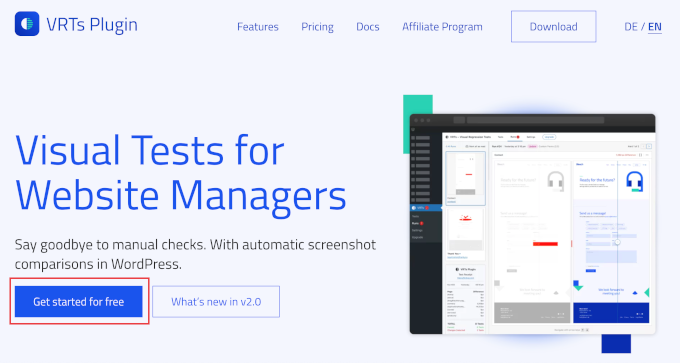
To install the plugin, you first need to visit the VRTs website and sign up for a plan by clicking on the ‘Get started for free’ button.
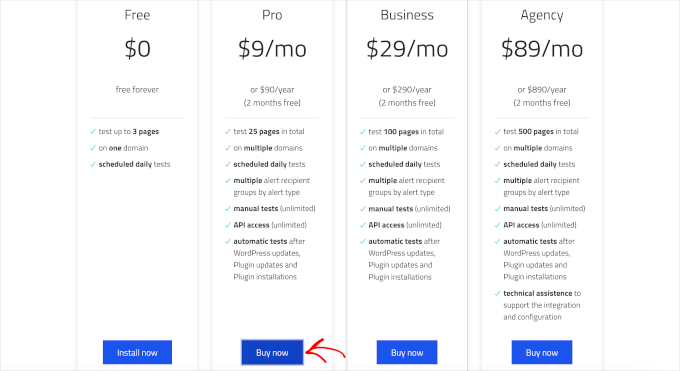
You can then choose one of the plans.
The free plan allows you to test up to 3 pages per day on one domain and schedule daily tests. Paid plans allow you to test more pages, run manual tests, and automatically run visual regression tests after WordPress core, plugin, and theme updates.
Simply click on ‘Buy now’ or ‘Install now’ underneath the plan you want to use.
Then, follow the instructions to sign up for an account on the VRTs website and add your payment details.
Once you’ve completed signup, you’ll land on your VRTs dashboard, where you can download the plugin as a .zip file.
Then, simply head to the Plugins » Add Plugin page and click on the ‘Upload Plugin’ button. From here, you can choose the VRTs plugin .zip file that you just downloaded.
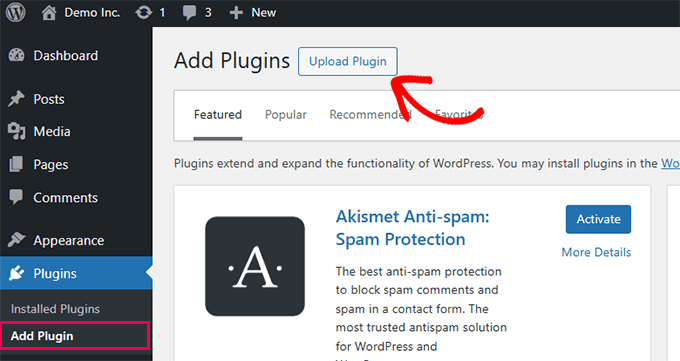
Make sure to activate the plugin once it has been installed. For full details, you can see our guide on how to install a WordPress plugin.
Step 2: Configure the VRTs Plugin Settings
Once you’ve activated the plugin, it’s time to decide when your visual regression tests should run.
Head over to VRTs » Settings in your WordPress admin menu.
Inside the settings page, scroll down to the ‘Triggers’ section. This is where you tell the plugin when to automatically take and compare snapshots.
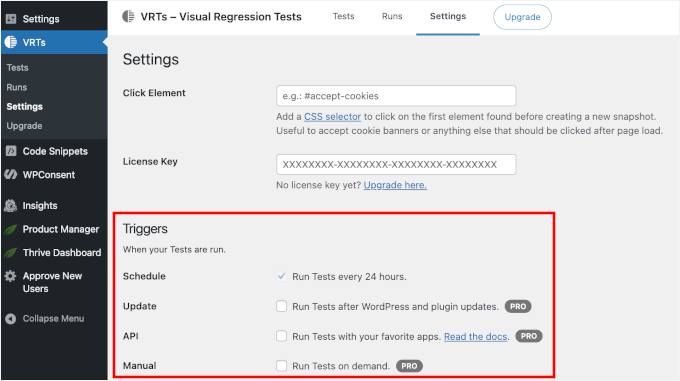
Here are the available options:
- Run Tests every 24 hours (Free) – This is the default setting. VRTs will automatically check your selected posts or pages once per day for visual changes.
- Run Tests after WordPress and plugin updates (Pro) – Great for catching layout issues caused by updates, right when they happen.
- Run Tests with your favorite apps (Pro) – Connect VRTs with external tools or workflows using webhooks.
- Run Tests on demand (Pro) – Manually trigger tests whenever you need them, directly from your WordPress dashboard.
Once you’ve selected the trigger that fits your workflow (or your license), simply click the ‘Save Changes’ button at the bottom of the page.
Step 3: Add New Pages or Posts to Test
Once you’ve configured the plugin settings, it’s time to choose which pages or posts you’d like to include in your visual regression tests.
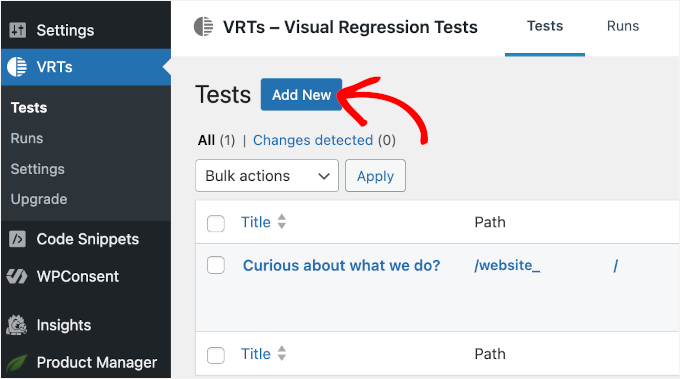
Let’s switch to the ‘Tests’ tab, where you’ll manage and run your visual tests. From here, you can click the ‘Add New’ button. This will let you choose posts or pages to test.
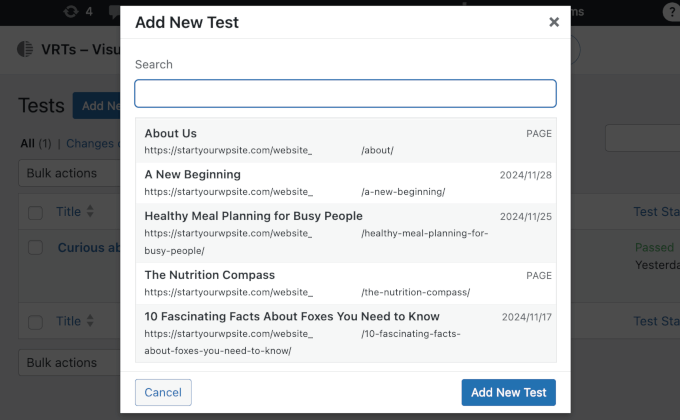
In the popup that appears, choose the posts or pages you want to include in your visual regression testing.
Then, click ‘Add New Test’ to confirm your selections.
The VRTs plugin will take an initial snapshot of each selected page. This acts as your baseline — basically a “before” version of how your posts or pages look right now.
After setting up your test, you’ll see an instruction to refresh the page to load the initial snapshot. Go ahead and refresh.
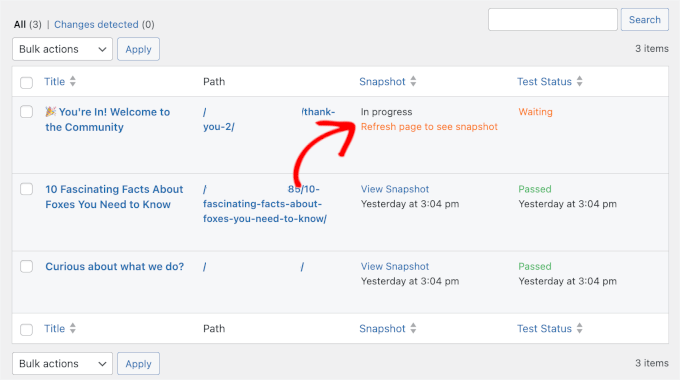
After refreshing, you’ll see a link to the snapshot for the page or post you added for testing.
You will also see that the ‘Test Status’ is automatically set to ‘Scheduled’ for the next day. This is because the free version of VRTs runs tests on a 24-hour schedule.
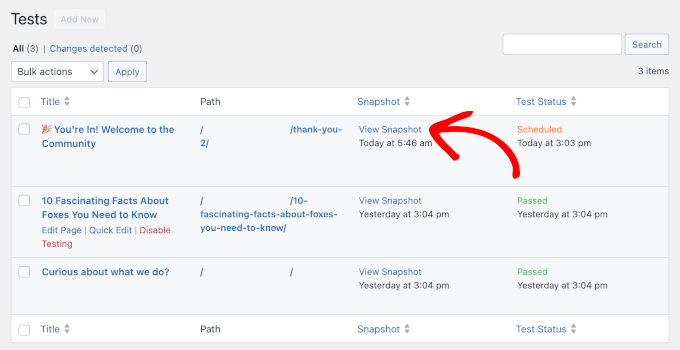
You can click the ‘View Snapshot’ link to check the initial screenshot.
It will open in a new tab like this:
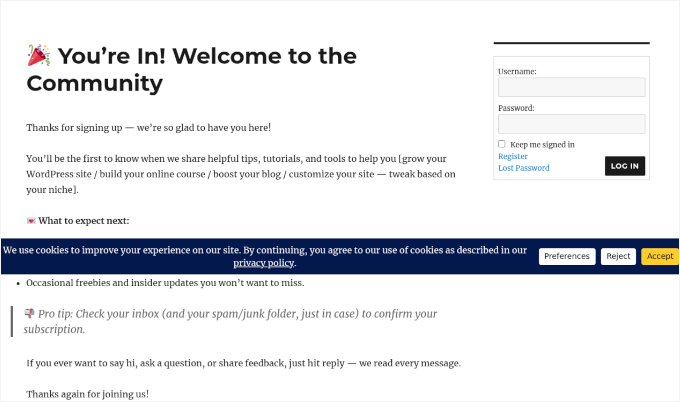
If you are using the free version, your test is now scheduled for the next day. You can go ahead and work on your site, and check back in 24 hours to see the comparison report.
But if you have the Pro version, you can run a test immediately to spot issues right away.
Step 4: Check for Visual Differences
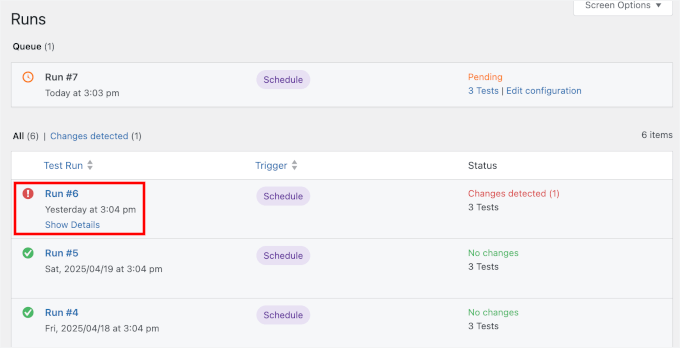
Once the test is complete and visual changes are detected, you’ll see a notification in the VRTs » Runs tab.
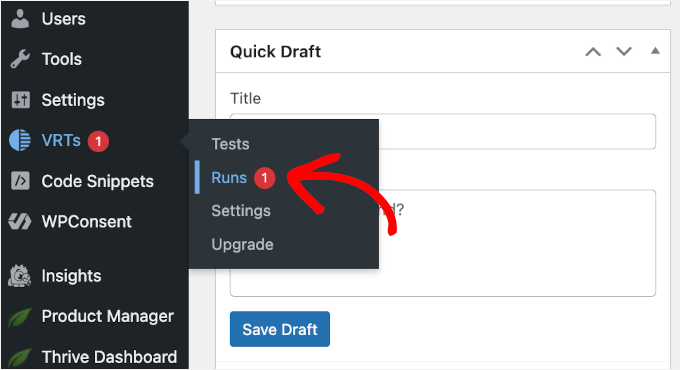
On the Runs screen, you can hover over the run with detected changes.
Then, click the ‘Show Details’ link when it appears.
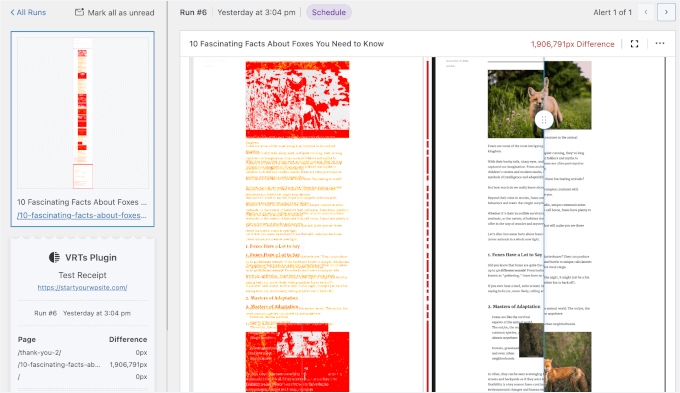
On the next screen, you’ll see a side-by-side comparison of your page, showing the before and after versions.
The plugin automatically highlights visual differences, so you can quickly spot issues like:
- Layout Shifts and Misaligned Elements: If your design changes after a plugin update or theme change, like buttons moving out of place or text jumping around, VRTs will flag it.
- Missing or Broken Elements: Whether it’s a missing image, CTA button, or embedded form, VRTs make it easy to spot anything that disappears unexpectedly.
- Dynamic Content (False Positives): Sometimes, the tool might flag a change that isn’t an error. This often happens with image sliders, ads, or rotating testimonials that change every time the page loads.
- Unexpected Content Changes: The plugin will also alert you to changes in text, links, or images, so you can catch unauthorized edits or publishing errors before users do.
You can use the drag handle in the center of the screen to slide between the old and new versions and visually confirm the exact changes.
Step 5: Review and Take Action
After running a visual regression test, take action based on the results. Here’s what you can do next:
- Manually edit the page: If the changes are small, you can fix the issues directly by editing the page, such as adjusting the layout, moving elements, or adding back missing features.
- Revert to a backup: If the changes are bigger or harder to fix, you can restore the page to a previous version using your website backup or version history. This helps avoid leaving issues on your site.
✋ Note: If you need a backup tool recommendation, Duplicator is an excellent choice. It’s easy to use and lets you clone your WordPress site in just a few clicks.
Some of our business websites use Duplicator for backups and site migrations, and I highly recommend checking it out. Read our full Duplicator review to learn more about the plugin.
That said, do note that if you fix an issue but the test still shows the error, make sure to clear your WordPress cache so the tool sees the latest version of your site.
FAQ: How to Run Visual Regression Testing in WordPress
If you’re just getting started with visual regression testing, you’re not alone. Here are some quick answers to common questions from WordPress users and developers.
What is the difference between snapshot testing and visual regression testing?
Snapshot testing is a developer term that usually refers to checking if the underlying code output matches a previous record. Visual regression testing checks how your site looks to the human eye by comparing screenshots to catch layout or design changes.
What is the best tool for visual regression testing in WordPress?
The easiest option is the VRTs – Visual Regression Tests plugin. It’s beginner-friendly, runs inside your dashboard, and doesn’t require any coding. The free version works well for most users.
How can I do regression testing manually?
Manual testing means clicking through your important pages after an update to make sure everything still looks right. You’ll want to check pages like your homepage, contact page, blog posts, and any custom layouts or checkout steps. It works, but it can take a lot of time.
How do you speed up regression testing?
Automate it. A plugin like VRTs – Visual Regression Tests can capture screenshots of your key pages and compare them for you, so you don’t have to check everything by hand.
Using a staging site also helps you catch issues before updating your live site.
What are the best ways to test WordPress website design?
A visual regression tool is one of the easiest ways to spot layout changes after an update. It also helps to preview updates on a staging site before going live.
Be sure to check how your pages look on desktop, tablet, and mobile. Browser dev tools make it easy to test different screen sizes quickly. And finally, getting feedback from real users or clients can help you catch details you might miss.
Next Steps: Improve Your WordPress Site Design
I hope this article has helped you learn how to do visual regression testing in WordPress. If you want to keep improving your site, you might also like:
- Beginner’s Guide on How to Redesign a WordPress Website
- Key Design Elements for an Effective WordPress Website
- How to Get Website Design Feedback in WordPress
- How to Improve User Experience in WordPress
- User Experience Feedback Questions to Ask Website Visitors
If you liked this article, then please subscribe to our YouTube Channel for WordPress video tutorials. You can also find us on Twitter and Facebook.



Have a question or suggestion? Please leave a comment to start the discussion.