


Browser tab notifications are one of those simple but effective features that quietly keep visitors engaged and encourage them to come back.
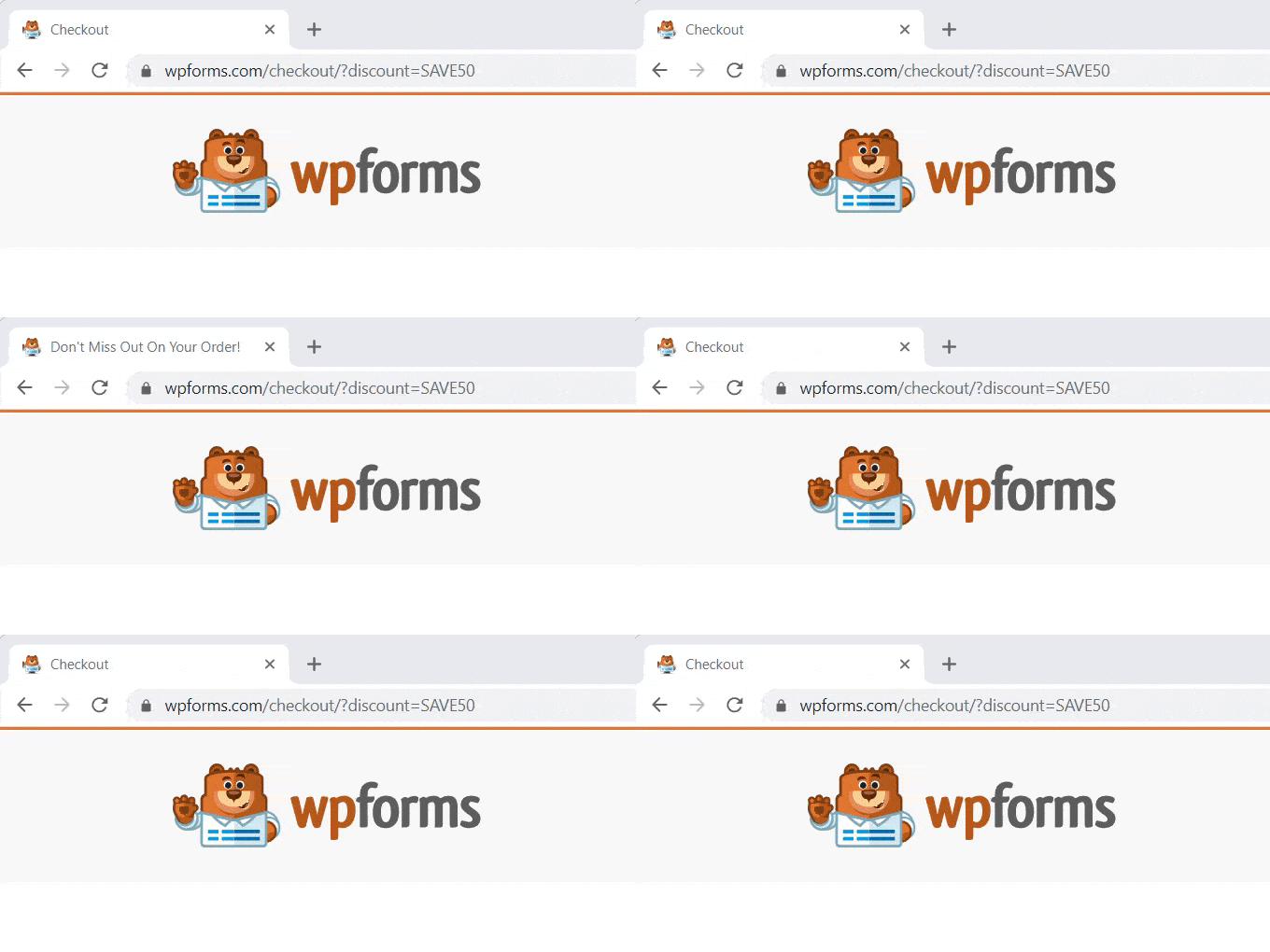
For example, WPForms uses this to gently remind users to return and complete their purchase when they switch tabs. It’s subtle, non-intrusive, and can boost conversion rates across your site.
In this guide, we’ll show you how to easily add these attention-grabbing tab notifications to your WordPress site. 🙌
Once you try it, you’ll see why it’s such a useful tool for keeping visitors focused and coming back.
💡Quick Answer: How to Add Browser Tab Notifications
The safest way to add browser tab notifications is by using the WPCode plugin. It allows you to insert custom JavaScript without editing theme files.
This guide covers three specific types:
- Type 1 (Notification Count): Displays a dynamic number in the tab title (e.g., “(1) New Message”) to simulate activity.
- Type 2 (Favicon Alert): Swaps your site icon for a different image to grab visual attention when the user tabs away.
- Type 3 (Custom Message): Changes the page title to a text phrase like “Don’t forget to check out!” to lure visitors back.
What is a Browser Tab Notification?
A browser tab notification is a message that appears in the tab for your website when one of our visitors is looking at a different site in their browser.
By adding a browser tab notification feature on your WordPress website, you can grab the user’s attention the moment they open another tab to leave your page.
For instance, you can change the favicon of your website, animate it, write a custom message, or just flash the tab.
If you have an online store, browser tab notifications can really help you out. These notifications will bring back distracted customers, lower cart abandonment rates, and increase customer engagement.
Using this feature, you can alert your customers about cart abandonment or even offer a discount if they return their attention to your site.
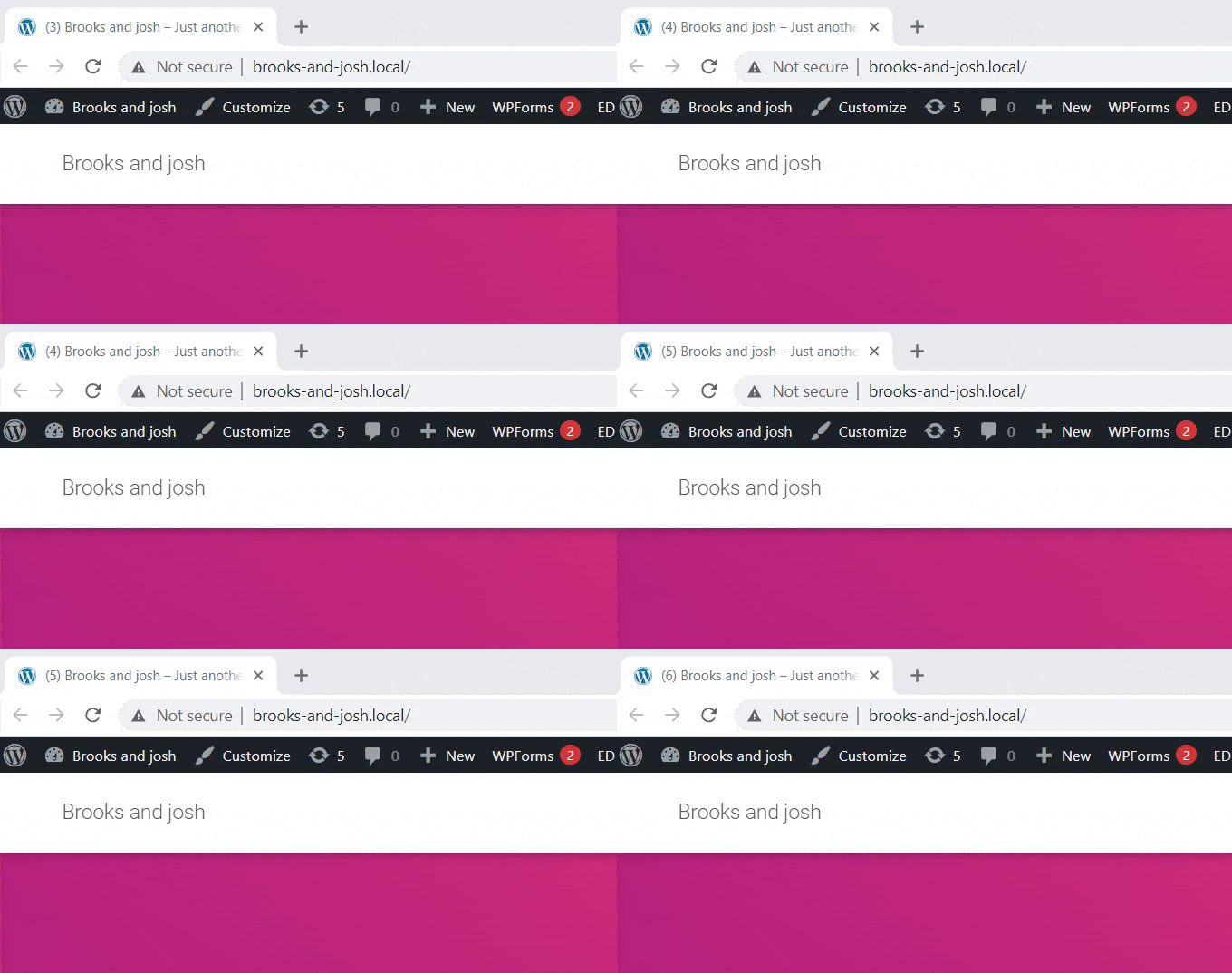
Here is an example of a browser tab notification.
That being said, we will show you how to easily add different types of browser tab notifications in WordPress.
You can use the links below to jump to the method of your choice:
- Install WPCode to Add Browser Tab Notifications
- Type 1: Showing New Updates as a Browser Tab Notification
- Type 2: Changing Favicons as a Browser Tab Notification
- Type 3: Changing Site Title as a Browser Tab Notification
- Bonus: Add Web Push Notifications to Your WordPress Site
- Frequently Asked Questions About Adding Browser Tab Notifications
Install WPCode to Add Browser Tab Notifications
You can easily add browser tab notifications on your site by adding custom code in WordPress. Usually, you have to edit your theme’s functions.php file, but even a small error can break your website.
That’s why we recommend using WPCode, which is the best WordPress code snippets plugin on the market.
We have found it to be the safest and easiest way to add custom code to your site. For details, see our WPCode review.
First, you need to install and activate the WPCode plugin. For more details, you can see our step-by-step guide on how to install a WordPress plugin.
🚨Note: WPCode also has a free version that you can use for this tutorial. However, upgrading to the paid plan will give you access to more features.
Upon activation, visit the Code Snippets » + Add Snippet page from your WordPress admin sidebar.
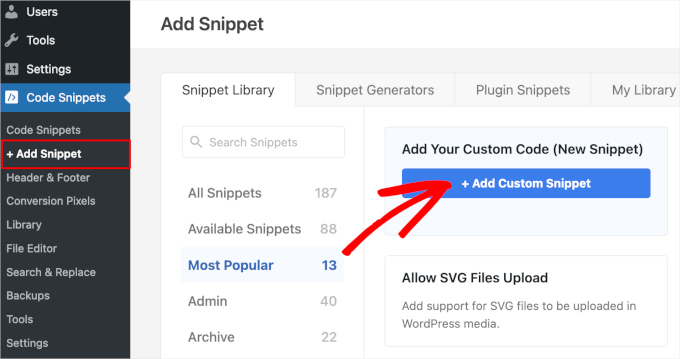
Now, hover your mouse over the ‘Add Your Custom Code (New Snippet)’ option and click on the ‘+ Add Custom Snippet’ button under it.
Then select the code type from the list of options on the screen.
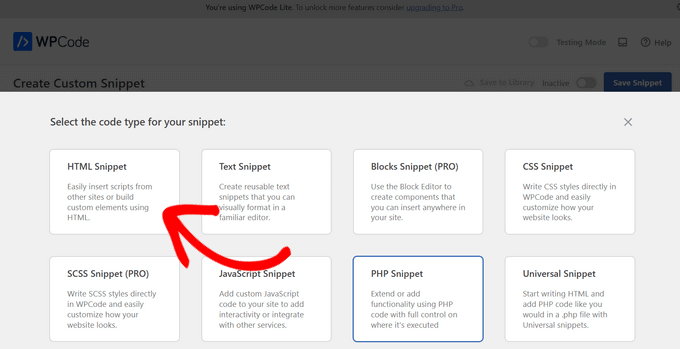
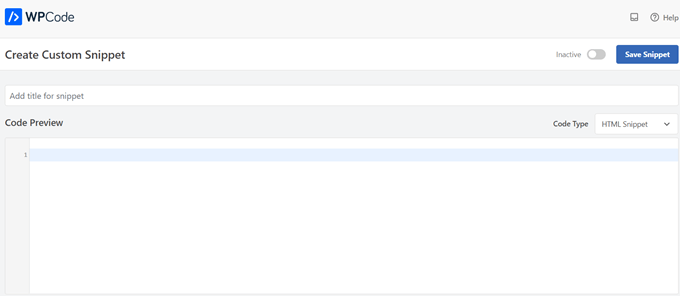
After that, you’ll be taken to the ‘Create Custom Snippet’ page.
No matter which type of browser tab notification you use, you will enter the code here.
Type 1: Showing New Updates as a Browser Tab Notification
This method is great if you want to grab user attention by simulating activity on your site. A number will appear in the tab title, making it appear as if a new message or update is waiting for the user.
For example, sites like Facebook and LinkedIn use this to show unread notifications. You can use this psychological trigger to encourage users to switch back to your tab to see what they are missing.
Once you’re on the ‘Create Custom Snippet’ page, you need to name your snippet. You can choose anything that helps you identify the code.
Next, select ‘JavaScript Snippet’ as the ‘Code Type’ from the menu.

Then, all you have to do is copy and paste the following code snippet into the ‘Code Preview’ box:
let count = 0;
const title = document.title;
function changeTitle() {
    count++;
    var newTitle = '(' + count + ') ' + title;
    document.title = newTitle;
}
function newUpdate() {
    const update = setInterval(changeTitle, 2000);
}
document.addEventListener('DOMContentLoaded', newUpdate );
This code tells the browser to start counting when the user switches to a different tab. As soon as they return to your site, the title resets to normal.
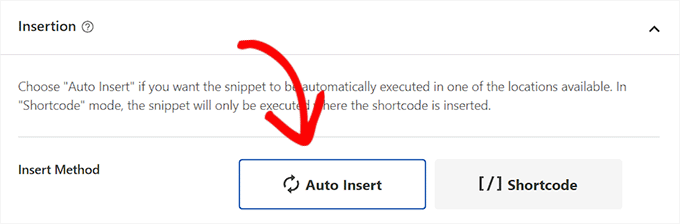
Once you have done that, scroll down to the ‘Insertion’ section. Simply choose the ‘Auto Insert’ option, and leave the location as ‘Site Wide Header’.
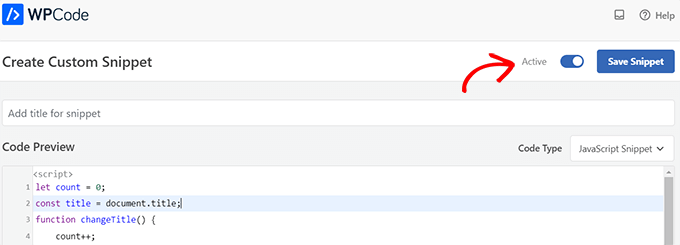
After that, scroll back to the top of the page and toggle the ‘Inactive’ switch to ‘Active’.
Finally, click the ‘Save Snippet’ button to store your settings.
With that finished, your custom code snippet will be added to your site and start working.
Type 2: Changing Favicons as a Browser Tab Notification
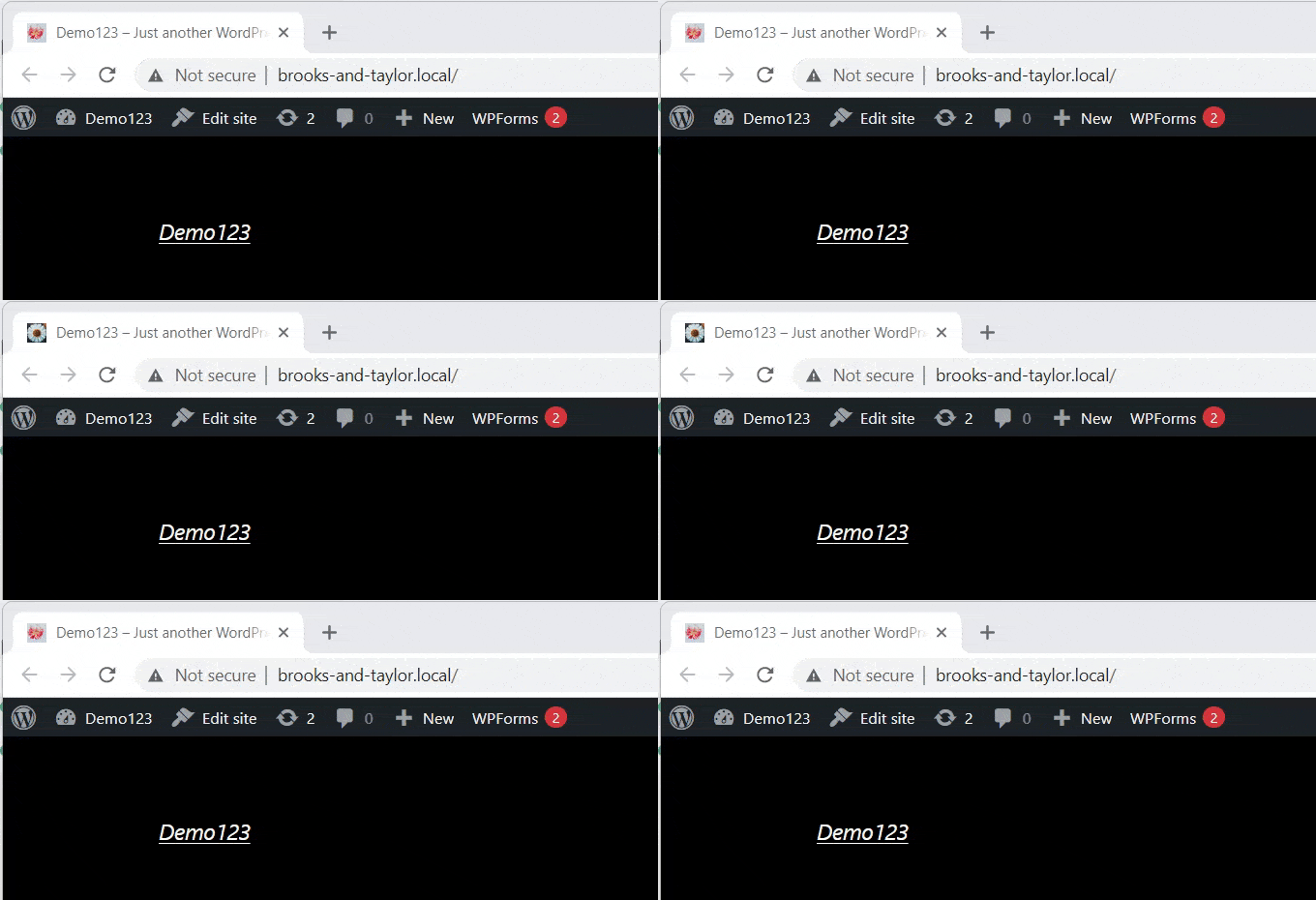
With this method, you will display a different favicon in the browser tab when users navigate to another tab. This is a subtle way to remind them that your site is still open.
To do this, we will use a JavaScript snippet that swaps the image when the user leaves the page.
First, visit the Code Snippets » + Add Snippet page and click ‘+ Add Custom Snippet’.
On the creation page, select ‘JavaScript Snippet’ as the ‘Code Type’ from the menu.
Once you’ve done that, copy and paste the following code into the ‘Code Preview’ box:
<link id="favicon" rel="icon" href="https://example.com/wp-content/uploads/2022/10/favicon.png"/>

<script>var iconNew = 'https://example.com/wp-content/uploads/2022/10/favicon-notification.png';

function changeFavicon() {
    document.getElementById('favicon').href = iconNew;
}
function faviconUpdate() {
    const update = setInterval(changeFavicon, 3000);
    setTimeout(function() {
        clearInterval( update );
    }, 3100);
}
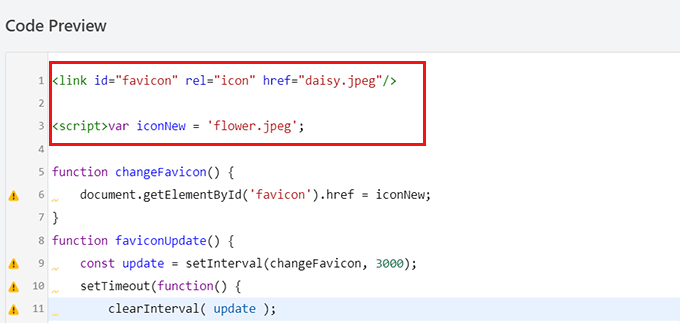
After pasting the code, you need to replace the URL in the Favicon line with the link to your own notification image.
Simply upload your new favicon to the WordPress media library and copy the file name (in my example, it’s daisy.jpeg). Then, paste it inside the quotes in the code.
Once you have done that, scroll down to the ‘Insertion’ section.
You can choose the ‘Auto Insert’ option if you want to automatically embed the code on every page.
To change the favicon on only specific pages, select the ‘Shortcode’ option and paste it into any shortcode-enabled area, such as sidebar widgets or at the bottom of the content editor.
Next, go to the top of the page and toggle the switch from ‘Inactive’ to ‘Active’ in the top right corner, and then click the ‘Save Snippet’ button.
After that, your favicon will start changing as a browser tab notification.
Type 3: Changing Site Title as a Browser Tab Notification
This method is for you if you want to change the site title to recapture your visitors’ attention.
By using this code snippet, your site title will change to show an eye-catching message when users switch to another tab in the browser.
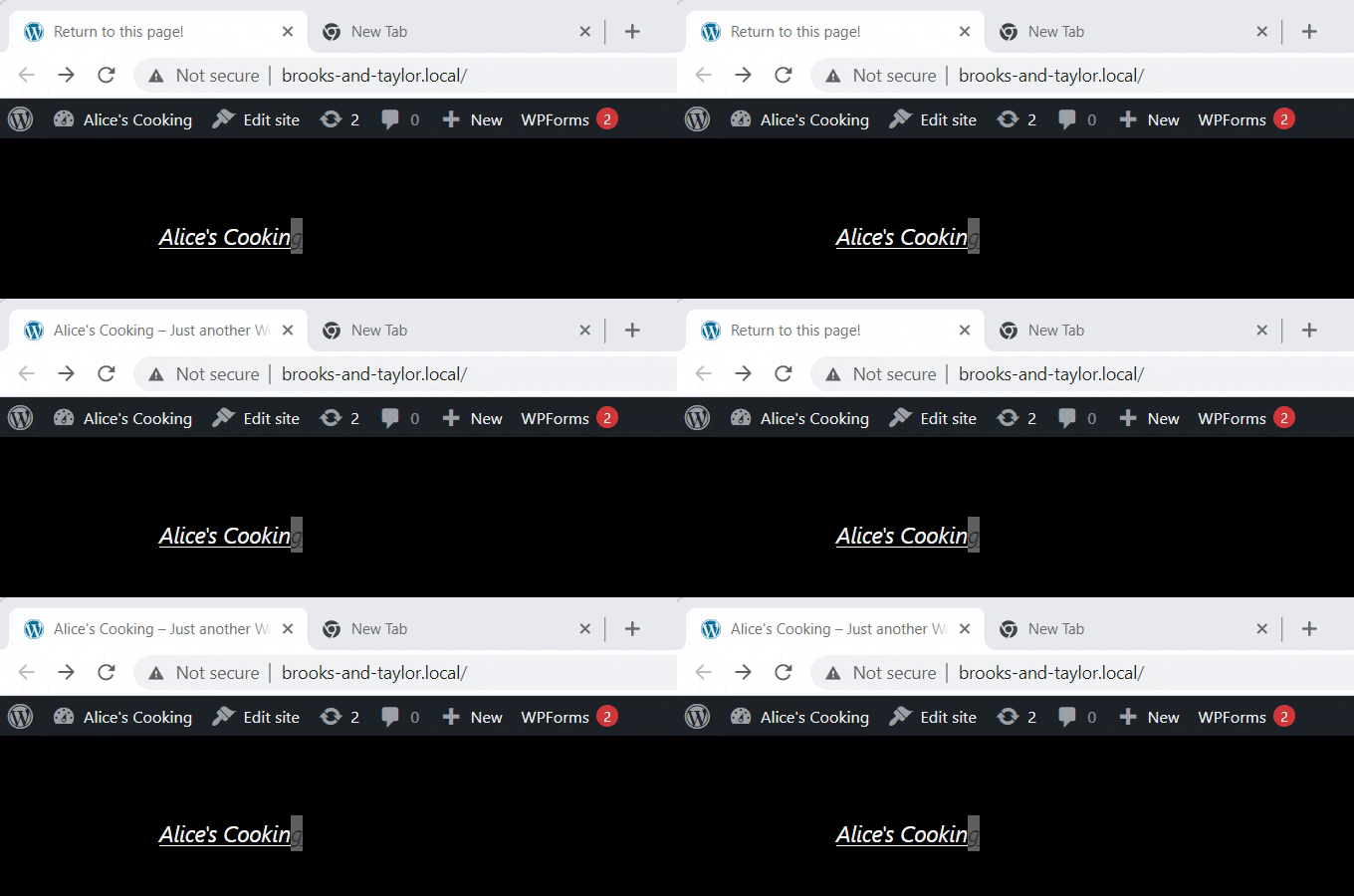
We will use the WPCode plugin to change your site title to a browser tab notification.
To get to the ‘Create Custom Snippet’ page, visit the Code Snippets » + Add Snippet page from the admin sidebar.
Here, click ‘+ Add Custom Snippet’ under the ‘Add Your Custom Code (New Snippet)’ option.
Next, you need to select ‘JavaScript Snippet’ as the code type from the list of options that pop up on screen.
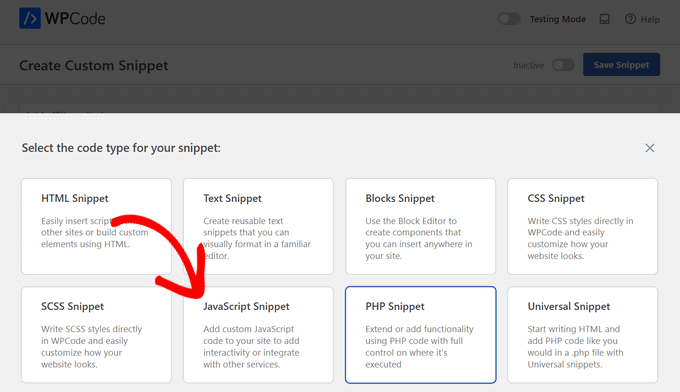
Now that you are on the ‘Create Custom Snippet’ page, start by entering a title for your code snippet.
This can be anything to help you remember what the code is for.
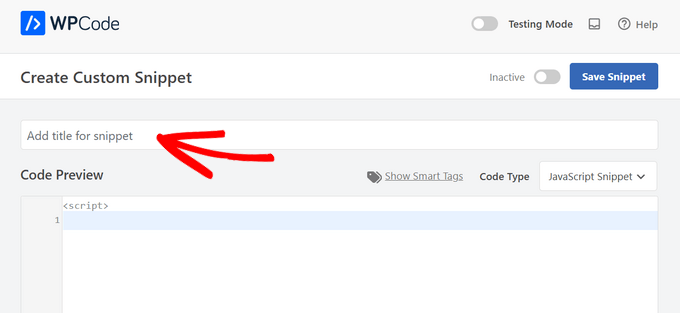
Then, all you have to do is copy and paste the following code snippet into the ‘Code Preview’ box:
function changeTitleOnBlur() {
	var timer     = null;
	var	title     = document.title;
	var altTitle  = 'Return to this page!';
	window.onblur = function() {
		timer = window.setInterval( function() {
			document.title = altTitle === document.title ? title : altTitle;
		}, 1500 );
	}
	window.onfocus = function() {
		document.title = title;
		clearInterval(timer);
	}
}

changeTitleOnBlur();
Once you’ve pasted the code, you can edit it and simply write whatever message you want to display on your browser tab in the code.
To write your desired message, simply go to the var altTitle = 'Return to this page!'; line and remove the placeholder text with the message for your browser tab notification.
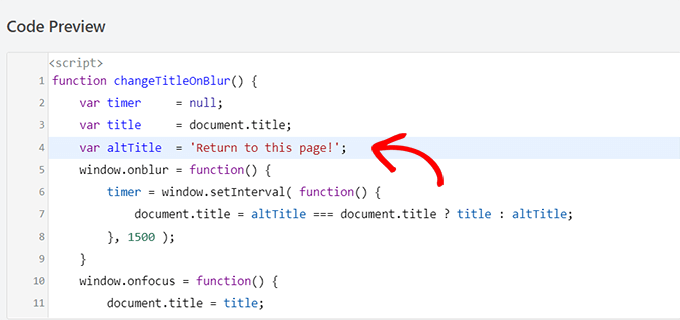
Next, scroll down to the ‘Insertion’ section and choose the ‘Auto Insert’ mode to activate your browser tab notification on every page.
However, if you only want your eye-catching message on specific pages, you can choose the ‘Shortcode’ option.
For example, you might only want to add this code to the ‘Add to Cart’ page to reduce cart abandonment on your website.
If that is the case, you can choose the Shortcode option.
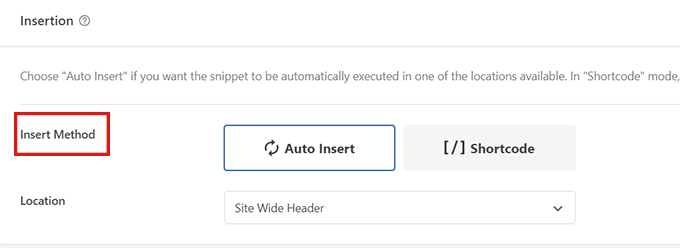
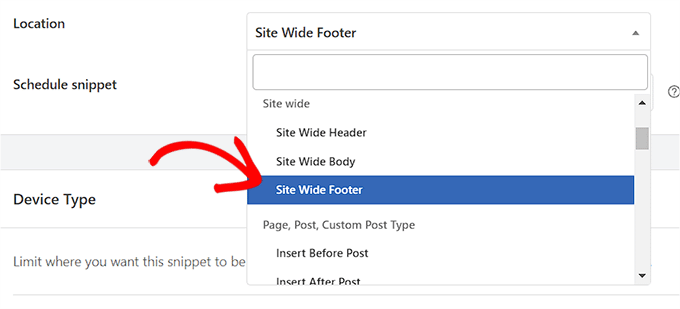
After that, scroll down to the ‘Location’ option and click on the dropdown menu next to it.
From here, select the ‘Site Wide Footer’ option.
Finally, scroll back to the top of the page and toggle the switch from ‘Inactive’ to ‘Active’.
Then, click the ‘Save Snippet’ button to store your settings.
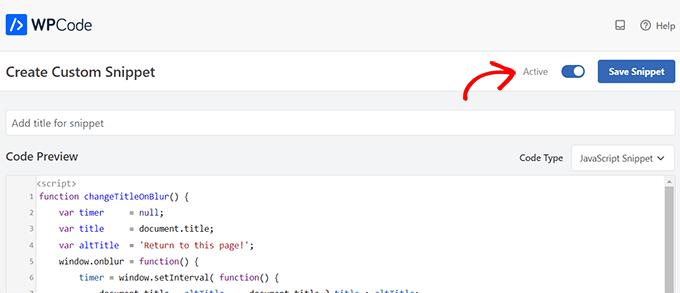
That’s it! Now, your browser tab notification will alert users who leave your site.
Bonus: Add Web Push Notifications to Your WordPress Site
Browser tab notifications are effective, but they have one major limitation. They only work if the user keeps your tab open.
If you want to reach visitors even after they close your website, you need web push notifications. Unlike tab alerts, these are active messages sent directly to the user’s device or browser.
The easiest way to set this up is with PushEngage. It is the best push notification software on the market.
PushEngage lets you send automatic updates for new blog posts, price drops, or abandoned carts. We use it here at WPBeginner to notify our subscribers about new tutorials, and it is a top source of return traffic for us.
To learn more about it, see our full PushEngage review.
It includes powerful features like A/B testing, auto push, user segmentation, and smart opt-in reminders. These tools help you build a loyal audience that keeps coming back.
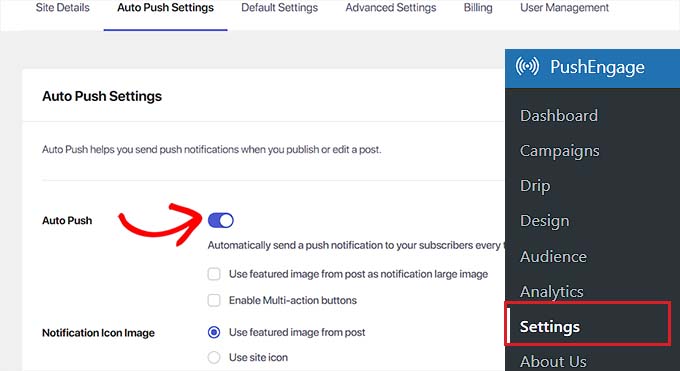
For more details, see our beginner’s guide on how to add web push notifications in WordPress.
Frequently Asked Questions About Adding Browser Tab Notifications
Here are some questions that our readers frequently ask related to adding browser tab notifications in WordPress:
How do I add an announcement bar in WordPress?
The easiest way to add an announcement bar is by using a plugin like OptinMonster. It lets you create sticky bars that sit at the top or bottom of your site to display updates, sales, or alerts without writing any code.
For more information, see our tutorial on creating an alert bar in WordPress.
How do I add notifications in WordPress?
To add on-site notifications, you can use a plugin like PushEngage or WPCode.
PushEngage handles active web push notifications sent to browsers, while WPCode lets you add custom scripts for passive tab title alerts, like the ones in this guide.
How to enable web browser notifications?
You must sign up for a web push notification service like PushEngage.
Once you install their WordPress plugin, your site can automatically ask visitors for permission to send alerts to their browser/device, even when they are not currently on your website.
How do I add a notice in WordPress?
You can add a simple notice inside a post using the default Group block with a background color in the WordPress editor.
For site-wide notices that appear on every page, we recommend using a floating bar plugin like OptinMonster or SeedProd.
How to add a popup banner in WordPress?
The best tool for adding popup banners is OptinMonster.
It provides a drag-and-drop builder to create lightboxes, slide-ins, and floating banners that trigger based on specific user behaviors, such as time on page or exit intent.
To get started, see our tutorial on adding a popup in WordPress.
We hope this article helped you learn how to add browser tab notifications in WordPress. You may also want to see our tutorial on how to add feature boxes with icons in WordPress and check out our list of ways to add a mobile-friendly WordPress site.
If you liked this article, then please subscribe to our YouTube Channel for WordPress video tutorials. You can also find us on Twitter and Facebook.



Dennis Muthomi
I’ve implemented the favicon change method for several e-commerce clients, and it’s been particularly effective when combined with cart abandonment messages.
One tip I’d add is to A/B test different notification messages and timing intervals. We saw a 15% reduction in cart abandonment rates after testing and optimizing the timing to trigger at 45 seconds instead of the default 30. The WPCode implementation makes it easy to adjust these parameters for different client needs.
Jiří Vaněk
I noticed how well this works in apps like Messenger, where the browser tab shows a new message from someone you’re chatting with. From my experience, it works great. It’s really useful to know how to implement something similar in WordPress because it grabs attention and can significantly increase the time a user spends on the site. And the implementation in WordPress, according to this guide, isn’t complicated at all.
Carole
Is it possible to make the alternate tabs have a longer time between changes? I think that constant flashing would get annoying and people might just close out the tab.
WPBeginner Support
Yes, it would depend on the methods you were using, you would change the numbers that are in the thousands for the code snippets as those determine how many milliseconds to wait for the code.
Admin